2016 HYUNDAI TUCSON bluetooth
[x] Cancel search: bluetoothPage 16 of 642
F16F16
Multimedia System.................................................4-2
AUX, USB and iPod®
Port ...............................................4-2
Antenna ...............................................................................4-2
Steering Wheel Audio Control........................................4-3
Audio / Video / Navigation System (AVN) ..................4-4
Bluetooth® Wireless Technology Hands-Free ...........4-4
How Vehicle Audio Works ...............................................4-5
Features of Your Vehicle.................................................4-7
Caring for Disc ...................................................................4-8
System Controllers and Functions ..........4-18, 4-71
Audio Head Unit ...................................................4-18, 4-71
Steering-Wheel Mounted Controls .................4-20, 4-73
Radio Mode ...........................................................4-22, 4-75 SiriusXM Radio Mode / XM TM
Radio
Mode .......................................................................4-26, 4-77
Media Mode ..........................................................4-28, 4-79
Audio CD Mode.....................................................4-29, 4-80
MP3 CD Mode .......................................................4-31, 4-82
USB Mode ..............................................................4-34, 4-85
iPod ®
Mode ...........................................................4-37, 4-88
AUX Mode..............................................................4-39, 4-90
MY Music Mode ...................................................4-40, 4-91
Bluetooth® Wireless Technology
Audio Mode ...........................................................4-43, 4-94
Voice Recognition ..............................................4-58, 4-109
Setup .....................................................................4-64, 4-116
Rear View Camera .............................................4-69, 4-1214Multimedia system
Page 26 of 642
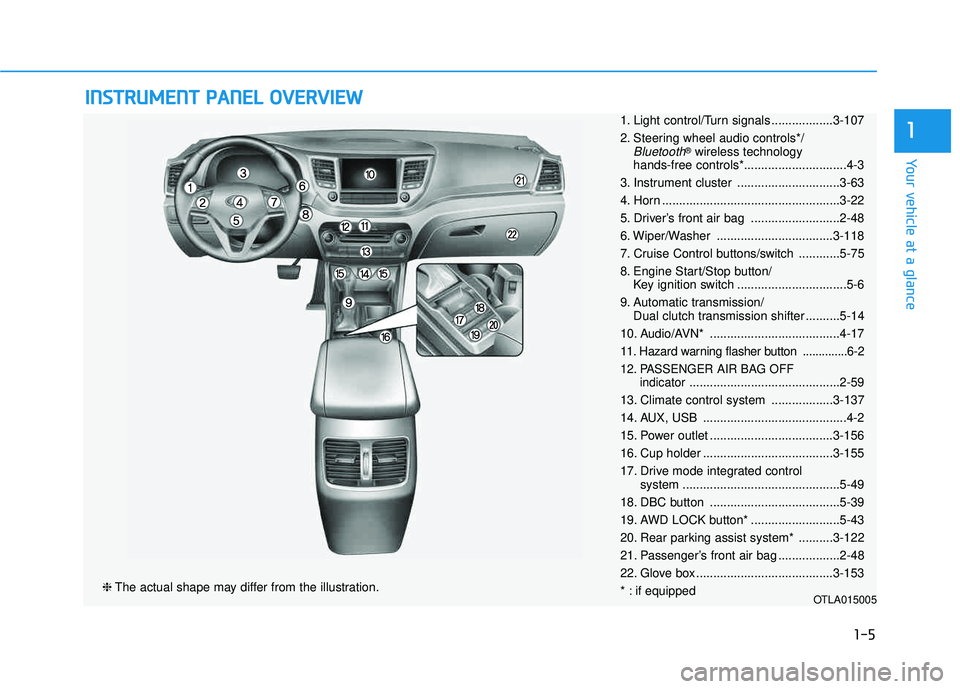
IINN SSTT RR UU MM EENN TT PP AA NN EELL OO VVEERR VV IIEE WW
❈ The actual shape may differ from the illustration.
1-5
Your vehicle at a glance
11. Light control/Turn signals ..................3-107
2. Steering wheel audio controls*/
Bluetooth®
wireless technology
hands-free controls*..............................4-3
3. Instrument cluster ..............................3-63
4. Horn ....................................................3-22
5. Driver’s front air bag ..........................2-48
6. Wiper/Washer ..................................3-118
7. Cruise Control buttons/switch ............5-75
8. Engine Start/Stop button/ Key ignition switch ................................5-6
9. Automatic transmission/ Dual clutch transmission shifter ..........5-14
10. Audio/AVN* ......................................4-17
11. Hazard warning flasher button ..............6-2
12. PASSENGER AIR BAG OFF indicator............................................2-59
13. Climate control system ..................3-137
14. AUX, USB ..........................................4-2
15. Power outlet ....................................3-156
16. Cup holder ......................................3-155
17. Drive mode integrated control system ..............................................5-49
18. DBC button ......................................5-39
19. AWD LOCK button* ..........................5-43
20. Rear parking assist system* ..........3-122
21. Passenger’s front air bag ..................2-48
22. Glove box ........................................3-153
* : if equipped
OTLA015005
Page 264 of 642
Multimedia System
Multimedia System.................................................4-2
AUX, USB and iPod®
Port ...............................................4-2
Antenna ...............................................................................4-2
Steering Wheel Audio Control........................................4-3
Audio / Video / Navigation System (AVN) ..................4-4
Bluetooth® Wireless Technology Hands-Free ...........4-4
How Vehicle Audio Works ...............................................4-5
Features of Your Vehicle.................................................4-7
Caring for Disc ...................................................................4-8
System Controllers and Functions ..........4-18, 4-71
Audio Head Unit ...................................................4-18, 4-71
Steering-Wheel Mounted Controls .................4-20, 4-73
Radio Mode ...........................................................4-22, 4-75 SiriusXM Radio Mode / XM TM
Radio
Mode .......................................................................4-26, 4-77
Media Mode ..........................................................4-28, 4-79
Audio CD Mode.....................................................4-29, 4-80
MP3 CD Mode .......................................................4-31, 4-82
USB Mode ..............................................................4-34, 4-85
iPod ®
Mode ...........................................................4-37, 4-88
AUX Mode..............................................................4-39, 4-90
MY Music Mode ...................................................4-40, 4-91
Bluetooth® Wireless Technology
Audio Mode ...........................................................4-43, 4-94 Voice Recognition ..............................................4-58, 4-109
Setup .....................................................................4-64, 4-116
Rear View Camera .............................................4-69, 4-121
4
Page 267 of 642
4-4
Audio / Video / Navigation
System (AVN)
Detailed information for the AVN sys-
tem is described in a separately sup-
plied manual.
Bluetooth®Wireless
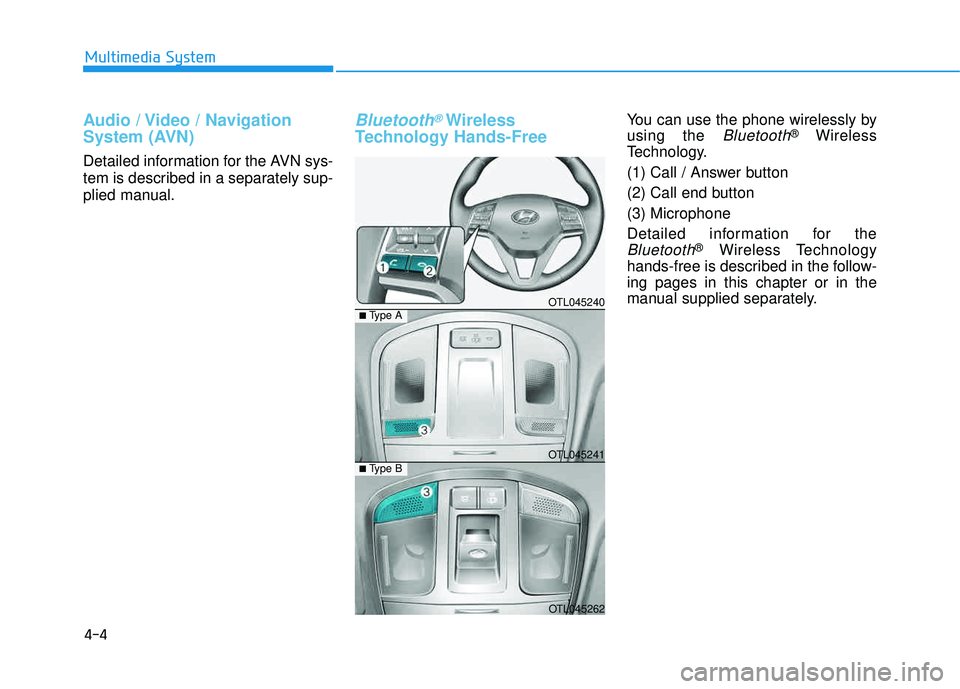
Technology Hands-FreeYou can use the phone wirelessly by using the
Bluetooth®Wireless
Technology.
(1) Call / Answer button
(2) Call end button (3) Microphone
Detailed information for the
Bluetooth®Wireless Technology
hands-free is described in the follow- ing pages in this chapter or in the
manual supplied separately.
Multimedia System
OTL045240
OTL045241
OTL045262
■ Type B
■Type A
Page 277 of 642
4-14
Multimedia System
(Continued)
If your iPhone
®is connected to both
the Bluetooth®Wireless Technology
and USB, the sound may not be
properly played. In your iPhone
®,
select the Dock c onnector or
Bluetooth
®Wireless Technology to
change the sound output (source).
iPod mode cannot be operated when the iPod
®cannot be recognized due
to versions that do not support com-
munication protocols.
For fifth generation iPod
®Nano
devices, the iPod®may not be recog-
nized when the battery level is low.
Please charge the iPod
®for use.
Search/play orders shown within the iPod
®device may differ with the
orders shown within the audio sys-
tem.
If the iPod
®malfunctions due to an
iPod®device defect, reset the iPod®
and try again. (To learn more, refer to
your iPod®manual)
(Continued) (Continued)
Some iPod
®s may not sync with the
System depending on its version. If
the Media is removed before the
Media is recognized, then the sys-
tem may not properly restore the
previously operated mode. (iPad
®
charging is not supported.)
Information - Using the AUX
device
If an external device connector is connected with the AUX terminal,
then AUX mode will automatically
operate. Once the connector is dis-
connected, the previous mode will
be restored.
AUX mode can be used only when an external audio player (cam-
corder, in-car DVD player, etc.) has
been connected.
The AUX volume can be controlled separately from other audio modes.
Connecting a connector jack to the AUX terminal without an external
device will convert the system to
AUX mode, but only output noise.
When an external device is not
being used, also remove the connec-
tor jack.
When the external device power is connected to the power jack, play-
ing the external device may output
noise. In such cases, disconnect the
power connection before use.
Fully insert the AUX cable to the AUX jack upon use.i
Page 278 of 642
4-15
Multimedia System
4
Information - Before using
the Bluetooth®handsfree
What is Bluetooth®?
Bluetooth®refers to a short-dis-
tance wireless networking technolo-
gy which uses a 2.4GHz ~ 2.48GHz
frequency to connect various
devices within a certain distance.
Supported within PCs, external devices, Bluetooth
®phones, PDAs,
various electronic devices, and auto-
motive environments, Bluetooth
®
allows data to be transmitted at high
speeds without having to use a con-
nector cable.
Bluetooth
®Handsfree refers to a
device which allows the user to con-
veniently make phone calls with
Bluetooth
®mobile phones through
the audio system.
Bluetooth
®Handsfree may not be sup-
ported in some mobile phones. To learn
more about mobile device compatibility,
visit www
. hyundaiusa.com.
Information - Precautions for
safe driving
Bluetooth
®Handsfree is a feature
that enables drivers to practice safe
driving. Connecting the head unit
with a Bluetooth
®phone allows the
user to conveniently make and
receive calls and use contacts.
Before using Bluetooth
®, carefully
read the contents of this user’s man-
ual.
Excessive use or operations while driving may lead to negligent driv-
ing practices and result in accidents.
Refrain from excessive operations
while driving.
Viewing the screen for prolonged periods of time is dangerous and
may lead to accidents. When driv-
ing, view the screen only for short
periods of time.
Information - When connect-
ing a Bluetooth ®
phone
Before connecting the head unit with the mobile phone, check to see
that the mobile phone supports
Bluetooth
®features.
Even if the phone supports Bluetooth
®, the phone will not be
found during device searches if the
phone has been set to hidden state
or the Bluetooth
®power is turned
off. Disable the hidden state or turn
on the Bluetooth
®power prior to
searching/connecting with the Head
unit.
Bluetooth
®phone is automatically
connected when the ignition on.
If you do not want automatic con- nection with your Bluetooth
®
device, turn off the Bluetooth®fea-
ture within your mobile phone.
The Handsfree call volume and quality may differ depending on the
mobile phone.
(Continued)
iii
Page 279 of 642
4-16
(Continued)
Park the vehicle when connectingthe head unit with the mobile phone.
Bluetooth
®connection may become
intermittently disconnected in some
mobile phones. Follow these steps to
try again.
1. Within the mobile phone, turn the Bluetooth
®function off/on and try
again.
2. Turn the mobile phone power Off/On and try again.
3. Completely remove the mobile phone battery, reboot, and then
again.
4. Reboot the Audio System and try again.
5. Delete all paired devices, pair and try again.
Handsfree call quality and volume may differ depending on the model
of your mobile phone.
Information - Using the voicerecognition
When using the voice recognition feature, only commands listed with-
in the user's manual are supported.
Be aware that during the operation of the voice recognition system,
pressing any key other than the
key terminate voice recognition
mode.
For superior voice recognition per- formance, position the microphone
used for voice recognition above the
head of the driver’s seat and main-
tain a proper position when saying
commands.
Within the following situations, voice recognition may not function
properly due to external sound.
- When the windows and sunroof are open
- When the wind of the cooling / heating device is strong
- When entering and passing through tunnels
(Continued)(Continued)
- When driving on rugged anduneven roads
- During severe rain (heavy rains, windstorms)
Phone related voice commands can be used only when a Bluetooth
®
Wireless Technology device is con-
nected.
When making calls by stating a name, the corresponding contact
must be downloaded and stored
within the audio system.
After downloading the Bluetooth
®
Wireless Technology phone book, it
takes some times to convert the
phone book data into voice informa-
tion. During this time, voice recogni-
tion may not properly operate.
Pronounce the voice commands nat- urally and clearly as if in a normal
conversation.
i
Multimedia System
Page 280 of 642
4-17
Multimedia System
4
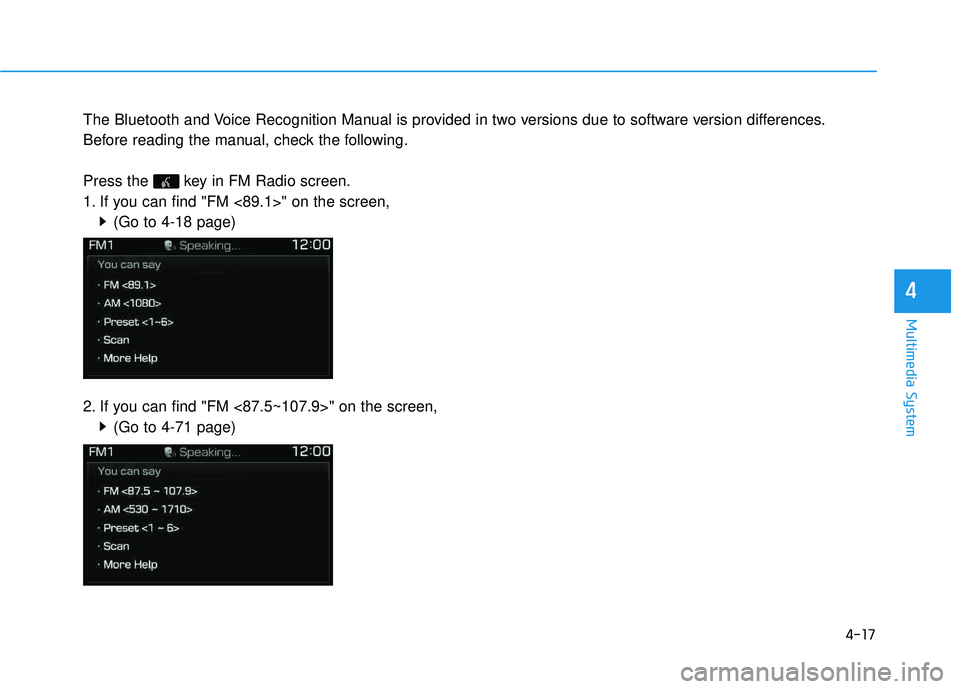
The Bluetooth and Voice Recognition Manual is provided in two versions due to software version differences.
Before reading the manual, check the following.
Press the key in FM Radio screen.
1. If you can find "FM <89.1>" on the screen,(Go to 4-18 page)
2. If you can find "FM <87.5~107.9>" on the screen, (Go to 4-71 page)