2016 HYUNDAI IX35 phone
[x] Cancel search: phonePage 270 of 550
4 185
Features of your vehicle
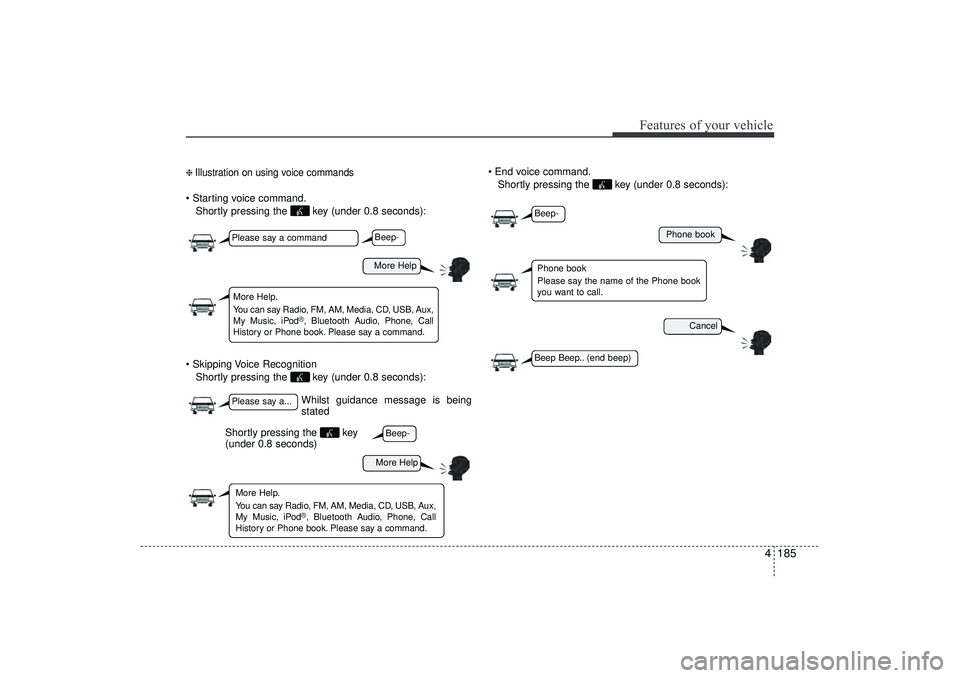
❈ Illustration on using voice commands Starting voice command.Shortly pressing the key (under 0.8 seconds):
Skipping Voice Recognition Shortly pressing the key (under 0.8 seconds): End voice command.
Shortly pressing the key (under 0.8 seconds):
Whilst guidance message is being
stated
More Help
Phone book
Cancel
More Help
Please say a commandPlease say a...More Help.
You can say Radio, FM, AM, Media, CD, USB, Aux,
My Music, iPod
®, Bluetooth A udio, Phone, Call
History or Phone book. Please say a command.
Phone book
Please say the name of the Phone book
you want to call.
More Help.
You can say Radio, FM, AM, Media, CD, USB, Aux,
My Music, iPod
®, Bluetooth A udio, Phone, Call
History or Phone book. Please say a command.
Beep-Beep-
Beep-Beep Beep.. (end beep)
Shortly pressing the key
(under 0.8 seconds)
EL(FL) UK 4B AUDIO.QXP 3/13/2015 4:19 PM Page 185
Page 271 of 550
Features of your vehicle186
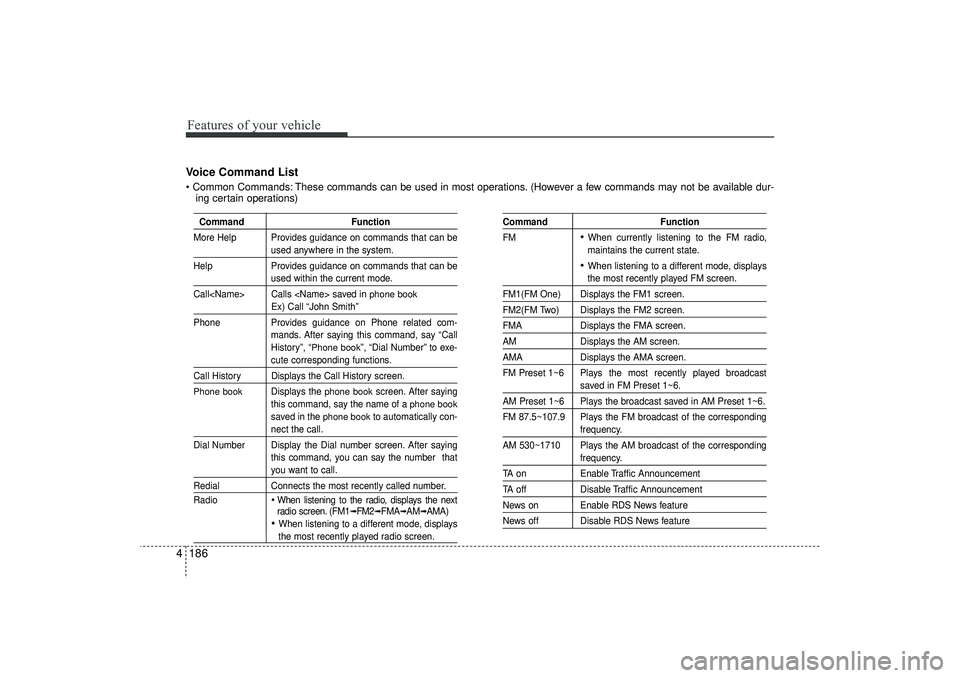
4Voice Command List Common Commands: These commands can be used in most operations. (However a few commands may not be available dur-
ing certain operations)
Command Function
More Help Provides guidance on commands that can be
used anywhere in the system.
Help Provides guidance on commands that can beused within the current mode.
Call
phone book
Ex) Call “John Smith”
Phone Provides guidance on Phone related com-
mands. After saying this command, say “Call
History”, “
Phone book
”, “Dial Number” to exe-
cute corresponding functions.
Call History Displays the Call History screen.Phone book
Displays the
phone book
screen. After saying
this command, say the name of a
phone book
saved in the
phone book
to automatically con-
nect the call.
Dial Number Display the Dial number screen. After saying this command, you can say the number thatyou want to call.
RedialConnects the most recently called number.
Radio
When listening to the radio, displays the next
radio screen. (FM1
➟FM2
➟FMA
➟AM
➟AMA)
When listening to a different mode, displaysthe most recently played radio screen.
Command Function
FM
When currently listening to the FM radio,
maintains the current state. When listening to a different mode, displaysthe most recently played FM screen.
FM1(FM One) Displays the FM1 screen.FM2(FM Two) Displays the FM2 screen.FMA Displays the FMA screen.AMDisplays the AM screen.AMADisplays the AMA screen.
FM Preset 1~6 Plays the most recently played broadcast
saved in FM Preset 1~6.
AM Preset 1~6 Plays the broadcast saved in AM Preset 1~6.
FM 87.5~107.9 Plays the FM broadcast of the corresponding
frequency.
AM 530~1710 Plays the AM broadcast of the correspondingfrequency.
TA on Enable Traffic AnnouncementTA offDisable Traffic AnnouncementNews on Enable RDS News featureNews off Disable RDS News feature
EL(FL) UK 4B AUDIO.QXP 3/13/2015 4:19 PM Page 186
Page 275 of 550
Features of your vehicle190
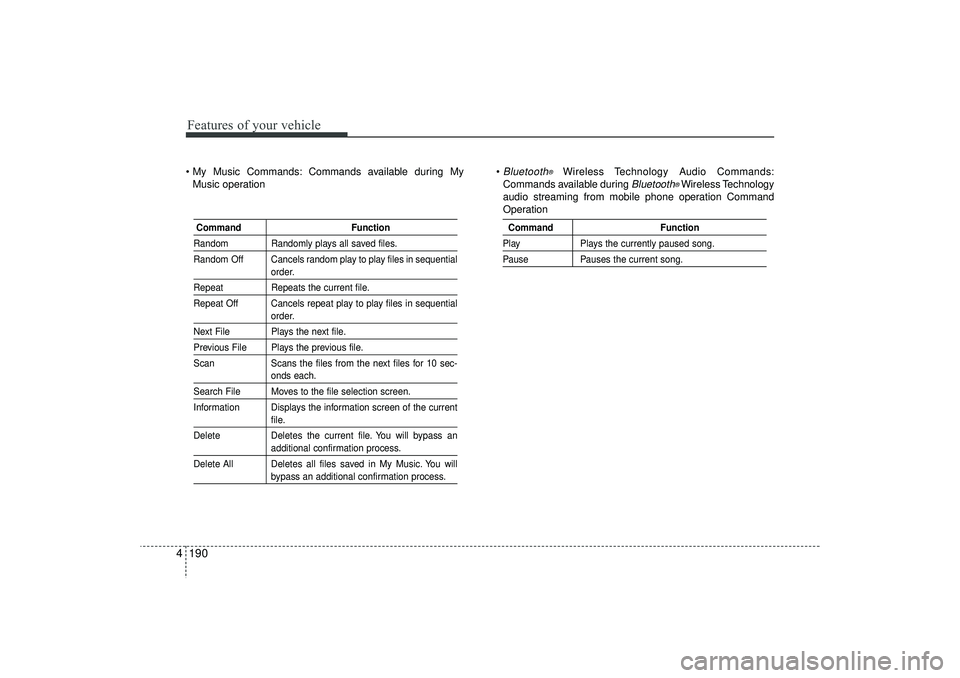
4 My Music Commands: Commands available during My
Music operation
Bluetooth
®
Wireless Technology Audio Commands:
Commands available during
Bluetooth
®Wireless Technology
audio streaming from mobile phone operation Command
Operation
Command FunctionRandom Randomly plays all saved files.
Random Off Cancels random play to play files in sequential
order.
RepeatRepeats the current file.
Repeat Off Cancels repeat play to play files in sequential
order.
Next File Plays the next file.Previous File Plays the previous file.
Scan Scans the files from the next files for 10 sec-
onds each.
Search File Moves to the file selection screen.
Information Displays the information screen of the current
file.
Delete Deletes the current file. You will bypass anadditional confirmation process.
Delete All Deletes all files saved in My Music. You willbypass an additional confirmation process.
Command FunctionPlayPlays the currently paused song.PausePauses the current song.
EL(FL) UK 4B AUDIO.QXP 3/13/2015 4:19 PM Page 190
Page 278 of 550
4 193
Features of your vehicle
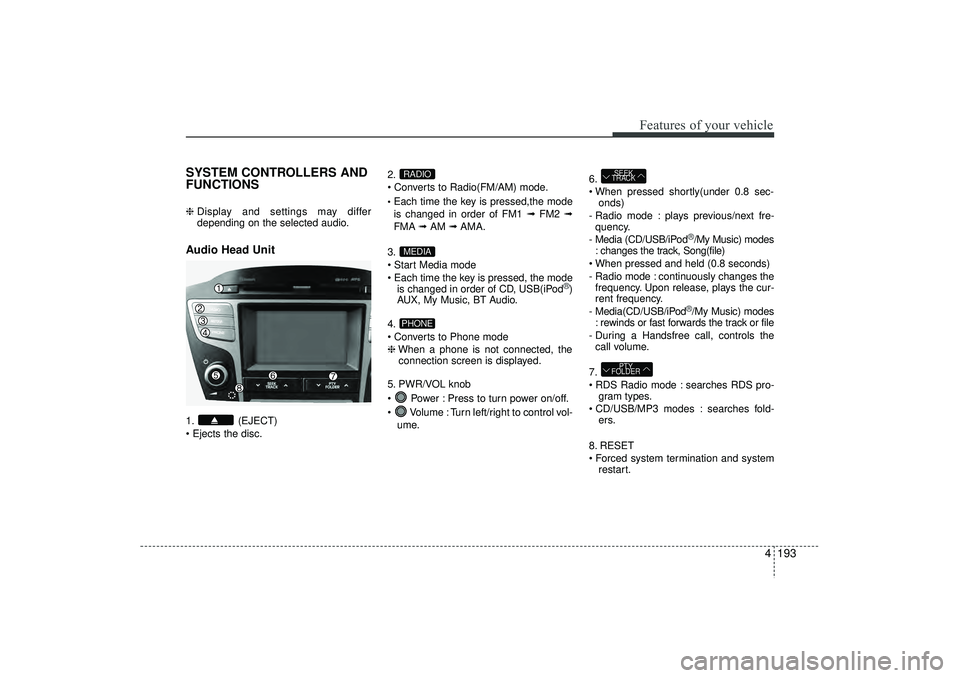
SYSTEM CONTROLLERS AND
FUNCTIONS ❈ Display and settings may differ
depending on the selected audio.Audio Head Unit 1. (EJECT)
Ejects the disc. 2.
Converts to Radio(FM/AM) mode.
Each time the key is pressed,the mode
is changed in order of FM1 ➟
FM2 ➟
FMA ➟AM ➟AMA.
3.
Start Media mode
Each time the key is pressed, the mode is changed in order of CD, USB(iPod
®)
AUX, My Music, BT Audio.
4.
Converts to Phone mode
❈ When a phone is not connected, the
connection screen is displayed.
5. PWR/VOL knob
Power : Press to turn power on/off.
Volume : Turn left/right to control vol- ume. 6.
When pressed shortly(under 0.8 sec-
onds)
- Radio mode : plays previous/next fre- quency.
- Media (CD/USB/iPod
®/My Music) modes
: changes the track, Song(file)
When pressed and held (0.8 seconds)
- Radio mode : continuously changes the frequency. Upon release, plays the cur-
rent frequency.
- Media(CD/USB/iPod®/My Music) modes
: rewinds or fast forwards the track or file
- During a Handsfree call, controls the call volume.
7.
RDS Radio mode : searches RDS pro- gram types.
CD/USB/MP3 modes : searches fold- ers.
8. RESET
Forced system termination and system restart.
PTY
FOLDERSEEK
TRACK
PHONEMEDIARADIO
EL(FL) UK 4B AUDIO.QXP 3/13/2015 4:19 PM Page 193
Page 297 of 550
Features of your vehicle212
4✽
✽
NOTICE - USING THE USB
DEVICE• Connect the USB device after turning
on the engine. The USB device may
become damaged if it is already con-
nected when the ignition is turned
on.The USB device may not operate
properly if the car ignition is turned
on or off with the USB device connect-
ed.
• Heed caution to static electricity when connecting/disconnecting USB
devices.
• Encoded MP3 Players will not be rec- ognized when connected as an exter-
nal device.
• When connecting an external USB device, the device may not properly
recognize the USB is in some states.
• Only products formatted with byte/sectors under 64Kbyte will be
recognized.
• This device recognizes USB devices formatted in FAT 12/16/32 file for-
mats. This device does not recognize
files in NTFS file format. (Continued)(Continued)
• Some USB devices may not be sup-
ported due to compatibility issues.
• Avoid contact between the USB con- nector with bodily parts or foreign
objects.
• Repeated connecting/disconnecting of USB devices within short periods of
time may result in product malfunc-
tion.
• A strange noise may occur when dis- connecting the USB.
• Make sure to connect/disconnect external USB devices with the audio
power turned off.
• The amount of time required to recog- nize the USB device may differ
depending on the type, size or file for-
mats stored in the USB. Such differ-
ences in time are not indications of
malfunctions.
• The device only supports USB devices used to play music files.
• USB images and videos are not sup- ported. (Continued)(Continued)
• Do not use the USB I/F to charge bat-
teries or USB accessories that gener-
ate heat. Such acts may lead to wors-
ened performance or damage to the
device.
• The device may not recognize the USB device if separately purchased USB
hubs and extension cables are being
used. Connect the USB directly with
the multimedia terminal of the vehi-
cle.
• When using mass storage USB devices with separate logical drives, only files
saved to the root drive can be played.
• Files may not properly operate if application programs are installed to
the USBs.
• The device may not operate normally if MP3 Players, mobile phones, digital
cameras, or other electronic devices
(USB devices not recognized as
portable disk drives) are connected
with the device. (Continued)
EL(FL) UK 4B AUDIO.QXP 3/13/2015 4:19 PM Page 212
Page 298 of 550
4 213
Features of your vehicle
(Continued)
• Charging through the USB may notwork for some mobile devices.
• The device may not support normal operation when using a USB memory
type besides (Metal Cover Type) USB
Memory.
• The device may not support normal operation when using formats such as
HDD Type, CF, or SD Memory.
• The device will not support files locked by DRM (Digital Rights
Management.)
• USB memory sticks used by connect- ing an Adaptor (SD Type or CF Type)
may not be properly recognized.
• The device may not operate properly when using USB HDDs or USBs sub-
ject to connection failures caused by
vehicle vibrations. (e.g. i-stick type) (Continued)(Continued)
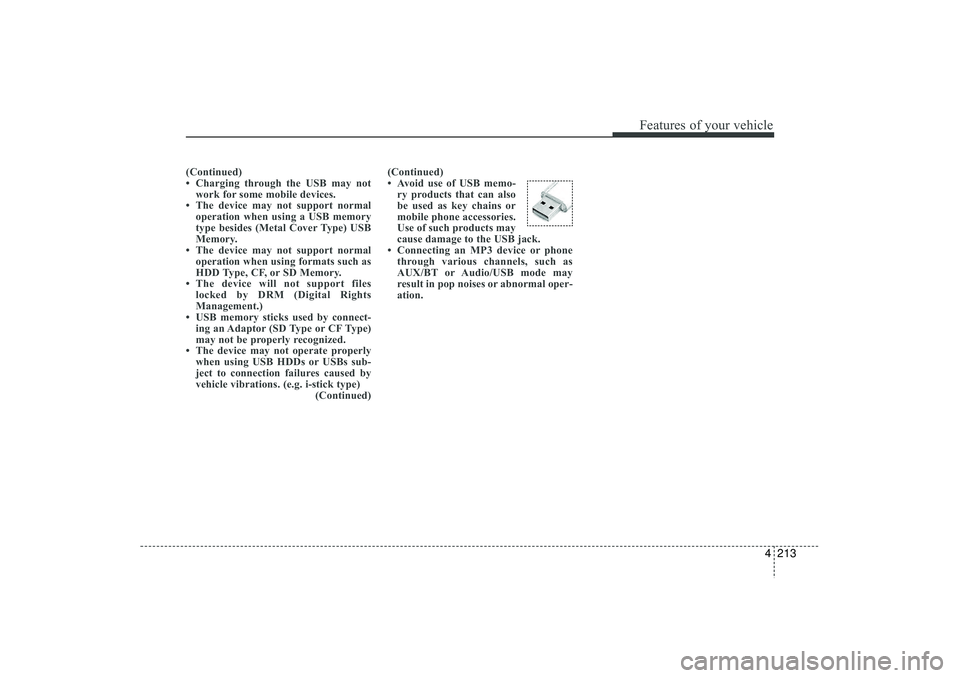
• Avoid use of USB memo-
ry products that can also
be used as key chains or
mobile phone accessories.
Use of such products may
cause damage to the USB jack.
• Connecting an MP3 device or phone through various channels, such as
AUX/BT or Audio/USB mode may
result in pop noises or abnormal oper-
ation.
EL(FL) UK 4B AUDIO.QXP 3/13/2015 4:19 PM Page 213
Page 304 of 550
4 219
Features of your vehicle
✽
✽NOTICE - USING THE iPod
®
DEVICE
• iPod
®
is a registered trademark of
Apple Inc.
• In order to use the iPod
®whilst oper-
ating the keys, you must use a dedi-
cated iPod
®cable. (the cable that is
supplied when purchasing
iPod
®/iPhone
®products)
• If the iPod
®is connected to the vehicle
whilst it is playing, a high pitch sound
could occur for approximately 1-2 sec-
onds immediately after connecting. If
possible, connect the iPod
®
to the
vehicle with the iPod
®
stopped/paused.
• During ACC ON state, connecting the iPod
®
through the iPod
®
cable will
charge the iPod
®
through the car
audio system.
• When connecting with the iPod
®
cable, make sure to fully insert the
jack to prevent communication inter-
ference. (Continued)(Continued)
• When the EQ features of an external
device, such as the iPod
®, and the audio
system are both active, EQ effects could
overlap and cause sound deterioration
and distortion. Whenever possible, turn
off the EQ feature within the external
device upon use by connecting with the
audio system.
• Noise may occur when an iPod
®
or
AUX device is connected. When such
devices are not being used, disconnect
the device for storage.
• When the iPod
®or AUX device power
is connected to the power jack, playing
the external device may result in noise.
In such cases, disconnect the power con-
nection before use.
• Skipping or improper operation may occur depending on the characteristics of
your iPod
®/iPhone
®device.
• If your iPhone is connected to both the Bluetooth
®
Wireless Technology and
USB, the sound may not be properly
played. In your
iPhone
®, select the
Dock connector or Bluetooth®Wireless
Technology to change the sound out-
put (source). (Continued)(Continued)
• iPod
®mode cannot be operated when
the iPod®cannot be recognized due to
the playing of versions that do not
support communication protocols,
cases of iPod
®abnormalities and
defects.
• For fifth generation iPod
®
Nano
devices, the iPod
®may not be recog-
nized when the battery level is low.
Please charge the iPod
®for use.
• Search/play orders shown within the iPod
®
device may differ with the
orders shown within the audio system.
• If the iPod
®malfunctions due to an
iPod
®device defect, reset the iPod
®
and try again. (To learn more, refer to
your iPod
®manual)
• Some iPod®s may not sync with the
System depending on its version. If
the Media is removed before the
Media is recognized, then the system
may not properly restore the previ-
ously operated mode. (iPad charging
is not supported.)
EL(FL) UK 4B AUDIO.QXP 3/13/2015 4:19 PM Page 219
Page 314 of 550
4 229
Features of your vehicle
✽
✽NOTICE - USING THE
Bluetooth
®Wireless
Technology Audio Mode
• Bluetooth
®Wireless Technology Audio
Mode can be used only when a
Bluetooth®Wireless Technology phone
has been connected.
• Bluetooth®Wireless Technology Audio
Mode will not be available when con-
necting mobile phones that do not
support this feature.
• Whilst Bluetooth
®
Wireless
Technology Audio is playing, if the
Bluetooth
®Wireless Technology phone
is connected, then the music will also
stop.
• Moving the Track up/down whilst playing Bluetooth
®
Wireless
Technology audio mode may result in
pop noises in some mobile phones.
• Bluetooth
®
Wireless Technology
streaming audio may not be support-
ed in some mobile phones. (Continued)(Continued)
• When returning to Bluetooth
®
Wireless Technology Audio mode
after ending a call, the mode may not
automatically restart in some mobile
phones.
• Receiving an incoming call or making an outgoing call whilst playing
Bluetooth
®Wireless Technology Audio
may result in audio interference.
EL(FL) UK 4B AUDIO.QXP 3/13/2015 4:19 PM Page 229