2016 HYUNDAI IX35 phone
[x] Cancel search: phonePage 235 of 550
Features of your vehicle150
4
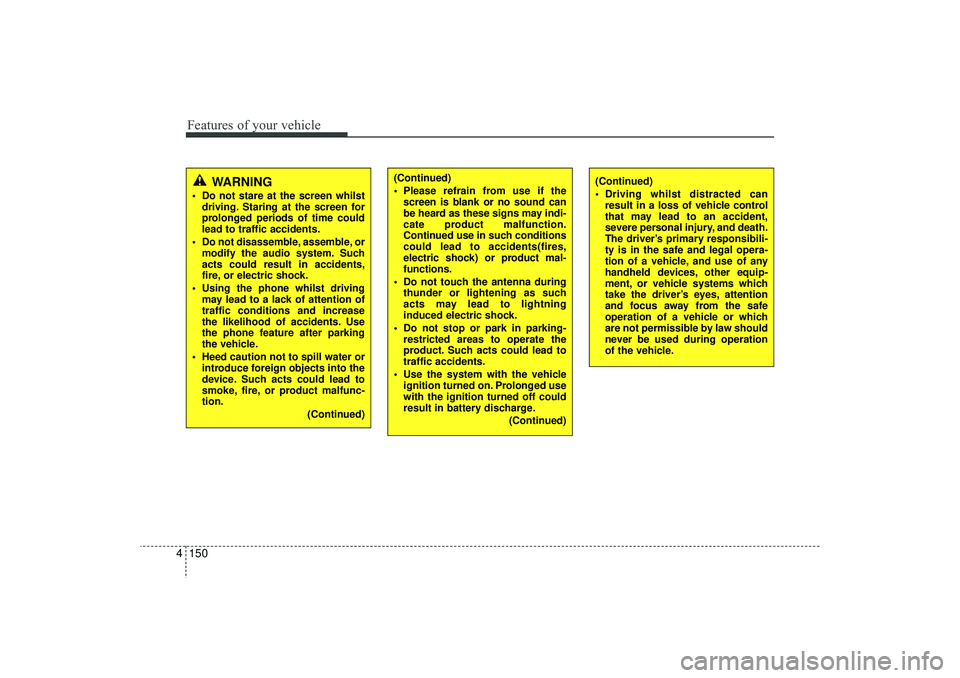
WARNING
Do not stare at the screen whilst
driving. Staring at the screen for
prolonged periods of time could
lead to traffic accidents.
Do not disassemble, assemble, or modify the audio system. Such
acts could result in accidents,
fire, or electric shock.
Using the phone whilst driving may lead to a lack of attention of
traffic conditions and increase
the likelihood of accidents. Use
the phone feature after parking
the vehicle.
Heed caution not to spill water or introduce foreign objects into the
device. Such acts could lead to
smoke, fire, or product malfunc-
tion.
(Continued)
(Continued)
Driving whilst distracted canresult in a loss of vehicle control
that may lead to an accident,
severe personal injury, and death.
The driver’s primary responsibili-
ty is in the safe and legal opera-
tion of a vehicle, and use of any
handheld devices, other equip-
ment, or vehicle systems which
take the driver’s eyes, attention
and focus away from the safe
operation of a vehicle or which
are not permissible by law should
never be used during operation
of the vehicle.
(Continued)
Please refrain from use if thescreen is blank or no sound can
be heard as these signs may indi-
cate product malfunction.
Continued use in such conditions
could lead to accidents(fires,
electric shock) or product mal-
functions.
Do not touch the antenna during thunder or lightening as such
acts may lead to lightning
induced electric shock.
Do not stop or park in parking- restricted areas to operate the
product. Such acts could lead to
traffic accidents.
Use the system with the vehicle ignition turned on. Prolonged use
with the ignition turned off could
result in battery discharge.
(Continued)
EL(FL) UK 4B AUDIO.QXP 3/13/2015 4:19 PM Page 150
Page 238 of 550
4 153
Features of your vehicle
(Continued)
• If you use devices such as a USB hubpurchased separately, the vehicle’s
audio system may not recognize the
USB device. In that case, connect the
USB device directly to the multimedia
terminal of the vehicle.
• If the USB device is divided by logical drives, only the music files on the
highest-priority drive are recognized
by car audio.
• Devices such as MP3 Player/ Mobile phone/Digital camera can be unrecog-
nizable by standard USB I/F can be
unrecognizable.
• Charging through the USB may not be supported in some mobile devices.
• USB HDD or USB types liable to con- nection failures due to vehicle vibra-
tions are not supported. (i-stick type)
• Some non-standard USB devices (METAL COVER TYPE USB) can be
unrecognizable. (Continued)(Continued)
• Some USB flash memory readers
(such as CF, SD, micro SD, etc.) or
external-HDD type devices can be
unrecognizable.
• Music files protected by DRM (DIGI- TAL RIGHTS MANAGEMENT) are
not recognizable.
• The data in the USB memory may be lost whilst using this audio. Always
back up important data on a personal
storage device.
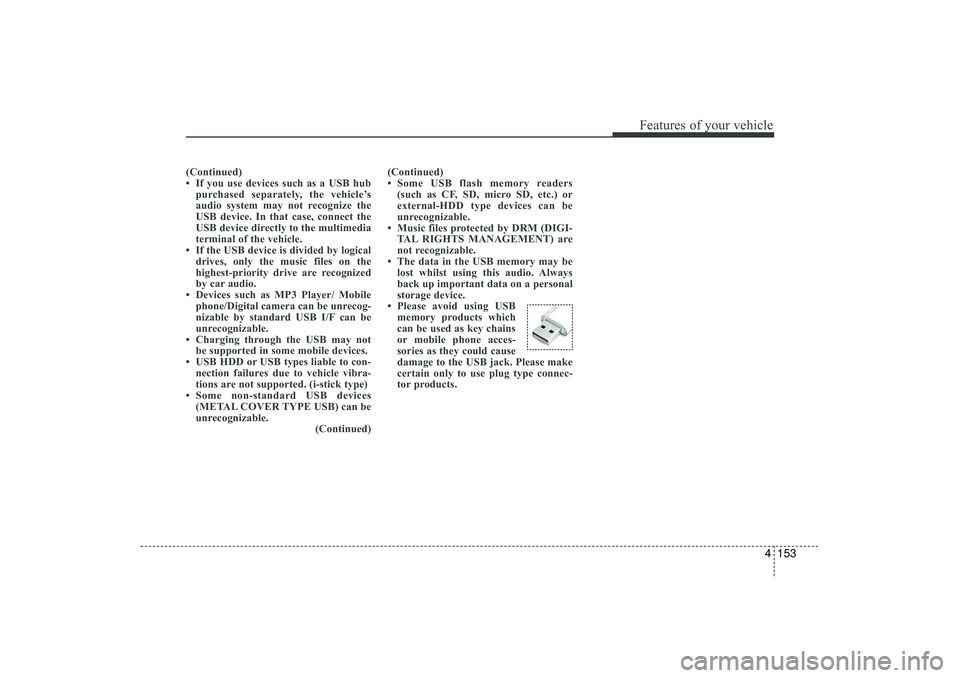
• Please avoid using USB memory products which
can be used as key chains
or mobile phone acces-
sories as they could cause
damage to the USB jack. Please make
certain only to use plug type connec-
tor products.
EL(FL) UK 4B AUDIO.QXP 3/13/2015 4:19 PM Page 153
Page 239 of 550
Features of your vehicle154
4✽
✽
NOTICE -
USING THE iPod
®
DEVICE
• Some iPod
®models may not sup-
port communication protocol and
files may not properly play.
Supported iPod
®models:
- iPod
®Mini
- iPod®4th (Photo) ~ 6th (Classic)
generation
- iPod®Nano 1st~4th generation
- iPod®Touch 1st~2nd generation
• The order of search or playback of songs in the iPod
®can be different
from the order searched in the
audio system.
• If the iPod
®
disabled due to its
own malfunction, reset the iPod
®.
(Reset: Refer to iPod
®manual)
• An iPod
®
may not operate nor-
mally on low battery. (Continued)(Continued)
• Some
iPod
®
devices, such as the
iPhone
®, can be connected through
the Bluetooth
®Wireless Technology
interface. The device must have
audio Bluetooth
®
Wireless
Technology capability (such as for
stereo headphone Bluetooth
®
Wireless Technology ). The device
can play, but it will not be con-
trolled by the audio system.
• To use iPod
®
features within the
audio, use the cable provided upon
purchasing an iPod
®d device.
• Skipping or improper operation may occur depending on the characteris-
tics of your iPod
®/iPhone
®device.
• If your iPhone
®is connected to both
the Bluetooth
®Wireless Technology
and USB, the sound may not be prop-
erly played. In your iPhone
®, select
the Dock connector or Bluetooth
®
Wireless Technology to change the
sound output (source). (Continued)
(Continued)
• When connecting
iPod
®
with the
iPod
®Power Cable, insert the connec-
tor to the multimedia socket complete-
ly. If not inserted completely, communi-
cations between
iPod
®and audio may
be interrupted.
• When adjusting the sound effects of the
iPod
®and the audio system, the
sound effects of both devices will over-
lap and might reduce or distort the
quality of the sound.
• Deactivate (turn off) the equalizer function of an
iPod
®when adjusting
the audio system’s volume, and turn
off the equalizer of the audio system
when using the equalizer of an
iPod
®.
• When not using
iPod
®with car audio,
detach the
iPod
®cable from
iPod
®.
Otherwise,
iPod
®
may remain in
accessory mode, and may not work
properly.
EL(FL) UK 4B AUDIO.QXP 3/13/2015 4:19 PM Page 154
Page 241 of 550
Features of your vehicle156
4SYSTEM CONTROLLERS AND
FUNCTIONS❈ Display and settings may differ
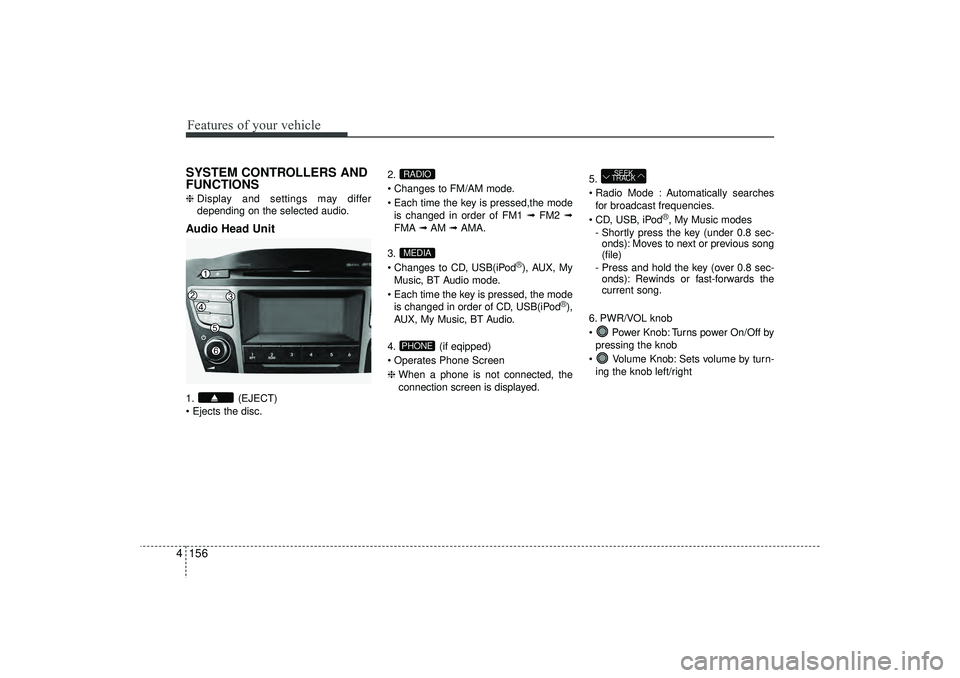
depending on the selected audio.Audio Head Unit1. (EJECT)
Ejects the disc. 2.
Changes to FM/AM mode.
Each time the key is pressed,the mode
is changed in order of FM1 ➟ FM2 ➟
FMA ➟AM ➟AMA.
3.
Changes to CD, USB(iPod
®), AUX, My
Music, BT Audio mode.
Each time the key is pressed, the mode is changed in order of CD, USB(iPod
®),
AUX, My Music, BT Audio.
4. (if eqipped)
Operates Phone Screen
❈ When a phone is not connected, the
connection screen is displayed. 5.
Radio Mode : Automatically searches
for broadcast frequencies.
CD, USB, iPod
®, My Music modes
- Shortly press the key (under 0.8 sec- onds): Moves to next or previous song
(file)
- Press and hold the key (over 0.8 sec- onds): Rewinds or fast-forwards the
current song.
6. PWR/VOL knob
Power Knob: Turns power On/Off by pressing the knob
Volume Knob: Sets volume by turn- ing the knob left/right
SEEK
TRACK
PHONEMEDIARADIO
EL(FL) UK 4B AUDIO.QXP 3/13/2015 4:19 PM Page 156
Page 242 of 550
4 157
Features of your vehicle
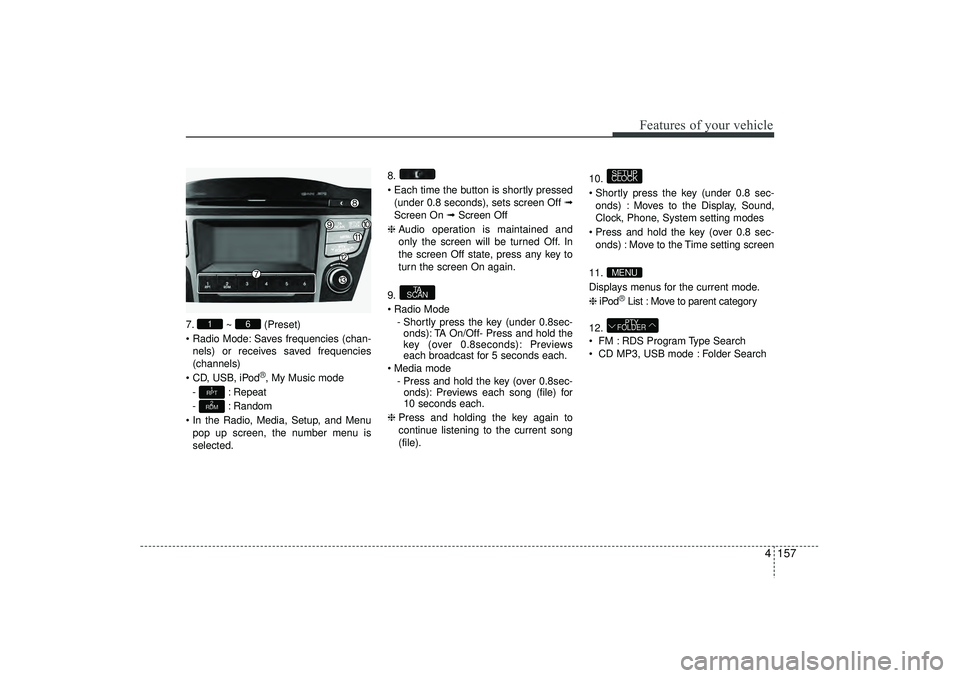
7.~ (Preset)
Radio Mode: Saves frequencies (chan- nels) or receives saved frequencies
(channels)
CD, USB, iPod
®, My Music mode
- : Repeat
- : Random
In the Radio, Media, Setup, and Menu pop up screen, the number menu is
selected. 8.
Each time the button is shortly pressed
(under 0.8 seconds), sets screen Off ➟
Screen On ➟ Screen Off
❈ Audio operation is maintained and
only the screen will be turned Off. In
the screen Off state, press any key to
turn the screen On again.
9.
Radio Mode - Shortly press the key (under 0.8sec-onds): TA On/Off- Press and hold the
key (over 0.8seconds): Previews
each broadcast for 5 seconds each.
Media mode - Press and hold the key (over 0.8sec-onds): Previews each song (file) for
10 seconds each.
❈ Press and holding the key again to
continue listening to the current song
(file). 10.
Shortly press the key (under 0.8 sec-
onds) : Moves to the Display, Sound,
Clock, Phone, System setting modes
Press and hold the key (over 0.8 sec- onds) : Move to the Time setting screen
11.
Displays menus for the current mode.
❈ iPod
®List : Move to parent category
12.
FM : RDS Program Type Search
CD MP3, USB mode : Folder SearchPTY
FOLDER
MENUSETUP
CLOCK
TA
SCAN
2
RDM1
RPT
6
1
EL(FL) UK 4B AUDIO.QXP 3/13/2015 4:19 PM Page 157
Page 248 of 550
![HYUNDAI IX35 2016 Owners Manual 4 163
Features of your vehicle
Phone Setup (if eqipped) Press the key Select [Phone]
Pair PhoneSelect [Pair Phone] Set through
TUNE knob
➀ Search for device names as displayed
on your mobile phon](/manual-img/35/56235/w960_56235-247.png "HYUNDAI IX35 2016 Owners Manual 4 163
Features of your vehicle
Phone Setup (if eqipped) Press the key Select [Phone]
Pair PhoneSelect [Pair Phone] Set through
TUNE knob
➀ Search for device names as displayed
on your mobile phon")
4 163
Features of your vehicle
Phone Setup (if eqipped) Press the key Select [Phone]
Pair PhoneSelect [Pair Phone] Set through
TUNE knob
➀ Search for device names as displayed
on your mobile phone and connect.
➁ Input the passkey displayed on the
screen. (Passkey : 0000)❈ The device name and passkey will be
displayed on the screen for up to 3
minutes. If pairing is not completed
within the 3 minutes, the mobile phone
pairing process will automatically be
cancelled.
\b Pairing completion is displayed.
❈In some mobile phones, pairing will
automatically be followed by connec-
tion.❈ It is possible to pair up to fiveBluetooth
®
Wireless Technology
enabled mobile phones.
SETUP
CLOCK
CAUTION
To pair a Bluetooth
®
Wireless
Technology enabled mobile phone, authentication and connection processes are first required. As aresult, you cannot pair your mobile phone whilst driving the vehicle.First park your vehicle before use.
EL(FL) UK 4B AUDIO.QXP 3/13/2015 4:19 PM Page 163
Page 249 of 550
![HYUNDAI IX35 2016 Owners Manual Features of your vehicle164
4Phone ListThe names of up to 5 paired phones will
be displayed.
A [ ] is displayed in front of the currently
connected phone.
Select the desired name to setup the
selected](/manual-img/35/56235/w960_56235-248.png "HYUNDAI IX35 2016 Owners Manual Features of your vehicle164
4Phone ListThe names of up to 5 paired phones will
be displayed.
A [ ] is displayed in front of the currently
connected phone.
Select the desired name to setup the
selected")
Features of your vehicle164
4Phone ListThe names of up to 5 paired phones will
be displayed.
A [ ] is displayed in front of the currently
connected phone.
Select the desired name to setup the
selected phone.
Connecting a phoneSelect [Phone List] Select mobile phone
through TUNE knob Select [Connect
Phone]
➀
Select a mobile phone that is not cur-
rently connected.
➁ Connect the selected mobile phone.
\b Connection completion is displayed.
❈ If a phone is already connected, dis-
connect the currently connected
phone and select a new phone to con-
nect.
Disconnecting a connected phoneSelect [Phone List] Select mobile phone
through TUNE knob Select
[Disconnect Phone]
➀
Select the currently connected mobile
phone.
➁ Disconnect the selected mobile
phone.
\b Disconnection completion is dis-
played.
EL(FL) UK 4B AUDIO.QXP 3/13/2015 4:19 PM Page 164
Page 250 of 550
![HYUNDAI IX35 2016 Owners Manual 4 165
Features of your vehicle
Changing connection sequence(Priority)
This is used to change the order (priori-
ty) of automatic connection for the paired
mobile phones.
Select [Phone List] Select [](/manual-img/35/56235/w960_56235-249.png "HYUNDAI IX35 2016 Owners Manual 4 165
Features of your vehicle
Changing connection sequence(Priority)
This is used to change the order (priori-
ty) of automatic connection for the paired
mobile phones.
Select [Phone List] Select [")
4 165
Features of your vehicle
Changing connection sequence(Priority)
This is used to change the order (priori-
ty) of automatic connection for the paired
mobile phones.
Select [Phone List] Select [Priority]
through TUNE knob Select No. 1
Priority mobile phone
➀ Select [Priority].
➁ From the paired phones, select the
phone desired for No.1 priority.
\b The changed priority sequence is dis-
played.
❈ Once the connection sequence (priori-
ty) is changed, the new no. 1 priority
mobile phone will be connected.
- when the no. 1 priority cannot be con- nected: Automatically attempts to con-
nect the most recently connected
phone.
- Cases when the most recently con- nected phone cannot be connected:
Attempts to connect in the order in
which paired phones are listed.
- The connected phone will automati- cally be changed to No. 1 priority. Delete
Select [Phone List] Select mobile phone
through TUNE knob Select [Delete]
➀
Select the desired mobile phone.
➁ Delete the selected mobile phone.
\b Deletion completion is displayed.
❈ When attempting to delete a currently
connected phone, the phone is first
disconnected.
Phone book DownloadThis feature is used to download phone
book and call histories into the audio sys-
tem.
Select [Phone book Download] Select
through TUNE knob
CAUTION
The download feature may not be
supported in some mobilephones.
If a different operation is per- formed whilst phone book is beingdownloaded, downloading will be discontinued. Phone book alreadydownloaded will be saved.
When downloading new phone book, delete all previously savedphone book before starting down- load.
CAUTION
When you delete a mobile phone, the mobile phone phone book willalso be erased.
For stable Bluetooth
®Wireless
Technology communication, delete the mobile phone from the audio and also delete the audiofrom your mobile phone.
EL(FL) UK 4B AUDIO.QXP 3/13/2015 4:19 PM Page 165