Page 145 of 473
3-83
Convenient features of your vehicle
3
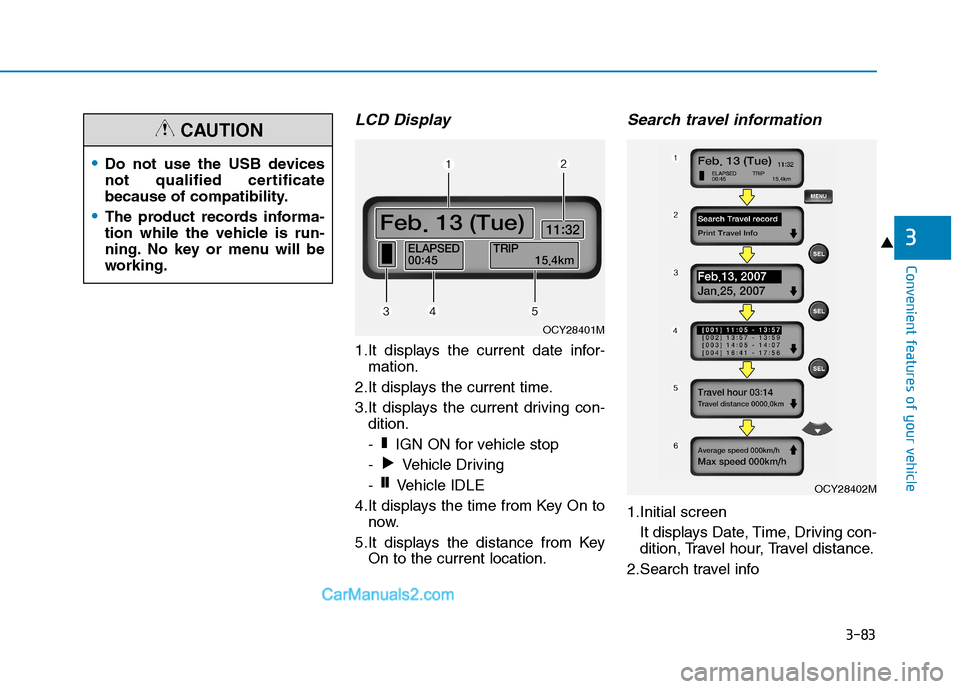
LCD Display
1.It displays the current date infor-mation.
2.It displays the current time.
3.It displays the current driving con- dition.
- IGN ON for vehicle stop
- Vehicle Driving
- Vehicle IDLE
4.It displays the time from Key On to now.
5.It displays the distance from Key On to the current location.
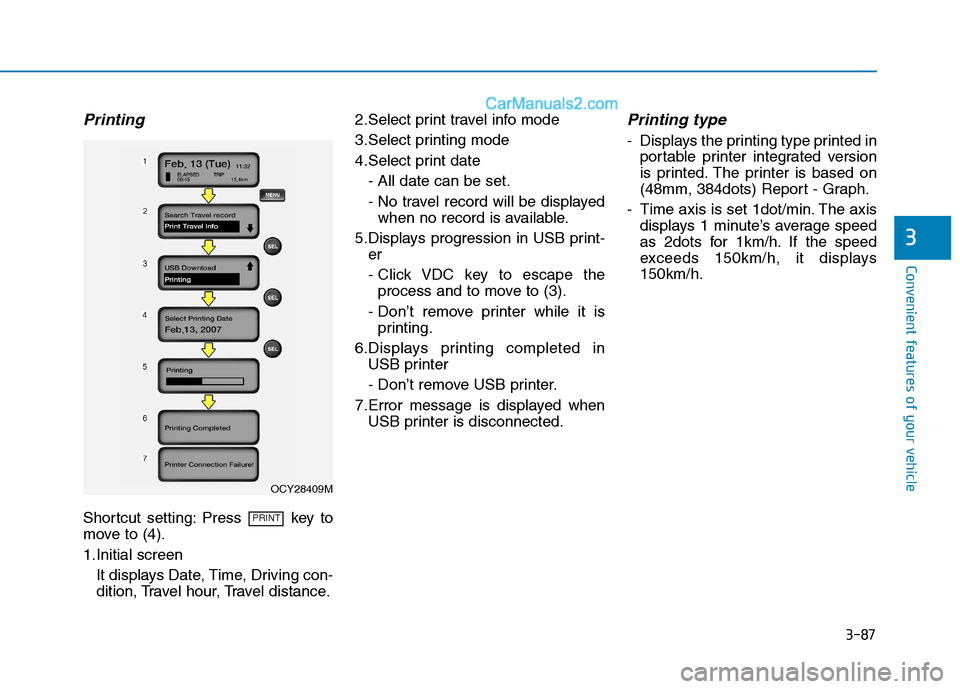
Search travel information
1.Initial screen
It displays Date, Time, Driving con-
dition, Travel hour, Travel distance.
2.Search travel info
❙❙
❚
OCY28401M
OCY28402M
Do not use the USB devices
not qualified certificate
because of compatibility.
The product records informa-
tion while the vehicle is run-
ning. No key or menu will be
working.
CAUTION
Page 146 of 473
3-84
Convenient features of your vehicle
3.Select travel data you want toinquire:
Nothing displays when there is no
travel info recorded.
4.Select travel time you want to inquire:
Displays the time elapsed from Key
On to Key Off.
5.Displays travel time info you inquired:
The travel info calculated above (4)
will be displayed.USB Download
1.Initial screen
It displays Date, Time, Driving con-
dition, Travel hour, Travel distance.
2.Select print travel info mode 3.Select USB download mode
4.Set and select travel period:
Select (Total, Day 1 ~ 99) by using
the direction (UP, down) key.
5.Check USB and download pro- gression is displayed.
- Click VDC in the downloading toescape and it goes to (3).
- If USB is not inserted, it goes to page (7).
- Don’t remove USB while down- load is in process.
6.Display the completion of data storage to USB device.
- If download is completed, removethe USB device.
7.Error massage is displayed when no USB is inserted.
OCY28403M
Page 147 of 473
3-85
Convenient features of your vehicle
3
Date/Time setting
1.Initial screenIt displays Date, Time, Driving con-
dition, Travel hour, Travel distance.
2.Select system setting mode
3.Select date/time setting mode
4.Inquire and modify date/time set: - Use direction key to modify andsave it with SEL key.
- Click VDC to escape the saving and it goes to (3).
Inquiry of vehicle identification
number
1.Initial screen
It displays Date, Time, Driving con-
dition, Travel hour, Travel distance.
2.Select system setting mode
3.Select vehicle ID No. mode
4.Inquiring vehicle ID No. mode: Modification is not available.
Setting brightness
1.Initial screenIt displays Date, Time, Driving con-
dition, Travel hour, Travel distance.
2. Select system setting mode
3. Select language selection mode
4. Inquire and set language selection - Use direction key to select andsave it with SEL key.
- Click VDC to escape the saving and it goes to (3).OCY28406M
OCY28407MOCY28405M
Page 148 of 473
3-86
Convenient features of your vehicle
Driver’s name
1.Initial screen It displays Date, Time, Driving con-
dition, Travel hour, Travel distance.
2.Select driver settings mode
3. Select driver’s name mode
4. Driver’s Name : Inquiry & modifica- tion
- Use direction key to select andsave it with SEL key.
- Click VDC to escape the saving and it goes to (3).
Vehicle license number
1.Initial screen
It displays Date, Time, Driving con-
dition, Travel hour, Travel distance.
2.Select driver settings mode
3.Select vehicle license No. mode
4.Vehicle license No.: Inquiry & mod- ification
- Use direction key to select andsave it with SEL key.
- Click VDC to escape the saving and it goes to (3).
Company name
1.Initial screen
It displays Date, Time, Driving con-
dition, Travel hour, Travel distance.
2.Select driver settings mode
3.Select company name mode
4.Vehicle license No.: Inquiry & mod- ification
- Use direction key to select andsave it with SEL key.
- Click VDC to escape the saving and it goes to (3).
OCY28412MOCY28408MOCY28411M
Page 149 of 473
3-87
Convenient features of your vehicle
3
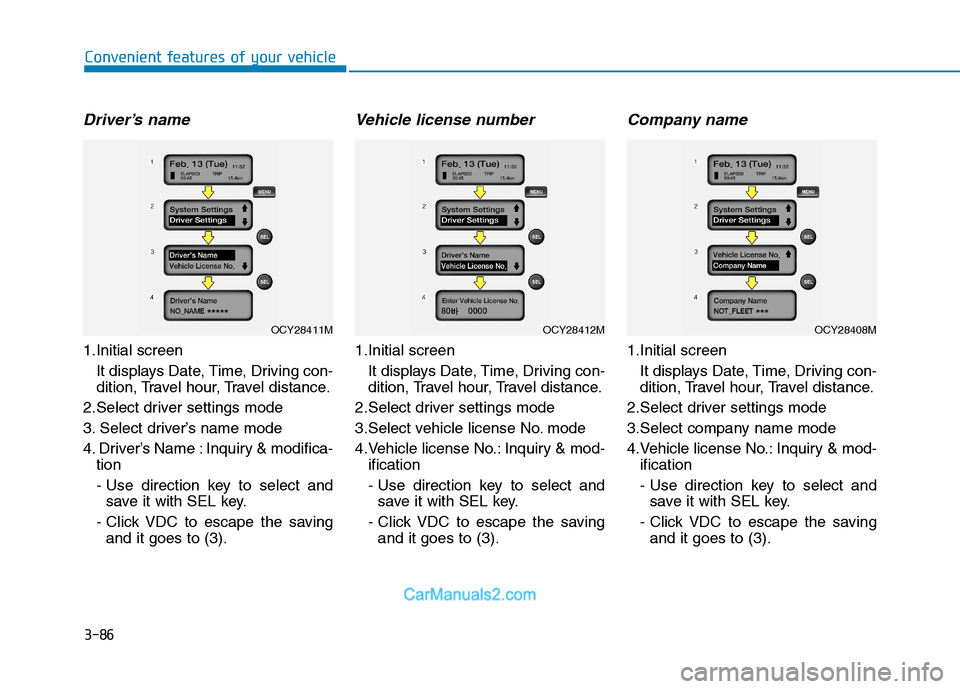
Printing
Shortcut setting: Press key to
move to (4).
1.Initial screenIt displays Date, Time, Driving con-
dition, Travel hour, Travel distance. 2.Select print travel info mode
3.Select printing mode
4.Select print date
- All date can be set.
- No travel record will be displayedwhen no record is available.
5.Displays progression in USB print- er
- Click VDC key to escape theprocess and to move to (3).
- Don’t remove printer while it is printing.
6.Displays printing completed in USB printer
- Don’t remove USB printer.
7.Error message is displayed when USB printer is disconnected.
Printing type
- Displays the printing type printed inportable printer integrated version
is printed. The printer is based on
(48mm, 384dots) Report - Graph.
- Time axis is set 1dot/min. The axis displays 1 minute’s average speed
as 2dots for 1km/h. If the speed
exceeds 150km/h, it displays150km/h.
PRINT
OCY28409M
Page 154 of 473

3-92
Convenient features of your vehicle
Self-diagnosis
If you don’t hear an audible warning
sound or if the buzzer sounds inter-mittently when shifting the gear to
the R (Reverse) position, this mayindicate a malfunction in the rear
parking assist system. If this occurs,
we recommend that the system be
checked by an authorized HYUNDAI
dealer.
Front/Rear parking assist sys- tem type (if equipped)
The front/rear parking assist system
detects the object distance by usingthe front/rear sensor and front side
sensor.
When you select the parking assist
system*, the front/rear parking assist
system will be operated.
Operating condition
This parking assist system acti-vates and the indicator on the but-
ton illuminates when the parking
assist button ( ) is pressed with
the ignition switch ON. And it oper-
ates in forward, reverse and neu-
tral position of the shift lever.
The parking assist button turns on
automatically and activates the
parking assist system when you
shift the gear to the R (Reverse)
position. If you drive the vehicle
above 10km/h, the warning will not
activate.
When more than two objects are sensed at the same time, warning
indicator is displayed all.
When more than two objects are sensed at the same time, the clos-
est one will be warned by warningsound.
While backing up, if the front and rear sensor recognizes an object at
the same distance, the rear will be
warned first.
The warnings by side sensors are operated when the shift lever is in
R (Reverse) position.
Your new vehicle warranty does
not cover any accidents or dam-
age to the vehicle or injuries toits occupants due to a rearparking assist system malfunc-
tion. Always drive safely and
cautiously.
WARNING
OEU044194
Page 156 of 473
3-94
Convenient features of your vehicle
Self-diagnosis
When the front/rear parking assist
system has a malfunction, if you
operate the system, the warning
sound sounds 3 times. In this time,
the indicator on switch will blink and
the warning on the cluster will blink.
However, the warning regardingobject will not sound.
In this time, we recommend that the
system be checked by an authorized
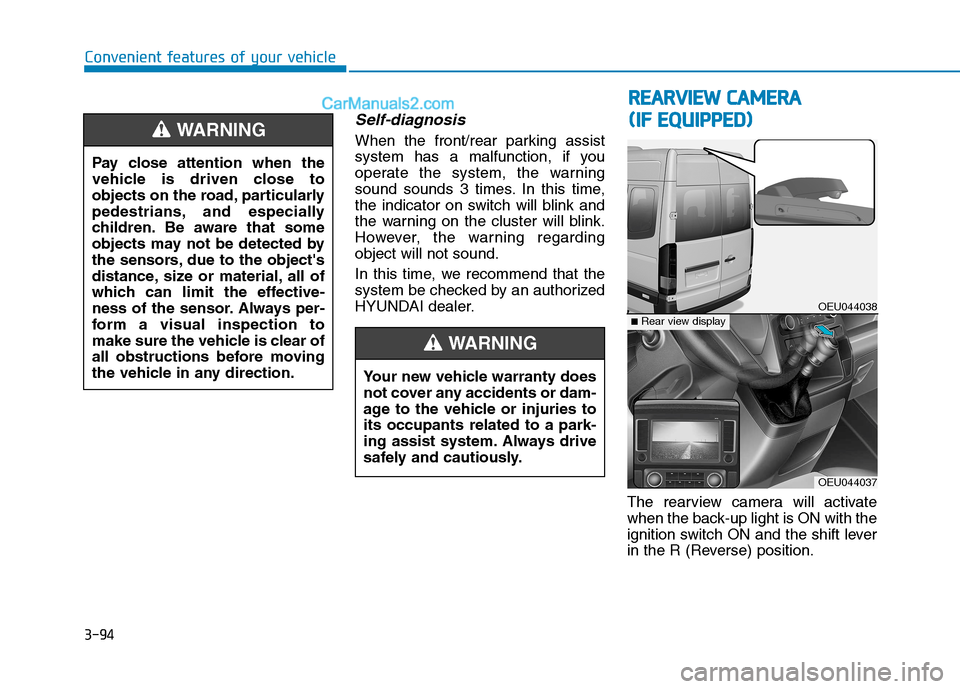
HYUNDAI dealer.The rearview camera will activate
when the back-up light is ON with the
ignition switch ON and the shift lever
in the R (Reverse) position.
Pay close attention when the
vehicle is driven close to
objects on the road, particularly
pedestrians, and especially
children. Be aware that some
objects may not be detected by
the sensors, due to the object's
distance, size or material, all of
which can limit the effective-
ness of the sensor. Always per-
form a visual inspection to
make sure the vehicle is clear of
all obstructions before moving
the vehicle in any direction.WARNING
RR
EEAA RRVV IIEE WW CC AA MM EERR AA
(
( IIFF EE QQ UUIIPP PPEEDD ))
OEU044038
OEU044037
■Rear view display
Your new vehicle warranty does
not cover any accidents or dam-
age to the vehicle or injuries toits occupants related to a park-
ing assist system. Always drive
safely and cautiously.
WARNING
Page 157 of 473

3-95
Convenient features of your vehicle
3
This system is a supplemental sys-
tem that shows behind the vehicle
through the rearview display mirror
while backing-up.The hazard warning flasher should
be used whenever you find it neces-
sary to stop the vehicle in a haz-
ardous location. When you must
make such an emergency stop,
always pull off the road as far as pos-
sible.
The hazard warning lights are turned
on by pushing in the hazard switch.
This causes all turn signal lights to
blink. The hazard warning lights will
operate even though the key is not in
the ignition switch.
To turn the hazard warning lights off,
push the switch a second time.Battery saver function
The purpose of this feature is toprevent the battery from being dis-
charged. The system automatically
turns off the parking lights when
the driver removes the ignition key
and opens the driver- side door.
With this feature, the parking lights will be turned off automatically if
the driver parks on the side of roadat night.
If necessary, to keep the lights on
when the ignition key is removed,
perform the following :
1) Open the driver-side door.
2) Turn the parking lights OFF and ON again using the light switch
on the steering column.
This system is a supplemen-
tary function only. It is theresponsibility of the driver to
always check the inside/out-
side rearview mirror and the
area behind the vehicle before
and while backing up becausethere is a dead zone that can't
see through the camera.
Always keep the camera lens
clean. If lens is covered with
foreign matter, the camera
may not operate normally.
WARNING
HHAAZZAA RRDD WW AARRNN IINN GG FF LLAA SSHH EERR
OEU044191
LLIIGG HH TTIINN GG