Page 246 of 473
4-54
Multimedia System
9./
If there are more than 2 folders in
the USB, pressing the /
button will move to the
previous or next folder.
If there are no folders in the USB,
then pressing the button will move
up/down within the folder in 10 file
increments.
10. / FF/REW Button
While a USB is operating, press and hold the button to fast-for-
ward the song. When fast-forward is
complete, the next song will proper-
ly play from the beginning even if
you continue holding the button.
Press and hold the button to
rewind the song. When rewind is
complete, the current song will
properly play from the beginning
even if you continue holding the
button. Shortly pressing the buttons
will not operate the / . Information
- Using the iPod
®
device
The iPod ®
device will charge by
connecting an iPod ®
connector
cable to the iPod ®
in ACC ON state.
When connecting with an iPod ®
cable, insert the JACK all the way
in the terminal to prevent communi-
cation interference.
The song name (ID3Tag) or com- mand icons (RPT/RDM) may take
time to be displayed depending on
the iPod ®
model and model software
version. This is not a sign of mal-
function. Please wait.
iPod ®
Shuffle device does not work.UU SSIINN GG iiPP oodd®®
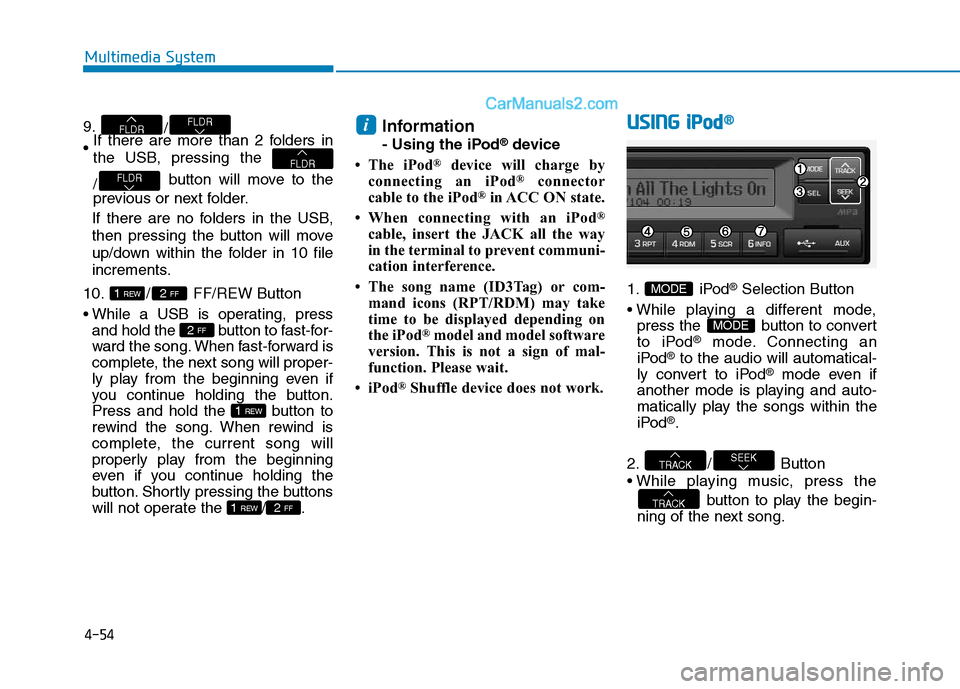
1. iPod®Selection Button
press the button to convert
to iPod
®mode. Connecting an
iPod®to the audio will automatical-
ly convert to iPod®mode even if
another mode is playing and auto-
matically play the songs within the
iPod
®.
2. / Button
button to play the begin-
ning of the next song.
TRACK
SEEKTRACK
MODE
MODE
i
2 FF1 REW
1 REW
2 FF
2 FF1 REW
FLDRFLDR
FLDRFLDR
Page 247 of 473
4-55
Multimedia System
4
Press the button to
return to the beginning of the cur-
rent song. Press the button again
to play the beginning of the previ-ous song.
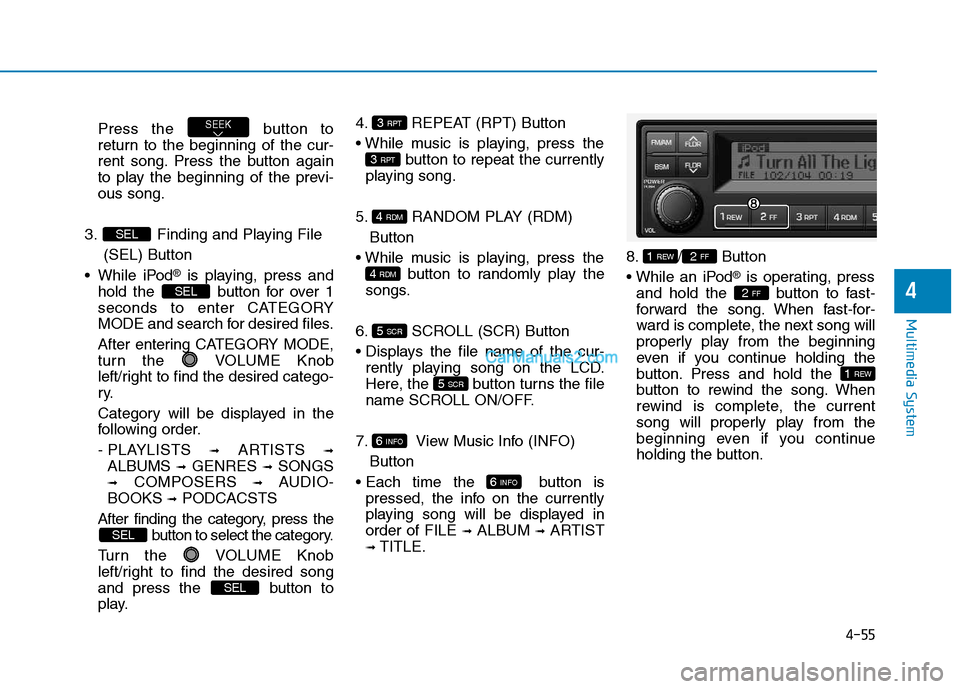
3. Finding and Playing File (SEL) Button
While iPod
®is playing, press and
hold the button for over 1
seconds to enter CATEGORY
MODE and search for desired files.
After entering CATEGORY MODE,
turn the VOLUME Knob
left/right to find the desired catego-
ry.
Category will be displayed in the
following order.
- PLAYLISTS ➟
ARTISTS ➟
ALBUMS ➟GENRES ➟SONGS
➟ COMPOSERS ➟AUDIO-
BOOKS ➟PODCACSTS
After finding the category, press the button to select the category.
Turn the VOLUME Knob
left/right to find the desired song
and press the button to
play. 4. REPEAT (RPT) Button
button to repeat the currently
playing song.
5. RANDOM PLAY (RDM) Button
button to randomly play the
songs.
6. SCROLL (SCR) Button
rently playing song on the LCD.
Here, the button turns the file
name SCROLL ON/OFF.
7. View Music Info (INFO) Button
button is pressed, the info on the currently
playing song will be displayed inorder of FILE ➟
ALBUM ➟ARTIST
➟ TITLE. 8. / Button
®is operating, press
and hold the button to fast-
forward the song. When fast-for-
ward is complete, the next song will
properly play from the beginning
even if you continue holding the
button. Press and hold the
button to rewind the song. When
rewind is complete, the current
song will properly play from the
beginning even if you continue
holding the button.
1 REW
2 FF
2 FF1 REW
6 INFO
6 INFO
5 SCR
5 SCR
4 RDM
4 RDM
3 RPT
3 RPT
SEL
SEL
SEL
SEL
SEEK
Page 249 of 473
4-57
Multimedia System
4
SSYY SSTT EEMM CC OO NNTTRR OO LLLL EE RR SS AA NN DD
F
F UU NNCCTT IIOO NNSS
❈ Display and settings may differ
depending on the selected audio.
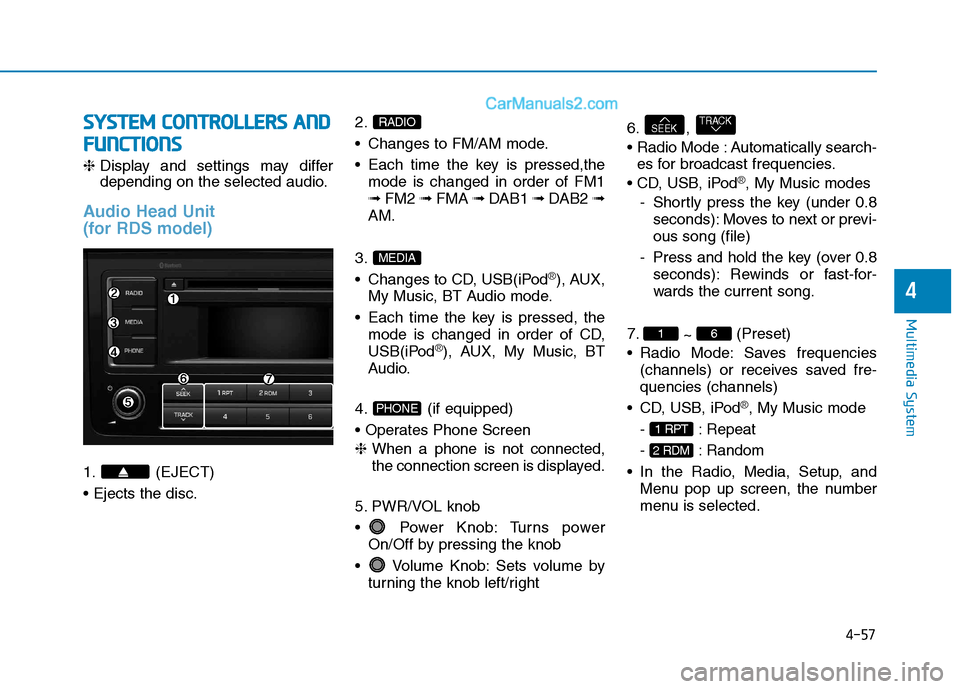
Audio Head Unit
(for RDS model)
1. (EJECT) 2.
Changes to FM/AM mode.
Each time the key is pressed,the
mode is changed in order of FM1 ➟ FM2 ➟ FMA ➟ DAB1 ➟ DAB2 ➟
AM.
3.
Changes to CD, USB(iPod
®), AUX,
My Music, BT Audio mode.
Each time the key is pressed, the mode is changed in order of CD,
USB(iPod
®), AUX, My Music, BT
Audio.
4. (if equipped)
❈ When a phone is not connected,
the connection screen is displayed.
5. PWR/VOL knob
Power Knob: Turns power On/Off by pressing the knob
Volume Knob: Sets volume by turning the knob left/right 6. ,
Automatically search-
es for broadcast frequencies.
®, My Music modes
- Shortly press the key (under 0.8 seconds): Moves to next or previ- ous song (file)
- Press and hold the key (over 0.8 seconds): Rewinds or fast-for-
wards the current song.
7. ~ (Preset)
Radio Mode: Saves frequencies (channels) or receives saved fre-quencies (channels)
®, My Music mode
- : Repeat
- : Random
Menu pop up screen, the number
menu is selected.
2 RDM
1 RPT
61
TRACKSEEK
PHONE
MEDIA
RADIO
Page 250 of 473
4-58
Multimedia System
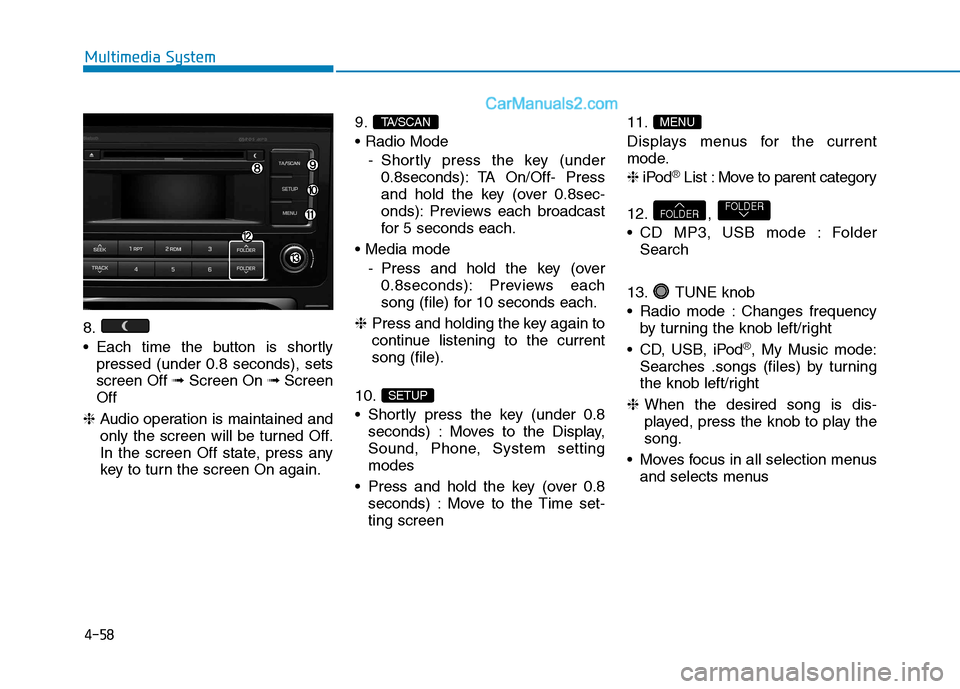
8.
Each time the button is shortlypressed (under 0.8 seconds), sets screen Off ➟Screen On ➟Screen
Off
❈ Audio operation is maintained and
only the screen will be turned Off.
In the screen Off state, press any
key to turn the screen On again. 9.
- Shortly press the key (under0.8seconds): TA On/Off- Press
and hold the key (over 0.8sec-
onds): Previews each broadcast
for 5 seconds each.
- Press and hold the key (over0.8seconds): Previews each
song (file) for 10 seconds each.
❈ Press and holding the key again to
continue listening to the currentsong (file).
10.
Shortly press the key (under 0.8 seconds) : Moves to the Display,
Sound, Phone, System settingmodes
Press and hold the key (over 0.8 seconds) : Move to the Time set-ting screen 11.
Displays menus for the current
mode. ❈
iPod
®List : Move to parent category
12. ,
CD MP3, USB mode : Folder Search
13. TUNE knob
Radio mode : Changes frequency by turning the knob left/right
CD, USB, iPod
®, My Music mode:
Searches .songs (files) by turning
the knob left/right
❈ When the desired song is dis-
played, press the knob to play thesong.
Moves focus in all selection menus and selects menus
FOLDERFOLDER
MENU
SETUP
TA/SCAN
Page 251 of 473
4-59
Multimedia System
4
SSEE TT UU PP (( ff oo rr RR DD SS mm ooddeell))
- AC210MDEE
Display Settings
Press the key Select
[Display] through TUNE knob or
key Select menu through
Mode Pop up
[Mode Pop up] Changes . selection mode
During On state, press the or key to display the mode change pop up screen.
When the pop up screen is dis- played, use the TUNE knob or
keys ~ to select the
desired mode.
Scroll text
[Scroll text] Set /
Maintains scroll
: Scrolls only one (1) time.
Song Info
When playing an MP3 file, select the
desired display info from ‘Folder/File’
or ‘Album/Artist/Song’.
Off
On
OffOn
61
MEDIA
RADIO
On
1 RPT
SETUP
Page 253 of 473
4-61
Multimedia System
4
System Settings
Press the key Select [System] through tune knob or
key Select menu through TUNEknob
Memory Information (if equipped)
Displays currently used memory and
total system memory.
Select [Memory Information] OK
The currently used memory is dis-
played on the left side while the total
system memory is displayed on the
right side.
Language
This menu is used to set the display
and voice recognition language.
Select [Language] Set throughTUNE knob
❈ The system will reboot after the
language is changed.
❈ Language support by region
-
5
SETUP
Page 254 of 473
4-62
Multimedia System
Phone Setup (if equipped)
Press the key Select [Phone]
(for RDS model)
Pair Phone
Information
To pair a Bluetooth®
Wireless
Technology enabled mobile phone,
authentication and connection
processes are first required. As a
result, you cannot pair your mobile
phone while driving the vehicle. First
park your vehicle before use.
Select [Pair Phone] Set through
TUNE knob
➀ Search for device names as dis-
played on your mobile phone andconnect.
➁ Input the passkey displayed on the
screen. (Passkey : 0000)
❈ The device name and passkey will
be displayed on the screen for up
to 3 minutes. If pairing is not com-
pleted within the 3 minutes, the
mobile phone pairing process willautomatically be canceled. ➂
Pairing completion is displayed.
❈ In some mobile phones, pairing
will automatically be followed byconnection.
❈ It is possible to pair up to five
Bluetooth ®Wireless Technology
enabled mobile phones.
iSETUP
CLOCK
Page 255 of 473
4-63
Multimedia System
4
Phone List
The names of up to 5 paired phones
will be displayed.
A [ ] is displayed in front of the cur-
rently connected phone. Select the desired name to setup the
selected phone.
Select [Phone List] Select mobile
phone through TUNE knobSelect [Connect Phone] ➀
Select a mobile phone that is not currently connected.
➁ Connect the selected mobile
phone.
➂ Connection completion is dis-
played.
❈ If a phone is already connected,disconnect the currently connect-
ed phone and select a new phoneto connect.
Select [Phone List] Select mobile
phone through TUNE knobSelect [Disconnect Phone] ➀
Select the currently connected
mobile phone.
➁ Disconnect the selected mobile
phone.
➂ Disconnection completion is dis-
played.
![Hyundai H350 2016 Owners Manual 4-59
Multimedia System
4
SSEE TT UU PP (( ff oo rr RR DD SS mm ooddeell))
- AC210MDEE
Display Settings
Press the key Select
[Display] through TUNE knob or
key Select menu through
Mode Pop up
[M](/manual-img/35/14880/w960_14880-250.png "Hyundai H350 2016 Owners Manual 4-59
Multimedia System
4
SSEE TT UU PP (( ff oo rr RR DD SS mm ooddeell))
- AC210MDEE
Display Settings
Press the key Select
[Display] through TUNE knob or
key Select menu through
Mode Pop up
[M")
![Hyundai H350 2016 Owners Manual 4-61
Multimedia System
4
System Settings
Press the key Select [System] through tune knob or
key Select menu through TUNEknob
Memory Information (if equipped)
Displays currently used memory and
to](/manual-img/35/14880/w960_14880-252.png "Hyundai H350 2016 Owners Manual 4-61
Multimedia System
4
System Settings
Press the key Select [System] through tune knob or
key Select menu through TUNEknob
Memory Information (if equipped)
Displays currently used memory and
to")
![Hyundai H350 2016 Owners Manual 4-62
Multimedia System
Phone Setup (if equipped)
Press the key Select [Phone]
(for RDS model)
Pair Phone
Information
To pair a Bluetooth®
Wireless
Technology enabled mobile phone,
authenticatio](/manual-img/35/14880/w960_14880-253.png "Hyundai H350 2016 Owners Manual 4-62
Multimedia System
Phone Setup (if equipped)
Press the key Select [Phone]
(for RDS model)
Pair Phone
Information
To pair a Bluetooth®
Wireless
Technology enabled mobile phone,
authenticatio")
![Hyundai H350 2016 Owners Manual 4-63
Multimedia System
4
Phone List
The names of up to 5 paired phones
will be displayed.
A [ ] is displayed in front of the cur-
rently connected phone. Select the desired name to setup the
selec](/manual-img/35/14880/w960_14880-254.png "Hyundai H350 2016 Owners Manual 4-63
Multimedia System
4
Phone List
The names of up to 5 paired phones
will be displayed.
A [ ] is displayed in front of the cur-
rently connected phone. Select the desired name to setup the
selec")