4-11
Multimedia System
4
(Continued)
You may hear a strange noise whenconnecting or disconnecting a USB
device.
If you disconnect the external USB device during playback in USB
mode, the external USB device can
be damaged or may malfunction.
Therefore, disconnect the external
USB device when the audio is
turned off or in another mode. (e.g,
Radio, CD)
Depending on the type and capacity of the external USB device or the
type of the files stored in the device,
there is a difference in the time
taken for recognition of the device.
Do not use the USB device for pur- poses other than playing music files.
Playing videos through the USB is not supported.
Use of USB accessories such as rechargers or heaters using USB I/F
may lower performance or cause
trouble.
(Continued)(Continued)
If you use devices such as a USB hub
purchased separately, the vehicle's
audio system may not recognize the
USB device. In that case, connect
the USB device directly to the multi-
media terminal of the vehicle.
If the USB device is divided by logi- cal drives, only the music files on the
highest-priority drive are recog-
nized by vehicle audio.
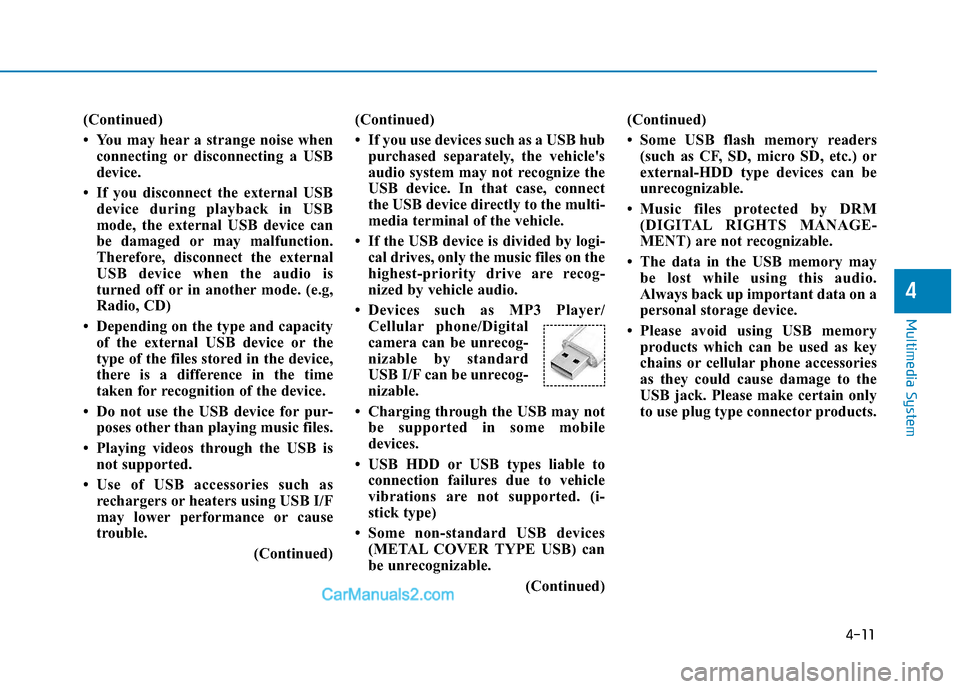
Devices such as MP3 Player/ Cellular phone/Digital
camera can be unrecog-
nizable by standard
USB I/F can be unrecog-
nizable.
Charging through the USB may not be supported in some mobile
devices.
USB HDD or USB types liable to connection failures due to vehicle
vibrations are not supported. (i-
stick type)
Some non-standard USB devices (METAL COVER TYPE USB) can
be unrecognizable.
(Continued)(Continued)
Some USB flash memory readers
(such as CF, SD, micro SD, etc.) or
external-HDD type devices can be
unrecognizable.
Music files protected by DRM (DIGITAL RIGHTS MANAGE-
MENT) are not recognizable.
The data in the USB memory may be lost while using this audio.
Always back up important data on a
personal storage device.
Please avoid using USB memory products which can be used as key
chains or cellular phone accessories
as they could cause damage to the
USB jack. Please make certain only
to use plug type connector products.
Page 207 of 473
4-15
Multimedia System
4
SSYY SSTT EEMM CC OO NNTTRR OO LLLL EE RR SS AA NN DD
F
F UU NNCCTT IIOO NNSS
❈ Display and settings may differ
depending on the selected audio.
Audio Head Unit
(for RDS model)
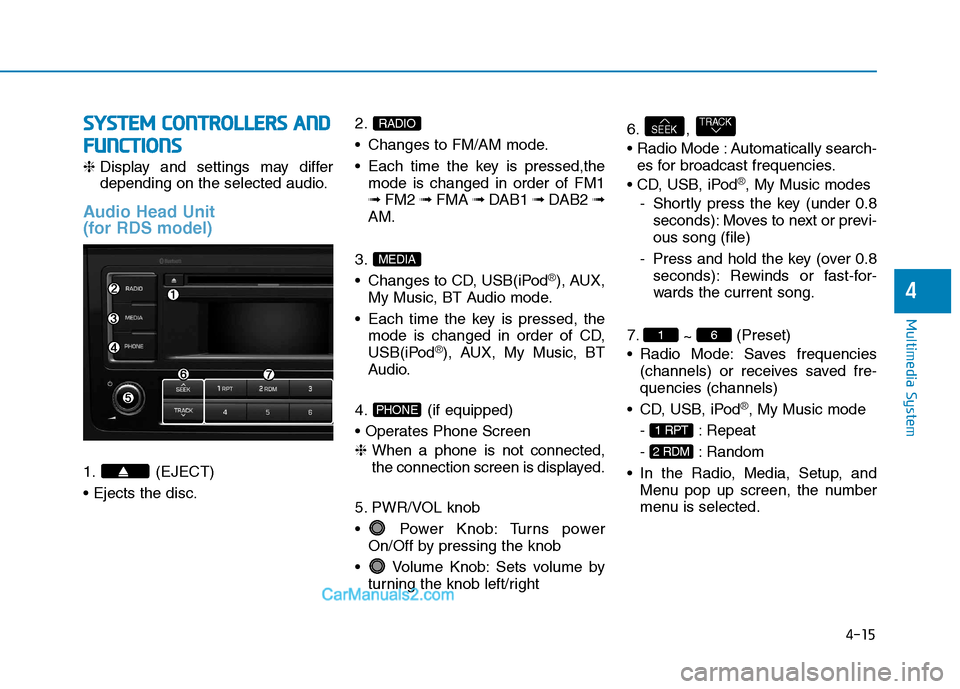
1. (EJECT) 2.
Changes to FM/AM mode.
Each time the key is pressed,the
mode is changed in order of FM1 ➟ FM2 ➟ FMA ➟ DAB1 ➟ DAB2 ➟
AM.
3.
Changes to CD, USB(iPod
®), AUX,
My Music, BT Audio mode.
Each time the key is pressed, the mode is changed in order of CD,
USB(iPod
®), AUX, My Music, BT
Audio.
4. (if equipped)
❈ When a phone is not connected,
the connection screen is displayed.
5. PWR/VOL knob
Power Knob: Turns power On/Off by pressing the knob
Volume Knob: Sets volume by turning the knob left/right 6. ,
Automatically search-
es for broadcast frequencies.
®, My Music modes
- Shortly press the key (under 0.8 seconds): Moves to next or previ- ous song (file)
- Press and hold the key (over 0.8 seconds): Rewinds or fast-for-
wards the current song.
7. ~ (Preset)
Radio Mode: Saves frequencies (channels) or receives saved fre-quencies (channels)
®, My Music mode
- : Repeat
- : Random
Menu pop up screen, the number
menu is selected.
2 RDM
1 RPT
61
TRACKSEEK
PHONE
MEDIA
RADIO
Page 208 of 473
4-16
Multimedia System
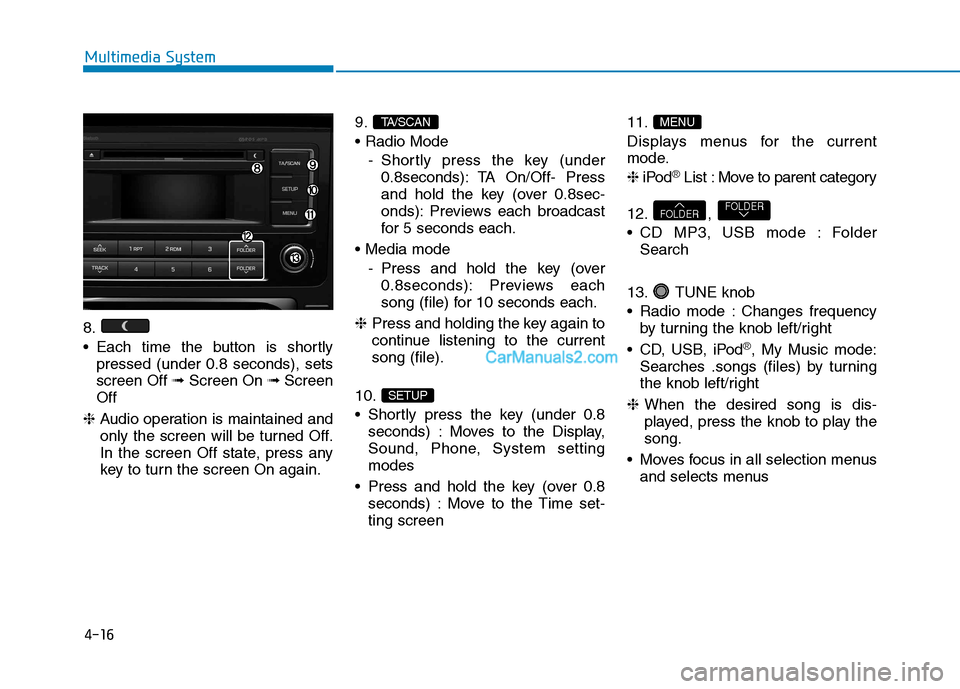
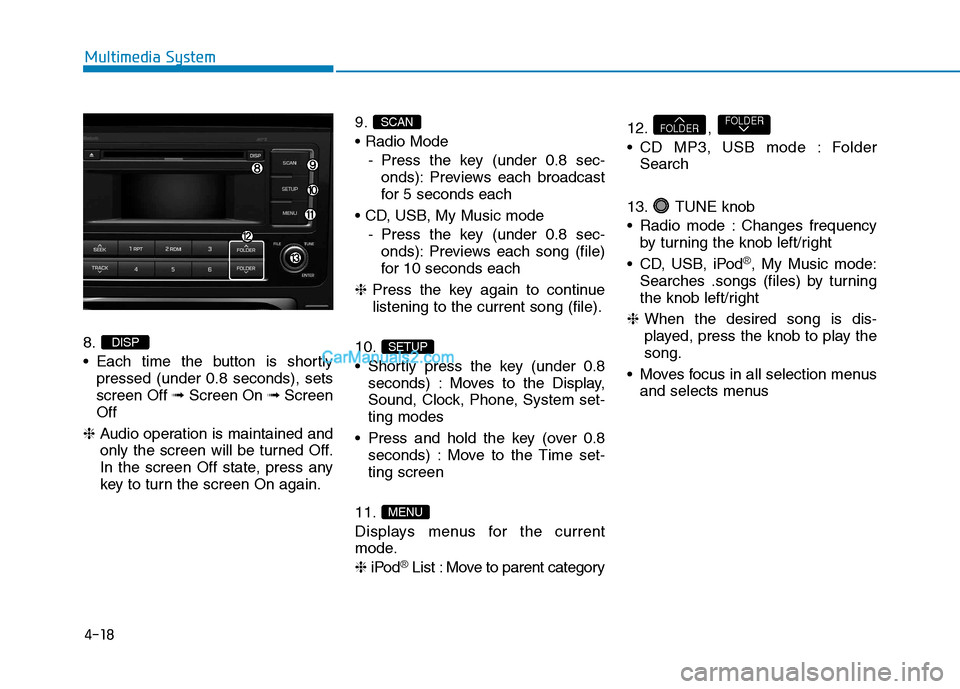
8.
Each time the button is shortlypressed (under 0.8 seconds), sets screen Off ➟Screen On ➟Screen
Off
❈ Audio operation is maintained and
only the screen will be turned Off.
In the screen Off state, press any
key to turn the screen On again. 9.
- Shortly press the key (under0.8seconds): TA On/Off- Press
and hold the key (over 0.8sec-
onds): Previews each broadcast
for 5 seconds each.
- Press and hold the key (over0.8seconds): Previews each
song (file) for 10 seconds each.
❈ Press and holding the key again to
continue listening to the currentsong (file).
10.
Shortly press the key (under 0.8 seconds) : Moves to the Display,
Sound, Phone, System settingmodes
Press and hold the key (over 0.8 seconds) : Move to the Time set-ting screen 11.
Displays menus for the current
mode. ❈
iPod
®List : Move to parent category
12. ,
CD MP3, USB mode : Folder Search
13. TUNE knob
Radio mode : Changes frequency by turning the knob left/right
CD, USB, iPod
®, My Music mode:
Searches .songs (files) by turning
the knob left/right
❈ When the desired song is dis-
played, press the knob to play thesong.
Moves focus in all selection menus and selects menus
FOLDERFOLDER
MENU
SETUP
TA/SCAN
Page 209 of 473
4-17
Multimedia System
4
SSYY SSTT EEMM CC OO NNTTRR OO LLLL EE RR SS AA NN DD
F
F UU NNCCTT IIOO NNSS
❈ Display and settings may differ
depending on the selected audio.
Audio Head Unit
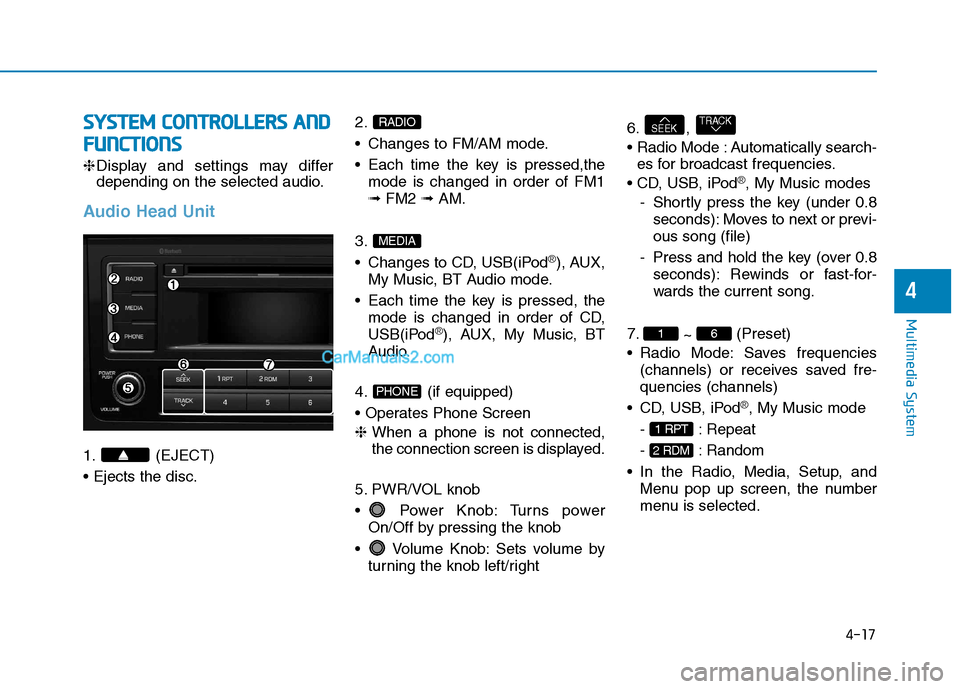
1. (EJECT) 2.
Changes to FM/AM mode.
Each time the key is pressed,the
mode is changed in order of FM1 ➟ FM2 ➟ AM.
3.
Changes to CD, USB(iPod
®), AUX,
My Music, BT Audio mode.
Each time the key is pressed, the mode is changed in order of CD,
USB(iPod
®), AUX, My Music, BT
Audio.
4. (if equipped)
❈ When a phone is not connected,
the connection screen is displayed.
5. PWR/VOL knob
Power Knob: Turns power On/Off by pressing the knob
Volume Knob: Sets volume by turning the knob left/right 6. ,
Automatically search-
es for broadcast frequencies.
®, My Music modes
- Shortly press the key (under 0.8 seconds): Moves to next or previ- ous song (file)
- Press and hold the key (over 0.8 seconds): Rewinds or fast-for-
wards the current song.
7. ~ (Preset)
Radio Mode: Saves frequencies (channels) or receives saved fre-quencies (channels)
®, My Music mode
- : Repeat
- : Random
Menu pop up screen, the number
menu is selected.
2 RDM
1 RPT
61
TRACKSEEK
PHONE
MEDIA
RADIO
Page 210 of 473
4-18
Multimedia System
8.
Each time the button is shortlypressed (under 0.8 seconds), sets screen Off ➟Screen On ➟Screen
Off
❈ Audio operation is maintained and
only the screen will be turned Off.
In the screen Off state, press any
key to turn the screen On again. 9.
- Press the key (under 0.8 sec-onds): Previews each broadcast
for 5 seconds each
- Press the key (under 0.8 sec-onds): Previews each song (file)
for 10 seconds each
❈ Press the key again to continue
listening to the current song (file).
10.
Shortly press the key (under 0.8 seconds) : Moves to the Display,
Sound, Clock, Phone, System set-ting modes
Press and hold the key (over 0.8 seconds) : Move to the Time set-ting screen
11.
Displays menus for the current
mode. ❈ iPod
®List : Move to parent category 12. ,
CD MP3, USB mode : Folder
Search
13. TUNE knob
Radio mode : Changes frequency by turning the knob left/right
CD, USB, iPod
®, My Music mode:
Searches .songs (files) by turning
the knob left/right
❈ When the desired song is dis-
played, press the knob to play thesong.
Moves focus in all selection menus and selects menus
FOLDERFOLDER
MENU
SETUP
SCAN
DISP
Page 222 of 473
4-30
Multimedia System
RRAA DDIIOO (( FF OO RR RR DD SS MM OODDEELL)) ::
F
F MM ,, AA MM
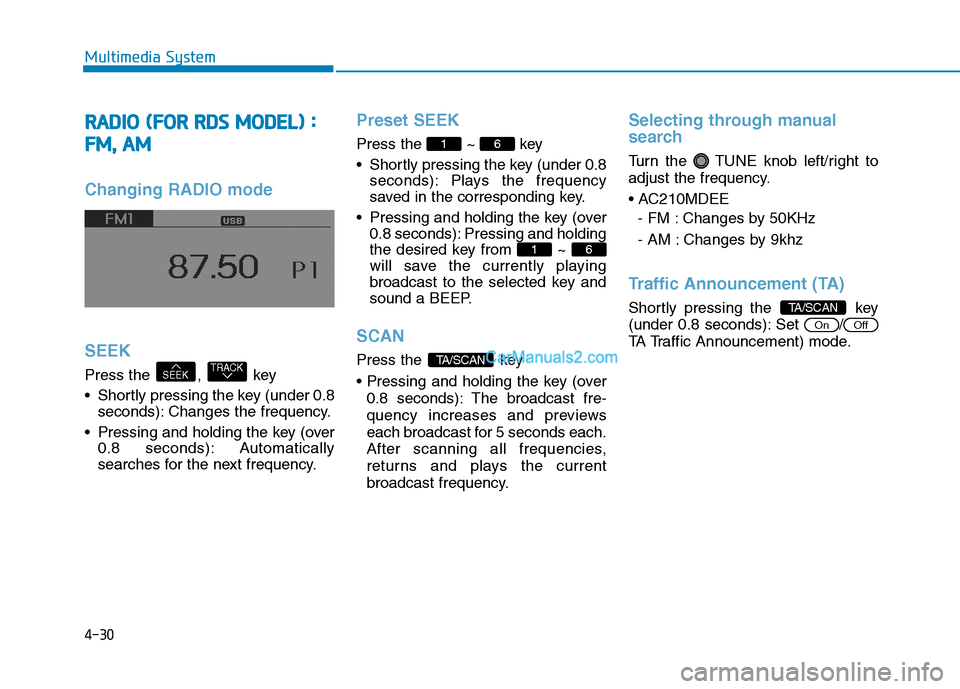
Changing RADIO mode SEEK
Press the , key
Shortly pressing the key (under 0.8
seconds): Changes the frequency.
Pressing and holding the key (over 0.8 seconds): Automatically
searches for the next frequency.
Preset SEEK
Press the ~ key
Shortly pressing the key (under 0.8 seconds): Plays the frequency
saved in the corresponding key.
Pressing and holding the key (over 0.8 seconds): Pressing and holding
the desired key from ~
will save the currently playing
broadcast to the selected key and
sound a BEEP.
SCAN
Press the key
0.8 seconds): The broadcast fre-
quency increases and previews
each broadcast for 5 seconds each.
After scanning all frequencies,
returns and plays the current
broadcast frequency.
Selecting through manual
search
Turn the TUNE knob left/right to
adjust the frequency.
- FM : Changes by 50KHz
- AM : Changes by 9khz
Traffic Announcement (TA)
Shortly pressing the key
(under 0.8 seconds): Set /
TA Traffic Announcement) mode.
OffOn
TA/SCAN
TA/SCAN
61
61
TRACKSEEK
Page 224 of 473
4-32
Multimedia System
RRAA DDIIOO
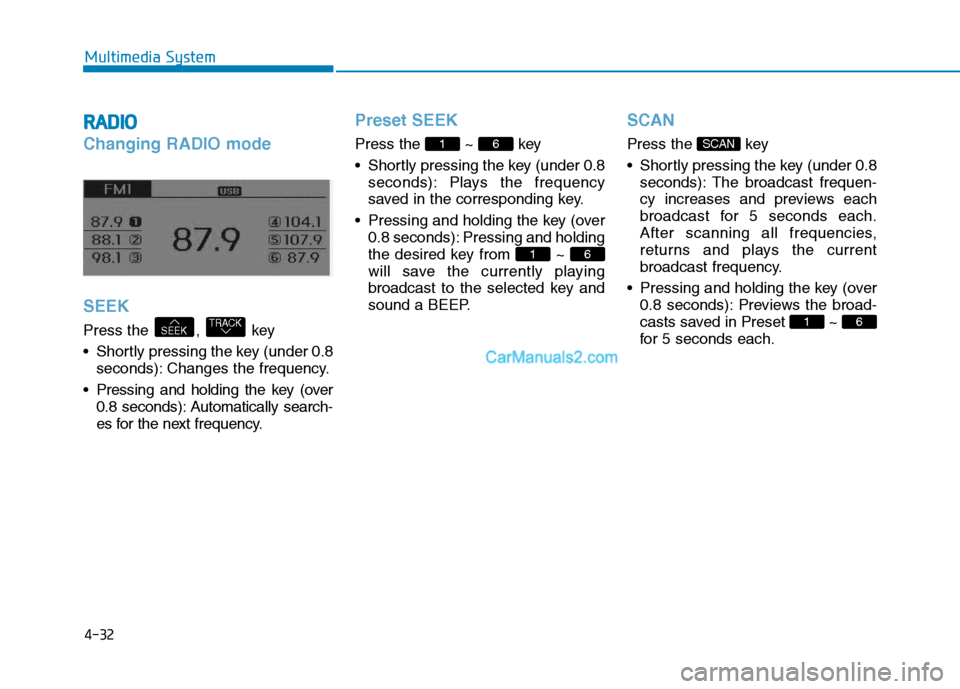
Changing RADIO mode SEEK
Press the , key
Shortly pressing the key (under 0.8
seconds): Changes the frequency.
Pressing and holding the key (over 0.8 seconds): Automatically search-
es for the next frequency.
Preset SEEK
Press the ~ key
Shortly pressing the key (under 0.8 seconds): Plays the frequency
saved in the corresponding key.
Pressing and holding the key (over 0.8 seconds): Pressing and holding
the desired key from ~
will save the currently playing
broadcast to the selected key and
sound a BEEP.
SCAN
Press the key
Shortly pressing the key (under 0.8seconds): The broadcast frequen-
cy increases and previews each
broadcast for 5 seconds each.
After scanning all frequencies,
returns and plays the current
broadcast frequency.
Pressing and holding the key (over 0.8 seconds): Previews the broad-
casts saved in Preset ~
for 5 seconds each.
61
SCAN
61
61
TRACKSEEK
Page 226 of 473
4-34
Multimedia System
BBAA SSIICC MM EETT HH OO DD OO FF UU SSEE ::
A
A UU DDIIOO CC DD // MM PP33 CC DD // UU SSBB //
I
I PP OO DD®®
// MM YY MM UUSSIICC
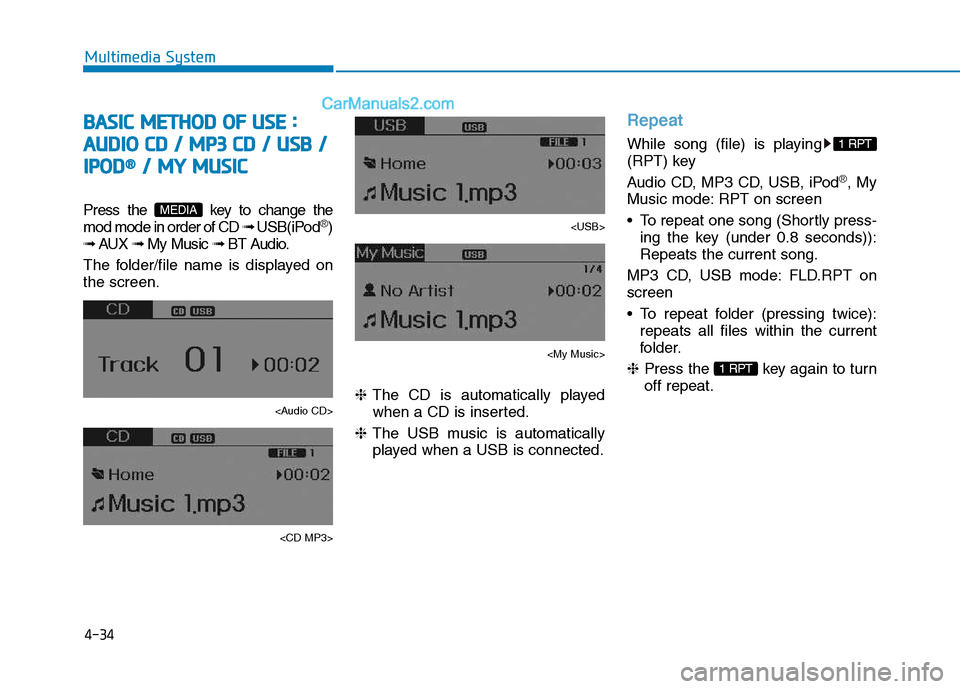
Press the key to change the mod mode in order of CD ➟ USB(iPod®)
➟ AUX ➟ My Music ➟ BT Audio.
The folder/file name is displayed on the screen.