Page 240 of 661
239
uuAudio System Basic Operation uPlaying Bluetooth ® Audio
Continued
Features
Playing Bluetooth ® Audio
Your audio system allows you to listen to music from your Bluetooth-compatible
phone.
This function is available when the phone is paired an d connected to the vehicle’s
Bluetooth ® HandsFreeLink ® (HFL) system.
2Phone Setup P. 387
1Playing Bluetooth ® Audio
Not all Bluetooth -enabled phones with streaming
audio capabilities are compatible with the system.
For a list of compatible phones:
•U.S.: Visit www.handsfreelink.honda.com , or call
1-888-528-7876.
•Canada: Visit www.handsfreelink.ca , or call 1-888-
528-7876.
In some states, it may be il legal to perform some data
device functions while driving.
Only one phone can be used with HFL at a time.
When there are more than two paired phones in the
vehicle, the first paired phone the system finds is
automatically connected.
If more than one phone is paired to the HFL system,
there may be a delay before the system begins to
play.
In some cases, the name of the artist, album, or track
may not appear correctly.
Some functions may not be available on some
devices.
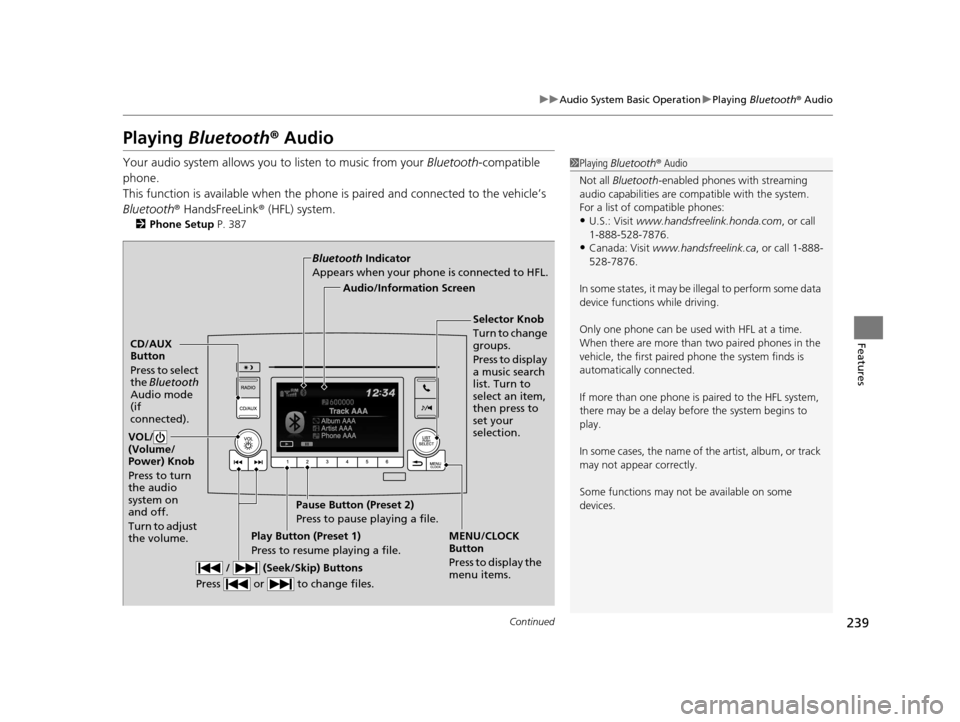
CD/AUX
Button
Press to select
the Bluetooth
Audio mode
(if
connected).
VOL/
(Volume/
Power) Knob
Press to turn
the audio
system on
and off.
Turn to adjust
the volume.
MENU/CLOCK
Button
Press to display the
menu items.
Audio/Information Screen
Bluetooth
Indicator
Appears when your phone is connected to HFL.
/ (Seek/Skip) Buttons
Press or to change files.Play Button (Preset 1)
Press to resume playing a file. Pause Button (Preset 2)
Press to pause playing a file.
Selector Knob
Turn to change
groups.
Press to display
a music search
list. Turn to
select an item,
then press to
set your
selection.
16 PILOT-31TG76000.book 239 ページ 2015年6月15日 月曜日 午前11時30分
Page 243 of 661
242
Features
Audio System Basic Operation
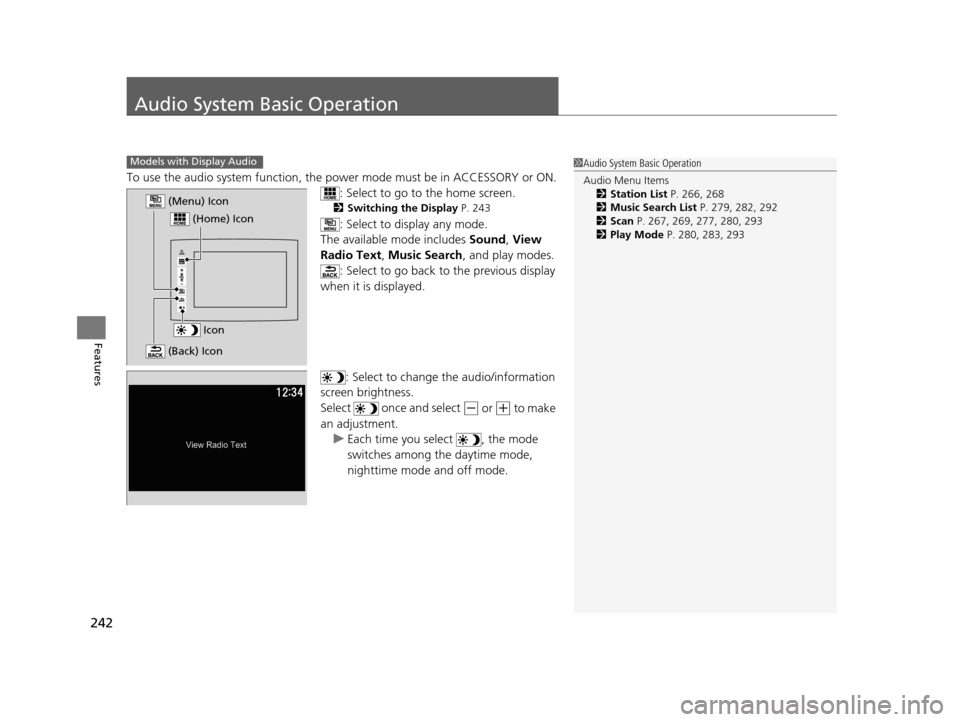
To use the audio system function, the power mode must be in ACCESSORY or ON.
: Select to go to the home screen.
2Switching the Display P. 243
: Select to display any mode.
The available mode includes Sound, View
Radio Text, Music Search , and play modes.
: Select to go back to the previous display
when it is displayed.
: Select to change the audio/information
screen brightness.
Select once and select
(- or (+ to make
an adjustment. u Each time you select , the mode
switches among the daytime mode,
nighttime mode and off mode.
Models with Display Audio1Audio System Basic Operation
Audio Menu Items
2 Station List P. 266, 268
2 Music Search List P. 279, 282, 292
2 Scan P. 267, 269, 277, 280, 293
2 Play Mode P. 280, 283, 293
Icon
(Home) Icon
(Menu) Icon
(Back) Icon
16 PILOT-31TG76000.book 242 ページ 2015年6月15日 月曜日 午前11時30分
Page 249 of 661
uuAudio System Basic Operation uAudio/Information Screen
248
Features
You can change, store, and delete the wa llpaper on the audio/information screen.
■Import wallpaper
You can import up to five images, one at a time, for wallpaper from a USB flash
drive.
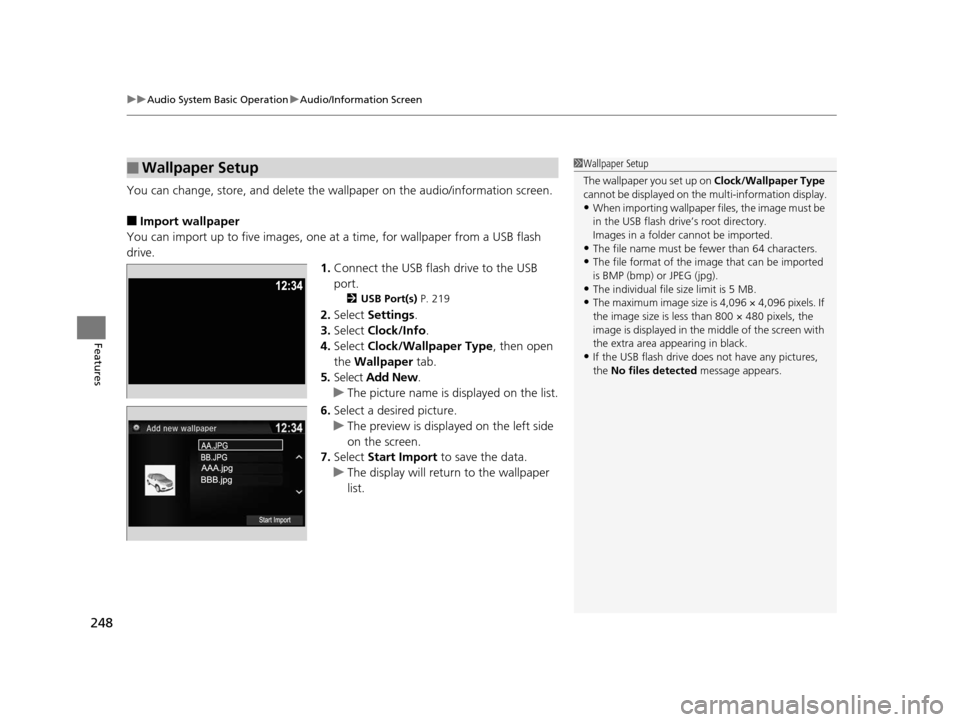
1.Connect the USB flash drive to the USB
port.
2 USB Port(s) P. 219
2.Select Settings .
3. Select Clock/Info .
4. Select Clock/Wallpaper Type , then open
the Wallpaper tab.
5. Select Add New .
u The picture name is displayed on the list.
6. Select a desired picture.
u The preview is displayed on the left side
on the screen.
7. Select Start Import to save the data.
u The display will return to the wallpaper
list.
■Wallpaper Setup1Wallpaper Setup
The wallpaper you set up on Clock/Wallpaper Type
cannot be displayed on the multi-information display.
•When importing wallpaper files, the image must be
in the USB flash drive’s root directory.
Images in a folder cannot be imported.
•The file name must be fewer than 64 characters.
•The file format of the image that can be imported
is BMP (bmp) or JPEG (jpg).
•The individual file size limit is 5 MB.
•The maximum image size is 4,096 × 4,096 pixels. If
the image size is less than 800 × 480 pixels, the
image is displayed in the middle of the screen with
the extra area appearing in black.
•If the USB flash drive doe s not have any pictures,
the No files detected message appears.
16 PILOT-31TG76000.book 248 ページ 2015年6月15日 月曜日 午前11時30分
Page 269 of 661
uuAudio System Basic Operation uPlaying AM/FM Radio
268
Features
Displays the subchannel list when an HD RadioTM station is selected while listening to
an FM station.
1. Select .
2. Select HD Subchannel .
3. Select the channel number.
Provides text data information related to your selected RDS-capable FM station.
■To find an RDS station from Station List
1. Select the open/close icon to display a list while listening to an FM station.
2. Select the Station List tab.
3. Select the station.
■Manual update
Updates your available station list at any time.
1. Select the open/close icon to display a list while listening to an FM station.
2. Select the Station List tab.
3. Select Refresh .
■HD Subchannel
■Radio Data System (RDS)
Models with HD RadioTM
1Radio Data System (RDS)
When you select an RDS-capable FM station, the RDS
automatically turns on, and the frequency display
changes to the station name. However, when the
signals of that station become weak, the display
changes from the statio n name to the frequency.
16 PILOT-31TG76000.book 268 ページ 2015年6月15日 月曜日 午前11時30分
Page 271 of 661
270
uuAudio System Basic Operation uPlaying SiriusXM ® Radio
Features
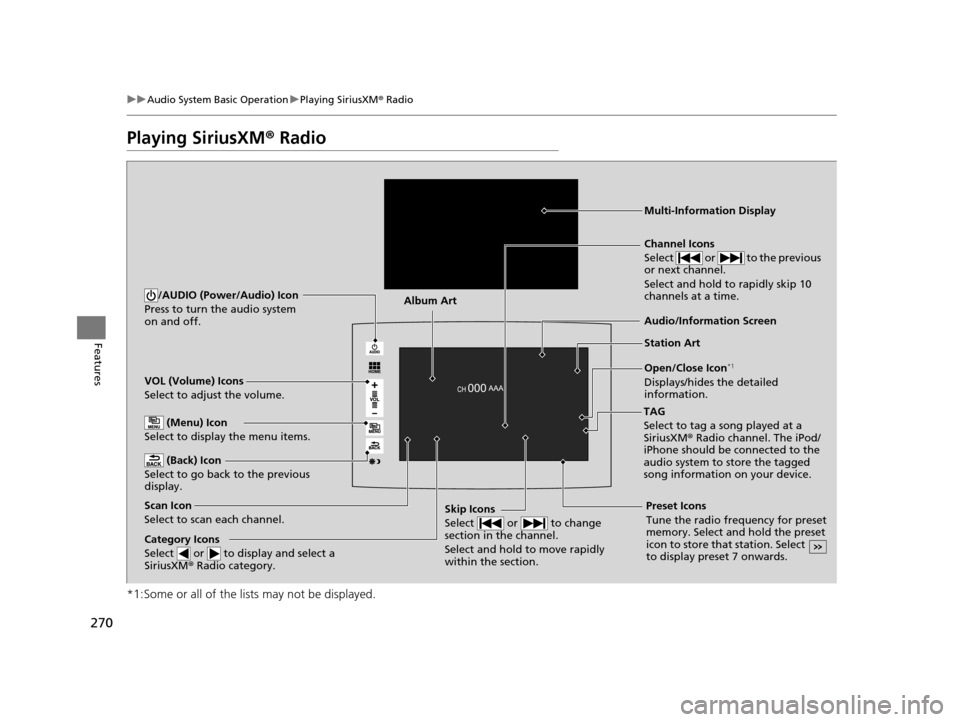
Playing SiriusXM ® Radio
*1:Some or all of the lists may not be displayed.
VOL (Volume) Icons
Select to adjust the volume.
(Back) Icon
Select to go back to the previous
display.
Channel Icons
Select or to the previous
or next channel.
Select and hold to rapidly skip 10
channels at a time.
/AUDIO (Power/Audio) Icon
Press to turn the audio system
on and off.
Open/Close Icon*1
Displays/hides the detailed
information.
(Menu) Icon
Select to display the menu items.
TAG
Select to tag a song played at a
SiriusXM® Radio channel. The iPod/
iPhone should be connected to the
audio system to store the tagged
song information on your device.
Category Icons
Select or to display and select a
SiriusXM ® Radio category.
Audio/Information Screen
Scan Icon
Select to scan each channel. Preset Icons
Tune the radio frequency for preset
memory. Select and hold the preset
icon to store that station. Select
to display preset 7 onwards.Skip Icons
Select or to change
section in the channel.
Select and hold to move rapidly
within the section.
Multi-Information Display
Album Art
Station Art
16 PILOT-31TG76000.book 270 ページ 2015年6月15日 月曜日 午前11時30分
Page 295 of 661
294
uuAudio System Basic Operation uPlaying Bluetooth ® Audio
Features
Playing Bluetooth® Audio
Your audio system allows you to listen to music from your Bluetooth-compatible
phone.
This function is available when the phone is paired and connected to the vehicle’s
Bluetooth ® HandsFreeLink ® (HFL) system.
2 Phone Setup P. 414
*1:Depending on the Bluetooth® device you connect, some or all of the lists may not
be displayed.
1 Playing Bluetooth ® Audio
Not all Bluetooth -enabled phones with streaming
audio capabilities are compatible.
To check if your phone is compatible, visit
http://www.handsfr eelink.com/Honda/.
It may be illegal to pe rform some data device
functions while driving.
Only one phone can be used with HFL at a time.
When there are more than two paired phones in the
vehicle, the first paired phone the system finds is
automatically connected.
The connected phone for Bluetooth® Audio can be
different.
If more than one phone is paired to the HFL system,
there may be a delay before the system begins to
play.
In some cases, the name of the artist, album, or track
may not appear correctly.
Some functions may not be available on some
devices.
Audio/Information
Screen
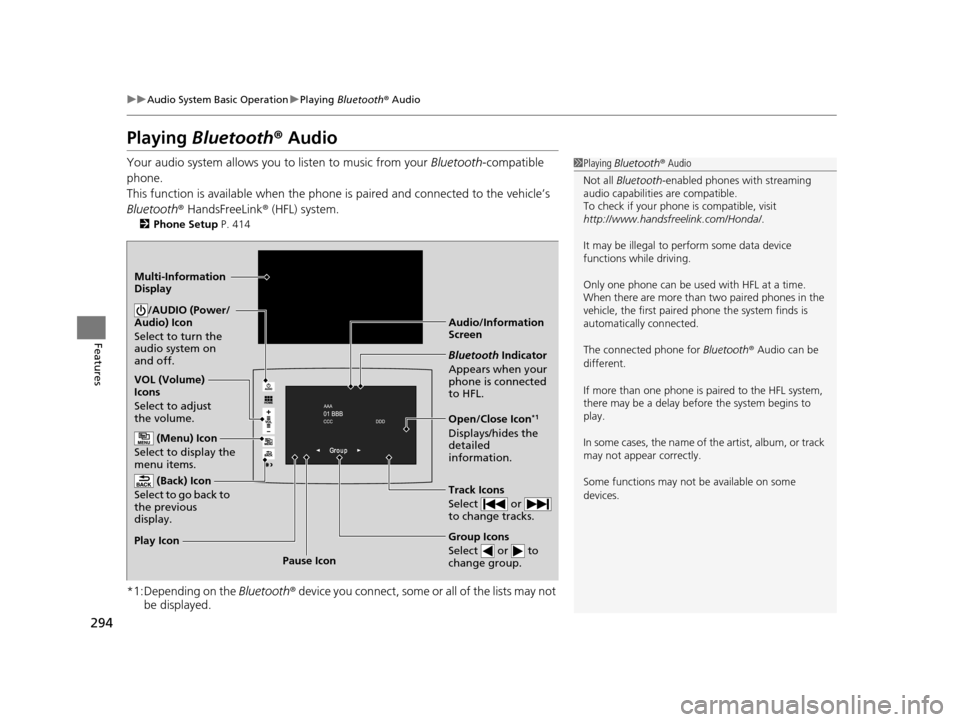
VOL (Volume)
Icons
Select to adjust
the volume.
(Back) Icon
Select to go back to
the previous
display./AUDIO (Power/
Audio) Icon
Select to turn the
audio system on
and off.
(Menu) Icon
Select to display the
menu items.
Group Icons
Select or to
change group.
Pause Icon
Play Icon
Bluetooth
Indicator
Appears when your
phone is connected
to HFL.
Track Icons
Select or
to change tracks.
Open/Close Icon*1
Displays/hides the
detailed
information.
Multi-Information
Display
16 PILOT-31TG76000.book 294 ページ 2015年6月15日 月曜日 午前11時30分
Page 298 of 661
297
uuAudio System Basic Operation uHondaLink ®
Continued
Features
■Messages from Honda
Displays helpful and important information from Honda.
■Weather
Displays a weekly five-day weather forecast for any lo cation you want. You can
change the ZIP Code at any time.
Use the following procedure to connect to HondaLink ® service.
■To enable to the HondaLink® service
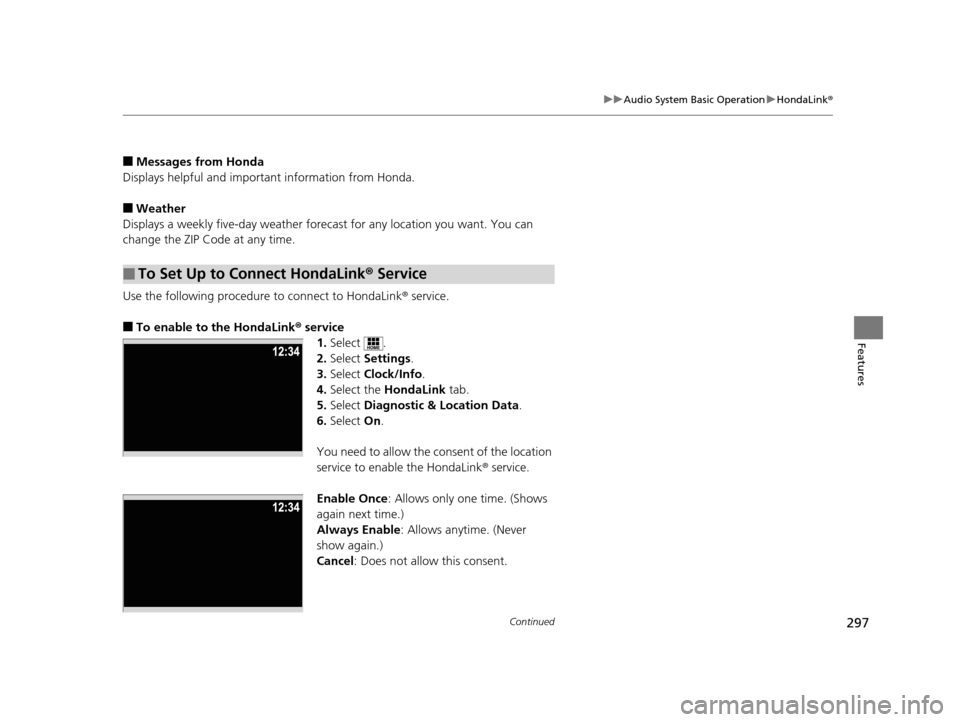
1.Select .
2. Select Settings .
3. Select Clock/Info .
4. Select the HondaLink tab.
5. Select Diagnostic & Location Data.
6. Select On.
You need to allow the consent of the location
service to enable the HondaLink ® service.
Enable Once : Allows only one time. (Shows
again next time.)
Always Enable: Allows anytime. (Never
show again.)
Cancel: Does not allow this consent.
■To Set Up to Connect HondaLink ® Service
16 PILOT-31TG76000.book 297 ページ 2015年6月15日 月曜日 午前11時30分
Page 362 of 661

361
uuCustomized Features u
Continued
Features
*1:Default SettingSetup
Group Customizable Features Description Selectable Settings
SystemClock
Clock/
Wallpaper
TypeClockChanges the clock display type.Analog
/Digital /Small
Digital*1/ Off
Wallpaper
●Changes the wallpaper type.●Imports an image file for a new wallpaper.●Deletes an image file for a wallpaper.
Galaxy*1/ Metallic/ Blank
Clock Adjustment*Adjusts clock.—
Clock FormatSelects the digital clock display from 12H to 24H.12H*1/24H
Date FormatSets the date format.YYYY/MM/DD/ MM/DD/
YYYY*1/ DD/MM/YYYY
Auto Time Zone*Sets the navigation system to automatically adjust
the clock when driving through different time
zones.
On*1/ Off
Manual Time ZoneChanges the time zone manually.—
Auto Daylight
Select On to have the GPS automatically adjust
the clock to daylight savings time. Select Off to
cancel this function.
On*1/ Off
Clock DisplaySelects whether the clock display comes on.On*1/Off
Clock LocationChanges the clock display layout.Upper Right*1/Upper Left /
Lower Right /Lower Left
* Not available on all models
16 PILOT-31TG76000.book 361 ページ 2015年6月15日 月曜日 午前11時30分