Page 324 of 661
323
uuBlu-ray/DVD Rear Entertainment System*uPlaying a DVD/Blu-rayTM*
Continued
Features
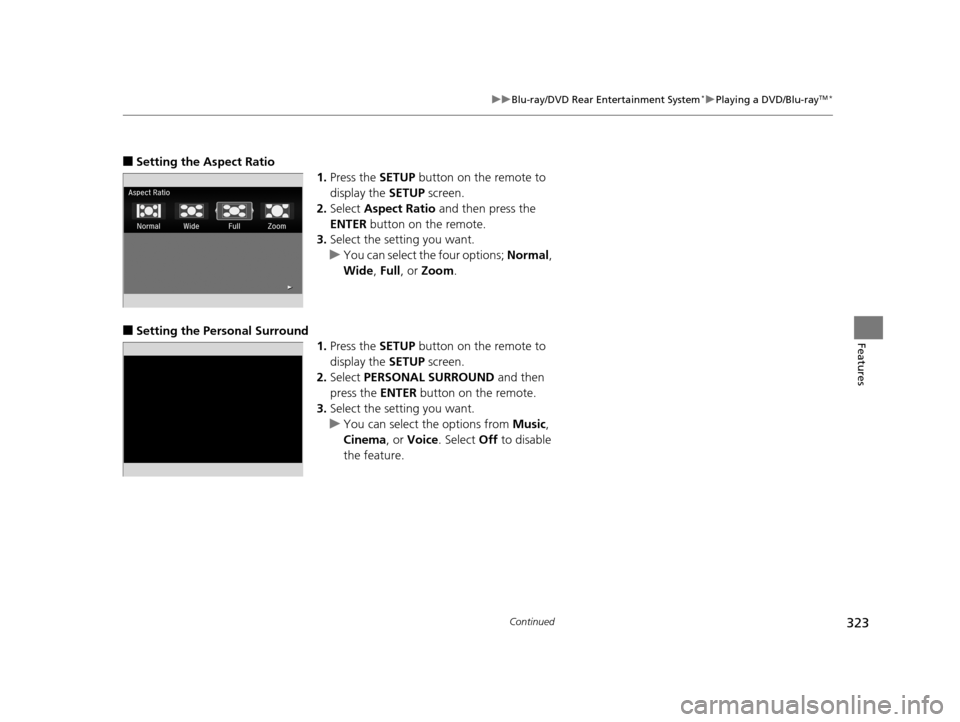
■Setting the Aspect Ratio
1.Press the SETUP button on the remote to
display the SETUP screen.
2. Select Aspect Ratio and then press the
ENTER button on the remote.
3. Select the setting you want.
u You can select the four options; Normal,
Wide , Full, or Zoom.
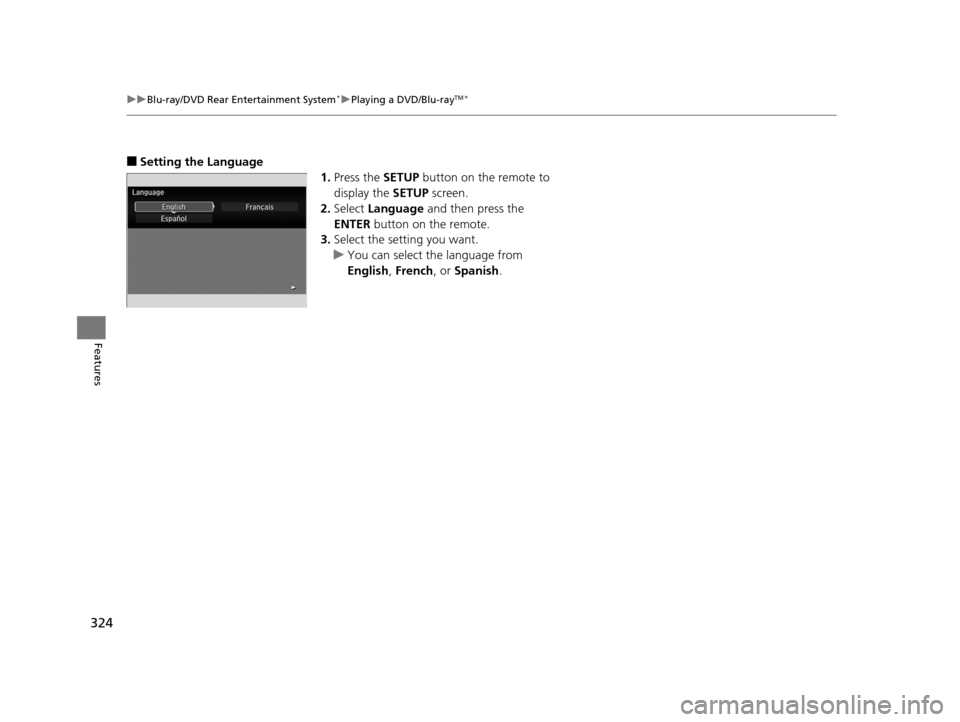
■Setting the Pers onal Surround
1.Press the SETUP button on the remote to
display the SETUP screen.
2. Select PERSONAL SURROUND and then
press the ENTER button on the remote.
3. Select the setting you want.
u You can select the options from Music,
Cinema , or Voice . Select Off to disable
the feature.
16 PILOT-31TG76000.book 323 ページ 2015年6月15日 月曜日 午前11時30分
Page 325 of 661
324
uuBlu-ray/DVD Rear Entertainment System*uPlaying a DVD/Blu-rayTM*
Features
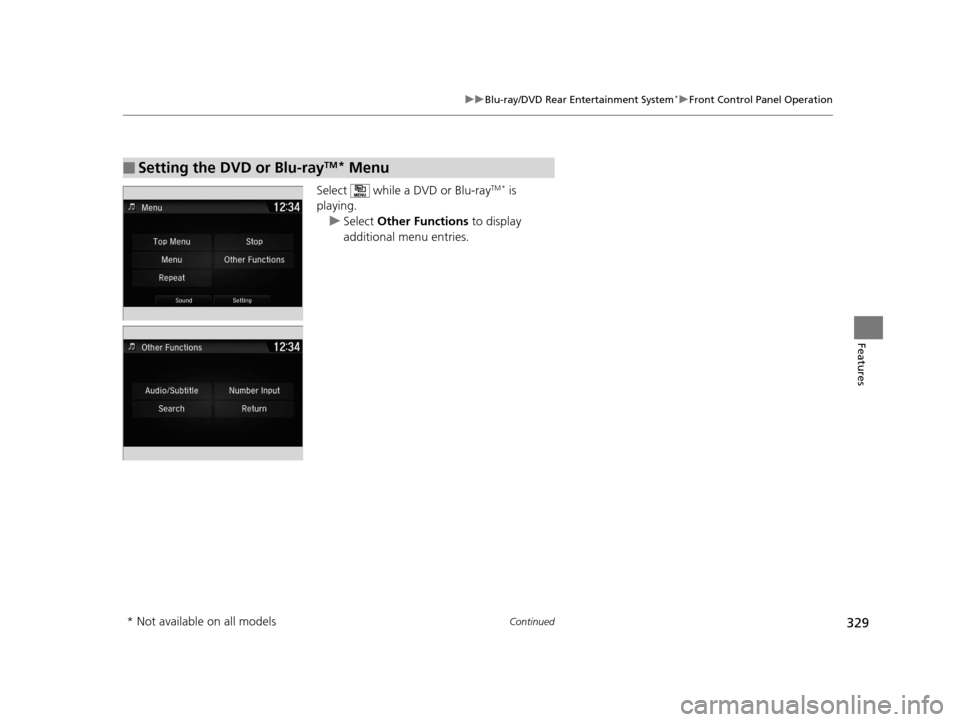
■Setting the Language
1.Press the SETUP button on the remote to
display the SETUP screen.
2. Select Language and then press the
ENTER button on the remote.
3. Select the setting you want.
u You can select the language from
English, French, or Spanish .
16 PILOT-31TG76000.book 324 ページ 2015年6月15日 月曜日 午前11時30分
Page 326 of 661
325
uuBlu-ray/DVD Rear Entertainment System*uPlaying a DVD/Blu-rayTM*
Continued
Features
You can configure the initial Language, Dynamic Range, and Angle Mark settings
before playing a DVD or Blu-rayTM *.
1.Press the MENU button on the remote to
display the Menu screen.
2. Select Initial Settings and then press the
ENTER button on the remote.
The following items are available:
• Language Settings : Selects the language for the DVD's or Blu-ray
TM *'s displayed
menus (Menu Language), the DVD's or Blu-rayTM *'s audio (Audio Language), and
the DVD's or Blu-rayTM *'s subtitle (Subtitle Language).
2 Language Settings P. 326
•Dynamic Range : The feature reduces the difference between the loud and quiet
sound levels. Select ON or OFF .
• Angle Mark : You can select whether to displa y the angle mark appearing in the
upper right corner of the screen when you change th e view angle while the DVD
or Blu-ray
TM * is playing. Select ON or OFF .
■Initial Settings
* Not available on all models
16 PILOT-31TG76000.book 325 ページ 2015年6月15日 月曜日 午前11時30分
Page 327 of 661
uuBlu-ray/DVD Rear Entertainment System*uPlaying a DVD/Blu-rayTM*
326
Features
■Language Settings
1.Press the MENU button on the remote to
display the Menu screen.
2. Select Initial Settings and then press the
ENTER button on the remote.
3. Select an item and then press the ENTER
button on the remote.
4. Select a language and then press the
ENTER button on the remote.
Language Settings from other:
If you select other , you need to enter the four di git language code number to
configure the language that is not listed.
1. Select Yes to go to the number input screen.
u To return to the language setting screen, select No.
2. Press the ENTER button on the remote each time you input digit.
u If you want to delete a number, select DEL.
3. The cursor automatically goes to ENT after you input four digits. Press the ENTER
button on the remote to command.1 Language Settings
The prior language varies by disc. You may not be
able to configure your selected language setting.
You can select th e language from English, French ,
Spanish , Arabic , German , Italian , Dutch , Russian ,
Chinese , Korean , Thai, Japanese, and other.
16 PILOT-31TG76000.book 326 ページ 2015年6月15日 月曜日 午前11時30分
Page 330 of 661
329
uuBlu-ray/DVD Rear Entertainment System*uFront Control Panel Operation
Continued
Features
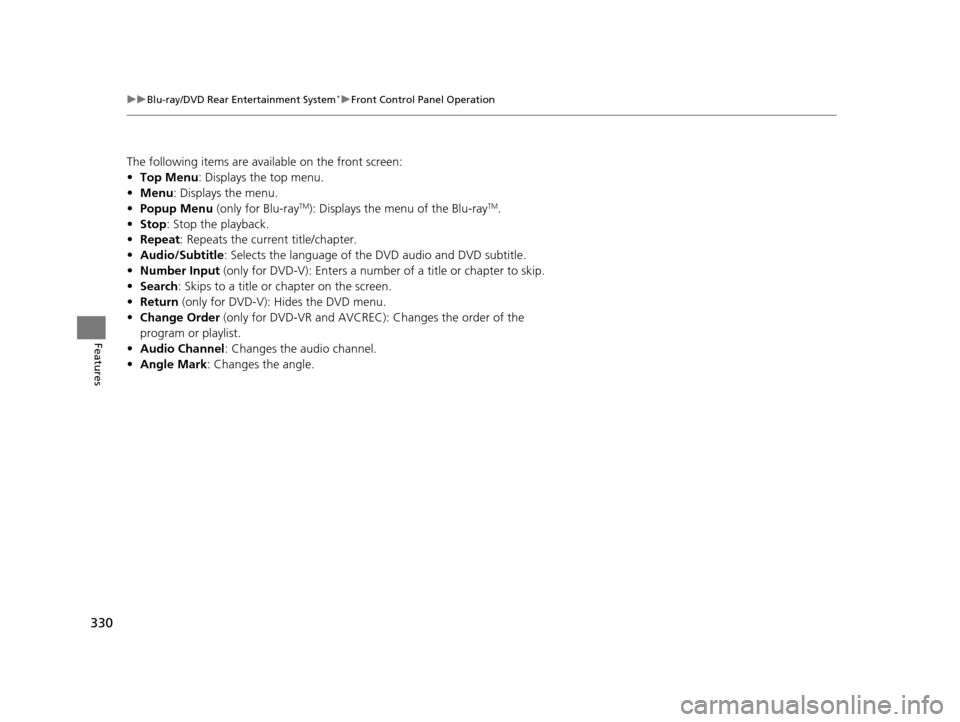
Select while a DVD or Blu-rayTM * is
playing.
u Select Other Functions to display
additional menu entries.
■Setting the DVD or Blu-rayTM* Menu
* Not available on all models
16 PILOT-31TG76000.book 329 ページ 2015年6月15日 月曜日 午前11時30分
Page 331 of 661
330
uuBlu-ray/DVD Rear Entertainment System*uFront Control Panel Operation
Features
The following items are avai lable on the front screen:
• Top Menu : Displays the top menu.
• Menu : Displays the menu.
• Popup Menu (only for Blu-ray
TM): Displays the menu of the Blu-rayTM.
• Stop : Stop the playback.
• Repeat: Repeats the current title/chapter.
• Audio/Subtitle : Selects the language of the DVD audio and DVD subtitle.
• Number Input (only for DVD-V): Enters a number of a title or chapter to skip.
• Search : Skips to a title or chapter on the screen.
• Return (only for DVD-V): Hides the DVD menu.
• Change Order (only for DVD-VR and AVCREC ): Changes the order of the
program or playlist.
• Audio Channel : Changes the audio channel.
• Angle Mark : Changes the angle.
16 PILOT-31TG76000.book 330 ページ 2015年6月15日 月曜日 午前11時30分
Page 332 of 661
331
uuBlu-ray/DVD Rear Entertainment System*uPlaying Audio
Continued
Features
Playing Audio
You can play a USB, iPod, auxiliary video (rear), or auxiliary audio (front) from the
rear seats.
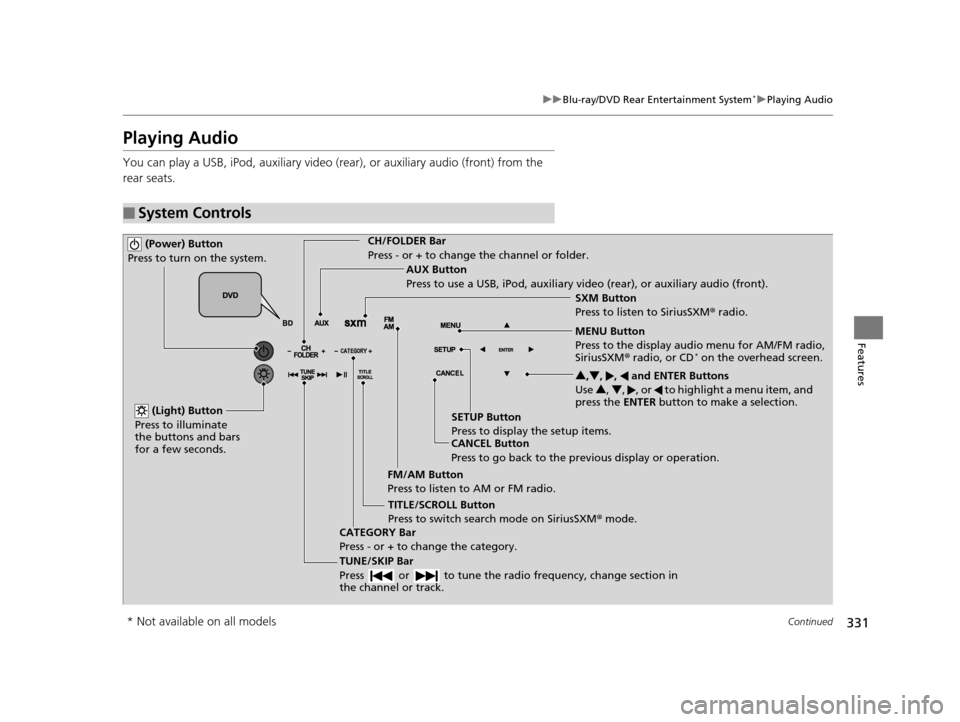
■System Controls
(Power) Button
Press to turn on the system.CH/FOLDER Bar
Press - or + to change the channel or folder.
(Light) Button
Press to illuminate
the buttons and bars
for a few seconds.
TUNE/SKIP Bar
Press or to tune the radi o frequency, change section in
the channel or track.
TITLE/SCROLL Button
Press to switch search mode on SiriusSXM ® mode.
CANCEL Button
Press to go back to the previous display or operation. 3
,4 , , and ENTER Buttons
Use 3, 4 , , or to highlight a menu item, and
press the ENTER button to make a selection.
CATEGORY Bar
Press - or + to change the category. AUX Button
Press to use a USB, iPod, auxiliary video (rear), or auxiliary audio (front).
FM/AM Button
Press to listen to AM or FM radio. SETUP Button
Press to display the setup items. SXM Button
Press to listen to SiriusSXM
® radio.
MENU Button
Press to the display audio menu for AM/FM radio,
SiriusSXM ® radio, or CD
* on the overhead screen.
* Not available on all models
16 PILOT-31TG76000.book 331 ページ 2015年6月15日 月曜日 午前11時30分
Page 333 of 661
uuBlu-ray/DVD Rear Entertainment System*uPlaying Audio
332
Features
To play the AM/FM radio, press the AM/FM button on the remote.
When you press the MENU button on the remote while the radio is playing, the
audio menu appears on the overhead screen.
The available functions are the same as those of the front audio system. The TUNE/
SKIP bar on the remote works the same as the Skip/Seek icons (<>) on the front
touch screen for AM/FM radio operation.
2 Playing AM/FM Radio P. 265
To play the SiriusXM® radio, press the SXM button on the remote.
When you press the MENU button on the remote while the radio is playing, the
audio menu appears on the overhead screen.
The available functions are the same as those of the front audio system. The TUNE/
SKIP bar on the remote works the same as the Skip/Seek icons (<>) on the front
touch screen for SiriusXM ® radio operation.
2Playing SiriusXM ® Radio P. 270
To change the mode between category and channel, press the TITLE/SCROLL
button on the remote for five seconds.
■Playing AM/FM Radio in the Rear
■Playing SiriusXM ® Radio in the Rear
1 System Controls
You can operate the Blu-ray/DVD rear entertainment
system on the front display.
16 PILOT-31TG76000.book 332 ページ 2015年6月15日 月曜日 午前11時30分