Page 312 of 661
311
uuGeneral Information on the Audio System uCompatible iPod, iPhone, and USB Flash Drives
Features
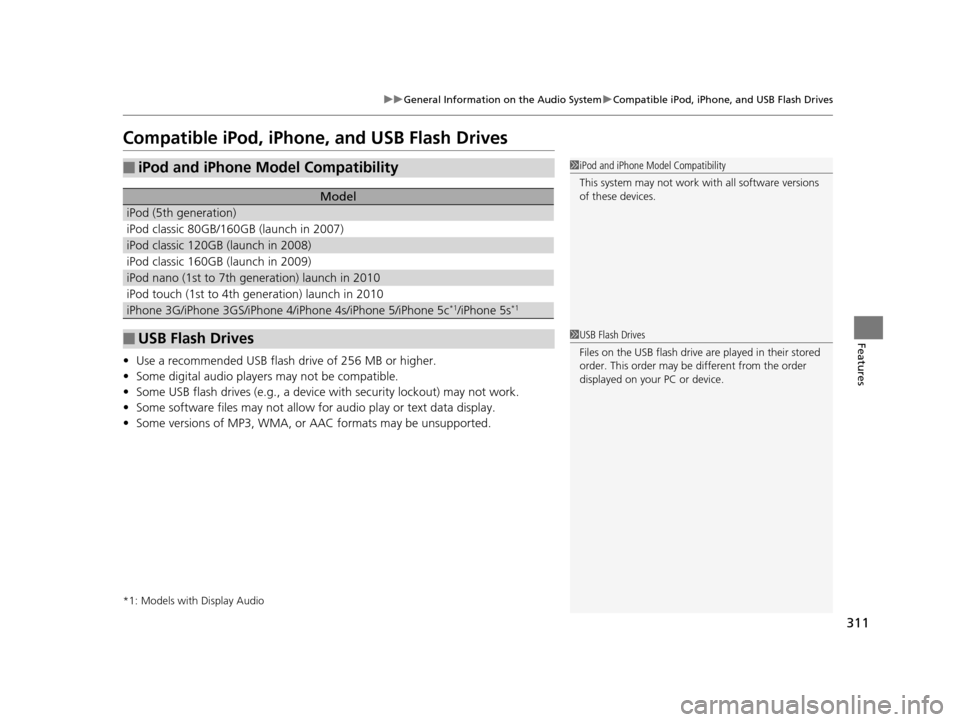
Compatible iPod, iPhone , and USB Flash Drives
•Use a recommended USB flash drive of 256 MB or higher.
• Some digital audio players may not be compatible.
• Some USB flash drives (e.g., a device with security lockout) may not work.
• Some software files may not allow for audio play or text data display.
• Some versions of MP3, WMA, or AAC formats may be unsupported.
*1: Models with Display Audio
■iPod and iPhone Model Compatibility
Model
iPod (5th generation)
iPod classic 80GB/160GB (launch in 2007)
iPod classic 120GB (launch in 2008)
iPod classic 160GB (launch in 2009)
iPod nano (1st to 7th generation) launch in 2010
iPod touch (1st to 4th generation) launch in 2010
iPhone 3G/iPhone 3GS/iPhone 4/iPhone 4s/iPhone 5/iPhone 5c*1/iPhone 5s*1
■USB Flash Drives
1iPod and iPhone Model Compatibility
This system may not work with all software versions
of these devices.
1USB Flash Drives
Files on the USB flash drive are played in their stored
order. This order may be different from the order
displayed on your PC or device.
16 PILOT-31TG76000.book 311 ページ 2015年6月15日 月曜日 午前11時30分
Page 313 of 661
312
uuGeneral Information on the Audio System uAbout Open Source Licenses
Features
About Open Source Licenses
To see the open source license information, follow these steps.
1. Select .
2. Select Settings .
3. Select System , then open the Others tab.
4. Select Detail Information .
5. Select About device.
6. Select Legal information .
7. Select Open source licenses .
Models with Display Audio
16 PILOT-31TG76000.book 312 ページ 2015年6月15日 月曜日 午前11時30分
Page 318 of 661
317
uuBlu-ray/DVD Rear Entertainment System*uPlaying a DVD/Blu-rayTM*
Continued
Features
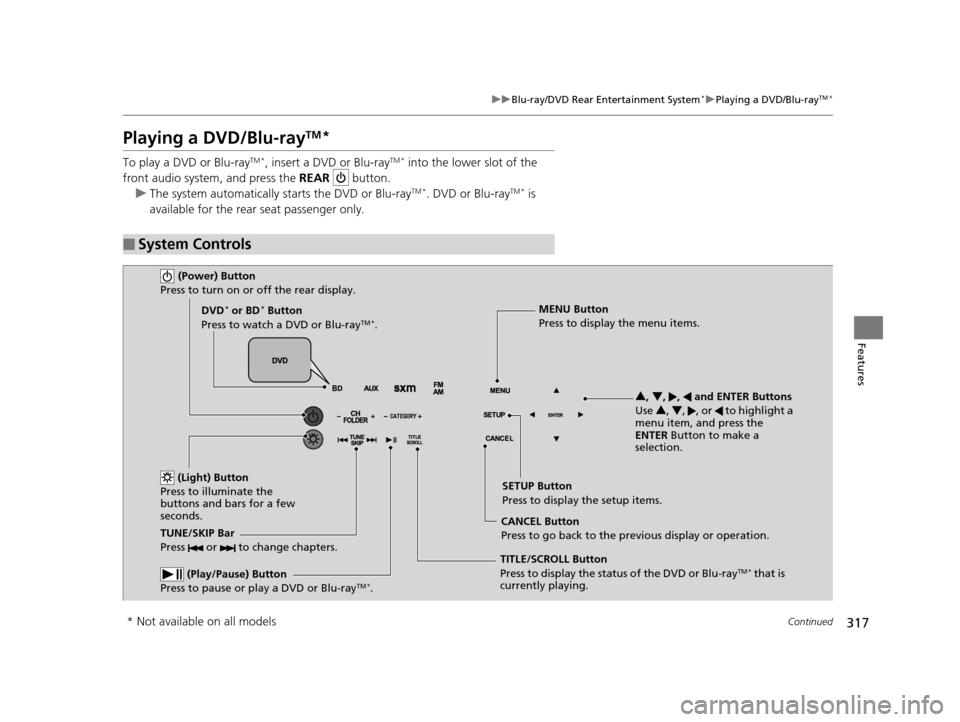
Playing a DVD/Blu-rayTM*
To play a DVD or Blu-rayTM *, insert a DVD or Blu-rayTM * into the lower slot of the
front audio system, and press the REAR button.
u The system automatically st arts the DVD or Blu-ray
TM *. DVD or Blu-rayTM * is
available for the rear seat passenger only.
■System Controls
(Power) Button
Press to turn on or off the rear display.
DVD* or BD* Button
Press to watch a DVD or Blu-rayTM *.
(Light) Button
Press to illuminate the
buttons and bars for a few
seconds.
TUNE/SKIP Bar
Press or to change chapters.
(Play/Pause) Button
Press to pause or play a DVD or Blu-rayTM *.
TITLE/SCROLL Button
Press to display the status of the DVD or Blu-rayTM * that is
currently playing. MENU Button
Press to display the menu items.
SETUP Button
Press to display the setup items.
CANCEL Button
Press to go back to the previous display or operation. 3
, 4 , , and ENTER Buttons
Use 3, 4 , , or to highlight a
menu item, and press the
ENTER Button to make a
selection.
* Not available on all models
16 PILOT-31TG76000.book 317 ページ 2015年6月15日 月曜日 午前11時30分
Page 319 of 661

uuBlu-ray/DVD Rear Entertainment System*uPlaying a DVD/Blu-rayTM*
318
Features
1. Press the MENU button on the remote to
display the Menu screen.
2. Select an item and then press the ENTER
button on the remote.
The following items are available:
• Top Menu : Displays the top menu of the DVD or Blu-ray
TM *.
• Popup Menu : Displays the menu of the Blu-rayTM *.
• Play Mode : Displays while a DVD or Blu-rayTM * is playing and changes the DVD
or Blu-rayTM * preferences.
2 Setting the Play Mode P. 319
•Search / NumInput: Skips to a title or chapter by entering the number.
2 Searching a Title/Chapter P. 320
•Repeat:
TITLE REPEAT: Repeats the current title.
CHAPTER REPEAT: Repeats the current chapter.
• Menu (When playing a DVD): Displays the menu.
• Pause / Play : Pauses or resumes the playback.
• Stop : Stops the playback.
• Return (When playing a DVD): Returns to the previous screen.
• BD Control Menu (When playing a Blu-ray
TM): Displays the Blu-rayTM control
menu.
■Rear DVD or Blu-rayTM* Menu1 Rear DVD or Blu-rayTM* Menu
During Blu-ray
TM operation, when the source is
changed or the vehicle is turned off, Blu-rayTM
operation stops. For certain Blu-rayTM discs, it can only
be restarted from the RES.
* Not available on all models
16 PILOT-31TG76000.book 318 ページ 2015年6月15日 月曜日 午前11時30分
Page 320 of 661
319
uuBlu-ray/DVD Rear Entertainment System*uPlaying a DVD/Blu-rayTM*
Continued
Features
If you press the MENU button on the remote while the DVD or Blu-rayTM * is not
playing, the option Play Mode changes to Initial Settings .
2Initial Settings P. 325
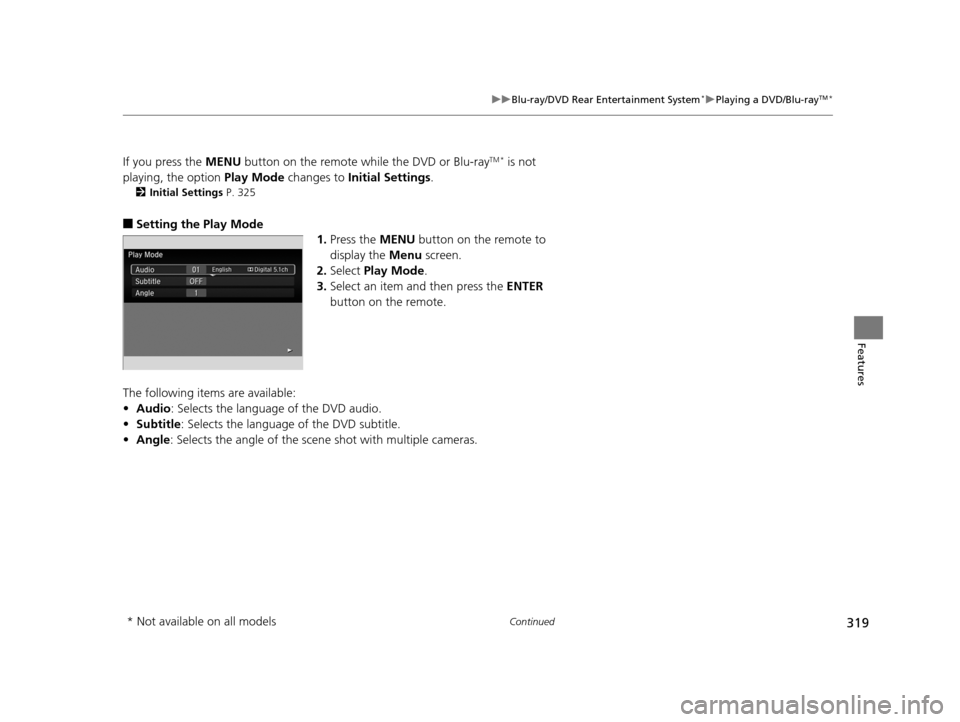
■Setting the Play Mode
1.Press the MENU button on the remote to
display the Menu screen.
2. Select Play Mode .
3. Select an item and then press the ENTER
button on the remote.
The following items are available:
• Audio : Selects the language of the DVD audio.
• Subtitle : Selects the language of the DVD subtitle.
• Angle : Selects the angle of the scen e shot with multiple cameras.
* Not available on all models
16 PILOT-31TG76000.book 319 ページ 2015年6月15日 月曜日 午前11時30分
Page 321 of 661
320
uuBlu-ray/DVD Rear Entertainment System*uPlaying a DVD/Blu-rayTM*
Features
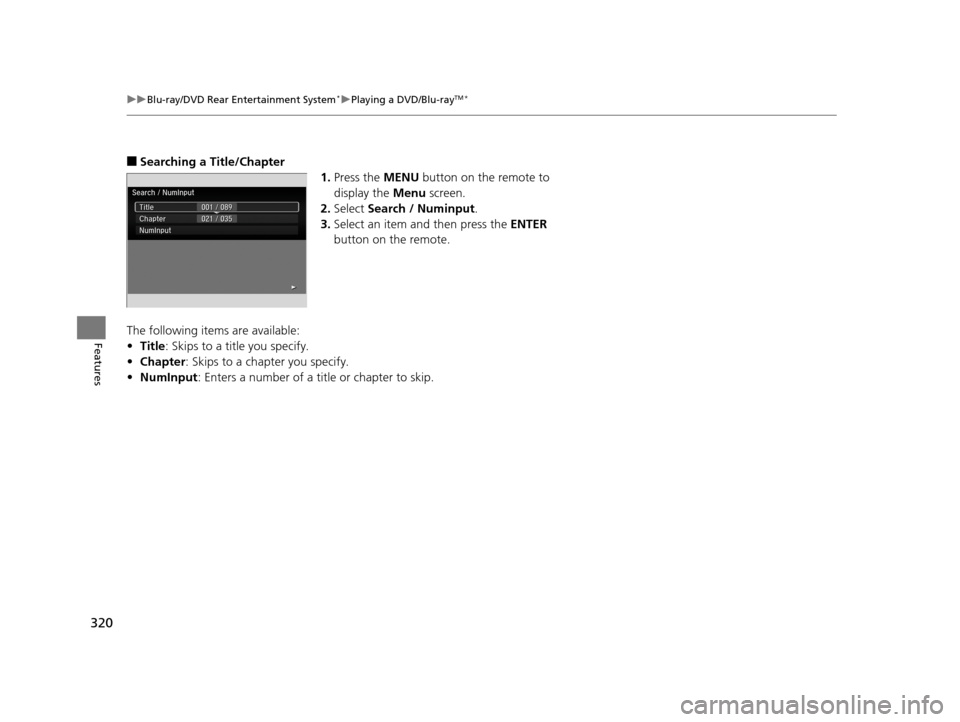
■Searching a Title/Chapter
1.Press the MENU button on the remote to
display the Menu screen.
2. Select Search / Numinput .
3. Select an item and then press the ENTER
button on the remote.
The following items are available:
• Title : Skips to a title you specify.
• Chapter : Skips to a chapter you specify.
• NumInput : Enters a number of a title or chapter to skip.
16 PILOT-31TG76000.book 320 ページ 2015年6月15日 月曜日 午前11時30分
Page 322 of 661
321
uuBlu-ray/DVD Rear Entertainment System*uPlaying a DVD/Blu-rayTM*
Continued
Features
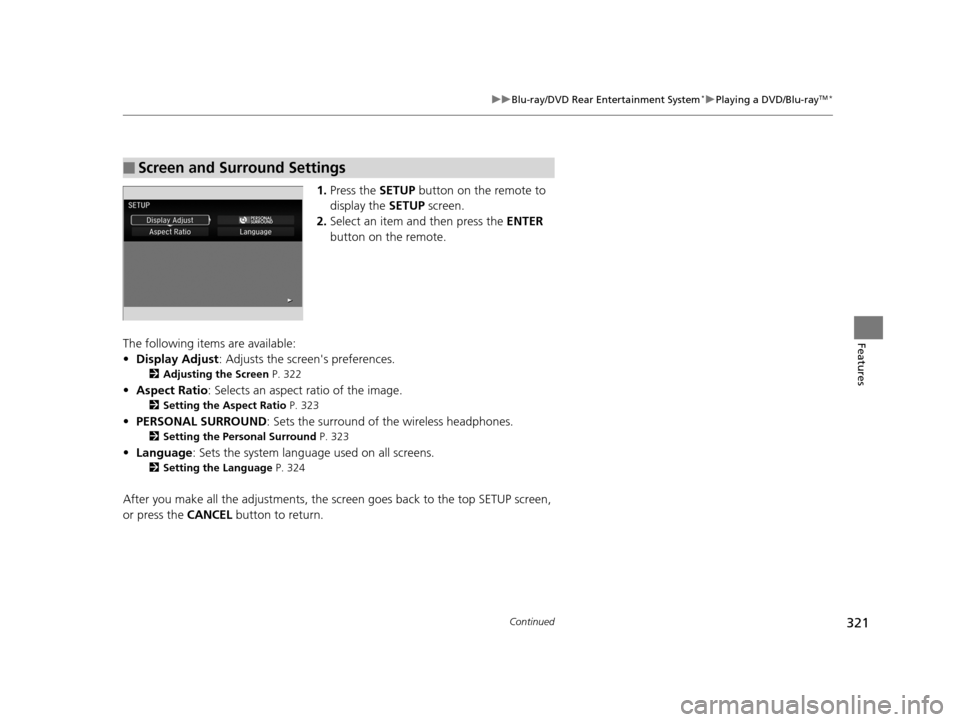
1. Press the SETUP button on the remote to
display the SETUP screen.
2. Select an item and then press the ENTER
button on the remote.
The following items are available:
• Display Adjust : Adjusts the screen's preferences.
2Adjusting the Screen P. 322
•Aspect Ratio : Selects an aspect ratio of the image.
2Setting the Aspect Ratio P. 323
•PERSONAL SURROUND : Sets the surround of the wireless headphones.
2Setting the Personal Surround P. 323
•Language : Sets the system language used on all screens.
2Setting the Language P. 324
After you make all the adjustments, the sc reen goes back to the top SETUP screen,
or press the CANCEL button to return.
■Screen and Surround Settings
16 PILOT-31TG76000.book 321 ページ 2015年6月15日 月曜日 午前11時30分
Page 323 of 661
322
uuBlu-ray/DVD Rear Entertainment System*uPlaying a DVD/Blu-rayTM*
Features
■Adjusting the Screen
1.Press the SETUP button on the remote to
display the SETUP screen.
2. Select Display Adjust and then press the
ENTER button on the remote.
3. Select the setting you want.
The following items are available:
• Brightness : Adjusts the screen's brightness.
• Contrast : Adjusts the screen's contrast.
• Black Level : Adjusts the screen's black level.
• Color : Adjusts the screen's color strength.
• Tint : Adjusts the screen's hue.
• Reset : Resets all the settings to their factory default.
16 PILOT-31TG76000.book 322 ページ 2015年6月15日 月曜日 午前11時30分