Page 287 of 585
286
Features
General Information on the Audio System
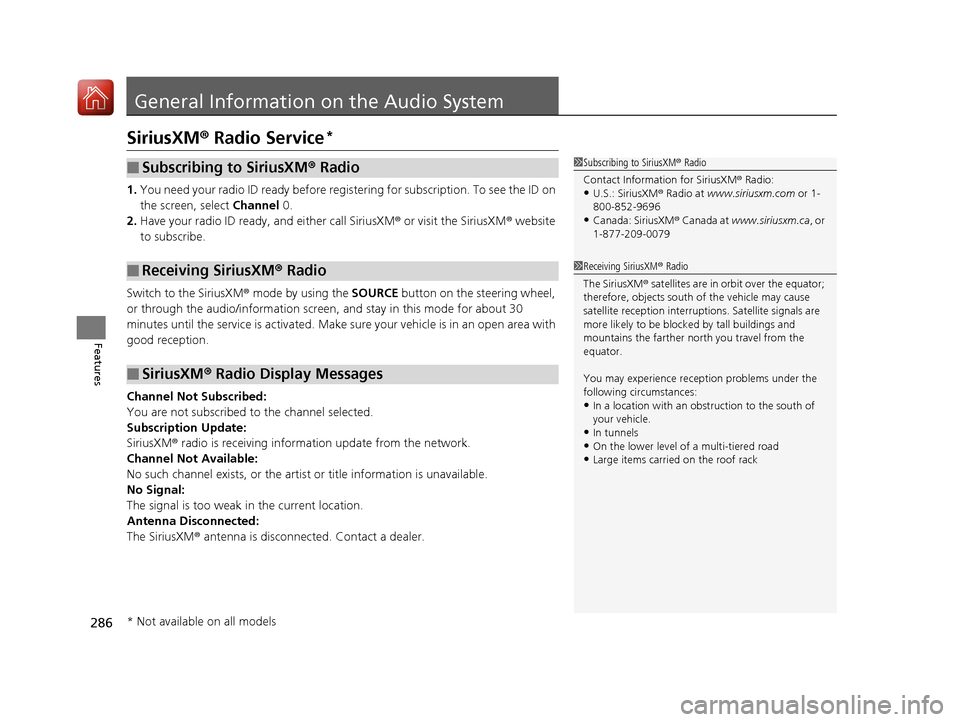
SiriusXM® Radio Service *
1. You need your radio ID ready before regist ering for subscription. To see the ID on
the screen, select Channel 0.
2. Have your radio ID ready, and either call SiriusXM ® or visit the SiriusXM ® website
to subscribe.
Switch to the SiriusXM ® mode by using the SOURCE button on the steering wheel,
or through the audio/information screen, and stay in this mode for about 30
minutes until the service is activated. Make sure your vehicle is in an open area with
good reception.
Channel Not Subscribed:
You are not subscribed to the channel selected.
Subscription Update: SiriusXM ® radio is receiving informat ion update from the network.
Channel Not Available:
No such channel exists, or the artist or title information is unavailable.
No Signal:The signal is too weak in the current location.
Antenna Disconnected: The SiriusXM ® antenna is disconnected. Contact a dealer.
■Subscribing to SiriusXM ® Radio
■Receiving SiriusXM ® Radio
■SiriusXM ® Radio Display Messages
1Subscribing to SiriusXM ® Radio
Contact Information for SiriusXM ® Radio:
• U.S.: SiriusXM ® Radio at www.siriusxm.com or 1-
800-852-9696
• Canada: SiriusXM ® Canada at www.siriusxm.ca , or
1-877-209-0079
1Receiving SiriusXM ® Radio
The SiriusXM ® satellites are in orbit over the equator;
therefore, objects south of the vehicle may cause
satellite rece ption interruptions. Sa tellite signals are
more likely to be blocked by tall buildings and mountains the farther north you travel from the
equator.
You may experience rece ption problems under the
following circumstances: • In a location with an obstruction to the south of your vehicle.
• In tunnels
• On the lower level of a multi-tiered road
• Large items carried on the roof rack
* Not available on all models
16 CIVIC 2D HC2 (0A 01 0C)-31TBG6000.book 286 ページ >0>.>/6年>0月>/>0日 金曜日 午後4時>/6分
Page 288 of 585
287
uuGeneral Information on the Audio SystemuCompatible iPod, iPhone, and USB Flash Drives
Features
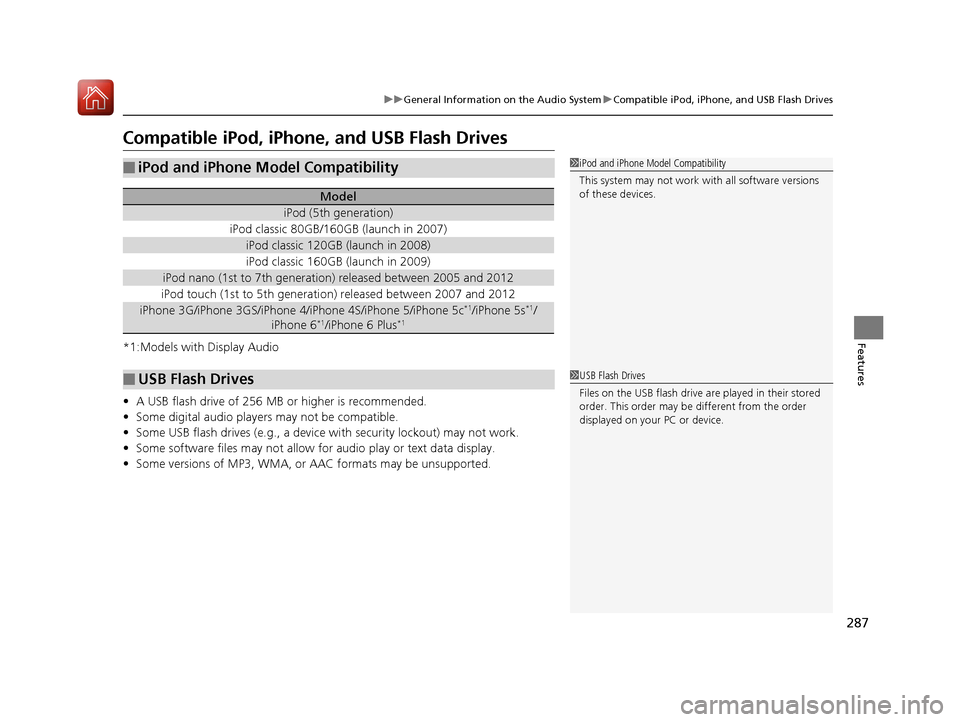
Compatible iPod, iPhone, and USB Flash Drives
*1:Models with Display Audio • A USB flash drive of 256 MB or higher is recommended.
• Some digital audio players may not be compatible.
• Some USB flash drives (e.g., a device with security lockout) may not work.
• Some software files may not allow for audio play or text data display.
• Some versions of MP3, WMA, or AAC formats may be unsupported.
■iPod and iPhone Model Compatibility
Model
iPod (5th generation)
iPod classic 80GB/160GB (launch in 2007)
iPod classic 120GB (launch in 2008)
iPod classic 160GB (launch in 2009)
iPod nano (1st to 7th generation) released between 2005 and 2012
iPod touch (1st to 5th generation) released between 2007 and 2012
iPhone 3G/iPhone 3GS/iPhone 4/iPhone 4S/iPhone 5/iPhone 5c *1
/iPhone 5s *1
/
iPhone 6 *1
/iPhone 6 Plus *1
■USB Flash Drives
1iPod and iPhone Model Compatibility
This system may not work with all software versions
of these devices.
1USB Flash Drives
Files on the USB flash drive are played in their stored
order. This order may be
different from the order
displayed on your PC or device.
16 CIVIC 2D HC2 (0A 01 0C)-31TBG6000.book 287 ページ >0>.>/6年>0月>/>0日 金曜日 午後4時>/6分
Page 289 of 585
288
uuGeneral Information on the Audio SystemuLegal Information on Apple CarPlay/Android Auto
Features
Models with Display Audio
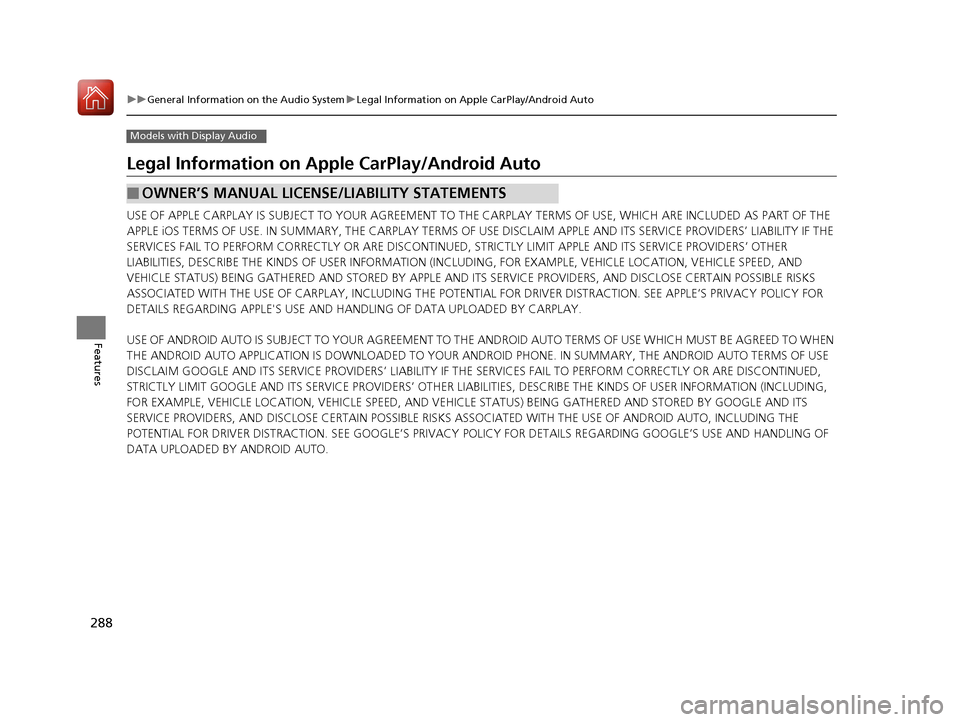
Legal Information on Apple CarPlay/Android Auto
USE OF APPLE CARPLAY IS SUBJECT TO YOUR AGREEMENT TO THE CARPLAY TERMS OF USE, WHICH ARE INCLUDED AS PART OF THE
APPLE iOS TERMS OF USE. IN SUMMARY, THE CARPLAY TERMS OF USE DISCLAIM APPLE AND I TS SERVICE PROVIDERS’ LIABILITY IF THE
SERVICES FAIL TO PERFORM CORRECTLY OR ARE DISCONTINUED, STRICTLY LIMIT APPLE AND ITS SERVICE PROVIDERS’ OTHER
LIABILITIES, DESCRIBE THE KINDS OF USER INFORMATION (INCLUDING, FOR EXAMPLE, VEHICLE LOCATION, VEHICLE SPEED, AND
VEHICLE STATUS) BEING GATHERED AND STORED BY APPLE AND I TS SERVICE PROVIDERS, AND DISCLOSE CERTAIN POSSIBLE RISKS
ASSOCIATED WITH THE USE OF CARPLAY, INCLUDING THE POTENTI AL FOR DRIVER DISTRACTION. SEE APPLE’S PRIVACY POLICY FOR
DETAILS REGARDING APPLE'S USE AND HANDLING OF DATA UPLOADED BY CARPLAY.
USE OF ANDROID AUTO IS SUBJECT TO YOUR AGREEMENT TO TH E ANDROID AUTO TERMS OF USE WHICH MUST BE AGREED TO WHEN
THE ANDROID AUTO APPLICATION IS DOWNLOADED TO YOUR ANDROI D PHONE. IN SUMMARY, THE ANDROID AUTO TERMS OF USE
DISCLAIM GOOGLE AND ITS SERVICE PROVIDERS’ LIABILITY IF THE SERVICES FAIL TO PERFORM CORRECTLY OR ARE DISCONTINUED,
STRICTLY LIMIT GOOGLE AND ITS SERVICE PROVIDERS’ OTHER LIABILIT IES, DESCRIBE THE KINDS OF USER INFORMATION (INCLUDING,
FOR EXAMPLE, VEHICLE LOCATION, VEHICLE SPEED, AND VEHI CLE STATUS) BEING GATHERED AND STORED BY GOOGLE AND ITS
SERVICE PROVIDERS, AND DISCLOSE CERT AIN POSSIBLE RISKS ASSOCIATED WITH TH E USE OF ANDROID AUTO, INCLUDING THE
POTENTIAL FOR DRIVER DISTRACTION. SEE GOOGLE’S PRIVACY POLICY FOR DETAIL S REGARDING GOOGLE’S USE AND HANDLING OF
DATA UPLOADED BY ANDROID AUTO.
■OWNER’S MANUAL LICENSE/LIABILITY STATEMENTS
16 CIVIC 2D HC2 (0A 01 0C)-31TBG6000.book 288 ページ >0>.>/6年>0月>/>0日 金曜日 午後4時>/6分
Page 291 of 585
290
uuGeneral Information on the Audio SystemuAbout Open Source Licenses
Features
About Open Source Licenses
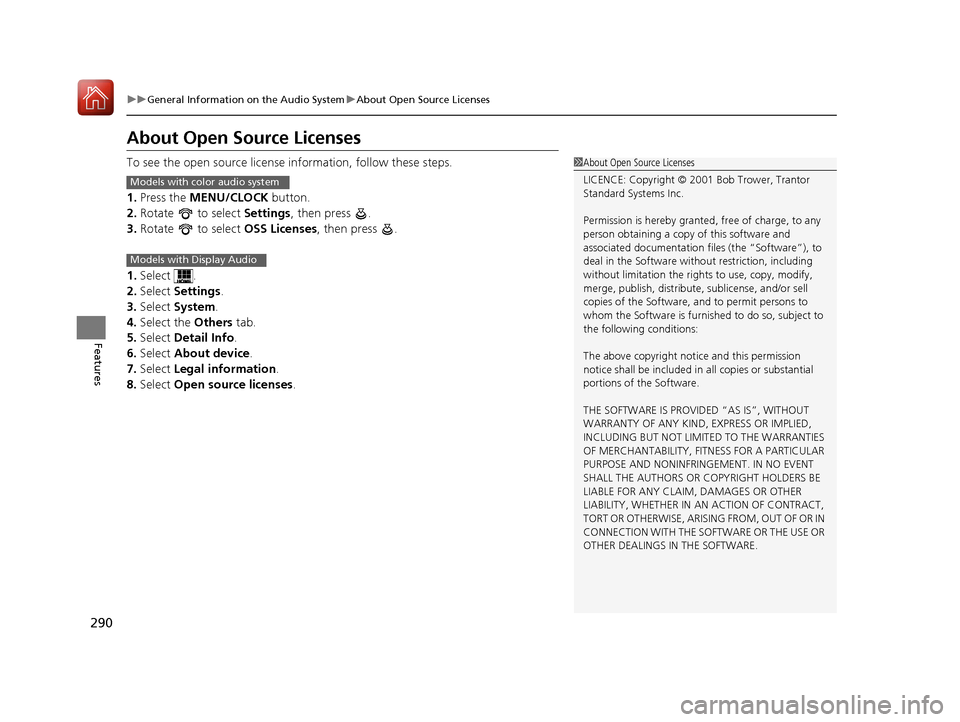
To see the open source license information, follow these steps.
1. Press the MENU/CLOCK button.
2. Rotate to select Settings, then press .
3. Rotate to select OSS Licenses, then press .
1. Select .
2. Select Settings .
3. Select System .
4. Select the Others tab.
5. Select Detail Info .
6. Select About device .
7. Select Legal information .
8. Select Open source licenses .
1About Open Source Licenses LICENCE: Copyright © 2001 Bob Trower, Trantor
Standard Systems Inc.
Permission is hereby grante d, free of charge, to any
person obtaining a copy of this software and associated documentation file s (the “Software”), to
deal in the Software wit hout restriction, including
without limitation the rights to use, copy, modify,
merge, publish, distribute, sublicense, and/or sell
copies of the Software, and to permit persons to
whom the Software is furnished to do so, subject to
the following conditions:
The above copyright notice and this permission
notice shall be included in all copies or substantial
portions of the Software.
THE SOFTWARE IS PROVIDED “AS IS”, WITHOUT
WARRANTY OF ANY KIND, EXPRESS OR IMPLIED,
INCLUDING BUT NOT LIMITED TO THE WARRANTIES
OF MERCHANTABILITY, FITNESS FOR A PARTICULAR
PURPOSE AND NONINFRINGEMENT. IN NO EVENT
SHALL THE AUTHORS OR COPYRIGHT HOLDERS BE
LIABLE FOR ANY CLAIM, DAMAGES OR OTHER
LIABILITY, WHETHER IN AN ACTION OF CONTRACT,
TORT OR OTHERWISE, ARISING FROM, OUT OF OR IN
CONNECTION WITH THE SOFTWARE OR THE USE OR
OTHER DEALINGS IN THE SOFTWARE.
Models with color audio system
Models with Display Audio
16 CIVIC 2D HC2 (0A 01 0C)-31TBG6000.book 290 ページ >0>.>/6年>0月>/>0日 金曜日 午後4時>/6分
Page 294 of 585
293
uuCustomized Featuresu
Continued
Features
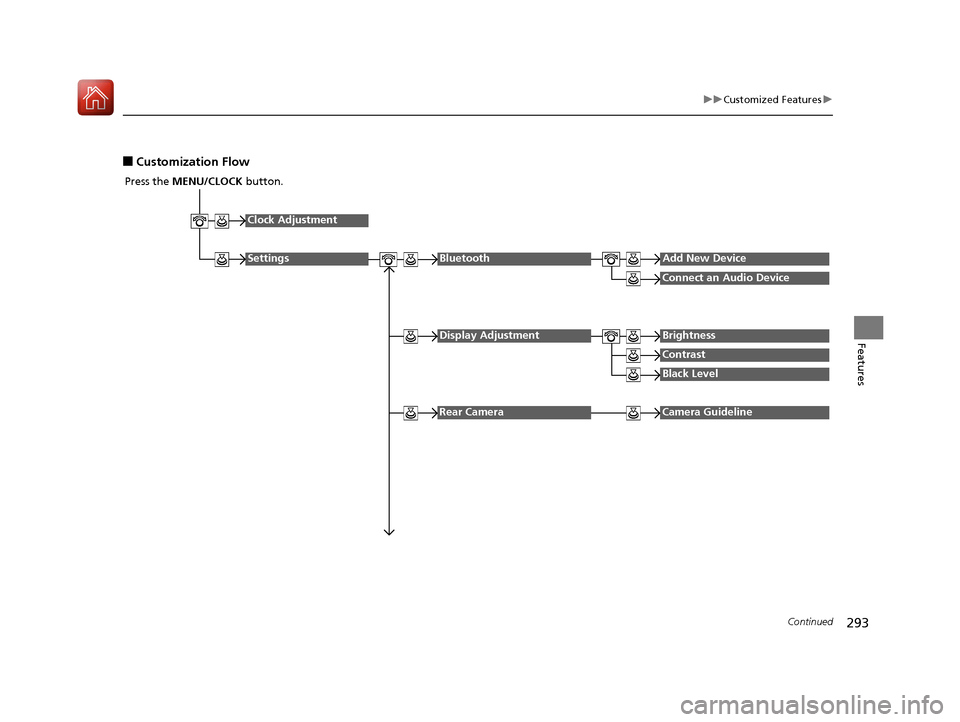
■Customization Flow
Press the MENU/CLOCK button.
Clock Adjustment
SettingsBluetoothAdd New Device
Connect an Audio Device
Display AdjustmentBrightness
Contrast
Black Level
Rear CameraCamera Guideline
16 CIVIC 2D HC2 (0A 01 0C)-31TBG6000.book 293 ページ >0>.>/6年>0月>/>0日 金曜日 午後4時>/6分
Page 295 of 585
294
uuCustomized Featuresu
Features
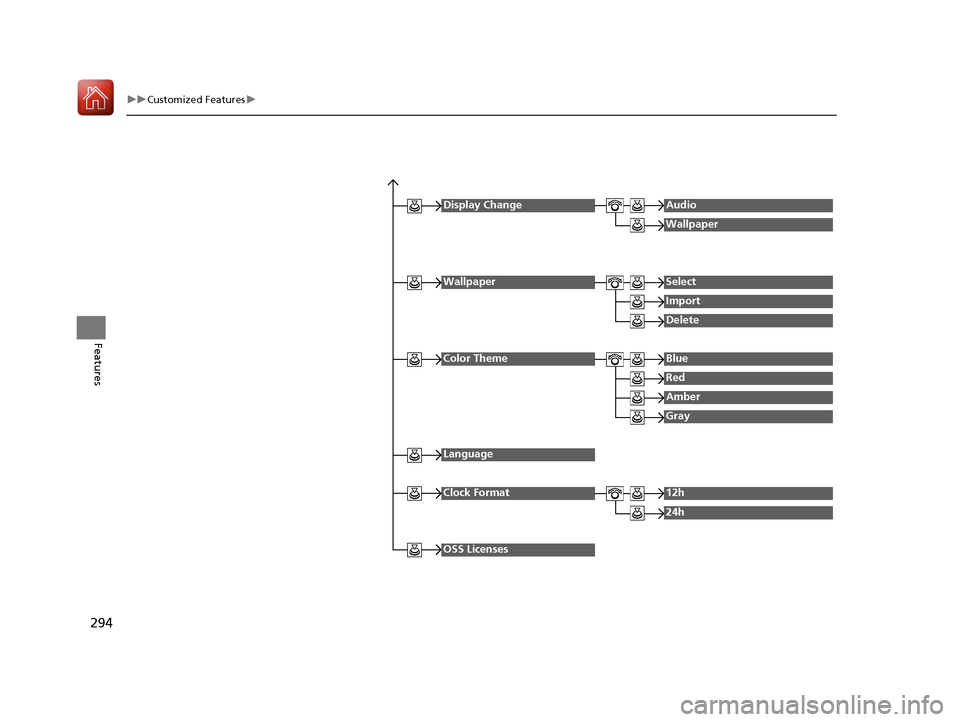
Display ChangeAudio
Wallpaper
WallpaperSelect
Import
Delete
Color ThemeBlue
Red
Amber
Gray
Language
Clock Format12h
24h
OSS Licenses
16 CIVIC 2D HC2 (0A 01 0C)-31TBG6000.book 294 ページ >0>.>/6年>0月>/>0日 金曜日 午後4時>/6分
Page 297 of 585
296
uuCustomized Featuresu
Features
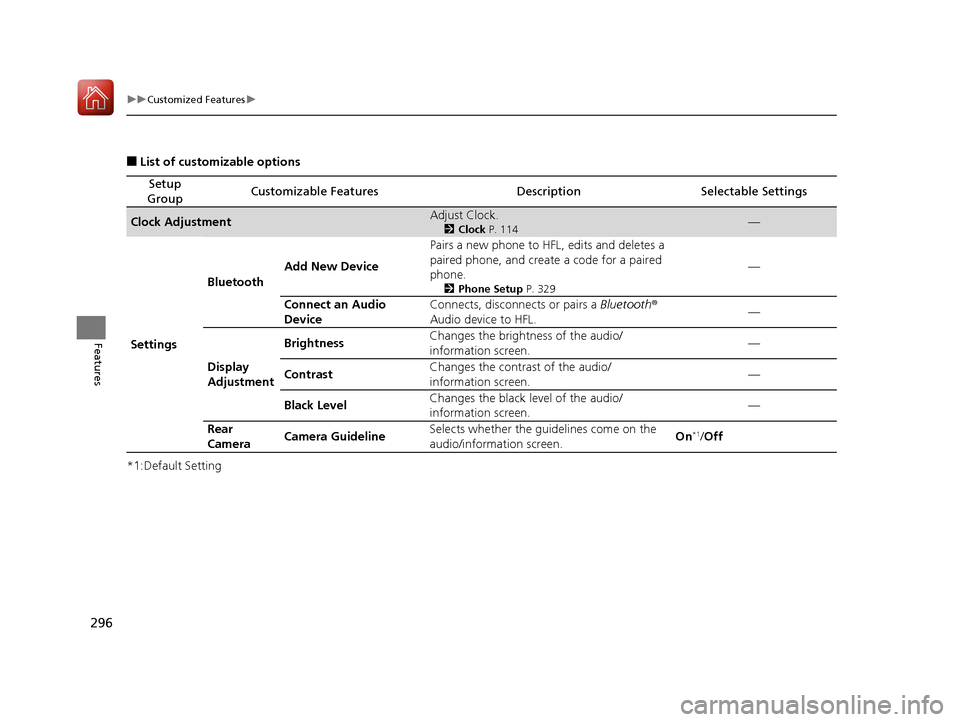
■List of customizable options
*1:Default Setting
Setup
GroupCustomizable FeaturesDescriptionSelectable Settings
Clock AdjustmentAdjust Clock. 2Clock P. 114—
Settings Bluetooth
Add New Device Pairs a new phone to HFL, edits and deletes a
paired phone, and create a code for a paired
phone.
2Phone Setup P. 329 —
Connect an Audio
Device Connects, disconnects or pairs a
Bluetooth®
Audio device to HFL. —
Display
Adjustment Brightness
Changes the brightness of the audio/
information screen.
—
Contrast Changes the contrast of the audio/
information screen. —
Black Level Changes the black level of the audio/
information screen. —
Rear
Camera Camera Guideline Selects whether the guidelines come on the
audio/information screen.
On
*1
/Off
16 CIVIC 2D HC2 (0A 01 0C)-31TBG6000.book 296 ページ >0>.>/6年>0月>/>0日 金曜日 午後4時>/6分
Page 298 of 585
297
uuCustomized Featuresu
Continued
Features
*1:Default Setting
Setup
GroupCustomizable FeaturesDescriptionSelectable Settings
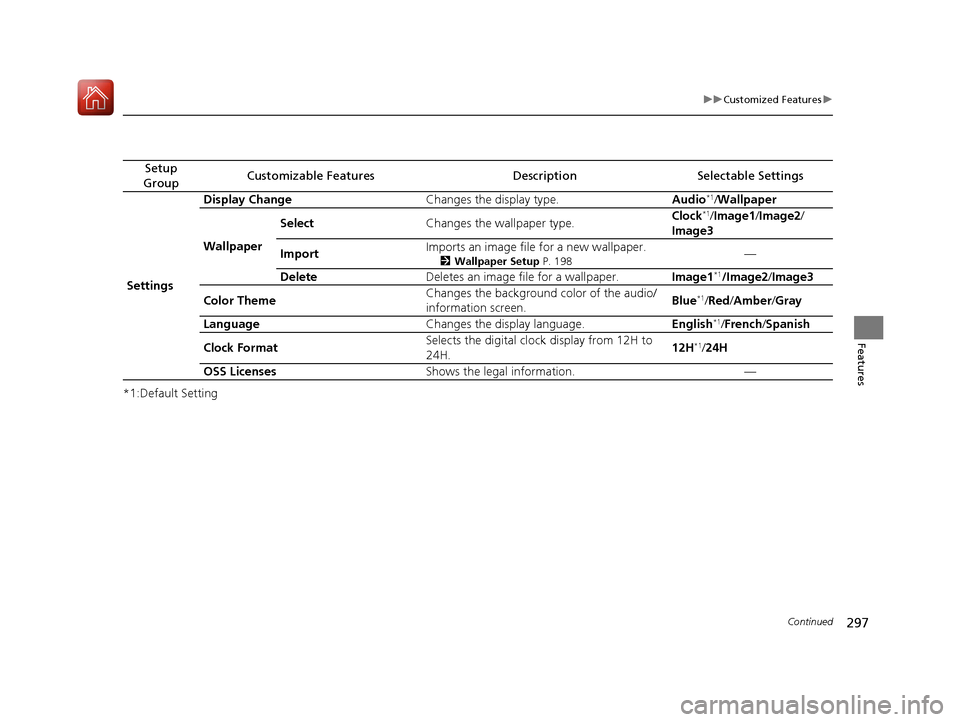
Settings Display Change
Changes the display type. Audio*1
/Wallpaper
Wallpaper Select
Changes the wallpaper type. Clock
*1
/Image1 /Image2 /
Image3
Import Imports an image file for a new wallpaper.
2Wallpaper Setup P. 198 —
Delete Deletes an image file for a wallpaper. Image1*1
/Image2 /Image3
Color Theme Changes the background color of the audio/
information screen.
Blue
*1
/Red /Amber /Gray
Language Changes the display language. English*1
/French /Spanish
Clock Format Selects the digital clock display from 12H to
24H.
12H
*1
/24H
OSS Licenses Shows the legal information. —
16 CIVIC 2D HC2 (0A 01 0C)-31TBG6000.book 297 ページ >0>.>/6年>0月>/>0日 金曜日 午後4時>/6分