2016 CHEVROLET MALIBU Troubleshooting
[x] Cancel search: TroubleshootingPage 23 of 94
Chevrolet Malibu Limited/Cruze Limited MyLink Infotainment System
(GMNA-Localizing-U.S./Canada-9282853) - 2016 - crc - 4/16/15
22 Radio
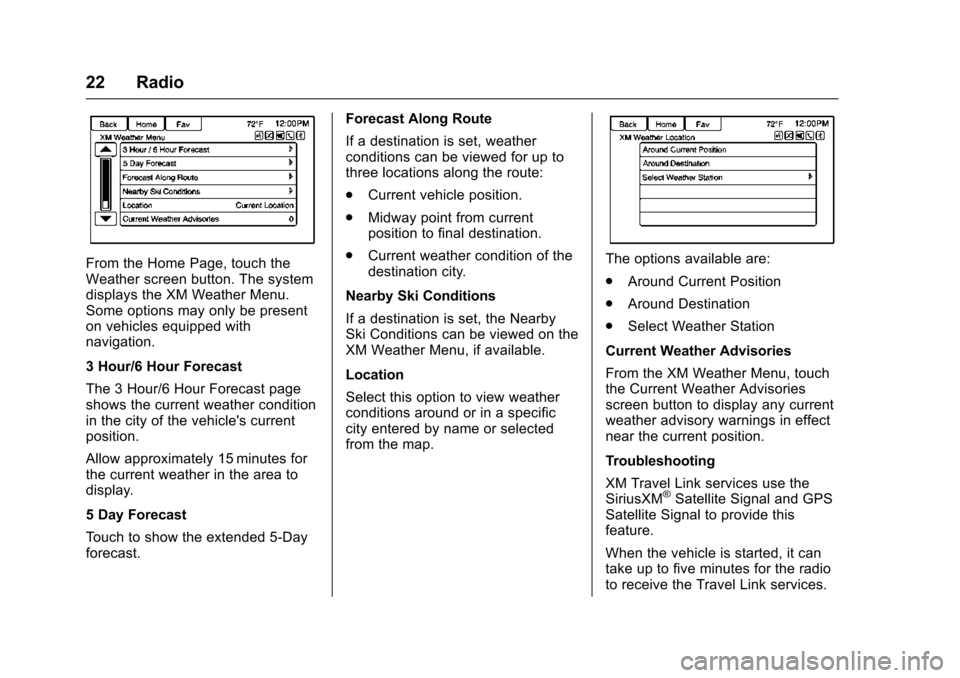
From the Home Page, touch the
Weather screen button. The system
displays the XM Weather Menu.
Some options may only be present
on vehicles equipped with
navigation.
3 Hour/6 Hour Forecast
The 3 Hour/6 Hour Forecast page
shows the current weather condition
in the city of the vehicle's current
position.
Allow approximately 15 minutes for
the current weather in the area to
display.
5 Day Forecast
Touch to show the extended 5-Day
forecast.Forecast Along Route
If a destination is set, weather
conditions can be viewed for up to
three locations along the route:
.
Current vehicle position.
. Midway point from current
position to final destination.
. Current weather condition of the
destination city.
Nearby Ski Conditions
If a destination is set, the Nearby
Ski Conditions can be viewed on the
XM Weather Menu, if available.
Location
Select this option to view weather
conditions around or in a specific
city entered by name or selected
from the map.The options available are:
. Around Current Position
. Around Destination
. Select Weather Station
Current Weather Advisories
From the XM Weather Menu, touch
the Current Weather Advisories
screen button to display any current
weather advisory warnings in effect
near the current position.
Troubleshooting
XM Travel Link services use the
SiriusXM
®Satellite Signal and GPS
Satellite Signal to provide this
feature.
When the vehicle is started, it can
take up to five minutes for the radio
to receive the Travel Link services.
Page 28 of 94
Chevrolet Malibu Limited/Cruze Limited MyLink Infotainment System
(GMNA-Localizing-U.S./Canada-9282853) - 2016 - crc - 4/16/15
Radio 27
this station again. This helps
Pandora choose which tracks
should not play on this station. This
feature is only available on user
created stations.
-(Thumbs Up) :When touched,
Pandora stores this information and
-is highlighted for the remainder
of the track. This helps Pandora
choose which tracks should play on
this station.
d(Next Track) : When touched,
Pandora changes to the next track.
k(Play/Pause) : Touch on the
radio to pause playback. Touch
again to resume.
Tuning Pandora Stations : When
Pandora is playing, use the
b/g
button on the steering wheel to tune
to any Pandora station on the
device.
1. Press the
b/gbutton on the
steering wheel.
2. Say “Tune Pandora
until Pandora is launched the first
time during that ignition cycle.
Pandora Skip Limit
Pandora limits the number of skips
allowed on their service. When the
skip limit is reached,
,will not skip
the currently playing track, but
,
feedback will be recorded.
Pandora Advertisement
Pandora may display
advertisements. Artist name and
track title will not be displayed and
the skip track button is not
available.
Switching Between Pandora and
Stitcher
To switch between Pandora and
Stitcher, touch the application icon
on the iPhone, iPod touch, or iPad.
This is not required for Android
devices. See Stitcher Internet Radio
0 29.
Pandora Troubleshooting
Unable to Connect Device to
Vehicle
If the device is unable to connect to
the USB or Bluetooth:
1. Turn the vehicle off.
2. Open and close the driver door, wait about 30 seconds, and try
to connect the device again.
Unable to Start Pandora
If the device is unable to launch
Pandora:
. Check that the latest version of
Pandora is installed.
. Check that there is an active
account logged into Pandora.
. Have at least one station
created.
. For Android and BlackBerry
devices, check that the device is
paired with the vehicle, and the
Bluetooth icon on the display is
highlighted.
Page 32 of 94
Chevrolet Malibu Limited/Cruze Limited MyLink Infotainment System
(GMNA-Localizing-U.S./Canada-9282853) - 2016 - crc - 4/16/15
Radio 31
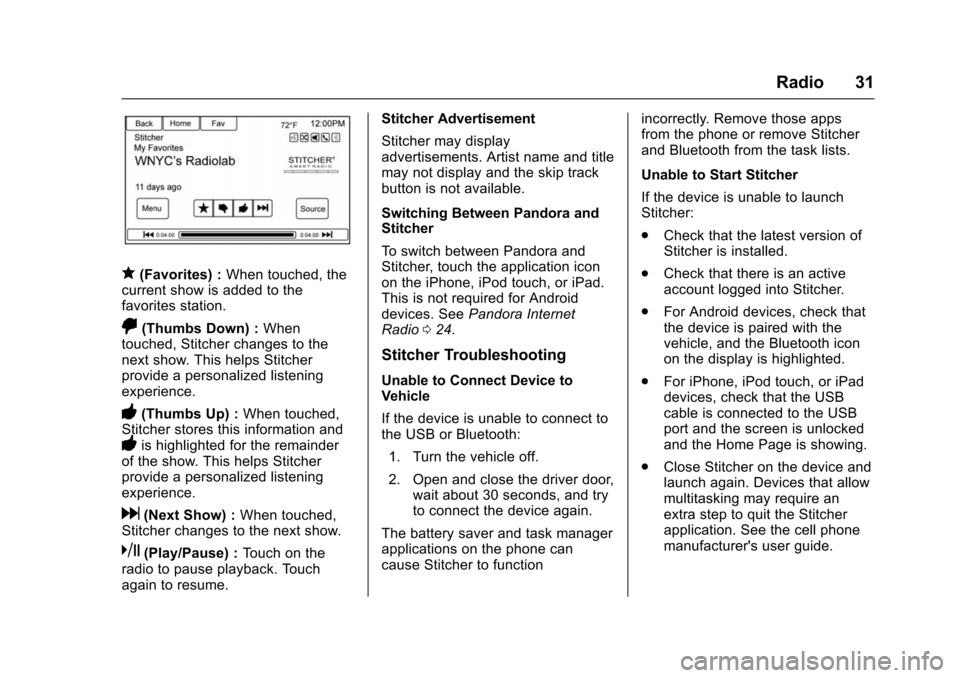
q(Favorites) :When touched, the
current show is added to the
favorites station.
,(Thumbs Down) : When
touched, Stitcher changes to the
next show. This helps Stitcher
provide a personalized listening
experience.
-(Thumbs Up) : When touched,
Stitcher stores this information and
-is highlighted for the remainder
of the show. This helps Stitcher
provide a personalized listening
experience.
d(Next Show) : When touched,
Stitcher changes to the next show.
k(Play/Pause) : Touch on the
radio to pause playback. Touch
again to resume. Stitcher Advertisement
Stitcher may display
advertisements. Artist name and title
may not display and the skip track
button is not available.
Switching Between Pandora and
Stitcher
To switch between Pandora and
Stitcher, touch the application icon
on the iPhone, iPod touch, or iPad.
This is not required for Android
devices. See
Pandora Internet
Radio 024.
Stitcher Troubleshooting
Unable to Connect Device to
Vehicle
If the device is unable to connect to
the USB or Bluetooth:
1. Turn the vehicle off.
2. Open and close the driver door, wait about 30 seconds, and try
to connect the device again.
The battery saver and task manager
applications on the phone can
cause Stitcher to function incorrectly. Remove those apps
from the phone or remove Stitcher
and Bluetooth from the task lists.
Unable to Start Stitcher
If the device is unable to launch
Stitcher:
.
Check that the latest version of
Stitcher is installed.
. Check that there is an active
account logged into Stitcher.
. For Android devices, check that
the device is paired with the
vehicle, and the Bluetooth icon
on the display is highlighted.
. For iPhone, iPod touch, or iPad
devices, check that the USB
cable is connected to the USB
port and the screen is unlocked
and the Home Page is showing.
. Close Stitcher on the device and
launch again. Devices that allow
multitasking may require an
extra step to quit the Stitcher
application. See the cell phone
manufacturer's user guide.
Page 42 of 94
Chevrolet Malibu Limited/Cruze Limited MyLink Infotainment System
(GMNA-Localizing-U.S./Canada-9282853) - 2016 - crc - 4/16/15
Audio Players 41
.iPad®(1G, 2G)
Follow the same instructions as
stated earlier for using an iPod. To
use voice recognition to play music,
say “Play USB,” “Play Artist,” “Play
Album,” “Play Song,” or“Play
Genre.” SeeVoice Recognition
0 68.
iPhone, iPod touch and iPad
Troubleshooting
When an iPhone, iPod touch,
or iPad is connected through USB
and Bluetooth, the audio may not be
heard when the iPod source on the
radio is selected. If a phone call is
received while listening to the iPod
source and there is no audio for the
iPod after the source, go to the
Airplay icon on the device and
select dock connector or disconnect
and reconnect the dock connector
on the device.
Some functionality may differ based
on operating system version on the
device.USB Troubleshooting
If the device is not being recognized
or the music is missing screen
information, restore the radio
defaults: 1. Touch Config.
2. Touch Radio Settings.
3. Touch Software Versions Menu.
4. Touch Clear and Reset Radio.
5. Touch Yes.
Pair the phone again and the device
will have to index again.
Bluetooth Audio and Voice
Recognition
See Bluetooth Audio 042 and Voice
Recognition 068 for information
using voice recognition with
Bluetooth Audio.
Make sure all devices have the
latest software downloaded.
Auxiliary Devices
This vehicle has an auxiliary input
jack in the center console. Possible
auxiliary audio sources include:
. Laptop computer
. MP3 player
. Tape player
This jack is not an audio output. Do
not plug headphones into the
auxiliary input jack. Set up any
auxiliary device while the vehicle is
in P (Park).
Connect a 3.5 mm (1/8 in) cable
from the auxiliary device to the
auxiliary input jack. When a device
is connected, the system
automatically begins playing audio
from the device over the vehicle
speakers.
If an auxiliary device has already
been connected, but a different
source is currently active, do one of
the following:
. Press SOURCE or SRCE to
scroll all of the available audio
source screens, until the AUX
source screen is selected.
Page 93 of 94

Chevrolet Malibu Limited/Cruze Limited MyLink Infotainment System
(GMNA-Localizing-U.S./Canada-9282853) - 2016 - crc - 4/16/15
92 Index
O
OnStar System . . . . . . . . . . . . . . . . . . 44
OnStar®Destination
Download . . . . . . . . . . . . . . . . . . . . . . 59
OnStar
®with 4G LTE . . . . . . . . . . . . 44
Other Commands . . . . . . . . . . . . . . . . 71
Overview . . . . . . . . . . . . . . . . . . . . . .2, 75
P
Pairing with Infotainment Controls . . . . . . . . . . . . . . . . . . . . . . . . 76
Pairing with Voice Recognition . . . 77
Pandora (If Equipped) . . . . . . . . . . . 86
Pandora Internet Radio . . . . . . . . . . 24
Pandora Troubleshooting . . . . . . . . 27
Phone Commands . . . . . . . . . . . . . . . 70
Phone Settings . . . . . . . . . . . . . . . . . . 62
Pictures . . . . . . . . . . . . . . . . . . . . . . . . . 32
Playing an Audio CD . . . . . . . . . . . . 34
Playing from a USB . . . . . . . . . . . . . . 35
Playing from an iPhone or iPad
®. . . . . . . . . . . . . . . . . . . . . . . . 40
Playing from an iPod®. . . . . . . . . . . 39
Playing the Radio . . . . . . . . . . . . . . . . 15
Positioning
Vehicle . . . . . . . . . . . . . . . . . . . . . . . . . . 66
Problems with Route Guidance . . . . . . . . . . . . . . . . . . . . . . 66
Q
Quick Info . . . . . . . . . . . . . . . . . . . . . . . 24
R
Radio Commands . . . . . . . . . . . . . . . 69
Radio Data System (RDS) . . . . . . . 17
Radio Reception . . . . . . . . . . . . . . . . . 23
Radio Settings . . . . . . . . . . . . . . . . . . . 61
RadiosAM-FM Radio . . . . . . . . . . . . . . . . . . . 15
Satellite . . . . . . . . . . . . . . . . . . . . . . . . . 18
Recognition Voice. . . . . . . . . . . . . . . . . . . . . . . . . . . . 68
Route Options . . . . . . . . . . . . . . . . . . . 57
S
Satellite Radio . . . . . . . . . . . . . . . . . . . 18
Scroll Features . . . . . . . . . . . . . . . . . . 48
Servicing System . . . . . . . . . . . . . . . . 67
Settings Commands . . . . . . . . . . . . . 71
SiriusXM Categories . . . . . . . . . . . . . 18
SiriusXM NavTraffic
®(If
Equipped) . . . . . . . . . . . . . . . . . . . . . . 19
SiriusXM Travel Link (If Available) . . . . . . . . . . . . . . . . . . . . . . 20
SiriusXM
®Satellite Radio . . . . . . . . 18
SiriusXM®Satellite Radio
Service . . . . . . . . . . . . . . . . . . . . . . . . . 23 Software Updates . . . . . . . . . . . . . . . 14
Steering Wheel Controls . . . . . . . . . . 9
Stitcher Internet Radio . . . . . . . . . . . 29
Stitcher Troubleshooting . . . . . . . . . 31
Storing Radio Station Presets . . . 17
Symbols
Navigation. . . . . . . . . . . . . . . . . . . . . . . 48
System Global Positioning. . . . . . . . . . . . . . . 65
Infotainment. . . . . . . . . . . . . . . . . . . . . . 2
T
Text Messaging . . . . . . . . . . . . . . . . . . 81
Time and Date . . . . . . . . . . . . . . . . . . . 61
Touch Screen Buttons . . . . . . . . . . . . 8
Trademarks and LicenseAgreements . . . . . . . . . . . . . . . . . . . . 85
Transferring a Call . . . . . . . . . . . . . . . 80
TuneSelect . . . . . . . . . . . . . . . . . . . . . . 18
U
Updates Map Data . . . . . . . . . . . . . . . . . . . . . . . 67
Software . . . . . . . . . . . . . . . . . . . . . . . . 14
USB . . . . . . . . . . . . . . . . . . . . . . . . . . . . . 35
USB Media Formats . . . . . . . . . . . . . 35
USB Troubleshooting . . . . . . . . . . . . 41
Using Destination Download . . . . . 59
Using the Navigation System . . . . 45