2016 CHEVROLET MALIBU touch
[x] Cancel search: touchPage 66 of 94
Chevrolet Malibu Limited/Cruze Limited MyLink Infotainment System
(GMNA-Localizing-U.S./Canada-9282853) - 2016 - crc - 4/16/15
Navigation 65
Touch to enable the Guidance Alert
pop-up to be viewed on the map or
on the main screens such as audio,
weather, phone, etc. A checkmark
appears to indicate the guidance
alert mode is on.
Vehicle Settings
See“Vehicle Personalization” in the
owner manual.
Display Settings
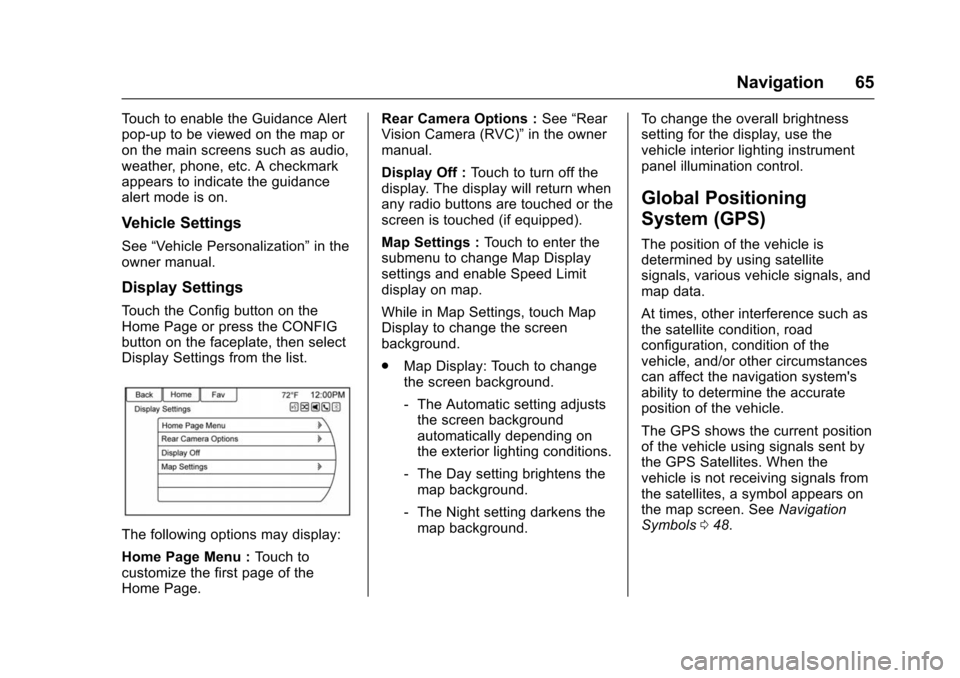
Touch the Config button on the
Home Page or press the CONFIG
button on the faceplate, then select
Display Settings from the list.
The following options may display:
Home Page Menu : Touch to
customize the first page of the
Home Page. Rear Camera Options :
See“Rear
Vision Camera (RVC)” in the owner
manual.
Display Off : Touch to turn off the
display. The display will return when
any radio buttons are touched or the
screen is touched (if equipped).
Map Settings : Touch to enter the
submenu to change Map Display
settings and enable Speed Limit
display on map.
While in Map Settings, touch Map
Display to change the screen
background.
. Map Display: Touch to change
the screen background.
‐The Automatic setting adjusts
the screen background
automatically depending on
the exterior lighting conditions.
‐ The Day setting brightens the
map background.
‐ The Night setting darkens the
map background. To change the overall brightness
setting for the display, use the
vehicle interior lighting instrument
panel illumination control.
Global Positioning
System (GPS)
The position of the vehicle is
determined by using satellite
signals, various vehicle signals, and
map data.
At times, other interference such as
the satellite condition, road
configuration, condition of the
vehicle, and/or other circumstances
can affect the navigation system's
ability to determine the accurate
position of the vehicle.
The GPS shows the current position
of the vehicle using signals sent by
the GPS Satellites. When the
vehicle is not receiving signals from
the satellites, a symbol appears on
the map screen. See
Navigation
Symbols 048.
Page 79 of 94
Chevrolet Malibu Limited/Cruze Limited MyLink Infotainment System
(GMNA-Localizing-U.S./Canada-9282853) - 2016 - crc - 4/16/15
78 Bluetooth Phone/Devices
4. The system responds with:“To
delete a device, please select
its name on the screen.” Select
the device to delete on the
display and it will be removed.
To cancel this command, press
$/
ion the steering wheel control or
press the BACK
/button on the
radio faceplate.
Connecting to a Different Phone
or Device
To connect to a different cell phone,
the system looks for the next
available cell phone. Depending on
the cell phone to be connected, this
command may need to be repeated.
1. Press
5or5/>. The system
responds “Please say a
command,” followed by a tone.
2. Say “Change Phone.”
. To select a device, touch
the name on the display.
. If another cell phone is not
found, the original phone
remains connected.
Making a Call Using Phone
Book and Infotainment
Controls
For cell phones that support the
phone book feature, the Bluetooth
system can use the contacts stored
on the cell phone to make calls. See
the cell phone manufacturer‘s user
guide or contact the wireless
provider to find out if this feature is
supported.
When a cell phone supports the
phone book feature, the Phone
Book and Call Lists menus are
automatically available.
The Phone Book menu allows
access to the phone book stored in
the cell phone to make a call.
The Call Lists menu allows access
to the phone numbers from the
Incoming Calls, Outgoing Calls, and
Missed Calls menus on the cell
phone to make a call.
The radio will display the first 1,000
contacts and the phone numbers for
each contact including Home, Work,
Mobile, and Other. To make a call using the Phone
Book menu:
1. Press
5or5/>once on the
radio or the Phone screen
button.
2. Select Phone Book.
3. Select the letter group of the phone book entry to scroll
through the list of names/
numbers.
4. Select the name.
5. Select the number to call.
To make a call using the Call
Lists menu:
1. Press
5or5/>once on the
radio or the Phone screen
button.
2. Select Call Lists.
3. Select the Incoming Calls, Outgoing Calls, or Missed
Calls list.
4. Select the name or number to call.
Page 80 of 94
Chevrolet Malibu Limited/Cruze Limited MyLink Infotainment System
(GMNA-Localizing-U.S./Canada-9282853) - 2016 - crc - 4/16/15
Bluetooth Phone/Devices 79
Making a Call Using the
Infotainment Controls
To make a call:1. Press
5or5/>once on the
radio or the Phone screen
button.
2. Touch Enter Number.
3. Enter the phone number.
4. Select OK to start dialing the number.
5. Select Call to place the call.
To make a call using voice
recognition, see “Making a Call”
later in this section.
Accepting or Declining a Call
When an incoming call is received,
the infotainment system mutes and
a ring tone is heard in the vehicle.
Using the Infotainment Controls
Turn the TUNE/MENU or MENU/
SEL knob to “Answer”or“Decline”
and press the TUNE/MENU or
MENU/SEL knob or touch Accept or
Decline on the screen. Using Steering Wheel Controls
Press
b/gto answer or$/ito
decline the call.
Call Waiting Using the
Infotainment Controls
Call waiting must be supported on
the Bluetooth phone and enabled by
the wireless service carrier to work.
Switching Between Calls (Call
Waiting Calls Only)
To switch between calls turn and
press the TUNE/MENU or MENU/
SEL knob and select Switch Call or
touch Switch Call on the screen.
Call Waiting Using Steering
Wheel Controls
Call waiting must be supported on
the cell phone and enabled by the
wireless service carrier.
. Press
5or5/>to answer an
incoming call when another call
is active. The original call is
placed on hold.
. Press
5or5/>again to return
to the original call. .
To decline answering the
incoming call, touch Decline on
the screen or take no action.
. Press
$/ito disconnect the
current call and switch to the call
on hold.
Conference Calling Using the
Infotainment Controls
Conference calling and three-way
calling must be supported on the
Bluetooth phone and enabled by the
wireless service carrier to work. This
feature is only supported when the
vehicle is not moving.
To start a conference while in a
current call:
1. Turn and press the TUNE/ MENU or MENU/SEL knob and
touch Enter Number.
2. Enter the phone number and touch OK.
3. After the call has been placed, turn the TUNE/MENU or
MENU/SEL knob and touch
Merge Calls.
Page 81 of 94
Chevrolet Malibu Limited/Cruze Limited MyLink Infotainment System
(GMNA-Localizing-U.S./Canada-9282853) - 2016 - crc - 4/16/15
80 Bluetooth Phone/Devices
4. To add more callers to theconference call, repeat Steps 1
−3. The number of callers that
can be added is limited by your
wireless service carrier.
Ending a Call
Using the Infotainment Controls
Turn and press the TUNE/MENU or
MENU/SEL knob and select Hang
Up or touch Hang Up on the screen.
Using Steering Wheel Controls
Press
$/i.
Muting a Call
During a call, all sounds from inside
the vehicle can be muted so that the
person on the other end of the call
cannot hear them.
Using the Infotainment Controls
Turn and press the TUNE/MENU or
MENU/SEL knob and select Mute
Call. Press again to cancel mute.
Transferring a Call
Audio can be transferred between
the Bluetooth system and the cell
phone.
The cell phone must be paired and
connected with the Bluetooth
system before a call can be
transferred.
To Transfer Audio from the
Bluetooth System to a Cell Phone
During a call with the audio in the
vehicle, touch the Transfer Call
button on the screen or press and
hold the
b/gbutton on the
steering wheel.
To Transfer Audio to the Bluetooth
System from a Cell Phone
Use the audio transfer feature on
the cell phone. See your cell phone
manufacturer's user guide for more
information. Touch the Transfer Call
button on the screen or press and
hold the
b/gbutton on the
steering wheel.
Dual Tone Multi-Frequency
(DTMF) Tones
The in-vehicle Bluetooth system can
send numbers during a call. This is
used when calling a menu-driven
phone system.
Using the Infotainment Controls
1. Turn and press the TUNE/ MENU or MENU/SEL knob and
touch Enter Number.
2. Enter the phone number, or touch Enter Number on the
screen and select digits, then
touch OK.
Hands-Free Phone
Using Bluetooth Voice
Recognition
To use voice recognition, press the
b/gbutton on the steering wheel.
Use the commands below for the
various voice features. For
additional information, say “Help”
while in a voice recognition menu.
Making a Call
Calls can be made using the
following commands.
Page 83 of 94
Chevrolet Malibu Limited/Cruze Limited MyLink Infotainment System
(GMNA-Localizing-U.S./Canada-9282853) - 2016 - crc - 4/16/15
82 Bluetooth Phone/Devices
Not all phones support all functions
and work with Bluetooth. The radio
only supports the receipt of SMS
text messages. A request may need
to be accepted on the phone or
some phone settings may need to
be changed to allow text messaging
to function. See the cell phone
manufacturer’s user guide.
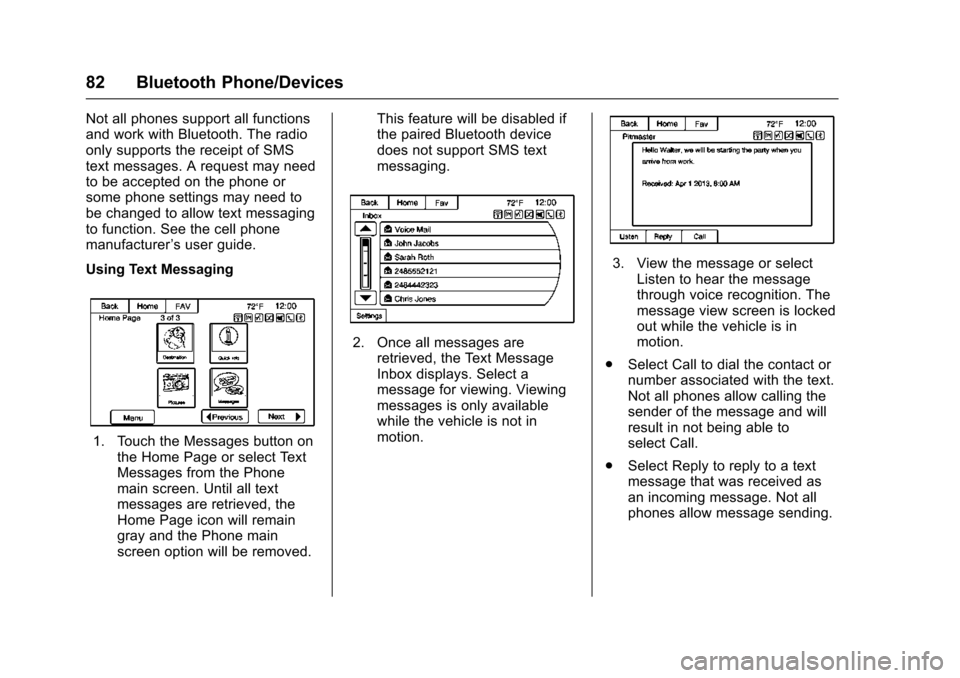
Using Text Messaging
1. Touch the Messages button on the Home Page or select Text
Messages from the Phone
main screen. Until all text
messages are retrieved, the
Home Page icon will remain
gray and the Phone main
screen option will be removed. This feature will be disabled if
the paired Bluetooth device
does not support SMS text
messaging.
2. Once all messages are
retrieved, the Text Message
Inbox displays. Select a
message for viewing. Viewing
messages is only available
while the vehicle is not in
motion.
3. View the message or selectListen to hear the message
through voice recognition. The
message view screen is locked
out while the vehicle is in
motion.
. Select Call to dial the contact or
number associated with the text.
Not all phones allow calling the
sender of the message and will
result in not being able to
select Call.
. Select Reply to reply to a text
message that was received as
an incoming message. Not all
phones allow message sending.
Page 86 of 94
Chevrolet Malibu Limited/Cruze Limited MyLink Infotainment System
(GMNA-Localizing-U.S./Canada-9282853) - 2016 - crc - 4/16/15
Trademarks and License Agreements 85
Trademarks and
License Agreements
FCC Information
See“Radio Frequency Statement”
in the owner manual.
“Made for iPod,” and“Made for
iPhone,” mean that an electronic
accessory has been designed to
connect specifically to iPod or
iPhone and has been certified by
the developer to meet Apple
performance standards. Apple is not
responsible for the operation of this
device or its compliance with safety
and regulatory standards. Please
note that the use of this accessory
with iPod or iPhone may affect
wireless performance. iPhone
®,
iPod®, iPod classic®, iPod nano®, iPod shuffle
®, and iPod touch®are
trademarks of Apple Inc., registered
in the U.S. and other countries.
Fees and Taxes: Subscription fee,
taxes, one time activation fee, and
other fees may apply. Subscription
fee is consumer only. All fees and
programming subject to change.
Subscriptions subject to Customer
Agreement available at
www.siriusxm.com. SiriusXM
®
service only available in the
48 contiguous United States and
Canada.
In Canada: Some deterioration of
service may occur in extreme
northern latitudes. This is beyond
the control of SiriusXM
®Satellite
Radio.
Explicit Language Notice: Channels
with frequent explicit language are
indicated with an “XL”preceding the channel name. Channel blocking is
available for SiriusXM Satellite
Radio receivers by notifying
SiriusXM:
.
USA: 866-635-2349 or see
www.siriusxm.com.
. Canada: 877-209-0079 or see
www.xmradio.ca.
It is prohibited to copy, decompile,
disassemble, reverse engineer,
hack, manipulate, or otherwise
make available any technology or
software incorporated in receivers
compatible with the SiriusXM
Satellite Radio System or that
support the SiriusXM website, the
Online Service or any of its content.
Furthermore, the AMBER voice
compression software included in
this product is protected by
intellectual property rights including
patent rights, copyrights, and trade
secrets of Digital Voice
Systems, Inc.
General Requirements:
1. A License Agreement from SiriusXM is required for any
product that incorporates
Page 93 of 94

Chevrolet Malibu Limited/Cruze Limited MyLink Infotainment System
(GMNA-Localizing-U.S./Canada-9282853) - 2016 - crc - 4/16/15
92 Index
O
OnStar System . . . . . . . . . . . . . . . . . . 44
OnStar®Destination
Download . . . . . . . . . . . . . . . . . . . . . . 59
OnStar
®with 4G LTE . . . . . . . . . . . . 44
Other Commands . . . . . . . . . . . . . . . . 71
Overview . . . . . . . . . . . . . . . . . . . . . .2, 75
P
Pairing with Infotainment Controls . . . . . . . . . . . . . . . . . . . . . . . . 76
Pairing with Voice Recognition . . . 77
Pandora (If Equipped) . . . . . . . . . . . 86
Pandora Internet Radio . . . . . . . . . . 24
Pandora Troubleshooting . . . . . . . . 27
Phone Commands . . . . . . . . . . . . . . . 70
Phone Settings . . . . . . . . . . . . . . . . . . 62
Pictures . . . . . . . . . . . . . . . . . . . . . . . . . 32
Playing an Audio CD . . . . . . . . . . . . 34
Playing from a USB . . . . . . . . . . . . . . 35
Playing from an iPhone or iPad
®. . . . . . . . . . . . . . . . . . . . . . . . 40
Playing from an iPod®. . . . . . . . . . . 39
Playing the Radio . . . . . . . . . . . . . . . . 15
Positioning
Vehicle . . . . . . . . . . . . . . . . . . . . . . . . . . 66
Problems with Route Guidance . . . . . . . . . . . . . . . . . . . . . . 66
Q
Quick Info . . . . . . . . . . . . . . . . . . . . . . . 24
R
Radio Commands . . . . . . . . . . . . . . . 69
Radio Data System (RDS) . . . . . . . 17
Radio Reception . . . . . . . . . . . . . . . . . 23
Radio Settings . . . . . . . . . . . . . . . . . . . 61
RadiosAM-FM Radio . . . . . . . . . . . . . . . . . . . 15
Satellite . . . . . . . . . . . . . . . . . . . . . . . . . 18
Recognition Voice. . . . . . . . . . . . . . . . . . . . . . . . . . . . 68
Route Options . . . . . . . . . . . . . . . . . . . 57
S
Satellite Radio . . . . . . . . . . . . . . . . . . . 18
Scroll Features . . . . . . . . . . . . . . . . . . 48
Servicing System . . . . . . . . . . . . . . . . 67
Settings Commands . . . . . . . . . . . . . 71
SiriusXM Categories . . . . . . . . . . . . . 18
SiriusXM NavTraffic
®(If
Equipped) . . . . . . . . . . . . . . . . . . . . . . 19
SiriusXM Travel Link (If Available) . . . . . . . . . . . . . . . . . . . . . . 20
SiriusXM
®Satellite Radio . . . . . . . . 18
SiriusXM®Satellite Radio
Service . . . . . . . . . . . . . . . . . . . . . . . . . 23 Software Updates . . . . . . . . . . . . . . . 14
Steering Wheel Controls . . . . . . . . . . 9
Stitcher Internet Radio . . . . . . . . . . . 29
Stitcher Troubleshooting . . . . . . . . . 31
Storing Radio Station Presets . . . 17
Symbols
Navigation. . . . . . . . . . . . . . . . . . . . . . . 48
System Global Positioning. . . . . . . . . . . . . . . 65
Infotainment. . . . . . . . . . . . . . . . . . . . . . 2
T
Text Messaging . . . . . . . . . . . . . . . . . . 81
Time and Date . . . . . . . . . . . . . . . . . . . 61
Touch Screen Buttons . . . . . . . . . . . . 8
Trademarks and LicenseAgreements . . . . . . . . . . . . . . . . . . . . 85
Transferring a Call . . . . . . . . . . . . . . . 80
TuneSelect . . . . . . . . . . . . . . . . . . . . . . 18
U
Updates Map Data . . . . . . . . . . . . . . . . . . . . . . . 67
Software . . . . . . . . . . . . . . . . . . . . . . . . 14
USB . . . . . . . . . . . . . . . . . . . . . . . . . . . . . 35
USB Media Formats . . . . . . . . . . . . . 35
USB Troubleshooting . . . . . . . . . . . . 41
Using Destination Download . . . . . 59
Using the Navigation System . . . . 45