2016 CHEVROLET MALIBU display
[x] Cancel search: displayPage 39 of 94
Chevrolet Malibu Limited/Cruze Limited MyLink Infotainment System
(GMNA-Localizing-U.S./Canada-9282853) - 2016 - crc - 4/16/15
38 Audio Players
k(Play/Pause) :Touch to start,
pause, or resume play of the current
media source.
©SEEK (Previous/Reverse):
. Press to seek to the beginning of
the current or previous track.
If the track has been playing for
less than five seconds, the
previous track plays. If playing
longer than five seconds, the
current track restarts.
. Press and hold to reverse
quickly through playback.
Release to return to playing
speed. Elapsed time displays.
SEEK
¨(Next/Forward):
. Press to seek to the next track.
. Press and hold to advance
quickly through playback.
Release to return to playing
speed. Elapsed time displays. USB Menu
The following are available through
the USB Menu:
Shuffle:
Touch to play the tracks
randomly. Touch again to stop
shuffle.
Play More Like This:
1. Touch to automatically create a playlist of songs that are like
the song currently playing.
2. The radio will show "Playlist Creation Succeeded" and
continue playing the
current song.
Playlist Creation Failed may
appear if a song is not found in
the Gracenote Database.
Delete Automatic Playlist: Touch
to delete a more like this playlist.
Folders: Touch to open a folder list
to access the files within the folder
structure.
Playlists:
1. Touch to view the playlists on the USB. 2. Select a playlist to view the list
of all songs in that playlist.
3. Select a song from the list to begin playback.
Artists: 1. Touch to view the list of artists on the USB.
2. Select an artist name to view a list of all albums by the artist.
3. To select a song, touch Songs List or touch an album and
then select a song from the list.
Albums:
1. Touch to view the albums on the USB.
2. Select the album to view a list of all songs on the album.
3. Select a song from the list to begin playback.
Genres:
1. Touch to view the genres on the USB.
2. Select a genre to view a list of all songs of that genre.
Page 40 of 94
Chevrolet Malibu Limited/Cruze Limited MyLink Infotainment System
(GMNA-Localizing-U.S./Canada-9282853) - 2016 - crc - 4/16/15
Audio Players 39
3. Select a song from the list tobegin playback.
Songs: 1. Touch to display a list of all songs on the USB.
2. Songs are displayed as they are stored on the disc. To begin
playback, select a song from
the list.
File System and Naming
The songs, artists, albums, and
genres are taken from the file’s
song information and are only
displayed if present. The radio
displays the file name as the track
name if the song information is not
available.
Playing from an iPod®
This feature supports the following
iPod models:
. iPod classic
®(6th generation)
. iPod nano
®(3G, 4G, 5G,
and 6G)
. iPod touch
®(1G, 2G, 3G,
and 4G) There may be problems with the
operation and function in the
following situations:
.
When connecting an iPod on
which a more recent version of
the firmware is installed than is
supported by the infotainment
system.
. When connecting an iPod on
which firmware from other
providers is installed.
To connect an iPod: 1. Connect one end of the standard iPod USB cable to the
iPod's dock connector.
2. Connect the other end to the USB port in the center console.
iPod music information displays on
the radio’s display and begins
playing through the vehicle’s audio
system.
The iPod battery recharges
automatically while the vehicle is on.
The iPod shuts off and stops
charging when the vehicle is
shut off. If the iPod is an unsupported model,
it can still be listened to in the
vehicle by connecting to the
auxiliary input jack using a standard
3.5 mm (1/8 in) stereo cable.
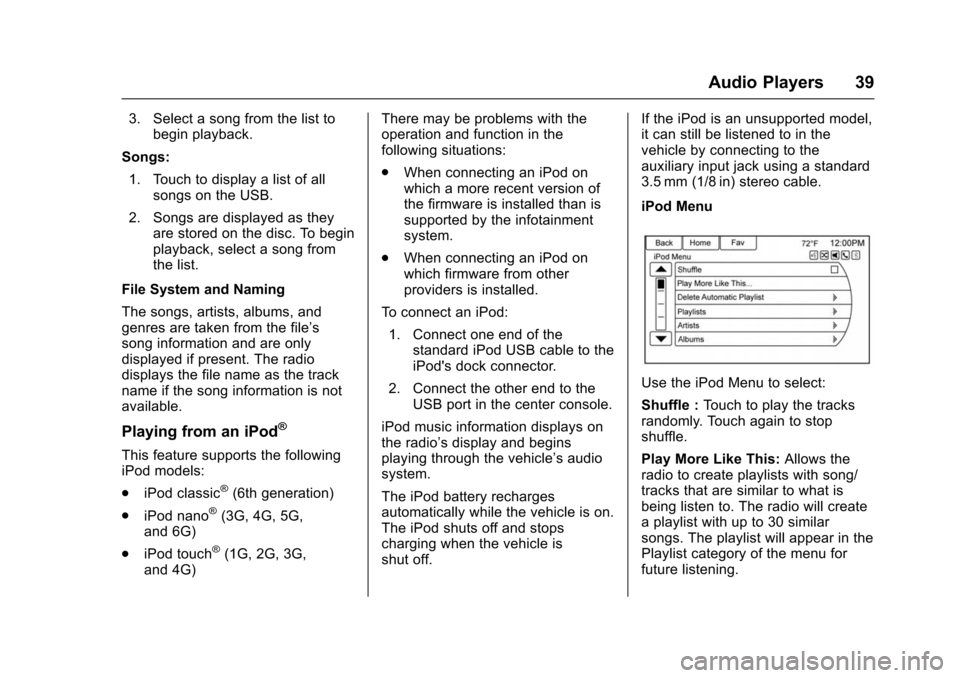
iPod Menu
Use the iPod Menu to select:
Shuffle :
Touch to play the tracks
randomly. Touch again to stop
shuffle.
Play More Like This: Allows the
radio to create playlists with song/
tracks that are similar to what is
being listen to. The radio will create
a playlist with up to 30 similar
songs. The playlist will appear in the
Playlist category of the menu for
future listening.
Page 43 of 94
Chevrolet Malibu Limited/Cruze Limited MyLink Infotainment System
(GMNA-Localizing-U.S./Canada-9282853) - 2016 - crc - 4/16/15
42 Audio Players
.Say “Play Front AUX” using
voice recognition to play the
auxiliary device. See Voice
Recognition 068.
. Touch the AUX screen button on
the Home Page.
Bluetooth Audio
If equipped, music may be played
from a paired Bluetooth device. See
“Pairing a Phone/Device” under
Bluetooth 075.
To play music through a Bluetooth
device:
1. Power on the device, pair, and connect the device.
2. Music can be launched by doing one of the following:
.Touch the Bluetooth Audio
screen button on the
Home Page.
. Press SOURCE or SRCE
until Bluetooth Audio is
selected. .
Press the SRC button on
the steering wheel controls
until Bluetooth Audio is
selected. See Steering
Wheel Controls 09.
. Use voice recognition. See
Voice Recognition 068.
The music can be controlled by
either the infotainment controls or
the controls on the device.
When a phone is connected to the
system through Bluetooth Audio the
phone notifications and sounds may
not be heard on the phone until
Bluetooth is disconnected.
Notification features may vary based
on the phone. Check the phone
manufacturer ’s information for
notification support.
Bluetooth Audio Menu
Touch the Menu screen button and
the following may display:
Shuffle : Press the TUNE/MENU or
MENU/SEL knob to turn shuffle on
or off. Not all devices support the
shuffle feature. When selecting Bluetooth Audio, the
Bluetooth device internal music
player may not open depending on
the status of the device. All devices
launch and play back audio
differently. Make sure the correct
audio source is playing on the
device for Bluetooth Audio playback
on the radio. When the vehicle is
not moving, use the device to begin
playback.
When selecting Bluetooth Audio as
a source, the radio may source to
the Bluetooth Audio Paused screen
with no audio playing. Touch play on
the device or touch
kto begin
playback. This may happen
depending on how the device
communicates over Bluetooth.
Some phones support sending
Bluetooth music information to
display on the radio. When the radio
receives this information, it will
check to see if any album art is
available and display it.
Page 46 of 94
Chevrolet Malibu Limited/Cruze Limited MyLink Infotainment System
(GMNA-Localizing-U.S./Canada-9282853) - 2016 - crc - 4/16/15
Navigation 45
Navigation
Using the Navigation
System
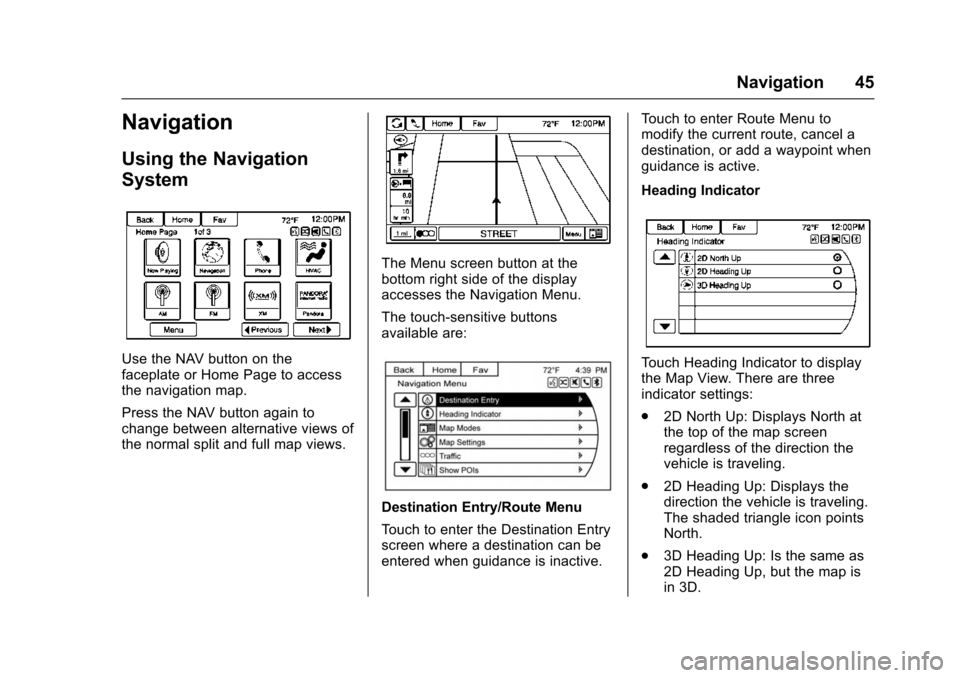
Use the NAV button on the
faceplate or Home Page to access
the navigation map.
Press the NAV button again to
change between alternative views of
the normal split and full map views.
The Menu screen button at the
bottom right side of the display
accesses the Navigation Menu.
The touch-sensitive buttons
available are:
Destination Entry/Route Menu
Touch to enter the Destination Entry
screen where a destination can be
entered when guidance is inactive.Touch to enter Route Menu to
modify the current route, cancel a
destination, or add a waypoint when
guidance is active.
Heading Indicator
Touch Heading Indicator to display
the Map View. There are three
indicator settings:
.
2D North Up: Displays North at
the top of the map screen
regardless of the direction the
vehicle is traveling.
. 2D Heading Up: Displays the
direction the vehicle is traveling.
The shaded triangle icon points
North.
. 3D Heading Up: Is the same as
2D Heading Up, but the map is
in 3D.
Page 47 of 94
Chevrolet Malibu Limited/Cruze Limited MyLink Infotainment System
(GMNA-Localizing-U.S./Canada-9282853) - 2016 - crc - 4/16/15
46 Navigation
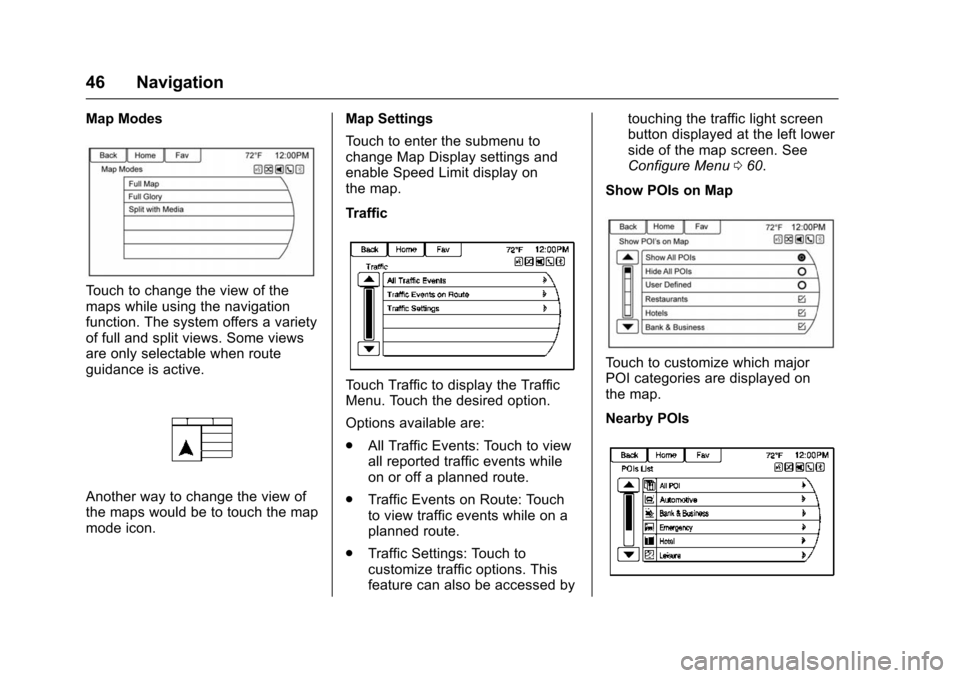
Map Modes
Touch to change the view of the
maps while using the navigation
function. The system offers a variety
of full and split views. Some views
are only selectable when route
guidance is active.
Another way to change the view of
the maps would be to touch the map
mode icon.Map Settings
Touch to enter the submenu to
change Map Display settings and
enable Speed Limit display on
the map.
Traffic
Touch Traffic to display the Traffic
Menu. Touch the desired option.
Options available are:
.
All Traffic Events: Touch to view
all reported traffic events while
on or off a planned route.
. Traffic Events on Route: Touch
to view traffic events while on a
planned route.
. Traffic Settings: Touch to
customize traffic options. This
feature can also be accessed by touching the traffic light screen
button displayed at the left lower
side of the map screen. See
Configure Menu
060.
Show POIs on Map
Touch to customize which major
POI categories are displayed on
the map.
Nearby POIs
Page 48 of 94
Chevrolet Malibu Limited/Cruze Limited MyLink Infotainment System
(GMNA-Localizing-U.S./Canada-9282853) - 2016 - crc - 4/16/15
Navigation 47
Touch to display a search list of
nearby POIs. Select the
desired POI.
POIs Along Route
Touch to display a search list of
POIs that lie along or near the route
to the destination. Select the
desired POI.
Exit List
Touch to display a list of the next
three highway exits if available.
Selecting an exit to display a list of
routable POIs associate with
that exit.
Switch Route Time/Destination
Touch to customize the arrival/travel
time and waypoint/destination
information displayed in the main
map screen.
Current Position Info
Touch to display a split screen
showing detailed information about
the vehicle position. This feature
can also be accessed by touching
the vehicle information tab on the
lower center of the display. Thelocation can be saved to the
Address Book by touching Save in
the split screen.
Destination Info
Touch to display a split map screen
showing the final destination. The
location can be saved to the
Address Book by touching Save in
the split screen.
Map Adjustments
The system lets you adjust the scale
of view on the map. Also, as you
drive, the map scrolls automatically
based on the direction of travel.
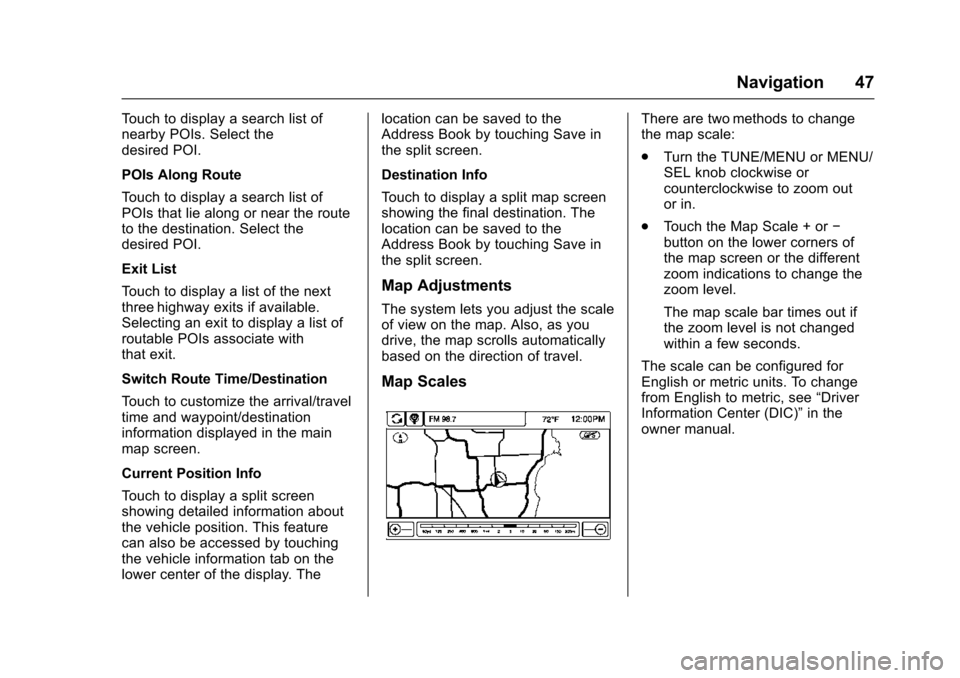
Map Scales
There are two methods to change
the map scale:
.
Turn the TUNE/MENU or MENU/
SEL knob clockwise or
counterclockwise to zoom out
or in.
. Touch the Map Scale + or −
button on the lower corners of
the map screen or the different
zoom indications to change the
zoom level.
The map scale bar times out if
the zoom level is not changed
within a few seconds.
The scale can be configured for
English or metric units. To change
from English to metric, see “Driver
Information Center (DIC)” in the
owner manual.
Page 49 of 94
Chevrolet Malibu Limited/Cruze Limited MyLink Infotainment System
(GMNA-Localizing-U.S./Canada-9282853) - 2016 - crc - 4/16/15
48 Navigation
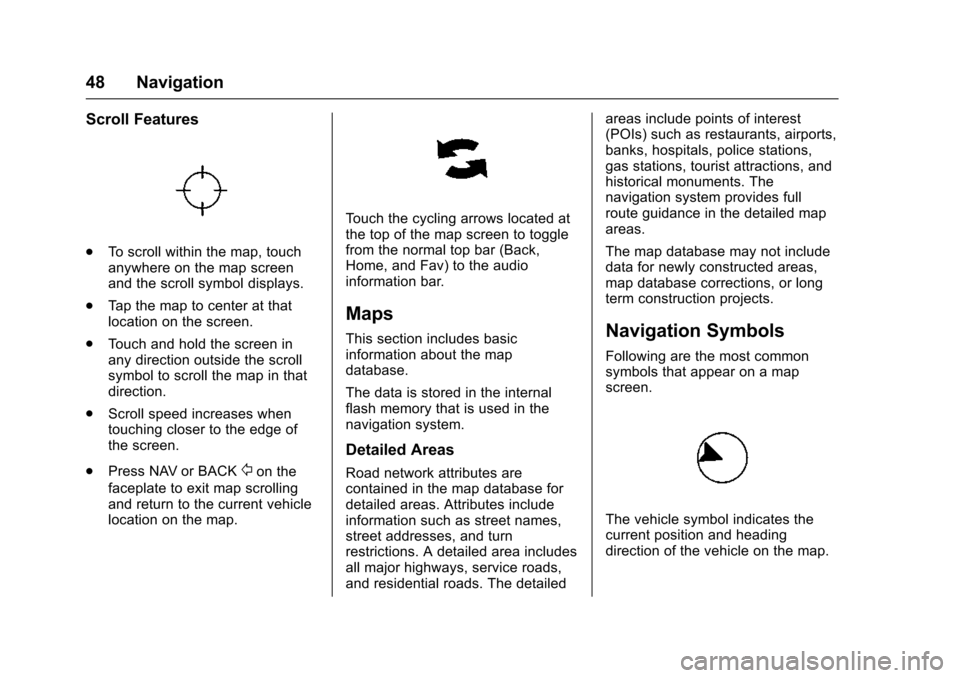
Scroll Features
.To scroll within the map, touch
anywhere on the map screen
and the scroll symbol displays.
. Tap the map to center at that
location on the screen.
. Touch and hold the screen in
any direction outside the scroll
symbol to scroll the map in that
direction.
. Scroll speed increases when
touching closer to the edge of
the screen.
. Press NAV or BACK
/on the
faceplate to exit map scrolling
and return to the current vehicle
location on the map.
Touch the cycling arrows located at
the top of the map screen to toggle
from the normal top bar (Back,
Home, and Fav) to the audio
information bar.
Maps
This section includes basic
information about the map
database.
The data is stored in the internal
flash memory that is used in the
navigation system.
Detailed Areas
Road network attributes are
contained in the map database for
detailed areas. Attributes include
information such as street names,
street addresses, and turn
restrictions. A detailed area includes
all major highways, service roads,
and residential roads. The detailed areas include points of interest
(POIs) such as restaurants, airports,
banks, hospitals, police stations,
gas stations, tourist attractions, and
historical monuments. The
navigation system provides full
route guidance in the detailed map
areas.
The map database may not include
data for newly constructed areas,
map database corrections, or long
term construction projects.
Navigation Symbols
Following are the most common
symbols that appear on a map
screen.
The vehicle symbol indicates the
current position and heading
direction of the vehicle on the map.
Page 50 of 94
Chevrolet Malibu Limited/Cruze Limited MyLink Infotainment System
(GMNA-Localizing-U.S./Canada-9282853) - 2016 - crc - 4/16/15
Navigation 49
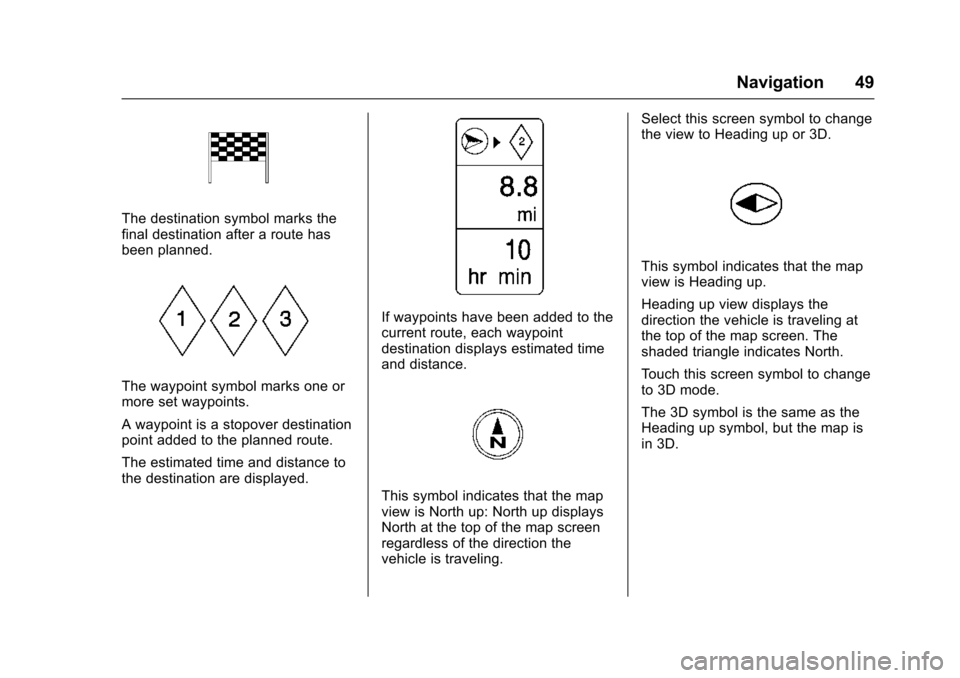
The destination symbol marks the
final destination after a route has
been planned.
The waypoint symbol marks one or
more set waypoints.
A waypoint is a stopover destination
point added to the planned route.
The estimated time and distance to
the destination are displayed.
If waypoints have been added to the
current route, each waypoint
destination displays estimated time
and distance.
This symbol indicates that the map
view is North up: North up displays
North at the top of the map screen
regardless of the direction the
vehicle is traveling.Select this screen symbol to change
the view to Heading up or 3D.
This symbol indicates that the map
view is Heading up.
Heading up view displays the
direction the vehicle is traveling at
the top of the map screen. The
shaded triangle indicates North.
Touch this screen symbol to change
to 3D mode.
The 3D symbol is the same as the
Heading up symbol, but the map is
in 3D.