2016 CHEVROLET MALIBU display
[x] Cancel search: displayPage 68 of 94
Chevrolet Malibu Limited/Cruze Limited MyLink Infotainment System
(GMNA-Localizing-U.S./Canada-9282853) - 2016 - crc - 4/16/15
Navigation 67
.It could take a long time to
operate automatic rerouting
during high-speed driving.
. Automatic rerouting might
display a route returning to the
set waypoint if heading for a
destination without passing
through a set waypoint.
. The route prohibits the entry of a
vehicle due to a regulation by
time or season or any other
regulation which may be given.
. Some routes might not be
searched.
. The route to the destination
might not be shown if there are
new roads, if roads have
recently changed, or if certain
roads are not listed in the map
data. See Maps048.
To recalibrate the vehicle's position
on the map, park with the vehicle
running for two to five minutes, until
the vehicle position updates. Make
sure the vehicle is parked in a location that is safe and has a clear
view of the sky and away from large
obstruction.
If the System Needs
Service
If the navigation system needs
service and the steps listed here
have been followed but there are
still problems, see your dealer for
assistance.
Map Data Updates
The map data in the vehicle is the
most up-to-date information
available when the vehicle was
produced. The map data is updated
periodically, provided that the map
information has changed.
For questions about the operation of
the navigation system or the update
process, contact the GM Nav Disc
Center toll-free phone number,
1-877-NAV-DISC (1-877-628-3472)
or go to the center
’s website, www.gmnavdisc.com. If updates are
needed, call the GM Nav Disc
Center or order a new Map Update
online.
To order map data, have the
vehicle’s Vehicle Identification
Number (VIN) available to ensure
the correct and most up-to-date map
data for the vehicle is sent. See
“Vehicle Identification Number
(VIN)”
in the owner manual.
Database Coverage
Explanations
Coverage areas vary with respect to
the level of map detail available for
any given area. Some areas feature
greater levels of detail than others.
If this happens, it does not mean
there is a problem with the system.
As the map data is updated, more
detail can become available for
areas that previously had limited
detail. See Map Data Updates 067.
Page 69 of 94

Chevrolet Malibu Limited/Cruze Limited MyLink Infotainment System
(GMNA-Localizing-U.S./Canada-9282853) - 2016 - crc - 4/16/15
68 Voice Recognition
Voice Recognition
Voice recognition allows for
hands-free operation of the
infotainment system features.
Voice recognition can be used when
the radio is on or when Retained
Accessory Power (RAP) is active.
See“Retained Accessory Power
(RAP)” in the owner manual. The
system maintains a minimum
volume level.
Using Voice Recognition
1. Pressb/gon the steering
wheel. The audio system
mutes. A voice prompt states,
“Please say a command.” Wait
until the tone is heard before
speaking.
If there is no tone, make sure
that the volume is turned up.
While voice recognition is
active, the system displays a
g
symbol in the top right of the
screen. 2. Clearly speak one of the
commands listed later in this
section.
Press
b/gtwice on the steering
wheel to skip the voice prompt
messages.
Canceling Voice Recognition
1. Press and release$/ion
the steering wheel control to
cancel a command, if the
system response does not
match the voice command,
or say “Goodbye” or“Cancel.”
2. The system replies, “Goodbye.”
Helpful Hints for Speaking
Commands
.
When multiple commands are
available, choose the command
that works best for you.
. Words in parentheses are
optional. For example, for the
command “Tune FM
(frequency),” saying“Tune FM
87.7” or“Tune FM” are both
valid commands. .
When the command is
recognized, the system will
either perform the function or
ask to confirm the choice.
. When the system does not
recognize the command, the
system says “Pardon.”
. If experiencing difficulty with the
system recognizing a command,
confirm that the command is
correct. Try saying the command
clearly or wait for a brief moment
after the tone.
. Background noise such as a
climate control fan positioned on
high, open windows, and very
loud outside noises, even if the
windows are closed, can cause
voice commands to be
misunderstood.
. The system is able to recognize
commands in different
languages, such as English,
Canadian French, and Spanish.
The system only recognizes
commands based on the
language selected.
Page 73 of 94
Chevrolet Malibu Limited/Cruze Limited MyLink Infotainment System
(GMNA-Localizing-U.S./Canada-9282853) - 2016 - crc - 4/16/15
72 Voice Recognition
While voice recognition is
active, the system displays a
symbol in the top right of the
screen.
2. Clearly speak the command “Navigation.”
3. Clearly speak one of the commands in this section.
The following commands only apply
once the Navigation command is
given.
Change Country : Changes the
country origin to input a destination
from that region. The system will
accept United States, Canada,
or Mexico.
Address or Destination : Allows
an address to be stated as a
one-shot method. The system will
recognize the address if stated all at
once or say a city center. An
example is to say, “200
Renaissance Street, Detroit,
Michigan” or“Detroit, Michigan.”
Directed Address : Allows an
address to be stated one step at a
time. The format will be State, City,
Street, then House Number. Intersection :
Allows an
Intersection to be stated as the
destination. The format will be
State, City, Street, then Intersection.
Contact : When a phone is paired
to the system, which contains
Address Information stored for
contacts, the address associated
with that contact can become a
route. If the system cannot resolve
the address, an error displays.
Home : Instructs the system to start
guidance to the address saved as
My Home.
Points of Interest or POI : Allows a
Point of Interest to be stated as a
destination.
Say the name or list item number of
the category and subcategory to
return a list of POIs. Say the item
number to select a POI from the list.
POI commands for Nearby, Along
Route, and Around Destination will
be available if route guidance is
active.
Add Waypoint : Allows addition of
individual waypoints or the
destination. The system will ask for the choice of entry method to
continue. An example is to say,
“POI
Along Route” or“Intersection.”
Delete Waypoint : When guidance
is active, this command allows the
deletion of individual waypoints or
the destination. If guidance is not
active, the system will indicate the
destination list is empty.
Where Am I?, My Location,
or Current Position : Instructs the
system to give the current position
of the vehicle.
Help : The system plays back more
specific help commands associated
with Navigation or a Navigation
sub-feature.
Cancel Guidance or Cancel
Route : Instructs the system to
cancel guidance.
Entering a Destination in Other
Countries
For the voice recognition to respond
to a local address, the
corresponding country needs to be
set in the navigation system.
Page 76 of 94
Chevrolet Malibu Limited/Cruze Limited MyLink Infotainment System
(GMNA-Localizing-U.S./Canada-9282853) - 2016 - crc - 4/16/15
Bluetooth Phone/Devices 75
Bluetooth Phone/
Devices
Bluetooth
Overview
For vehicles equipped with
Bluetooth capability, the system can
interact with many cell phones and
devices, allowing:
.Placing and receiving hands-free
calls.
. Sharing of the cell phone’s
address book or contact list with
the vehicle. The phone book will
only display when that phone is
connected.
. Placing outgoing calls by voice
recognition.
The system can be used while in
ON/RUN, ACC/ACCESSORY,
or Retained Accessory Power
(RAP). The range of the Bluetooth
system can be up to 9.1 m (30 ft).
The radio can connect to most Bluetooth-enabled phones.
Available features and functions
may be dependent on the device.
On a current phone call screen, an
image of the contact from your
phone's contact list can be
displayed. Not all phones are
compatible with this feature.
Bluetooth Controls
Use the buttons on the infotainment
system and the steering wheel to
operate the Bluetooth system.
Steering Wheel Controls
b/g(Press to Talk) :
Press to
answer incoming calls and start
voice recognition.
$/i(Mute/End Call) : Press to
end a call, decline an incoming call,
or cancel voice recognition.
+
x− (Volume) : Press + or−to
increase or decrease the volume.
Infotainment System Controls
For information about how to
navigate the menu system using the
infotainment controls, see
Overview 02.
5or5/>(Phone) : Press to enter
the Phone main menu.
Voice Recognition
The voice recognition system uses
commands to control the system
and dial phone numbers.
When using voice recognition:
. The system may not recognize
voice commands if there is too
much background noise.
. A tone sounds to indicate that
the system is ready for a voice
command. Wait for the tone and
then speak.
. Speak clearly in a calm and
natural voice.
See Voice Recognition 068.
Audio System
Sound comes through the vehicle's
front audio system speakers and
overrides the audio system. Use the
VOL/
Oknob during a call to change
the volume level. The adjusted
volume level remains in memory for
later calls. The system maintains a
minimum volume level.
Page 77 of 94
Chevrolet Malibu Limited/Cruze Limited MyLink Infotainment System
(GMNA-Localizing-U.S./Canada-9282853) - 2016 - crc - 4/16/15
76 Bluetooth Phone/Devices
SeeVoice Recognition 068.
Bluetooth Audio
See Bluetooth Audio 042.
Pairing with Infotainment
Controls
A Bluetooth-enabled cell phone
must be paired and then connected
to the vehicle before it can be used.
See your cell phone manufacturer's
user guide for Bluetooth functions
before pairing the cell phone. If a
Bluetooth phone is not connected,
calls will be made using OnStar
Hands-Free Calling, if available.
See “OnStar” in the owner manual.
Pairing Information
. A Bluetooth-enabled phone and
an audio playback device can be
paired to the system at the
same time.
. Up to five devices can be paired
to the Bluetooth system.
. The pairing process is disabled
when the vehicle is moving. .
Pairing only needs to be
completed once, unless the
pairing information on the cell
phone changes or the cell phone
is deleted from the system.
. Only one paired cell phone can
be connected to the Bluetooth
system at a time.
. If multiple paired cell phones are
within range of the system, the
radio will connect to the first
phone in the list or to the phone
that was previously connected.
Pairing a Phone/Device 1. Press the CONFIG button or
5.
2. Select Phone Settings.
3. Select Pair Device (Phone). The radio displays “Please
start Bluetooth search on your
phone. Confirm or enter
number:.” If the device
supports a four-digit Personal
Identification Number (PIN), it
will display. The PIN is used in
Step 5. 4. Start the pairing process on the
cell phone to be paired to the
vehicle. See the cell phone
manufacturer's user guide.
5. Locate and select the device named after the vehicle make
and model in the list on the cell
phone. Follow the instructions
on the cell phone to enter the
PIN provided in Step 3, or to
confirm the six-digit code
matches. The system
recognizes the new connected
phone after the pairing process
is complete.
6. If the phone prompts to accept connection or allow phone
book download, select always
accept and allow. The phone
book may not be available if
not accepted. Some phones
will put connection request or
phonebook request in a pull
down task bar at the top of the
screen. Drag down the task bar
and look for connection/
phonebook request and accept.
7. Repeat to pair additional phones.
Page 79 of 94
Chevrolet Malibu Limited/Cruze Limited MyLink Infotainment System
(GMNA-Localizing-U.S./Canada-9282853) - 2016 - crc - 4/16/15
78 Bluetooth Phone/Devices
4. The system responds with:“To
delete a device, please select
its name on the screen.” Select
the device to delete on the
display and it will be removed.
To cancel this command, press
$/
ion the steering wheel control or
press the BACK
/button on the
radio faceplate.
Connecting to a Different Phone
or Device
To connect to a different cell phone,
the system looks for the next
available cell phone. Depending on
the cell phone to be connected, this
command may need to be repeated.
1. Press
5or5/>. The system
responds “Please say a
command,” followed by a tone.
2. Say “Change Phone.”
. To select a device, touch
the name on the display.
. If another cell phone is not
found, the original phone
remains connected.
Making a Call Using Phone
Book and Infotainment
Controls
For cell phones that support the
phone book feature, the Bluetooth
system can use the contacts stored
on the cell phone to make calls. See
the cell phone manufacturer‘s user
guide or contact the wireless
provider to find out if this feature is
supported.
When a cell phone supports the
phone book feature, the Phone
Book and Call Lists menus are
automatically available.
The Phone Book menu allows
access to the phone book stored in
the cell phone to make a call.
The Call Lists menu allows access
to the phone numbers from the
Incoming Calls, Outgoing Calls, and
Missed Calls menus on the cell
phone to make a call.
The radio will display the first 1,000
contacts and the phone numbers for
each contact including Home, Work,
Mobile, and Other. To make a call using the Phone
Book menu:
1. Press
5or5/>once on the
radio or the Phone screen
button.
2. Select Phone Book.
3. Select the letter group of the phone book entry to scroll
through the list of names/
numbers.
4. Select the name.
5. Select the number to call.
To make a call using the Call
Lists menu:
1. Press
5or5/>once on the
radio or the Phone screen
button.
2. Select Call Lists.
3. Select the Incoming Calls, Outgoing Calls, or Missed
Calls list.
4. Select the name or number to call.
Page 82 of 94
Chevrolet Malibu Limited/Cruze Limited MyLink Infotainment System
(GMNA-Localizing-U.S./Canada-9282853) - 2016 - crc - 4/16/15
Bluetooth Phone/Devices 81
Dial or Call :These commands can
be used interchangeably to dial a
phone number.
Digit Dial : This command allows a
phone number to be dialed by
entering the digits one at a time.
Redial : This command dials the
last number used on the cell phone.
Using the “Dial”or“Call”
Command
To call a number:
1. Press
5or5/>. The system
responds “Please say a
command,” followed by a tone.
2. Say “Dial”or“Call.”
3. Say the entire number without pausing, followed by “Dial.”
Once connected, the person called
will be heard through the audio
speakers.
To call using a name tag:
1. Press
5or5/>. The system
responds “Please say a
command,” followed by a tone. 2. Say
“Dial”or“Call” and then
say the name tag. For example
“Call John at Work.”
Once connected, the person called
will be heard through the audio
speakers.
Using the “Digit Dial” Command
This allows a phone number to be
dialed by entering the digits one at
a time.
1. Press
5or5/>. The system
responds “Please say a
command,” followed by a tone.
2. Say “Digit Dial.”
3. Say each digit, one at a time, to dial. After each digit is
entered, the system repeats
back the digit it heard followed
by a tone. After the last digit
has been entered, say “Dial.”
If an unwanted number is repeated
back, say “Clear”to clear the last
number.
Once connected, the person called
will be heard through the audio
speakers. Using the
“Redial”Command
1. Press
5or5/>. The system
responds “Please say a
command,” followed by a tone.
2. After the tone, say “Redial.”
The system dials the last
number called from the
connected cell phone.
Once connected, the person called
will be heard through the audio
speakers.
Clearing the System
Unless information is deleted out of
the vehicle Bluetooth system, it will
be retained. This includes phone
pairing information. For directions
on how to delete this information,
see “Deleting a Paired Phone/
Device.”
Text Messaging
For vehicles equipped with
Bluetooth capability, the system,
if equipped with text messaging, can
display text messages, play back a
message over the audio system,
and send a predefined message.
Page 83 of 94
Chevrolet Malibu Limited/Cruze Limited MyLink Infotainment System
(GMNA-Localizing-U.S./Canada-9282853) - 2016 - crc - 4/16/15
82 Bluetooth Phone/Devices
Not all phones support all functions
and work with Bluetooth. The radio
only supports the receipt of SMS
text messages. A request may need
to be accepted on the phone or
some phone settings may need to
be changed to allow text messaging
to function. See the cell phone
manufacturer’s user guide.
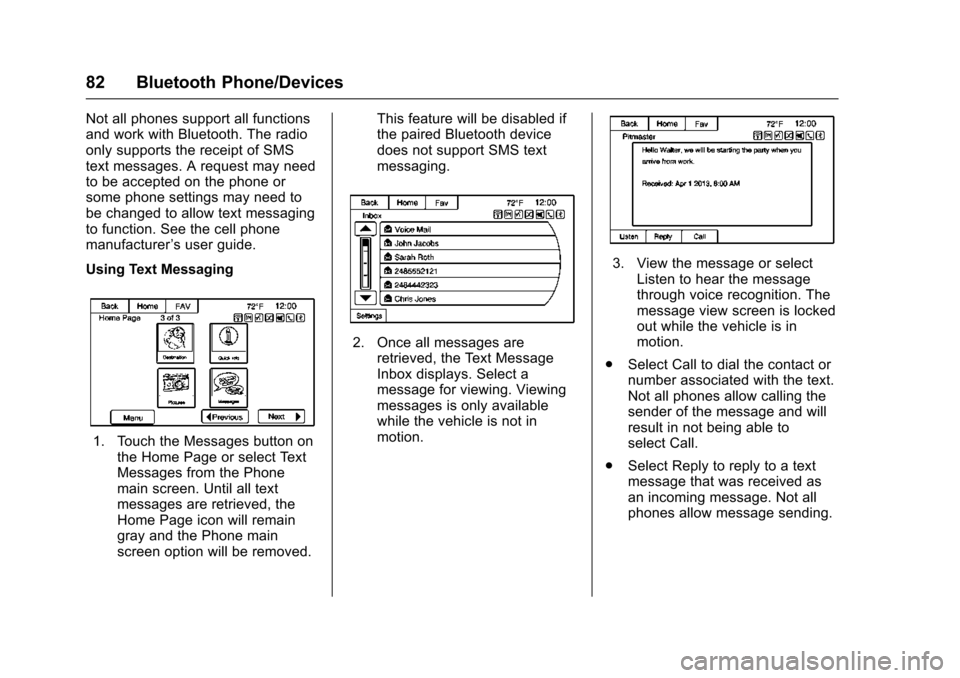
Using Text Messaging
1. Touch the Messages button on the Home Page or select Text
Messages from the Phone
main screen. Until all text
messages are retrieved, the
Home Page icon will remain
gray and the Phone main
screen option will be removed. This feature will be disabled if
the paired Bluetooth device
does not support SMS text
messaging.
2. Once all messages are
retrieved, the Text Message
Inbox displays. Select a
message for viewing. Viewing
messages is only available
while the vehicle is not in
motion.
3. View the message or selectListen to hear the message
through voice recognition. The
message view screen is locked
out while the vehicle is in
motion.
. Select Call to dial the contact or
number associated with the text.
Not all phones allow calling the
sender of the message and will
result in not being able to
select Call.
. Select Reply to reply to a text
message that was received as
an incoming message. Not all
phones allow message sending.