2016 CHEVROLET MALIBU Touch screen
[x] Cancel search: Touch screenPage 37 of 94
Chevrolet Malibu Limited/Cruze Limited MyLink Infotainment System
(GMNA-Localizing-U.S./Canada-9282853) - 2016 - crc - 4/16/15
36 Audio Players
delivers the correct album, artist
name, genres, and cover art on the
screen. If information is missing,
Gracenote will fill it in.
Searching Music Library Using
Voice Recognition
Voice Recognition:Gracenote
improves music search and
navigation by identifying bands,
artists, and albums names that may
be hard to pronounce, irregular
spellings, and nicknames as voice
commands to access music. See
Voice Recognition 068.
Normalization: Normalization helps
to improve the voice recognition
accuracy for titles that sound similar.
It also helps group long lists of
genres into 10 common genres. For
example, there may be multiple rock
genres in the media library;
normalization will group all those
into one rock Genre. Normalization
default is off.
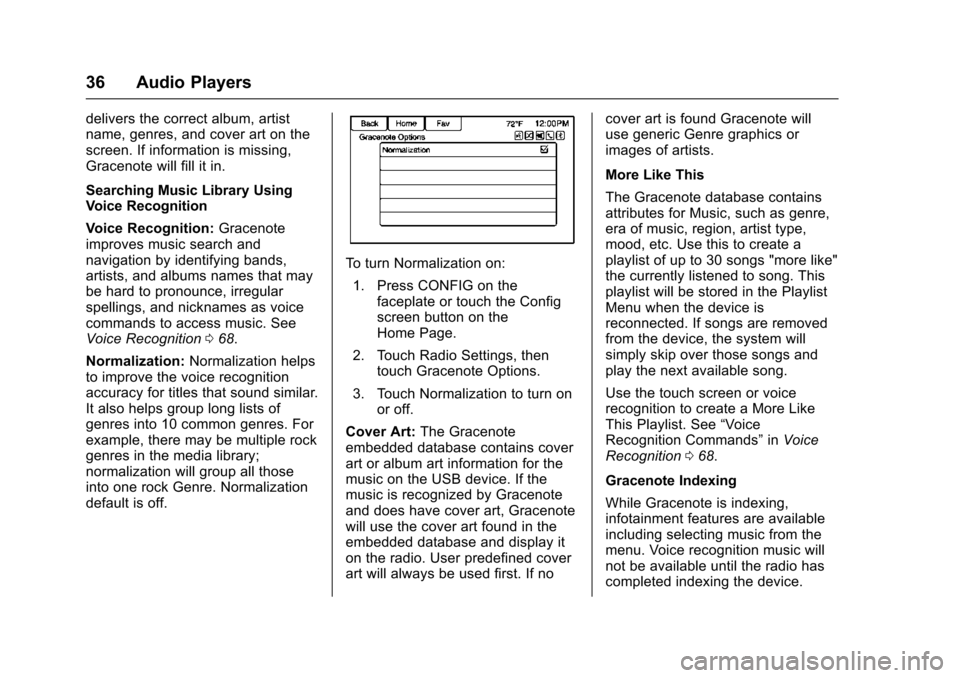
To turn Normalization on:
1. Press CONFIG on the faceplate or touch the Config
screen button on the
Home Page.
2. Touch Radio Settings, then touch Gracenote Options.
3. Touch Normalization to turn on or off.
Cover Art: The Gracenote
embedded database contains cover
art or album art information for the
music on the USB device. If the
music is recognized by Gracenote
and does have cover art, Gracenote
will use the cover art found in the
embedded database and display it
on the radio. User predefined cover
art will always be used first. If no cover art is found Gracenote will
use generic Genre graphics or
images of artists.
More Like This
The Gracenote database contains
attributes for Music, such as genre,
era of music, region, artist type,
mood, etc. Use this to create a
playlist of up to 30 songs "more like"
the currently listened to song. This
playlist will be stored in the Playlist
Menu when the device is
reconnected. If songs are removed
from the device, the system will
simply skip over those songs and
play the next available song.
Use the touch screen or voice
recognition to create a More Like
This Playlist. See
“Voice
Recognition Commands” inVoice
Recognition 068.
Gracenote Indexing
While Gracenote is indexing,
infotainment features are available
including selecting music from the
menu. Voice recognition music will
not be available until the radio has
completed indexing the device.
Page 38 of 94
Chevrolet Malibu Limited/Cruze Limited MyLink Infotainment System
(GMNA-Localizing-U.S./Canada-9282853) - 2016 - crc - 4/16/15
Audio Players 37
Devices with more music may take
longer to index. The device will
index when plugged into the radio
for the first time. When Indexing is
removed from the screen, the radio
is ready to support music search.
On the next connection or ignition
cycle, Indexing will show briefly on
the screen. The radio is searching
for changes to the device and
preparing the music list. If there are
no changes, the voice recognition
music search will be available. The
radio will index and store two
devices with up to 10,000 songs on
each device.
USB MP3 Player and USB Drives
.The USB MP3 players and USB
drives connected must comply
with the USB Mass Storage
Class specification (USB MSC).
. Hard disk drives are not
supported.
. The radio will not be able to play
back write-protected music.
. File system supported: FAT32. .
The following restrictions apply
for the data stored on a USB
MP3 player or USB device:
‐Maximum folder structure
depth: 8 levels.
‐ Maximum number of MP3/
WMA files that can be
displayed: 10,000.
‐ Playlist entries must be in the
form of relative paths.
‐ The system attribute for
folders/files that contain audio
data must not be set.
To play a USB device, do one of the
following:
. Connect the USB and it begins
to play.
. Touch the Now Playing screen
button on the Home Page.
. Press SRCE on the faceplate to
scroll until the USB source
screen is available. .
Pressb/gon the steering
wheel controls to play CD, Artist,
Album, Song Title, or Song
Genre. See Voice Recognition
0 68.
The following playlist formats are
supported:
. M3U (Standard and Extended)
. iTunes
. PLS (Standard)
. WAX
. ASX
. RMP
The radio supports plugging a cell
phone in as a USB drive as long as
the cell phone supports USB mass
storage class or has USB disc drive
support enabled.
While the USB source is active, use
the following to operate USB
function:
TUNE/MENU or MENU/SEL
Knob : Turn to scroll through the
list. Turn quickly to fast scroll
alphabetically through large lists.
Page 42 of 94
Chevrolet Malibu Limited/Cruze Limited MyLink Infotainment System
(GMNA-Localizing-U.S./Canada-9282853) - 2016 - crc - 4/16/15
Audio Players 41
.iPad®(1G, 2G)
Follow the same instructions as
stated earlier for using an iPod. To
use voice recognition to play music,
say “Play USB,” “Play Artist,” “Play
Album,” “Play Song,” or“Play
Genre.” SeeVoice Recognition
0 68.
iPhone, iPod touch and iPad
Troubleshooting
When an iPhone, iPod touch,
or iPad is connected through USB
and Bluetooth, the audio may not be
heard when the iPod source on the
radio is selected. If a phone call is
received while listening to the iPod
source and there is no audio for the
iPod after the source, go to the
Airplay icon on the device and
select dock connector or disconnect
and reconnect the dock connector
on the device.
Some functionality may differ based
on operating system version on the
device.USB Troubleshooting
If the device is not being recognized
or the music is missing screen
information, restore the radio
defaults: 1. Touch Config.
2. Touch Radio Settings.
3. Touch Software Versions Menu.
4. Touch Clear and Reset Radio.
5. Touch Yes.
Pair the phone again and the device
will have to index again.
Bluetooth Audio and Voice
Recognition
See Bluetooth Audio 042 and Voice
Recognition 068 for information
using voice recognition with
Bluetooth Audio.
Make sure all devices have the
latest software downloaded.
Auxiliary Devices
This vehicle has an auxiliary input
jack in the center console. Possible
auxiliary audio sources include:
. Laptop computer
. MP3 player
. Tape player
This jack is not an audio output. Do
not plug headphones into the
auxiliary input jack. Set up any
auxiliary device while the vehicle is
in P (Park).
Connect a 3.5 mm (1/8 in) cable
from the auxiliary device to the
auxiliary input jack. When a device
is connected, the system
automatically begins playing audio
from the device over the vehicle
speakers.
If an auxiliary device has already
been connected, but a different
source is currently active, do one of
the following:
. Press SOURCE or SRCE to
scroll all of the available audio
source screens, until the AUX
source screen is selected.
Page 43 of 94
Chevrolet Malibu Limited/Cruze Limited MyLink Infotainment System
(GMNA-Localizing-U.S./Canada-9282853) - 2016 - crc - 4/16/15
42 Audio Players
.Say “Play Front AUX” using
voice recognition to play the
auxiliary device. See Voice
Recognition 068.
. Touch the AUX screen button on
the Home Page.
Bluetooth Audio
If equipped, music may be played
from a paired Bluetooth device. See
“Pairing a Phone/Device” under
Bluetooth 075.
To play music through a Bluetooth
device:
1. Power on the device, pair, and connect the device.
2. Music can be launched by doing one of the following:
.Touch the Bluetooth Audio
screen button on the
Home Page.
. Press SOURCE or SRCE
until Bluetooth Audio is
selected. .
Press the SRC button on
the steering wheel controls
until Bluetooth Audio is
selected. See Steering
Wheel Controls 09.
. Use voice recognition. See
Voice Recognition 068.
The music can be controlled by
either the infotainment controls or
the controls on the device.
When a phone is connected to the
system through Bluetooth Audio the
phone notifications and sounds may
not be heard on the phone until
Bluetooth is disconnected.
Notification features may vary based
on the phone. Check the phone
manufacturer ’s information for
notification support.
Bluetooth Audio Menu
Touch the Menu screen button and
the following may display:
Shuffle : Press the TUNE/MENU or
MENU/SEL knob to turn shuffle on
or off. Not all devices support the
shuffle feature. When selecting Bluetooth Audio, the
Bluetooth device internal music
player may not open depending on
the status of the device. All devices
launch and play back audio
differently. Make sure the correct
audio source is playing on the
device for Bluetooth Audio playback
on the radio. When the vehicle is
not moving, use the device to begin
playback.
When selecting Bluetooth Audio as
a source, the radio may source to
the Bluetooth Audio Paused screen
with no audio playing. Touch play on
the device or touch
kto begin
playback. This may happen
depending on how the device
communicates over Bluetooth.
Some phones support sending
Bluetooth music information to
display on the radio. When the radio
receives this information, it will
check to see if any album art is
available and display it.
Page 44 of 94

Chevrolet Malibu Limited/Cruze Limited MyLink Infotainment System
(GMNA-Localizing-U.S./Canada-9282853) - 2016 - crc - 4/16/15
Audio Players 43
When playing music on the radio
from a Bluetooth device, make sure
the Bluetooth device is unlocked
and the intended music application
is showing on the home screen.
For iPhone/iPod touch and iPad
devices, Bluetooth Audio will not
work if the device is connected
through the USB and Bluetooth at
the same time.
Page 46 of 94
Chevrolet Malibu Limited/Cruze Limited MyLink Infotainment System
(GMNA-Localizing-U.S./Canada-9282853) - 2016 - crc - 4/16/15
Navigation 45
Navigation
Using the Navigation
System
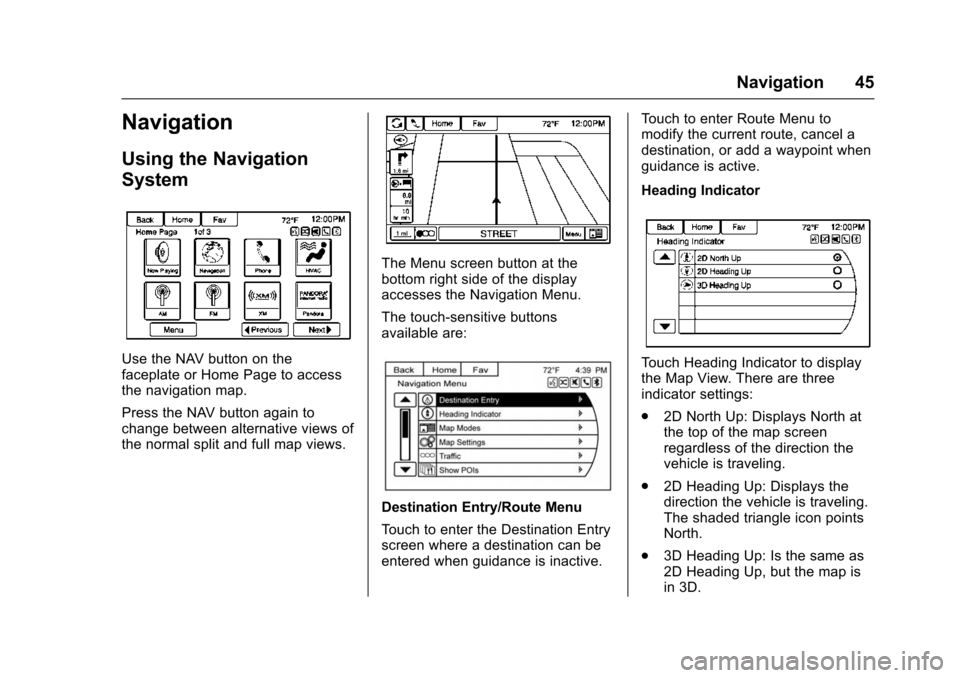
Use the NAV button on the
faceplate or Home Page to access
the navigation map.
Press the NAV button again to
change between alternative views of
the normal split and full map views.
The Menu screen button at the
bottom right side of the display
accesses the Navigation Menu.
The touch-sensitive buttons
available are:
Destination Entry/Route Menu
Touch to enter the Destination Entry
screen where a destination can be
entered when guidance is inactive.Touch to enter Route Menu to
modify the current route, cancel a
destination, or add a waypoint when
guidance is active.
Heading Indicator
Touch Heading Indicator to display
the Map View. There are three
indicator settings:
.
2D North Up: Displays North at
the top of the map screen
regardless of the direction the
vehicle is traveling.
. 2D Heading Up: Displays the
direction the vehicle is traveling.
The shaded triangle icon points
North.
. 3D Heading Up: Is the same as
2D Heading Up, but the map is
in 3D.
Page 47 of 94
Chevrolet Malibu Limited/Cruze Limited MyLink Infotainment System
(GMNA-Localizing-U.S./Canada-9282853) - 2016 - crc - 4/16/15
46 Navigation
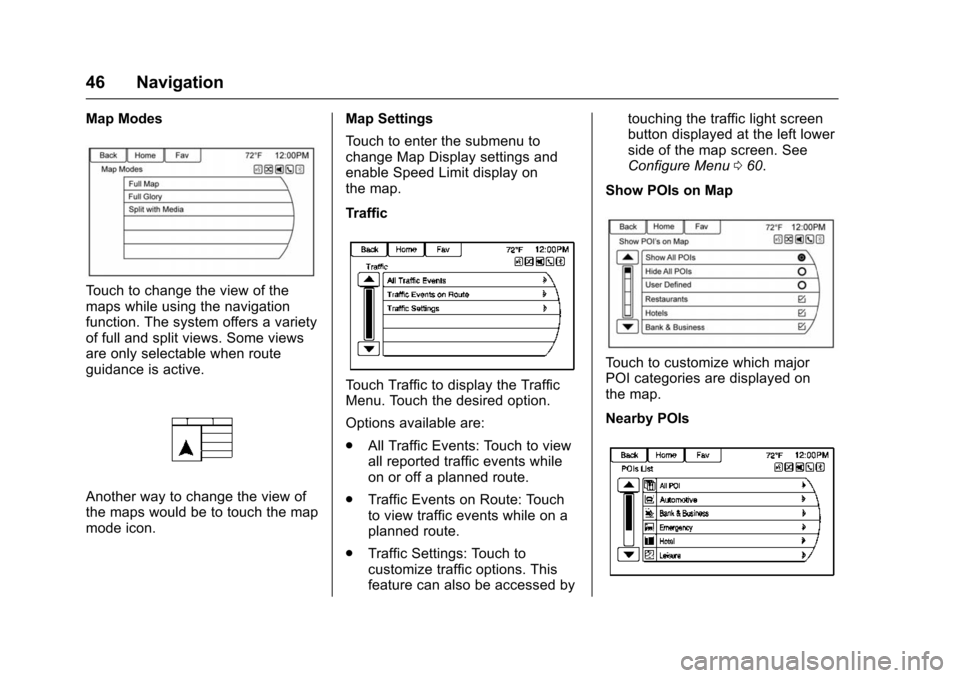
Map Modes
Touch to change the view of the
maps while using the navigation
function. The system offers a variety
of full and split views. Some views
are only selectable when route
guidance is active.
Another way to change the view of
the maps would be to touch the map
mode icon.Map Settings
Touch to enter the submenu to
change Map Display settings and
enable Speed Limit display on
the map.
Traffic
Touch Traffic to display the Traffic
Menu. Touch the desired option.
Options available are:
.
All Traffic Events: Touch to view
all reported traffic events while
on or off a planned route.
. Traffic Events on Route: Touch
to view traffic events while on a
planned route.
. Traffic Settings: Touch to
customize traffic options. This
feature can also be accessed by touching the traffic light screen
button displayed at the left lower
side of the map screen. See
Configure Menu
060.
Show POIs on Map
Touch to customize which major
POI categories are displayed on
the map.
Nearby POIs
Page 48 of 94
Chevrolet Malibu Limited/Cruze Limited MyLink Infotainment System
(GMNA-Localizing-U.S./Canada-9282853) - 2016 - crc - 4/16/15
Navigation 47
Touch to display a search list of
nearby POIs. Select the
desired POI.
POIs Along Route
Touch to display a search list of
POIs that lie along or near the route
to the destination. Select the
desired POI.
Exit List
Touch to display a list of the next
three highway exits if available.
Selecting an exit to display a list of
routable POIs associate with
that exit.
Switch Route Time/Destination
Touch to customize the arrival/travel
time and waypoint/destination
information displayed in the main
map screen.
Current Position Info
Touch to display a split screen
showing detailed information about
the vehicle position. This feature
can also be accessed by touching
the vehicle information tab on the
lower center of the display. Thelocation can be saved to the
Address Book by touching Save in
the split screen.
Destination Info
Touch to display a split map screen
showing the final destination. The
location can be saved to the
Address Book by touching Save in
the split screen.
Map Adjustments
The system lets you adjust the scale
of view on the map. Also, as you
drive, the map scrolls automatically
based on the direction of travel.
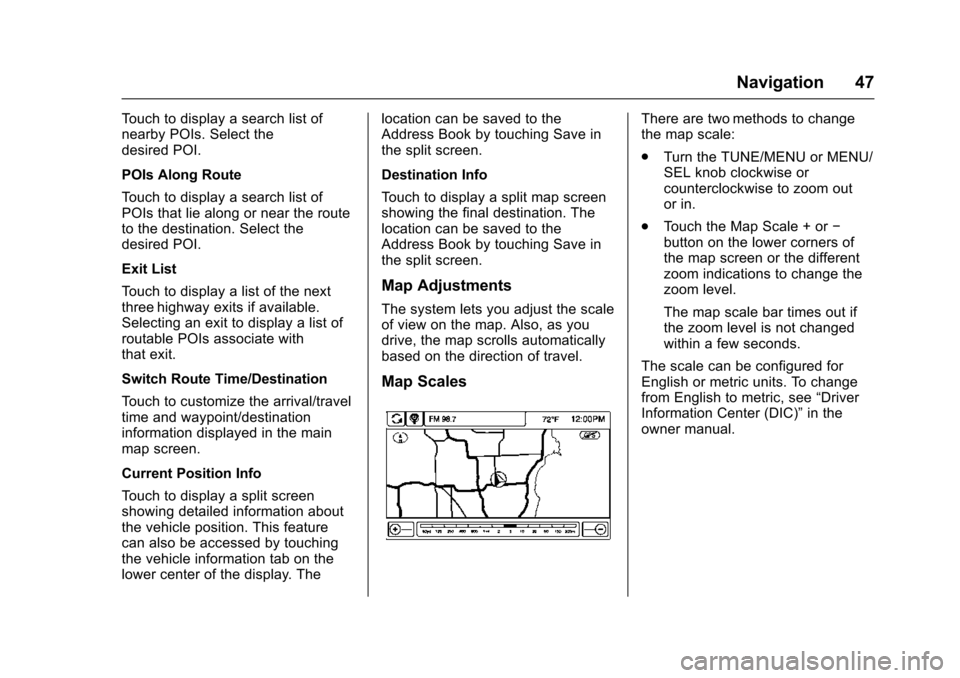
Map Scales
There are two methods to change
the map scale:
.
Turn the TUNE/MENU or MENU/
SEL knob clockwise or
counterclockwise to zoom out
or in.
. Touch the Map Scale + or −
button on the lower corners of
the map screen or the different
zoom indications to change the
zoom level.
The map scale bar times out if
the zoom level is not changed
within a few seconds.
The scale can be configured for
English or metric units. To change
from English to metric, see “Driver
Information Center (DIC)” in the
owner manual.