2016 BMW M4 instrument cluster
[x] Cancel search: instrument clusterPage 87 of 228

SymbolsDescriptionM engine dynamics control, see
page 78.Adaptive M chassis, see
page 126.Servotronic, see page 127.
Activating display
1."Settings"2."Instr. cluster display"3.If applicable, "M driving dynamics syst."
The drive dynamics systems display is
active.
Display current consumption, see
page 86, and energy recovery, see
page 86.
Service requirements
Principle The distance to be driven or time to the next
maintenance is displayed briefly after switch‐ ing on the ignition briefly in the instrument
cluster.
The current service requirements can be read
by a service advisor from the remote control.
Display
Detailed information on service
requirements
More detailed information on the scope of
maintenance can be displayed on the Control
Display.
1."Vehicle information"2."Vehicle status"3. "Service requirements"Essential maintenance routines and any
statutory inspections required are dis‐
played.4.Select an entry to display more detailed in‐
formation.
Symbols
Sym‐
bolsDescriptionNo servicing is currently needed.Maintenance or an inspection re‐
quired by law is due soon.Servicing is overdue.
Entering deadlines
Enter deadlines for prescribed statutory in‐
spections.
Ensure that the date and time of the vehicle
are set correctly.
On the Control Display:
1."Vehicle information"2."Vehicle status"3. "Service requirements"4."§ vehicle inspection"5."Date:"6.Adjust the settings.7.Confirm.
The date input is saved.
Automatic Service notification Data on the service status or on statutory in‐
spections for the vehicle are transmitted to the
Service Partner automatically when a service
or inspection is imminent.
It can be checked when the Service Partner
was notified.
Seite 87DisplaysControls87
Online Edition for Part no. 01 40 2 964 013 - VI/15
Page 88 of 228

On the Control Display:1."Vehicle information"2."Vehicle status"3.Call up "Options".4."Last Teleservice Call"
Service history
General Have maintenance work carried out by a Serv‐
ice Partner or a qualified specialist workshop.
Performed maintenance work is recorded in
the vehicle data, see page 191.
The maintenance visits entered can be shown
on the Control Display. Operation is available
as soon as a maintenance visit has been en‐
tered in the vehicle data.
Displaying service history
On the Control Display:
1."Vehicle information"2."Vehicle status"3. "Service requirements"4. "Service history"
Maintenance visits carried out are shown.5.Select an entry to display more detailed in‐
formation.
Symbols
Sym‐
bolsDescriptionGreen: maintenance has been car‐
ried out on time.Yellow: maintenance has been car‐
ried out with a delay.Maintenance has not been carried
out.Shift point indicator
Principle The system recommends the most efficient
gear for the current driving situation.
General
The shift point indicator is active in sequential
mode of the M double clutch transmission and
the manual gearbox.
Information on up or downshifting are dis‐
played on the instrument cluster.
For vehicles without shift point indicator, the
gear engaged is shown.
DisplaysSymbolDescriptionShift up into most efficient gear.Shift down into most efficient gear.
Speed Limit Information with
No Passing Information
Principle
Speed Limit Information Speed Limit Information shows the currently
detected speed limit in the instrument cluster.
The camera in the area of the interior rear-view mirror detects traffic signs at the edge of the
road as well as variable overhead sign posts. Traffic signs with additional symbols, for exam‐
ple, when wet, are also compared with data in‐
ternal to the vehicle, for example the rain sen‐
sor, and displayed, depending on the situation.
The system considers the information saved in
the navigation system and also displays the
Seite 88ControlsDisplays88
Online Edition for Part no. 01 40 2 964 013 - VI/15
Page 89 of 228
speed limits present on unmarked sections of
road.
No Passing Information No Passing Information displays with corre‐
sponding symbols in the instrument cluster no
passing restrictions and their removal detected
by the camera. The system only considers no passing restrictions and lifting the restriction
made known by signage.
Nothing will be displayed in the following situa‐
tions:▷In countries in which no passing is primar‐
ily shown by road markings.▷On routes without signage.▷On railway crossings, lane markings or in
other situations which would not indicate
an unsigned no passing restriction.
Notes
WARNING
The system does not take your personal
responsibility from you when you are estimat‐
ing the visibility conditions and traffic situation.
Danger of accidents. Adapt driving style to the driving conditions. Observe the traffic situation
and intervene actively if the situation warrants
it.◀
Overview
Camera
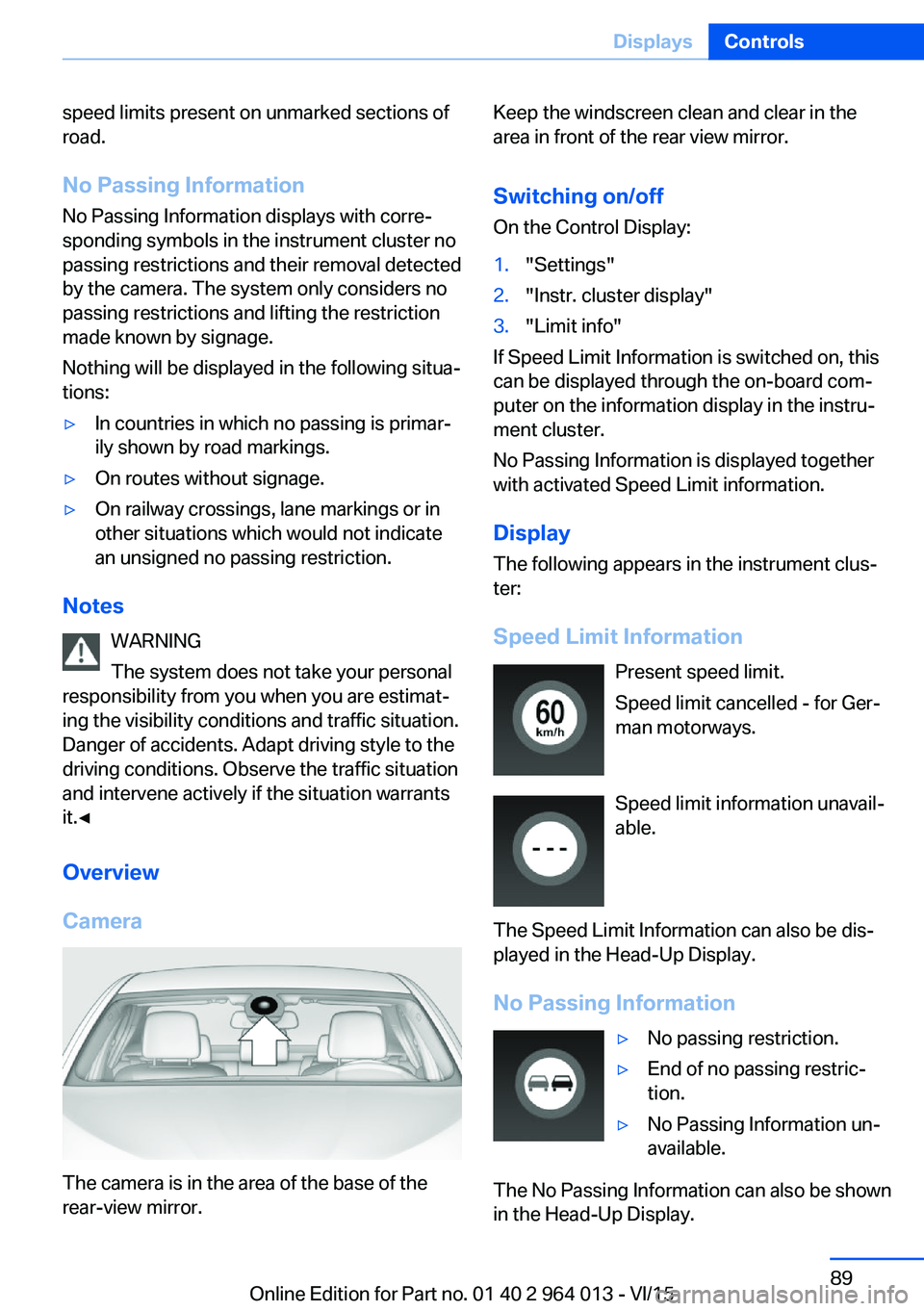
The camera is in the area of the base of the
rear-view mirror.
Keep the windscreen clean and clear in the
area in front of the rear view mirror.
Switching on/offOn the Control Display:1."Settings"2."Instr. cluster display"3."Limit info"
If Speed Limit Information is switched on, this
can be displayed through the on-board com‐
puter on the information display in the instru‐
ment cluster.
No Passing Information is displayed together
with activated Speed Limit information.
Display
The following appears in the instrument clus‐
ter:
Speed Limit Information Present speed limit.
Speed limit cancelled - for Ger‐
man motorways.
Speed limit information unavail‐
able.
The Speed Limit Information can also be dis‐
played in the Head-Up Display.
No Passing Information
▷No passing restriction.▷End of no passing restric‐
tion.▷No Passing Information un‐
available.
The No Passing Information can also be shown
in the Head-Up Display.
Seite 89DisplaysControls89
Online Edition for Part no. 01 40 2 964 013 - VI/15
Page 90 of 228
System limits
The function may be disabled or inaccurate
under certain conditions, for example:▷In thick fog and heavy rain or snow.▷If road signs are obscured by objects.▷If the vehicle is moving too close to the ve‐
hicle ahead.▷With bright oncoming light.▷When the windscreen in front of the rear-
view mirror is covered with condensation,
dirt, stickers, etc.▷Due to possible wrong detections of the
camera.▷If the speed limits saved in the navigation
system are wrong.▷In areas not covered by the navigation sys‐
tem.▷If there are deviations in relation to the nav‐
igation, for example due to changes in the
road routing.▷On overtaking buses or trucks with speed
stickers.▷If traffic signs do not correspond to the
standard.▷During the calibration process of the cam‐
era immediately after the vehicle is sup‐
plied.
Selection lists in the
instrument cluster
Principle Depending on equipment, the following can be
displayed or operated via the buttons and the
knurled wheel on the steering wheel and using
the displays in the instrument cluster and
Head-Up Display:
▷Current audio source.▷Repeat dialling for telephone.▷Activating the voice control system.Display
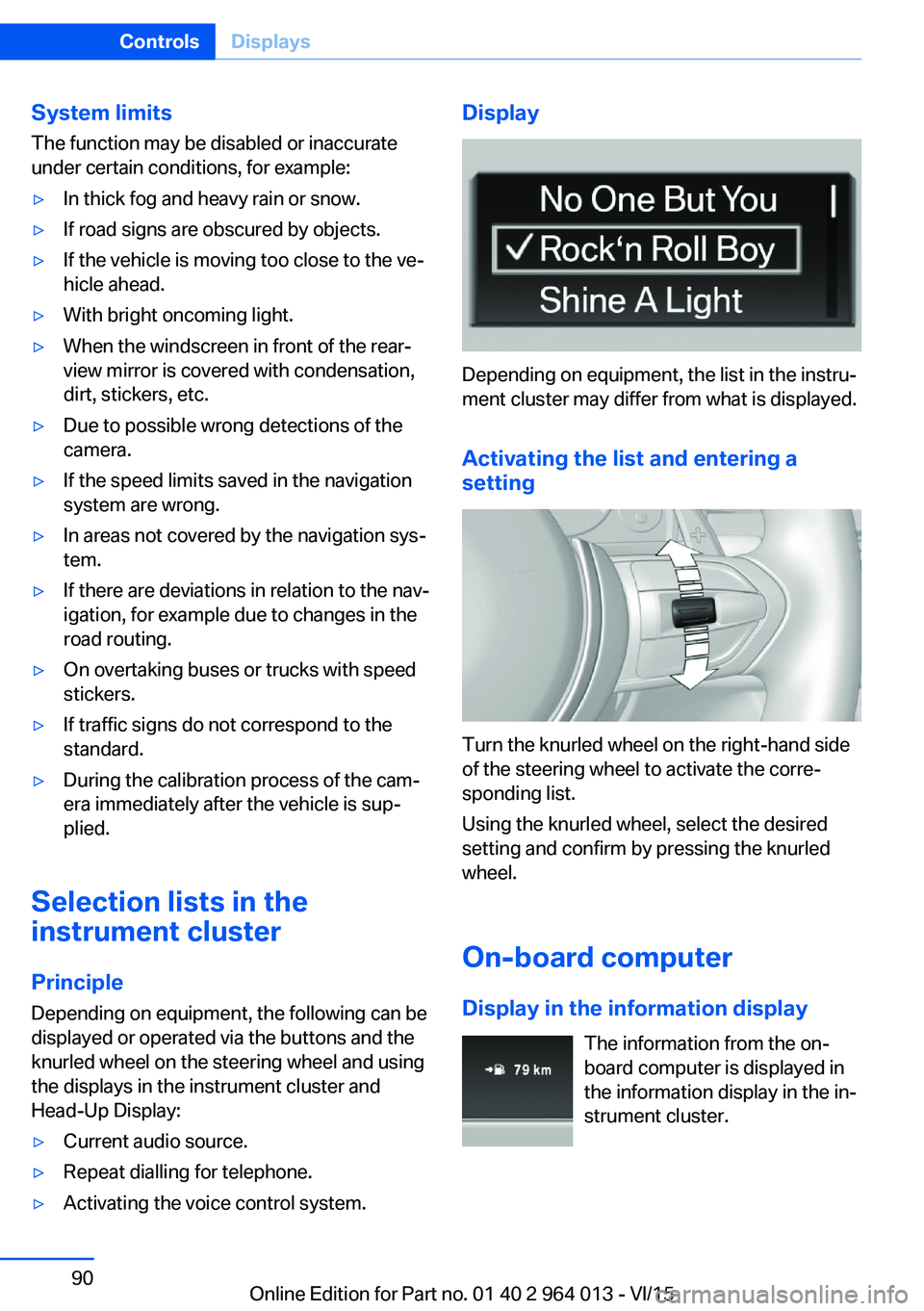
Depending on equipment, the list in the instru‐
ment cluster may differ from what is displayed.
Activating the list and entering a
setting
Turn the knurled wheel on the right-hand side
of the steering wheel to activate the corre‐
sponding list.
Using the knurled wheel, select the desired
setting and confirm by pressing the knurled
wheel.
On-board computer
Display in the information display The information from the on-
board computer is displayed in
the information display in the in‐
strument cluster.
Seite 90ControlsDisplays90
Online Edition for Part no. 01 40 2 964 013 - VI/15
Page 91 of 228
Calling up information on the
information display
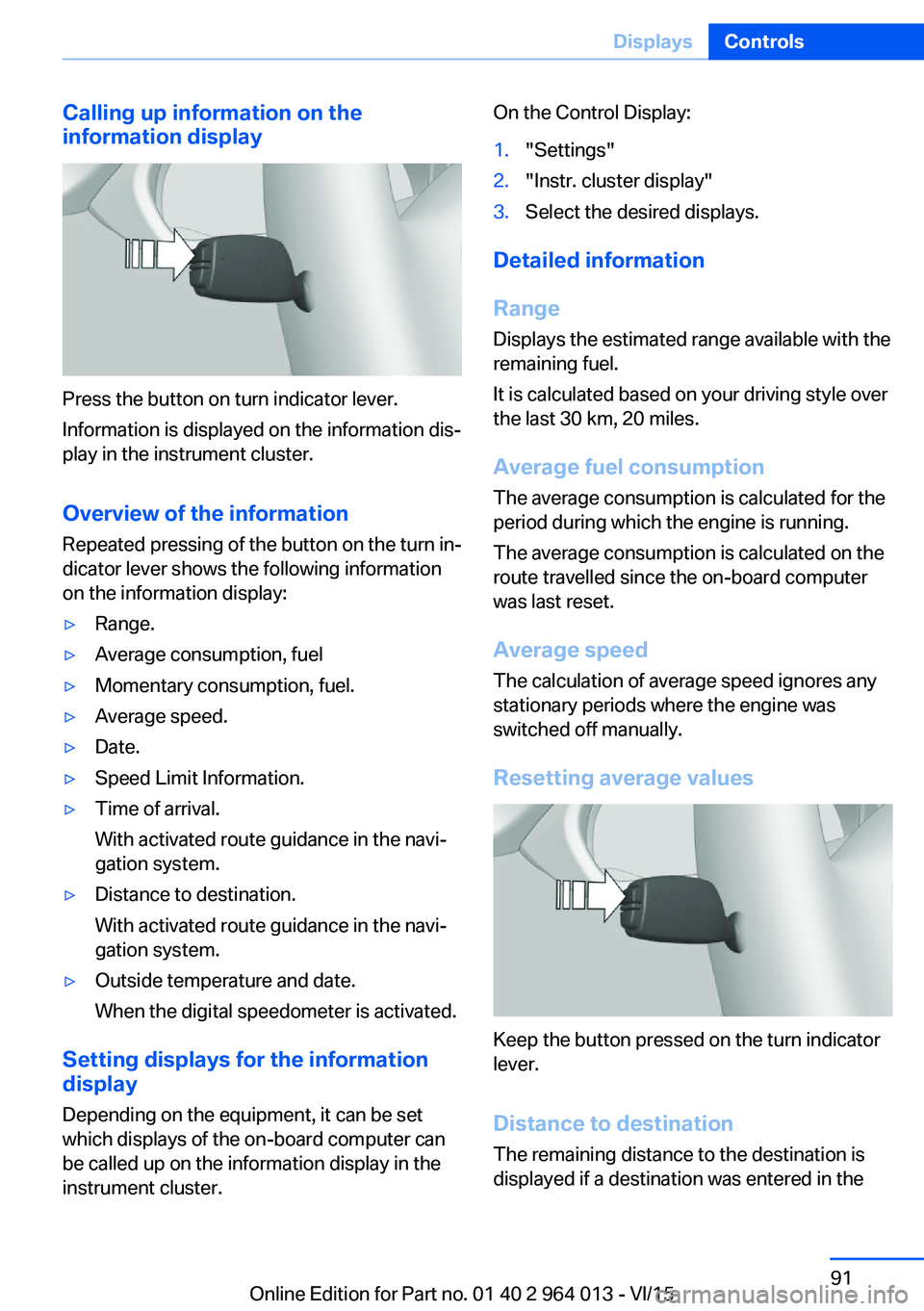
Press the button on turn indicator lever.
Information is displayed on the information dis‐
play in the instrument cluster.
Overview of the information
Repeated pressing of the button on the turn in‐
dicator lever shows the following information
on the information display:
▷Range.▷Average consumption, fuel▷Momentary consumption, fuel.▷Average speed.▷Date.▷Speed Limit Information.▷Time of arrival.
With activated route guidance in the navi‐
gation system.▷Distance to destination.
With activated route guidance in the navi‐
gation system.▷Outside temperature and date.
When the digital speedometer is activated.
Setting displays for the information
display
Depending on the equipment, it can be set
which displays of the on-board computer can
be called up on the information display in the
instrument cluster.
On the Control Display:1."Settings"2."Instr. cluster display"3.Select the desired displays.
Detailed information
Range
Displays the estimated range available with the
remaining fuel.
It is calculated based on your driving style over
the last 30 km, 20 miles.
Average fuel consumption
The average consumption is calculated for the
period during which the engine is running.
The average consumption is calculated on the
route travelled since the on-board computer
was last reset.
Average speed
The calculation of average speed ignores any
stationary periods where the engine was
switched off manually.
Resetting average values
Keep the button pressed on the turn indicator
lever.
Distance to destination
The remaining distance to the destination is
displayed if a destination was entered in the
Seite 91DisplaysControls91
Online Edition for Part no. 01 40 2 964 013 - VI/15
Page 95 of 228

Switching on/off1."Settings"2."Head-up display"3."Head-up display"
Display
Standard view The following information is displayed in the
Head-Up Display:
▷Speed.▷Navigation system.▷Check Control messages.▷Selection list from the instrument cluster.▷Driver Assistance Systems.
Some of this information is only shown briefly
when needed.
M View
1Current engine speed, highlighted2Shift Lights3Forewarning field, engine speed display4Red warning field, engine speed display5Speed6Gear display/warning messages7Speed Limit Information with No Passing
Information
Activate M View:
Select displays in the head-up display.
Selecting displays on the Head-Up
Display
On the Control Display:1."Settings"2."Head-up display"3."Information displayed"4.Select desired display on Head-Up Dis‐
play.
Adjusting brightness
The brightness is automatically adapted to the
ambient light.
The base setting can be adjusted manually.
On the Control Display:
1."Settings"2."Head-up display"3."Brightness"4.Turn the Controller until the desired bright‐
ness is obtained.5.Press the Controller.
The brightness of the Head-Up Display can
also be influenced using the instrument light‐
ing if the low-beam headlights are switched on.
The setting is saved for the currently used pro‐
file.
Adjusting height
On the Control Display:
1."Settings"2."Head-up display"3."Height"4.Turn the Controller until the desired height
is obtained.5.Press the Controller.
The setting is saved for the currently used pro‐
file.
Seite 95DisplaysControls95
Online Edition for Part no. 01 40 2 964 013 - VI/15
Page 96 of 228
Adjusting rotation
The image of the Head-Up Display can be ro‐
tated around its axis.
On the Control Display:1."Settings"2."Head-up display"3."Rotation"4.Turn the Controller until the desired set‐
ting is reached.5.Press the Controller.
The setting is saved for the currently used pro‐
file.
Special windscreen
The windscreen constitutes part of the sys‐
tem.
The shape of the windscreen enables a precise
projection.
A film in the windscreen prevents double im‐
ages occurring.
For this reason, have the special windscreen
replaced by a Service Partner or a qualified
specialist workshop.
Shift Lights General
The display is on the Head-Up Display and in
the instrument cluster.
Shift Lights in the instrument cluster
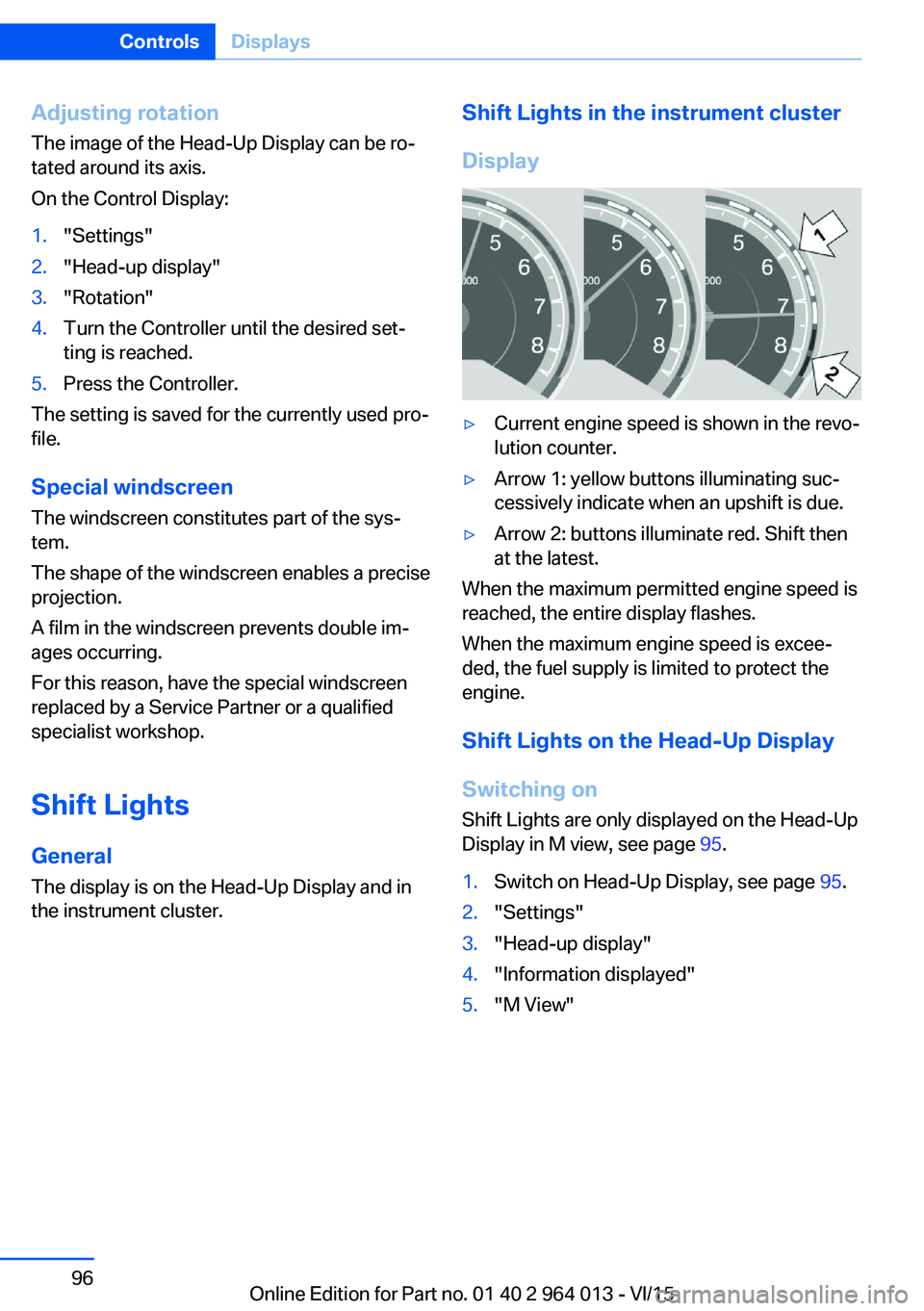
Display▷Current engine speed is shown in the revo‐
lution counter.▷Arrow 1: yellow buttons illuminating suc‐
cessively indicate when an upshift is due.▷Arrow 2: buttons illuminate red. Shift then
at the latest.
When the maximum permitted engine speed is
reached, the entire display flashes.
When the maximum engine speed is excee‐
ded, the fuel supply is limited to protect the
engine.
Shift Lights on the Head-Up DisplaySwitching on Shift Lights are only displayed on the Head-Up
Display in M view, see page 95.
1.Switch on Head-Up Display, see page 95.2."Settings"3."Head-up display"4."Information displayed"5."M View"Seite 96ControlsDisplays96
Online Edition for Part no. 01 40 2 964 013 - VI/15
Page 99 of 228
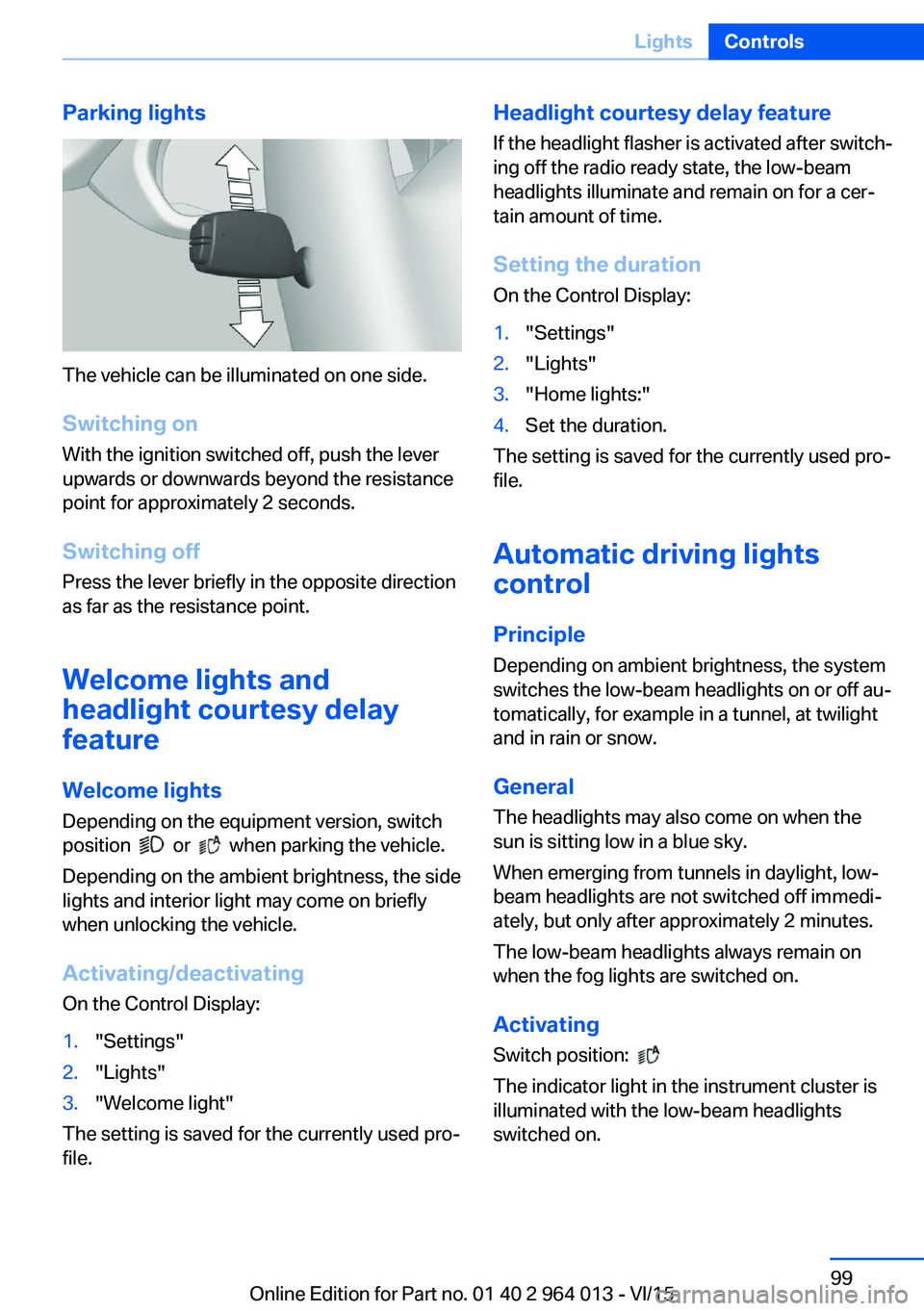
Parking lights
The vehicle can be illuminated on one side.
Switching on With the ignition switched off, push the lever
upwards or downwards beyond the resistance
point for approximately 2 seconds.
Switching off Press the lever briefly in the opposite direction
as far as the resistance point.
Welcome lights and
headlight courtesy delay
feature
Welcome lights Depending on the equipment version, switch
position
or when parking the vehicle.
Depending on the ambient brightness, the side
lights and interior light may come on briefly
when unlocking the vehicle.
Activating/deactivating
On the Control Display:
1."Settings"2."Lights"3."Welcome light"
The setting is saved for the currently used pro‐
file.
Headlight courtesy delay feature
If the headlight flasher is activated after switch‐
ing off the radio ready state, the low-beam
headlights illuminate and remain on for a cer‐
tain amount of time.
Setting the duration
On the Control Display:1."Settings"2."Lights"3."Home lights:"4.Set the duration.
The setting is saved for the currently used pro‐
file.
Automatic driving lightscontrol
Principle Depending on ambient brightness, the system
switches the low-beam headlights on or off au‐
tomatically, for example in a tunnel, at twilight
and in rain or snow.
General The headlights may also come on when the
sun is sitting low in a blue sky.
When emerging from tunnels in daylight, low-
beam headlights are not switched off immedi‐
ately, but only after approximately 2 minutes.
The low-beam headlights always remain on
when the fog lights are switched on.
Activating Switch position:
The indicator light in the instrument cluster is
illuminated with the low-beam headlights
switched on.
Seite 99LightsControls99
Online Edition for Part no. 01 40 2 964 013 - VI/15