2016 AUDI RS7 SPORTBACK wheel
[x] Cancel search: wheelPage 100 of 282

Night vision assist
Night vision assist
Night vision assist with
pedestrian and wild
animal highlighting
Description
A pp lies to: ve hicles w ith night v isio n ass ist
The night vision assist can detect, highlight and,
if necessary, warn about pedestrians and large
wild animals.
Night vision assistant with pedestrian and wild
animal detection assists you in darkness by using
an infrared camera to monitor the area in front of
your vehicle, within the limits of the system.
It
can display objects up to approximately 1000 feet (300 meters) away . The heat image
detected by the camera is shown in th e instru
ment cluster display . Warm areas appear lighter
and cold areas appear darker.
Highlighting detected pedestrians and wild
animals
Applies to: ve hicles w ith n ig ht v isio n ass ist
Fig . 107 Instrument cluster: ye llow h ighlig hted pedes
trians
Fig. 108 I n stru ment cluste r: symbol when the i nfrared im
age is not v isible
98
Within the limits of the system, night vision as
sistant can detect pedestrians and wild animals
that are within the detection range between ap
proximately 32 feet (10 meters) and 295 feet
(90 meters) in front of the vehicle. When it is
dark outside and the headlights are switched on,
detected pedestrians and w ild animals are
marked in ye llow
c::> fig. 107 within the limits of
the system
c::> page 99. Wild animal detection is
not active in built-up areas. The system only de
tects large wild animals such as deer.
@ Tips
If another display such as navigation replaces
the image from the night vision assist the~ .. ,
symbol appears in a tab
c::>fig . 108. You can
access night vision assist using the buttons in
the mu ltifunction steering wheel
c::> page 23.
Pedestrian and wild animal warning
Applies to: vehicles wit h night vision assist
Fig. 109 Instrument cl uster: @pedestrian warning, ®
w ild animal warning
Fig. 110 Instrument cluste r: @ pedes trian warning/ @
wild a nimal warning, w hen the image from the n ight v ision
assist is not selected in t he instrument cluster display ...
Page 101 of 282

Display in the instrument cluster/head-up
display*
If there are pedestrians or wild animals in an
area in front of you r vehicle that is classified as
critical, the system will direct your attention to
this :
- Pedestrians or wild animals are highlighted in
red and the corresponding symbol. or.
turns on
¢fig. 109.
-There is also a tone.
The area classified as critical is based on the vehi
cle speed and the steering wheel angle. Pedes
trian and wild animal warning encourages you to
pay more attention.
If the night vision assist image is replaced by an
other display (such as the on-board computer),
the red indicator light . or. will appear if
there is a pedestrian or wild animal warning
¢ fig. 110 .
If the head-up display* is switched on and the
night vision assist content is activated, . or.
will appear in the head-up display*.
Marking light*
To direct the driver's attention to a pedestrian,
the headlights can flash on the pedestrian three
times in a row when there is a pedestrian warn
ing.
This happens at speeds above approximately
35 mph (60 km/h) when you are traveling out
side of well-lit areas and when flashing the head lights will not create glare for a vehicle detected
in the oncoming lane . The marker light* is con
trolled by the high beam assist*
c::;, page 44,
Headlight assistant .
The marking light is not used for wild animals.
Night vision assist
General information
Applies to : vehicles wit h night vision assist
Fig. 111 Front of the vehicle : night vis ion assist ant ca mera
The following situations may affect the function
of the night vision assist system:
- Poor visibility such as snow, rain, fog or heavy
spray
- Dirty lens on the night vision assist camera
Make sure the night vision assist camera
c::;, fig. 111 is not covered by stickers, deposits or
any other obstructions because that can affect
the camera function . For information on clean
ing, refer to
c::;, page 193.
Pedestrian and wild animal detection depends on
the difference in temperature between the per
son/wild animal and the background area. Pedes
trians/wild animals may not be detected if the difference is too small. Pedestrian and wild ani
mal marking and the marker light* are deactivat
ed at temperatures above approximately 77 °F
(25 °C) and when it is light outside . When the
night vision assistant image is selected in the in
strument cluster display, the
II symbol appears
in the upper right.
A WARNING
Pay attention to traffic and the area around
your vehicle when night vision assist is switch
ed on. The driver is always responsible for cor
rectly assessing the traffic situation.
- Night vision assist can only warn about peo
ple and wild animals located within the visu
al range of the infrared camera. The visual
range corresponds to the image in the in
strument cluster display .
-
99
Page 105 of 282

Driving the automatic transmission
Fig. 115 Shif t gate o n the cente r conso le : selecto r lever
wi th release button
Starting the engine
.. The selector lever must be in P or N.
Starting off
.. Press and hold the brake pedal.
.. Press and hold the release button in the selec
tor lever handle, select the desired selector lev
er posit ion such as D/S and release the button .
• Wait briefly until the transmission has shifted
(you w ill feel a slight movement) .
.. Remove your foot from the b rake pedal and ac
celerate.
Stopping temporarily
.. Keep the vehicle stationary using the braking
pedal, for example at traffic lights.
.. Do not press the accelerator pedal when doing
this .
.. To prevent the vehicle from rolling when you
start driving, set the parking brake wh en stop
ping on steep inclines¢,& .
.. The parking brake will release au tomatically
and the vehicle will start moving once you press
the accelerator pedal.
Stopping/ parking
If the selector lever is not in the P position when
you open the drive r's door, the vehicle could roll.
The message
Transmission: Car may roll! Shift
to park!
appears .
.. Press and hold the brake pedal until the vehicle
has come to a complete stop .
.. Apply the parking brake¢
page 75 , Parking .
.. Select the P selector lever position ¢ ,& .
Automatic transmission
Stopping on an incline
.. Always press the brake pedal to hold the vehi
cle in pla ce and prevent it from "ro lling back"
¢ ,& . Do
not try to prevent the vehicle from
"rolling back" when a gear is engaged by in
creasing the engine speed ¢CI) .
Starting on an incline
.. Activate the parkin g brake .
.. With the driving gear selected, press the accel
erator pedal carefully. The parking brake will
releas e automatically if your seat belt is fas
tened.
Under certain circumstances, such as driving in
the mountains, it may be useful to switch tempo
rarily to the manual shift program in order to ad
ju st the gears to the driving conditions by hand
¢ page 105 .
On slopes, activate the parking brake first and
then move the selector lever to the P position .
This prevent s too much stress from being placed
on the locking mechanism.
A WARNING
=
- The vehicle can also roll when the eng ine is
stopped .
- Unintended vehicle movement can cause se
rious injury .
- Never leave your veh icle w ith the engine
running while in gear . If you must leave
your veh icle when the engine is running, ac
tivate the parking brake and move the selec
tor lever to P.
- Power is still transmitted to the wheels
when the engine is runn ing at idle. To pre
vent the vehicle from "creeping", yo u must
keep your foot on the brake when the en
gine is running and the selector lever is in D/
5 or R or "tiptronic" mode is selected .
- Do not press the accelerator pedal when
changing the se lector lever position while
the vehicle is stationary and the engine is running .
- Never shift into R or P whi le driving.
103
Page 107 of 282

Manual shift program
Using the manual shift program you can man
ually select gears.
)
Fig. 116 Ce nter conso le: sh ifting the gears man ually
Fig. 117 Stee rin g whee l: Shi ft paddles
Gear selection with selector lever
The tiptronic mode can be selected either with
the vehicle stationary or on the move.
.. Push the selector leve r to the right from D/S.
An M appears in the instrument cluste r display
as soon as the transmiss ion has shifted .
.. To upshift , push the selector lever forward to
the p lus position
0 ~ fig. 116.
.. To downshift, push the lever to the minus posi-
tion
0 -
Gear selection with shift paddles
The shift paddles are activated when the selector
lever is in D/S or the tiptronic manual shift pro
gram .
.. To upshift , touch the shift padd le on the right
G~fig.111 .
.. To downshift, touch the shift paddle on the left
0-
.. If you do not press a shift padd le within a short
time while in the D/S position, the transmission
will return to automatic mode. To keep shifting
Automatic transmission
using the shift paddles, move the selector lever
to the right out of the D/S position.
When accelerating, the transmission does
not
automatica lly shift to the next gear shortly be
fore the maximum permitted engine RPM is
reached.
If you have selected a lower gear than the current
one, the automatic transmission will shift down
only when the engine wi ll not be over-revved.
With kick-down, the transmission shifts into a
lower gear depending on speed and engine RPM.
@ Tips
Tiptronic is inoperative when the transmission
i s in the fail-safe mode.
Kick-down
Kick-down enables maximum acceleration .
When you depress the accelerator pedal beyond
the resistance point, the automat ic transmission
downsh ifts into a lower gear, depending on vehi
cle speed and engine speed. The upsh ift into the
next higher gear takes place once the maximum
specified engine speed is reached.
& WARNING
Please note that the drive wheels can spin if
kick-down is used on a smooth slippery road -
there is a risk of skidding.
Transmission malfunction
DI Transmission: Press brake pedal and select
gear again
Press the brake pedal and select the desired se
lector lever position again. You can then continue
driv ing.
DI Transmission overheating: Please drive con
servatively
T he transmission temperature has increased sig
nificantly due to the sporty driv ing manner. Drive
in a less sporty manner until the temperature re
tu rns to the normal range and the indicator light
switches of.
II>-
105
Page 109 of 282

Parking systems
General information
Applies to: vehicl es with parking system plus/rear view cam
era/peripheral cameras
Depending on your vehicle's equipment, various
parking aids will help you when parking and ma
neuvering.
The
parking system plus assists you when park
ing by audibly and visually indicating objects de
tected
in front of and behind the vehicle
¢page 108.
The rear view camera shows the area behind the
vehicle in the Infotainment display. This display
assists you when you are cross or parallel parking
¢ page 109. In addition, you are assisted by the
functions from the parking system plus
¢ page 108.
The peripheral cameras assist you with parking
and maneuvering. You are aided by various cam
e ras depending on the vehicle equipment leve l
¢page 112. In addition, you are assisted by the
functions from the parking system plus
¢page 108.
A WARNING
-Always look for traffic and check the area
around your vehicle by looking at it directly
as well. The parking system cannot replace
the driver's attention. The driver is always
responsible for safety during parking and
for all other maneuvers.
-
-Please note that some surfaces, such as
clothing, are not detected by the system.
- Sensors and cameras have blind spots in
which people and objects cannot be detect ed. Be especially cautious of children and
animals.
- The sensors can be displaced by impacts or
damage to the radiator grille, bumper,
wheel housing and the underbody. The park
ing systems may become impaired as a re
sult. Have your authorized Audi dealer or
qualified workshop check their function.
- Make sure the sensors are not covered by
stickers, deposits or any other obstructions
Parking systems
as it may impair the sensor function. For in
formation on cleaning, refer to
¢page 193.
(D Note
-Some objects are not detected by the sys
tem under certain circumstances:
- Objects such as barrier chains, trailer draw
bars, vertical poles or fences
- Objects above the sensors such as wall ex tensions
- Objects with specific surfaces or struc
tures such as chain link fences or powder
snow.
- If you continue driving closer to a low-lying
object, it may disappear from the sensor
range . Note that you will no longer be
warned about this obstacle.
(D Tips
- The system may provide a warning even
though there are no obstacles in the cover age area in some situations, such as:
- certain road surfaces or for long grass.
- external ultrasonic sources e.g. from cleaning vehicles.
- heavy rain, snow or thick vehicle exhaust.
- We recommend that you practice parking in
a traffic-free location or parking lot to be
come familiar with the system. When doing
this, there should be good light and weath
er conditions.
- You can change the volume and pitch of the
signals as well as the display
¢page 116.
- What appears in the infotainment display is
somewhat time-delayed.
107
Page 112 of 282
Parking systems
-The camera lens enlarges and distorts the
field of vision. The object appears both al
tered and inaccurate on the screen.
- In certain situations, people or objects in
the display appear closer or farther away:
- For objects that do not touch the ground,
such as the bumper of a parked vehicle, a
trailer hitch or the rear of a truck. Do not
use the help lines in this case.
- If driven from a level surface onto an in
cline, or a downward slope.
- If driven toward protruding objects.
- If the vehicle is carrying too much load in
the rear.
(D Note
- Always read and follow the applicable warn
ings r::!>(D
in General information on
page 107 .
-The orange colored orientation lines in the
Infotainment display show the vehicle path
depending on the steering wheel angle. The
front of the vehicle swings out more than
the rear of the vehicle. Maintain plenty of
distance so that your outside mirror or a
corner of your vehicle does not collide with
any obstacles.
Switching on/off
Applies to: vehicles with rearview camera
Switching on
.,. Shift into reverse, or
.,. Press the
P,,, A button in the center console
r:=> page 108, fig. 120. A short confirmation
tone sounds and the LED in the button turns
on.
Switching between the rearview camera and
optical display
.,. Press the Graphic control button ®
r:=> page 110, fig. 125 to see the optical display .
.,. Press the
Rear view control button to see the
. . rearv1ew camera image.
Switching off
.,. Drive forward faster than 10 km/h, or
.,. press the
P,1
1.A button, or
110
.,. Switch the ignition off.
@ Tips
- The visual display in the left part of the dis
play should help you detect the critical vehi
cle areas.
- You can change the volume and pitch of the
signals as well as the display
r:=> page 116.
Cross parking
Applies to: vehicles with rearview camera
This view may be used when parking in a garage
or in a parking space.
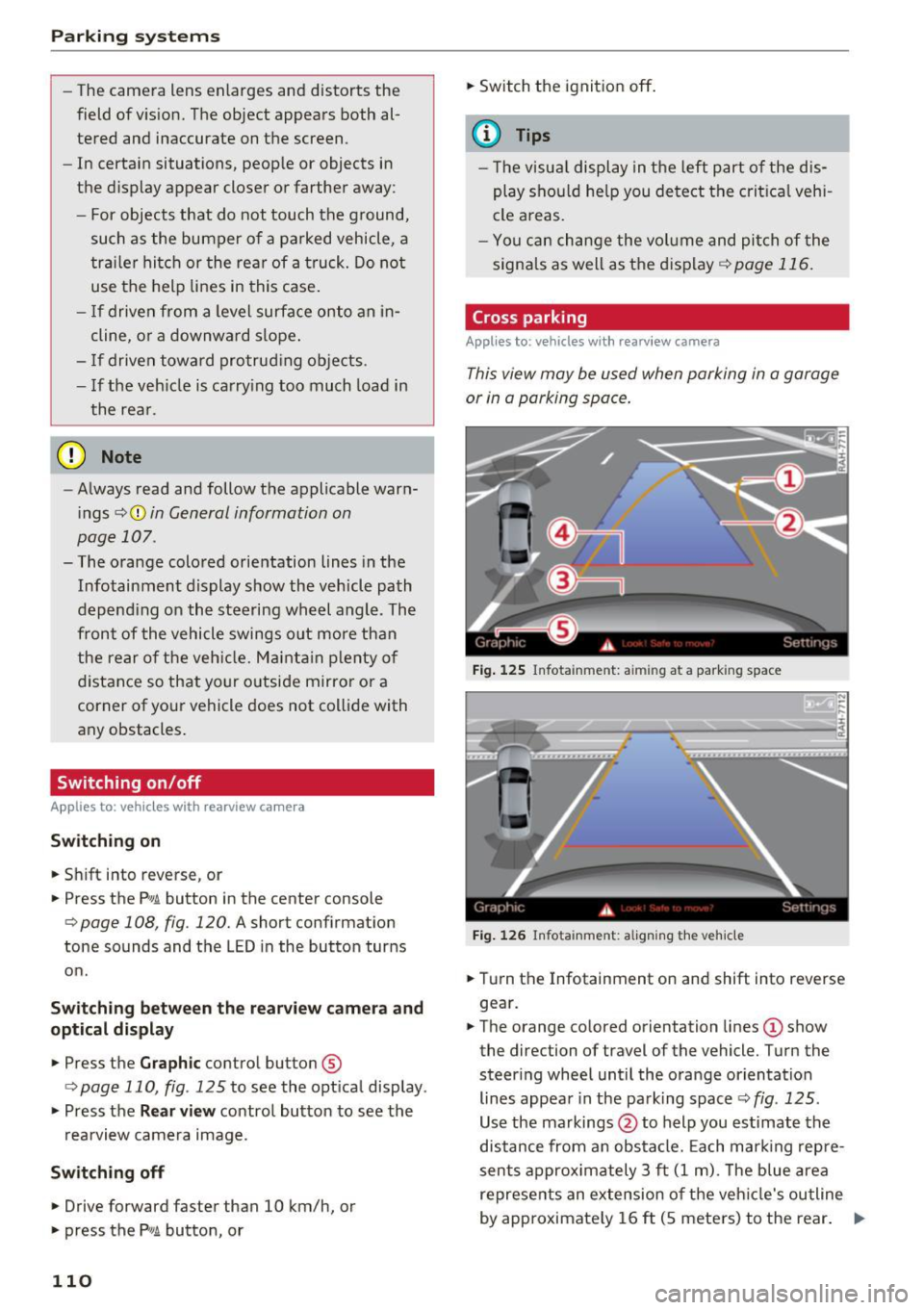
Fig. 125 Infotainment: aiming at a parking space
Fig. 126 Infota inment: aligning the vehicle
.,. Turn the Infotainment on and shift into reverse
gear.
.,. The orange colored orientation lines
(D show
the direction of travel of the vehicle. Turn the
steer ing wheel until the orange orientation
lines appear in the parking space r::!>
fig. 125 .
Use the markings @to help you estimate the
distance from an obstacle. Each marking repre
sents approximately 3 ft
(1 m). The blue area
represents an extension of the vehicle's outline
by approximately
16 ft (5 meters) to the rear. ..,.
Page 113 of 282
.. While driving in reverse gear, adjust the steer
ing wheel ang le to fit the parkin g space with
the a id of the orange orientation lines
c::> A in
General information on page 109 ,
c:>(D in Gen
eral information on page 110. @
displays the
rear bumper . Stop the veh icle, at the latest,
when the red or ientat io n line @ borders an ob
ject.
Parallel parking
App lies to: veh icles wit h rearv iew camera
This view may be used when parallel parking
along the side of a street.
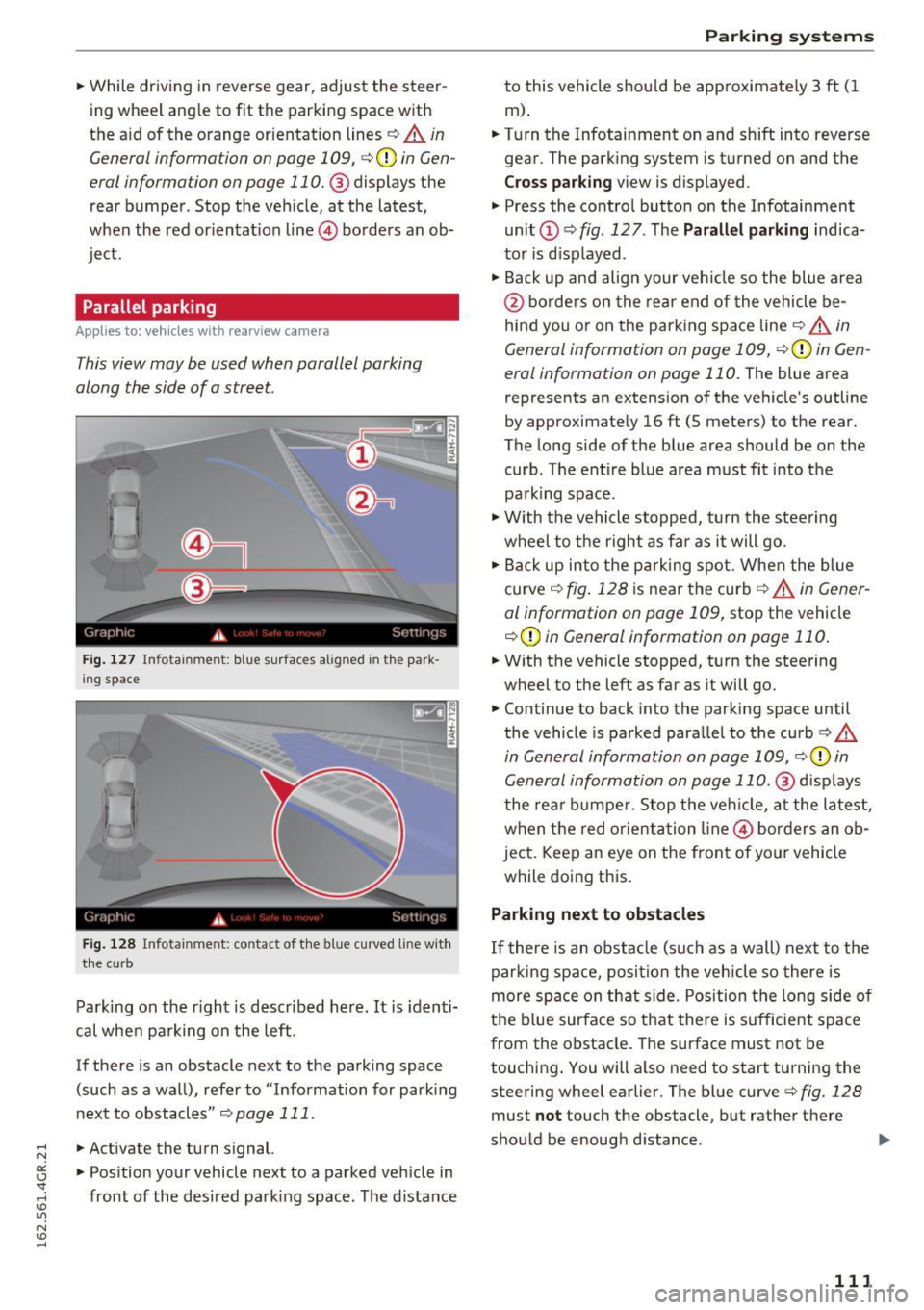
Fi g. 127 Infotai nmen t: b lue surface s alig n ed in t he park
i ng s pace
Fig . 12 8 In fota inmen t: co ntac t of t he blue curved li ne w it h
t he curb
Park ing on the r ight is descr ibed here. It is iden ti
cal whe n pa rking on the left .
If there is an obstacle next to the pa rking space
(such as a wall), refe r to "Information for park ing
nex t to obstacles"
c:> page 111 .
.. Activate the turn s ignal.
.. Pos ition your vehicle next to a parked veh icle in
front of the desired parking space. The d istance
Parking systems
to this vehicle shou ld be app roximately 3 ft ( 1
m).
.. Turn the Infotainment on and shift into reverse
gear . The park ing system is turned on and the
Cross pa rking v iew is displayed .
.,. Press the contro l button on the Infotainment
un it
(D c:> fig . 127 . The Parallel parking indica
to r is d isp layed .
.,. Back up and align your veh icle so the blue a rea
@ bo rde rs on the re a r end of the vehicle be
hind you o r on the park ing spa ce line
c::> A in
General information on page 109,
c::> (D in Gen
eral information on page 110.
The blue area
represents an extension of the veh icle's outline
by approximate ly 16 ft (5 meters) to the rear.
The long side of the b lue area should be on the
curb . The ent ire blue area must fit into the
pa rk ing space .
.,. With the vehicle s topped, t urn the stee ring
wheel to the r ight as far as it will go .
.,. Back up into the park ing spot. Whe n the blue
curve
c::> fig . 128 is near the curb c::> A in Gen er
al information on page 109,
stop the vehicle
c::> (D in General information on page 110 .
.. W ith the vehicle stopped, t urn the steering
wheel to the left as far as it will go .
.. Continue to back into the parking space until
the vehicle is parked para llel to the curb
c:> .&.
in General information on page 109, c::> (D in
Gen eral information on page 110 .@
d isp lays
t he rea r bu mpe r. Stop the ve hicle, at the la test,
when the red o rient ation line @ bor ders an ob
ject. Keep a n eye on the fron t of yo ur vehicle
while do ing this.
Parking next to obstacles
If there is an obstacle (such as a wall) next to t he
par king space, posi tion the vehicle so there is
more space on th at s ide . Pos ition the long side o f
the b lue surface so that there is s ufficient s pace
from the obstacle. The surface must not be
touching . You will a lso need to start turning the
steering wheel earlier. The blue curve
c:> fig. 128
must not touch the obstacle, but rathe r the re
sho uld be enough d istance .
111
Page 114 of 282
Parking system s
(D Note
Keep enough distance from the curb to avoid
damage to the rims .
@ Tips
The left or right orientation lines and surfaces
will be displayed, depending on the turn sig
nal being used.
Peripheral cameras
Introduction
Applies to: vehicles with peripheral cameras
With this equipment, die parking system plus* is
supp lemented with var io us peripheral cameras
¢page 108. Depend ing on vehicle equipment,
you are provided with the following views: a rea
around the vehicle, front corner view and rear
corner view, view in front of the vehicle and be h ind the vehicle.
General information
Applies to : vehicles with peripheral cameras
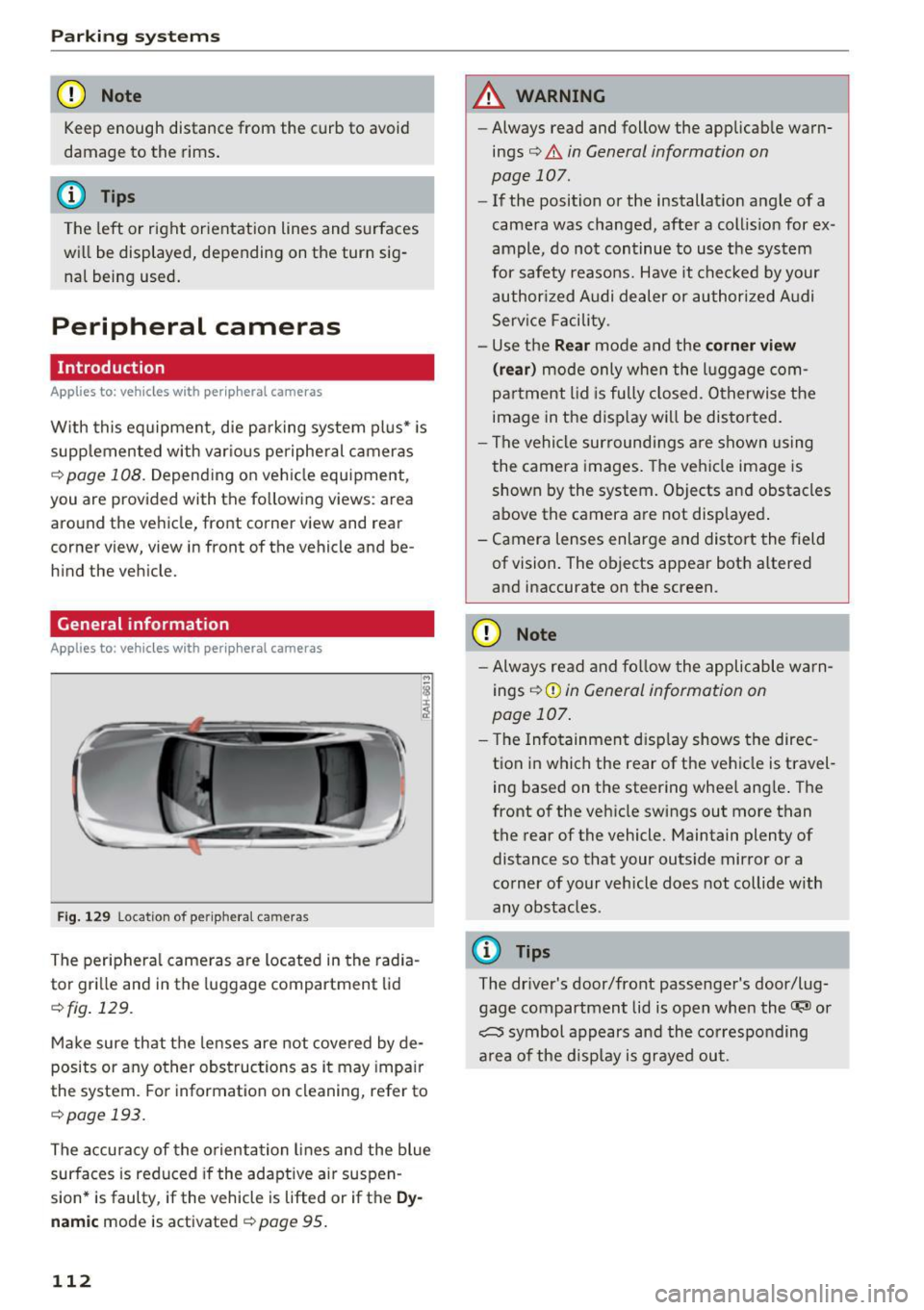
Fig . 12 9 Location of periphera l cameras
The periphera l came ras are located in the radia
tor gri lle and in the luggage compartment lid
¢fig . 129.
Make sure that the lenses are not covered by de
posits or any other obstructions as it may impa ir
the system. Fo r information on cleaning, refer to
¢page 193.
The accuracy of the orientation lines a nd the blue
surfaces is reduced if the adaptive ai r suspen
sion* is faulty, if the vehicle is lifted or if the
Dy
nam ic mode is activated¢ page 95.
112
A WARNING
- Always read and follow the applicab le warn
ings¢ .&
in General information on
page 107.
- If the position or the installat ion angle of a
camera was changed, after a collis ion for ex
ample, do not continue to use the system
for safety reasons. Have it chec ked by your
authorized Audi dealer or authori zed A udi
Serv ice Facility.
- Use the
Rear mode and the corner view
( rear )
mode only when the l uggage com
partment lid is fu lly closed. Otherwise the
image in the d isp lay will be distor ted.
- The vehicle sur roundi ngs a re shown using
the camera images. The vehicle image is
shown by the system. Objects and obstacles
above the camera a re not displayed .
- Camera lenses enlarge and distort the field of vision. The objects appear both altered
and inaccurate on the screen.
{[) Note
- Always read and fo llow the applicable wa rn
ings ¢(!)
in General information on
page 107.
- T he Infotainment d isp lay shows the direc
t ion in which the rear of the vehicle is travel
ing based on the steering wheel ang le . The
front of the vehicle swings out more than
the rear of the vehicle. Maintain plenty of distance so that your outs ide mirror or a
co rner of your vehicle does not collide with
any obstacles .
(D Tips
The driver's door/front passenger's door/lug
gage compartment lid is open when the~ or
~ symbol appears and the co rresponding
a rea of the disp lay is grayed out.