2016.5 VAUXHALL MOVANO_B USB
[x] Cancel search: USBPage 52 of 129

52Radioconfirming that the station has been
stored. 6 stations per waveband can be stored.
Alternatively, select the desired
waveband and station then press
Frequency or List . Press < to open a
pop-up menu, then select Save as
preset . Press and hold on the desired
location until a beep is heard.Recalling a stored station
To recall a station, select the desired
waveband then press Preset to
display the stored favourites. Briefly
press the desired favourite radio
station.Search radio station name (FM only)
Select the FM waveband then press
List to display an alphabetical list of
available radio stations.
Press ↑/ 4 or ↓/ 1 to manually search
for the required station name. The
frequency may be displayed instead
if the station name is unavailable.
The alphabetical list contains up to
50 radio stations with the best
reception. This list can be updated at
any time, refer to "Autostore lists"
3 52.Autostore lists
The stations with the best reception in
a waveband can be searched for and
stored automatically via the autostore function.
Automatic station storing
R15 BT USB, R16 BT USB,
CD16 BT USB, CD18 BT USB -
Automatic station storing
The FM waveband has an autostore
list (AST ), on which 6 stations can be
stored.
While listening to the radio, press and hold RADIO : The 6 stations with the
strongest reception will be
automatically stored on AST.
Notice
Due to signal strength, it is possible that less than 6 stations will be
stored.Recalling a station
R15 BT USB, R16 BT USB,
CD16 BT USB, CD18 BT USB -
Recalling a station
Select the desired waveband, then briefly press station button 1...6 to
recall a stored station.
To recall a station on the autostore list
(AST), while listening to the radio
briefly press SETUP to activate AST
mode. The station previously
selected will be received. Briefly
press station button 1...6 to recall
another stored station on the
autostore list.
Updating stations list manually
Stations can also be stored manually
in the autostore list.
Notice
Only available with
NAVI 50 IntelliLink,
NAVI 80 IntelliLink.
To update the list of stations and
obtain the most recent ones, activate
the system update manually.
Page 53 of 129

Radio53Depending on Infotainment system,
the sound may be muted during a
manual update.
NAVI 50 IntelliLink - Updating stations
list manually
Press Options , scroll down to
Update List then select Start;
Updating ... appears on the display
until the update is complete.
Notice
If DAB is available, it is
recommended to update the DAB
stations list manually when the
system is switched on.
NAVI 80 IntelliLink - Updating stations list manually
From the Home page, press MENU
then Multimedia , followed by
Settings on the display screen. Select
Radio and scroll down to Update
radio list .
Alternatively (depending on version), select Multimedia followed by Radio,
and choose any the following modes:
● Preset
● List
● FrequencyThen press < to open a pop-up menu,
and select Update radio list .
Radio data system (RDS)
RDS is an FM station service that helps you find the desired station and ensures its fault-free reception.
Advantages of RDS ● The programme name of the chosen station appears on the
display screen instead of its
frequency.
● During an automatic station search, the Infotainment system
tunes into RDS stations only.
● The Infotainment system always tunes into the best receivable
broadcasting frequency of the
chosen station, by means of AF
(Alternative Frequency).R15 BT USB, R16 BT USB,
CD16 BT USB, CD18 BT USB -
RDS functions
Configuring RDS
Press SETUP and turn OK to access
the RDS menu. Press knob to select.
Turn the rotary knob to select RDS
SETUP .
Switching RDS on and off
Press Options on the display screen.
The following settings can be
changed:
Switch on/off RDS-AF by pressing
OK . AF is shown on the display
screen when RDS is active.
Text information (Radio text)
Certain FM radio stations issue text
information relating to the broadcast
program (e.g. song name).
Press SETUP and turn OK to access
the Radio texts menu.
Turn the rotary knob to select Radio
and press the knob to see this
information.
Page 58 of 129

58CD Player●Protect CDs from heat and direct
sunlight.
● The following restrictions apply for MP3/WMA CDs:
Only MP3 files and WMA files
can be read.
Maximum folder structure depth:
11 levels
Maximum number of MP3 and/or WMA files that can be saved:
1000 files
Applicable playlist
extensions: .m3u, .pls
Playlist entries must be in the
form of relative paths.
● The operation of MP3 and WMA files is identical. When a CD with
WMA files is loaded, MP3-related
menus are displayed.Usage
CD16 BT USB, CD18 BT USB -
CD player usage
Starting CD playback
Switch on the Infotainment system (by pressing m) and push the CD with
the printed side up into the CD slot
until it is pulled in: CD playback starts
automatically.
If there is already a CD in the unit,
press MEDIA repeatedly to select the
desired audio source: CD playback is started.
Notice
Depending on the data stored on the audio CD or MP3 CD, differing
information about the CD and the
current music track will be shown on the display.
Selecting an album or track
Turn BROWSE to select an album or
track from the list.
Press the knob to select.Skipping to the next track or previous
track
Briefly press 2 or 3 once or
several times.
Fast forward or rewind
Press and hold 2 or 3 to fast
forward or rewind the current track.
Repeat
During CD playback, press and hold
the numbered button 1 (from the
Station buttons 1...6) to repeat the
current track.
RPT appears on the display when
repeat is active.
Press and hold the numbered button 1 again to deactivate.
RPT disappears from the display.
Random playback
During CD playback, press and hold
the numbered button 2 (from the
Station buttons 1...6) to activate
random playback.
MIX appears on the display when
random playback is active.
Page 62 of 129

62AUX inputR15 BT USB, R16 BT USB,
CD16 BT USB, CD18 BT USB-
AUX input usage
Press MEDIA or AUDIO/SOURCE to
change the audio source to AUX
mode, then switch on the auxiliary
device. AUX appears on the display
screen.
AUX settings
Press SETUP to access the settings
menu.
Select AUX IN and turn OK until the
desired setting is selected from:
● HI (300 mV)
● MID (600 mV)
● LO (1200 mV)
NAVI 50 IntelliLink - AUX input
usage
To access the media menu at any
time, press 7 followed by t/
ü MEDIA on the display screen.To switch between auxiliary sources,
press S in top left corner. The
following options are available:
● USB : Refer to
(NAVI 50 IntelliLink) "USB port"
3 63.
● iPod : Refer to
(NAVI 50 IntelliLink) "USB port"
3 63.
● BT: Refer to
(NAVI 50 IntelliLink) "Bluetooth
music" 3 67.
● Aha : AhaⓇ application for
smartphones (available
depending on version).
Refer to "Usage", Additional
features (NAVI 50 IntelliLink) in
the "Introduction" section 3 30.
● AUX : Select to change the audio
source to AUX mode, then switch on the auxiliary device.
NAVI 80 IntelliLink - AUX input
usage
Change the audio source to AUX
mode to playback content from a
connected auxiliary device.To access the media menu from the Home page, press MENU then
Multimedia , followed by Media on the
display screen.
Press < to open a pop-up menu
(depending on version). The following options are available:
● Auxiliary socket : Change the
audio source to AUX mode, then
switch on the auxiliary device.
● USB : Refer to
(NAVI 80 IntelliLink) "USB port"
3 63.
● Bluetooth connection : Refer to
(NAVI 80 IntelliLink) "Bluetooth music" 3 67
● CD player : Refer to
(NAVI 80 IntelliLink) "CD player
usage" 3 67.
● SD card : Operation is similar to
those for the CD player 3 58.
Page 63 of 129
USB port63USB portGeneral information.....................63
Playing saved audio files .............64General information
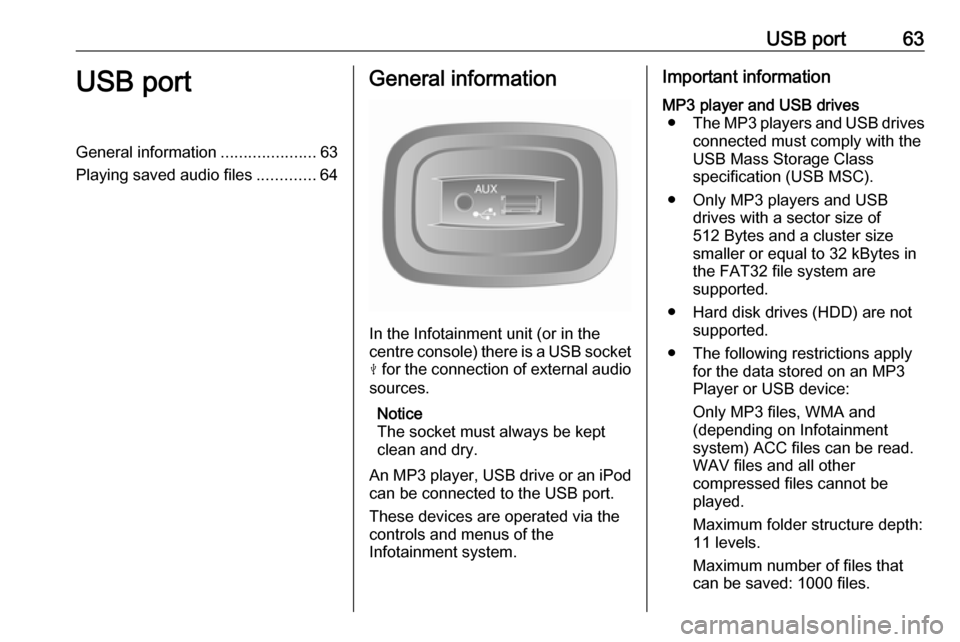
In the Infotainment unit (or in the
centre console) there is a USB socket
M for the connection of external audio
sources.
Notice
The socket must always be kept
clean and dry.
An MP3 player, USB drive or an iPod can be connected to the USB port.
These devices are operated via the
controls and menus of the
Infotainment system.
Important informationMP3 player and USB drives ● The MP3 players and USB drives
connected must comply with the
USB Mass Storage Class
specification (USB MSC).
● Only MP3 players and USB drives with a sector size of
512 Bytes and a cluster size smaller or equal to 32 kBytes in
the FAT32 file system are
supported.
● Hard disk drives (HDD) are not supported.
● The following restrictions apply for the data stored on an MP3
Player or USB device:
Only MP3 files, WMA and
(depending on Infotainment
system) ACC files can be read.
WAV files and all other
compressed files cannot be
played.
Maximum folder structure depth: 11 levels.
Maximum number of files that
can be saved: 1000 files.
Page 64 of 129

64USB portNAVI 50 IntelliLink: Minimum
recommended storage capacity
of USB drive is 4 GB.
Recommended maximum
storage capacity is 32 GB.
WMA files with Digital Rights
Management (DRM) from online
music shops may not play
correctly or not at all.
Applicable playlist
extensions: .m3u, .pls.
Playlist entries must be in the
form of relative paths.
Playing saved audio files
Once connected, it is only possible to
use the controls and menus of the
Infotainment system to operate the
audio device.
R15 BT USB, R16 BT USB,
CD16 BT USB, CD18 BT USB -
Playing music via USB socket
MP3 player / iPod / USB drives
The system detects the audio device
when a USB device is connected and
the current track is displayed
automatically.When a new audio device is
connected, the first track in the first folder is played automatically. When
reconnecting the device, the
previously played track is resumed.
Depending on the audio device
connected, select a folder (MP3
player, USB drive) or a playlist
(portable digital music player).
The operation of data sources
connected via USB is generally the
same as for an audio/MP3/WMA CD
3 58.
Selecting a track
To select tracks directly (and change
folders), first access the audio device
menu structure by pressing OK
during playback. Select tracks and
change folders by turning and
pressing the knob.
NAVI 50 IntelliLink - Playing
music via USB socket
MP3 player / USB drives / iPod
The system detects the audio device
when a USB device is connected and
the current track is displayed
automatically. The device type (MP3player/USB drive or iPod) is also
recognised and the relevant audio
source mode (USB or iPod) is
selected automatically.
When the t/ü MEDIA menu is
active, the following submenus are
available:
● Main /Player
● List
● Options
To switch between audio sources,
press S in top left corner. The
following options are available:
● USB : Select to change the audio
source to USB mode.
Notice
During use, the battery of a
connected USB device is charged or maintained.
● iPod : Select to change the audio
source to iPod mode.
● BT: Refer to
(NAVI 50 IntelliLink) "Playing music via Bluetooth" - 3 67.
● Aha : AhaⓇ application for
smartphones (available
depending on version).
Page 65 of 129

USB port65Refer to "Usage", Additional
features (NAVI 50 IntelliLink) in
the "Introduction" section 3 30.
● AUX : Refer to
(NAVI 50 IntelliLink) "Aux input
usage" 3 61.Main/Player
Press to display the current track. In
this display screen, the following
options are available:
● l (press to skip to previous
track, press and hold to fast
rewind)
● =/l (press to pause/play)
● m (press to skip to next track,
press and hold to fast forward)List
Displays a list of the tracks in the
current album/folder. Press a
particular track to play it directly.
Notice
By default, albums are listed in
alphabetical order.
If a USB drive is connected, all the
folders will be at the same level on
the tree structure.To return to the previous level on the
folder tree structure, press ò.Options
Press to display the following options:
● Repeat (Off/Track/Folder/All)
● Shuffle (On/Off)
NAVI 80 IntelliLink - Playing
music via USB socket
MP3 player / USB drives
Change the audio source to USB
mode to playback files from a
connected USB device.
To access the media menu from the
Home page, press MENU then
Multimedia , followed by Media on the
display screen.
Press < to open a pop-up menu
(depending on version). The following options are available:
● USB : Change the audio source to
USB mode.
● Auxiliary socket : Refer to
(NAVI 80 IntelliLink) "AUX input" 3 61.
● Bluetooth connection : Refer to
(NAVI 80 IntelliLink) "Playing music via Bluetooth" 3 67.
● SD card
● CD player : Refer to
(NAVI 80 IntelliLink) "AUX input"
3 61.
When USB mode is selected, the
display includes the following options:
● t or v: Move to previous/next
track.
● =: Pause track.
● Scroll bar for time elapsed: Scroll
through tracks.
● New selection : Choose another
track from the connected audio
source.
● Current playlist : Access the
current playback list.
● r: Return to previous screen.
● <: Open pop-up menu; To
change the audio source or
access the track settings (e.g.
switch on/off shuffle or repeat,
show current track details, and
access sound settings).
Page 66 of 129

66USB portDisconnecting from USB socketPlayback is stopped immediately
when the audio device is withdrawn
from the USB socket.