2015 MERCEDES-BENZ S-Class page 52
[x] Cancel search: page 52Page 103 of 298

Recording the route
General notes When recording the route, bear in mind the
following:
R if the SD memory card is inserted, it must
not removed during recording.
R if route recording is started manually, it
must be finished manually before COMAND is switched off (e .g. when the engine is
switched off).
R COMAND minimizes the number of route
points recorded. Therefore when the
recorded route is subsequently com-
menced, it may differ from the route that
was originally recorded.
Starting/finishing route recording X
Insert the SD memory card (Y page 215).
X To switch to navigation mode: press the
00CB button.
X To show the menu: slide6the control-
ler.
X To select Destination
Destination: turn and press the
controller.
X Select From Memory Card From Memory Card.
X Select Start Route Recording
Start Route Recording .
The route is recorded and REC appears at
the bottom edge of the screen.
X To stop recording, select End Route
End Route
Recording
Recording from the menu.
The route is stored under Personal
Personal
Routes
Routes .
Displaying/editing the recorded route X
Insert the SD memory card (Y page 215).
X To switch to navigation mode: press the
00CB button.
X To show the menu: slide6the control-
ler.
X To select Destination
Destination: turn and press the
controller.
X Select From Memory Card
From Memory Card. X
Select Personal Routes
Personal Routes .
Previously recorded routes are displayed.
X To select Route: turn and press the con-
troller.
The map appears with a menu. The
recorded route is shown on the map in blue.
Starting route calculation
X Select Start Start.
Changing the name and symbol
X Select Edit Edit.
X Select Change Name
Change Name orEdit Icon
Edit Icon.
X To change the name: enter characters
(Y page 36).
X To change symbol: select a symbol.
The symbol is saved. Route guidance
General notes
For this reason, you must always observe
road and traffic rules and regulations during
your journey. Road and traffic rules and reg-
ulations always have priority over system
driving recommendations.
COMAND calculates the route to the destina- tion without taking account of the following,
for example:
R traffic lights
R stop and yield signs
R merging lanes
R parking or stopping in a no parking/no
stopping zone
R other road and traffic rules and regulations
R narrow bridges
COMAND may give differing navigation com-
mands if the actual street/traffic situation
does not correspond with the digital map's
data. For example, if the road layout or the
direction of a one-way street has been
changed.
For this reason, you must always observe
road and traffic rules and regulations during Route guidance
101Navigation Z
Page 104 of 298

your journey. Road and traffic rules and reg-
ulations always have priority over the sys-
tem's driving recommendations.
Route guidance begins once a route has been calculated (Y page 86).
COMAND guides you to your destination by
means of navigation announcements in the
form of audible navigation announcements
and route guidance displays.
The route guidance displays can be seen if the
display is switched to navigation mode.
If you do not follow the navigation announce- ments or if you leave the calculated route,
COMAND automatically calculates a new
route to the destination.
If the digital map contains the corresponding
information, the following applies:
R during route guidance, COMAND tries to
avoid roads with restricted access. Those
roads, for example, that are closed to
through-traffic.
R roads that have time restrictions (e.g.
closed on Sundays and public holidays) are
considered for route guidance on days
when they are open. For this purpose, the
relevant times must be correctly stored in
the database. 102
Route guidanceNavigation
Page 109 of 298
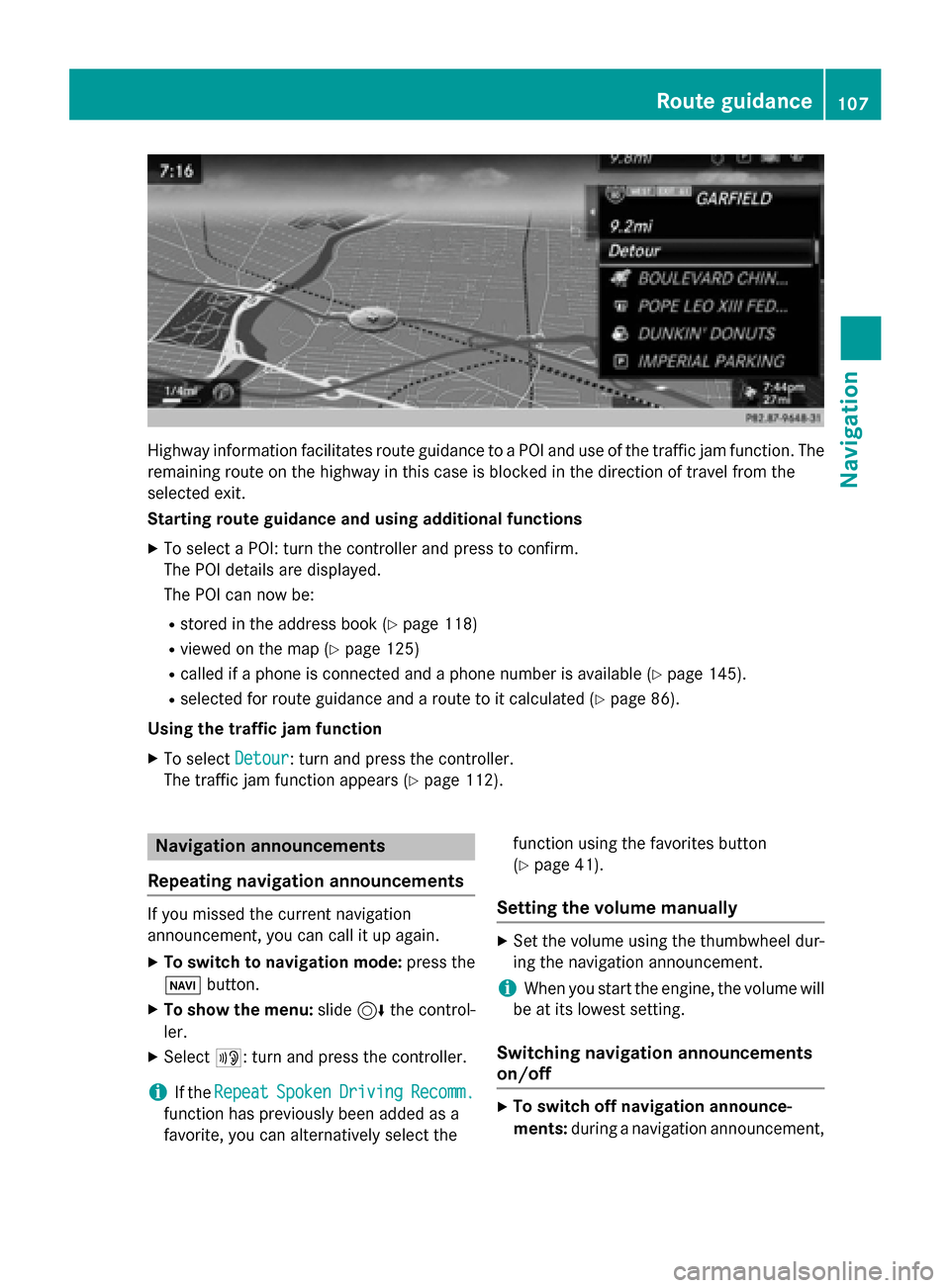
Highway information facilitates route guidance to a POI and use of the traffic jam function. The
remaining route on the highway in this case is blocked in the direction of travel from the
selected exit.
Starting route guidance and using additional functions
X To select a POI: turn the controller and press to confirm.
The POI details are displayed.
The POI can now be:
R stored in the address book (Y page 118)
R viewed on the map (Y page 125)
R called if a phone is connected and a phone number is available (Y page 145).
R selected for route guidance and a route to it calculated (Y page 86).
Using the traffic jam function X To select Detour
Detour: turn and press the controller.
The traffic jam function appears (Y page 112).Navigation announcements
Repeating navigation announcements If you missed the current navigation
announcement, you can call it up again.
X To switch to navigation mode: press the
00BE button.
X To show the menu: slide6the control-
ler.
X Select 006A: turn and press the controller.
i If the
Repeat
Repeat Spoken SpokenDriving
Driving Recomm.
Recomm.
function has previously been added as a
favorite, you can alternatively select the function using the favorites button
(Y
page 41).
Setting the volume manually X
Set the volume using the thumbwheel dur-
ing the navigation announcement.
i When you start the engine, the volume will
be at its lowest setting.
Switching navigation announcements
on/off X
To switch off navigation announce-
ments: during a navigation announcement, Route guidance
107Navigation Z
Page 110 of 298

press the thumbwheel to the right of the
controller.
or
X During a navigation announcement, press
the 0063 button on the multifunction steer-
ing wheel.
The Spoken
Spoken driving driving recommendations
recommendations
have been deactivated.
have been deactivated. message
appears.
X To switch navigation announcements
back on: press the controller.
X Select 006A: turn and press the controller.
COMAND automatically switches the naviga-
tion announcements back on when:
R a new route is calculated.
R you switch COMAND on again or start the
engine.
A navigation message is given if the route is
recalculated during dynamic route guidance
due to new traffic reports (Y page 113).108
Route guidanceNavigation
Page 112 of 298
X
To switch to navigation mode: press the00BEbutton.
X To show the menu: slide6the controller.
X To select Route
Route: turn and press the controller.
X Select Destination Information
Destination Information.
The destination and existing intermediate destinations are displayed with distances, travel
time and arrival time.
X To select destination or intermediate destination: turn and press the controller.
The address appears.
X Select Save
Save.
The destination or intermediate destination can be saved as:
R a navigable contact in the address book
R My Address
X To call up a map: select Map
Map.
X Move the map, change the map scale and select the destination or the intermediate desti-
nation (Y page 93).
X To call the destination or intermediate destination: select Call
Call.
If a phone is connected and a phone number is available, COMAND switches to the tele-
phone function.
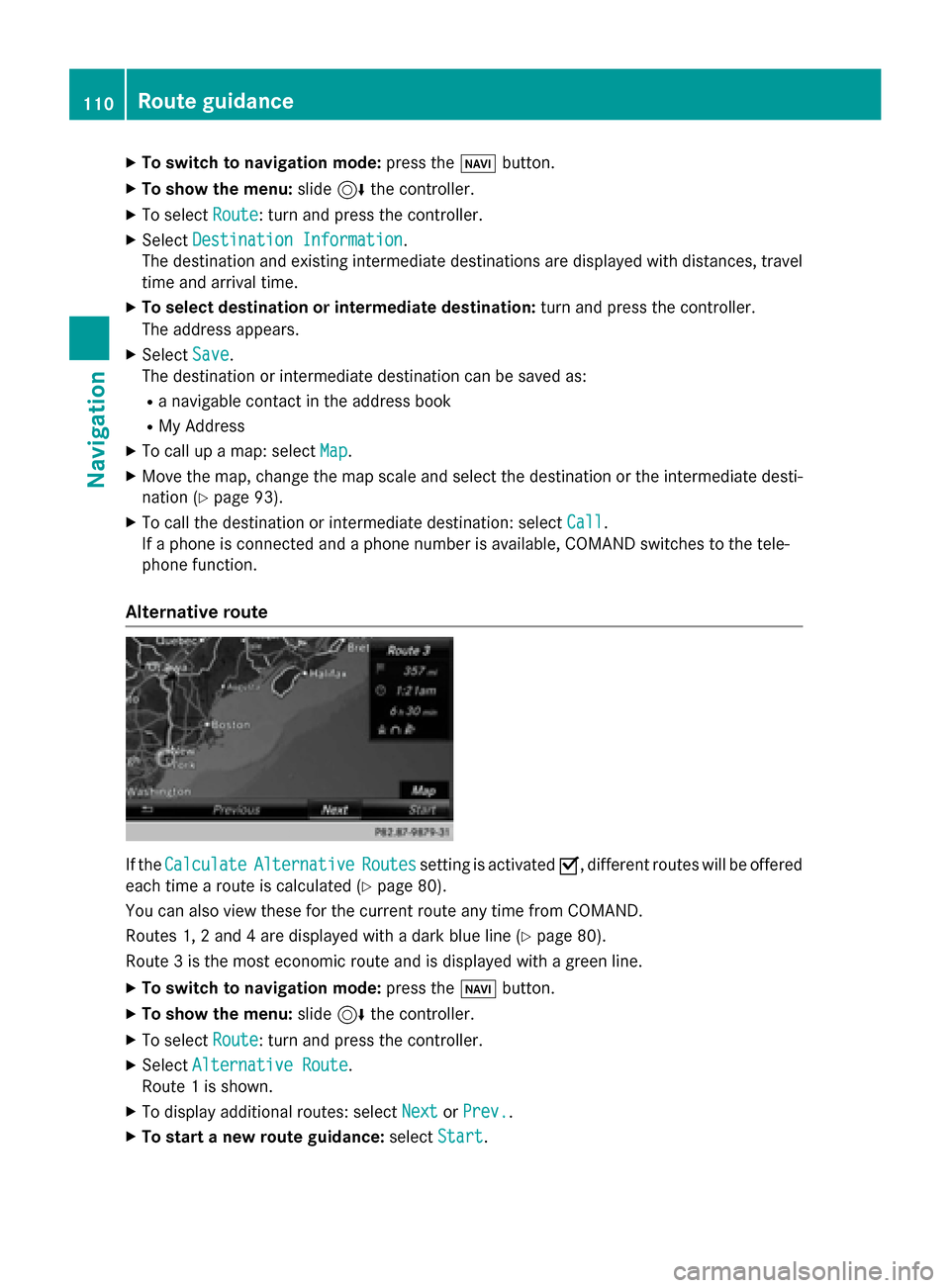
Alternative route If the
Calculate
Calculate Alternative
Alternative Routes
Routessetting is activated 0073, different routes will be offered
each time a route is calculated (Y page 80).
You can also view these for the current route any time from COMAND.
Routes 1, 2 and 4 are displayed with a dark blue line (Y page 80).
Route 3 is the most economic route and is displayed with a green line.
X To switch to navigation mode: press the00BEbutton.
X To show the menu: slide6the controller.
X To select Route
Route: turn and press the controller.
X Select Alternative Route
Alternative Route.
Route 1 is shown.
X To display additional routes: select Next
Next orPrev.
Prev..
X To start a new route guidance: selectStart
Start. 110
Route guidanceNavigation
Page 115 of 298
factors such as time of day, time of year and
immediate weather conditions that cannot be judged or taken into consideration by the
COMAND system.
Route guidance to an off-road destina-
tion COMAND can guide you to destinations
which are within the area of the digital map,
but which are not themselves on the map.
These destinations are known as off-road
destinations, which you can enter using the
map, for example. In these cases, COMAND
guides you for as long as possible with navi-
gation announcements and displays on roads
known to the system.
If the vehicle reaches an area which is not part
of the digital map, the display appears as a
split-screen view. On the right, an arrow
appears that points to the off-road destina-
tion. You will hear the announcement: "Please follow the arrow on the display". As the vehi-
cle approaches the destination, you will see a
display to this effect.
Route guidance from an off-road loca-
tion to a destination Off-road location: the vehicle's position is on
the digital map, but the map does not contain
any information about that location.
COMAND is also able to guide you to a des-
tination even from an off-road location.
At the start of route guidance, you will see the
Road Not Mapped
Road Not Mapped message, an arrow and
the distance to the destination. The arrow
shows the compass heading to the actual
destination.
As soon as the vehicle is back on a road
known to the system, route guidance contin- ues in the usual way.
Off-road during route guidance Due to road works, for example, there may be
differences between the data on the digital
map and the actual course of the road. In such cases, the system will temporarily be
unable to locate the vehicle position on the
digital map. The vehicle is therefore in an off- road position.
In the display, you will then see the Road
Road Not Not
Mapped
Mapped message, an arrow and the distance
to the destination. The direction arrow shows
the compass heading to the destination.
As soon as the system can assign the vehicle
position to the map again, route guidance
continues in the usual way. Real-time traffic reports
Prerequisites
i This function is currently not available for
Canada.
In order to receive real-time traffic reports via satellite radio, you need to subscribe to SIR-
IUS XM Satellite Radio Traffic Message
Service.
Further information on satellite radio
(Y page 202).
COMAND can receive traffic reports via sat-
ellite radio and take account of these for
route guidance in the navigation system.
Received traffic reports are displayed on the
map either as text or as symbols. Real-time traffic reports
113Navigation Z
Page 118 of 298

Displaying reports on the route
The function is only available while route guid-
ance is active. It shows the available traffic
reports affecting the current route.
If there are no reports for the route or the
function is not supported in the selected lan-
guage: the Messages Messages On
OnRoute
Route menu item is
gray and cannot be selected.
X To switch to navigation mode: press the
00BE button.
X To show the menu: slide6the control-
ler.
X To select Traffic
Traffic: turn and press the con-
troller.
X To select Messages On Route
Messages On Route: turn and
press the controller.
The traffic report window appears. Several
traffic reports may be available for the cal-
culated route, marked for example by 1/3.
The report shows the following information:
R State/province, road and display of the
affected direction
R Section of the road to which the traffic
report applies
R Traffic icon and traffic report
X To display the next/previous traffic
report: turn the controller.
X To close the display: press the0038but-
ton. Displaying all traffic reports
X
To switch to navigation mode: press the
00BE button.
X To show the menu: slide6the control-
ler.
X To select Traffic Traffic: turn and press the con-
troller.
X To select All Messages
All Messages: turn and press
the controller.
A list is shown containing all roads, areas or
regions affected by traffic reports. Roads,
areas or regions not on the route also
appear in the list.
X To select the road, area or region: turn
the controller and press to confirm.
The traffic report is displayed. There may be several traffic reports for the affected road.
You can find an example of a traffic report
here: (Y page 116).
X To close the display: press the0038but-
ton.
Settings for the display on the map You can switch these displays on/off on the
map:
R Incidents
R Speed & Flow
R Free Flow
X To switch to navigation mode: press the
00BE button.
X To show the menu: slide6the control-
ler. 116
Real-time traffic
reportsNavigation
Page 119 of 298

X
To select Traffic
Traffic: turn and press the con-
troller.
X To select Traffic
Traffic Information
Information On
OnMap
Map:
turn and press the controller.
X Select Incidents
Incidents,Speed Speed&
&Flow
Flow orFree
Free
Flow
Flow.
The display is activated 0073or deactivated
0053. Reading out traffic reports on the
route
Introduction The read-aloud function is only available while
route guidance is active. It reads out traffic
reports affecting the current route.
You can select from the following text reader
properties:
R Language (Y page 52)
R Text reader speed (Y page 48)
You can start the text reader function man-
ually or set it to automatic.
Starting the text reader function man-
ually X
To switch to navigation mode: press the
00BE button.
X To show the menu: slide6the control-
ler.
X To select Traffic
Traffic: turn and press the con-
troller.
X Select Read Out All Messages on Read Out All Messages on
Route
Route.
COMAND reads out the reports in
sequence.
If there are no reports for the route, the
Read
Read Out OutAll
AllMessages
Messages on
onRoute
Route menu
item is gray and cannot be selected.
X To cancel the read-aloud function: select
Cancel Read-Aloud Function
Cancel Read-Aloud Function.
COMAND reads out the current report and
then exits the read-aloud function. Automatic read-aloud function X
To switch to navigation mode: press the
00BE button.
X To show the menu: slide6the control-
ler.
X To select Traffic
Traffic: turn and press the con-
troller.
X Select Read Traffic Announcements
Read Traffic Announcements
Automatically
Automatically.
Depending on the previous status, switch
the option on 0073or off 0053. Recalculating the route dynamically
The Dynamic Traffic Route Dynamic Traffic Route route type
takes into account all of the traffic reports it
receives for the current route when calculat-
ing the route (Y page 80).
If you have selected Dynamic Traffic Dynamic Traffic
Route
Route as the route type, COMAND guides you
to your destination along the updated route. Storing destinations
General notes
If a route to a destination has been calculated,
COMAND saves the destination to the last
destinations memory. If the memory is full,
COMAND overwrites the oldest destination.
When you save the current vehicle position or a crosshair position, this position is stored in
the "Last destinations" memory.
You can save destinations permanently in the
address book and on an SD memory card. For instance, this is possible immediately after
entering an address. Storing destinations
117Navigation Z