2015 MERCEDES-BENZ S-Class page 52
[x] Cancel search: page 52Page 128 of 298

mum speeds, driving with low-beam head-
lamps or legal alcohol limits, for example.
X To switch to navigation mode: press the
00BE button.
X To show the menu: slide6the control-
ler.
X To select Position
Position : turn and press the
controller.
X Select Country Information
Country Information.
When the online connection has been
established, the available country informa-
tion appears.
i Equipment with a touchpad: alternatively
you can carry out this operation using the
touchpad (Y page 30).
X To return to navigation: press the0038
button. 126
Map functionsNavigation
Page 129 of 298

Avoiding an area
General information COMAND enables you to avoid areas you do not wish to drive through.
If you activate or deactivate a route block while route guidance is active, COMAND will cal-
culate a new route. If you activate or deactivate a route block while route guidance is inactive, COMAND will use the new setting for the next route guidance.
The calculated route may include an area to be avoided if:
R your destination is located in such an area.
R there is no alternative route of comparable length available
Highways within blocked areas are always taken into consideration in the route calculation.
Avoiding a new area X
To switch to navigation mode: press the00CBbutton.
X To show the menu: slide6the controller.
X To select Options
Options: turn and press the controller.
X Select Route Settings
Route Settings.
X Select Avoid Options
Avoid Options.
X Select Avoid Area Avoid Area.
X Select Avoid New Area Avoid New Area.
A menu appears.
X Select Using Map
Using Map orAddress Entry
Address Entry.
If you select Using Map
Using Map , the map with crosshair appears.
If you select Address Entry
Address Entry, the address entry menu appears where you can enter the
address (Y page 83). The map appears with the crosshair after the address is entered.
i Equipment with a touchpad: alternatively you can carry out this operation using the touch-
pad (Y page 30). Map functions
127Navigation Z
Page 131 of 298

X
Turn the controller.
The size of the blocked area changes.
X To accept changes: press the controller.
A message appears stating that the area has been set.
Deleting an area: X To select an area: turn the controller.
X Slide 9the controller.
X Select Delete
Delete.
A prompt appears asking whether you wish to delete the area.
X Select Yes
Yes orNo No.
After selecting Yes
Yes, the area is deleted.
Deleting all areas: X Slide 9and press the controller while the list is shown.
X Select Delete All
Delete All.
A prompt appears asking whether you wish to delete all areas.
X Select Yes
Yes orNo
No.
After selecting Yes
Yes, all areas are deleted.
i Equipment with a touchpad: alternatively you can carry out this operation using the touch-
pad (Y page 30). SIRIUS XM service
Displaying SIRIUS XM service informa-
tion You can display the SIRIUS XM service infor-
mation.
X To switch to navigation mode: press the
00BE button.
X To show the menu: press the controller.
X To select Traffic
Traffic: turn and press the con-
troller.
X Select SIRIUS Service
SIRIUS Service.
The window on the right half of the display shows the telephone number of the pro-
vider (SIRIUS XM) and the serial number of
your service module.
i Equipment with a touchpad: alternatively
you can carry out this operation using the
touchpad (Y page 30). Registering for the SIRIUS XM traffic
report service X
Call the provider telephone number shown
on the COMAND display.
i You can also have the satellite service
activated online. To do so, visit the SIRIUS
XM Radio website at
http://www.sirius.com (USA).
Once the connection has been established: X Follow the service employee's instructions.
The activation process may take up to ten
minutes.
If registration is not included when purchas-
ing the system, your credit card details will be required to activate your account. Map functions
129Navigation Z
Page 132 of 298

Updating the digital map
Introduction The digital maps generated by the map soft-
ware become outdated in the same way as
conventional road maps. Optimal route guid-
ance can only be provided by the navigation
system in conjunction with the most up-to-
date map software.
Information about new versions of the digital
map can be obtained from an authorized
Mercedes-Benz Center. You can have the dig-
ital map updated there using a data medium, or you can update it yourself. Navigation functions
Calling up the navigation system
menu X
To switch to navigation mode: press the
00CB button.
X To show the menu: slide5the control-
ler.
Navi Navi is highlighted in the main function bar.
X Press the controller.
The navigation menu appears.
X Turn the controller to display the navigation
functions one after another.
X To switch to the map, turn the controller
until Navigation
Navigation appears and press the
controller. Calling up the online map display
Requirement: mbrace must be activated for
Internet access (Y
page 173).
X Call up the navigation menu (Y page 130).
X Turn the controller until Online OnlineMap
MapDis‐
Dis‐
play
play is brought to the front.
X Press the controller.
The online connection is established. Once
the connection is established, the Google™ Maps map appears around the current
vehicle position.
i Equipment with touchpad: alternatively
you can call up this function using the
touchpad (Y page 30).
X Change the map scale and move the map.
X To exit the online map display: press the
0038 button. Calling up the compass display
X
Call up the navigation menu (Y page 130).
X Turn the controller until Compass Compassis brought
to the front. 130
Navigation functionsNavigation
Page 133 of 298
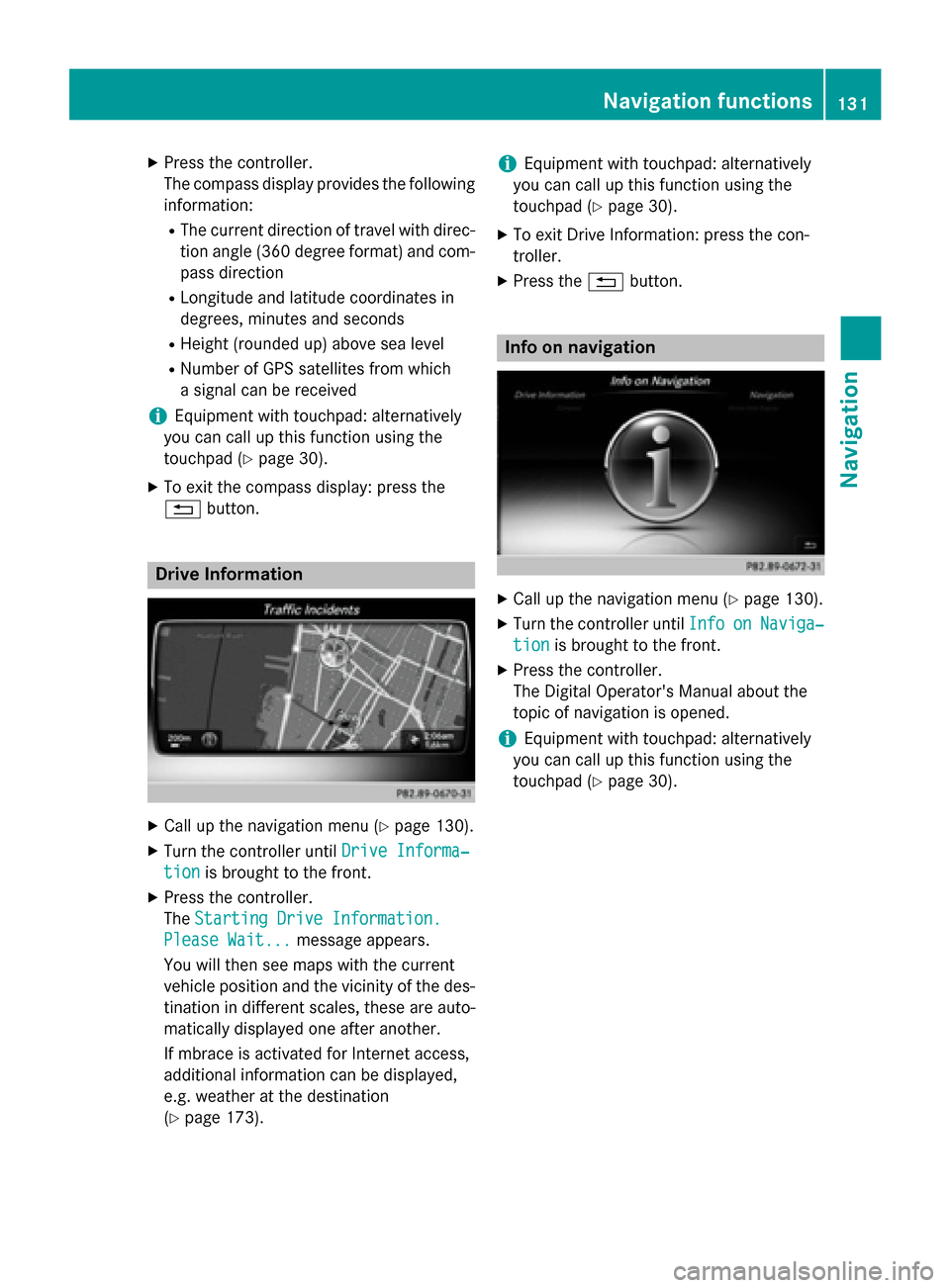
X
Press the controller.
The compass display provides the following
information:
R The current direction of travel with direc-
tion angle (360 degree format) and com- pass direction
R Longitude and latitude coordinates in
degrees, minutes and seconds
R Height (rounded up) above sea level
R Number of GPS satellites from which
a signal can be received
i Equipment with touchpad: alternatively
you can call up this function using the
touchpad (Y page 30).
X To exit the compass display: press the
0038 button. Drive Information
X
Call up the navigation menu (Y page 130).
X Turn the controller until Drive Informa‐ Drive Informa‐
tion
tion is brought to the front.
X Press the controller.
The Starting Drive Information. Starting Drive Information.
Please Wait...
Please Wait... message appears.
You will then see maps with the current
vehicle position and the vicinity of the des-
tination in different scales, these are auto-
matically displayed one after another.
If mbrace is activated for Internet access,
additional information can be displayed,
e.g. weather at the destination
(Y page 173). i
Equipment with touchpad: alternatively
you can call up this function using the
touchpad (Y page 30).
X To exit Drive Information: press the con-
troller.
X Press the 0038button. Info on navigation
X
Call up the navigation menu (Y page 130).
X Turn the controller until Info Infoon onNaviga‐
Naviga‐
tion
tion is brought to the front.
X Press the controller.
The Digital Operator's Manual about the
topic of navigation is opened.
i Equipment with touchpad: alternatively
you can call up this function using the
touchpad (Y page 30). Navigation functions
131Navigation Z
Page 134 of 298

Problems with the navigation system
Problem
Possible causes/consequences and
0050
0050Solutions COMAND does not
resume route guidance
after the journey has
been interrupted. Route guidance is canceled if you interrupt the journey for more
than two hours.
"Interrupting the journey" refers to stopping the vehicle.
"Continuing route guidance" refers to switching COMAND back on
and driving on.
X Continue route guidance manually (Y page 109).Problem
Possible causes/consequences and
0050 0050Solutions COMAND is unable to
determine the vehicle's
position. COMAND has to redetermine the position of the vehicle if the
vehicle has been transported.
Example:
R After transporting the vehicle by ferry
R After transporting the vehicle by motorail
X Start the vehicle and pull away.
COMAND determines the vehicle's position. Depending on the
driving situation, this may take some time.
Route guidance may be restricted during the determination of
the vehicle's position.
When positioning is complete, route guidance is resumed with
navigation announcements and route guidance displays. Problem
Possible causes/consequences and
0050 0050Solutions The
Navigation
Navigation
Unavailable
Unavailable Please
Please
refer to the Oper‐
refer to the Oper‐
ator's Manual. ator's Manual. mes-
sage appears. COMAND has an integrated hard drive on which the digital map is
stored.
To protect the integrated hard drive against damage, COMAND
deactivates it at very high and low temperatures. The navigation
system will then be temporarily unavailable.
X Let the vehicle and COMAND cool down to a normal tempera-
ture.
X To hide the message: switch COMAND off and then on again.132
Problems with the navigation systemNavigation
Page 139 of 298

Operating options
You can operate the telephone by: R using the controller:
turning
sliding 1 or4
pressing
R using the 0061or0076 button on the mul-
tifunction steering wheel
R using the Voice Control System (see the
separate Voice Control System operating
instructions)
Unless stated otherwise, the descriptions and illustrations in this section refer to COMAND. Function restrictions
You may have to wait before using telephony
via COMAND in the following situations:
R when the mobile phone is switched off
R if Bluetooth ®
is switched off on the mobile
phone
R if the mobile phone has not logged on to a
mobile phone network
R if the Bluetooth ®
function is switched off in
COMAND
The telephone automatically tries to log on to
a network. If no network is available, you may not be able to make a " 911" emergency call.
If you attempt to make an outgoing call, the
No Service No Service message will appear for a short
while. "911" emergency call
The following conditions must be fulfilled in
order to make a 911emergency call:
R a valid and operational SIM card is inserted
in the mobile phone
R the mobile phone is switched on
R the PIN has been entered in the mobile
phone R
a mobile phone network is available
R the mobile phone is connected to COMAND
via Bluetooth ®
If you cannot make an emergency call, you
must arrange rescue measures yourself.
To make an emergency call: X Enter the number on COMAND
(Y page 143).
X Press 0061.
The telephone makes the connection.
X Wait until the emergency call center
answers and describe the emergency sit-
uation. Telephone menu
0043
Mobile phone network provider
0044 Signal strength of the mobile phone net-
work
0087 Receiver icon 0071or0075
0085 Telephone menu character bar
0083 Bluetooth ®
device name of the currently
connected mobile phone
0084 To enter characters using the touchpad (if
available)
006B To display the phone book
Symbols 0043to0087 and 0083are not shown until
after a mobile phone has been connected to
COMAND. The symbols depend on your
mobile phone and your mobile phone network provider. Further information on connecting a mobile phone (Y page 138). Telephone menu
137Telephone Z
Page 140 of 298

Symbol
0044shows the current signal strength
of the mobile phone network. If all bars are
filled, you have optimum reception.
If no bars are shown, reception is either very
poor or there is none at all.
i Receiver icon shows whether a call is
active/being connected 0075or not 0071.
Calling up the telephone menu:
X Press 002B.
Showing the menu bar:
X Slide 6the controller.
If the mobile phone connected supports the
MAP Bluetooth ®
profile (Message Access
Profile), the 0083menu item is available. Fur-
ther information on text messages and e-mail
(Y page 155).
If you have an unread text message or e-mail, the 0082 mail symbol is displayed in the sta-
tus bar. The symbol disappears once you have
read the text message or e-mail. The ú
symbol is displayed as soon as the message
memory on the connected mobile phone is
full. The symbol disappears once you delete
at least one message. Connecting/disconnecting a mobile
phone Prerequisites
For telephony via the Bluetooth ®
interface,
you require a Bluetooth ®
-capable mobile
phone. The mobile phone must support
Hands-Free Profile 1.0 or above.
On COMAND
X Activate Bluetooth ®
(Y page 51).
On the mobile phone X Switch on the mobile phone and enter the
PIN when prompted to do so (see the man-
ufacturer's operating instructions).
X Activate Bluetooth ®
and, if necessary,
Bluetooth ®
visibility for other devices (see
the manufacturer's operating instructions). This visibility is for restricted periods of
time on some mobile phones (see the man-
ufacturer's operating instructions).
X Set the Bluetooth ®
device name for the
mobile phone if necessary.
The device names for all of one manufactur-
er's products might be identical. To make it
possible to clearly identify your mobile phone,
change the device name (see the manufac-
turer's operating instructions). The name can be freely selected.
If the mobile phone supports the PBAP
(Phone BookAccess Profile) and MAP
(Message AccessProfile) Bluetooth ®
pro-
files, the following information will be trans-
mitted after you connect:
R Phone book
R Call lists
R Messages
The battery of the mobile phone should
always be kept sufficiently charged in order to prevent malfunctions.
i Not all mobile phones available on the
market are equally suitable. You can obtain more detailed information about suitable
mobile phones and about the connection
between the mobile phone and COMAND
on the Internet at
www.mercedes-benz-mobile.com .
You can also obtain more information by
calling.
In the USA, you can get in touch with the
Mercedes-Benz Customer Assistance
Center on 1-800-FOR-MERCedes
(1-800-367-6372).
In Canada, you can get in touch with the
Customer Relations Center on
1-800-387-0100.
i Some displays (e.g. the signal strength)
depend on the supported version of the
Hands-Free Profile. 138
Connecting/disconnecting a mobile phoneTelephone