2015 MERCEDES-BENZ C-Class media files
[x] Cancel search: media filesPage 175 of 214
COMAND does not support WMA files of the
following types:
R DRM (Digital Rights Management)
encrypted files
R variable bit rate
R WMA Pro
R 5.1 surround sound
i Only use tracks with a bit rate of at least
128 kbit/s and a sampling rate of at least
44.1 kH z.Lower rates can cause a notice-
able deterioration in quality. This is espe-
cially the case if you have activated a sur-
round sound function.
Selecting an active partition (USB mass
storage devices only) You can select this function for USB storage
devices when the storage device is parti-
tioned. Up to 9 partitions (primary or logical,
FAT, FAT32 and NTFS) are supported.
Select active partition
X To select Options
Options in the Media menu bar:
turn and press the controller.
X Select Select Active Partition
Select Active Partition.
Notes on copyright Audio/video files that you create or repro-
duce yourself for playback are generally sub-
ject to copyright protection.
In many countries, reproductions, even for
private use, are not permitted without the
prior consent of the copyright holder.
Make sure that you know about the applicable
copyright regulations and that you comply
with these.
Notes on CDs/DVDs !
COMAND is designed to play discs that
comply with the EN 60908 standard. There-
fore, you can only use discs with a maxi-
mum thickness of 1.3 mm.
If you insert thicker discs, e.g. those that
contain data on both sides (DVD on one side and audio data on the other), they can-
not be ejected and can damage the device.
Only use round discs with a diameter of
12 cm. Do not use discs with a diameter of
8 cm, even with an adapter.
Discs with copy protection are not compati-
ble with the audio CD standard and therefore
may not be able to be played by COMAND.
Playback problems may occur when playing
copied discs.
There may be playback problems if you play
CDs that you have copied yourself with a stor-
age capacity of more than 700 MB.
i COMAND is able to play back audio CDs
in multichannel audio format. Media search
Starting the media search
X In Media mode, slide 00520064the controller.
The media menu bar appears.
X To select Search Search: turn and press the con-
troller.
The category list appears. General information
COMAND plays back files from the following
data mediums:
R Disc (CD/DVD Audio)
R Memory card
R MEDIA REGISTER
R USB storage device
R Apple devices (folder, year and photos are
not available)
The categories are displayed according to the
data available. Media search
173Media Z
Page 176 of 214
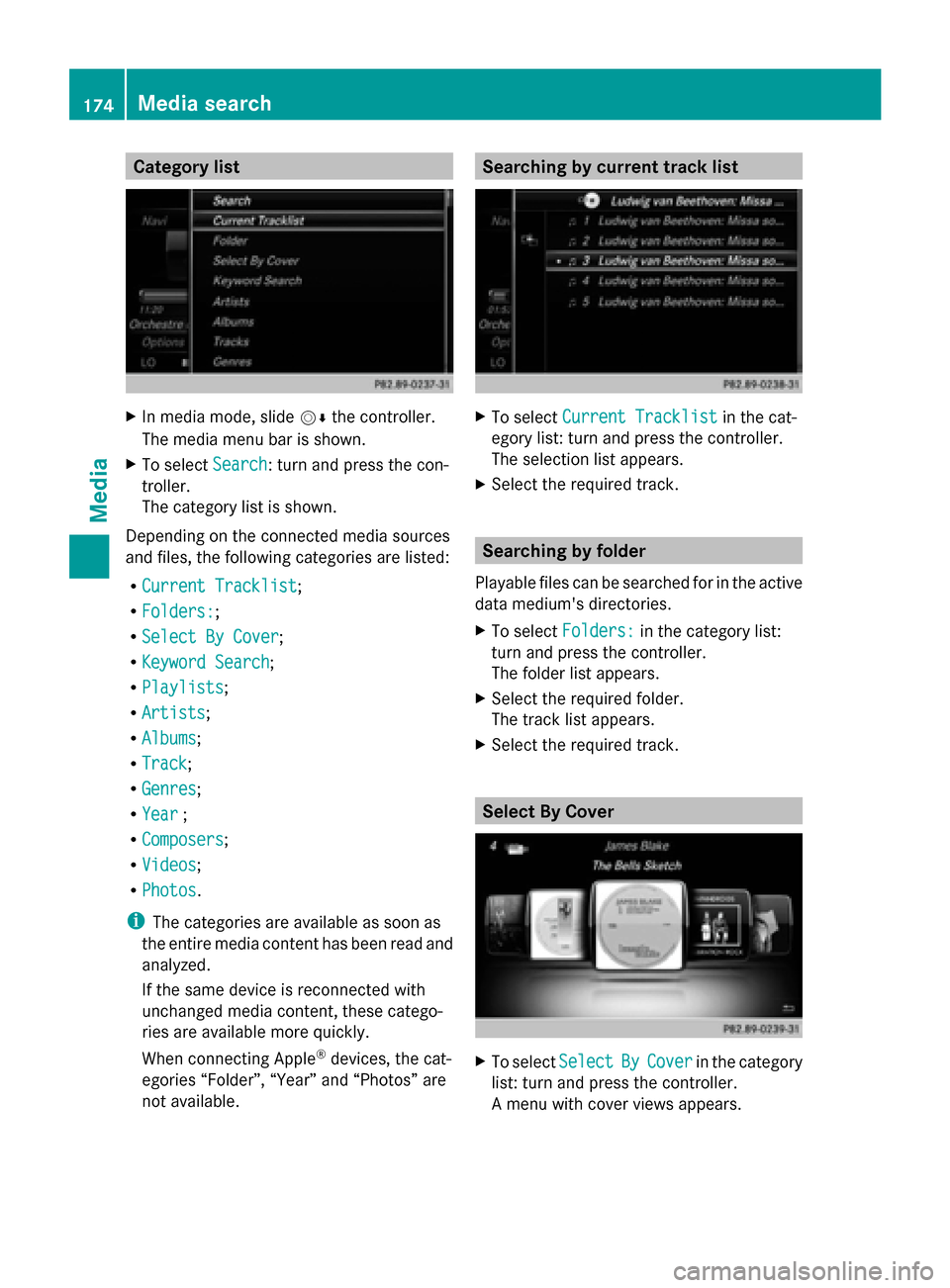
Category list
X
In media mode, slide 00520064the controller.
The media menu bar is shown.
X To select Search
Search: turn and press the con-
troller.
The category list is shown.
Depending on the connected media sources
and files, the following categories are listed:
R Current Tracklist
Current Tracklist ;
R Folders: Folders:;
R Select By Cover
Select By Cover;
R Keyword Search
Keyword Search ;
R Playlists
Playlists ;
R Artists
Artists;
R Albums
Albums ;
R Track
Track;
R Genres
Genres ;
R Year
Year ;
R Composers
Composers ;
R Videos
Videos ;
R Photos
Photos .
i The categories are available as soon as
the entire media content has been read and
analyzed.
If the same device is reconnected with
unchanged media content, these catego-
ries are available more quickly.
When connecting Apple ®
devices, the cat-
egories “Folder”, “Year” and “Photos” are
not available. Searching by current track list
X
To select Current Tracklist Current Tracklist in the cat-
egory list: turn and press the controller.
The selection list appears.
X Select the required track. Searching by folder
Playable files can be searched for in the active
data medium's directories.
X To select Folders: Folders: in the category list:
turn and press the controller.
The folder list appears.
X Select the required folder.
The track list appears.
X Select the required track. Select By Cover
X
To select Select SelectBy
ByCover
Cover in the category
list: turn and press the controller.
A menu with cover views appears. 174
Media searchMedia
Page 178 of 214
X
Select a track.
The basic display appears and playback
starts. MEDIA REGISTER
General notes
i Keep your original music files, photos and
video files in a secure location. An error in
COMAND may result in the loss of music
files stored in the MEDIA REGISTER.
Mercedes-Benz is not liable for any loss of
data.
You can store music files, photos or video files
in the MEDIA REGISTER. The memory has a
capacity of 10 GB. Switching on the MEDIA REGISTER
X Press the 00FDbutton repeatedly until the
MEDIA REGISTER is switched on.
Pressing the button repeatedly changes
the operating mode in the following order:
R Disc
Disc;
R Memory Card Memory Card;
R Media Register
Media Register;
R USB 1
USB 1 (vehicles without Media Interface)
R Media Interface 1
Media Interface 1 (vehicles without
Media Interface)
R USB 2
USB 2 (vehicles without Media Interface)
R Media Interface 2
Media Interface 2 (vehicles with
Media Interface) R
Bluetooth Audio Bluetooth Audio;
R Aux Aux .
Playback begins at the point last listened to.
If there are no files, you will see a message to
this effect.
Further options for switching on:
R Using the number keypad: (Y page 165)
R Using the main function bar: (Y page 165)
R Using the device list: (Y page 165)
R Using the 00FDbutton: (Y page 164) MEDIA REGISTER basic display
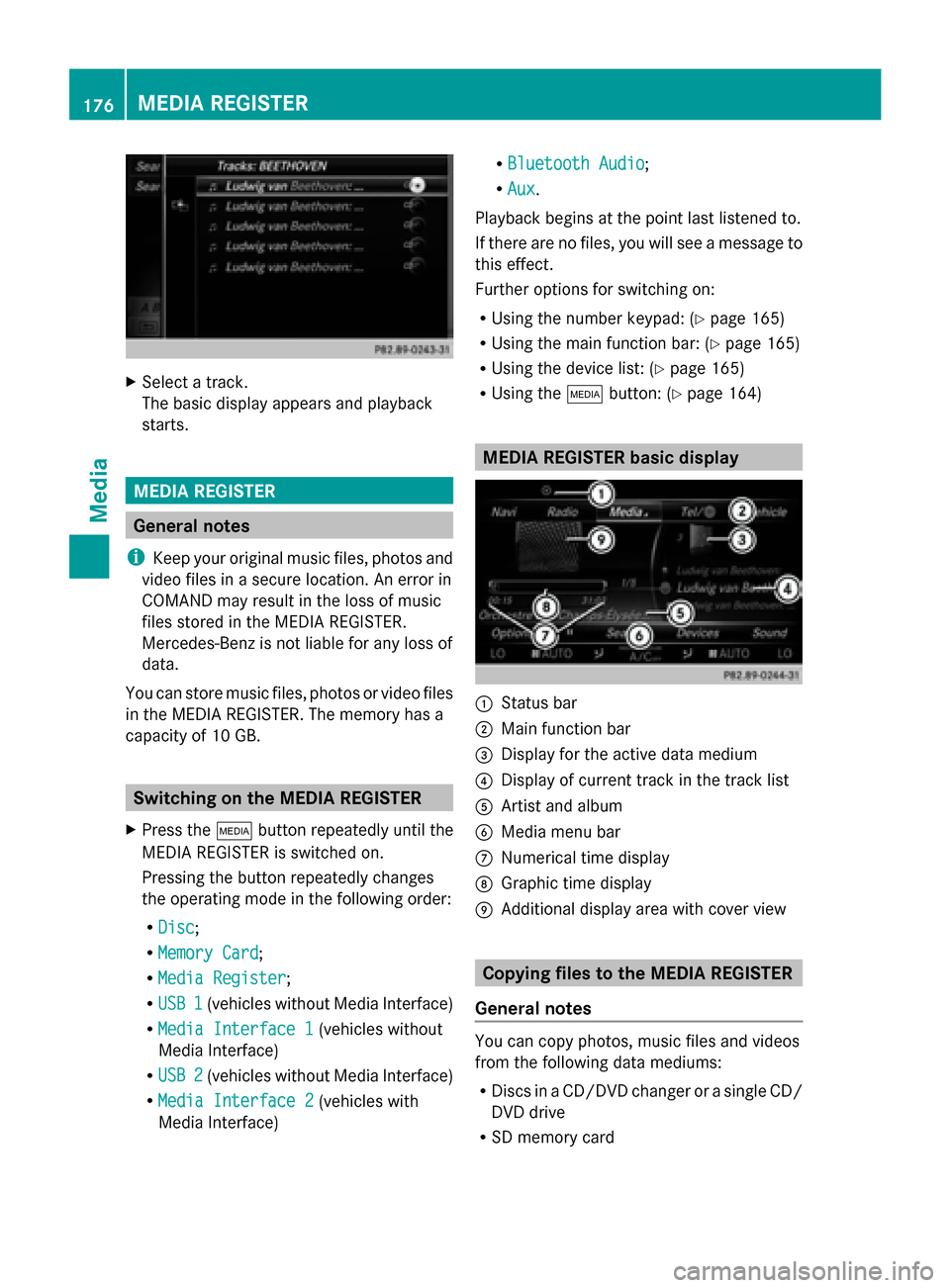
0043
Status bar
0044 Main function bar
0087 Display for the active data medium
0085 Display of current track in the track list
0083 Artist and album
0084 Media menu bar
006B Numerical time display
006C Graphic time display
006D Additional display area with cover view Copying files to the MEDIA REGISTER
General notes You can copy photos, music files and videos
from the following data mediums:
R
Discs in a CD/DVD changer or a single CD/
DVD drive
R SD memory card 176
MEDIA REGISTERMedia
Page 179 of 214
R
USB storage device
R MP3
i Data can only be copied from an MP3
player if this can be configured as a mass
storage device.
Video files from DVD-V cannot be copied.
While copying, several functions will not be
available. If this is the case, you will see a
message to this effect.
1. Selecting a data medium X
To switch on media mode: keep pressing
the 00FD button until the required media
mode has been switched on.
X Slide 00520064the controller.
The media menu bar appears.
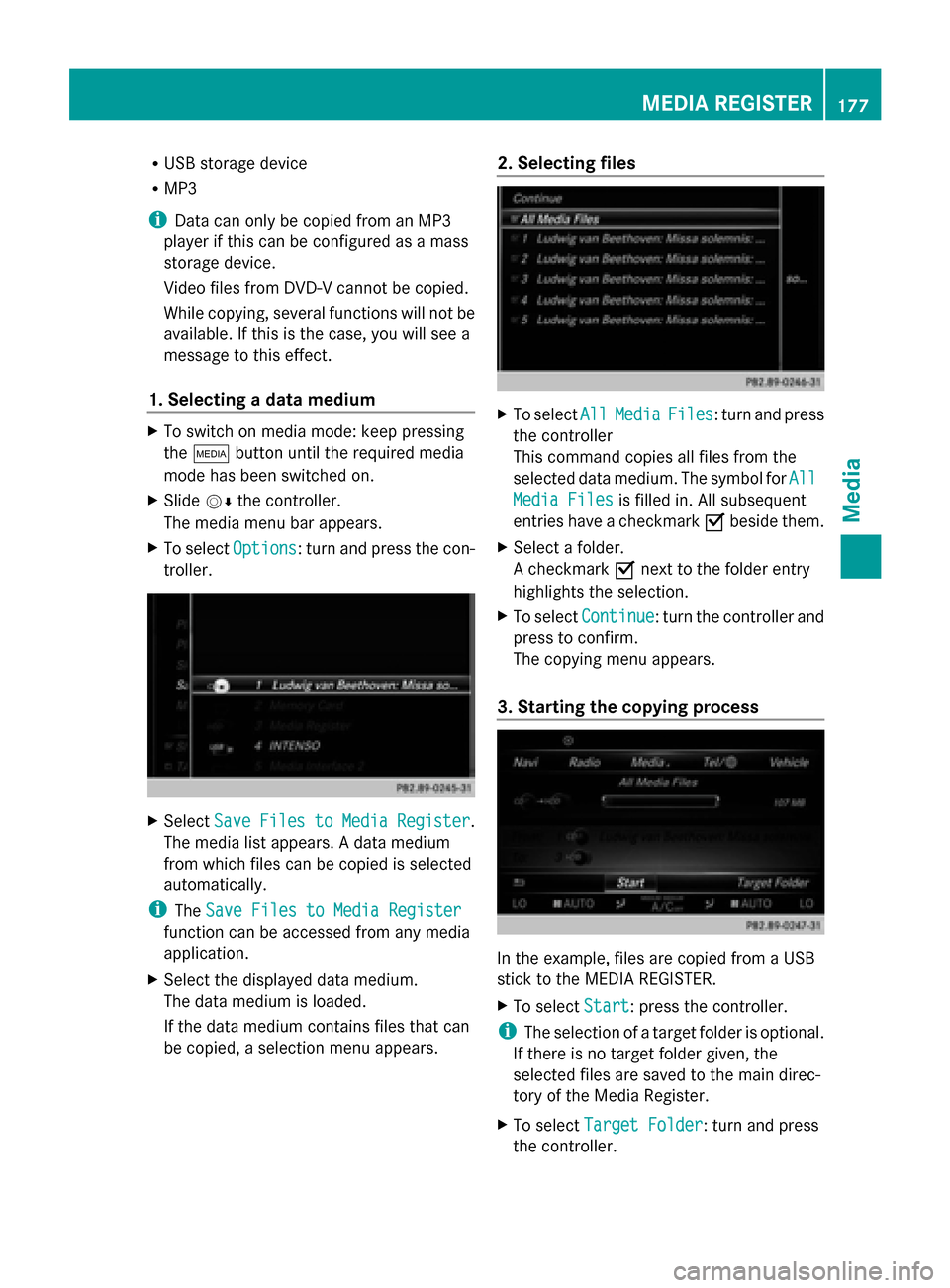
X To select Options
Options: turn and press the con-
troller. X
Select Save Files to Media Register Save Files to Media Register .
The media list appears. A data medium
from which files can be copied is selected
automatically.
i The Save Files to Media Register Save Files to Media Register
function can be accessed from any media
application.
X Select the displayed data medium.
The data medium is loaded.
If the data medium contains files that can
be copied, a selection menu appears. 2. Selecting files
X
To select All AllMedia
Media Files
Files: turn and press
the controller
This command copies all files from the
selected data medium. The symbol for All
All
Media Files
Media Files is filled in. All subsequent
entries have a checkmark 0073beside them.
X Select a folder.
A checkmark 0073next to the folder entry
highlights the selection.
X To select Continue Continue: turn the controller and
press to confirm.
The copying menu appears.
3. Starting the copying process In the example, files are copied from a USB
stick to the MEDIA REGISTER.
X
To select Start Start: press the controller.
i The selection of a target folder is optional.
If there is no target folder given, the
selected files are saved to the main direc-
tory of the Media Register.
X To select Target Folder
Target Folder: turn and press
the controller. MEDIA REGISTER
177Media Z
Page 180 of 214
X
Select a folder.
X Select Continue
Continue.
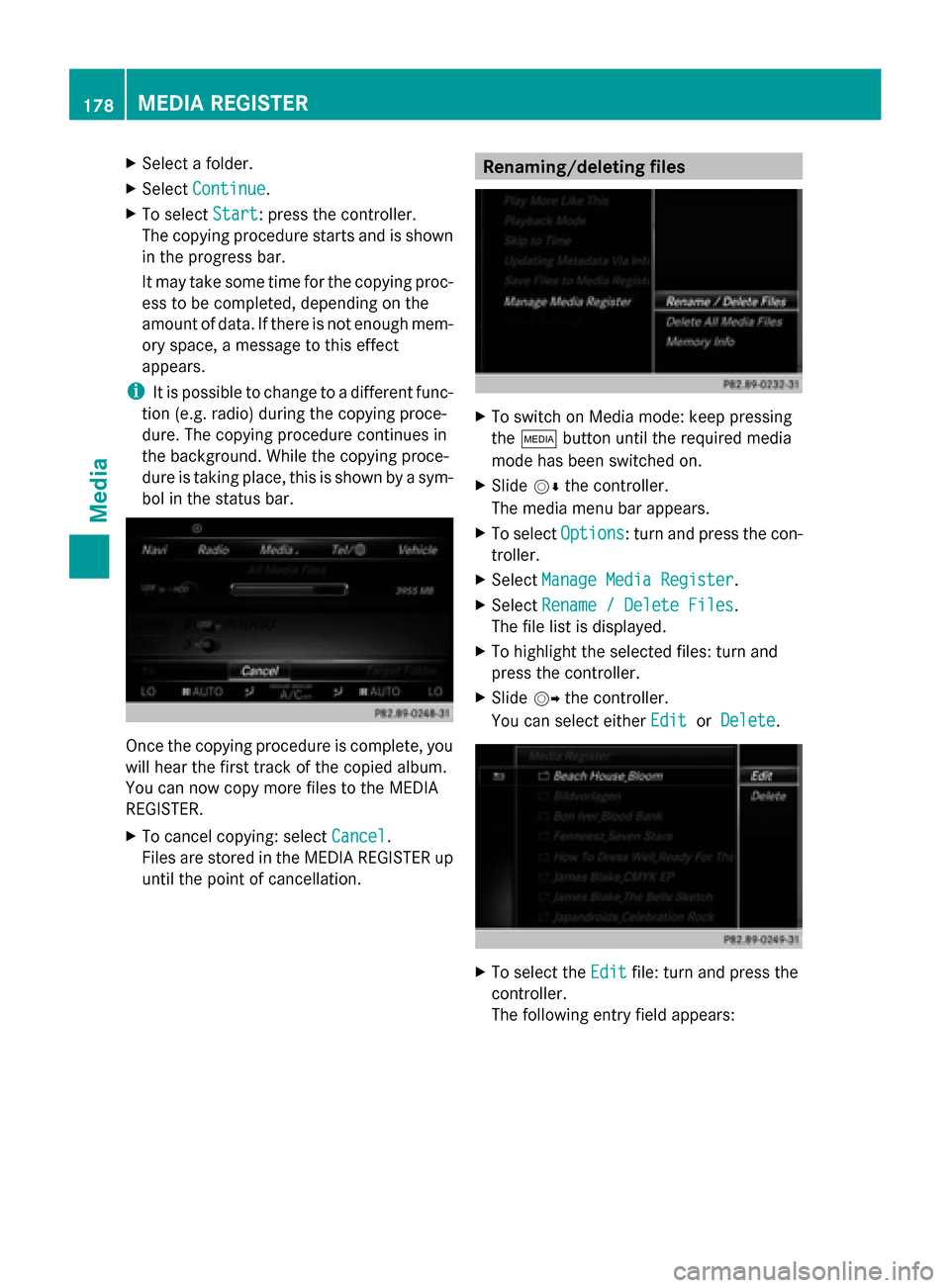
X To select Start
Start: press the controller.
The copying procedure starts and is shown
in the progress bar.
It may take some time for the copying proc-
ess to be completed, depending on the
amount of data. If there is not enough mem-
ory space, a message to this effect
appears.
i It is possible to change to a different func-
tion (e.g. radio) during the copying proce-
dure. The copying procedure continues in
the background. While the copying proce-
dure is taking place, this is shown by a sym-
bol in the status bar. Once the copying procedure is complete, you
will hear the first track of the copied album.
You can now copy more files to the MEDIA
REGISTER.
X To cancel copying: select Cancel Cancel.
Files are stored in the MEDIA REGISTER up
until the point of cancellation. Renaming/deleting files
X
To switch on Media mode: keep pressing
the 00FD button until the required media
mode has been switched on.
X Slide 00520064the controller.
The media menu bar appears.
X To select Options Options: turn and press the con-
troller.
X Select Manage Media Register
Manage Media Register.
X Select Rename / Delete Files
Rename / Delete Files.
The file list is displayed.
X To highlight the selected files: turn and
press the controller.
X Slide 00520096the controller.
You can select either Edit EditorDelete
Delete . X
To select the Edit
Editfile: turn and press the
controller.
The following entry field appears: 178
MEDIA REGISTERMedia
Page 181 of 214
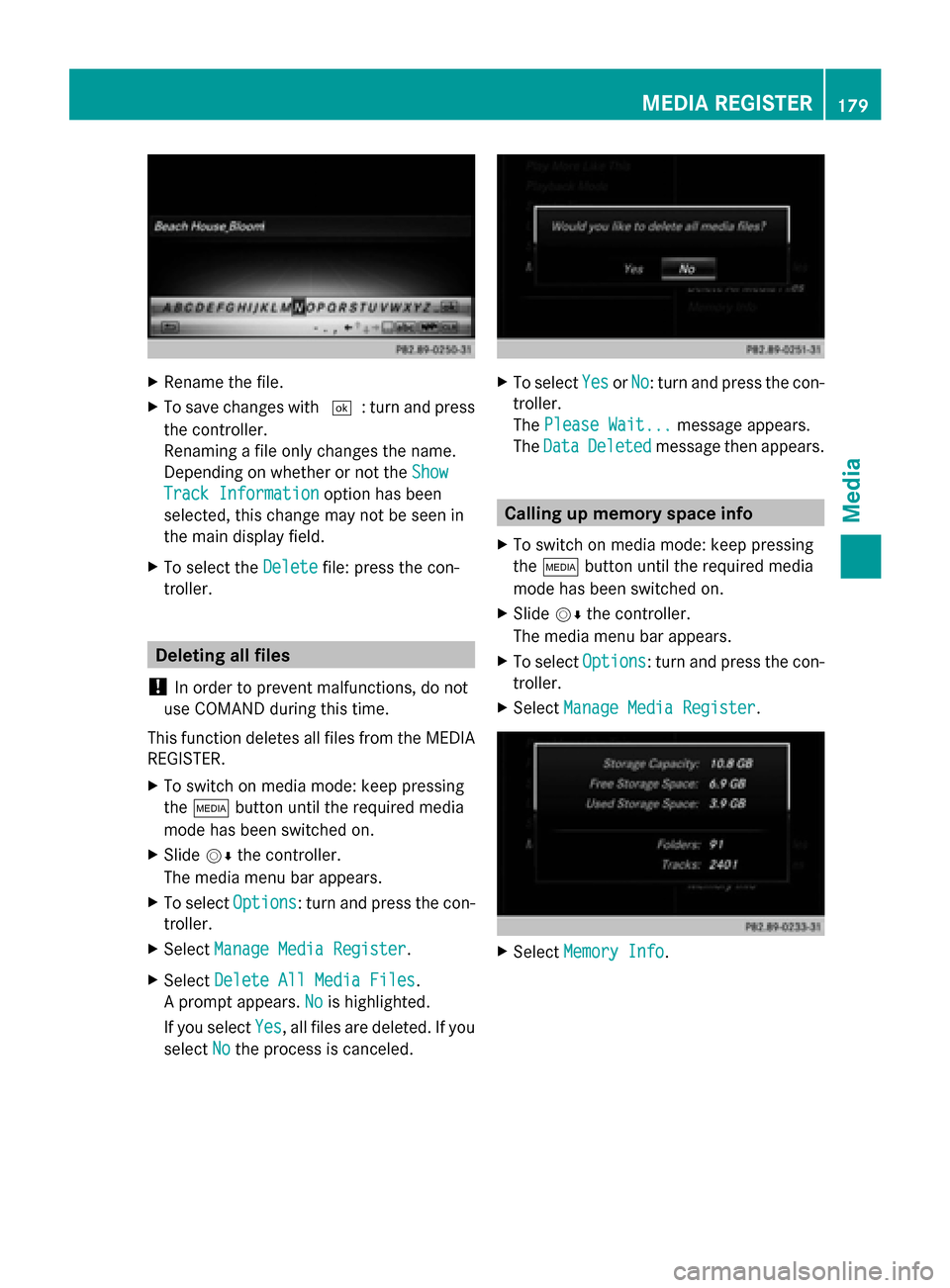
X
Rename the file.
X To save changes with 0054: turn and press
the controller.
Renaming a file only changes the name.
Depending on whether or not the Show Show
Track Information
Track Information option has been
selected, this change may not be seen in
the main display field.
X To select the Delete
Delete file: press the con-
troller. Deleting all files
! In order to prevent malfunctions, do not
use COMAND during this time.
This function deletes all files from the MEDIA
REGISTER.
X To switch on media mode: keep pressing
the 00FD button until the required media
mode has been switched on.
X Slide 00520064the controller.
The media menu bar appears.
X To select Options
Options: turn and press the con-
troller.
X Select Manage Media Register
Manage Media Register.
X Select Delete All Media Files
Delete All Media Files.
A prompt appears. No Nois highlighted.
If you select Yes
Yes , all files are deleted. If you
select No
No the process is canceled. X
To select Yes
YesorNo
No: turn and press the con-
troller.
The Please Wait... Please Wait... message appears.
The Data
Data Deleted
Deleted message then appears. Calling up memory space info
X To switch on media mode: keep pressing
the 00FD button until the required media
mode has been switched on.
X Slide 00520064the controller.
The media menu bar appears.
X To select Options Options: turn and press the con-
troller.
X Select Manage Media Register
Manage Media Register. X
Select Memory Info
Memory Info. MEDIA REGISTER
179Media Z
Page 182 of 214
Selecting a playback mode
X To switch MEDIA REGISTER on: press the
00FD button repeatedly until the MEDIA
REGISTER is switched on.
X Slide 00520064the controller.
The media menu bar appears.
X To select Options
Options: turn and press the con-
troller. X
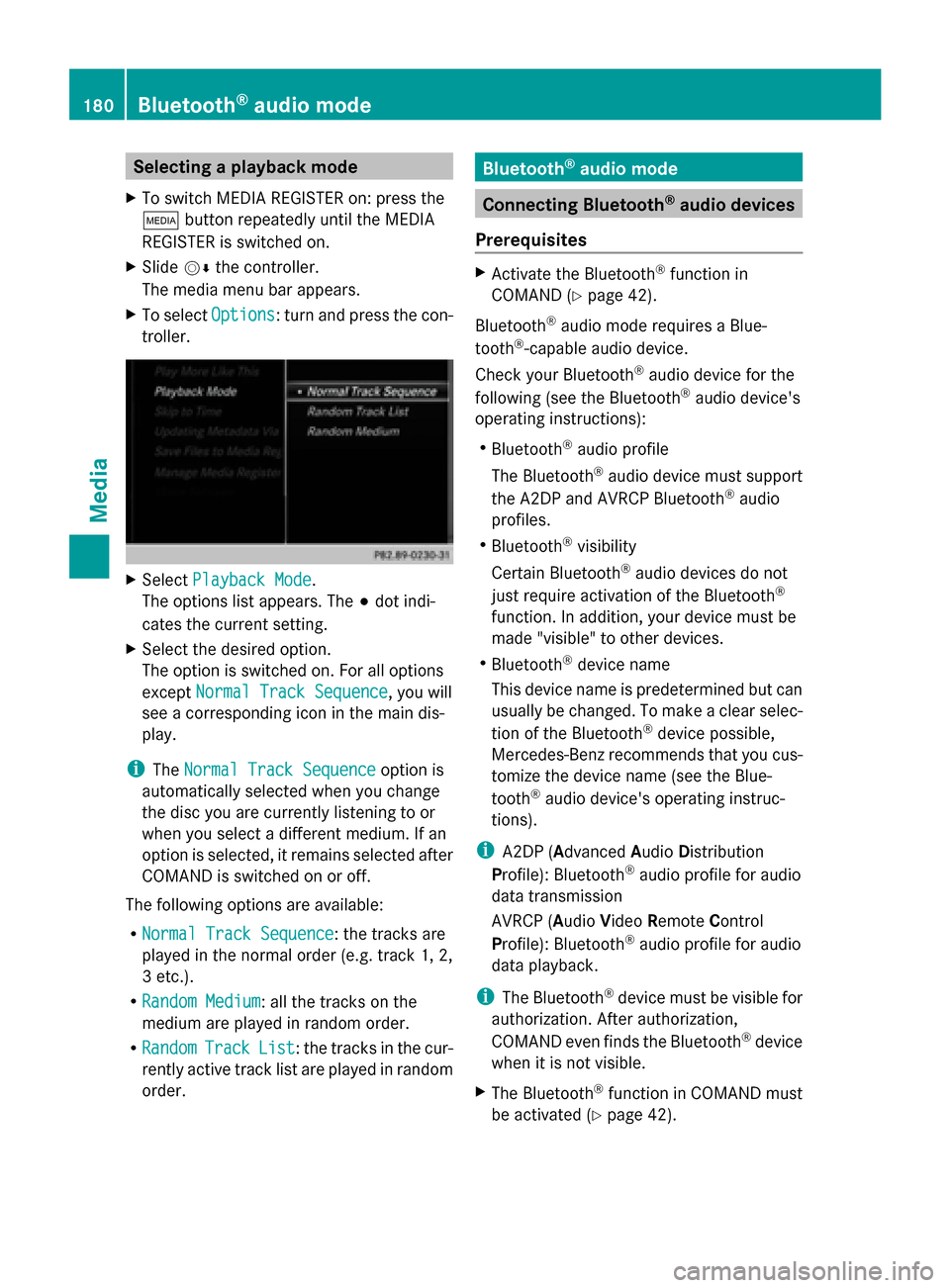
Select Playback Mode
Playback Mode.
The options list appears. The 003Bdot indi-
cates the current setting.
X Select the desired option.
The option is switched on. For all options
except Normal Track Sequence
Normal Track Sequence, you will
see a corresponding icon in the main dis-
play.
i The Normal Track Sequence Normal Track Sequence option is
automatically selected when you change
the disc you are currently listening to or
when you select a different medium. If an
option is selected, it remains selected after
COMAND is switched on or off.
The following options are available:
R Normal Track Sequence Normal Track Sequence: the tracks are
played in the normal order (e.g. track 1, 2,
3 etc.).
R Random Medium Random Medium: all the tracks on the
medium are played in random order.
R Random Random Track
TrackList
List: the tracks in the cur-
rently active track list are played in random
order. Bluetooth
®
audio mode Connecting Bluetooth
®
audio devices
Prerequisites X
Activate the Bluetooth ®
function in
COMAND (Y page 42).
Bluetooth ®
audio mode requires a Blue-
tooth ®
-capable audio device.
Check your Bluetooth ®
audio device for the
following (see the Bluetooth ®
audio device's
operating instructions):
R Bluetooth ®
audio profile
The Bluetooth ®
audio device must support
the A2DP and AVRCP Bluetooth ®
audio
profiles.
R Bluetooth ®
visibility
Certain Bluetooth ®
audio devices do not
just require activation of the Bluetooth ®
function. In addition, your device must be
made "visible" to other devices.
R Bluetooth ®
device name
This device name is predetermined but can
usually be changed. To make a clear selec-
tion of the Bluetooth ®
device possible,
Mercedes-Benz recommends that you cus-
tomize the device name (see the Blue-
tooth ®
audio device's operating instruc-
tions).
i A2DP (Advanced AudioDistribution
Profile): Bluetooth ®
audio profile for audio
data transmission
AVRCP (Audio VideoRemote Control
Profile): Bluetooth ®
audio profile for audio
data playback.
i The Bluetooth ®
device must be visible for
authorization. After authorization,
COMAND even finds the Bluetooth ®
device
when it is not visible.
X The Bluetooth ®
function in COMAND must
be activated (Y page 42).180
Bluetooth ®
audio modeMedia
Page 183 of 214
General notes
Before using your Bluetooth
®
audio device
with COMAND for the first time, you will need
to authorize it.
When you authorize a new Bluetooth ®
audio
device, it is connected automatically. Con-
nection involves first searching for a Blue-
tooth ®
audio device and then authorizing it.
You can authorize up to fifteen Bluetooth ®
devices.
i If you authorize a mobile phone that sup-
ports Bluetooth ®
audio, the A2DP and
AVRCP Bluetooth ®
audio profiles are con-
nected automatically.
The mobile phone is then entered:
R in the Bluetooth ®
telephone list
(Y page 105)
R in the Bluetooth ®
device list
(Y page 181)
Mercedes-Benz recommends authorizing a
mobile phone in Bluetooth ®
telephony
(Y page 106).
i If the mobile phone that is connected only
supports two Bluetooth ®
profiles at the
same time, COMAND functions may
behave as follows:
R when connecting to the Internet, play-
back is stopped on the Bluetooth ®
audio
device.
R when starting playback on the Blue-
tooth ®
audio device, the Internet con-
nection is ended. Searching for and authorizing a Blue-
tooth ®
audio device
Switching to Bluetooth ®
audio mode
X Press the 00FDbutton.
X To select Bluetooth Audio
Bluetooth Audio in the menu:
turn and press the controller.
A menu appears. If you see the
No Bluetooth Audio No Bluetooth Audio
Device Connected
Device Connected message, you will
need to authorize the Bluetooth ®
audio
device first.
X To select Options
Optionsin the Bluetooth ®
audio
menu: slide 005200C5and press the controller.
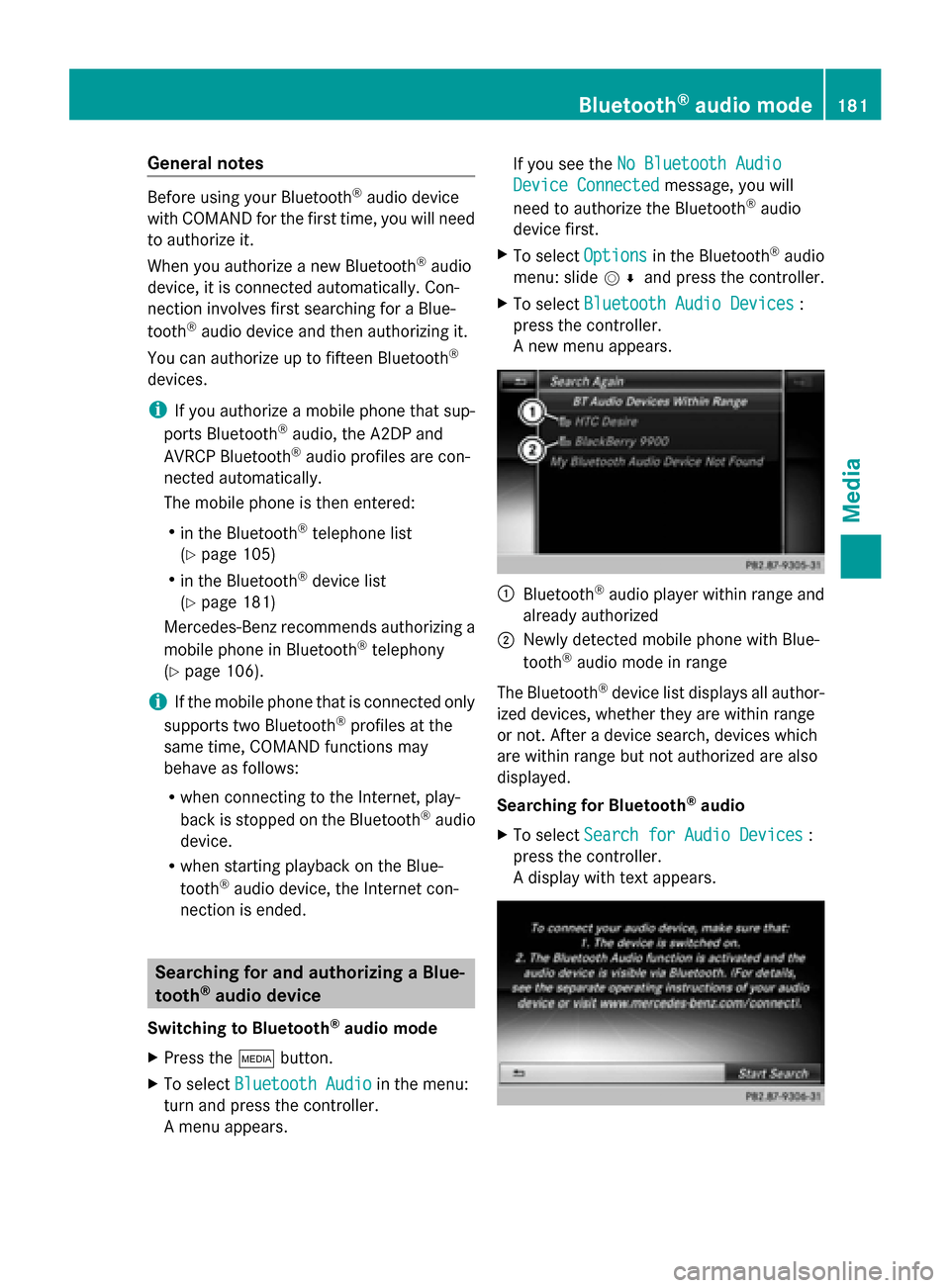
X To select Bluetooth Audio Devices
Bluetooth Audio Devices :
press the controller.
A new menu appears. 0043
Bluetooth ®
audio player within range and
already authorized
0044 Newly detected mobile phone with Blue-
tooth ®
audio mode in range
The Bluetooth ®
device list displays all author-
ized devices, whether they are within range
or not. After a device search, devices which
are within range but not authorized are also
displayed.
Searching for Bluetooth ®
audio
X To select Search for Audio Devices Search for Audio Devices :
press the controller.
A display with text appears. Bluetooth
®
audio mode 181Media Z