2015 MERCEDES-BENZ C-Class media files
[x] Cancel search: media filesPage 184 of 214
X
Select Start Search
Start Search .
COMAND searches for Bluetooth ®
audio
devices within range and adds them to the
Bluetooth ®
device list.
The duration of the search depends on the
number of Bluetooth ®
audio devices within
range and their characteristics.
i With some Bluetooth ®
audio devices,
playback must first be started on the device
itself so that COMAND can play the audio
files. Bluetooth ®
must also be given as a
media output location for the audio device
used.
Authorizing Bluetooth ®
audio
X Select a Bluetooth ®
audio device that has
not yet been authorized from the list: turn
and press the controller.
Authorization starts.
Depending on the Bluetooth ®
audio device
used, you now have two options for con-
tinuing with authorization.
Option 1: entering the passkey
X You can find information on this in the
"Authorizing (registering) a mobile phone"
section (Y page 106).
After successful authorization, the Blue-
tooth ®
audio device is connected and
starts playing.
Option 2: Secure Simple Pairing
i The Bluetooth ®
audio device must sup-
port Bluetooth ®
version 2.1 for connection
via Secure Simple Pairing. COMAND cre-
ates a six-digit code, which is displayed on
both devices that are to be connected
For some Bluetooth ®
audio devices, the
pairing must be confirmed within 10 sec-
onds.
X If the number code displayed on
COMAND and on the Bluetooth ®
audio device is the same, select
Yes
Yes : press the
controller.
If you select Yes
Yes , authorization continues
and the Bluetooth ®
audio device is con-
nected. Playback starts.
If you select No
No, authorization will be can-
celed. External authorization
If COMAND does not find your Bluetooth ®
audio device, this may be due to particular
security settings on your Bluetooth ®
audio
device. In this case, check whether your Blue-
tooth ®
audio device can locate COMAND.
The Bluetooth ®
device name for COMAND is
MB Bluetooth MB Bluetooth .
X Switch on Bluetooth ®
audio mode
(Y page 184).
X To select Options
Options: slide 005200C5and press
the controller.
X To select Bluetooth Audio Devices
Bluetooth Audio Devices :
press the controller.
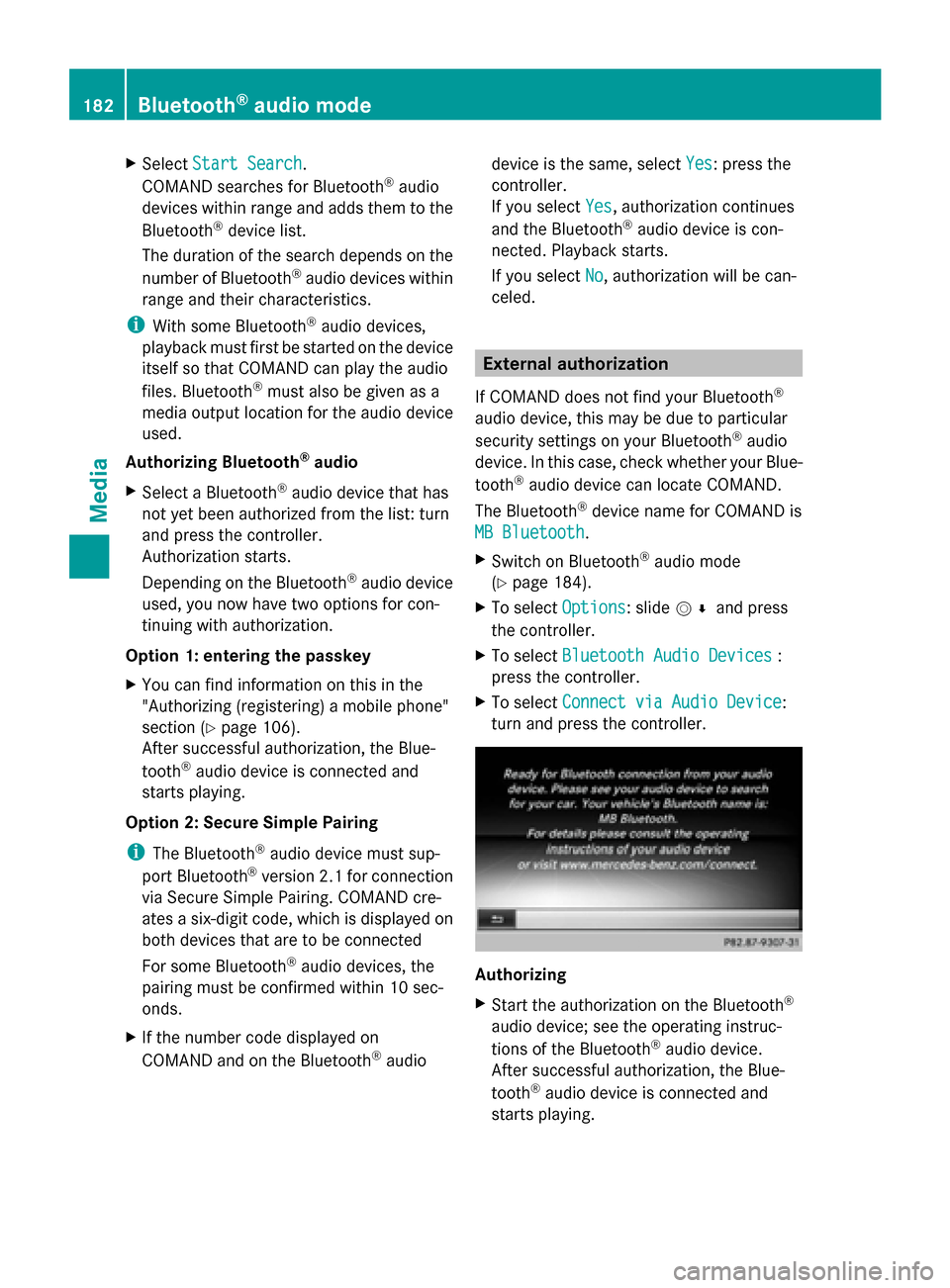
X To select Connect via Audio Device
Connect via Audio Device :
turn and press the controller. Authorizing
X
Start the authorization on the Bluetooth ®
audio device; see the operating instruc-
tions of the Bluetooth ®
audio device.
After successful authorization, the Blue-
tooth ®
audio device is connected and
starts playing. 182
Bluetooth ®
audio modeMedia
Page 185 of 214
With some Bluetooth
®
audio devices, play-
back must first be started on the device itself
so that COMAND can play the audio files. Reconnecting a Bluetooth
®
audio
device
The Bluetooth ®
audio profiles are connected
automatically under the following circum-
stances:
R one of the last two mobile phones to have
been connected has also been used as a
Bluetooth ®
audio player (if this function is
supported by the mobile phone).
R the mobile phone is automatically con-
nected. The Bluetooth ®
audio player is then
connected.
i For an automatic connection with
COMAND, the telephone must be within
range.
For most Bluetooth ®
audio devices, the
"automatic connection" must be activated
by checking a box. Depending on the
device used, this prompt often takes place
when authorizing (see the Bluetooth ®
audio
device operating instructions).
If the No Bluetooth Audio Device Con‐
No Bluetooth Audio Device Con‐
nected nected message appears, you have two
options to reconnect the Bluetooth ®
audio
device.
Option 1:
X To confirm Connect Device Connect Device in the basic
display: press the controller.
If COMAND can locate the Bluetooth ®
audio device, it will be connected and will
start playing. Option 2:
X
To select Options
Options: slide 005200C5and press
the controller.
X To select Bluetooth Audio Devices Bluetooth Audio Devices :
press the controller.
X To select a Bluetooth ®
audio device: turn
and press the controller.
If the Bluetooth ®
audio device has been
authorized, playback starts. Bluetooth
®
audio device and simulta-
neous search for mobile phones
i When searching for a mobile phone or a
new Bluetooth ®
audio device, the connec-
tion to an already activated Bluetooth ®
audio device is separated ( Ypage 105).
In the Bluetooth ®
audio basic display, you will
see the No NoBluetooth
Bluetooth Audio
AudioDevice
Device Con‐
Con‐
nected
nected message and the Connect Device
Connect Device
menu item cannot be selected. Displaying details
X To select a Bluetooth ®
audio device from
the Bluetooth ®
device list: turn the control-
ler.
X To select the symbol to the right of the
Bluetooth ®
audio device: slide 00520096the con-
troller.
X To select Details
Details: turn and press the con-
troller.
The following information concerning the
selected mobile phone is shown:
R Bluetooth ®
name
R Bluetooth ®
address
R availability status (shown after an
update)
R authorization status
X To close the detailed display: press the
0038 button. Bluetooth
®
audio mode 183Media Z
Page 186 of 214
De-authorizing (deregistering) a Blue-
tooth ®
audio device
X To select a Bluetooth ®
audio device from
the Bluetooth ®
device list: turn the control-
ler.
X To select the symbol to the right of the
Bluetooth ®
audio device: slide 00520096and
press the controller.
X To select Deauthorize
Deauthorize : press the control-
ler.
A prompt appears asking whether you
really wish to deauthorize this device.
X To select Yes
Yes orNo No: turn and press the con-
troller.
If you select Yes
Yes , the device will be deleted
from the Bluetooth ®
device list.
If you select No
No the process is canceled.
i Before re-authorizing the Bluetooth ®
audio device, you should also delete the
device name MB Bluetooth
MB Bluetooth from your
Bluetooth ®
audio device's Bluetooth ®
list
(see the Bluetooth ®
audio device's operat-
ing instructions). Switching to Bluetooth
®
audio mode
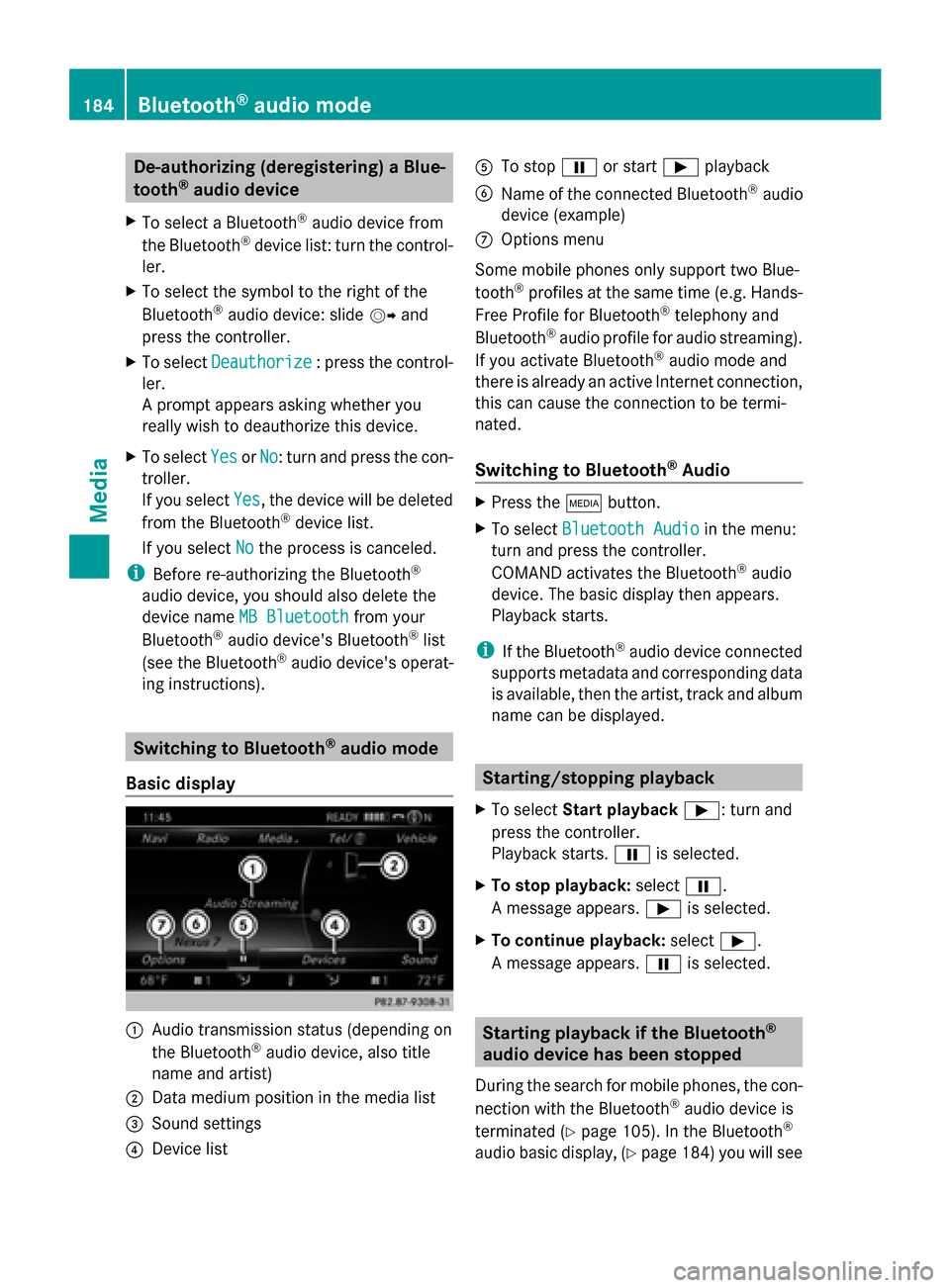
Basic display 0043
Audio transmission status (depending on
the Bluetooth ®
audio device, also title
name and artist)
0044 Data medium position in the media list
0087 Sound settings
0085 Device list 0083
To stop 00CFor start 00D0playback
0084 Name of the connected Bluetooth ®
audio
device (example)
006B Options menu
Some mobile phones only support two Blue-
tooth ®
profiles at the same time (e.g. Hands-
Free Profile for Bluetooth ®
telephony and
Bluetooth ®
audio profile for audio streaming).
If you activate Bluetooth ®
audio mode and
there is already an active Internet connection,
this can cause the connection to be termi-
nated.
Switching to Bluetooth ®
Audio X
Press the 00FDbutton.
X To select Bluetooth Audio Bluetooth Audio in the menu:
turn and press the controller.
COMAND activates the Bluetooth ®
audio
device. The basic display then appears.
Playback starts.
i If the Bluetooth ®
audio device connected
supports metadata and corresponding data
is available, then the artist, track and album
name can be displayed. Starting/stopping playback
X To select Start playback 00D0: turn and
press the controller.
Playback starts. 00CFis selected.
X To stop playback: select00CF.
A message appears. 00D0is selected.
X To continue playback: select00D0.
A message appears. 00CFis selected. Starting playback if the Bluetooth
®
audio device has been stopped
During the search for mobile phones, the con-
nection with the Bluetooth ®
audio device is
terminated (Y page 105). In the Bluetooth ®
audio basic display, (Y page 184) you will see184
Bluetooth ®
audio modeMedia
Page 187 of 214
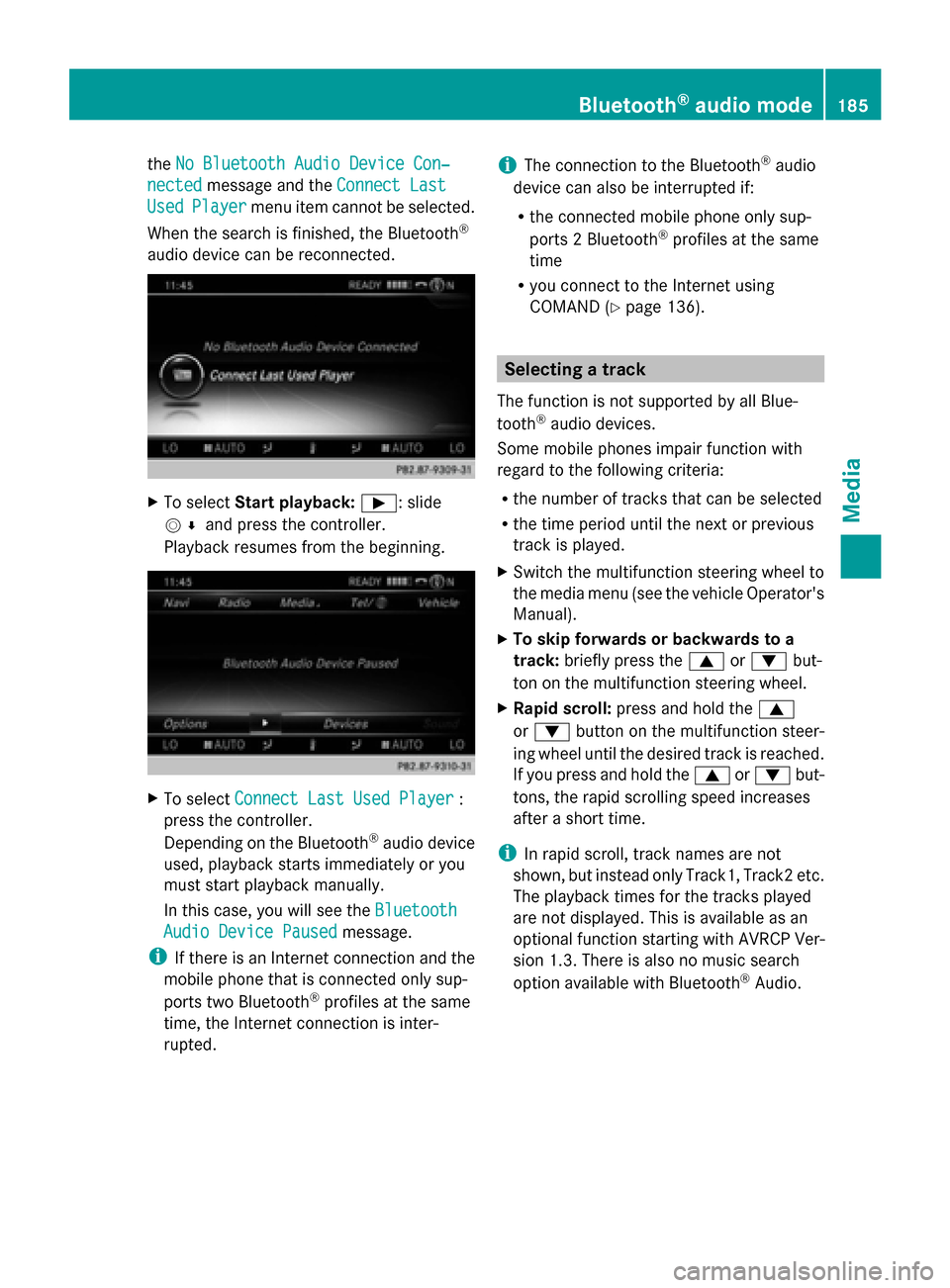
the
No Bluetooth Audio Device Con‐
No Bluetooth Audio Device Con‐
nected
nected message and the Connect Last
Connect Last
Used
Used Player
Player menu item cannot be selected.
When the search is finished, the Bluetooth ®
audio device can be reconnected. X
To select Start playback: 00D0: slide
005200C5 and press the controller.
Playback resumes from the beginning. X
To select Connect Last Used Player
Connect Last Used Player :
press the controller.
Depending on the Bluetooth ®
audio device
used, playback starts immediately or you
must start playback manually.
In this case, you will see the Bluetooth
Bluetooth
Audio Device Paused
Audio Device Paused message.
i If there is an Internet connection and the
mobile phone that is connected only sup-
ports two Bluetooth ®
profiles at the same
time, the Internet connection is inter-
rupted. i
The connection to the Bluetooth ®
audio
device can also be interrupted if:
R the connected mobile phone only sup-
ports 2 Bluetooth ®
profiles at the same
time
R you connect to the Internet using
COMAND (Y page 136). Selecting a track
The function is not supported by all Blue-
tooth ®
audio devices.
Some mobile phones impair function with
regard to the following criteria:
R the number of tracks that can be selected
R the time period until the next or previous
track is played.
X Switch the multifunction steering wheel to
the media menu (see the vehicle Operator's
Manual).
X To skip forwards or backwards to a
track: briefly press the 0063or0064 but-
ton on the multifunction steering wheel.
X Rapid scroll: press and hold the 0063
or 0064 button on the multifunction steer-
ing wheel until the desired track is reached.
If you press and hold the 0063or0064 but-
tons, the rapid scrolling speed increases
after a short time.
i In rapid scroll, track names are not
shown, but instead only Track1, Track2 etc.
The playback times for the tracks played
are not displayed. This is available as an
optional function starting with AVRCP Ver-
sion 1.3. There is also no music search
option available with Bluetooth ®
Audio. Bluetooth
®
audio mode 185Media Z
Page 189 of 214
Switching to Media Interface
Switching on automatically X
Connect a data medium to USB port 1 or
USB port 2.
X Make sure that the Media Interface 1 or
Media Interface 2 basic menu is activated.
If playable media files are found, they will
be played by COMAND.
If you remove a device, the No Device
No Device
Connected Connected message appears.
Further options for switching on R
Using the number keypad: (Y page 165)
R Using the main function bar: (Y page 165)
R Using the device list: (Y page 165)
R Using the 00FDbutton: (Y page 164) Supported devices
The following data media can be connected
to COMAND via the Media Interface:
R iPod ®
R iPhone ®
R iPad ®
R MP3
R USB devices
i It is not possible to run two Apple devices
simultaneously. Therefore the device last
connected is loaded.
i iPod ®
, iPhone ®
and iPad ®
are registered
trademarks of Apple Inc., Cupertino, Cali-
fornia, USA.
i Audio files, photos and video files can be
played back.
For details and a list of supported devices,
visit http://www.mbusa-mobile.com. Or
call the Mercedes-Benz Customer Assistance
Center at 1-800-FOR-MERCedes
(1-800-367-6372) (for the USA) or Customer
Relations at 1-800-387-0100 (for Canada). Supported data formats
Music mp3, wma, aac
Video mpeg, wmv, mov,
avi, mp4
Images jpg, jpeg, bmp, png
Selecting a music file
Selecting with the controller X
To display the current track list: press
the controller in the basic display.
The track list for the active data medium
appears.
X To select a track: turn the controller and
press to confirm.
X To skip forwards or backwards to a
track: turn the controller in the basic dis-
play.
The selected track is played.
Fast forward/rewind X
With the media source active in the basic
display, slide 009500520096the controller and hold
it until the desired position has been
reached. Search function
Selecting Search using media menu bar X
Slide 00520064the controller.
The media menu bar appears.
X To select Search Search: turn and press the con-
troller.
The category list appears.
Overview The following categories are listed:
R
Current Tracklist Current Tracklist;
R Folders:
Folders:;
R Select By Cover
Select By Cover; Operation with the Media Interface
187Media Z
Page 190 of 214
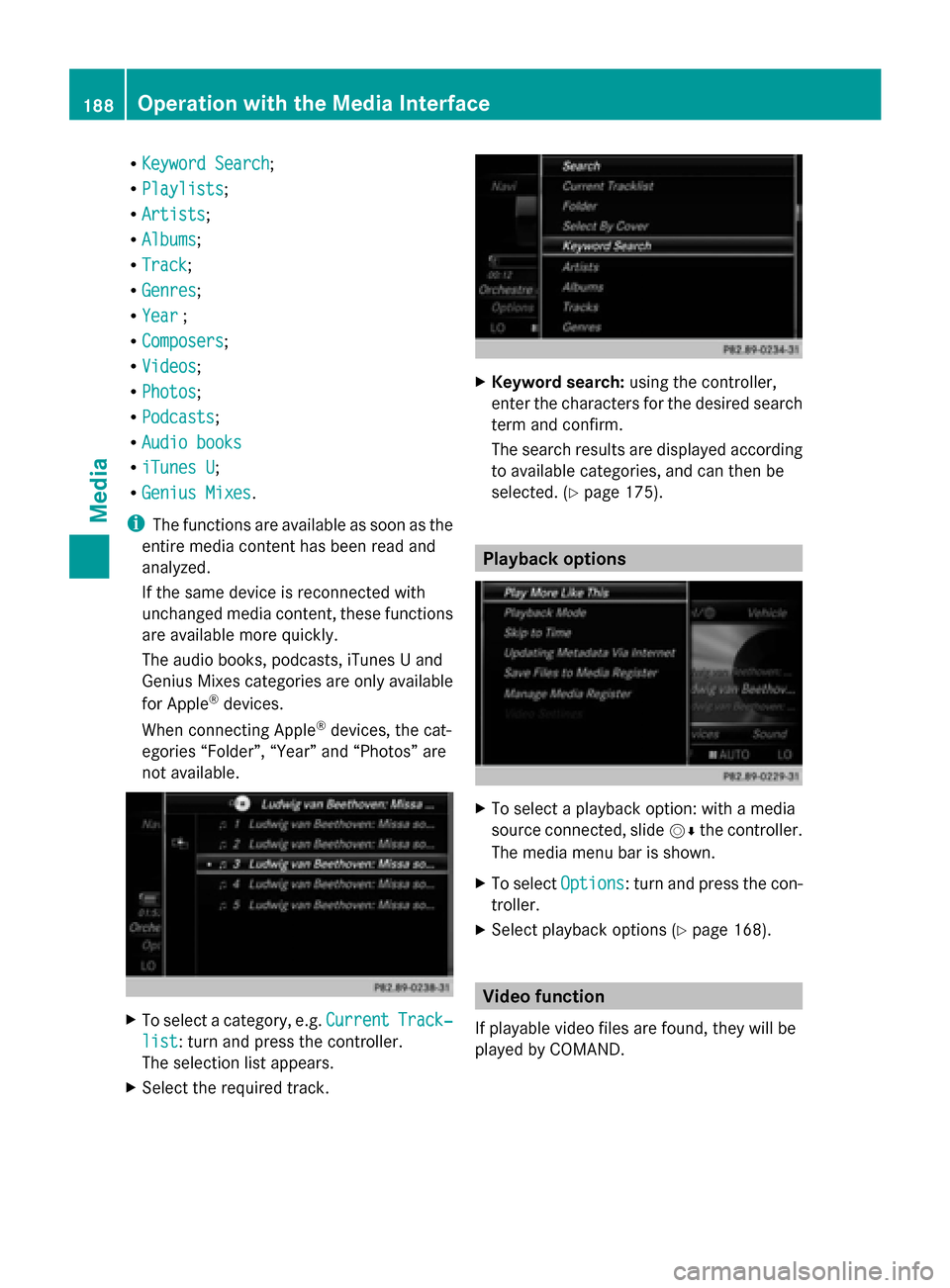
R
Keyword Search
Keyword Search;
R Playlists
Playlists;
R Artists
Artists;
R Albums
Albums;
R Track
Track;
R Genres
Genres;
R Year
Year ;
R Composers
Composers;
R Videos
Videos;
R Photos
Photos;
R Podcasts
Podcasts;
R Audio books
Audio books
R iTunes U
iTunes U;
R Genius Mixes
Genius Mixes.
i The functions are available as soon as the
entire media content has been read and
analyzed.
If the same device is reconnected with
unchanged media content, these functions
are available more quickly.
The audio books, podcasts, iTunes U and
Genius Mixes categories are only available
for Apple ®
devices.
When connecting Apple ®
devices, the cat-
egories “Folder”, “Year” and “Photos” are
not available. X
To select a category, e.g. Current
Current Track‐ Track‐
list
list: turn and press the controller.
The selection list appears.
X Select the required track. X
Keyword search: using the controller,
enter the characters for the desired search
term and confirm.
The search results are displayed according
to available categories, and can then be
selected. (Y page 175). Playback options
X
To select a playback option: with a media
source connected, slide 00520064the controller.
The media menu bar is shown.
X To select Options Options: turn and press the con-
troller.
X Select playback options (Y page 168). Video function
If playable video files are found, they will be
played by COMAND. 188
Operation with the Media InterfaceMedia
Page 199 of 214

Displaying pictures
X
In the media basic display, press the con-
troller.
The Search
Search with a category list appears.
X To select Photos
Photos in the category list: turn
and press the controller.
A directory list appears. Folders and picture
files can be shown.
X Select a folder or picture.
If there is no picture on the data medium,
an empty list is shown.
You can search for pictures on other data
media.
Searching for pictures on other data
media
X In the directory list, slide
00950052 the controller.
The device list appears. Example: the directory list displays the existing
picture files X
To select a data medium with picture files:
turn the controller and press to confirm.
A directory list appears. Folders and picture
files can be shown.
X Select a folder or picture. Starting a slide show
X While viewing a picture, press the control-
ler.
The image menu appears.
X To select Start Slideshow Start Slideshow : turn and
press the controller.
The slide show starts.
X To end the slide show: press the controller.
The image menu appears.
X Select End Slide Show End Slide Show. Changing the picture view
X
Press the controller.
The image menu appears.
X To select Turn Clockwise Turn Clockwise : turn and press
the controller.
The picture rotates 90 degrees.
X Select Turn Counterclockwise Turn Counterclockwise.
The picture rotates 90 degrees.
X Select Zoom In Zoom In.
The size of the picture increases.
After you have zoomed into the picture, you
can move the section of the picture.
X To move the section of the picture: slide
009700520064 and009500520096 the controller. Picture viewer
197Media Z