Page 335 of 886
3353-1. Lexus Display Audio system
3
Interior features General settings
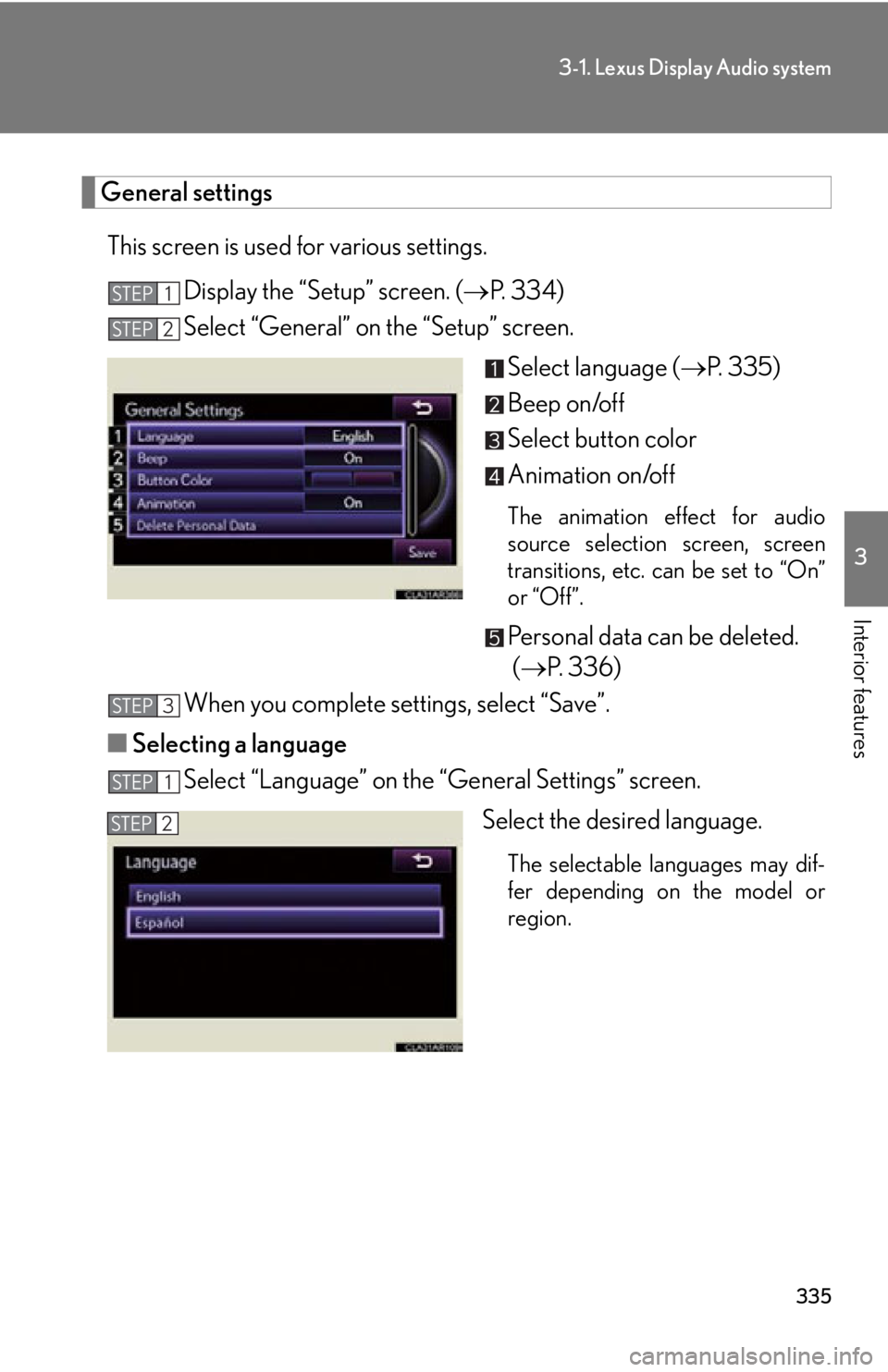
This screen is used for various settings.
Display the “Setup” screen. ( P. 3 3 4 )
Select “General” on the “Setup” screen.
Select language ( P. 335)
Beep on/off
Select button color
Animation on/off The animation effect for audio
source selection screen, screen
transitions, etc. can be set to “On”
or “Off”.
Personal data can be deleted.
( P. 3 3 6 )
When you complete settings, select “Save”.
■ Selecting a language
Select “Language” on the “General Settings” screen.
Select the desired language. The selectable languages may dif-
fer depending on the model or
region.STEP 1
STEP 2
STEP 3
STEP 1
STEP 2
Page 336 of 886
3363-1. Lexus Display Audio system
■ Delete personal data
Select “Delete Personal Data” on the “General Settings” screen.
Select “Delete”. Check carefully beforehand, as
data cannot be retrieved once
deleted.
A confirmation screen will be displayed. Select “Yes”.
The following personal data can be deleted or turn ed to their default set-
tings. •Phonebook data
• Call history data
• Speed dial data
•Bluetooth
devices data
• Phone sound settings
• Detailed Bluetooth
settings
• Sound settings
• Preset switch data
• Last used radio station STEP 1
STEP 2
STEP 3
Page 337 of 886
3373-1. Lexus Display Audio system
3
Interior features Vehicle settings
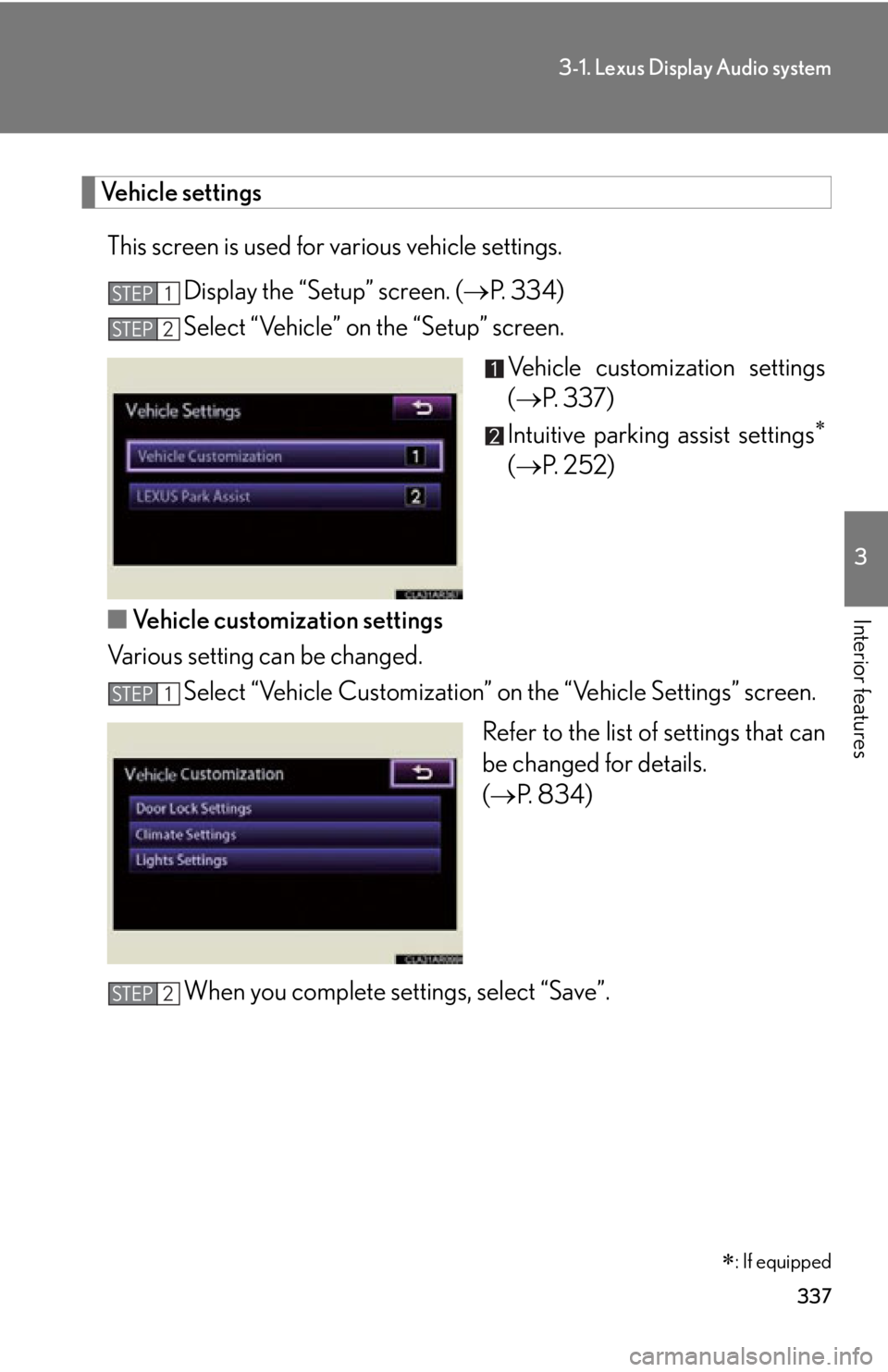
This screen is used for various vehicle settings.
Display the “Setup” screen. ( P. 3 3 4 )
Select “Vehicle” on the “Setup” screen.
Vehicle customization settings
( P. 3 3 7 )
Intuitive parking assist settings
( P. 252)
■ Vehicle customization settings
Various setting can be changed.
Select “Vehicle Customization” on the “Vehicle Settings” screen.
Refer to the list of settings that can
be changed for details.
( P. 8 3 4 )
When you complete settings, select “Save”.STEP 1
STEP 2
: If equippedSTEP 1
STEP 2
Page 338 of 886
3383-1. Lexus Display Audio system
Audio settings
This screen is used for various audio settings.
Display the “Setup” screen. ( P. 3 3 4 )
Select “Audio” on the “Setup” screen.
HD Radio™ technology set-
tings ( P. 3 74 )
iPod setting ( P. 3 3 8 )
■ iPod setting
This screen is used for iPod setting.
Select “iPod Settings” on the “Audio Settings” screen. ( P. 3 3 8 )
Select “Display Cover Art”. “On” or “Off” can be selected to
display captured image/iPod cover
art in the screen.
When you complete settings, select “OK”.STEP 1
STEP 2
STEP 1
STEP 2
STEP 3
Page 339 of 886
3393-1. Lexus Display Audio system
3
Interior features Voice settings
This screen is used for guidance for Bluetooth ®
hands-free systems set-
ting.
Display the “Setup” screen. ( P. 3 3 4 )
Select “Voice” on the “Setup” screen.
Voice guidance volume setting
Voice recognition prompts on/
off
Restore default settings
When you complete settings, select “OK”.STEP 1
STEP 2
STEP 3
STEP 4
Page 340 of 886
3403-1. Lexus Display Audio system
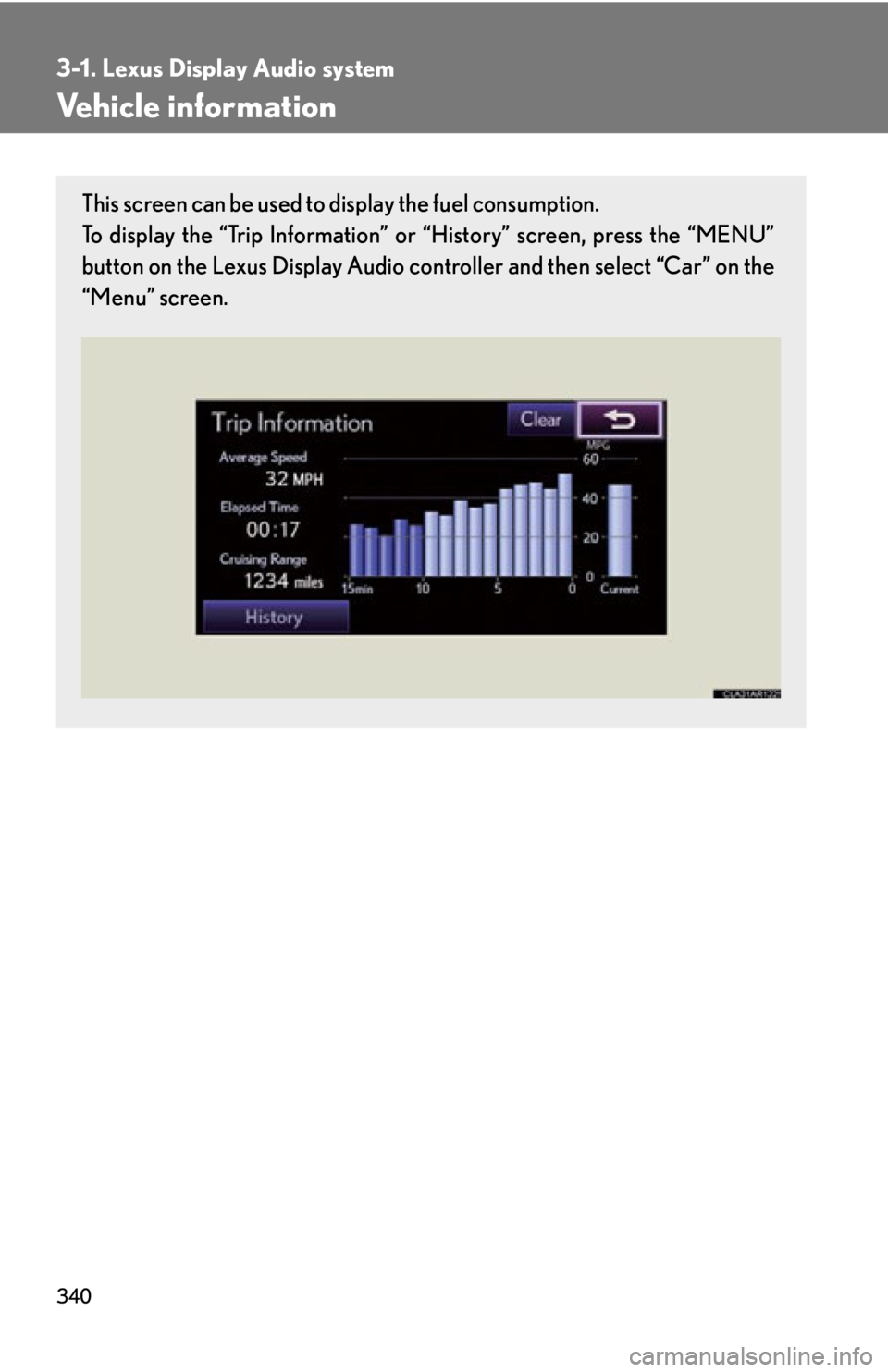
Vehicle information This screen can be used to display the fuel consumption.
To display the “Trip Information” or “History” screen, press the “MENU”
button on the Lexus Display Audio controller and then select “Car” on the
“Menu” screen.
Page 341 of 886
3413-1. Lexus Display Audio system
3
Interior features Fuel consumption
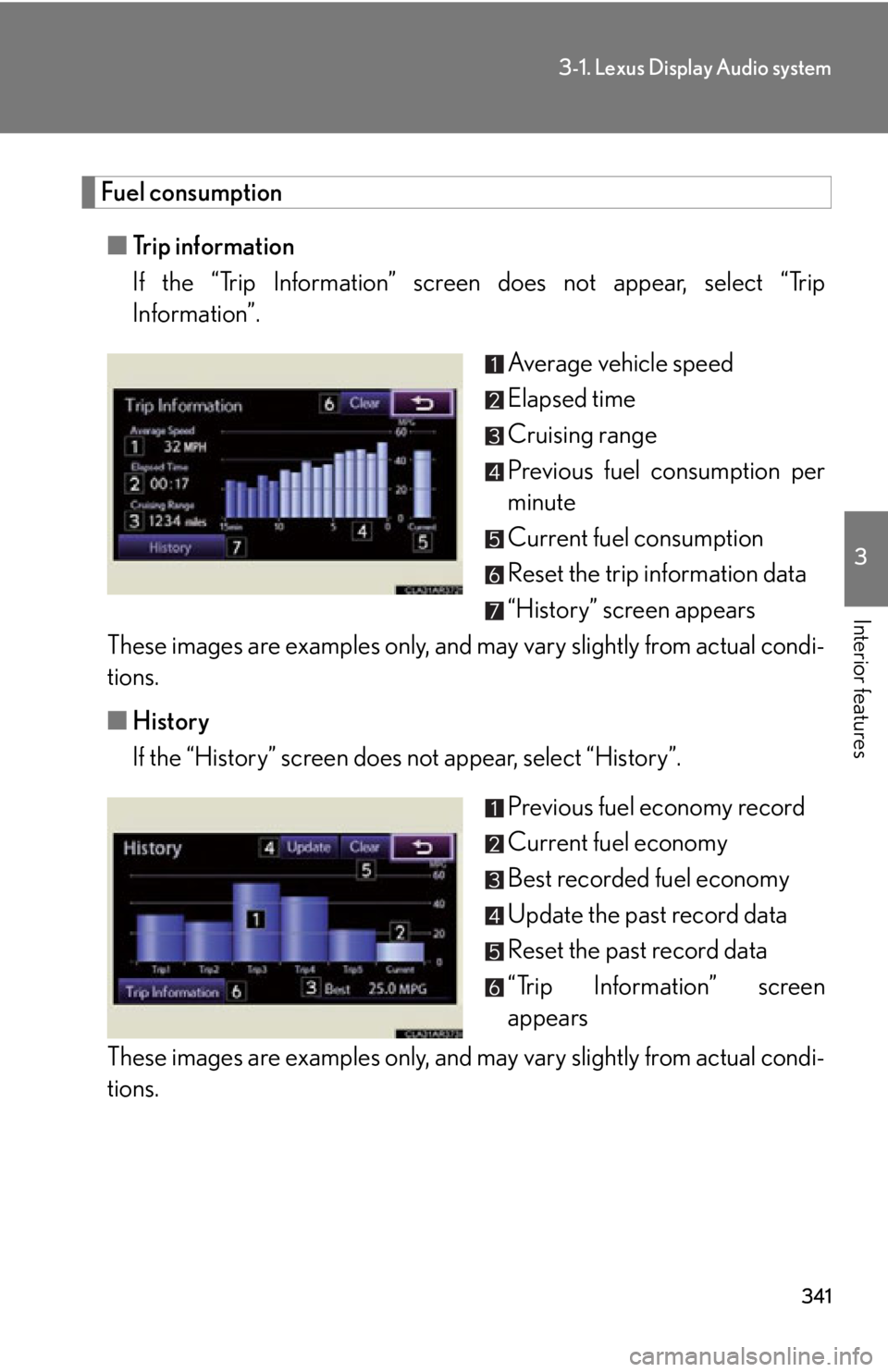
■ Trip information
If the “Trip Information” screen does not appear, select “Trip
Information”.
Average vehicle speed
Elapsed time
Cruising range
Previous fuel consumption per
minute
Current fuel consumption
Reset the trip information data
“History” screen appears
These images are examples only, and may vary slightly from actual condi-
tions.
■ History
If the “History” screen does not appear, select “History”.
Previous fuel economy record
Current fuel economy
Best recorded fuel economy
Update the past record data
Reset the past record data
“Trip Information” screen
appears
These images are examples only, and may vary slightly from actual condi-
tions.
Page 342 of 886
3423-1. Lexus Display Audio system
■
Updating the past record data
Selecting “Update” on the “History” screen will update the past record data.
Also, the average fuel consumption displayed in the multi-information display will
be reset at the same time.