Page 327 of 886

Interior features
3
327Using the hands-free system
(for mobile phones)............. 565
Making a phone call .............. 573
Setting a mobile phone......... 578
Security and system
setup ....................................... 584
Using the phone book.......... 588
3-5. Using the interior lights
Interior lights list ..................... 595
• Interior lights ........................ 596
• Personal lights ...................... 596
3-6. Using the storage
features
List of storage features ......... 598
• Glove box .............................. 599
• Bottle holders/
door pockets ........................ 600
• Cup holders ........................... 601
• Console box .......................... 604
• Coin holder ........................... 606
• Auxiliary boxes .................... 606
• Under tray ............................ 608 3-7. Other interior features
Sun visors ................................. 609
Vanity mirrors .......................... 610
Clock ............................................ 611
Outside temperature
display...................................... 613
Multi-display light control ..... 615
Power outlets ............................ 616
Heated steering wheel .......... 619
Seat heaters and
ventilators ............................. 620
Armrest .................................... 622
Coat hooks .............................. 623
Assist grips ................................ 624
Floor mat .................................. 625
Luggage compartment
features ................................... 627
Garage door opener ............ 632
Compass .................................. 638
Safety Connect ...................... 642
Page 328 of 886
3283-1. Lexus Display Audio system
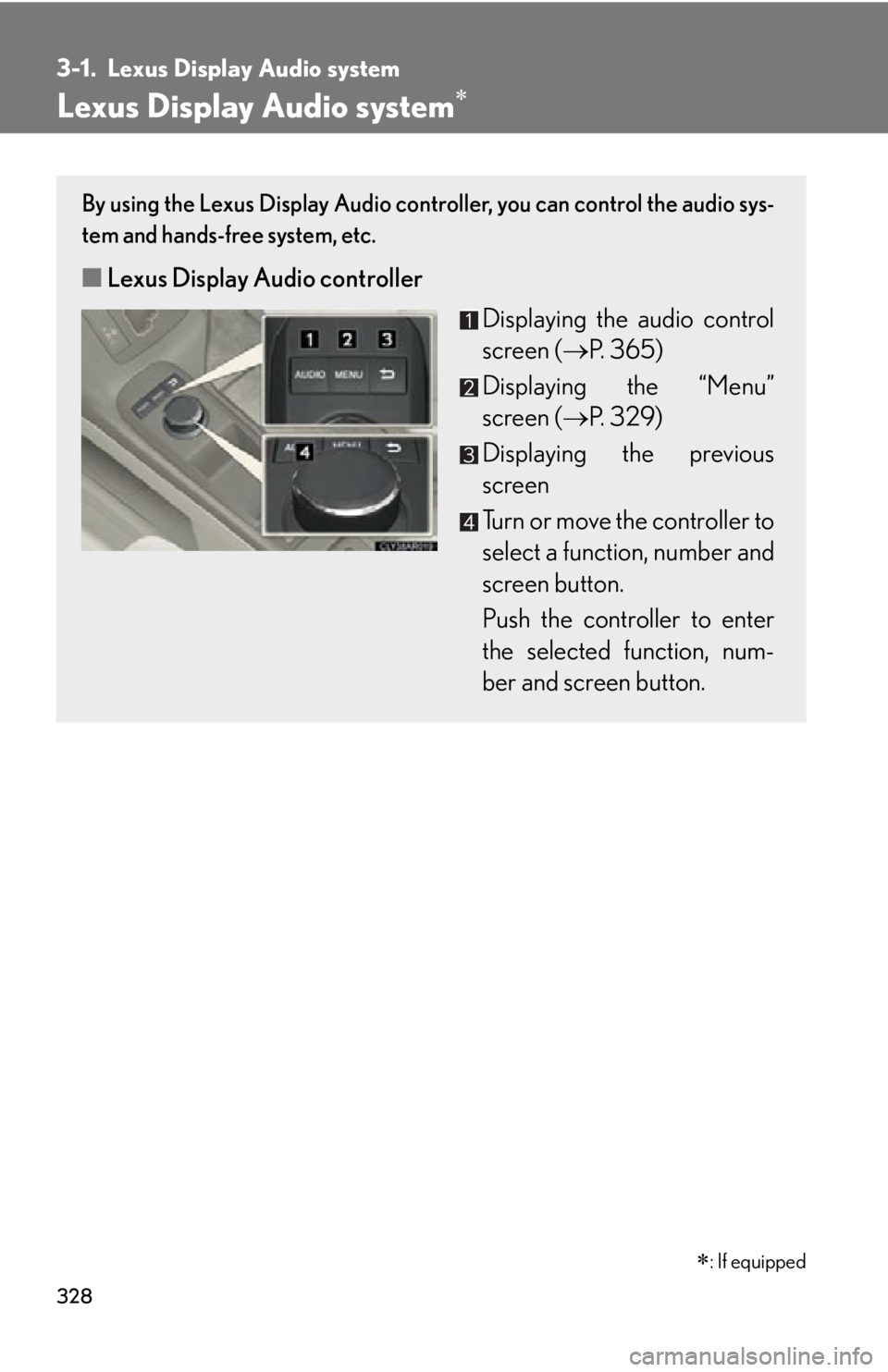
Lexus Display Audio system By using the Lexus Display Audio controller, you can control the audio sys-
tem and hands-free system, etc.
■ Lexus Display Audio controller
Displaying the audio control
screen ( P. 365)
Displaying the “Menu”
screen ( P. 3 2 9 )
Displaying the previous
screen
Turn or move the controller to
select a function, number and
screen button.
Push the controller to enter
the selected function, num-
ber and screen button.
: If equipped
Page 329 of 886
3293-1. Lexus Display Audio system
3
Interior features ■ “Menu” screen
To display the “Menu” screen, pres s the “MENU” button on the Lexus
Display Audio controller.
Button Function
“Climate” Automatic air conditioning system
( P. 3 4 5 )
“Phone” Hands-free system ( P. 4 3 3 )
“Car ” Vehicle information ( P. 3 4 0 )
“Setup” Setup menu ( P. 3 3 4 )
“Display” Display settings ( P. 3 3 2 )
Page 330 of 886
3303-1. Lexus Display Audio system
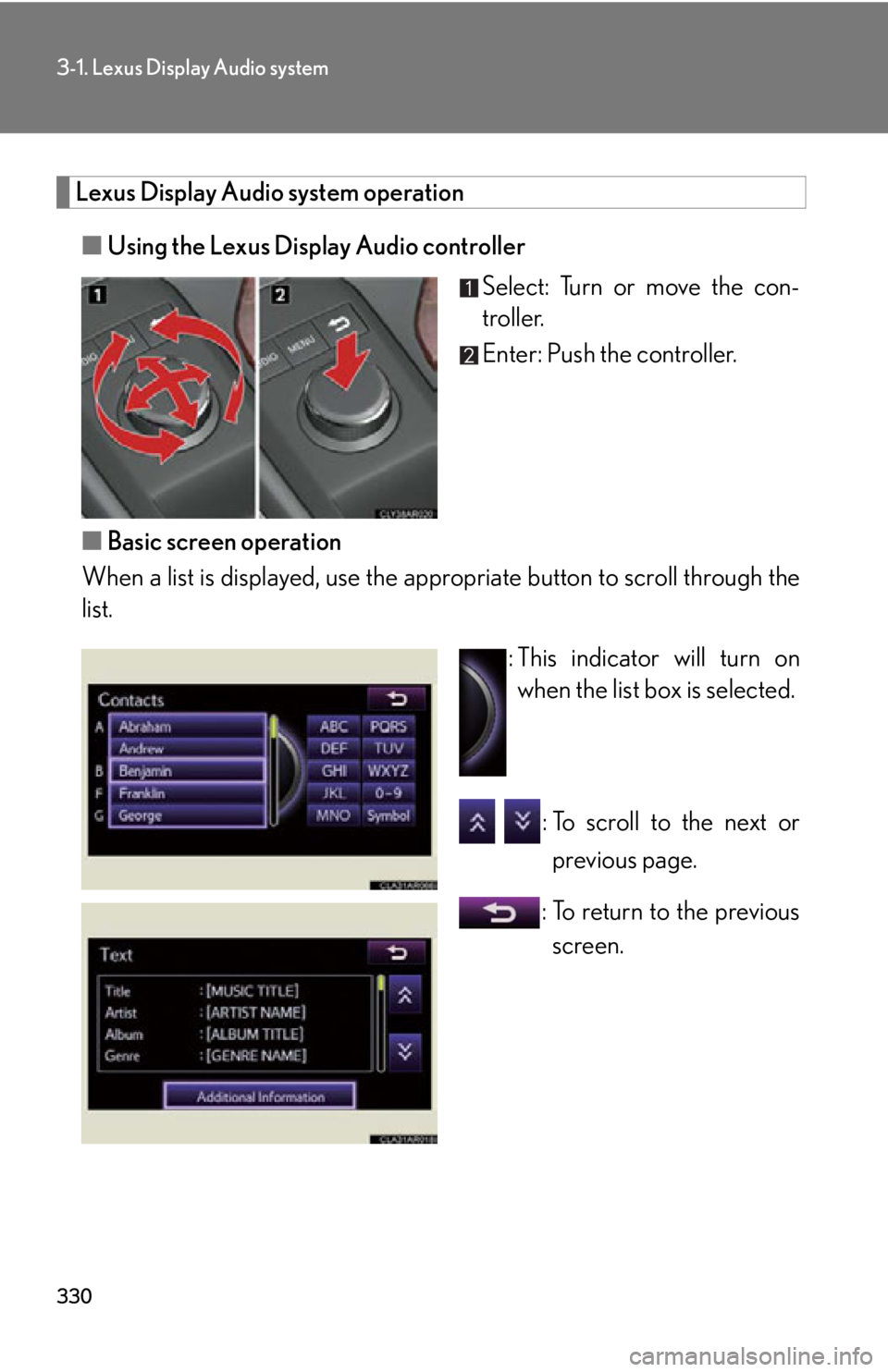
Lexus Display Audio system operation
■ Using the Lexus Display Audio controller
Select: Turn or move the con-
troller.
Enter: Push the controller.
■ Basic screen operation
When a list is displayed, use the a ppropriate button to scroll through the
list.
: This indicator will turn on
when the list box is selected.
: To scroll to the next or
previous page.
: To return to the previous
screen.
Page 331 of 886
3313-1. Lexus Display Audio system
3
Interior features ■
When using the screen ●
Under extremely cold conditions, the Lexus Display Audio controller may react
slowly.●
If the screen is cold, the display may be dark, or the system may seem to be
operating slightly slower than normal.●
The screen may seem dark and hard to see when viewed through sunglasses.
Change your angle of viewing, adjust the display on the “Display Settings”
screen ( P. 332) or remove your sunglasses.
CAUTION■
Using the Lexus Display Audio controller ●
Do not allow fingers, fingernails or hair to become caught in the Lexus Display
Audio controller as this may cause an injury.●
Be careful when touching the Lexus Display Audio controller in extreme temper-
atures as it may become very hot or cold due to the temperature inside the vehi-
cle.
NOTICE■
To prevent the Lexus Display Audio controller malfunction ●
Do not allow the Lexus Display Audio controller to come into contact with food,
liquid, stickers or lit cigarettes as doing so may cause it to change color, emit a
strange odor or stop functioning.●
Do not subject the Lexus Display Audio controller to excessive pressure or
strong impact as the controller may bend or break off.●
Do not allow coins, contact lenses or other such items to become caught in the
Lexus Display Audio controller as this may cause it to stop functioning.
●
Items of clothing may rip if they become caught on the Lexus Display Audio con-
troller.
●
If your hand or any object is on the Lexus Display Audio controller when the
“ENGINE START STOP” switch is turned to ACCESSORY mode, the Lexus
Display Audio controller may not operate properly.
Page 332 of 886
3323-1. Lexus Display Audio system
Display settings
Changing between day mode and night mode
When the headlights are turned on, the screen dims.
However, the screen can be switch ed to day mode by selecting “Day
Mode”.
If the screen is set in day mode with th e headlight switch turned on, this condi-
tion is memorized even with the “ENGINE START STOP” switch is turned
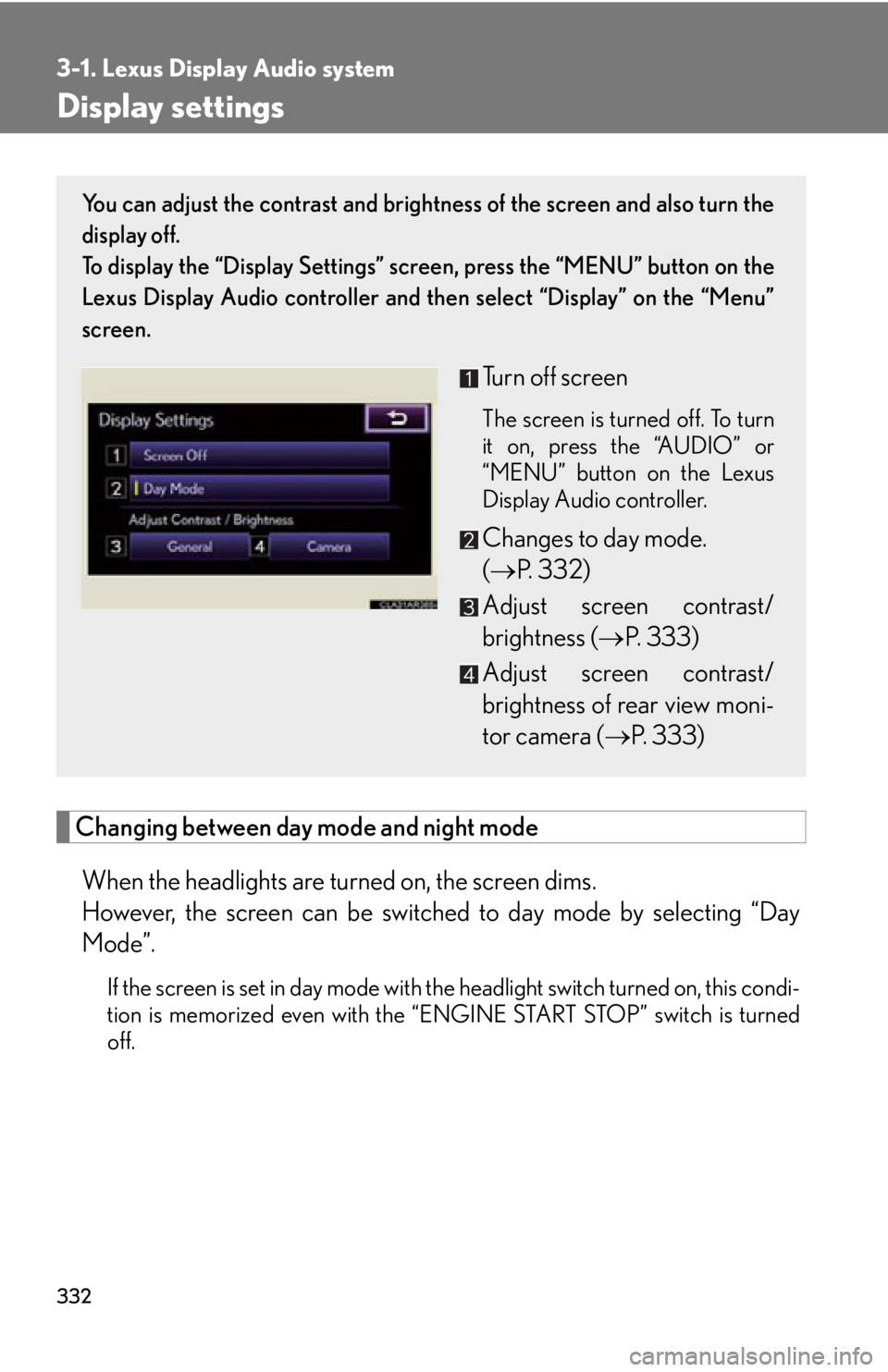
off. You can adjust the contrast and brightness of the screen and also turn the
display off.
To display the “Display Settings” sc reen, press the “MENU” button on the
Lexus Display Audio controller and then select “Display” on the “Menu”
screen.
Turn off screen The screen is turned off. To turn
it on, press the “AUDIO” or
“MENU” button on the Lexus
Display Audio controller.
Changes to day mode.
( P. 3 3 2 )
Adjust screen contrast/
brightness ( P. 333)
Adjust screen contrast/
brightness of rear view moni-
tor camera ( P. 333)
Page 333 of 886
3333-1. Lexus Display Audio system
3
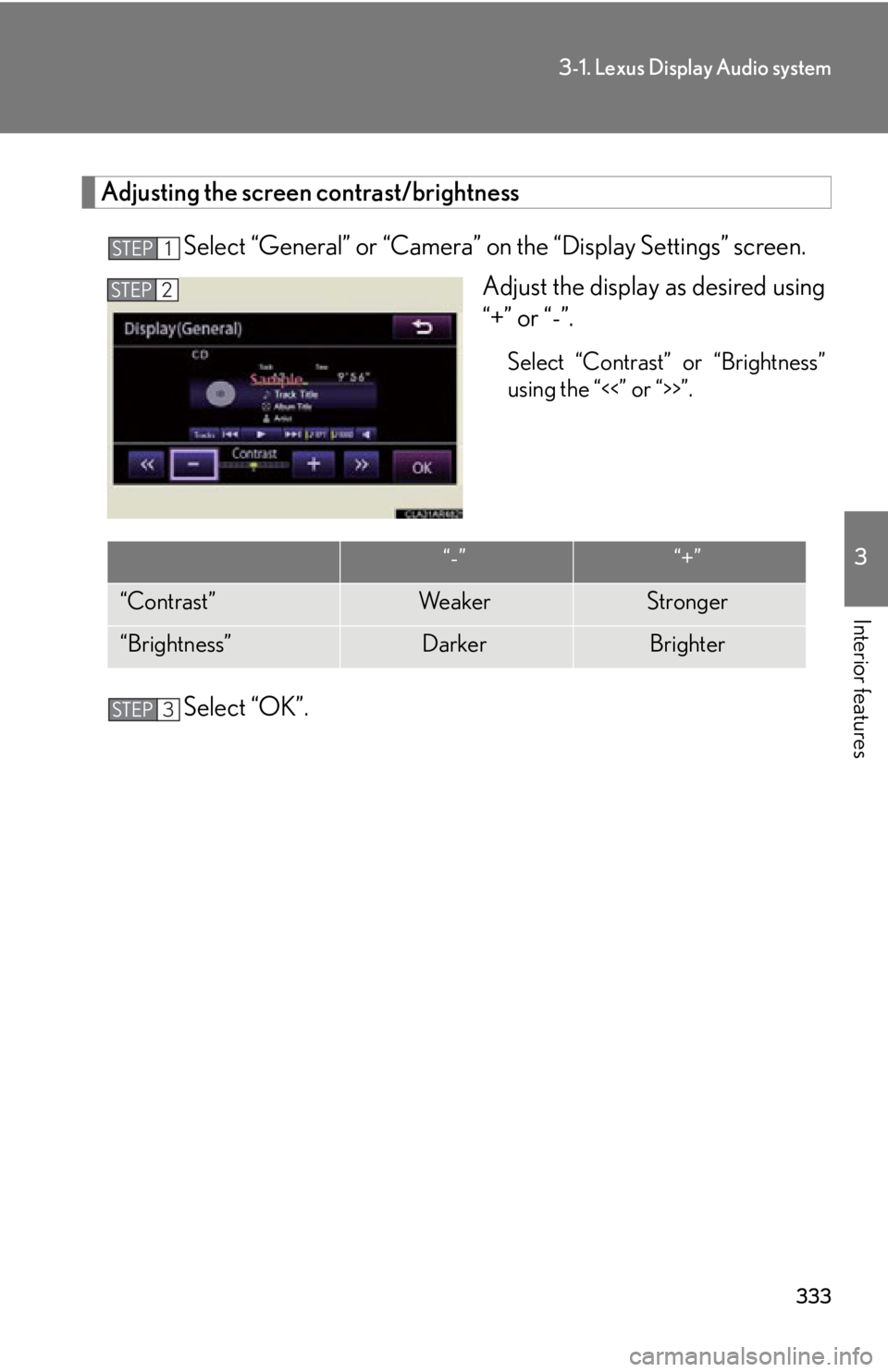
Interior features Adjusting the screen contrast/brightness
Select “General” or “Camera” on the “Display Settings” screen.
Adjust the displa y as desired using
“+” or “-”. Select “Contrast” or “Brightness”
using the “<<” or “>>”.
Select “OK”.STEP 1
STEP 2
“-” “+”
“Contrast” We a k e r Stronger
“Brightness” Darker BrighterSTEP 3
Page 334 of 886
3343-1. Lexus Display Audio system
Setup menu You can change the Lexus Display Audi o system to your desired setting.
To display the “Setup” screen, press the “MENU” button on the Lexus Dis-
play Audio controller and then sele ct “Setup” on the “Menu” screen.
* : Bluetooth is a registered tr ademark of Bluetooth SIG. Inc.Button Pa g e
“General” P. 3 3 5
“Voice” P. 3 3 9
“Bluetooth
* ” P. 4 7 2
“Phone” P. 4 5 9
“A u d i o ” P. 3 3 8
“Vehicle” P. 3 3 7