Page 205 of 678
•Zone (6)
– Odometer Digits (Left)
– Odometer Unit (Right)
– Speed Limiter (Left)
– Speed Limiter and Cruise Control Speed Set (Cen-
ter)
– Speed Buzzer (Right)
•Red Telltales(Left)
•Amber Telltales(Right)
Mapping And Reconfigurable Zone Display (DID)
— (If Equipped)
•Zone (1)– Includes 1A and 1B combined
– TRIP Info (Centered)
– Title (Centered)
– Audio Info (Centered)
Mapping And Reconfigurable Zone Display (DID)
5
GETTING TO KNOW YOUR INSTRUMENT PANEL 203
Page 206 of 678
•Zone (1A)
– Up and down arrow (Left)
– Title number
•Zone (1B)
– External Temp. (Centered)
– Title (Centered)
– Time (Centered)
•Zones (1, 2 & 3)
– Date
– Compass
– Time
– External Temp.
•Zone (2)
– Double scale (Centered)
•Zone (2 & 3)
– Ignition Button Info (Centered)
•Zone (4)
– Speed Warning Title
•Zone (5)
– Text (Centered)
– Side Distance Warning
– Park Sense: Front & Rear
•Zone (6)
– Odometer Digits (Left)
– Odometer Unit (Right)
– Side Distance Warning
– Park Sense: Front & Rear
•Zone (7)
– Red Telltales (Centered)
•Zone (8)
– Amber Telltales (Centered)
204 GETTING TO KNOW YOUR INSTRUMENT PANEL
Page 207 of 678
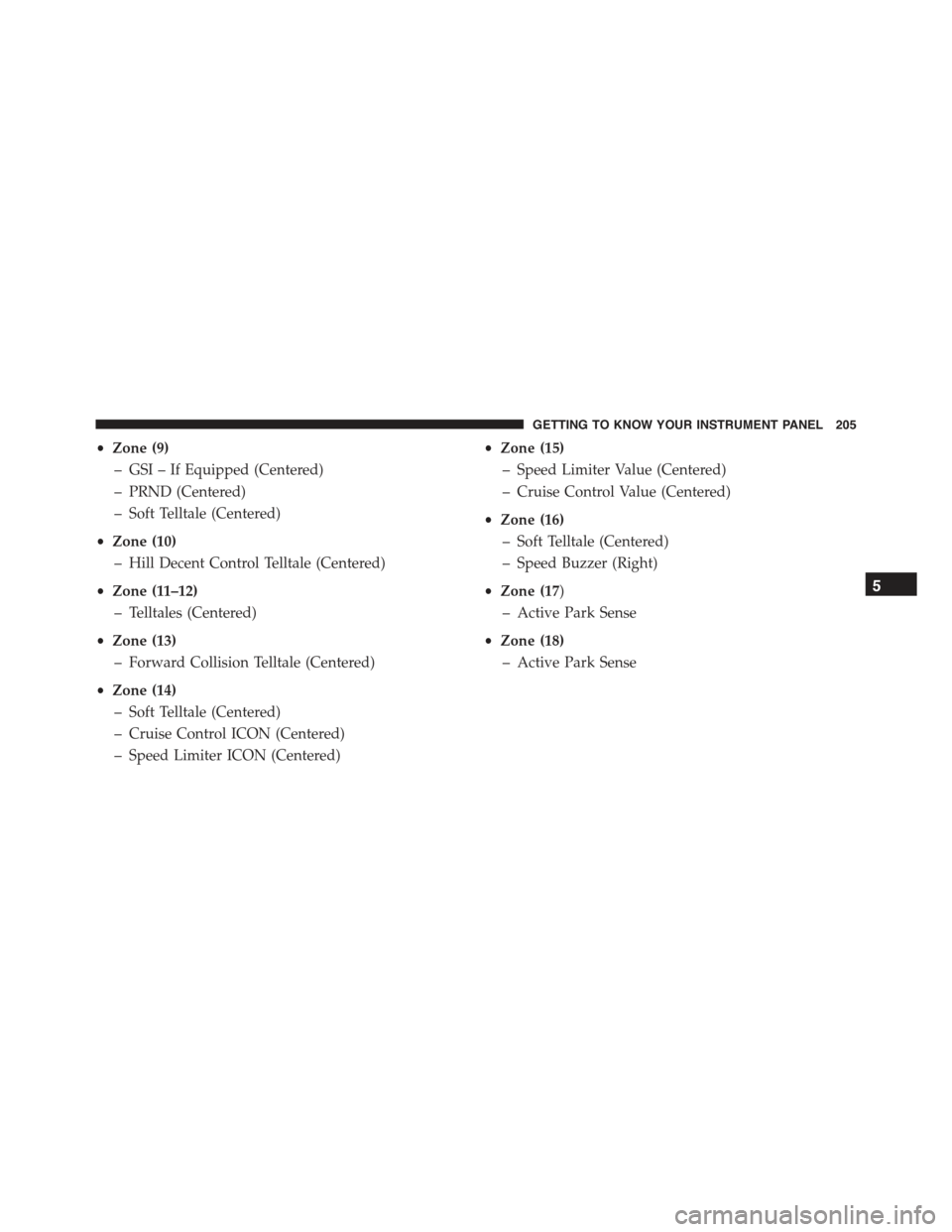
•Zone (9)
– GSI – If Equipped (Centered)
– PRND (Centered)
– Soft Telltale (Centered)
•Zone (10)
– Hill Decent Control Telltale (Centered)
•Zone (11–12)
– Telltales (Centered)
•Zone (13)
– Forward Collision Telltale (Centered)
•Zone (14)
– Soft Telltale (Centered)
– Cruise Control ICON (Centered)
– Speed Limiter ICON (Centered)
•Zone (15)
– Speed Limiter Value (Centered)
– Cruise Control Value (Centered)
•Zone (16)
– Soft Telltale (Centered)
– Speed Buzzer (Right)
•Zone (17)
– Active Park Sense
•Zone (18)
– Active Park Sense
5
GETTING TO KNOW YOUR INSTRUMENT PANEL 205
Page 208 of 678
EVIC/DID Control Buttons
The system allows the driver to select information by
pushing the following buttons mounted on the steering
wheel:
EVIC/DID Control Buttons1—ArrowUp/DownScrollThroughMenusAndSubmenus2 — Arrow Right/Left Access Information/Submenu Screens3 — OK Button For Selecting And Resetting Information
206 GETTING TO KNOW YOUR INSTRUMENT PANEL
Page 209 of 678
•UP Arrow Button
Push and release the UP arrow button to scroll
upward through the main menu and
submenus.
•DOWN Arrow Button
Push and release the DOWN arrow button to
scroll downward through the main menu and
submenus.
•RIGHT Arrow Button
Push and release the RIGHT arrow button to
access the information screens or submenu
screens of a main menu item.
•BACK/LEFT Arrow Button
Push and release the LEFT arrow button to
access the information screens or submenu
screens of a main menu item.
•OK Button
The OK button may be used for the following:
Select
Reset (hold)
EVIC/DID Main Menu
The Main Menu is composed of several options that can
be selected using the control buttons above.
NOTE:
•The display mode of the menu items varies depending
on the type of display.
•For some items, a submenu is provided.
•In the Uconnect® system, some items on the menu are
not shown on the instrument panel display.
5
GETTING TO KNOW YOUR INSTRUMENT PANEL 207
Page 210 of 678
Menu Items
The Menu has the following options:
•Speedometer
•Vehicle Info
•Driver Assist
•Fuel Consumption
•Trip
•Audio
•Alerts
•Display Setup
•Vehicle Setup
Speedometer
Push and release the UP or DOWN arrow button until
“Speedometer” is highlighted in the EVIC. Push the OK
button to change the speedometer scale from MPH
to km/h (km/h to MPH).
Vehicle Info
Push and release the UP or DOWN arrow button until
#Vehicle Info#is highlighted in the EVIC/DID. Push and
release the RIGHT arrow button and Coolant Temp will
be displayed. Push the RIGHT or LEFT arrow button to
scroll through the following information displays:
•Tire Pressure
View the information relating to the TPMS system (if
equipped).
•Engine Coolant Temperature
View the engine coolant temperature.
208 GETTING TO KNOW YOUR INSTRUMENT PANEL
Page 211 of 678

•Transmission Temperature
Display the temperature of the automatic transmission (if
equipped).
•Engine Oil Temperature
View the engine oil temperature.
•Battery Voltage
View the voltage value (state of charge) of the battery.
Driver Assist
This menu item allows you to change the settings (#No-
tice LaneSense#and#Intensity LaneSense#) relating to the
LaneSense system (if equipped).
•Notice LaneSense
By selecting this function, you can select the#readiness#
of LaneSense, choosing between the options#Near,##Me-
dium,#or#Far.#
•Intensity LaneSense
Using this function, you can select the force applied to
the steering wheel to keep the car in the roadway through
the electrical drive system due to LaneSense.
Fuel Consumption
This menu item allows you to set the unit of measure-
ment for the#Fuel Consumption and Range.#
•Average Consumption/Instantaneous Consumption
By selecting these options, you can choose the unit of
measurement of the average consumption and the instan-
taneous, choosing between#MPG#or#l/100 km#or
#km/l.#
•Range
By selecting this option, you can choose the unit of
measurement for Range, choosing between#km#or
#miles.”
5
GETTING TO KNOW YOUR INSTRUMENT PANEL 209
Page 212 of 678
Trip
This menu item allows you to view information about the
#Trip Computer.#
The information displayed, for Trip A and for Trip B, are:
•Distance
(Miles or Km)
•Average Consumption
(MPG, or l/ 100km or km/l)
•Travel Time
(Hour/Minute)
Audio
This menu item allows you to view the instrument
cluster display and the information present on the dis-
play of the Uconnect® system.
The information displayed is:
•“Radio (AM or FM)”
View Radio Station Name (if equipped), frequency, and
graphical icon
•$MP3”
Title display or number song playing
•$USB$
Title display or number song playing
•$Ipod$
Display song title (if equipped)
See Phone
The instrument cluster display can also display the
information concerning phone mode.
210 GETTING TO KNOW YOUR INSTRUMENT PANEL