2015 FORD TRANSIT service
[x] Cancel search: servicePage 328 of 461

Note:
SYNC Services requires activation
before use. Visit www.SYNCMyRide.com to
register and check your eligibility for
complimentary services. Standard phone
and message rates may apply. Subscription
may be required. You must also have the
active SYNC Services Bluetooth-enabled
cellular phone paired and connected to the
system in order to connect to, and use,
SYNC Services. See Using SYNC™ With
Your Phone (page 305).
Note: This feature does not function
properly if you have enabled caller ID
blocking on your cellular phone. Make sure
your cellular phone is not blocking caller ID
before using SYNC Services.
Note: The driver is ultimately responsible
for the safe operation of the vehicle, and
therefore, must evaluate whether it is safe
to follow the suggested directions. Any
navigation features provided are only an aid.
Make your driving decisions based on your
observations of local conditions and existing
traffic regulations. Do not follow the route
suggestions if doing so would result in an
unsafe or illegal maneuver, place you in an
unsafe situation, or if you would be directed
into an area that you consider unsafe. Maps
used by this system may be inaccurate
because of errors, changes in roads, traffic
conditions or driving conditions. Note:
When you connect, the service uses
GPS technology and advanced vehicle
sensors to collect your vehicle's current
location, travel direction and speed to help
provide you with the directions, traffic
reports, or business searches you request.
Further, to provide the services you request,
for continuous improvement, the service
may collect and record call details and voice
communications. For more information, see
SYNC Services Terms and Conditions at
www.SYNCMyRide.com. If you do not want
Ford or its service providers to collect your
vehicle travel information or other
information identified in the Terms and
Conditions, do not subscribe or use the
service.
SYNC Services uses advanced vehicle
sensors, integrated GPS technology and
comprehensive map and traffic data, to
give you personalized traffic reports,
precise turn-by-turn directions, business
search, news, sports, weather and more.
For a complete list of services, or to learn
more, please visit www.SYNCMyRide.com.
Connecting to SYNC Services Using Voice Commands
Press the voice button and when prompted say: Action and Description
Voice command
This initiates an outgoing call to SYNC Services using your
paired and connected Bluetooth-enabled cellular phone.
Services
Once you connect to the service, follow the voice prompts
to request the desired service, for example traffic or directions.
You can also say the following: Receive a list of available services from which to choose.
(what are my (options |
choices) | what can I say
| [available] commands)
325Transit (TTH) Canada/United States of America, enUSA, Edition date: 03/2014 SYNC™
Page 329 of 461

Action and Description
Voice command
To return to the Services main menu.
Services
Receive system help.
Help
You can say any of the voice commands that appear within open and close brackets that
are separated by |. For example, where (options | choices) appears you say; options or
choices.
You must say any of the voice commands that appear outside of open and close brackets.
For example, where; what are my (options | choices) appears, you must say; what are
my, followed by either, options or choices.
You do not need to say words that appear within square brackets. For example, for where
(what can I say [available] commands) appears, you can say, what can I say commands.
Connecting to SYNC Services Using the Phone Menu
Press the phone button, then scroll to: Action and Description
Message
Services 1. Press the OK button. The display indicates the system is
connecting.
2. Press the
OK button again. SYNC initiates the call to the
Services portal.
3. Once you connect to the service, follow the prompts to request the desired service, for example traffic or direc-
tions.
326Transit (TTH) Canada/United States of America, enUSA, Edition date: 03/2014 SYNC™
Page 330 of 461
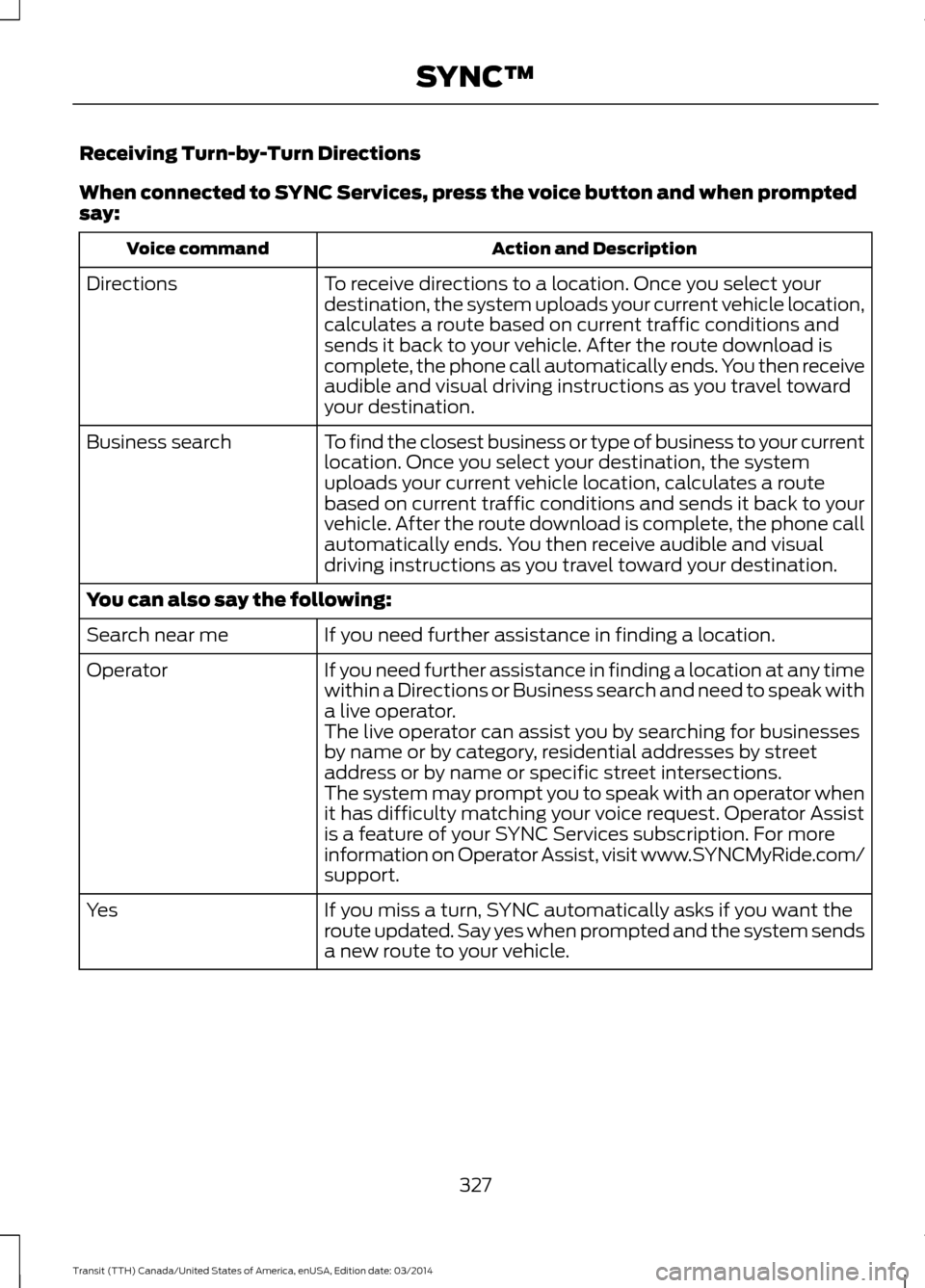
Receiving Turn-by-Turn Directions
When connected to SYNC Services, press the voice button and when prompted
say:
Action and Description
Voice command
To receive directions to a location. Once you select your
destination, the system uploads your current vehicle location,
calculates a route based on current traffic conditions and
sends it back to your vehicle. After the route download is
complete, the phone call automatically ends. You then receive
audible and visual driving instructions as you travel toward
your destination.
Directions
To find the closest business or type of business to your current
location. Once you select your destination, the system
uploads your current vehicle location, calculates a route
based on current traffic conditions and sends it back to your
vehicle. After the route download is complete, the phone call
automatically ends. You then receive audible and visual
driving instructions as you travel toward your destination.
Business search
You can also say the following:
If you need further assistance in finding a location.
Search near me
If you need further assistance in finding a location at any time
within a Directions or Business search and need to speak with
a live operator.
Operator
The live operator can assist you by searching for businesses
by name or by category, residential addresses by street
address or by name or specific street intersections.
The system may prompt you to speak with an operator when
it has difficulty matching your voice request. Operator Assist
is a feature of your SYNC Services subscription. For more
information on Operator Assist, visit www.SYNCMyRide.com/
support.
If you miss a turn, SYNC automatically asks if you want the
route updated. Say yes when prompted and the system sends
a new route to your vehicle.
Yes
327Transit (TTH) Canada/United States of America, enUSA, Edition date: 03/2014 SYNC™
Page 331 of 461

Disconnecting from SYNC Services
To disconnect from SYNC services, say:
Action and Description
Voice command
From the SYNC Services main menu, or press and hold the
phone button on the steering wheel.
Goodbye
SYNC Services quick tips SYNC Services quick tips
You can personalize your Services feature to provide quicker
access to your most used or favorite information. You can
save address points, for example work or home. You can also
save favorite information like sports teams or a news
category. You can learn more about personalization by logging
onto www.SYNCMyRide.com.
Personalizing
Press the voice button at any time while connected to SYNC
Services to interrupt a voice prompt or an audio clip, say your
voice command.
Push to interrupt
Your subscription is associated with your Bluetooth-enabled
cellular phone number, not your VIN (Vehicle Identification
Number). You can pair and connect your phone to any vehicle
equipped with SYNC Services and continue enjoying your
personalized services.
Portable
You can even access your account outside your vehicle. Just
use the number on your phone's call history. Traffic and
Directions features do not function properly but information
services and the 411 connect and text message features are
available.
SYNC Mobile Apps
The system enables voice and steering
wheel control of SYNC AppLink enabled
smartphone apps. Once an app is running
through AppLink, you can control main
features of the app through voice
commands and steering wheel controls.
Note: You must pair and connect your
smartphone to SYNC to access AppLink.
Note: iPhone users need to connect the
phone to the USB port. Note:
Android users need to connect the
phone to SYNC using Bluetooth.
Note: For information on available apps,
supported smartphone devices and
troubleshooting tips please visit the Ford
website.
328 Transit (TTH) Canada/United States of America, enUSA, Edition date: 03/2014 SYNC™
Page 334 of 461

Enabling and Disabling App Permissions Using the SYNC Menu
Press the Menu button to the SYNC menu and scroll to:
Action and Description
Message
Press the OK button.
SYNC applications
Press the
OK button.
Mobile Apps
Select the specific app and press the
OK button.
App Settings
If push notifications are supported, this setting is listed. Select
to enable or disable the feature as required.
All Apps
Enabling SYNC Mobile Apps
In order to enable mobile apps, SYNC
requires user consent to send and receive
app authorization information and updates
using the data plan associated with the
connected device.
Data is sent to Ford in the United States
through the connected device. The
information is encrypted and includes your
VIN, SYNC module number, anonymous
usage statistics and debugging
information. Updates may take place
automatically. Note:
You must enable mobile apps for
each connected device the first time you
select a mobile app using the system.
Note: Standard data rates apply. Ford is
not responsible for any additional charges
you may receive from your service provider,
when your vehicle sends or receives data
through the connected device. This includes
any additional charges incurred due to
driving in areas when roaming out of a home
network.
App Status
You can view the current status of an app
in the settings menu.
There are three possible statuses: Action and Description
Message
The system has detected a new app requiring authorization
or a general permissions update is required.
Update Needed
No update is required.
Up-To-Date
The system is trying to receive an update.
Updating...
If an update is required and you want to request it update
manually, for example when in a Wi-Fi hotspot.
Request Update
You can disable automatic updates in the settings menu.
Doing so also disables the use of Mobile Apps on SYNC.
Disable Updates
331Transit (TTH) Canada/United States of America, enUSA, Edition date: 03/2014 SYNC™
Page 348 of 461

USB and media issues
Possible solution(s)
Possible cause(s)
Issue
Make sure that the device
does not have an auto-
install program or active
security settings.
Make sure you are not
leaving the device in your
vehicle during very hot or
cold temperatures.
This is a device limitation.
SYNC does not recognize
my device when I turn on the
car.
Review the device compatib-
ility chart on the SYNC
website to confirm your
phone supports the
Bluetooth audio streaming
function.
This is a phone-dependent
feature.
The device is not connected.
Bluetooth audio does not
stream.
Make sure you correctly
connect the device to SYNC,
and that you have pressed
play on your device.
Make sure that all song
details are populated.
Your music files may not
contain the correct artist,
song title, album or genre
information.
SYNC does not recognize
music that is on my device.
Some devices require you to
change the USB settings
from mass storage to MTP
class.
The file may be corrupted.
The song may have copy-
right protection, which does
not allow it to play. Vehicle Health Report and Services (Traffic, Directions and Information) issues
Possible solution(s)
Possible cause(s)
Issue
This is a free feature, but you
must first register online to
use it.
You did not activate your
account on the website.
You may have the wrong
VIN (vehicle identification
number) listed.
I received a text that I did
not activate Vehicle Health
Report.
345Transit (TTH) Canada/United States of America, enUSA, Edition date: 03/2014 SYNC™
Page 349 of 461

Vehicle Health Report and Services (Traffic, Directions and Information) issues
Possible solution(s)
Possible cause(s)
Issue
Make sure that your VIN is
correctly listed in your
account.
When you register your
account, you must choose a
preferred dealer. If it already
lists a dealer, try selecting
another dealer and logging
out. Log back in, change it
back to your preferred
dealer, and retrieve the
report.
The preferred dealer
information did not load
correctly.
I am unable to retrieve the
report on the website, or I
receive a system error.
Update your cellular number
in your account on the
website.
This could be due to your
phone's compatibility.
Bad signal strength.
I am unable to submit a
report.
Make sure you have full
signal strength and that your
Bluetooth volume level has
been turned up.
You did not register your
phone correctly on the
website.
Make sure the currently
connected phone is
registered on your
SYNCMyRide account.
Try deleting your phone and
performing a clean pairing.
This is a free feature, but you
must first register online to
use it.
You did not activate this
phone for this service.
Your phone has ID blocker
active.
I heard a commercial when
I tried to use Traffic, Direc-
tions and Information.
Turn off ID blocker on your
phone as the system recog-
nizes you by your phone
number.
Make sure the currently
connected phone is the
same one that is registered
on your SYNCMyRide
account.
346 Transit (TTH) Canada/United States of America, enUSA, Edition date: 03/2014 SYNC™
Page 353 of 461

PHONE
Press to select any of the following:
Message
Phone
Quick Dial
Phonebook
History
Messaging
Settings
NAVIGATION
Press to select any of the following: Message
My Home
Favorites
Previous Destinations
Point of Interest
Emergency
Street Address
Intersection
City Center
Map
Edit Route
Cancel Route
SETTINGS Press to select any of the following:
Message
Clock
Display
Sound
Vehicle
Settings
Help
HOME Press to access the home
screen.
Note: Depending on your vehicle ’s option
package and software, the screens may vary
in appearance from the descriptions in this
section. The features may also be limited
depending on the market. Check with an
authorized dealer for availability.
INFORMATION Press to select any of the following:
Message
Services
Travel Link
Alerts
Calendar
Apps
350 Transit (TTH) Canada/United States of America, enUSA, Edition date: 03/2014 MyFord Touch
™E142607 E142613 E142608