2015 FORD SUPER DUTY air condition
[x] Cancel search: air conditionPage 327 of 470
Times are subject to change due toholidays.
SYNC Owner Account
Why do I need a SYNC owner account?
•Required to activate Vehicle HealthReport and to view the reports online.
•Required to activate thesubscription-based SYNC Services andto personalize your Saved Points andFavorites.
•Essential for keeping up with the latestsoftware downloads available forSYNC.
•Access to customer support for anyquestions you may have.
Driving Restrictions
For your safety, certain features arespeed-dependent and restricted when yourvehicle is traveling over 3 mph (5 km/h).
Safety Information
WARNING
Driving while distracted can result inloss of vehicle control, crash andinjury. We strongly recommend thatyou use extreme caution when using anydevice that may take your focus off theroad. Your primary responsibility is the safeoperation of your vehicle. We recommendagainst the use of any hand-held devicewhile driving and encourage the use ofvoice-operated systems when possible.Make sure you are aware of all applicablelocal laws that may affect the use ofelectronic devices while driving.
When using SYNC:
•Do not operate playing devices if thepower cords or cables are broken, splitor damaged. Place cords and cablesout of the way, so they do not interferewith the operation of pedals, seats,compartments or safe driving abilities.
•Do not leave playing devices in yourvehicle during extreme conditions as itcould cause them damage. See yourdevice's manual for further information.
•Do not attempt to service or repair thesystem. See an authorized dealer.
Privacy Information
When a cellular phone is connected toSYNC, the system creates a profile withinyour vehicle that is linked to that cellularphone. This profile is created in order tooffer you more cellular features and tooperate more efficiently. Among otherthings, this profile may contain data aboutyour cellular phone book, text messages(read and unread), and call history,including history of calls when your cellularphone was not connected to the system.In addition, if you connect a media device,the system creates and retains an index ofsupported media content. The system alsorecords a short development log ofapproximately 10 minutes of all recentsystem activity. The log profile and othersystem data may be used to improve thesystem and help diagnose any problemsthat may occur.
The cellular profile, media device index,and development log will remain in thevehicle unless you delete them and aregenerally accessible only in the vehiclewhen the cellular phone or media playeris connected. If you no longer plan to usethe system or the vehicle, we recommendyou perform a Master Reset to erase allstored information.
324Super Duty (), enUSASYNC™ (If Equipped)
Page 345 of 470
Note:SYNC Services requires activationbefore use. Visit www.SYNCMyRide.com toregister and check your eligibility forcomplimentary services. Standard phoneand message rates may apply. Subscriptionmay be required. You must also have theactive SYNC Services Bluetooth-enabledcellular phone paired and connected to thesystem in order to connect to, and use,SYNC Services. See Using SYNC™ WithYour Phone (page 327).
Note:This feature does not functionproperly if you have enabled caller IDblocking on your cellular phone. Make sureyour cellular phone is not blocking caller IDbefore using SYNC Services.
Note:The driver is ultimately responsiblefor the safe operation of the vehicle, andtherefore, must evaluate whether it is safeto follow the suggested directions. Anynavigation features provided are only an aid.Make your driving decisions based on yourobservations of local conditions and existingtraffic regulations. Do not follow the routesuggestions if doing so would result in anunsafe or illegal maneuver, place you in anunsafe situation, or if you would be directedinto an area that you consider unsafe. Mapsused by this system may be inaccuratebecause of errors, changes in roads, trafficconditions or driving conditions.
Note:When you connect, the service usesGPS technology and advanced vehiclesensors to collect your vehicle's currentlocation, travel direction and speed to helpprovide you with the directions, trafficreports, or business searches you request.Further, to provide the services you request,for continuous improvement, the servicemay collect and record call details and voicecommunications. For more information, seeSYNC Services Terms and Conditions atwww.SYNCMyRide.com. If you do not wantFord or its service providers to collect yourvehicle travel information or otherinformation identified in the Terms andConditions, do not subscribe or use theservice.
SYNC Services uses advanced vehiclesensors, integrated GPS technology andcomprehensive map and traffic data, togive you personalized traffic reports,precise turn-by-turn directions, businesssearch, news, sports, weather and more.For a complete list of services, or to learnmore, please visit www.SYNCMyRide.com.
Connecting to SYNC Services UsingVoice Commands
1.Press the voice button.
2.When prompted, say "Services". Thisinitiates an outgoing call to SYNCServices using your paired andconnected Bluetooth-enabled cellularphone.
3.Once you connect to the service, followthe voice prompts to request thedesired service, such as Traffic orDirections. You can also say, "What aremy choices?" to receive a list ofavailable services from which tochoose.
4.Say, "Services" to return to the Servicesmain menu or for help, say, "Help".
342Super Duty (), enUSASYNC™ (If Equipped)
Page 365 of 470
Monday-Saturday, 8:30am-9:00pm EST.
Sunday, 10:30am-7:30pm EST.
In the United States, call: 1-800-392-3673.
In Canada, call: 1-800-565-3673.
Times are subject to change due toholidays.
Safety Information
WARNING
Driving while distracted can result inloss of vehicle control, crash andinjury. We strongly recommend thatyou use extreme caution when using anydevice that may take your focus off theroad. Your primary responsibility is the safeoperation of your vehicle. We recommendagainst the use of any hand-held devicewhile driving and encourage the use ofvoice-operated systems when possible.Make sure you are aware of all applicablelocal laws that may affect the use ofelectronic devices while driving.
•Do not attempt to service or repair thesystem. See an authorized dealer.
•Do not operate playing devices if thepower cords or cables are broken, splitor damaged. Place cords and cablesout of the way, so they do not interferewith the operation of pedals, seats,compartments or safe driving abilities.
•Do not leave playing devices in yourvehicle during extreme conditions as itcould cause them damage. See yourdevice's user guide for furtherinformation.
•For your safety, some SYNC functionsare speed-dependent. Their use islimited to when your vehicle is travelingat speeds under 3 mph (5 km/h).
Make sure that you review your device'smanual before using it with SYNC.
Speed-restricted Features
Some features of this system may be toodifficult to use while your vehicle is movingso they are restricted from use unless yourvehicle is stationary.
•Screens crowded with information,such as Point of Interest reviews andratings, SIRIUS Travel Link sportsscores, movie times or ski conditions.
•Any action that requires you to use akeyboard is restricted, such as enteringa navigation destination or editinginformation.
•All lists are limited so the user can viewfewer entries (such as phone contactsor recent phone call entries).
See the following chart for more specificexamples.
Restricted features
Pairing a Bluetooth phoneCellular Phone
Adding phonebook contacts or uploading phonebookcontacts (from a USB)
List entries are limited for phone contacts and recentphone call entries
Editing the keypad codeSystem Functionality
Enabling Valet Mode
362Super Duty (), enUSAMyFord Touch™ (If Equipped)
Page 370 of 470
Under this menu, you can setyour clock, access and adjust thedisplay, sound and vehiclesettings as well as access settings forspecific modes or the help feature.
Clock
Note:You cannot manually set the date.Your vehicle’s GPS does this for you.
Note:If the battery has been disconnected,your vehicle needs to acquire a GPS signalto update the clock. Once your vehicleacquires the signal, it may take a fewminutes for the update to display the correcttime.
1.Press the Settings icon > Clock.
2.Press + and - to adjust the time.
From this screen, you can also make otheradjustments such as 12-hour or 24-hourmode, activate GPS time synchronizationand have the system automatically updatenew time zones.
You can also turn the outside airtemperature display off and on. It appearsat the top center of the touchscreen, nextto the time and date.
The system automatically saves anyupdates you make to the settings.
Display
You can adjust the touchscreen displaythrough the touchscreen or by pressing thevoice button on your steering wheelcontrols and when prompted, say, "Displaysettings".
Press the Settings icon >Display, to access and makeadjustments using thetouchscreen.
•Brightness allows you to make thescreen display brighter or dimmer.
•Auto DIM, when set to On, lets you usethe Auto Dim Manual Offset feature.When set to Off, screen brightnessdoes not change.
•Mode allows you to set the screen toa certain brightness or have the systemautomatically change based on theoutside light level, or turn the displayoff.
•If you select AUTO or NIGHT, youhave the options of turning thedisplay's Auto Dim feature on or offand changing the Auto Dim ManualOffset feature.
•Auto Dim Manual Offset allows youto adjust screen dimming as theoutside lighting conditions change fromday to night. This feature also allowsyou to adjust screen brightness usingthe instrument panel dimming control.
•Edit Wallpaper
•You can have your touchscreendisplay the default photo or uploadyour own.
Uploading Photos for Your HomeScreen Wallpaper
Note:You cannot load photos directly fromyour camera. You must access the photoseither from your USB mass storage deviceor from an SD card.
Note:Photographs with extremely largedimensions (such as 2048 x 1536) may notbe compatible and appear as a blank(black) image on the display.
Your system allows you to upload and viewup to 32 photos.
To access, press the Settingsicon > Display > EditWallpaper, and then follow thesystem prompts to upload yourphotographs.
367Super Duty (), enUSAMyFord Touch™ (If Equipped)E142607 E142607 E142607 E142607
Page 403 of 470
Under the Information menu, you canaccess features such as:
•SYNC Services
•Sirius Travel Link
•Alerts
•Calendar
•SYNC Applications
If your vehicle is equipped withNavigation, press theInformation button to accessthese features. If your vehicle is notequipped with Navigation, press the cornerof the touchscreen with the green tab.
SYNC Services (If Equipped,United States Only)
Note:SYNC Services varies by trim leveland model year and may require asubscription. Traffic alerts and turn-by-turndirections available in select markets.Message and data rates may apply. FordMotor Company reserves the right to changeor discontinue this product service at anytime without prior notification or incurringany future obligation.
Note:SYNC Services requires activationbefore use. Visit www.SYNCMyRide.com toregister and check your eligibility forcomplimentary services. Standard phoneand message rates may apply. Subscriptionmay be required. You must also have theactive SYNC Services Bluetooth-enabledcellular phone paired and connected to thesystem in order to connect to, and use,SYNC Services. See Phone (page 393).
Note:This feature does not functionproperly if you have enabled caller IDblocking on your cellular phone. Make sureyour cellular phone is not blocking caller IDbefore using SYNC Services.
Note:The driver is ultimately responsiblefor the safe operation of the vehicle, andtherefore, must evaluate whether it is safeto follow the suggested directions. Anynavigation features provided are only an aid.Make your driving decisions based on yourobservations of local conditions and existingtraffic regulations. Do not follow the routesuggestions if doing so would result in anunsafe or illegal maneuver, if you would beplaced in an unsafe situation, or if you wouldbe directed into an area that you considerunsafe. Maps used by this system may beinaccurate because of errors, changes inroads, traffic conditions or drivingconditions.
Note:When you connect, the service usesGPS technology and advanced vehiclesensors to collect your vehicle's currentlocation, travel direction and speed to helpprovide you with the directions, trafficreports, or business searches you request.Further, to provide the services you request,for continuous improvement, the servicemay collect and record call details and voicecommunications. For more information, seeSYNC Services Terms and Conditions atwww.SYNCMyRide.com. If you do not wantFord or its service providers to collect yourvehicle travel information or otherinformation identified in the Terms andConditions, do not subscribe or use theservice.
SYNC Services uses advanced vehiclesensors, integrated GPS technology andcomprehensive map and traffic data, togive you personalized traffic reports,precise turn-by-turn directions, businesssearch, news, sports, weather and more.For a complete list of services, or to learnmore, please visit www.SYNCMyRide.com.
Connecting to SYNC Services UsingVoice Commands
400Super Duty (), enUSAMyFord Touch™ (If Equipped)E142608 E142599
Page 411 of 470
To run a report by voicecommand, press the voicebutton on the steering wheeland, when prompted, say "Vehicle healthreport".
Vehicle Health Report Privacy Notice
When you create a Vehicle Health Report,Ford Motor Company may collect yourcellular phone number (to process yourreport request) and diagnostic informationabout your vehicle. Certain versions orupdates to Vehicle Health Report may alsocollect more vehicle information. Ford mayuse your vehicle information it collects forany purpose. If you do not want to discloseyour cellular phone number or vehicle
information, do not run the feature or setup your Vehicle Health Report profile atwww.SYNCMyRide.com. Seewww.SYNCMyRide.com (Vehicle HealthReport Terms and Conditions, and PrivacyStatement) for more information.
CLIMATE
Touch the lower right corner on thetouchscreen to access your climate controlfeatures. Depending on your vehicle lineand option package, your climate screenmay look different from this screen.
Note:You can switch temperature unitsbetween Fahrenheit and Celsius. SeeSettings (page 366).
Power: Touch the button to turn the system on and off. Switching off theclimate control system prevents outside air from entering the vehicle.A
Passenger settings:B
Touch the + or – to increase or decrease the air temperature on the passengerside of the vehicle.
Touch the heated seat icon to turn the heated seat off and on (if equipped).
Touch the climate-controlled seat icon to turn the climate-controlled seat offand on (if equipped).
408Super Duty (), enUSAMyFord Touch™ (If Equipped)E142599 E166138AKBJCIHGFED
Page 412 of 470
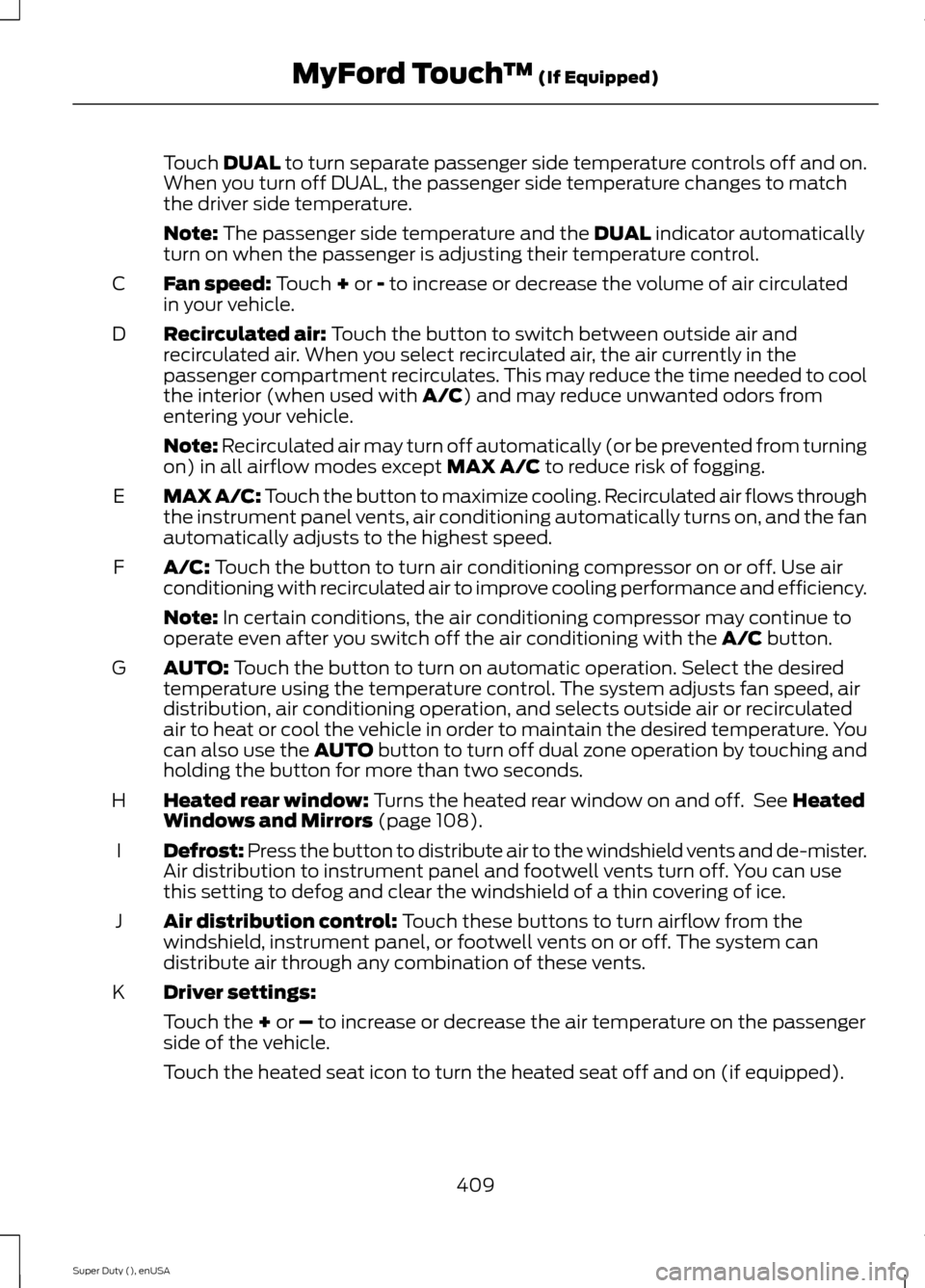
Touch DUAL to turn separate passenger side temperature controls off and on.When you turn off DUAL, the passenger side temperature changes to matchthe driver side temperature.
Note: The passenger side temperature and the DUAL indicator automaticallyturn on when the passenger is adjusting their temperature control.
Fan speed: Touch + or - to increase or decrease the volume of air circulatedin your vehicle.C
Recirculated air: Touch the button to switch between outside air andrecirculated air. When you select recirculated air, the air currently in thepassenger compartment recirculates. This may reduce the time needed to coolthe interior (when used with A/C) and may reduce unwanted odors fromentering your vehicle.
D
Note: Recirculated air may turn off automatically (or be prevented from turningon) in all airflow modes except MAX A/C to reduce risk of fogging.
MAX A/C: Touch the button to maximize cooling. Recirculated air flows throughthe instrument panel vents, air conditioning automatically turns on, and the fanautomatically adjusts to the highest speed.
E
A/C: Touch the button to turn air conditioning compressor on or off. Use airconditioning with recirculated air to improve cooling performance and efficiency.F
Note: In certain conditions, the air conditioning compressor may continue tooperate even after you switch off the air conditioning with the A/C button.
AUTO: Touch the button to turn on automatic operation. Select the desiredtemperature using the temperature control. The system adjusts fan speed, airdistribution, air conditioning operation, and selects outside air or recirculatedair to heat or cool the vehicle in order to maintain the desired temperature. Youcan also use the AUTO button to turn off dual zone operation by touching andholding the button for more than two seconds.
G
Heated rear window: Turns the heated rear window on and off. See HeatedWindows and Mirrors (page 108).H
Defrost: Press the button to distribute air to the windshield vents and de-mister.Air distribution to instrument panel and footwell vents turn off. You can usethis setting to defog and clear the windshield of a thin covering of ice.
I
Air distribution control: Touch these buttons to turn airflow from thewindshield, instrument panel, or footwell vents on or off. The system candistribute air through any combination of these vents.
J
Driver settings:K
Touch the + or – to increase or decrease the air temperature on the passengerside of the vehicle.
Touch the heated seat icon to turn the heated seat off and on (if equipped).
409Super Duty (), enUSAMyFord Touch™ (If Equipped)
Page 432 of 470
Potential Map Inaccuracy: Maps usedby this system may be inaccurate becauseof changes in roads, traffic controls ordriving conditions. Always use goodjudgment and common sense whenfollowing the suggested routes.
Emergency Services: Do not rely on anynavigation features included in the systemto route you to emergency services. Asklocal authorities or an emergency servicesoperator for these locations. Not allemergency services such as police, firestations, hospitals and clinics are likely tobe contained in the map database for suchnavigation features.
TeleNav Software End User LicenseAgreement
Please read these terms and conditionscarefully before you use the TelenavSoftware. Your use of the TelenavSoftware indicates that you accept theseterms and conditions. If you do not acceptthese terms and conditions, do not breakthe seal of the package, launch, orotherwise use the Telenav Software.
These terms and conditions represent theagreement (“Agreement”) between youand Telenav, Inc. (“Telenav”) with respectto the Telenav Software (includingupgrades, modifications, or additionsthereto) (collectively “Telenav Software”).All references herein to “you” and “your”means you, your employees, agents, andcontractors, and any other entity on whosebehalf you accept these terms andconditions, all of whom shall also be boundby this Agreement. Additionally, all of youraccount information, as well as otherpayment and personal informationprovided by you to Telenav (directly orthrough the use of the Telenav Software,is subject to Telenav’s privacy policylocated at http://www.telenav.com.
Telenav may revise this Agreement andthe privacy policy at any time, with orwithout notice to you. You agree to visithttp://www.telenav.com from time to timeto review the then current version of thisAgreement and of the privacy policy.
1. Safe and Lawful Use
You acknowledge that devoting attentionto the Telenav Software may pose a riskof injury or death to you and others insituations that otherwise require yourundivided attention, and you thereforeagree to comply with the following whenusing the Telenav Software: (a) observeall traffic laws and otherwise drive safely;(b) use your own personal judgment whiledriving. If you feel that a route suggestedby the Telenav Software instructs you toperform an unsafe or illegal maneuver,places you in an unsafe situation, or directsyou into an area that you consider to beunsafe, do not follow such instructions; (c)do not input destinations, or otherwisemanipulate the Telenav Software, unlessyour vehicle is stationary and parked; (d)do not use the Telenav Software for anyillegal, unauthorized, unintended, unsafe,hazardous, or unlawful purposes, or in anymanner inconsistent with this Agreement;(e) arrange all GPS and wireless devicesand cables necessary for use of theTelenav Software in a secure manner inyour vehicle so that they will not interferewith your driving and will not prevent theoperation of any safety device (such as anairbag).
You agree to indemnify and hold Telenavharmless against all claims resulting fromany dangerous or otherwise inappropriateuse of the Telenav Software in any movingvehicle, including as a result of your failureto comply with the directions above.
429Super Duty (), enUSAAppendices