2015 FORD SUPER DUTY display
[x] Cancel search: displayPage 363 of 470
This system uses a four-corner strategy toprovide quick access to several vehiclefeatures and settings. The touchscreenprovides easy interaction with your cellularphone, multimedia, climate control andnavigation system. The corners display anyactive modes within those menus, such asphone status or the climate temperature.
Note:Some features are not available whileyour vehicle is moving.
Note:Your system is equipped with afeature that allows you to access andcontrol audio features for 30 minutes afteryou switch the ignition off (and no doorsopen).
PHONE
Press to select any of the following:
•Phone
•Quick Dial
•Phonebook
•History
•Messaging
•Settings
NAVIGATION
Press to select any of the following:
•My Home
•Favorites
•Previous Destinations
•Point of Interest
•Emergency
•Street Address
•Intersection
•City Center
•Map
•Edit Route
•Cancel Route
CLIMATE
Press to select any of the following:
•Driver Settings
•Recirculated Air
•Auto
•Dual
•Passenger Settings
•A/C
•Defrost
SETTINGS
Press to select any of the following:
•Clock
•Display
•Sound
•Vehicle
•Settings
•Help
HOME
Press to access your homescreen. Depending on yourvehicle’s option package and software,your screens may vary in appearance fromthe descriptions in this section. Yourfeatures may also be limited depending onyour market. Check with an authorizeddealer for availability.
INFORMATION
Press to select any of the following:
•Services
•Travel Link
•Alerts
•Calendar
•Apps
ENTERTAINMENT
360Super Duty (), enUSAMyFord Touch™ (If Equipped)E142607 E142613 E142608
Page 364 of 470
Press to select any of the following:
•AM
•FM
•SIRIUS
•CD
•USB
•BT Stereo
•SD Card
•A/V In
Using the Touch-SensitiveControls on Your System
To turn a feature on and off, just touch thegraphic with your finger. To get the bestperformance from the touch-sensitivecontrols:
•Do not press hard on the controls. Theyare sensitive to light touch.
•Use your bare finger to touch the centerof a touch-control graphic. Touchingoff-center of the graphic may affectoperation of a nearby control.
•Make sure your hands are clean anddry.
•Since the touchscreen operates basedon the touch of a finger, you may havetrouble using it if you are wearinggloves.
•Keep metal and other conductivematerial away from the surface of thetouchscreen as this may causeelectronic interference (for example,inadvertently turning on a feature otherthan the one you meant to turn on).
Cleaning the Touchscreen Display
Use a clean, soft cloth such as one usedfor cleaning glasses. If dirt or fingerprintsare still visible, apply a small amount ofalcohol to the cloth. Do not pour or sprayalcohol onto the display. Do not usedetergent or any type of solvent to cleanthe display.
Using Your Bezel Controls
Depending on your vehicle and optionpackage, you may also have these controlson your bezel:
•Power: Switch the media or climatefeatures off and on.
•VOL: Control the volume of playingmedia.
•Temperature, fan and climate controlbuttons: Control the temperature, fanspeed or settings of the climate controlsystem.
•Seek and Tune buttons: Use as younormally would in media modes.
•Eject: Eject a CD from theentertainment system.
•SOURCE: Touch the word repeatedlyto see all available media modes. Thescreen does not change, but you seethe media change in the lower leftstatus bar.
•MEDIA: Touch the word to access theSound menu where you can adjustsettings such as: Bass, Treble,Midrange, Balance and Fade, DSP(Digital Signal Processing), OccupancyMode and Speed CompensatedVolume. (Your vehicle may not haveall of these sound options.)
•Hazard flasher: Switch the hazardflashers off and on.
Using Your Steering WheelControls
Depending on your vehicle and optionpackage, you can use your steering wheelcontrols to interact with the touchscreensystem. See Steering Wheel (page 60).
Support
The SYNC support team is available tohelp you with any questions you are notable to answer on your own.
361Super Duty (), enUSAMyFord Touch™ (If Equipped)
Page 369 of 470
Voice settings using voice commands
"Interaction mode novice"
"Media candidate lists off"
"Media candidate lists on"
"Phone candidate lists off"
"Phone candidate lists on"
"Help"
Using Voice Commands with theTouchscreen Options
Your voice system has a dual mode featurewhich allows you to switch between usingvoice commands and making on-screenselections. This is available only when thesystem displays a list of candidatesgenerated during a voice session. Forexample, when entering in a street addressor trying to call a contact from the phoneyou paired to the system.
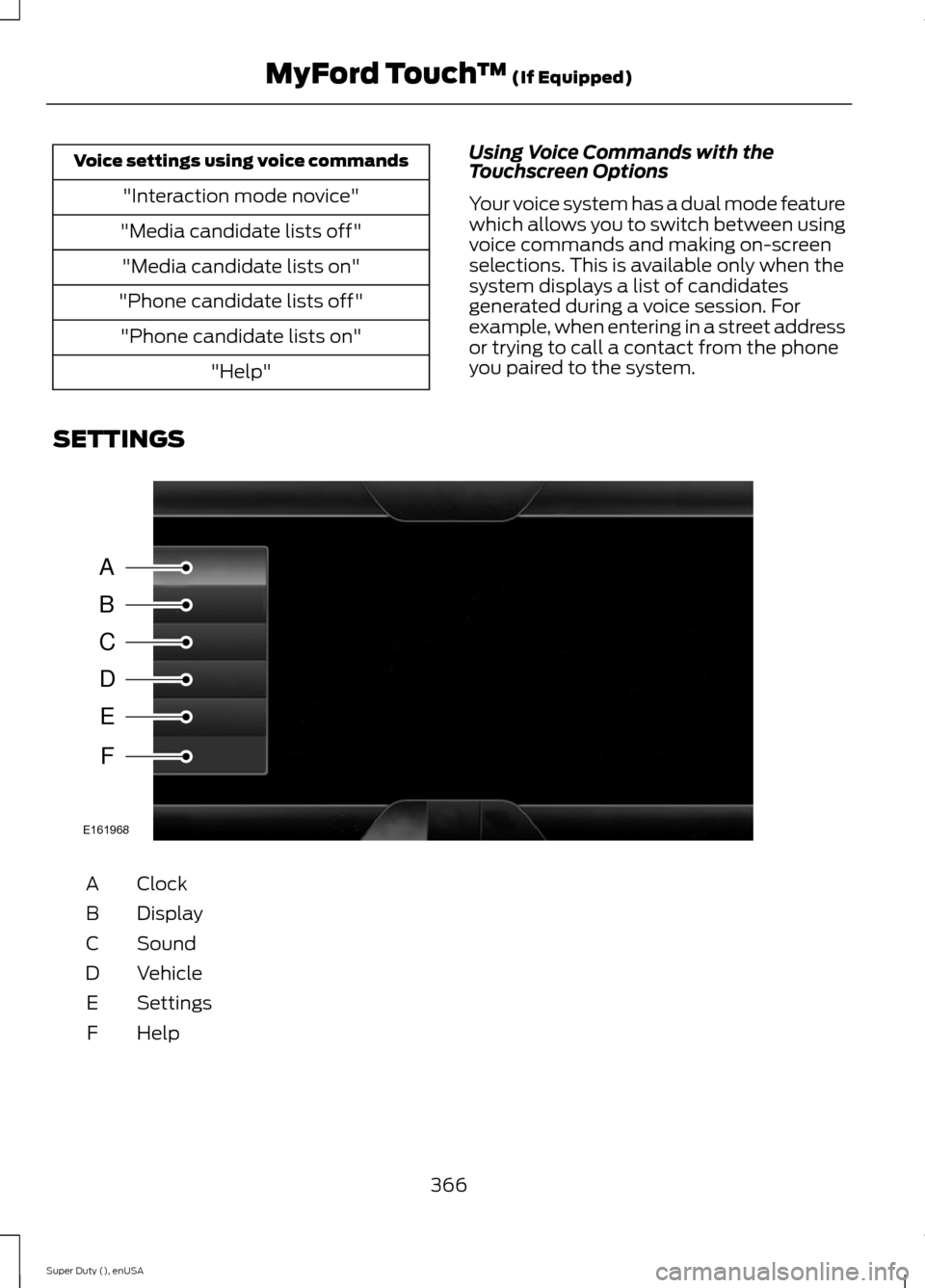
SETTINGS
ClockA
DisplayB
SoundC
VehicleD
SettingsE
HelpF
366Super Duty (), enUSAMyFord Touch™ (If Equipped)ABCDEFE161968
Page 370 of 470
Under this menu, you can setyour clock, access and adjust thedisplay, sound and vehiclesettings as well as access settings forspecific modes or the help feature.
Clock
Note:You cannot manually set the date.Your vehicle’s GPS does this for you.
Note:If the battery has been disconnected,your vehicle needs to acquire a GPS signalto update the clock. Once your vehicleacquires the signal, it may take a fewminutes for the update to display the correcttime.
1.Press the Settings icon > Clock.
2.Press + and - to adjust the time.
From this screen, you can also make otheradjustments such as 12-hour or 24-hourmode, activate GPS time synchronizationand have the system automatically updatenew time zones.
You can also turn the outside airtemperature display off and on. It appearsat the top center of the touchscreen, nextto the time and date.
The system automatically saves anyupdates you make to the settings.
Display
You can adjust the touchscreen displaythrough the touchscreen or by pressing thevoice button on your steering wheelcontrols and when prompted, say, "Displaysettings".
Press the Settings icon >Display, to access and makeadjustments using thetouchscreen.
•Brightness allows you to make thescreen display brighter or dimmer.
•Auto DIM, when set to On, lets you usethe Auto Dim Manual Offset feature.When set to Off, screen brightnessdoes not change.
•Mode allows you to set the screen toa certain brightness or have the systemautomatically change based on theoutside light level, or turn the displayoff.
•If you select AUTO or NIGHT, youhave the options of turning thedisplay's Auto Dim feature on or offand changing the Auto Dim ManualOffset feature.
•Auto Dim Manual Offset allows youto adjust screen dimming as theoutside lighting conditions change fromday to night. This feature also allowsyou to adjust screen brightness usingthe instrument panel dimming control.
•Edit Wallpaper
•You can have your touchscreendisplay the default photo or uploadyour own.
Uploading Photos for Your HomeScreen Wallpaper
Note:You cannot load photos directly fromyour camera. You must access the photoseither from your USB mass storage deviceor from an SD card.
Note:Photographs with extremely largedimensions (such as 2048 x 1536) may notbe compatible and appear as a blank(black) image on the display.
Your system allows you to upload and viewup to 32 photos.
To access, press the Settingsicon > Display > EditWallpaper, and then follow thesystem prompts to upload yourphotographs.
367Super Duty (), enUSAMyFord Touch™ (If Equipped)E142607 E142607 E142607 E142607
Page 371 of 470
Only the photograph(s), which meets thefollowing conditions, display:
•Compatible file formats are as follows:.jpg, .gif, .png, .bmp
•Each file must be 1.5 MB or less.
•Recommended dimensions: 800 x 384
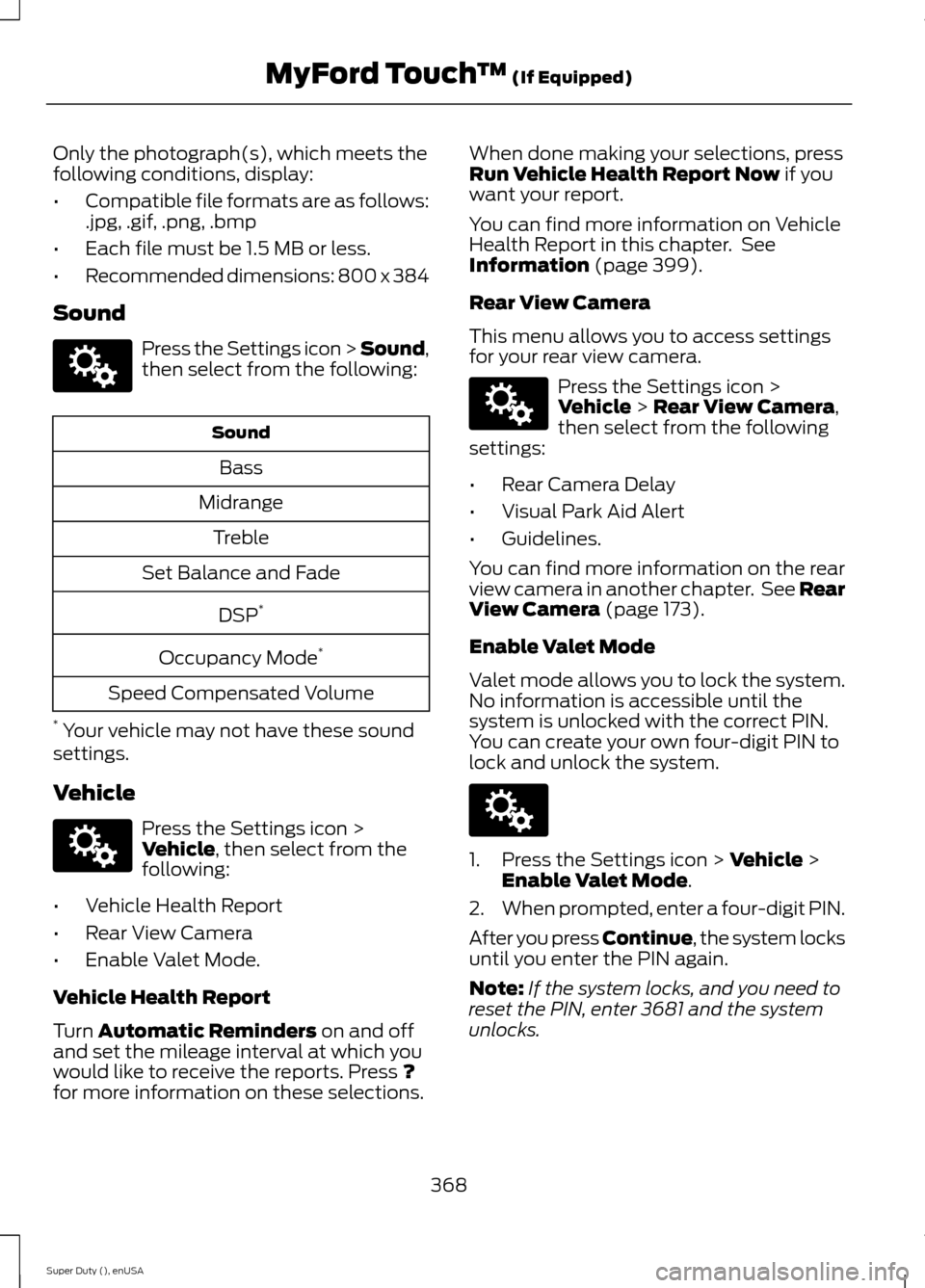
Sound
Press the Settings icon > Sound,then select from the following:
Sound
Bass
Midrange
Treble
Set Balance and Fade
DSP*
Occupancy Mode*
Speed Compensated Volume
* Your vehicle may not have these soundsettings.
Vehicle
Press the Settings icon >Vehicle, then select from thefollowing:
•Vehicle Health Report
•Rear View Camera
•Enable Valet Mode.
Vehicle Health Report
Turn Automatic Reminders on and offand set the mileage interval at which youwould like to receive the reports. Press ?for more information on these selections.
When done making your selections, pressRun Vehicle Health Report Now if youwant your report.
You can find more information on VehicleHealth Report in this chapter. SeeInformation (page 399).
Rear View Camera
This menu allows you to access settingsfor your rear view camera.
Press the Settings icon >Vehicle > Rear View Camera,then select from the followingsettings:
•Rear Camera Delay
•Visual Park Aid Alert
•Guidelines.
You can find more information on the rearview camera in another chapter. See RearView Camera (page 173).
Enable Valet Mode
Valet mode allows you to lock the system.No information is accessible until thesystem is unlocked with the correct PIN.You can create your own four-digit PIN tolock and unlock the system.
1.Press the Settings icon > Vehicle >Enable Valet Mode.
2.When prompted, enter a four-digit PIN.
After you press Continue, the system locksuntil you enter the PIN again.
Note:If the system locks, and you need toreset the PIN, enter 3681 and the systemunlocks.
368Super Duty (), enUSAMyFord Touch™ (If Equipped)E142607 E142607 E142607 E142607
Page 372 of 470
Settings
Access and adjust system settings, voicefeatures, as well as phone, navigation andwireless settings.
System
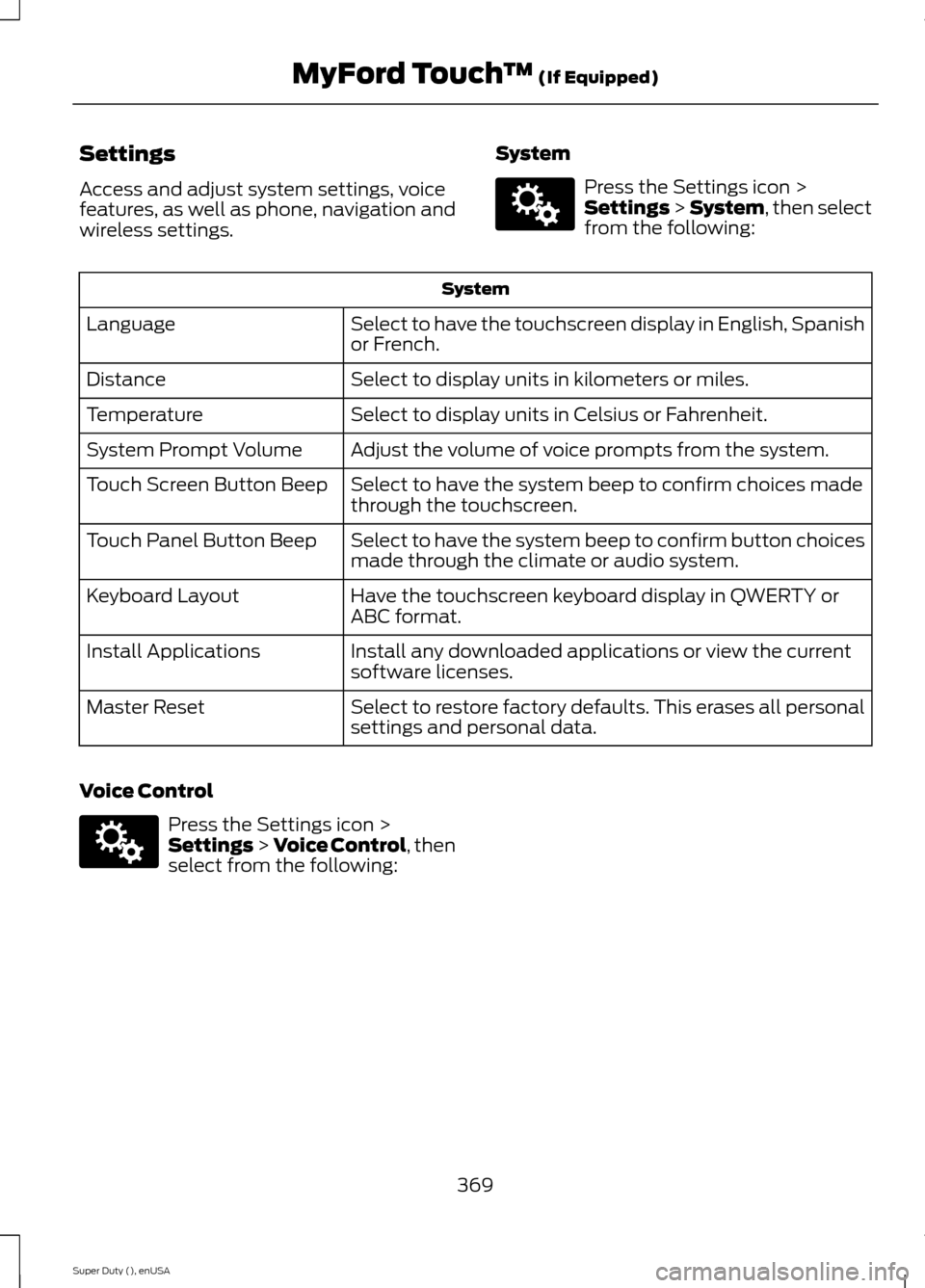
Press the Settings icon >Settings > System, then selectfrom the following:
System
Select to have the touchscreen display in English, Spanishor French.Language
Select to display units in kilometers or miles.Distance
Select to display units in Celsius or Fahrenheit.Temperature
Adjust the volume of voice prompts from the system.System Prompt Volume
Select to have the system beep to confirm choices madethrough the touchscreen.Touch Screen Button Beep
Select to have the system beep to confirm button choicesmade through the climate or audio system.Touch Panel Button Beep
Have the touchscreen keyboard display in QWERTY orABC format.Keyboard Layout
Install any downloaded applications or view the currentsoftware licenses.Install Applications
Select to restore factory defaults. This erases all personalsettings and personal data.Master Reset
Voice Control
Press the Settings icon >Settings > Voice Control, thenselect from the following:
369Super Duty (), enUSAMyFord Touch™ (If Equipped)E142607 E142607
Page 374 of 470
Media player
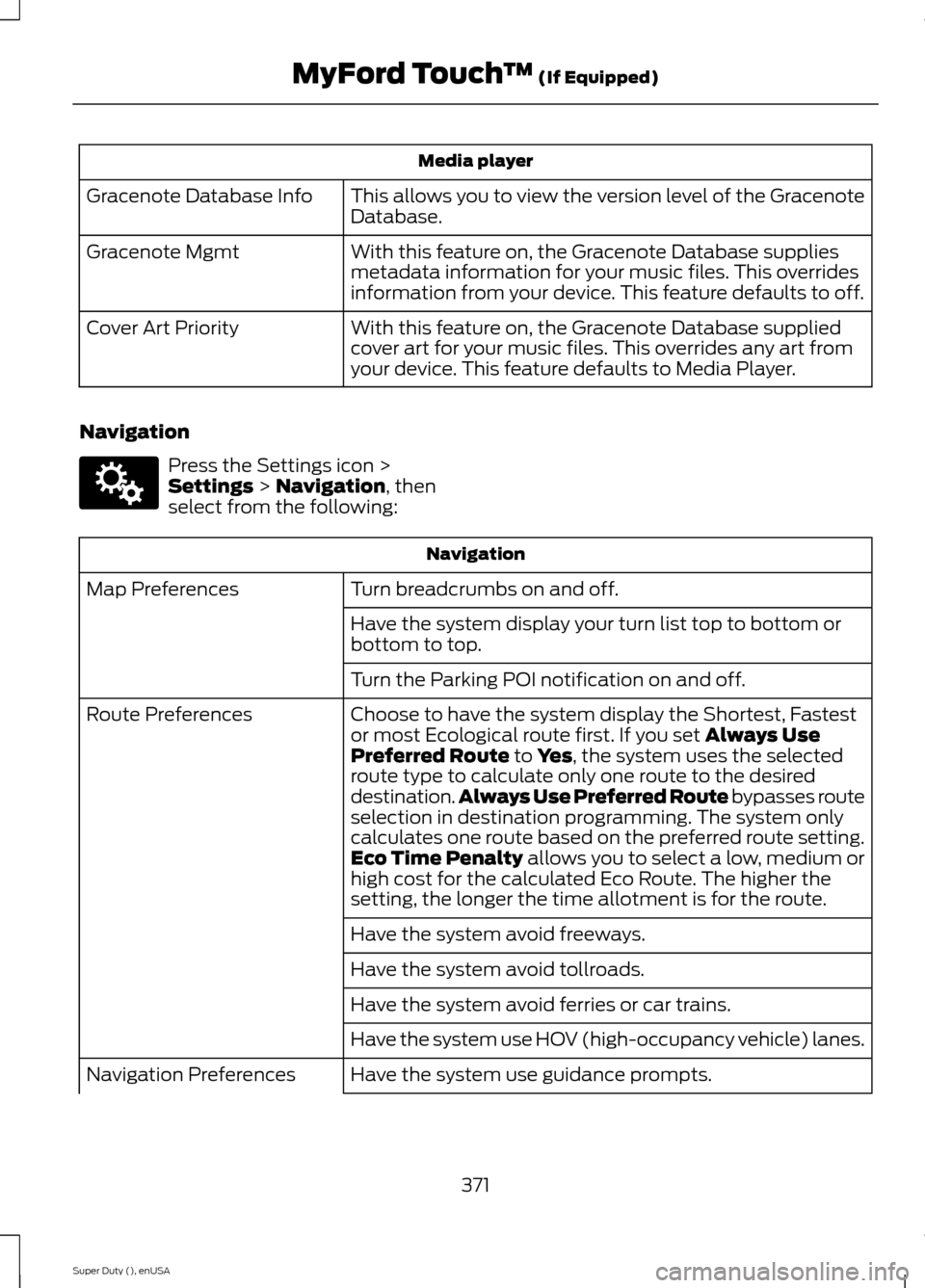
This allows you to view the version level of the GracenoteDatabase.Gracenote Database Info
With this feature on, the Gracenote Database suppliesmetadata information for your music files. This overridesinformation from your device. This feature defaults to off.
Gracenote Mgmt
With this feature on, the Gracenote Database suppliedcover art for your music files. This overrides any art fromyour device. This feature defaults to Media Player.
Cover Art Priority
Navigation
Press the Settings icon >Settings > Navigation, thenselect from the following:
Navigation
Turn breadcrumbs on and off.Map Preferences
Have the system display your turn list top to bottom orbottom to top.
Turn the Parking POI notification on and off.
Choose to have the system display the Shortest, Fastestor most Ecological route first. If you set Always UsePreferred Route to Yes, the system uses the selectedroute type to calculate only one route to the desireddestination.Always Use Preferred Route bypasses routeselection in destination programming. The system onlycalculates one route based on the preferred route setting.Eco Time Penalty allows you to select a low, medium orhigh cost for the calculated Eco Route. The higher thesetting, the longer the time allotment is for the route.
Route Preferences
Have the system avoid freeways.
Have the system avoid tollroads.
Have the system avoid ferries or car trains.
Have the system use HOV (high-occupancy vehicle) lanes.
Have the system use guidance prompts.Navigation Preferences
371Super Duty (), enUSAMyFord Touch™ (If Equipped)E142607
Page 375 of 470
Navigation
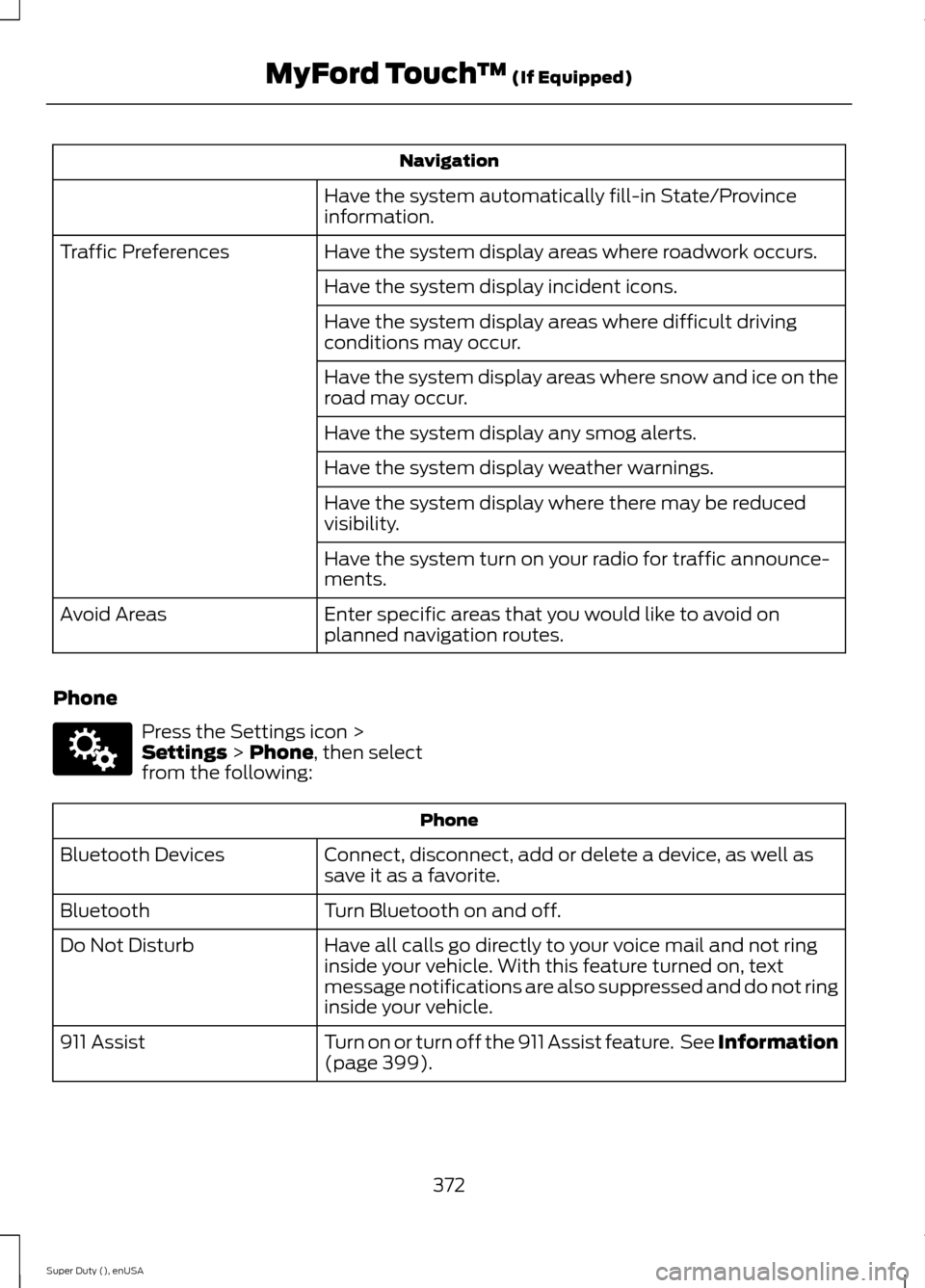
Have the system automatically fill-in State/Provinceinformation.
Have the system display areas where roadwork occurs.Traffic Preferences
Have the system display incident icons.
Have the system display areas where difficult drivingconditions may occur.
Have the system display areas where snow and ice on theroad may occur.
Have the system display any smog alerts.
Have the system display weather warnings.
Have the system display where there may be reducedvisibility.
Have the system turn on your radio for traffic announce-ments.
Enter specific areas that you would like to avoid onplanned navigation routes.Avoid Areas
Phone
Press the Settings icon >Settings > Phone, then selectfrom the following:
Phone
Connect, disconnect, add or delete a device, as well assave it as a favorite.Bluetooth Devices
Turn Bluetooth on and off.Bluetooth
Have all calls go directly to your voice mail and not ringinside your vehicle. With this feature turned on, textmessage notifications are also suppressed and do not ringinside your vehicle.
Do Not Disturb
Turn on or turn off the 911 Assist feature. See Information(page 399).911 Assist
372Super Duty (), enUSAMyFord Touch™ (If Equipped)E142607