2015 FORD SUPER DUTY display
[x] Cancel search: displayPage 404 of 470
1.Press the voice button.
2.When prompted, say "Services". Thisinitiates an outgoing call to SYNCServices using your paired andconnected Bluetooth-enabled cellularphone.
3.Once you connect to the service, followthe voice prompts to request thedesired service, such as "Traffic" or"Directions". You can also say, "Whatare my choices?" to receive a list ofavailable services from which tochoose.
4.Say, "Services" to return to the Servicesmain menu or for help, say, "Help".
Connecting to SYNC Services Usingthe Touchscreen
If your vehicle is equipped withNavigation, press theInformation button.
If your vehicle is not equipped withNavigation, press the green tab on yourtouchscreen.
1.Select Connect to Services to initiatean outgoing call to SYNC Servicesusing your phone.
2.Once connected, follow the voiceprompts to request your desiredService, such as "Traffic" or"Directions". You can also say, "Whatare my choices?" to receive a list ofavailable services from which tochoose.
3.Say, "Services" to return to the Servicesmain menu or for help, say, "Help".
Receiving Turn-by-Turn Directions
1.When connected to SYNC Services,say "Directions" or "Business search".To find the closest business or type ofbusiness to your current location, justsay "Business search" and then"Search near me". If you need further
assistance in finding a location you cansay "Operator" at any time within aDirections or Business search to speakwith a live operator. The system mayprompt you to speak with an operatorwhen it has difficulty matching yourvoice request. The live operator canassist you by searching for businessesby name or by category, residentialaddresses by street address or byname or specific street intersections.Operator Assist is a feature of yourSYNC Services subscription. For moreinformation on Operator Assist, visitwww.SYNCMyRide.com/support.
2.Follow the voice prompts to select yourDestination. After the route downloadis finished, the phone call automaticallyends.
If your vehicle is not equipped withNavigation:
•Turn-by-turn directions appear in theinformation display, in the status barof your touchscreen system and on theSYNC Services screen. You also receivedriving instructions from audibleprompts.
•When on an active route, you canselect Route Summary or RouteStatus using the touchscreen controlsor voice commands to view the RouteSummary Turn List or the RouteStatus ETA. You can also turn voiceguidance on or off, cancel the route orupdate the route.
If you miss a turn, SYNC automatically asksif you want the route updated. Just say,"Yes" when prompted and the systemdelivers a new route to your vehicle.
If your vehicle is equipped with Navigation,SYNC Services downloads your requesteddestination to the navigation system. Thenavigation system then calculates theroute and provides driving instructions.See Navigation (page 411).
401Super Duty (), enUSAMyFord Touch™ (If Equipped)E142608
Page 408 of 470
Additional sports-related voicecommands
"WNBA schedule"
"WNBA scores"
"Help"
Alerts
If your vehicle is equipped withNavigation, touch the i(Information) button to accessthese features. If your vehicle is notequipped with Navigation, touch the cornerof the touchscreen with the green tab.
Press Alerts, and then choose from anyof the following services:
•View the complete message.
•Delete the message.
•Delete All messages.
This screen displays any system messages(such as an SD card fault).
Note:The system alerts you to anymessages by turning the information iconyellow. After you read or delete themessages, the icon returns to white.
Calendar
If your vehicle is equipped withNavigation, touch the i(Information) button to accessthese features. If your vehicle is notequipped with Navigation, touch the cornerof the touchscreen with the green tab.
Press Calendar. You can view the currentcalendar by day, week or month.
911 Assist (If Equipped)
WARNINGS
Unless the 911 Assist setting is set onbefore a crash, the system will notdial for help, which could delayresponse time, potentially increasing therisk of serious injury or death after a crash.
Do not wait for 911 Assist to make anemergency call if you can do ityourself. Dial emergency servicesimmediately to avoid delayed responsetime, which could increase the risk ofserious injury or death after a crash. If youdo not hear 911 Assist within five secondsof the crash, the system or phone may bedamaged or non-functional.
Always place your phone in a securelocation in your vehicle so it does notbecome a projectile or damaged ina crash. Failure to do so may cause seriousinjury to someone or damage the phone,which could prevent 911 Assist fromworking properly.
Note:The SYNC 911 Assist feature must beset on prior to the incident.
Note:Before setting this feature on, makesure that you read the 911 Assist PrivacyNotice later in this section for importantinformation.
Note:If any user turns 911 Assist on or off,that setting applies for all paired phones. If911 Assist is turned off, either a voicemessage plays or a display message (oricon) comes on (or both) when your vehicleis started after a previously paired phoneconnects.
Note:Every phone operates differently.While SYNC 911 Assist works with mostcellular phones, some may have troubleusing this feature.
405Super Duty (), enUSAMyFord Touch™ (If Equipped)E142608 E142608
Page 416 of 470
The system also allows you to sortalphabetically, by distance or by cityseekrlistings (if available).
cityseekr
Note:cityseekr point of interest (POI)information is limited to approximately 912cities (881 in the United States, 20 inCanada and 11 in Mexico).
cityseekr, when available, is a service thatprovides more information about certainpoints of interest such as restaurants,hotels and attractions.
When you have selected a point of interest,the location and information appear, suchas address and phone number. If cityseekrlists the point of interest, more informationis available, such as a brief description,check-in and checkout times or restauranthours.
Press More Information for a longerreview, a list of services and facilities, theaverage room or meal price as well as thewebsite. This screen displays the point ofinterest icon such as:
Hotel
Coffeehouse
Food & Drink
Nightlife
Attraction
This icon appears when yourselection exists in multiplecategories within the system.
When you are viewing more informationfor hotels, cityseekr also tells you if thehotel has certain services and facilitiesusing icons, such as:
•Restaurant
•Business center
•Handicap facilities
•Laundry
•Refrigerator
•24 hour room service
•Fitness center
•Internet access
•Pool
•Wi-fi.
For restaurants, cityseekr can provideinformation such as star rating, averagecost, review, handicap access, hours ofoperation, and website address.
For hotels, cityseekr can provideinformation such as star rating, pricecategory, review, check-in and checkouttimes, hotel service icons and websiteaddress.
413Super Duty (), enUSAMyFord Touch™ (If Equipped)E142634 E143884 E142636 E142637 E142638 E142639 E142640
Page 417 of 470
Setting Your NavigationPreferences
Select settings for the system to take intoaccount when planning your route.
Press the Settings icon >Settings > Navigation.
Map Preferences
Breadcrumbs
Display your vehicle’s previously traveledroute with white dots. Turn this feature ONor OFF.
Turn List Format
Have the system display your turn list Topto Bottom or Bottom to Top.
Parking POI Notification
Set the automatic parking point of interestnotification. Turn this feature ON or OFF.When parking point of interest notificationis on, the icons display on the map whenyou get close to your destination. This maynot be very useful in dense areas, and mayclutter the map when other points ofinterest display.
Route Preferences
Preferred Route
Choose to have the system display theShortest, Fastest or most Ecological routefirst. If you set Always Use PreferredRoute to Yes, the system uses theselected route type to calculate only oneroute to the desired destination.
Always Use Preferred Route
Bypass route selection in destinationprogramming. The system only calculatesone route based on preferred route setting.
Eco Time Penalty
Select a low, medium or high cost for thecalculated Eco Route. The higher thesetting, the longer the time allotment is forthe route.
Avoid
These features allow you to choose tohave the system avoid freeways, toll roads,ferries and car trains when planning yourroute. Turn these features ON or OFF.
Use HOV Lanes
Have the system use high-occupancyvehicle lanes, if available, when planningyour route.
Navigation Preferences
Guidance Prompts
Have the system use Voice & Tones orTone Only on your programmed route.
Auto - Fill State/Province
Have the system automatically fill in thestate and province based on theinformation already entered into thesystem. Turn this feature ON or OFF.
Traffic Preferences
Avoid Traffic Problems
Choose how you want the system tohandle traffic problems along your route.
•Automatic: Have the system rerouteyou to avoid traffic incidents thatdevelop and impact the current route.The system does not provide a trafficalert notification.
•Manual: Have the system alwaysprovide a traffic alert notification fortraffic incidents along the plannedroute. You have a choice to accept orignore the notification before makingthe route deviation.
414Super Duty (), enUSAMyFord Touch™ (If Equipped)E142607
Page 418 of 470
Traffic Alert Notification
Have the system display traffic alertnotifications.
Other traffic alert features allows you toturn on certain, or all, traffic icons on themap such as road work, incident, accidentsand closed roads. Scroll down to view allthe different types of alerts. Turn thesefeatures ON or OFF.
Avoid Areas
Choose areas which you want the systemto avoid when calculating a route for you.
Press Add to program an entry. Once youmake a selection, the system tries to avoidthe area(s) if possible for all routes. Todelete a selection, choose the listing onthe screen. When the screen changes toAvoid Areas Edit, you can press Deleteat the bottom right of the screen.
Map Mode
Press the green bar in the upper right areaof the touchscreen to view map mode. Mapmode shows advanced viewing comprisedof both 2D city maps as well as 3Dlandmarks (when available).
2D city maps show detailed outlines ofbuildings, visible land use and landelements and detailed railwayinfrastructure for the most essential citiesaround the globe. These maps also containfeatures, such as town blocks, buildingfootprints, and railways.
3D landmarks appear as clear, visibleobjects that are typically recognizable andhave a certain tourist value. The 3Dlandmarks appear in 3D map mode only.Coverage varies, and improves withupdated map releases.
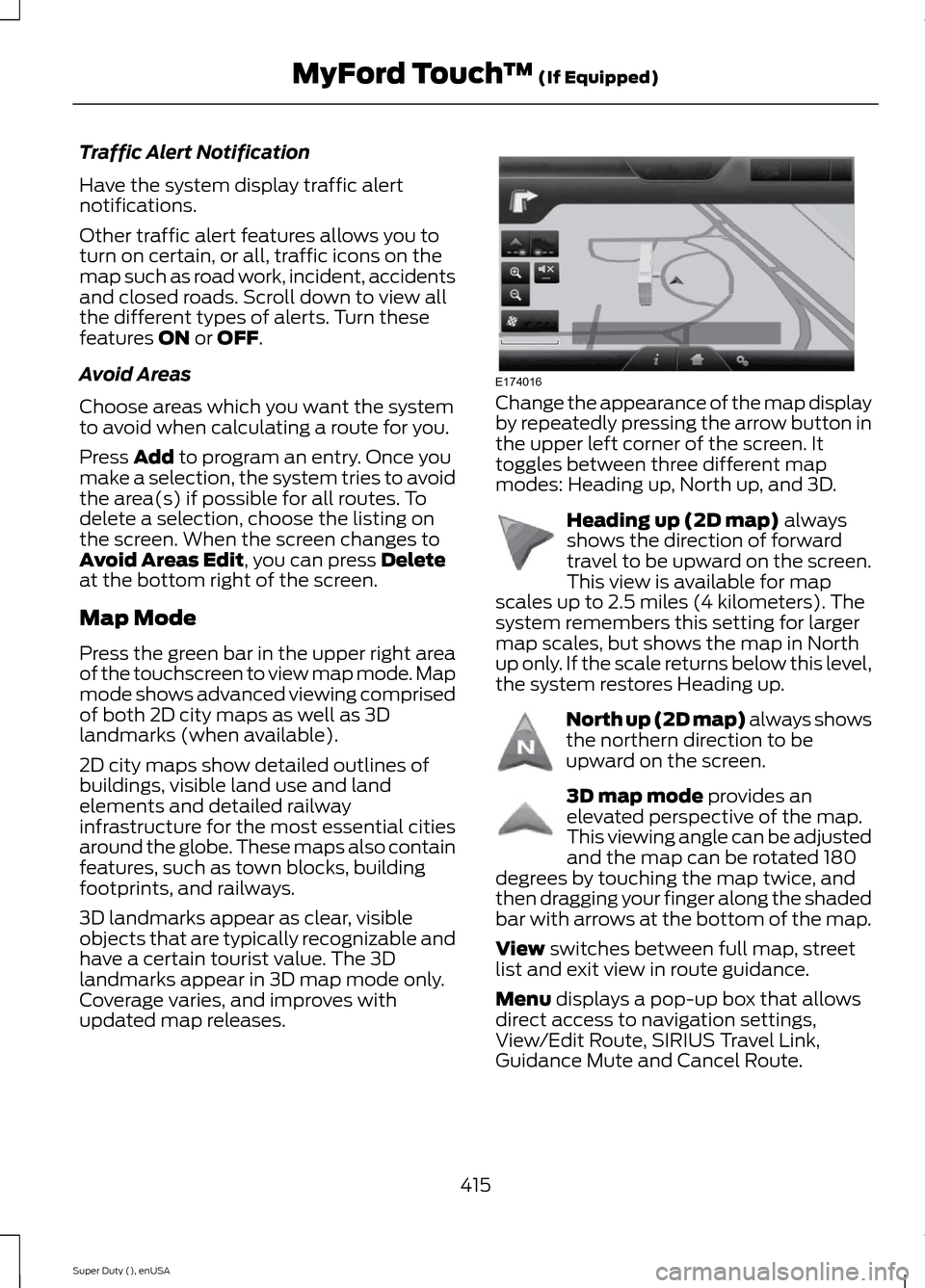
Change the appearance of the map displayby repeatedly pressing the arrow button inthe upper left corner of the screen. Ittoggles between three different mapmodes: Heading up, North up, and 3D.
Heading up (2D map) alwaysshows the direction of forwardtravel to be upward on the screen.This view is available for mapscales up to 2.5 miles (4 kilometers). Thesystem remembers this setting for largermap scales, but shows the map in Northup only. If the scale returns below this level,the system restores Heading up.
North up (2D map) always showsthe northern direction to beupward on the screen.
3D map mode provides anelevated perspective of the map.This viewing angle can be adjustedand the map can be rotated 180degrees by touching the map twice, andthen dragging your finger along the shadedbar with arrows at the bottom of the map.
View switches between full map, streetlist and exit view in route guidance.
Menu displays a pop-up box that allowsdirect access to navigation settings,View/Edit Route, SIRIUS Travel Link,Guidance Mute and Cancel Route.
415Super Duty (), enUSAMyFord Touch™ (If Equipped)E174016 E142642 E142643 E142644
Page 419 of 470
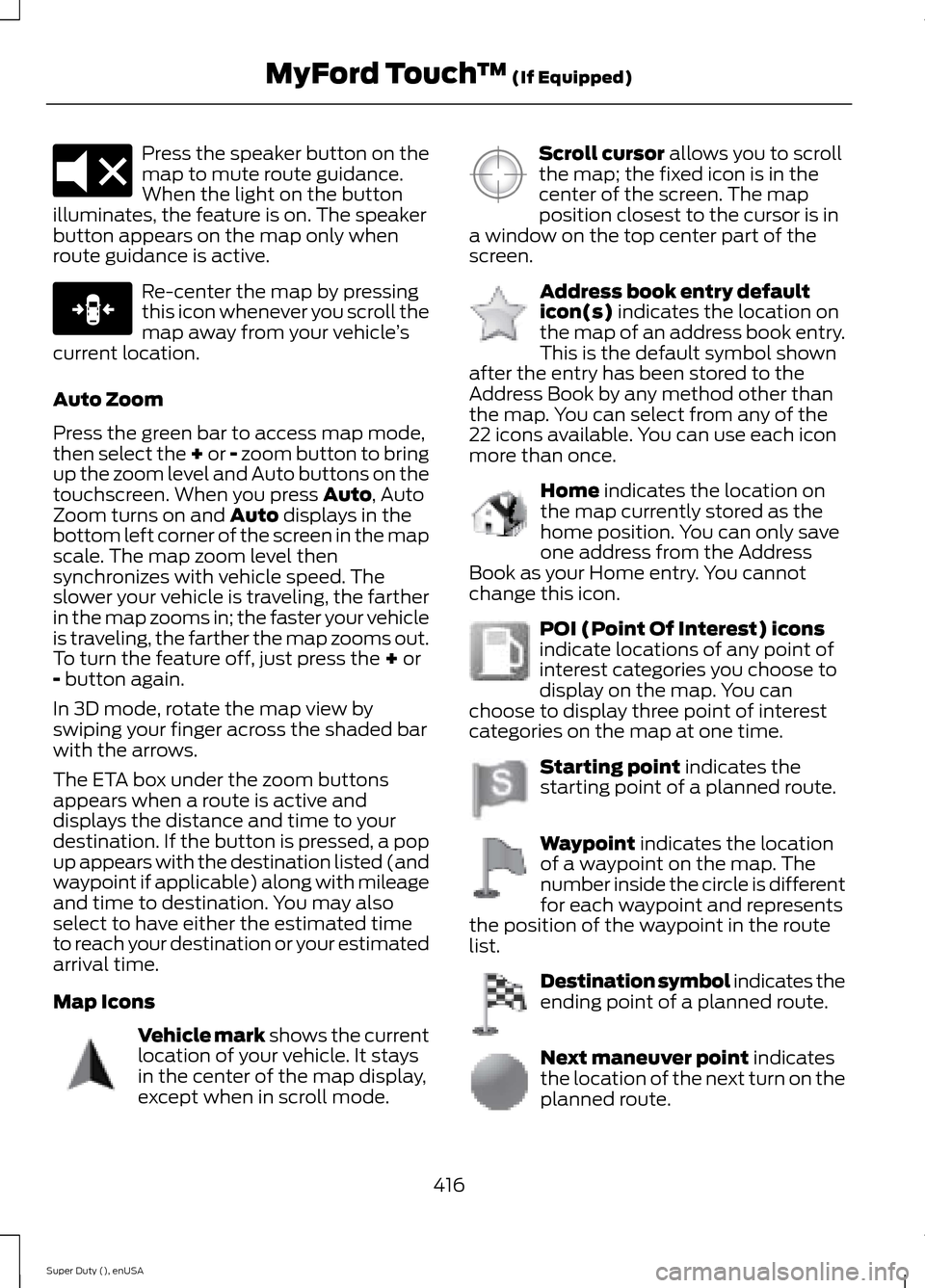
Press the speaker button on themap to mute route guidance.When the light on the buttonilluminates, the feature is on. The speakerbutton appears on the map only whenroute guidance is active.
Re-center the map by pressingthis icon whenever you scroll themap away from your vehicle’scurrent location.
Auto Zoom
Press the green bar to access map mode,then select the + or - zoom button to bringup the zoom level and Auto buttons on thetouchscreen. When you press Auto, AutoZoom turns on and Auto displays in thebottom left corner of the screen in the mapscale. The map zoom level thensynchronizes with vehicle speed. Theslower your vehicle is traveling, the fartherin the map zooms in; the faster your vehicleis traveling, the farther the map zooms out.To turn the feature off, just press the + or- button again.
In 3D mode, rotate the map view byswiping your finger across the shaded barwith the arrows.
The ETA box under the zoom buttonsappears when a route is active anddisplays the distance and time to yourdestination. If the button is pressed, a popup appears with the destination listed (andwaypoint if applicable) along with mileageand time to destination. You may alsoselect to have either the estimated timeto reach your destination or your estimatedarrival time.
Map Icons
Vehicle mark shows the currentlocation of your vehicle. It staysin the center of the map display,except when in scroll mode.
Scroll cursor allows you to scrollthe map; the fixed icon is in thecenter of the screen. The mapposition closest to the cursor is ina window on the top center part of thescreen.
Address book entry defaulticon(s) indicates the location onthe map of an address book entry.This is the default symbol shownafter the entry has been stored to theAddress Book by any method other thanthe map. You can select from any of the22 icons available. You can use each iconmore than once.
Home indicates the location onthe map currently stored as thehome position. You can only saveone address from the AddressBook as your Home entry. You cannotchange this icon.
POI (Point Of Interest) iconsindicate locations of any point ofinterest categories you choose todisplay on the map. You canchoose to display three point of interestcategories on the map at one time.
Starting point indicates thestarting point of a planned route.
Waypoint indicates the locationof a waypoint on the map. Thenumber inside the circle is differentfor each waypoint and representsthe position of the waypoint in the routelist.
Destination symbol indicates theending point of a planned route.
Next maneuver point indicatesthe location of the next turn on theplanned route.
416Super Duty (), enUSAMyFord Touch™ (If Equipped)E174017 E146188 E142646 E142647 E142648 E142649 E142650 E142651 E142652 E142653 E142654
Page 420 of 470
No GPS symbol indicates thatinsufficient GPS satellite signalsare available for accurate mappositioning. This icon may displayunder normal operation in an area withpoor GPS access.
Quick-touch Buttons
When in map mode, touch anywhere onthe map display to access the followingoptions:
Set as Dest
Touch this button to select a scrolledlocation on the map as your destination.You may scroll the map by pressing yourindex finger on the map display. When youreach the desired location, simply let goand then touch Set as Dest.
Set as Waypoint
Touch this button to set the currentlocation as a waypoint.
Save to Favorites
Touch this button to save the currentlocation to your favorites.
POI Icons
Touch this button to select icons to displayon the map. You can select up to threeicons to display on the map at the sametime. Turn these ON or OFF.
Cancel Route
Touch this button to cancel the activeroute.
View/Edit Route
Access these features when a route isactive:
•View Route
•Edit Destination/Waypoints
•Edit Turn List
•Detour
•Edit Route Preferences
•Edit Traffic Preferences
•Cancel Route.
Nokia is the digital map provider for thenavigation application. If you find map dataerrors, you may report them directly toNokia by going tohttp://mapreporter.navteq.com. Nokiaevaluates all reported map errors andresponds with the result of theirinvestigation by e-mail.
Navigation Map Updates
Annual navigation map updates areavailable for purchase through yourdealership, by calling 1-800-NAVMAPS (inMexico, call 01-800-557-5539) or goingto www.navigation.com/sync. You needto specify the make and model of yourvehicle to determine if there is an updateavailable.
Navigation Voice Commands
When in navigation mode, pressthe voice button on the steeringwheel controls. After the tone,say any of the following commands:
Navigation system voice commands
"Cancel next waypoint" 1
"Cancel route"1
"Destination"2
"Destination
"Destination
"Destination favorites"
"Destination home"
417Super Duty (), enUSAMyFord Touch™ (If Equipped)E142655 E142599
Page 422 of 470
"NAVIGATION"
"Zoom maximum"
"Zoom province"
"Zoom state"
"Zoom street"
"Zoom to
"Help"
* If you say "Destination", you can then sayany command in the "Destination" chart.
One-shot Destination Street Address
When you say either "Navigationdestination street address" or "Destinationstreet address", the system asks you to saythe full address. The system displays anexample on-screen. You can then speakthe address naturally, such as "One twothree four Main Street, Anytown".
419Super Duty (), enUSAMyFord Touch™ (If Equipped)