2015 FORD SUPER DUTY display
[x] Cancel search: displayPage 328 of 470
System data cannot be accessed withoutspecial equipment and access to thevehicle's SYNC module. Ford MotorCompany and Ford of Canada will notaccess the system data for any purposeother than as described absent consent, acourt order, or where required by lawenforcement, other governmentauthorities, or other third parties actingwith lawful authority. Other parties mayseek to access the informationindependently of Ford Motor Company andFord of Canada. For further privacyinformation, see the sections on 911 Assist,Vehicle Health Report, and Traffic,Directions and Information.
USING VOICE RECOGNITION
This system helps you control manyfeatures using voice commands. Thisallows you to keep your hands on thewheel and focus on what is in front of you.
Initiating a Voice Session
Push the voice icon. A tonesounds and Listening appears inthe display. Say any of thefollowing:
If You Want ToSay
Stream audio from your phone."Bluetooth audio"
Cancel the requested action."Cancel"
Access the device connected to the auxiliary input jack."Line in"
Access mobile applications."Mobile apps" *
Make calls."Phone"
Access the SYNC Services portal."Services" *
Return to the main menu."SYNC"
Access the device connected to your USB port."USB"
Run a vehicle health report."Vehicle health report" *
Adjust the level of voice interaction and feedback."Voice settings"
Hear a list of voice commands available in the currentmode."Help"
* This is an optional feature and available in the United States only.
325Super Duty (), enUSASYNC™ (If Equipped)E142599
Page 331 of 470
Pairing a Phone for the First Time
Note:SYNC can support downloading upto approximately 1000 entries perBluetooth-enabled cellular phone.
Note:Make sure to switch on the ignitionand the radio. Put the transmission inposition P.
Note:To scroll through the menus, pressthe up and down arrows on your audiosystem.
Wirelessly pairing your phone with SYNCallows you to make and receive hands-freecalls.
1.Press the phone button. When thedisplay indicates there is no phonepaired, press OK.
2.When Find SYNC appears in thedisplay, press OK.
3.Put your phone into Bluetoothdiscovery mode. See your device'smanual if necessary.
4.When prompted on your phone'sdisplay, enter the six-digit PIN providedby SYNC in the radio display. Thedisplay indicates when the pairing issuccessful.
Depending on your phone's capability andyour market, the system may prompt youwith questions, such as setting the currentphone as the primary phone (the phoneSYNC automatically tries to connect withfirst upon vehicle start-up) anddownloading your phonebook.
Pairing Subsequent Phones
Note:Make sure to switch on the ignitionand the radio. Put the transmission inposition P.
Note:To scroll through the menus, pressthe up and down arrows on your audiosystem.
1.Press the phone button, and then scrollto System Settings. Press OK.
2.Scroll to Bluetooth Devices. Press OK.
3.Scroll to Add Bluetooth Device. PressOK.
4.When Find SYNC appears in thedisplay, press OK.
5.Put your phone into Bluetoothdiscovery mode. See your phone'smanual if necessary.
6.When prompted on your phone'sdisplay, enter the six-digit PIN providedby SYNC in the radio display. Thedisplay indicates when the pairing issuccessful.
The system then prompts with questions,such as if you would like to set the currentphone as the primary phone (the phoneSYNC automatically tries to connect withfirst upon vehicle start-up) and downloadyour phone book.
Phone Voice Commands
Press the voice icon and say "Phone". Sayany of the following:
"PHONE"
"Call
"Call
"Call
"Call
"Call
"Call
"Call history incoming"2
"Call history missed"2
328Super Duty (), enUSASYNC™ (If Equipped)
Page 332 of 470
"PHONE"
"Call history outgoing"2
"Connections"2
"Dial"1,3
"Go to privacy"
"Hold"
"Join"
"Menu"2,4
"Phone book
"Phone book
"Phone book
"Phone book
"Phone book
cell"2
"Phone book
1 This command does not require you tosay "Phone" first.2 This command is not available untilphone information is completelydownloaded using Bluetooth.3 See Dial table below.4 See Menu table below.
Phone book commands: When you askSYNC to access things such as aphonebook name or number, therequested information appears in thedisplay to view. Press the phone buttonand say, "Call" to call the contact.
"DIAL"
"411 (four-one-one)", "911" (nine-one-one)
"700" (seven hundred)
"800" (eight hundred)
"900" (nine hundred)
"Pound" (#)
"Number <0-9>"
"Asterisk" (*)
"Clear" (deletes all entered digits)
"Delete" (deletes one digit)
"Plus"
"Star"
Note:To exit dial mode, press and hold thephone button or press MENU to go to thephone menu.
"MENU"
"(Phone) connections"
"(Phone) settings (message) notificationoff"
"(Phone) settings (message) notificationon"
"(Phone) settings (set) phone ringer"
"(Phone) settings (set) ringer 1"
"(Phone) settings (set) ringer 2"
"(Phone) settings (set) ringer 3"
"(Phone) settings (set) ringer off"
"Battery"
"Phone name"
329Super Duty (), enUSASYNC™ (If Equipped)
Page 333 of 470
"MENU"
"Signal"
"Text message inbox"
Words in ( ) are optional and do not haveto be spoken for the system to understandthe command.
Making Calls
Press the voice icon and when promptedsay:
1.Say "Call
2.When the system confirms the number,say, "Dial" again to initiate the call.
To erase the last spoken digit, say, "Delete"or press the left arrow button. To erase allspoken digits, say "Clear" or press and holdthe left arrow button.
To end the call, press and hold the phonebutton.
Receiving Calls
When receiving a call, you can:
•Answer the call by pressing the phonebutton.
•Reject the call by pressing and holdingthe phone button.
•Ignore the call by doing nothing.
Phone Options during an ActiveCall
During an active call, you have more menufeatures that become available, such asputting a call on hold or joining calls. Usethe arrow buttons to scroll through themenu options.
1.Press MENU during an active call.
2.After selecting Active Call Menu, pressOK.
3.Scroll to cycle through the followingoptions:
You can:When you select:
Mute the call.Mute Call?
Switch a call from an active hands-free environment toyour cellular phone for a more private conversation.Privacy
Press OK when Privacy on/off appears. (The displayindicates In Privacy and the system transfers your call.)
Put an active call on hold.Call HoldPress OK when Hold on/off appears. To answer anothercall at this time, press the phone button.
Enter "tones", such as numbers for passwords.Enter TonesScroll until the desired number appears in the display, thenpress OK; a tone sounds as confirmation. Repeat asnecessary.
Join two separate calls. (SYNC supports a maximum ofthree callers on a multiparty call or conference call.)Join Calls
1. Press the phone button.
330Super Duty (), enUSASYNC™ (If Equipped)
Page 334 of 470
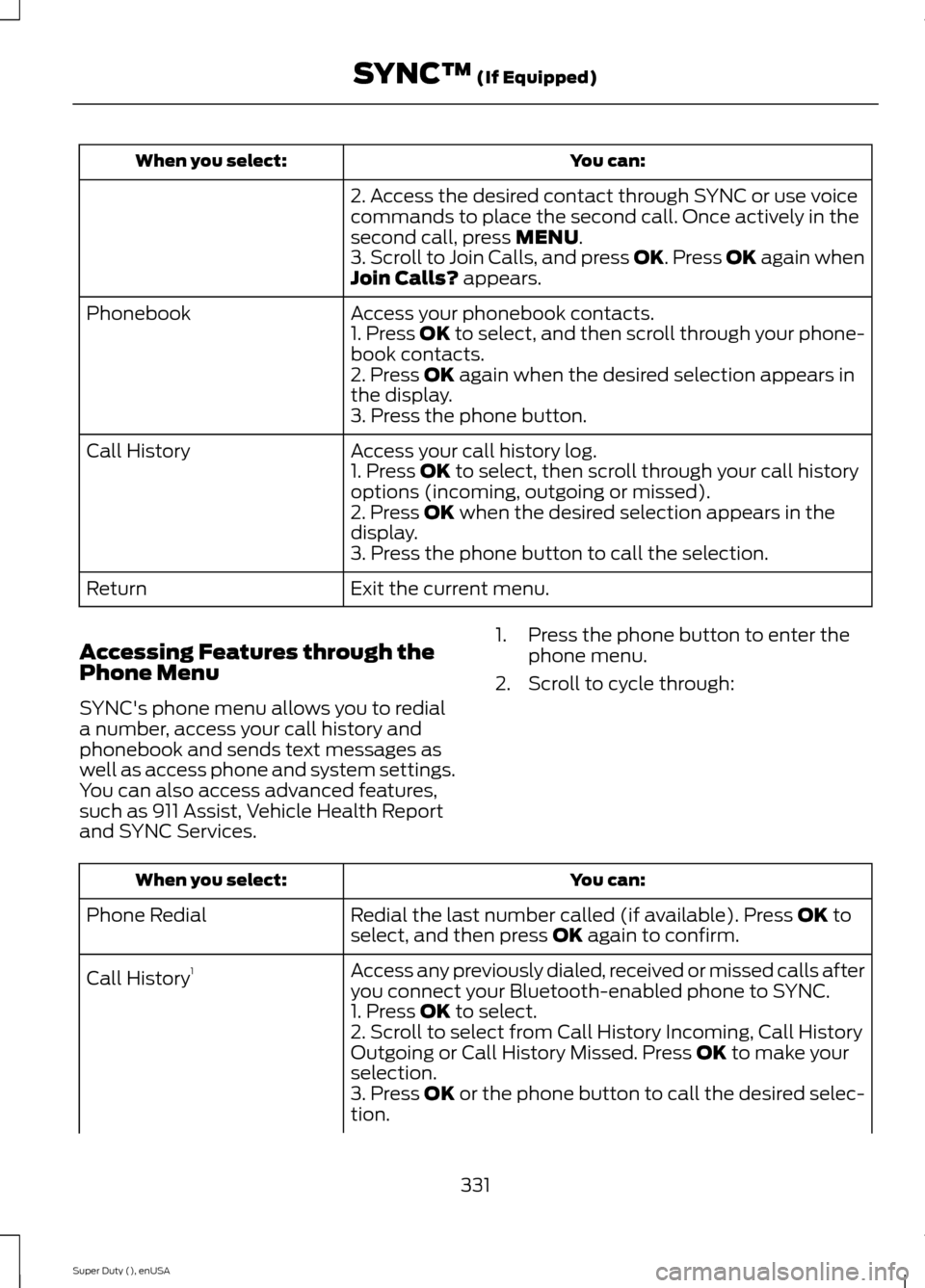
You can:When you select:
2. Access the desired contact through SYNC or use voicecommands to place the second call. Once actively in thesecond call, press MENU.3. Scroll to Join Calls, and press OK. Press OK again whenJoin Calls? appears.
Access your phonebook contacts.Phonebook1. Press OK to select, and then scroll through your phone-book contacts.2. Press OK again when the desired selection appears inthe display.3. Press the phone button.
Access your call history log.Call History1. Press OK to select, then scroll through your call historyoptions (incoming, outgoing or missed).2. Press OK when the desired selection appears in thedisplay.3. Press the phone button to call the selection.
Exit the current menu.Return
Accessing Features through thePhone Menu
SYNC's phone menu allows you to rediala number, access your call history andphonebook and sends text messages aswell as access phone and system settings.You can also access advanced features,such as 911 Assist, Vehicle Health Reportand SYNC Services.
1.Press the phone button to enter thephone menu.
2.Scroll to cycle through:
You can:When you select:
Redial the last number called (if available). Press OK toselect, and then press OK again to confirm.Phone Redial
Access any previously dialed, received or missed calls afteryou connect your Bluetooth-enabled phone to SYNC.Call History1
1. Press OK to select.2. Scroll to select from Call History Incoming, Call HistoryOutgoing or Call History Missed. Press OK to make yourselection.3. Press OK or the phone button to call the desired selec-tion.
331Super Duty (), enUSASYNC™ (If Equipped)
Page 336 of 470
Text Messaging
Note:This is a phone-dependent feature.
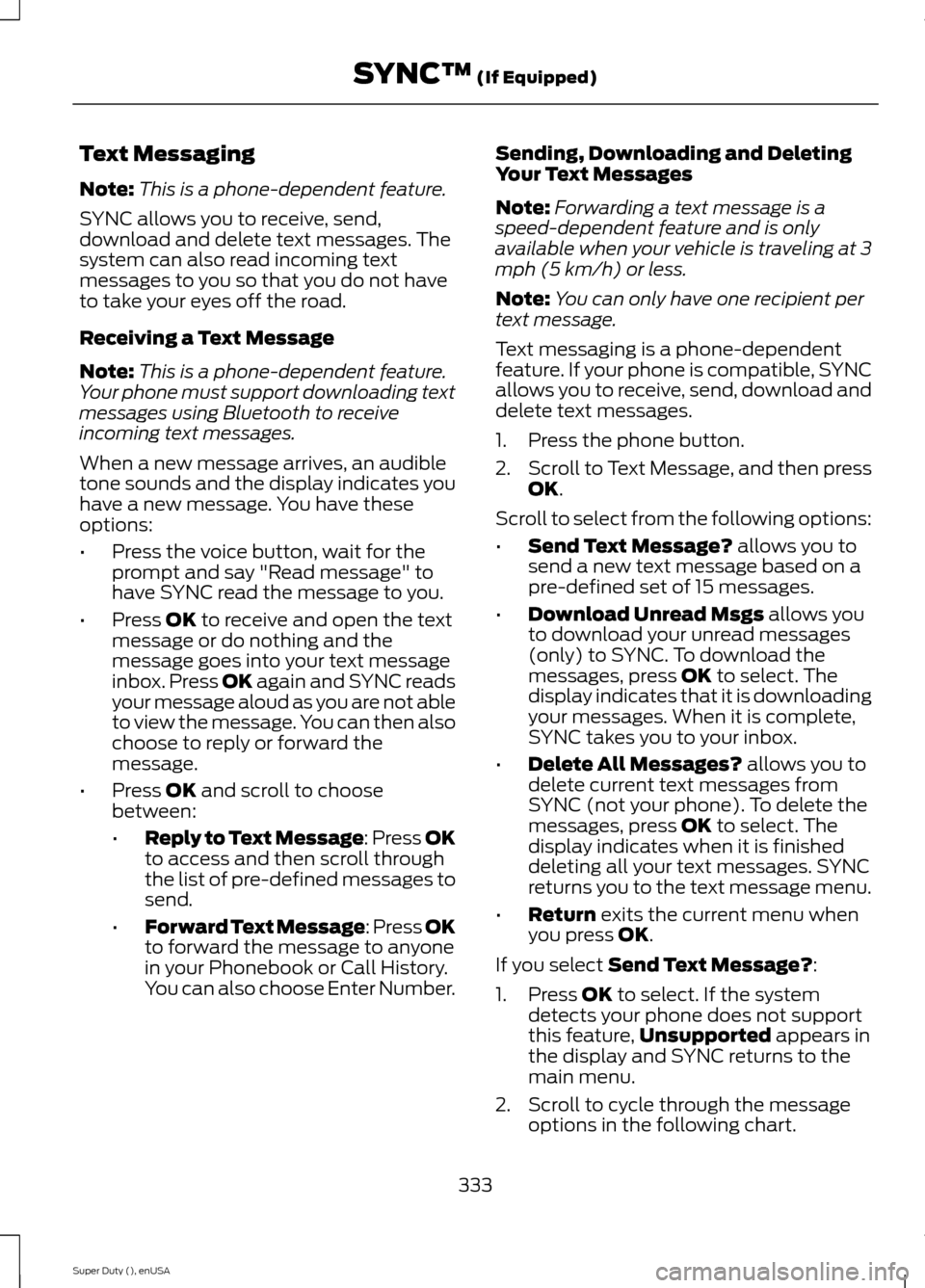
SYNC allows you to receive, send,download and delete text messages. Thesystem can also read incoming textmessages to you so that you do not haveto take your eyes off the road.
Receiving a Text Message
Note:This is a phone-dependent feature.Your phone must support downloading textmessages using Bluetooth to receiveincoming text messages.
When a new message arrives, an audibletone sounds and the display indicates youhave a new message. You have theseoptions:
•Press the voice button, wait for theprompt and say "Read message" tohave SYNC read the message to you.
•Press OK to receive and open the textmessage or do nothing and themessage goes into your text messageinbox. Press OK again and SYNC readsyour message aloud as you are not ableto view the message. You can then alsochoose to reply or forward themessage.
•Press OK and scroll to choosebetween:
•Reply to Text Message: Press OKto access and then scroll throughthe list of pre-defined messages tosend.
•Forward Text Message: Press OKto forward the message to anyonein your Phonebook or Call History.You can also choose Enter Number.
Sending, Downloading and DeletingYour Text Messages
Note:Forwarding a text message is aspeed-dependent feature and is onlyavailable when your vehicle is traveling at 3mph (5 km/h) or less.
Note:You can only have one recipient pertext message.
Text messaging is a phone-dependentfeature. If your phone is compatible, SYNCallows you to receive, send, download anddelete text messages.
1.Press the phone button.
2.Scroll to Text Message, and then pressOK.
Scroll to select from the following options:
•Send Text Message? allows you tosend a new text message based on apre-defined set of 15 messages.
•Download Unread Msgs allows youto download your unread messages(only) to SYNC. To download themessages, press OK to select. Thedisplay indicates that it is downloadingyour messages. When it is complete,SYNC takes you to your inbox.
•Delete All Messages? allows you todelete current text messages fromSYNC (not your phone). To delete themessages, press OK to select. Thedisplay indicates when it is finisheddeleting all your text messages. SYNCreturns you to the text message menu.
•Return exits the current menu whenyou press OK.
If you select Send Text Message?:
1.Press OK to select. If the systemdetects your phone does not supportthis feature,Unsupported appears inthe display and SYNC returns to themain menu.
2.Scroll to cycle through the messageoptions in the following chart.
333Super Duty (), enUSASYNC™ (If Equipped)
Page 337 of 470
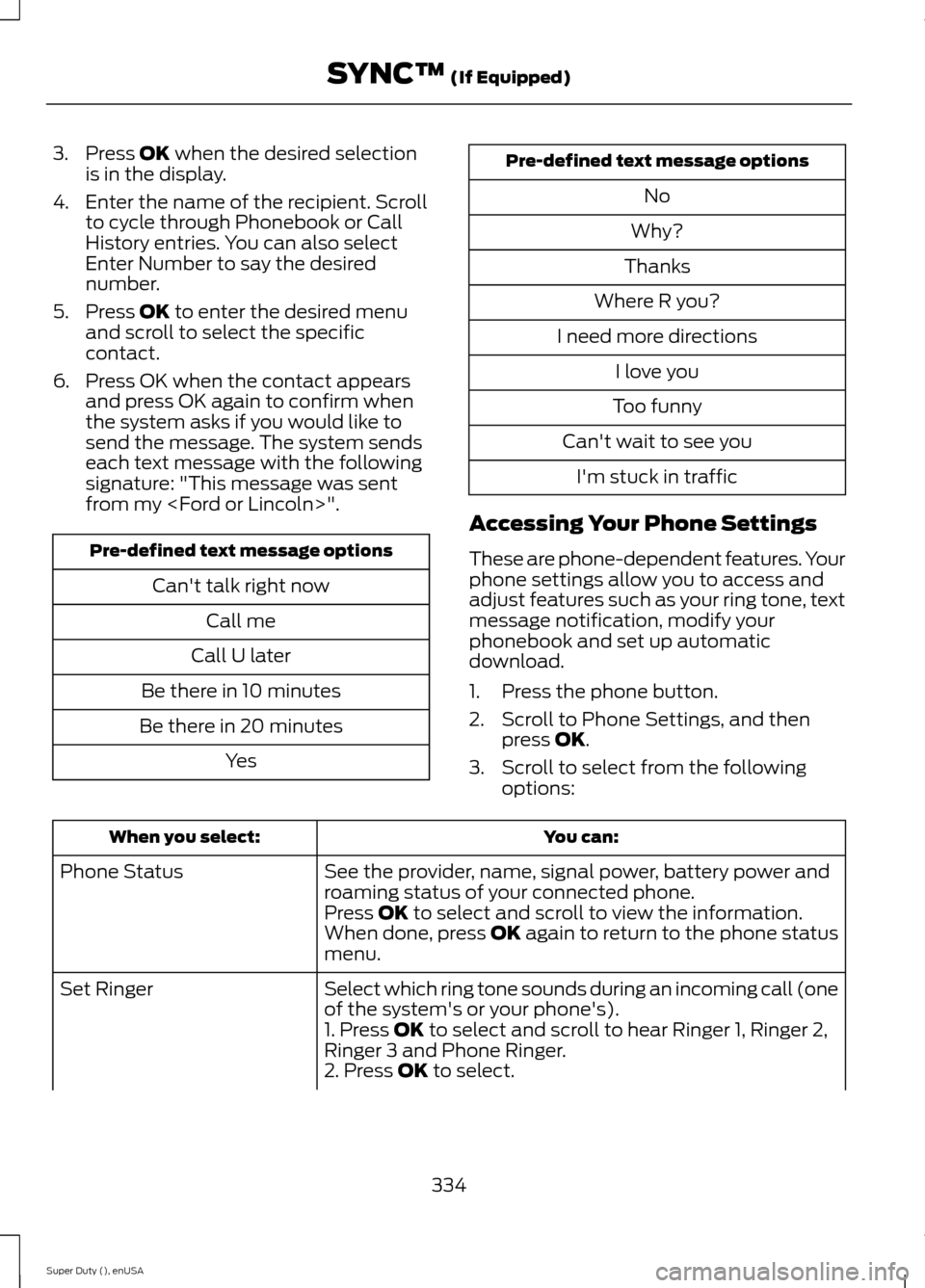
3.Press OK when the desired selectionis in the display.
4.Enter the name of the recipient. Scrollto cycle through Phonebook or CallHistory entries. You can also selectEnter Number to say the desirednumber.
5.Press OK to enter the desired menuand scroll to select the specificcontact.
6.Press OK when the contact appearsand press OK again to confirm whenthe system asks if you would like tosend the message. The system sendseach text message with the followingsignature: "This message was sentfrom my
Pre-defined text message options
Can't talk right now
Call me
Call U later
Be there in 10 minutes
Be there in 20 minutes
Yes
Pre-defined text message options
No
Why?
Thanks
Where R you?
I need more directions
I love you
Too funny
Can't wait to see you
I'm stuck in traffic
Accessing Your Phone Settings
These are phone-dependent features. Yourphone settings allow you to access andadjust features such as your ring tone, textmessage notification, modify yourphonebook and set up automaticdownload.
1.Press the phone button.
2.Scroll to Phone Settings, and thenpress OK.
3.Scroll to select from the followingoptions:
You can:When you select:
See the provider, name, signal power, battery power androaming status of your connected phone.Phone Status
Press OK to select and scroll to view the information.When done, press OK again to return to the phone statusmenu.
Select which ring tone sounds during an incoming call (oneof the system's or your phone's).Set Ringer
1. Press OK to select and scroll to hear Ringer 1, Ringer 2,Ringer 3 and Phone Ringer.2. Press OK to select.
334Super Duty (), enUSASYNC™ (If Equipped)
Page 340 of 470
Advanced
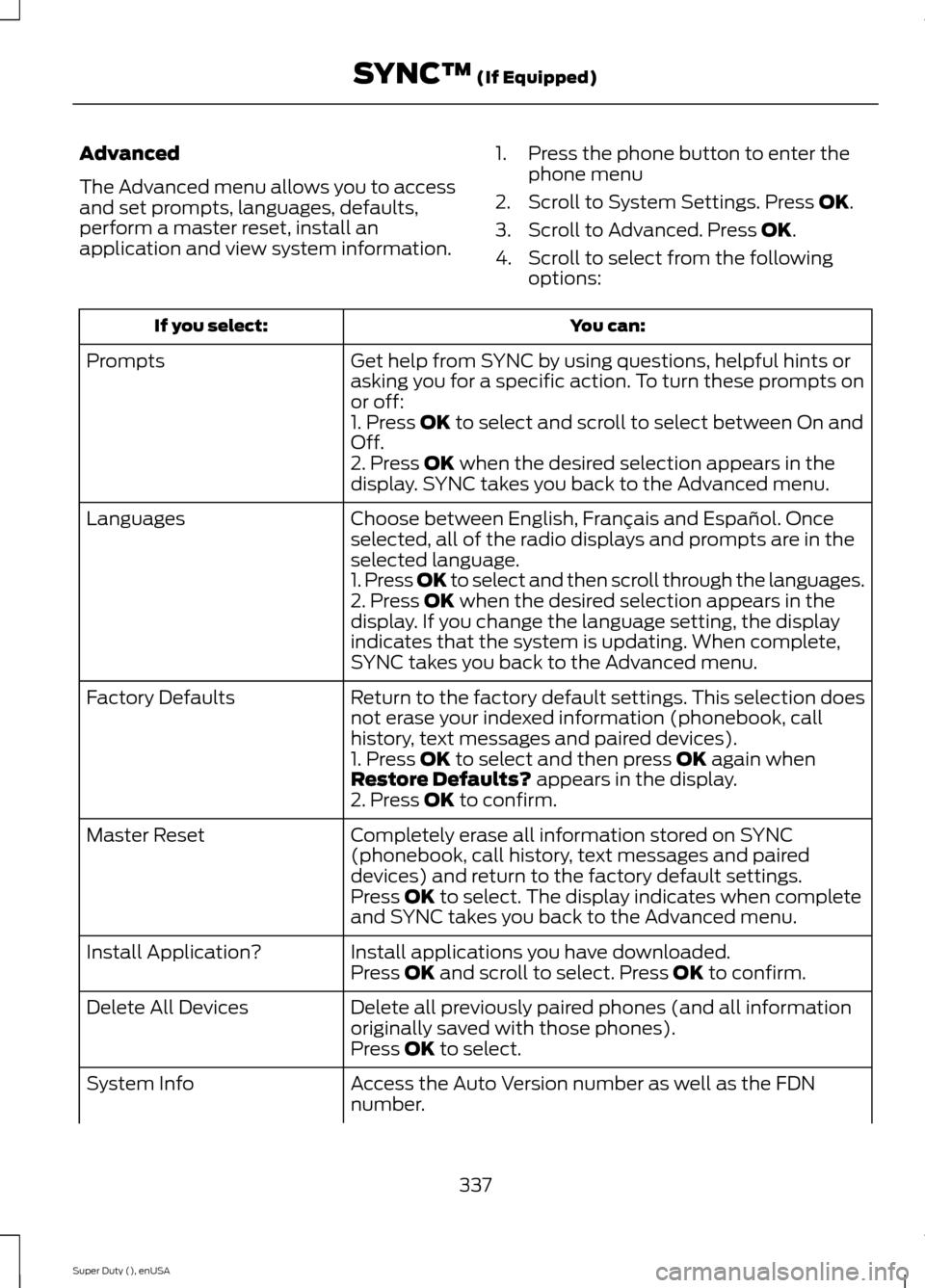
The Advanced menu allows you to accessand set prompts, languages, defaults,perform a master reset, install anapplication and view system information.
1.Press the phone button to enter thephone menu
2.Scroll to System Settings. Press OK.
3.Scroll to Advanced. Press OK.
4.Scroll to select from the followingoptions:
You can:If you select:
Get help from SYNC by using questions, helpful hints orasking you for a specific action. To turn these prompts onor off:
Prompts
1. Press OK to select and scroll to select between On andOff.2. Press OK when the desired selection appears in thedisplay. SYNC takes you back to the Advanced menu.
Choose between English, Français and Español. Onceselected, all of the radio displays and prompts are in theselected language.
Languages
1. Press OK to select and then scroll through the languages.2. Press OK when the desired selection appears in thedisplay. If you change the language setting, the displayindicates that the system is updating. When complete,SYNC takes you back to the Advanced menu.
Return to the factory default settings. This selection doesnot erase your indexed information (phonebook, callhistory, text messages and paired devices).
Factory Defaults
1. Press OK to select and then press OK again whenRestore Defaults? appears in the display.2. Press OK to confirm.
Completely erase all information stored on SYNC(phonebook, call history, text messages and paireddevices) and return to the factory default settings.
Master Reset
Press OK to select. The display indicates when completeand SYNC takes you back to the Advanced menu.
Install applications you have downloaded.Install Application?Press OK and scroll to select. Press OK to confirm.
Delete all previously paired phones (and all informationoriginally saved with those phones).Delete All Devices
Press OK to select.
Access the Auto Version number as well as the FDNnumber.System Info
337Super Duty (), enUSASYNC™ (If Equipped)