2015 FORD MUSTANG buttons
[x] Cancel search: buttonsPage 339 of 441
Press to select any of the following:
•
AM
• FM
• SIRIUS
• CD
• USB
• BT Stereo
• SD Card
• Line In
Cleaning the Touchscreen Display
Use a clean, soft cloth such as one used
for cleaning glasses. If dirt or fingerprints
are still visible, apply a small amount of
alcohol to the cloth. Do not pour or spray
alcohol onto the display. Do not use
detergent or any type of solvent to clean
the display.
Using Your Bezel Controls
Depending on your vehicle and option
package, you may also have these controls
on your bezel:
• Power: Switch the media or climate
features off and on.
• VOL:
Control the volume of playing
media.
• Climate:
Control the temperature, fan
speed or settings of the climate control
system.
• Seek buttons and Tune knob: Use as
you normally would in media modes. •
Eject:
Eject a CD from the
entertainment system.
• Sound:
Touch the musical note icon
to access the Sound menu where you
can adjust settings such as: Bass,
Treble, Midrange, Balance and Fade,
DSP (Digital Signal Processing),
Occupancy Mode and Speed
Compensated Volume. (Your vehicle
may not have all of these sound
options.)
Using Your Steering Wheel
Controls
You can use your steering wheel controls
to interact with the touchscreen system.
• VOL:
Control the volume of audio
output.
• M:
Change the source of playing media.
• Mute:
Mute the audio output.
• Voice:
Press to start a voice session.
Press again to end an active voice
prompt so you can begin speaking.
Press and hold to end a voice session.
• PHONE ACCEPT:
Press to answer a
call, or to switch between calls.
• PHONE REJECT:
Press to end a call
or to reject an incoming call.
See
Steering Wheel (page 64).
Support
The SYNC support team is available to
help you with any questions you are not
able to answer on your own.
Monday-Saturday, 8:30am-9:00pm EST.
Sunday, 10:30am-7:30pm EST.
In the United States, call: 1-800-392-3673.
In Canada, call: 1-800-565-3673.
Times are subject to change due to
holidays.
336
Mustang (), enUSA, First Printing MyFord Touch
™
(If Equipped)
Page 353 of 441
The Wi-Fi CERTIFIED Logo is a certification
mark of the Wi-Fi Alliance.
Help
Press the Settings icon > Help,
then select from the following: Help
View your vehicle's current location if your vehicle is
equipped with navigation. If your vehicle is not equipped
with navigation, you do not see this button.
Where Am I?
Touchscreen system serial number
System Information
Your vehicle identification number (VIN)
Touchscreen system software version
Navigation system version
Map database version
Sirius satellite radio ESN
Gracenote Database Information and Library version
View the licenses for any software and applications
installed on your system.
Software Licenses
Certain features are not accessible when your vehicle is
moving.
Driving Restrictions
Switch on and switch off the 911 Assist feature. See
Information
(page 374).
911 Assist
In Case of Emergency (ICE) Quick Dial: allows you to
save up to two numbers as ICE contacts for quick access
if there is an emergency. Select
Edit to access your
phonebook and then select the desired contacts. The
numbers then appear as options on this screen for the ICE
1 and ICE 2 buttons. The ICE contacts you select appear
at the end of the 911 Assist call process.
View categorized lists of voice commands.
Voice Command List
350
Mustang (), enUSA, First Printing MyFord Touch
™
(If Equipped)E142626 E142607
Page 354 of 441
To access Help using the voice commands,
press the voice button, then, after the tone,
say "Help". The system provides allowable
voice commands for the current mode.
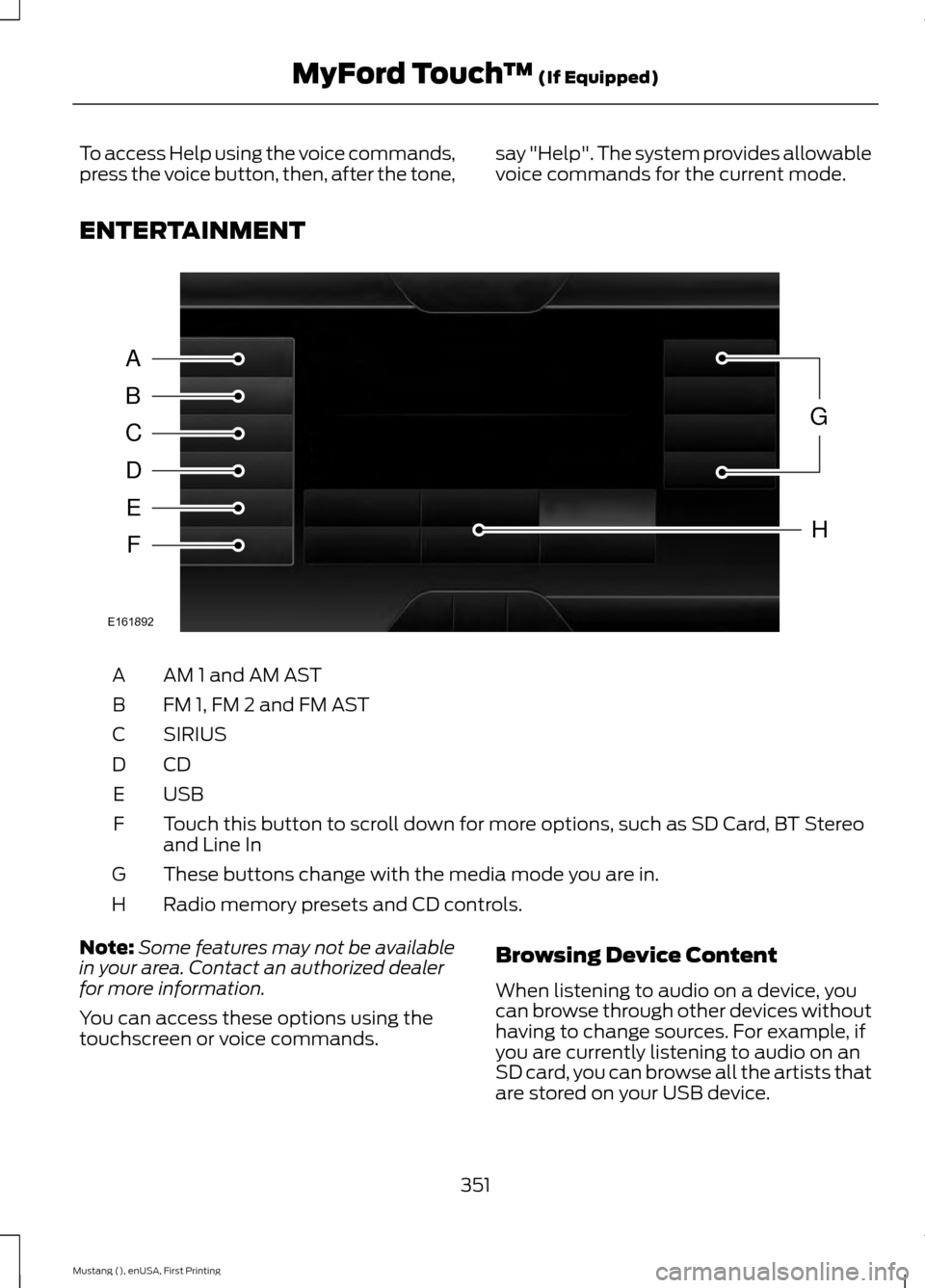
ENTERTAINMENT AM 1 and AM AST
A
FM 1, FM 2 and FM AST
B
SIRIUS
C
CDD
USBE
Touch this button to scroll down for more options, such as SD Card, BT Stereo
and Line In
F
These buttons change with the media mode you are in.
G
Radio memory presets and CD controls.
H
Note: Some features may not be available
in your area. Contact an authorized dealer
for more information.
You can access these options using the
touchscreen or voice commands. Browsing Device Content
When listening to audio on a device, you
can browse through other devices without
having to change sources. For example, if
you are currently listening to audio on an
SD card, you can browse all the artists that
are stored on your USB device.
351
Mustang (), enUSA, First Printing MyFord Touch
™ (If Equipped)A
B
C
D
E
F
G
H
E161892
Page 361 of 441
"TUNE"
"HD <#>" *
"Preset <#>" "Help"
* If available.
Sirius® Satellite Radio (If
Activated) Press the lower left corner of the
touchscreen, and then select the
SIRIUS tab.
Memory Presets
Save a channel by pressing and holding
one of the memory preset areas. There is
a brief mute while the radio saves the
channel. Sound returns when finished.
ALERT
Save the current song, artist, or team as a
favorite. The system alerts you when it
plays again on any channel.
Replay
Replay audio on the current channel. You
can replay approximately 45 minutes of
audio as long as you have remained tuned
to the current station. Changing stations
erases the previous audio.
While in replay mode:
• Press and release the seek buttons to
hear the previous or next song.
• Press and hold the seek buttons to
reverse or fast forward in the current
track.
• Press play or pause to play or pause
the audio.
• Press
Replay to return to live audio if
you have been using the feature to
replay audio. Scan
Touch this button to hear a brief sampling
of channels.
Options
Touch this button to view and adjust
various media settings.
Sound Settings
Touch this button to adjust settings for:
•
Bass
• Midrange
• Treble
• Balance and Fade
• DSP (Digital Signal processing)
• Occupancy Mode
• Speed Compensated Volume.
Note: Your vehicle may not have all these
sound settings.
Set Category for Seek/Scan
This allows you to select a category of
music you would like to search for. You can
then choose to either seek or scan for the
stations playing that category.
Parental Lockout
This allows you to lock and unlock
channels, change or reset your PIN or
unlock all channels. To use this feature,
you need your initial PIN, which is 1234.
Artist/Title/Team Alerts
This feature allows you to select Artists,
Titles and Teams that you would like the
system to alert you to when they are
playing on other channels. Press Edit Alerts
to delete or turn off alerts. You can also
set all alerts to on or off. When an alert
appears on the screen, you can choose to
358
Mustang (), enUSA, First Printing MyFord Touch
™
(If Equipped)E142611
Page 381 of 441
Note:
A paid subscription is required to
access and use these features. Go to
www.siriusxm.com/travellink for more
information.
Note: Visit www.siriusxm.com/traffic and
click on Coverage map and details for a
complete listing of all traffic areas covered
by Sirius Travel Link.
Note: Neither Sirius nor Ford is responsible
for any errors or inaccuracies in the Sirius
Travel Link services or its use in vehicles.
When you subscribe to Sirius Travel Link,
it can help you locate the best gas prices,
find movie listings, get current traffic alerts,
view the current weather map, get
accurate ski conditions and see scores to
current sports games. If your vehicle is equipped with
Navigation, touch the I
(Information) button to access
these features. If your vehicle is not
equipped with Navigation, touch the corner
of the touchscreen with the green tab.
Traffic On Route and Traffic Nearby
Touch these buttons to identify traffic
incidents on your route, nearby your
vehicle ’s current location or near any of
your favorite places, if programmed.
Fuel Prices
Touch this button to view fuel prices at
stations close to your vehicle ’s location or
on an active navigation route.
Movie Listings
Touch this button to view nearby movie
theaters and their show times, if available. Weather
Touch this button to view the nearby
weather, current weather, or the five day
forecast for the chosen area. Select Map
to see the weather map, which can show
storms, radar information, charts and
winds. Select Area to select from a listing
of weather locations.
Sports Info
Touch this button to view scores and
schedules from a variety of sports. You can
also save up to 10 favorite teams for easier
access. The score automatically refreshes
when a game is in progress.
Ski Conditions
Touch this button to view ski conditions
for a specific area.
Sirius Travel Link Voice Commands Press the voice button on the
steering wheel controls. When
prompted, say any of the
following commands: "SIRIUS TRAVEL LINK"
"5-day weather forecast" "Fuel prices"
"Movie listings"
"Sports headlines" *
"Sports schedules" *
"Sports scores" *
"Traffic"
"Weather"
378
Mustang (), enUSA, First Printing MyFord Touch
™
(If Equipped)E142608 E142599
Page 388 of 441
Air distribution control: Touch these buttons to switch airflow from the
windshield, instrument panel, or footwell vents on or off. The system can
distribute air through any combination of these vents.
J
Driver settings:
K
Touch the
+ or – to increase or decrease the air temperature on the driver side
of the vehicle.
Touch the heated seat icon to switch the heated seat off and on (if equipped).
Touch the climate-controlled seat icon to switch the climate-controlled seat
off and on (if equipped).
Touch
MyTemp to select your preset temperature setpoint. Touch and hold
MyTemp to save a new preset temperature setpoint.
Climate Control Voice Commands Press the voice button on the
steering wheel controls. When
prompted, say any of the
following commands: Climate control commands
"Climate automatic" "Climate off""Climate on"
"Climate temperature <15.5-29.5> degrees"
"Climate temperature <60-85> degrees" "Climate my temp""Help"
There are additional climate control
commands but in order to access them,
you have to say "Climate" first. When the
system is ready to listen, you may say any
of the following commands: "CLIMATE"
"A/C off""A/C on"
"Automatic"
"Climate my temp" "Defrost off""Defrost on" "Dual off"
"Fan decrease" "Fan increase" "Floor on"
"MAX A/C off" "MAX A/C on" "Off""On"
"Panel floor on" "Panel on"
"Recirc off" "Recirc on"
385
Mustang (), enUSA, First Printing MyFord Touch
™
(If Equipped)E142599
Page 394 of 441
3D map mode provides an
elevated perspective of the map.
This viewing angle can be adjusted
and the map can be rotated 180
degrees by touching the map twice, and
then dragging your finger along the shaded
bar with arrows at the bottom of the map.
View
switches between full map, street
list and exit view in route guidance.
Menu
displays a pop-up box that allows
direct access to navigation settings,
View/Edit Route, SIRIUS Travel Link,
Guidance Mute and Cancel Route. Press the speaker button on the
map to mute route guidance.
When the light on the button
illuminates, the feature is on. The speaker
button appears on the map only when
route guidance is active. Re-center the map by pressing
this icon whenever you scroll the
map away from your vehicle
’s
current location.
Auto Zoom
Press the green bar to access map mode,
then select the + or - zoom button to bring
up the zoom level and Auto buttons on the
touchscreen. When you press
Auto, Auto
Zoom turns on and Auto displays in the
bottom left corner of the screen in the map
scale. The map zoom level then
synchronizes with vehicle speed. The
slower your vehicle is traveling, the farther
the map zooms in; the faster your vehicle
is traveling, the farther the map zooms out.
To switch off the feature, just press the
+
or - button again.
In 3D mode, rotate the map view by
swiping your finger across the shaded bar
with the arrows. The ETA box under the zoom buttons
appears when a route is active and
displays the distance and time to your
destination. If the button is pressed, a pop
up appears with the destination listed (and
waypoint if applicable) along with mileage
and time to destination. You may also
select to have either the estimated time
to reach your destination or your estimated
arrival time.
Map Icons
Vehicle mark
shows the current
location of your vehicle. It stays
in the center of the map display,
except when in scroll mode. Scroll cursor
allows you to scroll
the map; the fixed icon is in the
center of the screen. The map
position closest to the cursor is in
a window on the top center part of the
screen. Address book entry default
icon(s)
indicates the location on
the map of an address book entry.
This is the default symbol shown
after the entry has been stored to the
Address Book by any method other than
the map. You can select from any of the
22 icons available. You can use each icon
more than once. Home
indicates the location on
the map currently stored as the
home position. You can only save
one address from the Address
Book as your Home entry. You cannot
change this icon. POI (Point Of Interest) icons
indicate locations of any point of
interest categories you choose to
display on the map. You can
choose to display three point of interest
categories on the map at one time.
391
Mustang (), enUSA, First Printing MyFord Touch
™
(If Equipped)E142644 E174017 E146188 E142646 E142647 E142648 E142649 E142650
Page 395 of 441
Starting point indicates the
starting point of a planned route. Waypoint
indicates the location
of a waypoint on the map. The
number inside the circle is different
for each waypoint and represents
the position of the waypoint in the route
list. Destination symbol indicates the
ending point of a planned route.
Next maneuver point
indicates
the location of the next turn on the
planned route. No GPS symbol
indicates that
insufficient GPS satellite signals
are available for accurate map
positioning. This icon may display
under normal operation in an area with
poor GPS access.
Quick-touch Buttons
When in map mode, touch anywhere on
the map display to access the following
options:
Set as Dest
Touch this button to select a scrolled
location on the map as your destination.
You may scroll the map by pressing your
index finger on the map display. When you
reach the desired location, simply let go
and then touch
Set as Dest.
Set as Waypoint
Touch this button to set the current
location as a waypoint.
Save to Favorites
Touch this button to save the current
location to your favorites. POI Icons
Touch this button to select icons to display
on the map. You can select up to three
icons to display on the map at the same
time. Turn these
ON or OFF.
Cancel Route
Touch this button to cancel the active
route.
View/Edit Route
Access these features when a route is
active:
• View Route
• Edit Destination/Waypoints
• Edit Turn List
• Detour
• Edit Route Preferences
• Edit Traffic Preferences
• Cancel Route.
Nokia is the digital map provider for the
navigation application. If you find map data
errors, you may report them directly to
Nokia by going to
http://mapreporter.navteq.com. Nokia
evaluates all reported map errors and
responds with the result of their
investigation by e-mail.
Navigation Map Updates
Annual navigation map updates are
available for purchase through your
dealership, by calling 1-866-4NAVTEQ
(1-866-462-8837) (in Mexico, call
01-800-557-5539) or going to
www.navigation.com/sync. You need to
specify the make and model of your vehicle
to determine if there is an update available.
392
Mustang (), enUSA, First Printing MyFord Touch
™
(If Equipped)E142651 E142652 E142653 E142654 E142655