2015 FORD FOCUS phone
[x] Cancel search: phonePage 348 of 453
To make adjustments using the touchscreen, select:
Action and Description
Menu Item
Press the settings icon.
Settings
Wireless & Internet
Then select from the following:
Wi-Fi Network (Client) Mode
Wi-Fi Settings
Turns the Wi-Fi feature on and off in your vehicle. Make sure
you switch it on for connectivity purposes.
Choose a Wireless Network
Allows you to use a previously stored wireless network. You
can categorize by alphabetical listing, priority and signal
strength. You can also choose to search for a network,
connect to a network, disconnect from a network, receive
more information, prioritize a network or delete a network.
Gateway (Access Point) Mode
Makes SYNC an access point for a phone or a computer when
turned on. This forms the local area network within your
vehicle for things, such as game playing, file transfer and
internet browsing. Press ? for more information.
Gateway (Access Point) Settings
Allows you to view and change settings for using SYNC as
the internet gateway.
Gateway (Access Point) Devices List
Allows you to view recent connections to your Wi-Fi system.
Instead of using Wi-Fi, your system can also use a USB mobile
broadband connection to access the internet. (You must
switch on your mobile broadband device on your personal
computer before connecting it to the system.) This screen
allows you to set up what is your typical area for your USB
mobile broadband connection. (USB mobile broadband
settings may not display if the device is already on.) You can
select the following:
USB Mobile Broadband
Country
Carrier345
Focus (CDH), enUSA, First Printing MyFord Touch
™
Page 349 of 453
Action and Description
Menu Item
Phone Number
User Name
Password
Shows you the currently paired devices as well as giving you
your typical Bluetooth options to connect, disconnect, set as
favorite, delete and add device. Bluetooth is a registered
trademark of the Bluetooth SIG.
Bluetooth Settings
Choose your connection methods and change them as
needed. You can select to change order and have the system
either always attempt to connect using a USB, mobile
broadband, or using Wi-Fi.
Prioritize Connection
Methods The Wi-Fi CERTIFIED Logo is a certification
mark of the Wi-Fi Alliance.
Help
To make adjustments using the touchscreen, select:
Action and Description
Message
Press the settings icon.
Settings
Help
Then select from the following:
Touchscreen system serial number
System Inform-
ation
Your vehicle identification number (VIN)
Touchscreen system software version
Navigation system version
Map database version
Sirius satellite radio ESN
Gracenote® Database Information and Library version
346
Focus (CDH), enUSA, First Printing MyFord Touch
™E142626 E142607
Page 350 of 453
Action and Description
Message
View the licenses for any software and applications installed on your
system.
View Software
Licenses
Certain features are not accessible when your vehicle is moving.
Driving Restric-
tions
Turn on and turn off the 911 Assist feature. See Information (page
371).
911 Assist
Allows you to save up to two
numbers as ICE contacts for
quick access if there is an
emergency.
In Case of Emergency (ICE) Quick Dial
The ICE contacts you select
appear at the end of the
Emergency Assistance call
process.
Select to access your phone-
book and then select the
desired contacts. The
numbers then appear as
options on this screen for the
ICE 1 and ICE 2 buttons.
Edit
View categorized lists of voice commands.
Voice
Command List You can also access Help using
the voice commands. The
system provides allowable voice
commands for the current mode. Press the voice button and when
prompted say: Voice command
Help
You can say help at any time to get
assistance with commands, menus or
other information.
347
Focus (CDH), enUSA, First Printing MyFord Touch
™E142599
Page 365 of 453
Voice command
Say the name of what you would like to listen to such as a band, song, album or playlist.
Play
Similar Music
Help
Supported Media Players, Formats
and Metadata Information
SYNC is capable of hosting nearly any
digital media player, including iPod,
Zune ™, plays from device players, and
most USB drives. Supported audio formats
include MP3, WMA, WAV and AAC.
It is also able to organize your indexed
media from your playing device by
metadata tags. Metadata tags, which are
descriptive software identifiers embedded
in the media files, provide information
about the file.
If your indexed media files contain no
information embedded in these metadata
tags, SYNC may classify the empty
metadata tags as unknown.
Bluetooth Audio
The system allows you to stream audio
over your vehicle's speakers from your
connected, Bluetooth-enabled cell phone. To access, press the lower left corner
on the touchscreen, then select:
Message
BT Stereo
Bluetooth Audio Voice Commands The voice system allows you to control
your media with a simple voice command.
For example to change songs, press the
voice button and follow the system
prompts.
Line In
WARNINGS
Driving while distracted can result in
loss of vehicle control, crash and
injury. We strongly recommend that
you use extreme caution when using any
device that may take your focus off the
road. Your primary responsibility is the safe
operation of your vehicle. We recommend
against the use of any handheld device
while driving and encourage the use of
voice-operated systems when possible.
Make sure you are aware of all applicable
local laws that may affect the use of
electronic devices while driving. For safety reasons, do not connect
or adjust the settings on your
portable music player while your
vehicle is moving.
362
Focus (CDH), enUSA, First Printing MyFord Touch
™E142611 E142599
Page 366 of 453
WARNINGS
Store the portable music player in a
secure location, such as the center
console or the glove box, when your
vehicle is moving. Hard objects may
become projectiles in a crash or sudden
stop, which may increase the risk of serious
injury. The audio extension cable must be
long enough to allow the portable music
player to be safely stored while your
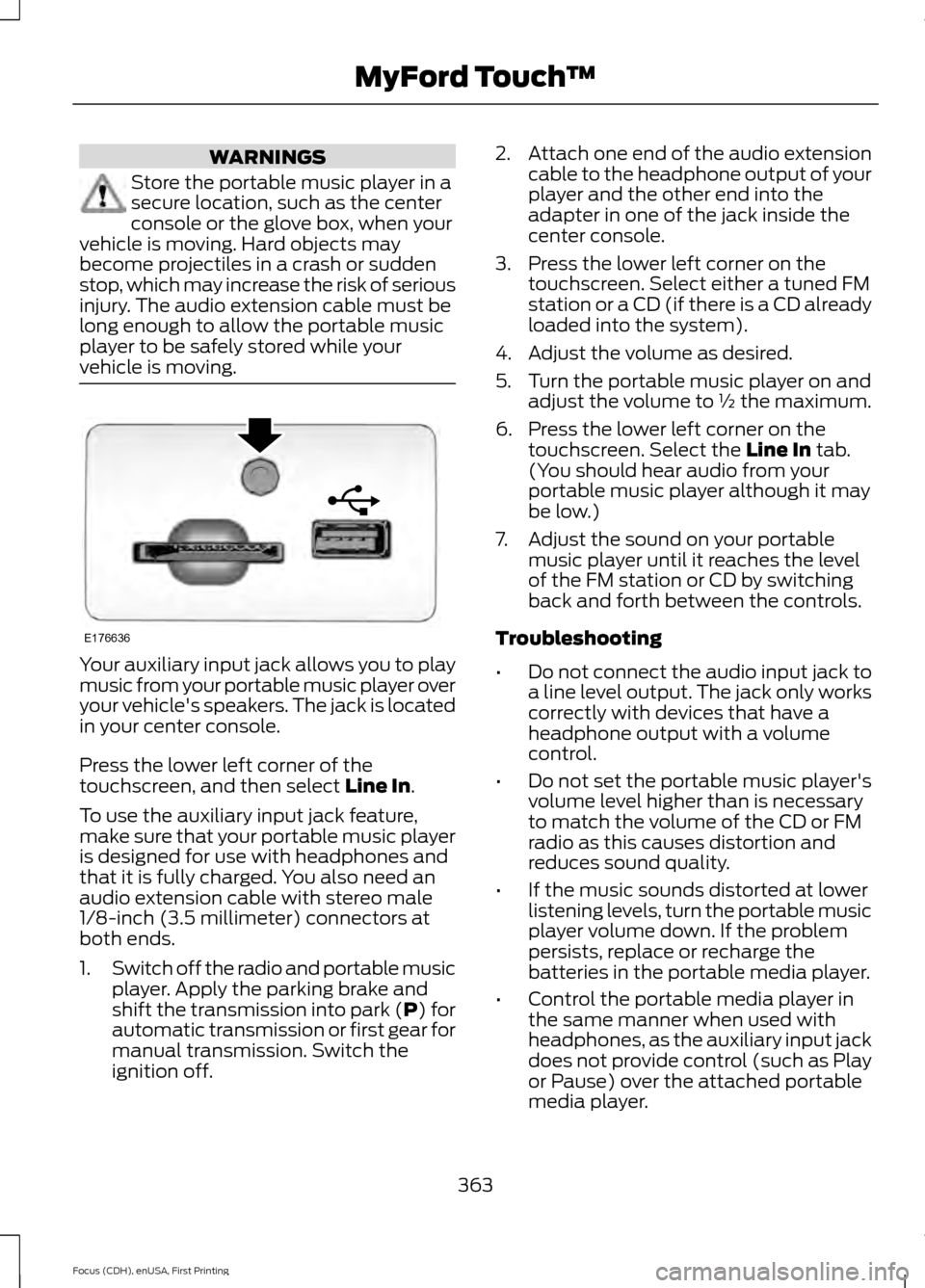
vehicle is moving. Your auxiliary input jack allows you to play
music from your portable music player over
your vehicle's speakers. The jack is located
in your center console.
Press the lower left corner of the
touchscreen, and then select Line In.
To use the auxiliary input jack feature,
make sure that your portable music player
is designed for use with headphones and
that it is fully charged. You also need an
audio extension cable with stereo male
1/8-inch (3.5 millimeter) connectors at
both ends.
1. Switch off the radio and portable music
player. Apply the parking brake and
shift the transmission into park (P) for
automatic transmission or first gear for
manual transmission. Switch the
ignition off. 2.
Attach one end of the audio extension
cable to the headphone output of your
player and the other end into the
adapter in one of the jack inside the
center console.
3. Press the lower left corner on the touchscreen. Select either a tuned FM
station or a CD (if there is a CD already
loaded into the system).
4. Adjust the volume as desired.
5. Turn the portable music player on and adjust the volume to ½ the maximum.
6. Press the lower left corner on the touchscreen. Select the
Line In tab.
(You should hear audio from your
portable music player although it may
be low.)
7. Adjust the sound on your portable music player until it reaches the level
of the FM station or CD by switching
back and forth between the controls.
Troubleshooting
• Do not connect the audio input jack to
a line level output. The jack only works
correctly with devices that have a
headphone output with a volume
control.
• Do not set the portable music player's
volume level higher than is necessary
to match the volume of the CD or FM
radio as this causes distortion and
reduces sound quality.
• If the music sounds distorted at lower
listening levels, turn the portable music
player volume down. If the problem
persists, replace or recharge the
batteries in the portable media player.
• Control the portable media player in
the same manner when used with
headphones, as the auxiliary input jack
does not provide control (such as Play
or Pause) over the attached portable
media player.
363
Focus (CDH), enUSA, First Printing MyFord Touch
™E176636
Page 367 of 453
PHONE
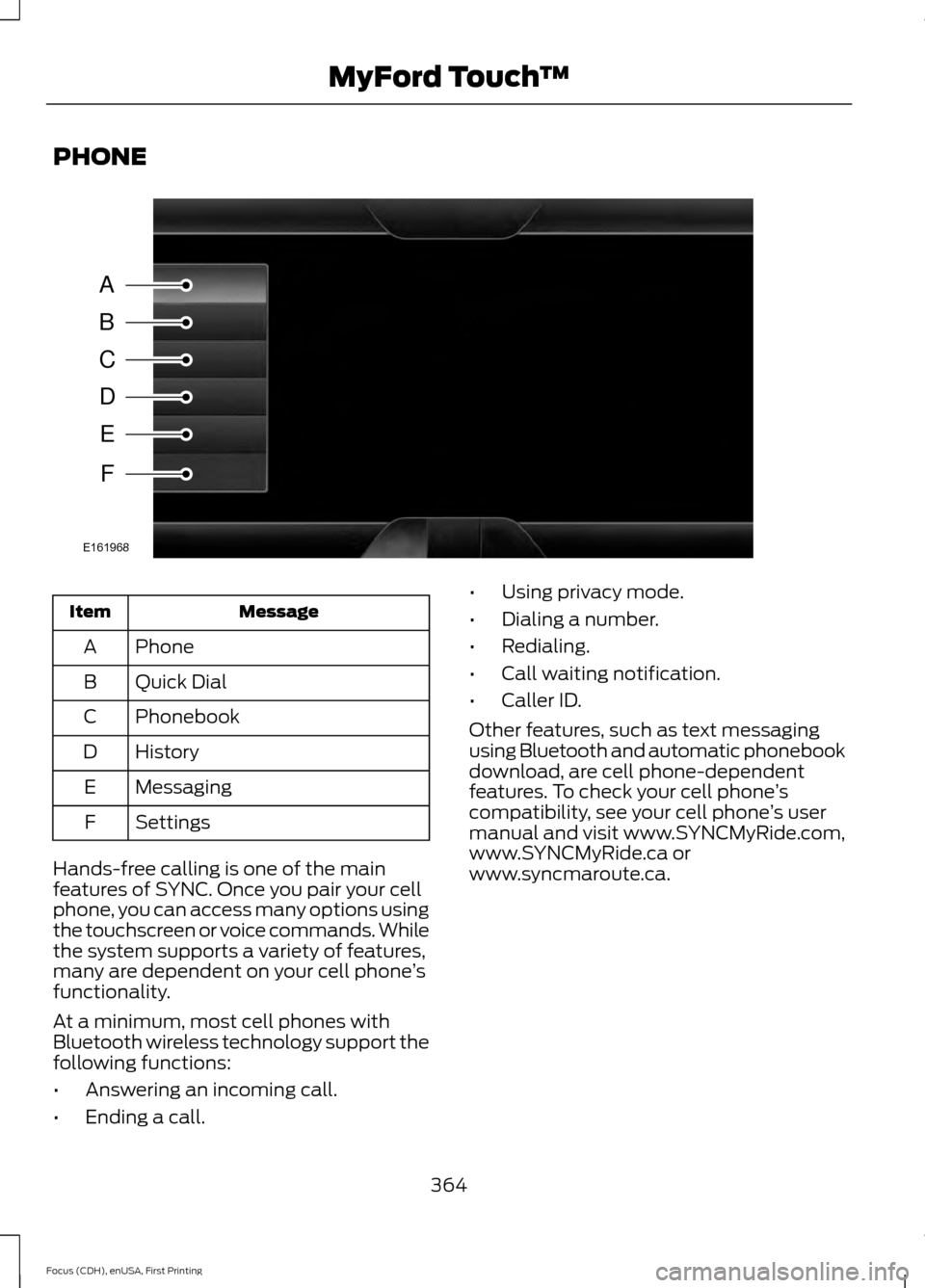
Message
Item
Phone
A
Quick Dial
B
Phonebook
C
History
D
Messaging
E
Settings
F
Hands-free calling is one of the main
features of SYNC. Once you pair your cell
phone, you can access many options using
the touchscreen or voice commands. While
the system supports a variety of features,
many are dependent on your cell phone ’s
functionality.
At a minimum, most cell phones with
Bluetooth wireless technology support the
following functions:
• Answering an incoming call.
• Ending a call. •
Using privacy mode.
• Dialing a number.
• Redialing.
• Call waiting notification.
• Caller ID.
Other features, such as text messaging
using Bluetooth and automatic phonebook
download, are cell phone-dependent
features. To check your cell phone ’s
compatibility, see your cell phone ’s user
manual and visit www.SYNCMyRide.com,
www.SYNCMyRide.ca or
www.syncmaroute.ca.
364
Focus (CDH), enUSA, First Printing MyFord Touch
™A
B
C
D
E
F
E161968
Page 368 of 453

Pairing Your Cell Phone for the
First Time
WARNING
Driving while distracted can result in
loss of vehicle control, crash and
injury. We strongly recommend that
you use extreme caution when using any
device that may take your focus off the
road. Your primary responsibility is the safe
operation of your vehicle. We recommend
against the use of any hand-held device
while driving and encourage the use of
voice-operated systems when possible.
Make sure you are aware of all applicable
local laws that may affect the use of
electronic devices while driving. The first thing you must do to use the
phone features of SYNC is to pair your
Bluetooth-enabled cell phone with SYNC.
This allows you to use your cell phone in a
hands-free manner.
Note:
Switch off the radio. Apply the
parking brake and shift the transmission into
park (P) for automatic transmission or first
gear for manual transmission. Switch the
ignition off.
Touch the upper left corner of the touchscreen: Action and Description
Message
Add phone Follow the on-screen instructions.
Find SYNC
Make sure that Bluetooth is set to On and that your cell phone
is in the correct mode. See your cell phone ’s manual if
necessary.
Select
SYNC and a six-digit PIN appears on your device.
If you are prompted to enter a PIN on your device, it does not
support Secure Simple Pairing. To pair, enter the PIN
displayed on the touchscreen. Skip the next step.
When prompted on your cell phone ’s display, confirm that
the PIN provided by SYNC matches the PIN displayed on your
cell phone.
The display indicates when the pairing is successful.
SYNC may prompt you with more cell phone options. For
more information on your cell phone's capability, see your
cell phone's manual and visit the website.
Pairing Subsequent Cell Phones
Note: Switch off the radio. Apply the
parking brake and shift the transmission into
park (P) for automatic transmission or first
gear for manual transmission. Switch the
ignition off. Make sure that Bluetooth is set to
On and
that your cell phone is in the correct mode.
See your device's manual if necessary.
365
Focus (CDH), enUSA, First Printing MyFord Touch
™
Page 369 of 453

To pair a subsequent cell phone, select:
Action and Description
Menu Item
Phone
Settings
Bluetooth Devices
Add Device Follow the on-screen instructions.
Find SYNC
Make sure that Bluetooth is set to On and that your cell phone
is in the correct mode. See your cell phone ’s manual if
necessary.
Select
SYNC and a six-digit PIN appears on your device.
If you are prompted to enter a PIN on your device, it does not
support Secure Simple Pairing. To pair, enter the PIN
displayed on the touchscreen. Skip the next step.
When prompted on your cell phone ’s display, confirm that
the PIN provided by SYNC matches the PIN displayed on your
cell phone.
The display indicates when the pairing is successful.
SYNC may prompt you with more cell phone options. For
more information on your cell phone's capability, see your
cell phone's manual and visit the website.
Making Calls Press the voice button and say a
command similar to the following:
Voice command
Call
Dial
You can say the name of a person from
your phone book to call or a say a number
to dial. For example "Call John" or "Dial
867-5309". To end the call or exit phone
mode, press and hold the phone
button.
Receiving Calls
During an incoming call, an audible tone
sounds. Call information appears in the
display if it is available. 366
Focus (CDH), enUSA, First Printing MyFord Touch
™E142599 E142632