Page 325 of 453
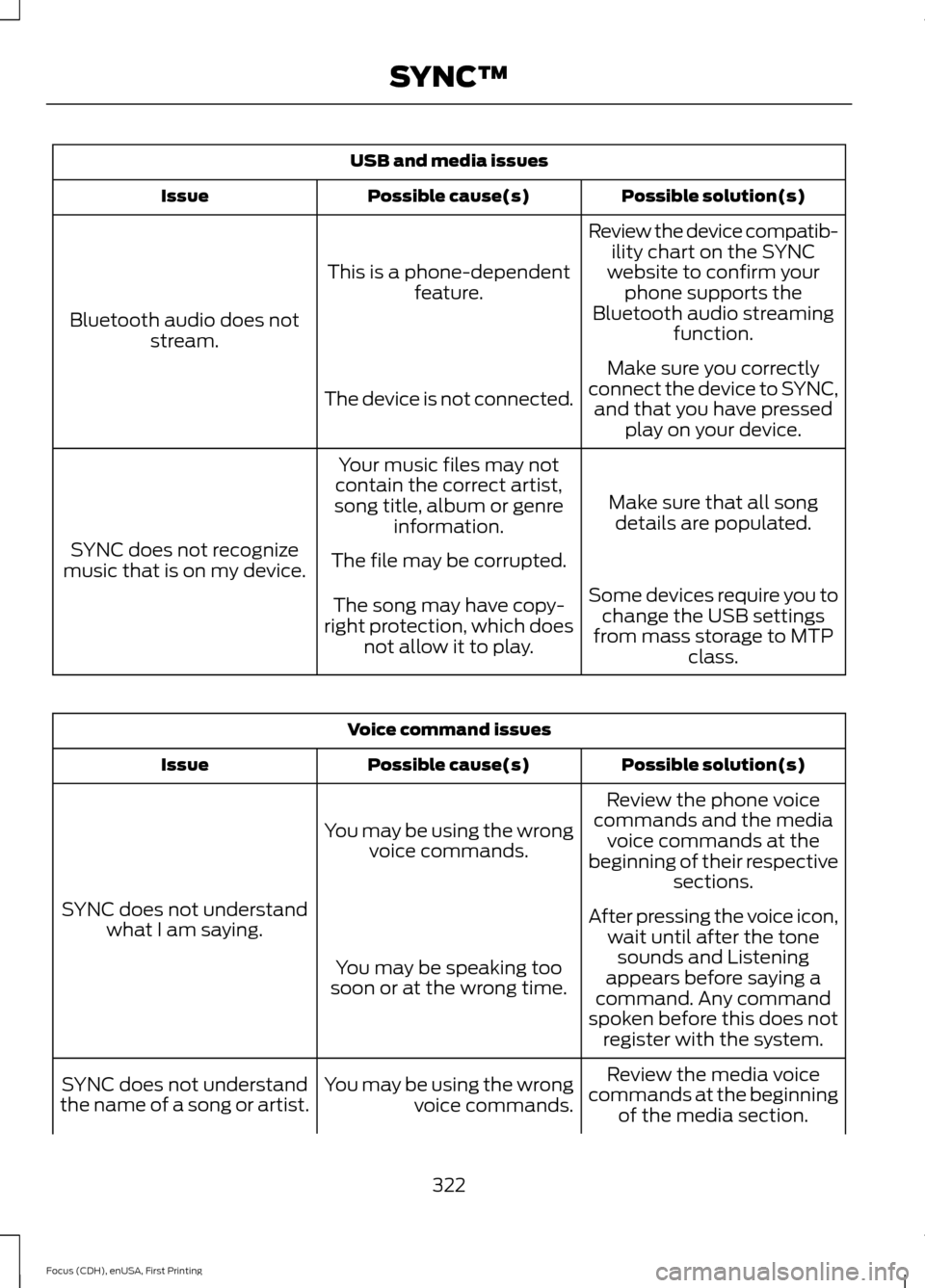
USB and media issues
Possible solution(s)
Possible cause(s)
Issue
Review the device compatib-ility chart on the SYNC
website to confirm your phone supports the
Bluetooth audio streaming function.
This is a phone-dependent
feature.
Bluetooth audio does not stream.
Make sure you correctly
connect the device to SYNC, and that you have pressed play on your device.
The device is not connected.
Make sure that all songdetails are populated.
Your music files may not
contain the correct artist,
song title, album or genre information.
SYNC does not recognize
music that is on my device. The file may be corrupted.
Some devices require you tochange the USB settings
from mass storage to MTP class.
The song may have copy-
right protection, which does not allow it to play. Voice command issues
Possible solution(s)
Possible cause(s)
Issue
Review the phone voice
commands and the media voice commands at the
beginning of their respective sections.
You may be using the wrong
voice commands.
SYNC does not understand what I am saying. After pressing the voice icon,
wait until after the tonesounds and Listening
appears before saying a
command. Any command
spoken before this does not register with the system.
You may be speaking too
soon or at the wrong time.
Review the media voice
commands at the beginning of the media section.
You may be using the wrong
voice commands.
SYNC does not understand
the name of a song or artist.
322
Focus (CDH), enUSA, First Printing SYNC™
Page 326 of 453
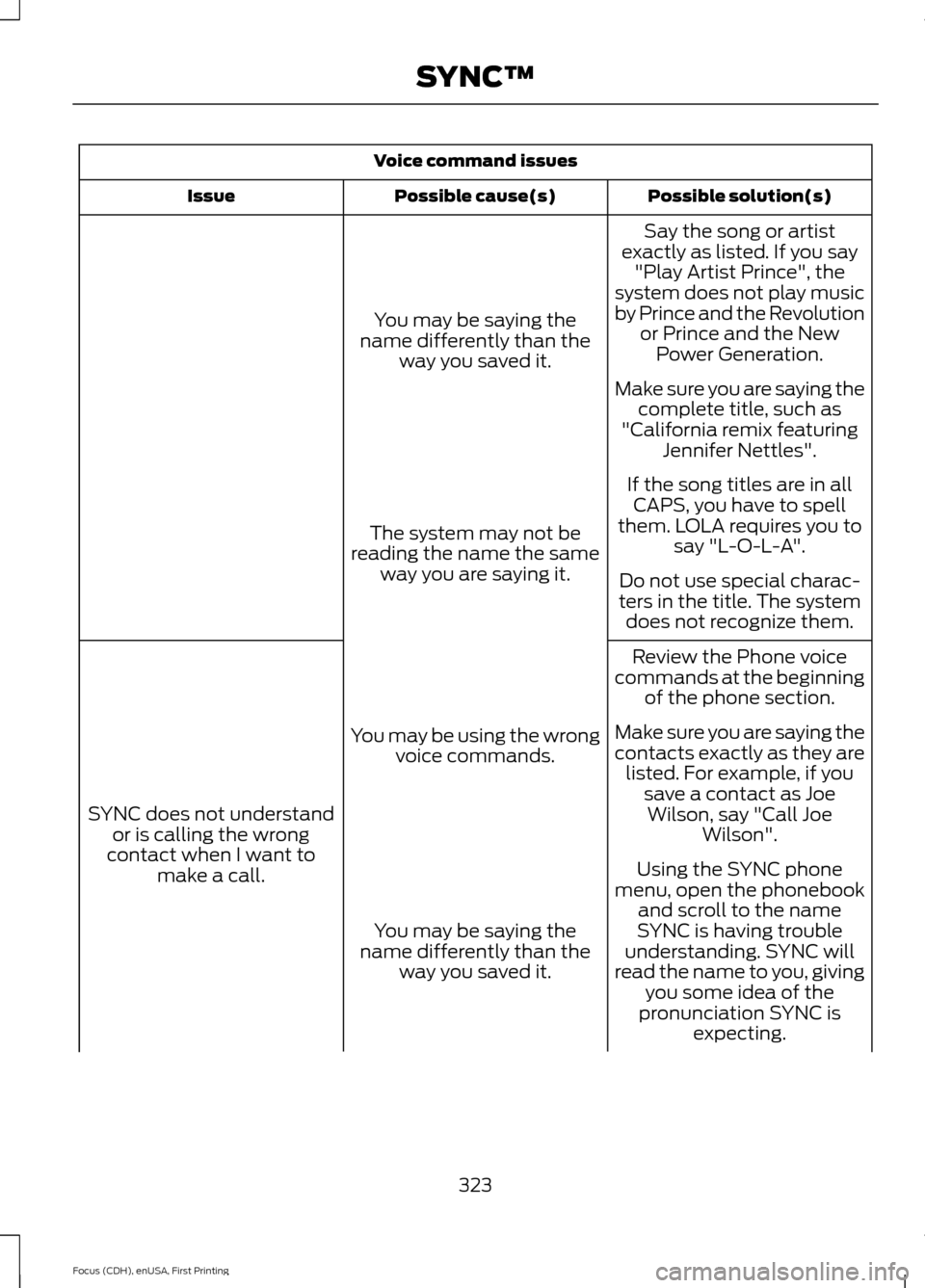
Voice command issues
Possible solution(s)
Possible cause(s)
Issue
Say the song or artist
exactly as listed. If you say "Play Artist Prince", the
system does not play music
by Prince and the Revolution or Prince and the NewPower Generation.
You may be saying the
name differently than the way you saved it.
Make sure you are saying thecomplete title, such as
"California remix featuring Jennifer Nettles".
If the song titles are in all CAPS, you have to spell
them. LOLA requires you to say "L-O-L-A".
The system may not be
reading the name the same way you are saying it. Do not use special charac-
ters in the title. The system does not recognize them.
Review the Phone voice
commands at the beginning of the phone section.
You may be using the wrong voice commands.
SYNC does not understand or is calling the wrong
contact when I want to make a call. Make sure you are saying the
contacts exactly as they are
listed. For example, if you save a contact as JoeWilson, say "Call Joe Wilson".
Using the SYNC phone
menu, open the phonebook and scroll to the name
SYNC is having trouble
understanding. SYNC will
read the name to you, giving you some idea of the
pronunciation SYNC is expecting.
You may be saying the
name differently than the way you saved it.
323
Focus (CDH), enUSA, First Printing SYNC™
Page 327 of 453
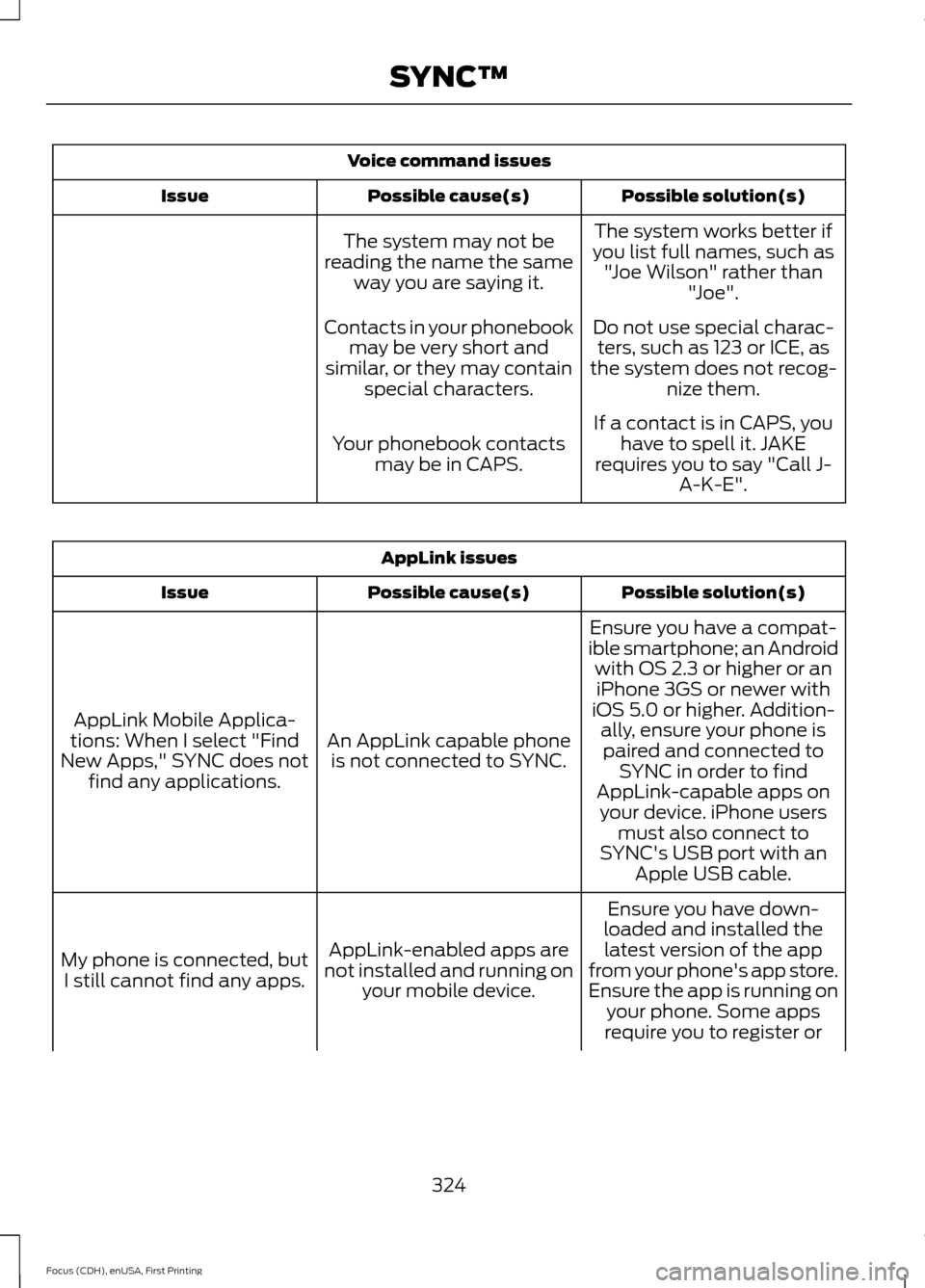
Voice command issues
Possible solution(s)
Possible cause(s)
Issue
The system works better if
you list full names, such as "Joe Wilson" rather than "Joe".
The system may not be
reading the name the same way you are saying it.
Do not use special charac-ters, such as 123 or ICE, as
the system does not recog- nize them.
Contacts in your phonebook
may be very short and
similar, or they may contain special characters.
If a contact is in CAPS, youhave to spell it. JAKE
requires you to say "Call J- A-K-E".
Your phonebook contacts
may be in CAPS. AppLink issues
Possible solution(s)
Possible cause(s)
Issue
Ensure you have a compat-
ible smartphone; an Android with OS 2.3 or higher or aniPhone 3GS or newer with
iOS 5.0 or higher. Addition- ally, ensure your phone is
An AppLink capable phone
is not connected to SYNC.
AppLink Mobile Applica-
tions: When I select "Find
New Apps," SYNC does not find any applications. paired and connected to
SYNC in order to find
AppLink-capable apps on your device. iPhone users must also connect to
SYNC's USB port with an Apple USB cable.
Ensure you have down-
loaded and installed the latest version of the app
from your phone's app store.
Ensure the app is running on your phone. Some apps
AppLink-enabled apps are
not installed and running on your mobile device.
My phone is connected, but
I still cannot find any apps.
require you to register or
324
Focus (CDH), enUSA, First Printing SYNC™
Page 328 of 453

AppLink issues
Possible solution(s)
Possible cause(s)
Issue
login on the app on the
phone before using them with AppLink. Also, some may have a "Ford SYNC"
setting, so check the app's
settings menu on the phone.
Closing and restarting apps may help SYNC find the
application if you cannot
discover it inside the vehicle. On an Android device, if
apps have an "Exit' or 'Quit'
Sometime apps do not
properly close and re-open their connection to SYNC, over ignition cycles, for example.
My phone is connected, my
app(s) are running, but I still cannot find any apps. option, select that then
restart the app. If the app
does not have that option, you can also manually
"Force Close" the app by
going to the phone's settings
menu, selecting 'Apps.' then finding the particular app
and choosing 'Force stop.' Don't forget to restart the
app afterwards, then select "Find New Apps" on SYNC.
On an iPhone with iOS7+, to force close an app, doubletab the home button then
swipe up on the app to close it. Tab the home button
again, then select the app again to restart it. After a
few seconds, the app should then appear in SYNC'sMobile App's Menu.
Reset the Bluetooth on your phone by turning it off and
then turning Bluetooth back
on. If you are in your vehicle, SYNC should be able to
automatically re-connect to your phone if you press the "Phone" button.
There is a bluetooth bug on
some order versions of the
Android OS that may cause apps that were found on
your previous vehicle drive
to not be found again if you have not turned off bluetooth.
My Android phone is
connected, my app(s) are running, I restarted them,but I still cannot find any apps.
325
Focus (CDH), enUSA, First Printing SYNC™
Page 329 of 453
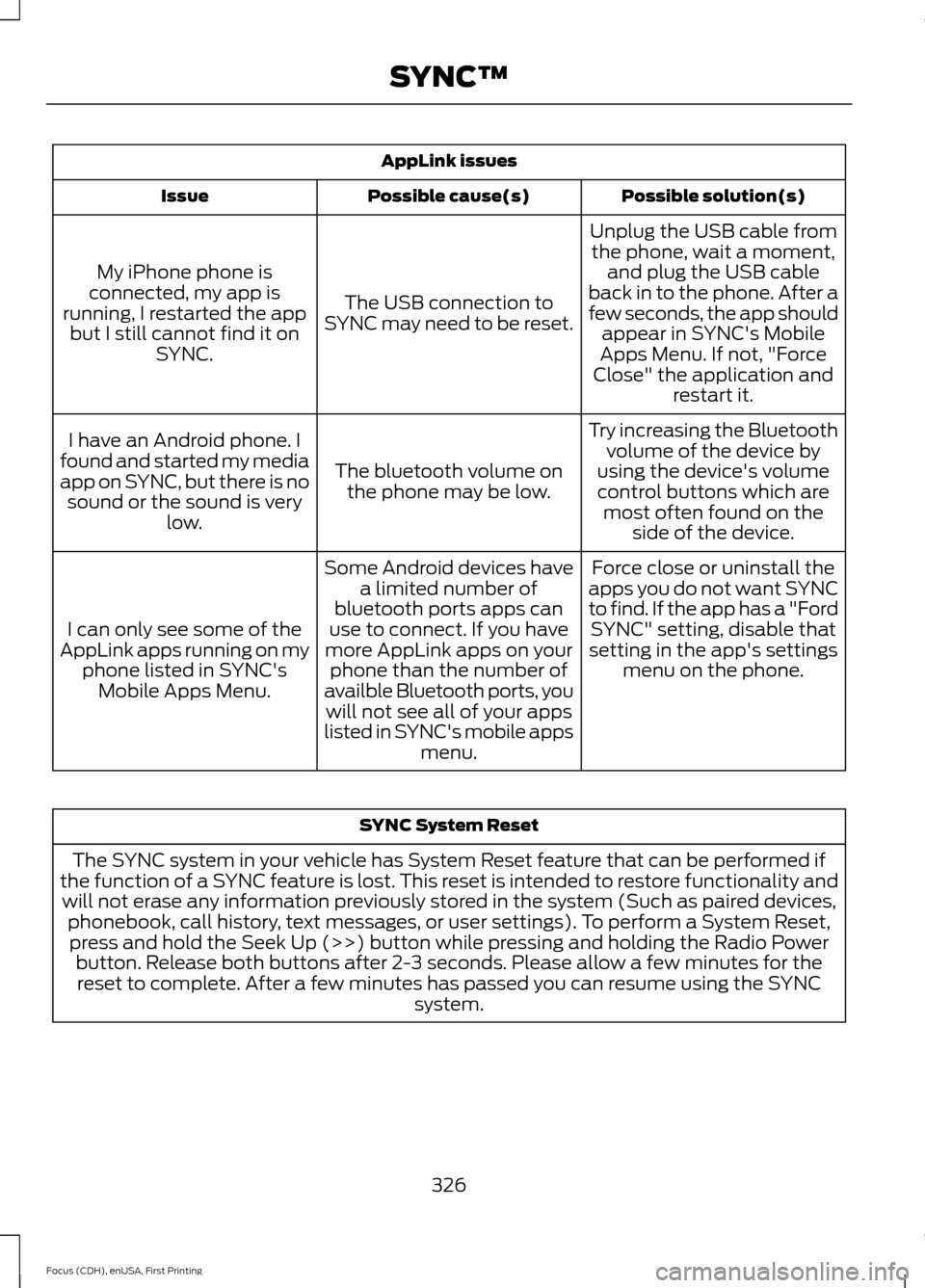
AppLink issues
Possible solution(s)
Possible cause(s)
Issue
Unplug the USB cable fromthe phone, wait a moment, and plug the USB cable
back in to the phone. After a
few seconds, the app should appear in SYNC's Mobile
Apps Menu. If not, "Force
Close" the application and restart it.
The USB connection to
SYNC may need to be reset.
My iPhone phone is
connected, my app is
running, I restarted the app but I still cannot find it on SYNC.
Try increasing the Bluetoothvolume of the device by
using the device's volume control buttons which are most often found on the side of the device.
The bluetooth volume on
the phone may be low.
I have an Android phone. I
found and started my media
app on SYNC, but there is no sound or the sound is very low.
Force close or uninstall the
apps you do not want SYNC
to find. If the app has a "Ford SYNC" setting, disable that
setting in the app's settings menu on the phone.
Some Android devices have
a limited number of
bluetooth ports apps can
use to connect. If you have
more AppLink apps on your phone than the number of
availble Bluetooth ports, you will not see all of your apps
listed in SYNC's mobile apps menu.
I can only see some of the
AppLink apps running on my phone listed in SYNC'sMobile Apps Menu. SYNC System Reset
The SYNC system in your vehicle has System Reset feature that can be performed if
the function of a SYNC feature is lost. This reset is intended to restore functionality and will not erase any information previously stored in the system (Such as paired devices, phonebook, call history, text messages, or user settings). To perform a System Reset,press and hold the Seek Up (>>) button while pressing and holding the Radio Power button. Release both buttons after 2-3 seconds. Please allow a few minutes for thereset to complete. After a few minutes has passed you can resume using the SYNC system.
326
Focus (CDH), enUSA, First Printing SYNC™
Page 330 of 453
GENERAL INFORMATION WARNING
Driving while distracted can result in
loss of vehicle control, crash and
injury. We strongly recommend that
you use extreme caution when using any
device that may take your focus off the
road. Your primary responsibility is the safe
operation of your vehicle. We recommend
against the use of any hand-held device
while driving and encourage the use of
voice-operated systems when possible.
Make sure you are aware of all applicable
local laws that may affect the use of
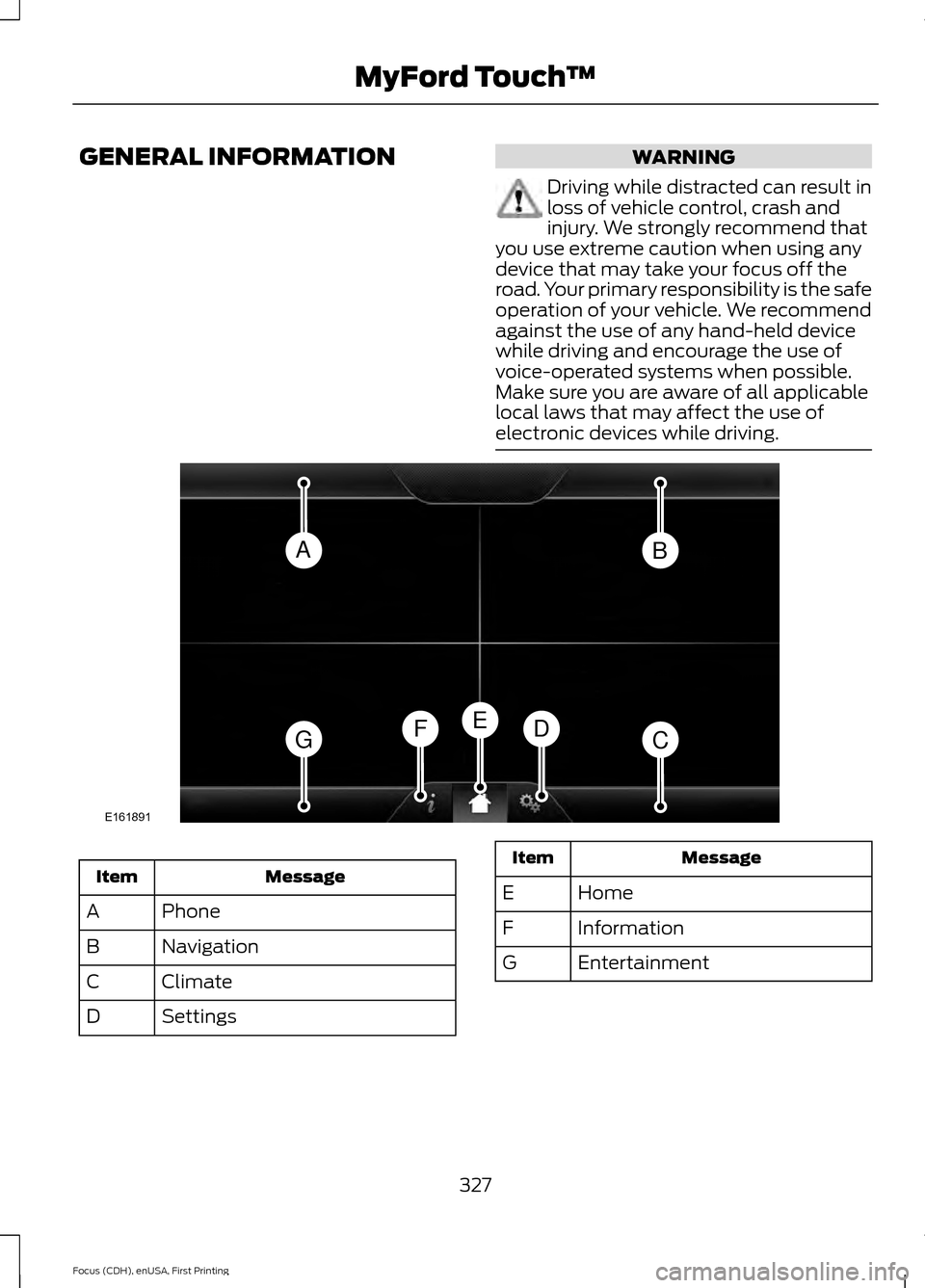
electronic devices while driving. Message
Item
Phone
A
Navigation
B
Climate
C
Settings
D Message
Item
Home
E
Information
F
Entertainment
G
327
Focus (CDH), enUSA, First Printing MyFord Touch
™AB
GCDFE
E161891
Page 331 of 453
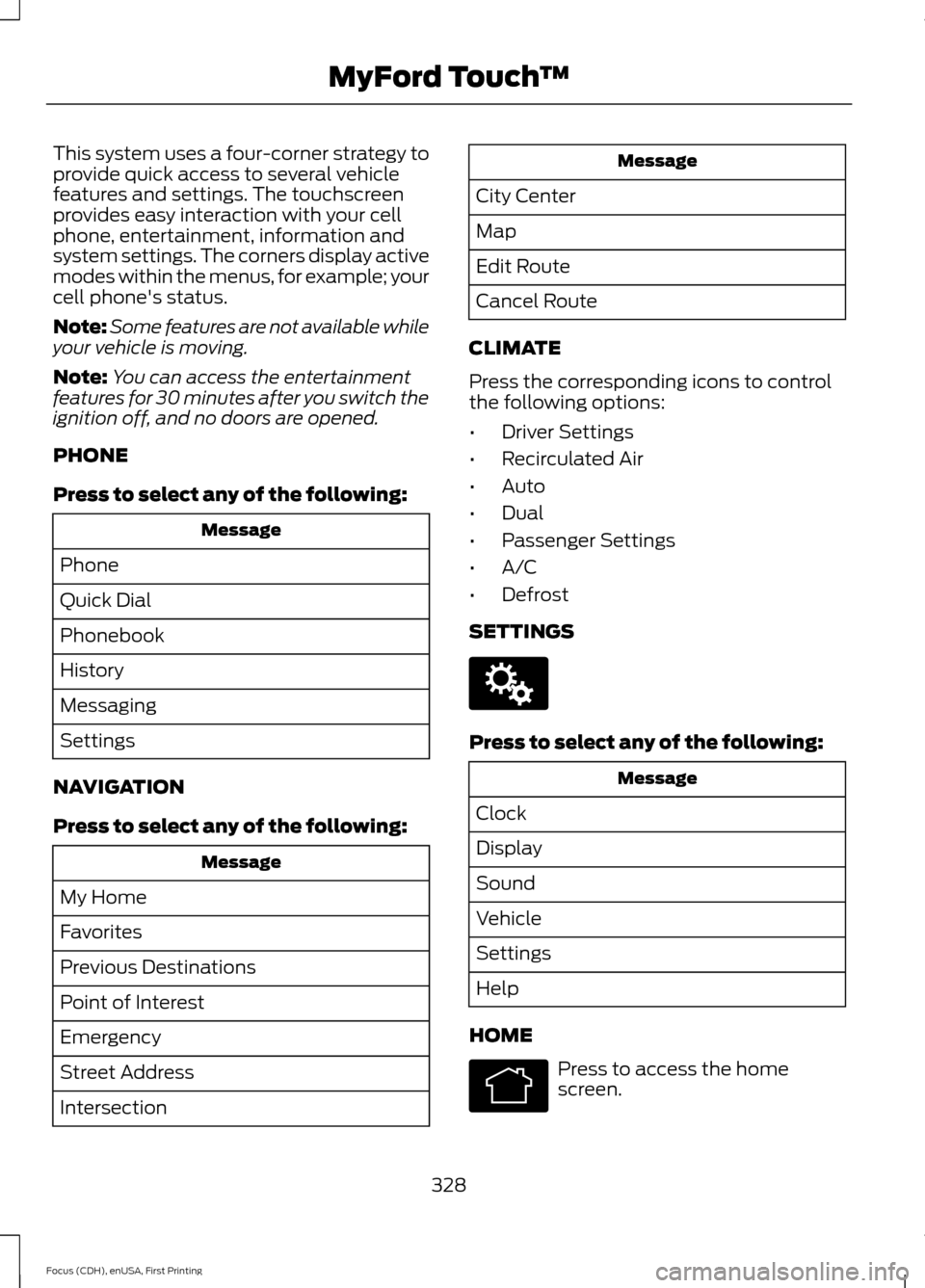
This system uses a four-corner strategy to
provide quick access to several vehicle
features and settings. The touchscreen
provides easy interaction with your cell
phone, entertainment, information and
system settings. The corners display active
modes within the menus, for example; your
cell phone's status.
Note:
Some features are not available while
your vehicle is moving.
Note: You can access the entertainment
features for 30 minutes after you switch the
ignition off, and no doors are opened.
PHONE
Press to select any of the following: Message
Phone
Quick Dial
Phonebook
History
Messaging
Settings
NAVIGATION
Press to select any of the following: Message
My Home
Favorites
Previous Destinations
Point of Interest
Emergency
Street Address
Intersection Message
City Center
Map
Edit Route
Cancel Route
CLIMATE
Press the corresponding icons to control
the following options:
• Driver Settings
• Recirculated Air
• Auto
• Dual
• Passenger Settings
• A/C
• Defrost
SETTINGS Press to select any of the following:
Message
Clock
Display
Sound
Vehicle
Settings
Help
HOME Press to access the home
screen.
328
Focus (CDH), enUSA, First Printing MyFord Touch
™E142607 E142613
Page 333 of 453
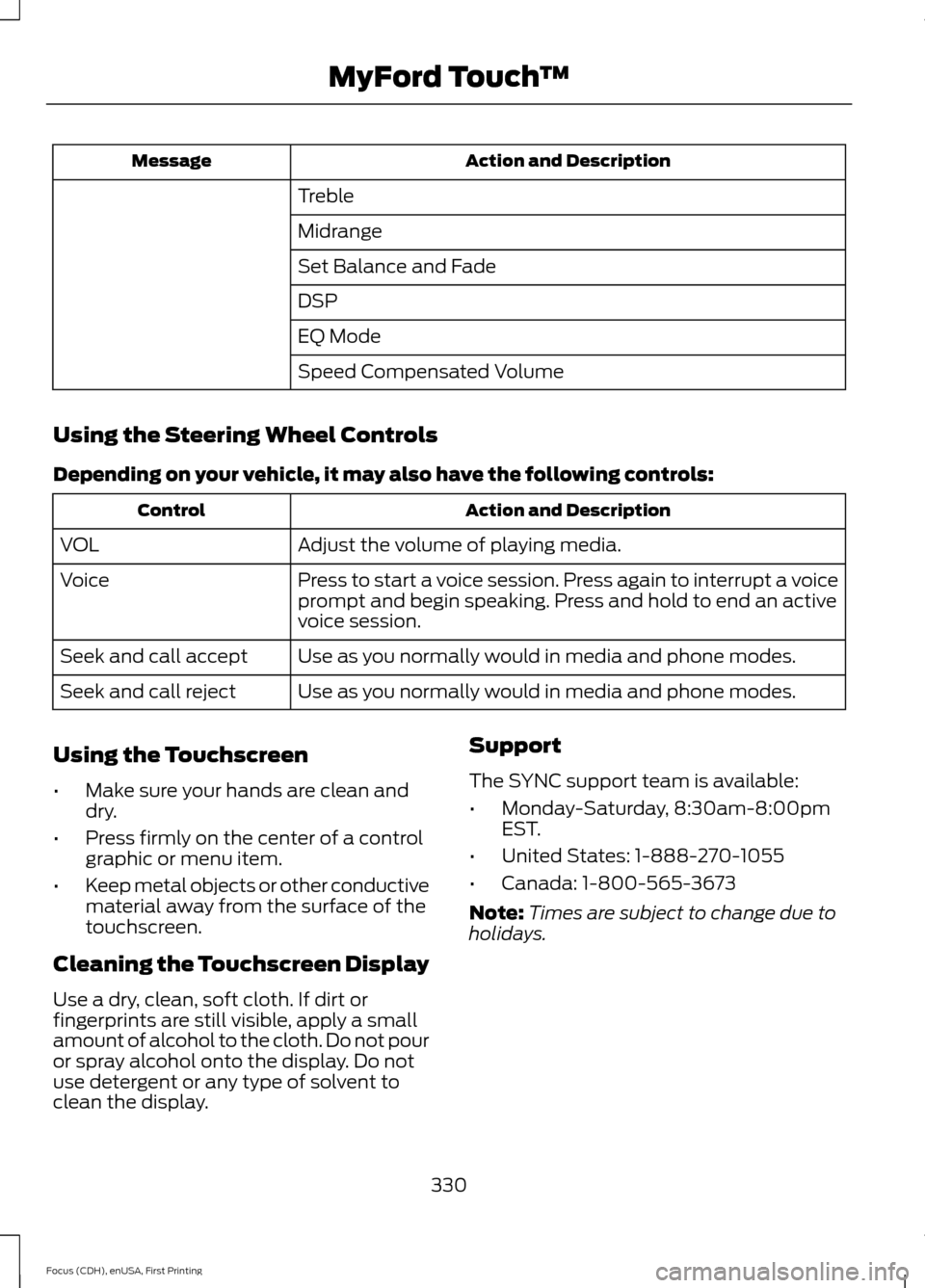
Action and Description
Message
Treble
Midrange
Set Balance and Fade
DSP
EQ Mode
Speed Compensated Volume
Using the Steering Wheel Controls
Depending on your vehicle, it may also have the following controls: Action and Description
Control
Adjust the volume of playing media.
VOL
Press to start a voice session. Press again to interrupt a voice
prompt and begin speaking. Press and hold to end an active
voice session.
Voice
Use as you normally would in media and phone modes.
Seek and call accept
Use as you normally would in media and phone modes.
Seek and call reject
Using the Touchscreen
• Make sure your hands are clean and
dry.
• Press firmly on the center of a control
graphic or menu item.
• Keep metal objects or other conductive
material away from the surface of the
touchscreen.
Cleaning the Touchscreen Display
Use a dry, clean, soft cloth. If dirt or
fingerprints are still visible, apply a small
amount of alcohol to the cloth. Do not pour
or spray alcohol onto the display. Do not
use detergent or any type of solvent to
clean the display. Support
The SYNC support team is available:
•
Monday-Saturday, 8:30am-8:00pm
EST.
• United States: 1-888-270-1055
• Canada: 1-800-565-3673
Note: Times are subject to change due to
holidays.
330
Focus (CDH), enUSA, First Printing MyFord Touch
™