2015 FORD FOCUS ELECTRIC change time
[x] Cancel search: change timePage 263 of 369
HD Radio Technology manufactured under
license from iBiquity Digital Corp. U.S. and
foreign patents. HD Radio and the HD and
HD Radio logos are proprietary trademarks
of iBiquity Digital Corp. Ford Motor
Company and iBiquity Digital Corp. are not
responsible for the content sent using HD
Radio technology. Content may be
changed, added or deleted at any time at
the station owner's discretion.
Radio Voice CommandsPress the voice button and when prompted say:
Action and Description
Voice command
Radio
Then you can say a command similar to the following: Say a frequency or preset.
FM
Off
Help
SIRIUS® Satellite Radio (If
Activated) To turn the feature on press the lower left corner of the touchscreen, and then
select:
Action and Description
Menu Item
SIRIUS
You can then select any of the following: Save a channel by pressing and holding one of the memory preset areas.
There is a brief mute while the radio saves the channel. Sound returns
when finished.
Presets
Save the current song, artist, or team as a favorite.
Alerts
If you are listening to music, you can save the song or artist, so the
system can alert you when they are playing on a satellite radio channel.
If you are listening to a sporting event, you can save your favorite teams
so the system can alert you when they are playing on a satellite radio
channel. You can also edit alerts or turn alerts on or off.
260
Focus (CDH), enUSA, First Printing MyFord Touch
™E142599 E142611
Page 265 of 369
Message
Message
DSP
Occupancy Mode
Speed Compensated Volume
This allows you to select a category of music you would like to search
for. You can then choose to either seek or scan for the stations playing
that category.
Set Category
for Seek/Scan
This allows you to lock and unlock channels, change or reset your PIN
or unlock all channels. To use this feature, you need your initial PIN,
which is 1234.
Parental
Lockout
This feature allows you turn alerts on and off.
Artist / Title /
Team Alerts
SIRIUS requires this number when communicating with you about your
account.
Electronic
Serial Number
(ESN)
Touch this button to manually enter the desired satellite channel
number. Touch Enter when you are done.
Direct Tune
Note: Your vehicle may not have all these sound settings.
SIRIUS Satellite Radio Information
Note: SIRIUS reserves the unrestricted right
to change, rearrange, add or delete
programming including canceling, moving
or adding particular channels, and its prices,
at any time, with or without notice to you.
Ford Motor Company shall not be
responsible for any such programming
changes. SIRIUS satellite radio is a
subscription-based satellite radio service
that broadcasts a variety of music, sports,
news, weather, traffic and entertainment
programming. Your factory-installed
SIRIUS satellite radio system includes
hardware and a limited subscription term
that begins on the date of sale or lease of
your vehicle. See an authorized dealer for
availability.
262
Focus (CDH), enUSA, First Printing MyFord Touch
™E142593
Page 271 of 369
Action and Description
Message
Displays software and firmware information about the currently
connected media device.
Device Informa-
tion
Indexes your device when you connect it for the first time and each
time the content changes (for example adding or removing tracks) to
make sure you have the latest voice commands available for all media
on the device.
Update Media
Index
Note: Your vehicle may not have all these sound settings.
Browse
This feature allows you to view the
contents of the device. It also allows you
to search by categories, for example genre,
artist or album. If you want to view song information, for
example Title, Artist, File, Folder, Album,
and Genre, touch the on-screen album art.
You can also select: Action and Description
Message
To hear how the system pronounces the current band and song. This
can be helpful when using voice commands to make sure the system
correctly plays your request.
What’
s
Playing?
USB and SD Card Voice Commands Press the voice button and when prompted say:
Voice command
SD Card
USB
Then commands such as the following:
Browse
Next Track
Pause
268
Focus (CDH), enUSA, First Printing MyFord Touch
™E142599
Page 289 of 369
GO Time and Cabin Conditioning
This screen allows you to enter or change
the GO Time and cabin conditioning
temperature.Action and Description
Menu Item
These switch the hours and minutes of your GO Time. The minutes switch
in increments of five. You can also switch the settings for AM and PM by
touching those buttons.
Time (+ and
-)
These switch the setting for your selected cabin conditioning temperature
for this GO Time event. You can select from four settings:
Cabin
Condi-
tioning (+
and -)
Off
85°F (29.5°C)
72°F (22°C)
65°F
(18.5°C)
Touching this button erases the GO Time and cabin conditioning temper-
ature.
Clear
Touching this button stores the GO Time and temperature settings.
Save
Note: Cabin conditioning can perform differently depending on if you plug into a 120V
convenience cord or 240V charging station. The power available for conditioning is limited
to the charging station power available.
Note: Your vehicle may not always reach the set cabin temperature due to charging and
ambient temperature conditions. This is normal operation.
Note: If you select a GO Time, but choose Off for the temperature setting, the vehicle
schedules charging to be complete by your GO Time and does not condition the cabin.
Note: Make sure you save your settings before returning to the previous screen. If you do
not touch
Save, your settings are not stored in the system.
Value Charge Profiles Action and Description
Menu Item
Touch this button next to the profile name on the Settings
screen to see the value charge profiles.
Edit
This displays the charging mode and off-peak times for
your Default Value Charge profile. The system displays
off-peak times for weekdays; the remaining hours of the
day are considered peak time. The system displays similar
off-peak times for weekend days.
Default
if you want your vehicle to
immediately charge when
you plug it in at this profile
location.
Charge Now
286
Focus (CDH), enUSA, First Printing MyFord Touch
™
Page 295 of 369
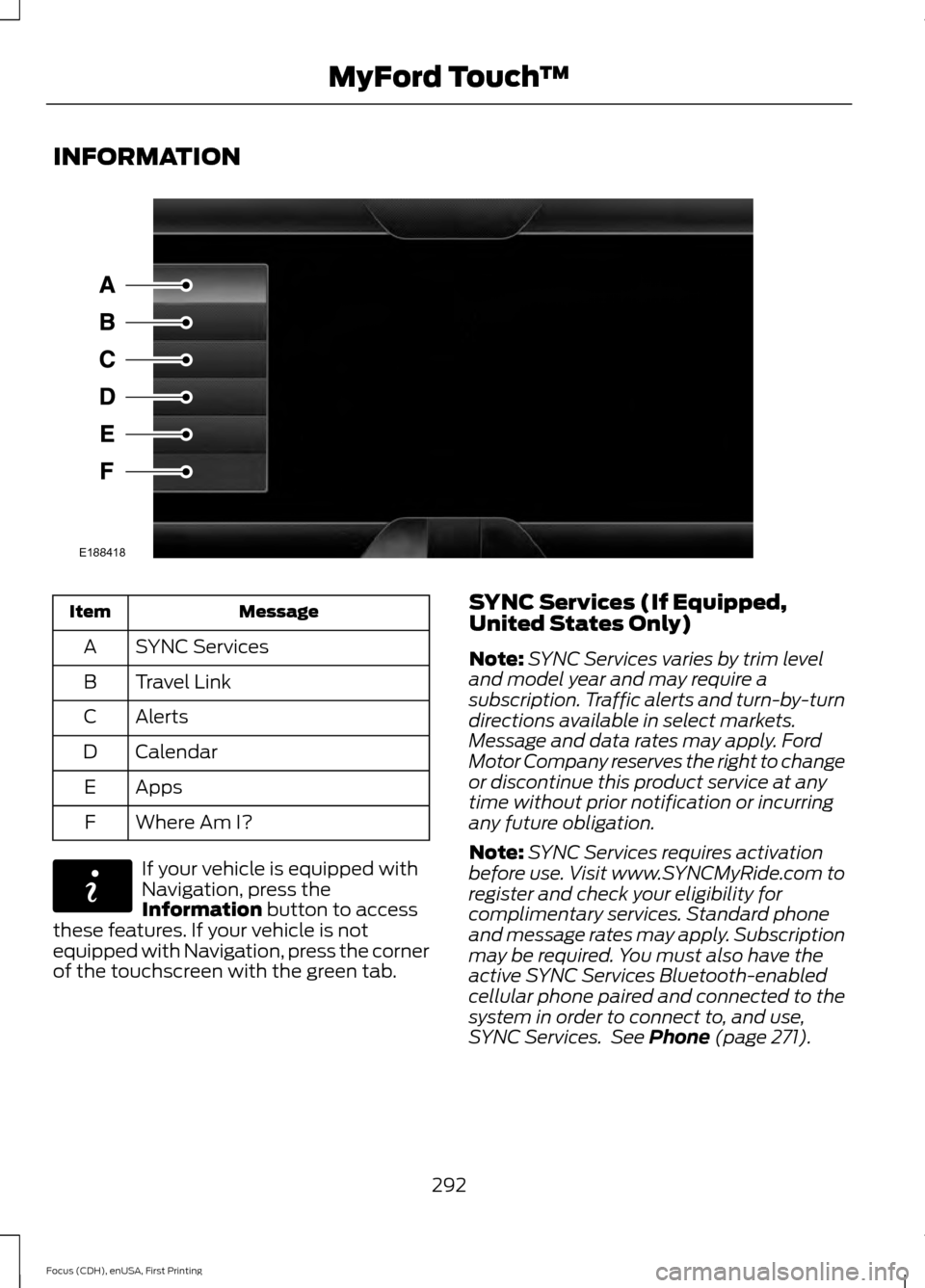
INFORMATION
Message
Item
SYNC Services
A
Travel Link
B
Alerts
C
Calendar
D
Apps
E
Where Am I?
F If your vehicle is equipped with
Navigation, press the
Information button to access
these features. If your vehicle is not
equipped with Navigation, press the corner
of the touchscreen with the green tab. SYNC Services (If Equipped,
United States Only)
Note:
SYNC Services varies by trim level
and model year and may require a
subscription. Traffic alerts and turn-by-turn
directions available in select markets.
Message and data rates may apply. Ford
Motor Company reserves the right to change
or discontinue this product service at any
time without prior notification or incurring
any future obligation.
Note: SYNC Services requires activation
before use. Visit www.SYNCMyRide.com to
register and check your eligibility for
complimentary services. Standard phone
and message rates may apply. Subscription
may be required. You must also have the
active SYNC Services Bluetooth-enabled
cellular phone paired and connected to the
system in order to connect to, and use,
SYNC Services. See
Phone (page 271).
292
Focus (CDH), enUSA, First Printing MyFord Touch
™E188418 E142608
Page 315 of 369
synchronizes with vehicle speed. The
slower your vehicle is traveling, the farther
in the map zooms in; the faster your vehicle
is traveling, the farther the map zooms out.
To switch the feature off, just press the +
or - button again.
In 3D mode, rotate the map view by
swiping your finger across the shaded bar
with the arrows.
The ETA box under the zoom buttons
appears when a route is active and
displays the distance and time to your
destination. If you press the button, a pop
up appears with the destination listed (and
waypoint, if applicable) along with mileage
and time to destination. You may also
select to have either the estimated time
to reach your destination or your estimated
arrival time.
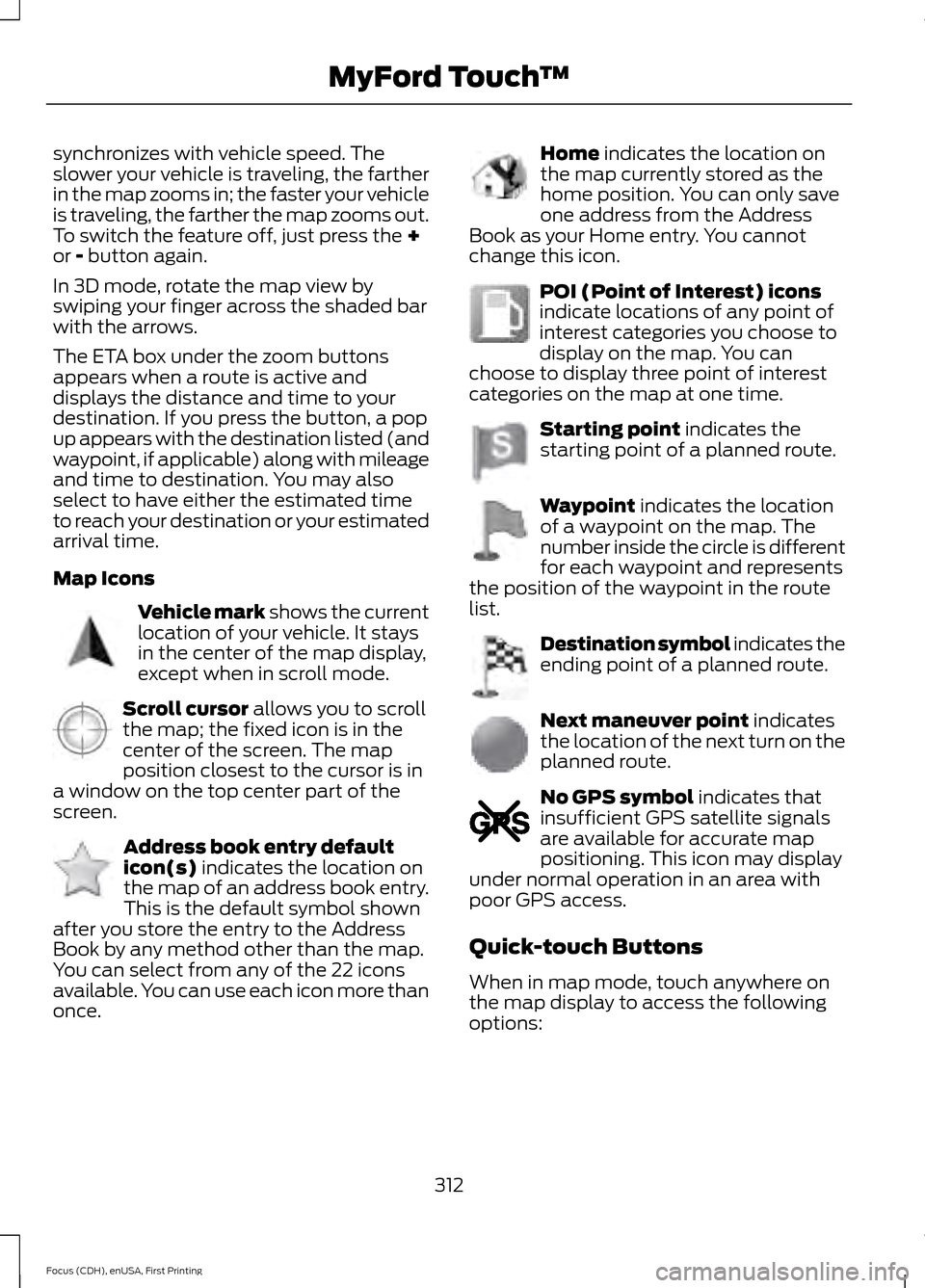
Map Icons Vehicle mark
shows the current
location of your vehicle. It stays
in the center of the map display,
except when in scroll mode. Scroll cursor
allows you to scroll
the map; the fixed icon is in the
center of the screen. The map
position closest to the cursor is in
a window on the top center part of the
screen. Address book entry default
icon(s)
indicates the location on
the map of an address book entry.
This is the default symbol shown
after you store the entry to the Address
Book by any method other than the map.
You can select from any of the 22 icons
available. You can use each icon more than
once. Home
indicates the location on
the map currently stored as the
home position. You can only save
one address from the Address
Book as your Home entry. You cannot
change this icon. POI (Point of Interest) icons
indicate locations of any point of
interest categories you choose to
display on the map. You can
choose to display three point of interest
categories on the map at one time. Starting point
indicates the
starting point of a planned route. Waypoint
indicates the location
of a waypoint on the map. The
number inside the circle is different
for each waypoint and represents
the position of the waypoint in the route
list. Destination symbol indicates the
ending point of a planned route.
Next maneuver point
indicates
the location of the next turn on the
planned route. No GPS symbol
indicates that
insufficient GPS satellite signals
are available for accurate map
positioning. This icon may display
under normal operation in an area with
poor GPS access.
Quick-touch Buttons
When in map mode, touch anywhere on
the map display to access the following
options:
312
Focus (CDH), enUSA, First Printing MyFord Touch
™E142646 E142647 E142648 E142649 E142650 E142651 E142652 E142653 E142654 E142655
Page 331 of 369
WARNING
Operating certain parts of this
system while driving can distract
your attention away from the road,
and possibly cause an accident or other
serious consequences. Do not change
system settings or enter data non-verbally
(using your hands) while driving. Stop the
vehicle in a safe and legal manner before
attempting these operations. This is
important since while setting up or
changing some functions you might be
required to distract your attention away
from the road and remove your hands from
the wheel. General Operation
Voice Command Control: Functions
within the Windows Automotive-based
system may be accomplished using only
voice commands. Using voice commands
while driving allows you to operate the
system without removing your hands from
the wheel.
Prolonged Views of Screen:
Do not
access any function requiring a prolonged
view of the screen while you are driving.
Pull over in a safe and legal manner before
attempting to access a function of the
system requiring prolonged attention. Even
occasional short scans to the screen may
be hazardous if your attention has been
diverted away from your driving task at a
critical time.
Volume Setting: Do not raise the volume
excessively. Keep the volume at a level
where you can still hear outside traffic and
emergency signals while driving. Driving
while unable to hear these sounds could
cause an accident. Use of Speech Recognition Functions:
Speech recognition software is inherently
a statistical process which is subject to
errors. It is your responsibility to monitor
any speech recognition functions included
in the system and address any errors.
Navigation Features:
Any navigation
features included in the system are
intended to provide turn by turn
instructions to get you to a desired
destination. Please make certain all
persons using this system carefully read
and follow instructions and safety
information fully.
Distraction Hazard:
Any navigation
features may require manual (non-verbal)
setup. Attempting to perform such set-up
or insert data while driving can seriously
distract your attention and could cause an
accident or other serious consequences.
Stop the vehicle in a safe and legal manner
before attempting these operations.
Let Your Judgment Prevail:
Any
navigation features are provided only as
an aid. Make your driving decisions based
on your observations of local conditions
and existing traffic regulations. Any such
feature is not a substitute for your personal
judgment. Any route suggestions made by
this system should never replace any local
traffic regulations or your personal
judgment or knowledge of safe driving
practices.
Route Safety:
Do not follow the route
suggestions if doing so would result in an
unsafe or illegal maneuver, if you would be
placed in an unsafe situation, or if you
would be directed into an area that you
consider unsafe. The driver is ultimately
responsible for the safe operation of the
vehicle and therefore, must evaluate
whether it is safe to follow the suggested
directions.
328
Focus (CDH), enUSA, First Printing Appendices
Page 332 of 369
Potential Map Inaccuracy: Maps used
by this system may be inaccurate because
of changes in roads, traffic controls or
driving conditions. Always use good
judgment and common sense when
following the suggested routes.
Emergency Services:
Do not rely on any
navigation features included in the system
to route you to emergency services. Ask
local authorities or an emergency services
operator for these locations. Not all
emergency services such as police, fire
stations, hospitals and clinics are likely to
be contained in the map database for such
navigation features.
Telenav Software End User License
Agreement
Please read these terms and conditions
carefully before you use the Telenav
Software. Your use of the Telenav
Software indicates that you accept these
terms and conditions. If you do not accept
these terms and conditions, do not break
the seal of the package, launch, or
otherwise use the Telenav Software.
These terms and conditions represent the
agreement (“ Agreement”) between you
and Telenav, Inc. (“Telenav ”) with respect
to the Telenav Software (including
upgrades, modifications, or additions
thereto) (collectively “Telenav Software”).
All references herein to “you” and “your ”
means you, your employees, agents, and
contractors, and any other entity on whose
behalf you accept these terms and
conditions, all of whom shall also be bound
by this Agreement. Additionally, all of your
account information, as well as other
payment and personal information
provided by you to Telenav (directly or
through the use of the Telenav Software,
is subject to Telenav ’s privacy policy
located at http://www.telenav.com. Telenav may revise this Agreement and
the privacy policy at any time, with or
without notice to you. You agree to visit
http://www.telenav.com from time to time
to review the then current version of this
Agreement and of the privacy policy.
1. Safe and Lawful Use
You acknowledge that devoting attention
to the Telenav Software may pose a risk
of injury or death to you and others in
situations that otherwise require your
undivided attention, and you therefore
agree to comply with the following when
using the Telenav Software: (a) observe
all traffic laws and otherwise drive safely;
(b) use your own personal judgment while
driving. If you feel that a route suggested
by the Telenav Software instructs you to
perform an unsafe or illegal maneuver,
places you in an unsafe situation, or directs
you into an area that you consider to be
unsafe, do not follow such instructions; (c)
do not input destinations, or otherwise
manipulate the Telenav Software, unless
your vehicle is stationary and parked; (d)
do not use the Telenav Software for any
illegal, unauthorized, unintended, unsafe,
hazardous, or unlawful purposes, or in any
manner inconsistent with this Agreement;
(e) arrange all GPS and wireless devices
and cables necessary for use of the
Telenav Software in a secure manner in
your vehicle so that they will not interfere
with your driving and will not prevent the
operation of any safety device (such as an
airbag).
You agree to indemnify and hold Telenav
harmless against all claims resulting from
any dangerous or otherwise inappropriate
use of the Telenav Software in any moving
vehicle, including as a result of your failure
to comply with the directions above.
329
Focus (CDH), enUSA, First Printing Appendices