Page 108 of 369
Note:
Adjust the seatback to an upright
driving position before adjusting the head
restraint. Adjust the head restraint so that
the top of it is level with the top of your head
and as far forward as possible. Make sure
that you remain comfortable. If you are
extremely tall, adjust the head restraint to
its highest position.
Front seat and rear seat outboard head
restraints Rear center head restraint
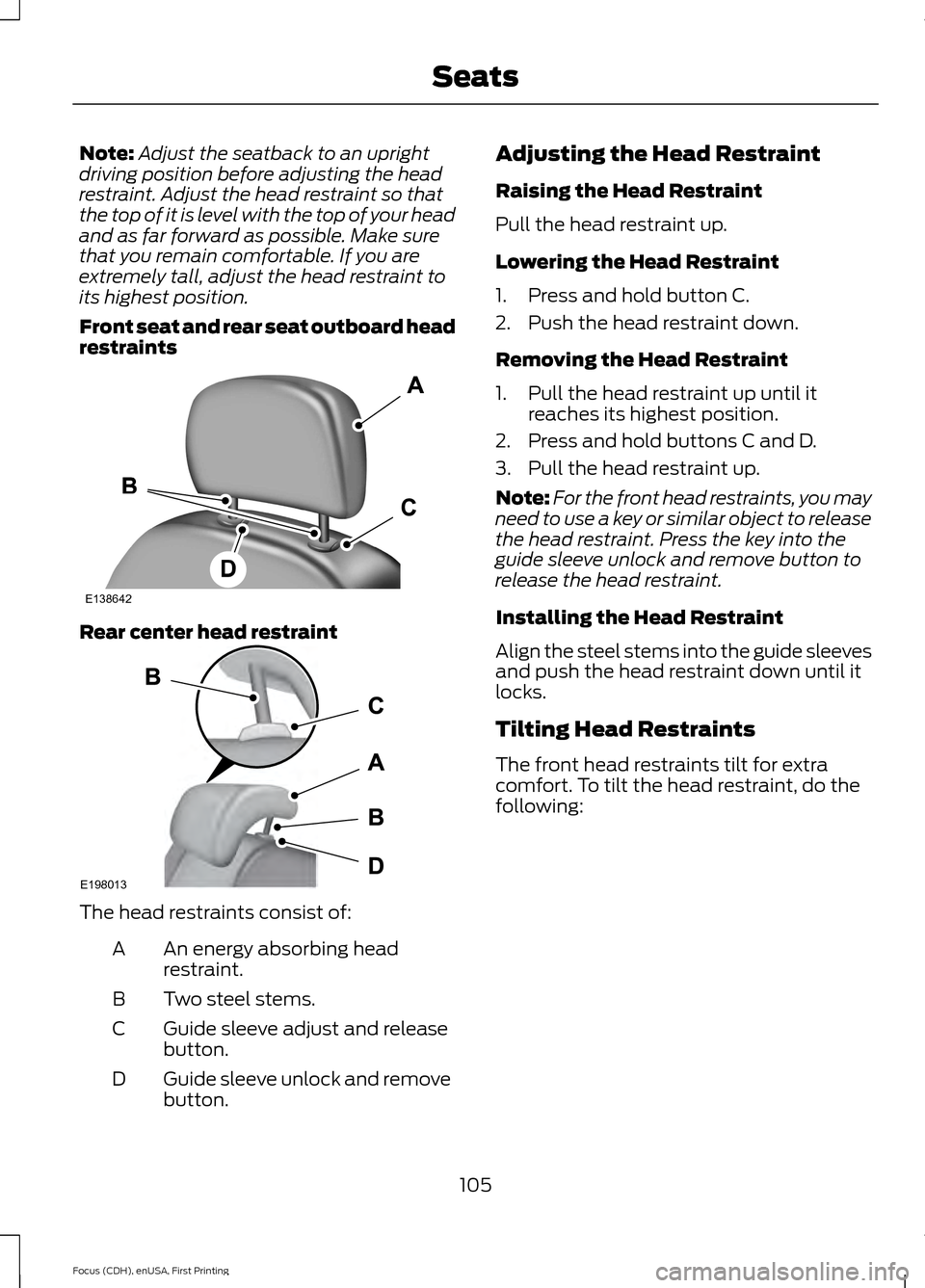
The head restraints consist of:
An energy absorbing head
restraint.
A
Two steel stems.
B
Guide sleeve adjust and release
button.
C
Guide sleeve unlock and remove
button.
D Adjusting the Head Restraint
Raising the Head Restraint
Pull the head restraint up.
Lowering the Head Restraint
1. Press and hold button C.
2. Push the head restraint down.
Removing the Head Restraint
1. Pull the head restraint up until it
reaches its highest position.
2. Press and hold buttons C and D.
3. Pull the head restraint up.
Note: For the front head restraints, you may
need to use a key or similar object to release
the head restraint. Press the key into the
guide sleeve unlock and remove button to
release the head restraint.
Installing the Head Restraint
Align the steel stems into the guide sleeves
and push the head restraint down until it
locks.
Tilting Head Restraints
The front head restraints tilt for extra
comfort. To tilt the head restraint, do the
following:
105
Focus (CDH), enUSA, First Printing SeatsE138642 E198013
Page 110 of 369
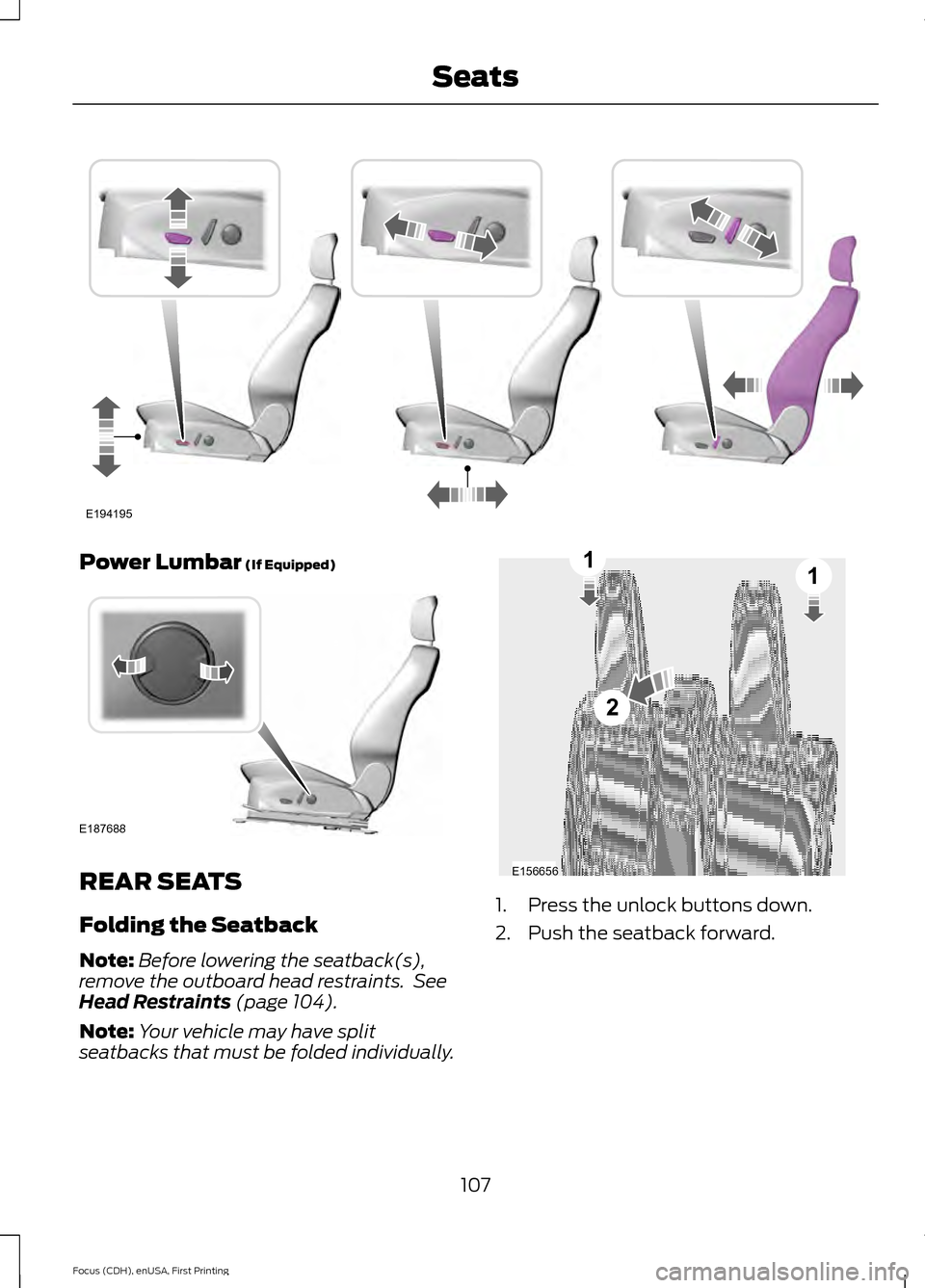
Power Lumbar (If Equipped)
REAR SEATS
Folding the Seatback
Note:
Before lowering the seatback(s),
remove the outboard head restraints. See
Head Restraints
(page 104).
Note: Your vehicle may have split
seatbacks that must be folded individually. 1. Press the unlock buttons down.
2. Push the seatback forward.
107
Focus (CDH), enUSA, First Printing SeatsE194195 E187688 E156656
2
11
Page 167 of 369
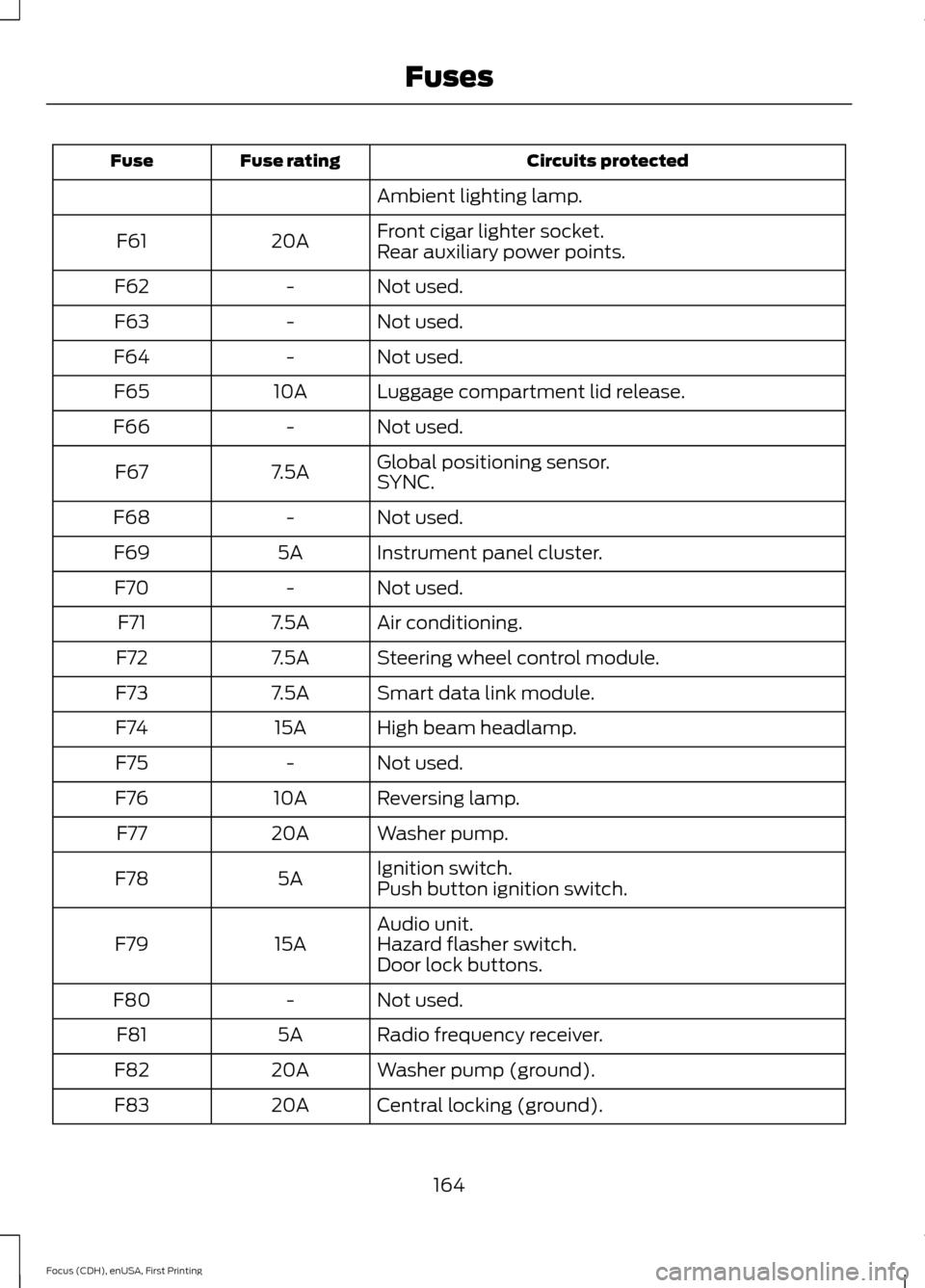
Circuits protected
Fuse rating
Fuse
Ambient lighting lamp.
Front cigar lighter socket.
20A
F61
Rear auxiliary power points.
Not used.
-
F62
Not used.
-
F63
Not used.
-
F64
Luggage compartment lid release.
10A
F65
Not used.
-
F66
Global positioning sensor.
7.5A
F67
SYNC.
Not used.
-
F68
Instrument panel cluster.
5A
F69
Not used.
-
F70
Air conditioning.
7.5A
F71
Steering wheel control module.
7.5A
F72
Smart data link module.
7.5A
F73
High beam headlamp.
15A
F74
Not used.
-
F75
Reversing lamp.
10A
F76
Washer pump.
20A
F77
Ignition switch.
5A
F78
Push button ignition switch.
Audio unit.
15A
F79 Hazard flasher switch.
Door lock buttons.
Not used.
-
F80
Radio frequency receiver.
5A
F81
Washer pump (ground).
20A
F82
Central locking (ground).
20A
F83
164
Focus (CDH), enUSA, First Printing Fuses
Page 178 of 369
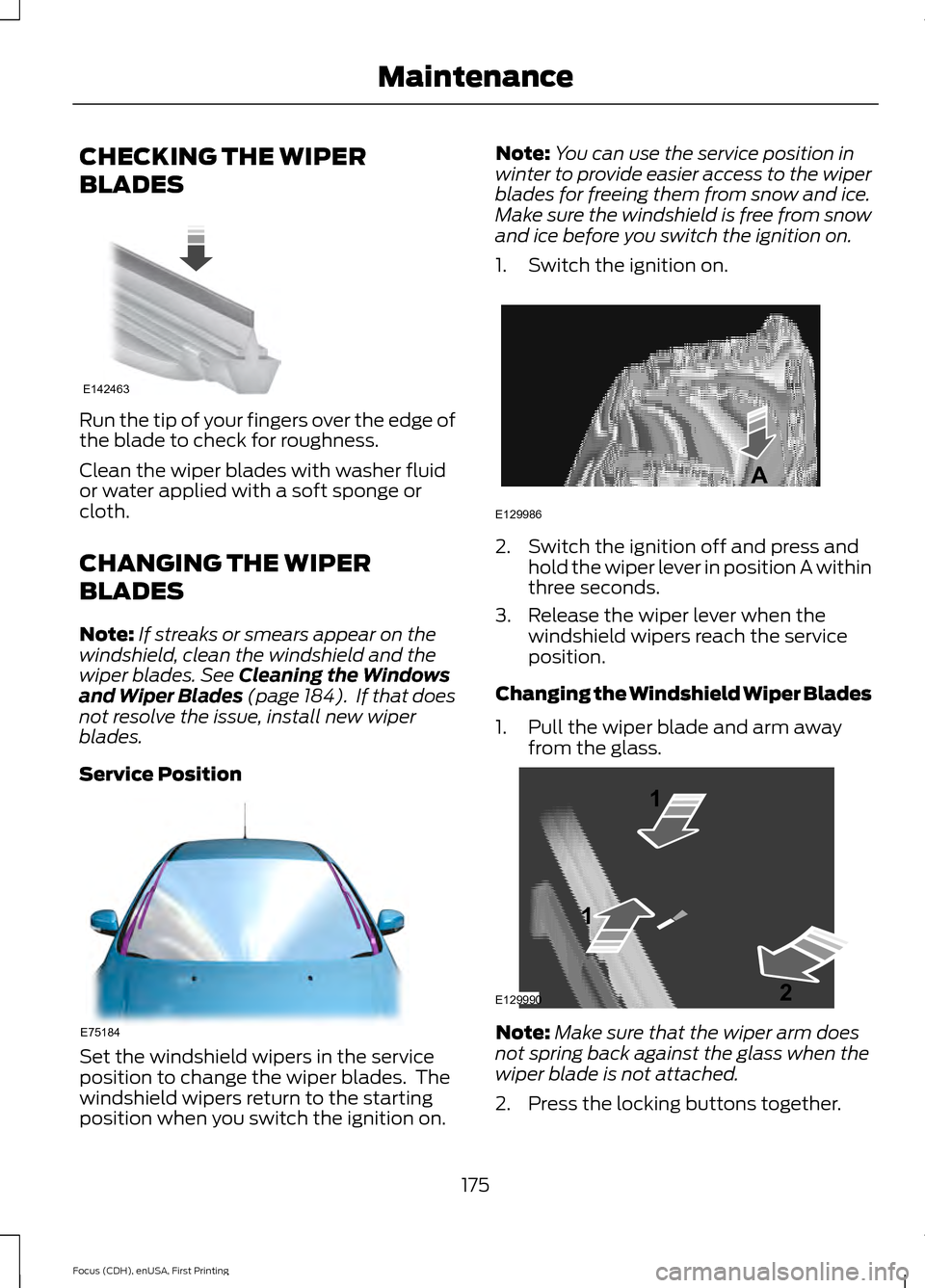
CHECKING THE WIPER
BLADES
Run the tip of your fingers over the edge of
the blade to check for roughness.
Clean the wiper blades with washer fluid
or water applied with a soft sponge or
cloth.
CHANGING THE WIPER
BLADES
Note:
If streaks or smears appear on the
windshield, clean the windshield and the
wiper blades. See Cleaning the Windows
and Wiper Blades (page 184). If that does
not resolve the issue, install new wiper
blades.
Service Position Set the windshield wipers in the service
position to change the wiper blades. The
windshield wipers return to the starting
position when you switch the ignition on. Note:
You can use the service position in
winter to provide easier access to the wiper
blades for freeing them from snow and ice.
Make sure the windshield is free from snow
and ice before you switch the ignition on.
1. Switch the ignition on. 2. Switch the ignition off and press and
hold the wiper lever in position A within
three seconds.
3. Release the wiper lever when the windshield wipers reach the service
position.
Changing the Windshield Wiper Blades
1. Pull the wiper blade and arm away from the glass. Note:
Make sure that the wiper arm does
not spring back against the glass when the
wiper blade is not attached.
2. Press the locking buttons together.
175
Focus (CDH), enUSA, First Printing MaintenanceE142463 E75184 E129986
A E129990
1
1 2
Page 241 of 369
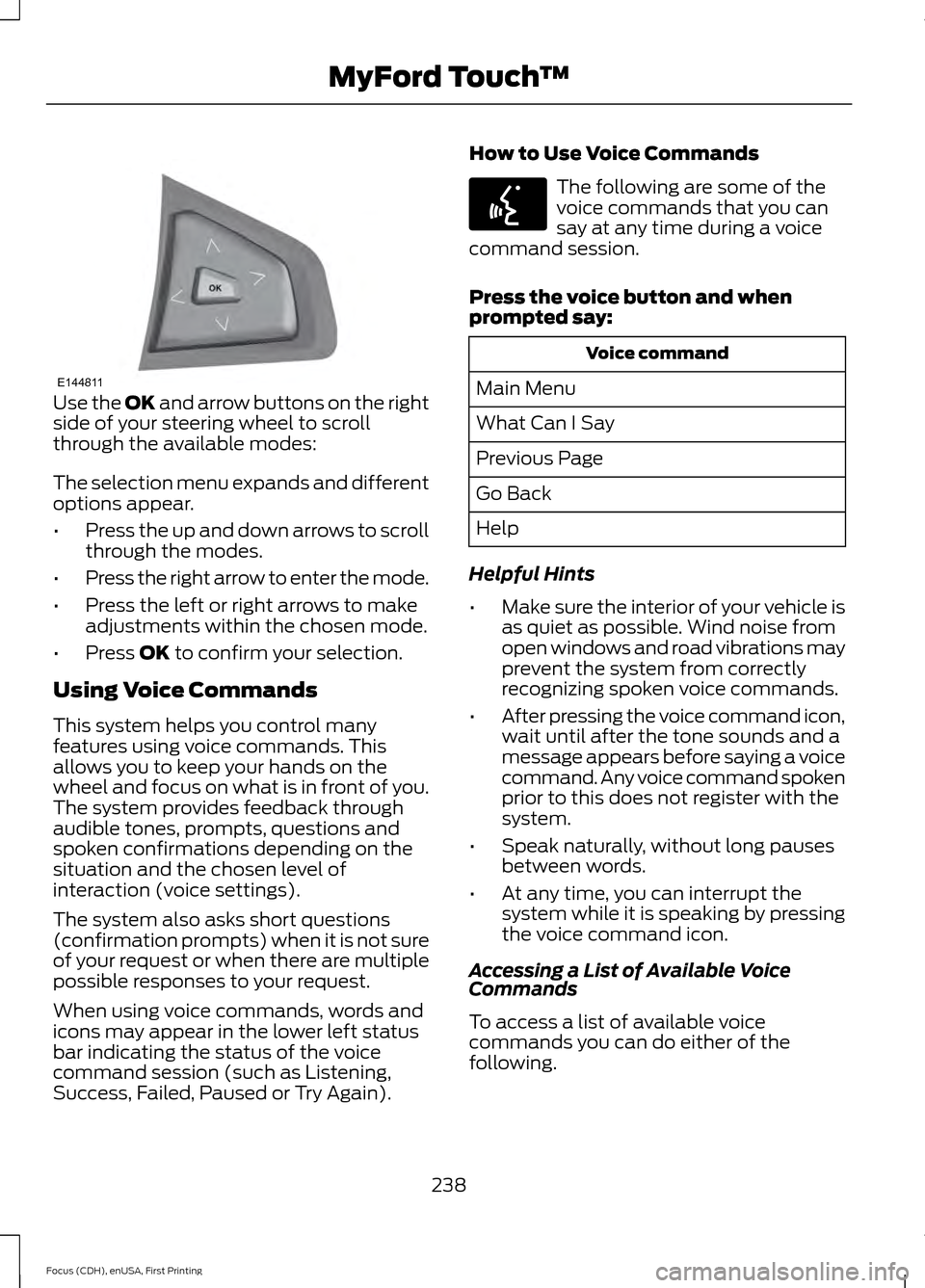
Use the OK and arrow buttons on the right
side of your steering wheel to scroll
through the available modes:
The selection menu expands and different
options appear.
• Press the up and down arrows to scroll
through the modes.
• Press the right arrow to enter the mode.
• Press the left or right arrows to make
adjustments within the chosen mode.
• Press
OK to confirm your selection.
Using Voice Commands
This system helps you control many
features using voice commands. This
allows you to keep your hands on the
wheel and focus on what is in front of you.
The system provides feedback through
audible tones, prompts, questions and
spoken confirmations depending on the
situation and the chosen level of
interaction (voice settings).
The system also asks short questions
(confirmation prompts) when it is not sure
of your request or when there are multiple
possible responses to your request.
When using voice commands, words and
icons may appear in the lower left status
bar indicating the status of the voice
command session (such as Listening,
Success, Failed, Paused or Try Again). How to Use Voice Commands The following are some of the
voice commands that you can
say at any time during a voice
command session.
Press the voice button and when
prompted say: Voice command
Main Menu
What Can I Say
Previous Page
Go Back
Help
Helpful Hints
• Make sure the interior of your vehicle is
as quiet as possible. Wind noise from
open windows and road vibrations may
prevent the system from correctly
recognizing spoken voice commands.
• After pressing the voice command icon,
wait until after the tone sounds and a
message appears before saying a voice
command. Any voice command spoken
prior to this does not register with the
system.
• Speak naturally, without long pauses
between words.
• At any time, you can interrupt the
system while it is speaking by pressing
the voice command icon.
Accessing a List of Available Voice
Commands
To access a list of available voice
commands you can do either of the
following.
238
Focus (CDH), enUSA, First Printing MyFord Touch
™E144811 E142599
Page 257 of 369
Action and Description
Menu Item
The ICE contacts you select
appear at the end of the
Emergency Assistance call
process.
Select to access your phone-
book and then select the
desired contacts. The
numbers then appear as
options on this screen for the
ICE 1 and ICE 2 buttons.
Edit
View categorized lists of voice commands.
Voice
Command List
You can also access Help using the voice
commands. The system provides
allowable voice commands for the current
mode. Press the voice button and when
prompted say:
Voice command
Help
ENTERTAINMENT 254
Focus (CDH), enUSA, First Printing MyFord Touch
™E142599 A
B
C
D
E
F
G
H
E161892
Page 258 of 369
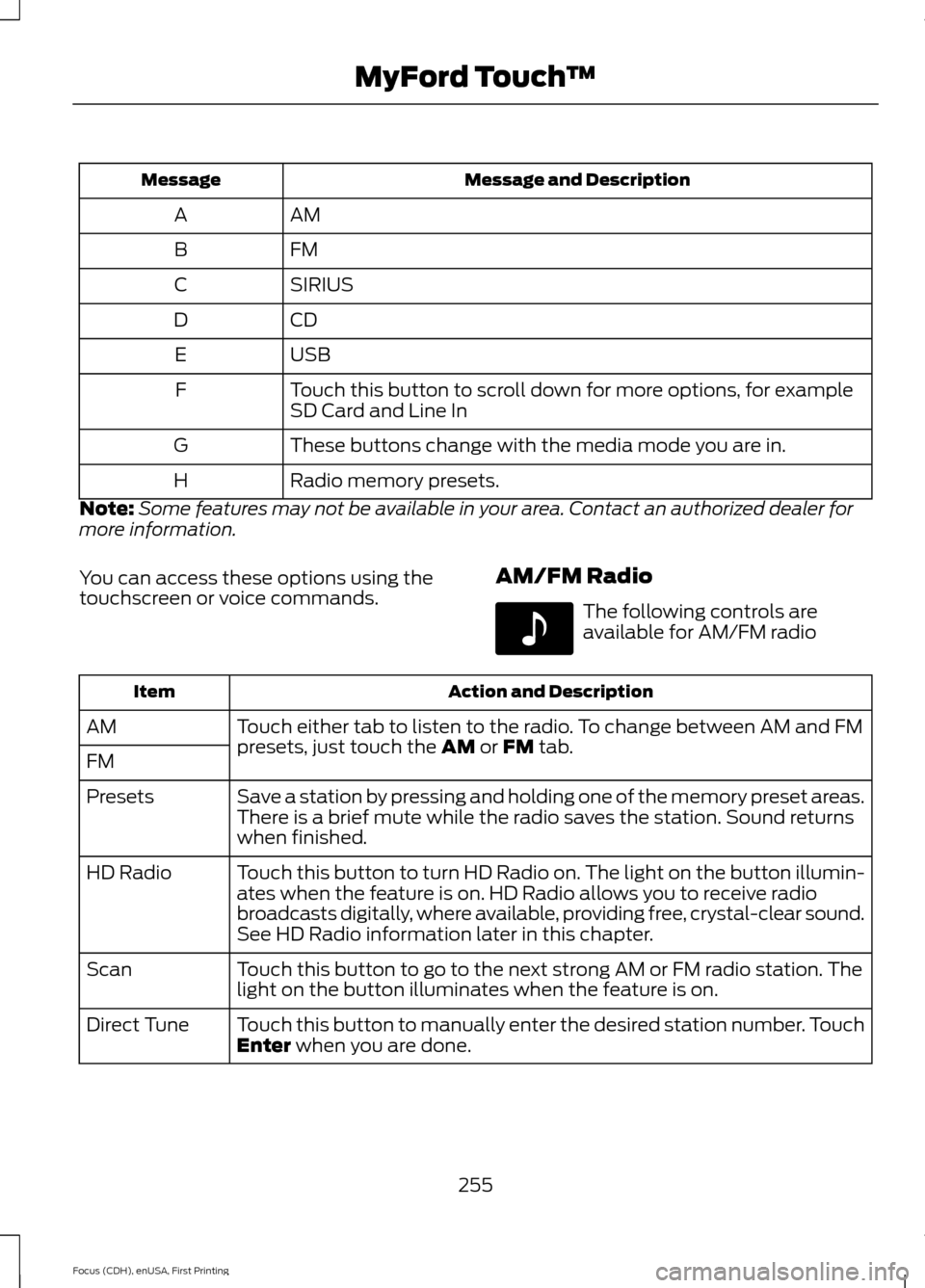
Message and Description
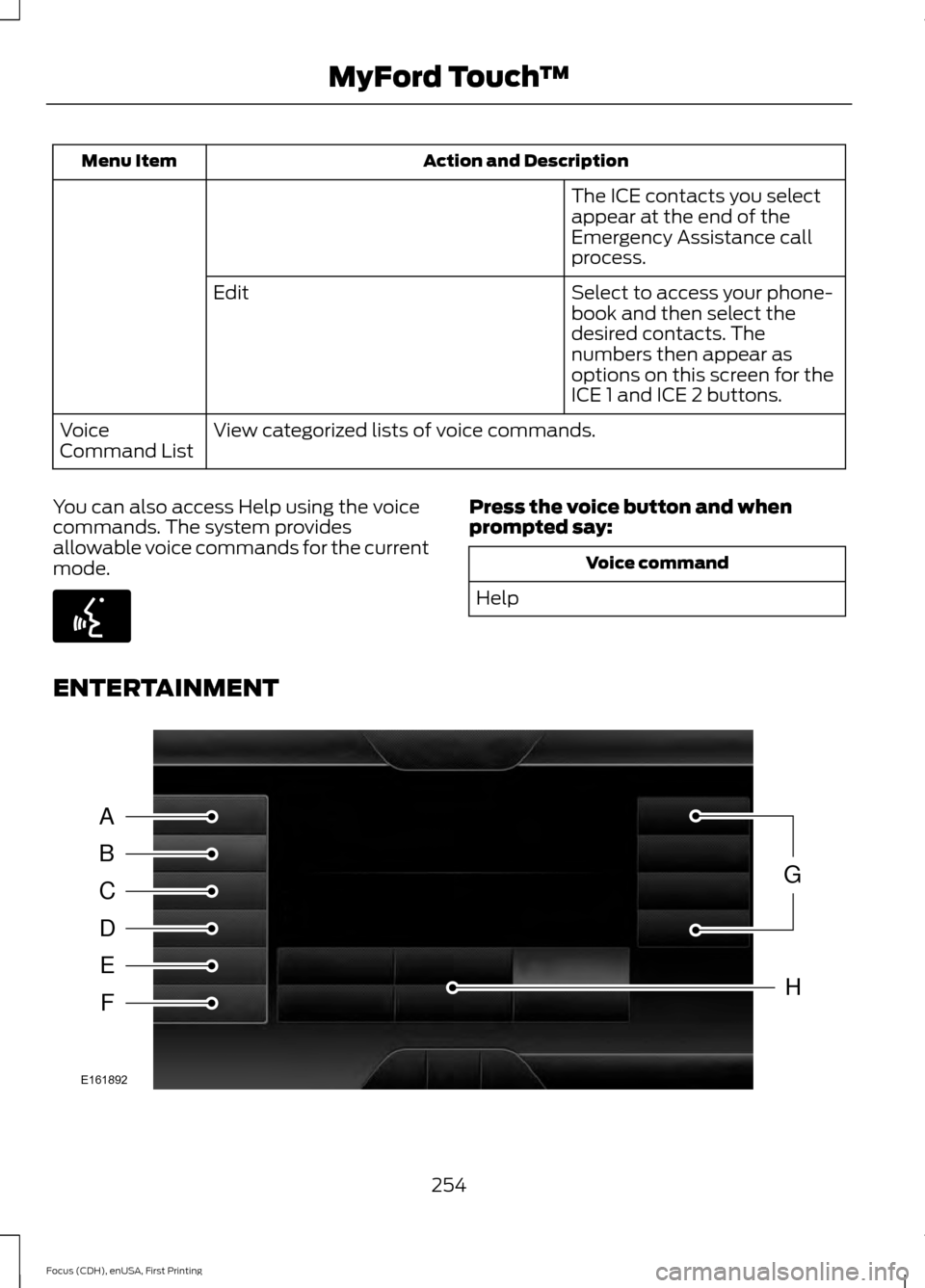
Message
AM
A
FM
B
SIRIUS
C
CD
D
USB
E
Touch this button to scroll down for more options, for example
SD Card and Line In
F
These buttons change with the media mode you are in.
G
Radio memory presets.
H
Note: Some features may not be available in your area. Contact an authorized dealer for
more information.
You can access these options using the
touchscreen or voice commands. AM/FM Radio The following controls are
available for AM/FM radio
Action and Description
Item
Touch either tab to listen to the radio. To change between AM and FM
presets, just touch the AM or FM tab.
AM
FM
Save a station by pressing and holding one of the memory preset areas.
There is a brief mute while the radio saves the station. Sound returns
when finished.
Presets
Touch this button to turn HD Radio on. The light on the button illumin-
ates when the feature is on. HD Radio allows you to receive radio
broadcasts digitally, where available, providing free, crystal-clear sound.
See HD Radio information later in this chapter.
HD Radio
Touch this button to go to the next strong AM or FM radio station. The
light on the button illuminates when the feature is on.
Scan
Touch this button to manually enter the desired station number. Touch
Enter
when you are done.
Direct Tune
255
Focus (CDH), enUSA, First Printing MyFord Touch
™E142611
Page 264 of 369
Action and Description
Menu Item
When an alert appears on the screen, you can choose to tune to the
channel, cancel the alert or turn off alerts.
Replay audio on the current channel. You can replay approximately 45
minutes of audio as long as you have remained tuned to the current
station. Changing stations erases the previous audio.
Replay
While in replay mode:
Press and release the seek buttons to hear the previous or next song.
Press and hold the seek buttons to reverse or fast forward in the current
track.
Press play or pause to play or pause the audio.
Press the button again to return to live audio.
Touch this button to hear a brief sampling of channels.
Scan
Touch this button to view a list of all available stations. Scroll to see
more categories. Touch the station you want to listen to.
Browse
Note: SIRIUS does not support the Alert feature on all channels. Ford Motor Company shall
not be responsible for Alert feature variation.
Browsing Controls Action and Description
Message
Touch this button if you want to skip this channel.
Skip
Touch this button if you do not want anyone to listen to this channel.
Lock
Touch this button to see song and artists on other stations.
Title
Touch this button to see song and artists on other stations.
Artist
Options
Touch this button to view and adjust
various media settings. Message
Message
Bass
Sound
Settings
Midrange
Treble
Set Balance and Fade
261
Focus (CDH), enUSA, First Printing MyFord Touch
™