Page 535 of 596

Your navigation system is comprised of two main features, destination
mode and map mode.
To set a destination, press the green corner of your touchscreen, then
Destwhen it appears. SeeSetting a destinationlater in this chapter.
To view the navigation map and your vehicle’s current location, touch the
green bar in the upper right hand corner of the touchscreen, or, press
Dest>Map.SeeMap modelater in this chapter.
Setting a Destination
Press the green corner of your touchscreen, thenDestwhen it appears.
Choose any of the following:
Destination selections
My Home Street Address
Favorites Intersection
Previous Destinations City Center
Point of Interest Map
Emergency Edit Route Cancel Route
1. Enter the necessary information into the highlighted text fields (in
any order). For address destination entry,Go!appears once you
enter all the necessary information. PressingGo!makes the address
location appear on the map. If you choosePrevious Destination,
the last 20 destinations you have selected appear.
2. SelectSet as Destto make this your destination. You can also
choose to set this as a waypoint (have the system route to this point
on the way to your current destination) or save it as a favorite. The
system considers anyAvoid Areasselections in its route calculation.
3. Choose from up to three different types of routes, and then select
Start Route.
•Fastest Route:Uses the fastest moving roads possible.
•Shortest Route:Uses the shortest distance possible.
•Eco Route:Uses the most fuel-efficient route.
You can cancel the route or have the system demo the route for you.
SelectRoute Prefsto set route preferences like avoiding freeways,
tollroads, ferries and car trains as well as to use or not use
high-occupancy vehicle lanes. (High-occupancy vehicle lanes are also
known as carpool or diamond lanes. People who ride in buses, vanpools
or carpools use these lanes.)
Note:If your vehicle is on a recognized road and you do not press the
Start Routebutton, the system defaults to theFastest Routeoption
and begins guidance.
534MyFord Touch® (If Equipped)
2015 Explorer(exp)
Owners Guide gf, 2nd Printing, September 2014
USA(fus)
Page 540 of 596
Avoid Areas
Avoid Areasallows you to choose areas which you want the system to
avoid when calculating a route for you.
PressAddto program an entry. Once you make a selection, the system
tries to avoid the area(s) if possible for all routes. To delete a selection,
choose the listing on the screen. When the screen changes toAvoid
Areas Edit,you can pressDeleteat the bottom right of the screen.
Map Mode
Press the green bar in the upper right area of the touchscreen to view
map mode. Map mode shows advanced viewing comprised of both 2D
city maps as well as 3D landmarks (when available).
2D city mapsshow detailed outlines of buildings, visible land use and
land elements and detailed railway infrastructure for the most essential
cities around the globe. These maps also contain features, such as town
blocks, building footprints, and railways.
3D landmarksappear as clear, visible objects that are typically
recognizable and have a certain tourist value. The 3D landmarks appear
in 3D map mode only. Coverage varies, and improves with updated map
releases.
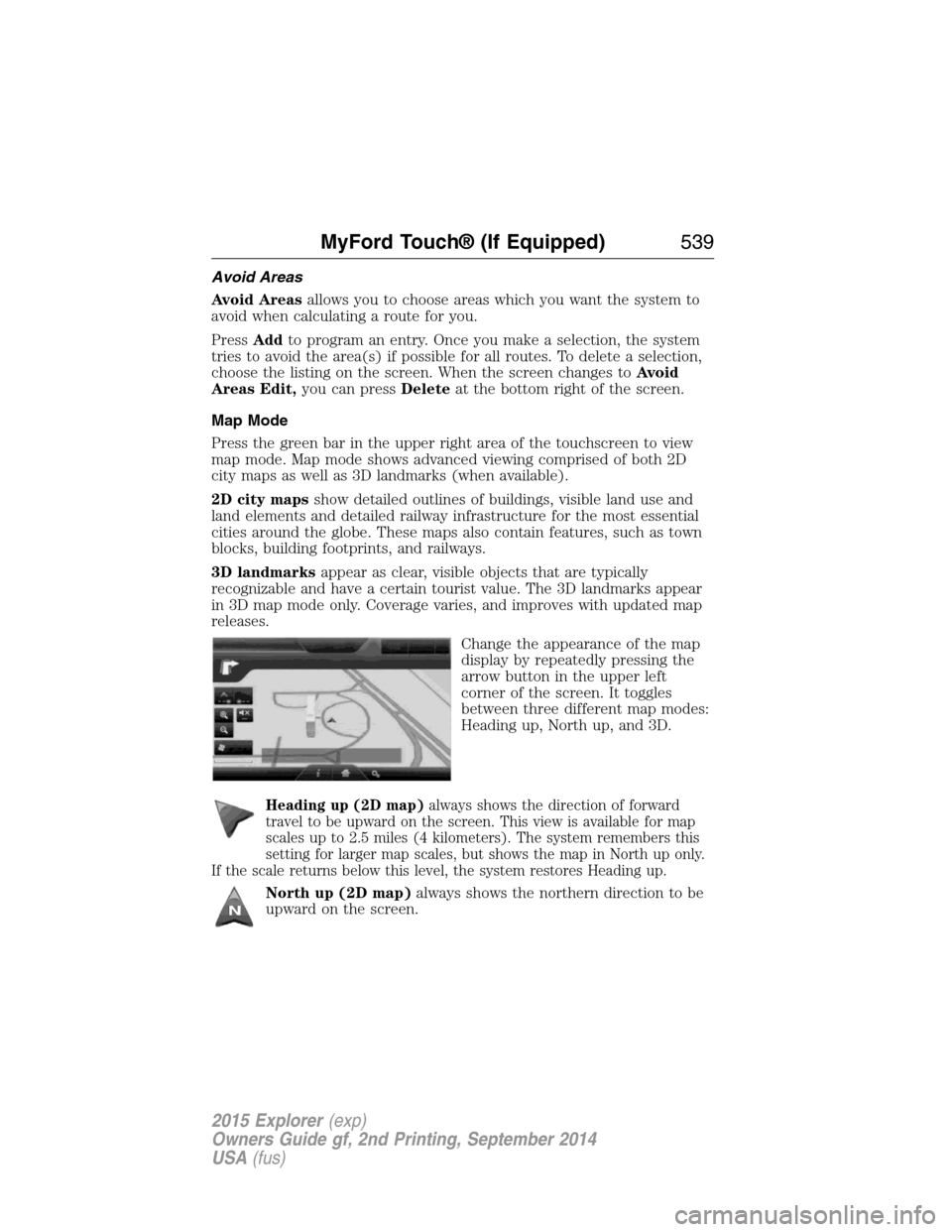
Change the appearance of the map
display by repeatedly pressing the
arrow button in the upper left
corner of the screen. It toggles
between three different map modes:
Heading up, North up, and 3D.
Heading up (2D map)always shows the direction of forward
travel to be upward on the screen. This view is available for map
scales up to 2.5 miles (4 kilometers). The system remembers this
setting for larger map scales, but shows the map in North up only.
If the scale returns below this level, the system restores Heading up.
North up (2D map)always shows the northern direction to be
upward on the screen.
MyFord Touch® (If Equipped)539
2015 Explorer(exp)
Owners Guide gf, 2nd Printing, September 2014
USA(fus)
Page 596 of 596
Touchscreen features
(climate) ....................................530
Towing .......................273, 280–281
recreational towing .................281
trailer towing ..........................273
wrecker ....................................280
Traction control ........................222
Traffic, Directions and
Information ................................441
Traffic preferences ...................537
Trailer sway control ..................274
Transmission
brake-shift interlock (BSI) ....209
fluid, checking and adding
(automatic) .............................322
fluid, refill capacities ..............386
lubricant specifications ..........386
Turn signal ................................103
U
USB port ............................416, 493
Using privacy mode ..................425
V
Vehicle health report ........439, 516Vehicle Identification Number
(VIN) ..........................................392
Vehicle loading ..........................265
Ventilating your vehicle ...........192
Voice commands in media
mode ..........................................446
Voice commands in phone
mode ..........................................423
Voice recognition ......................474
W
Warning lights (see Lights) .....117
Washer fluid ..............................327
Water, Driving through .............284
Windows
power .......................................107
rear wiper/washer .....................97
Windshield washer fluid and
wipers ..........................................96
checking and adding fluid .....327
replacing wiper blades ...330–331
Wrecker towing .........................280
Index595
2015 Explorer(exp)
Owners Guide gf, 2nd Printing, September 2014
USA(fus)