2015 FIAT 500X clock
[x] Cancel search: clockPage 130 of 240

WARNING
51)Halogen bulbs must be handled by
holding the metallic part only. Touching the
transparent part of the bulb with your
fingers may reduce the intensity of the
emitted light and even reduce the lifespan
of the bulb. In the case of accidental
contact, rub the lamp with a cloth and
alcohol and leave to dry.
REPLACING FUSESINTRODUCTION
128) 129) 130) 131)52) 53)
Fuses protect the electrical system:
they intervene (blow) in the event of a
failure or improper action on the
system.Fuse extracting pliersTo replace a fuse, use the pliers hooked
to the side of the engine compartment
fuse box cover (see fig. 114).
The pliers have two different ends,
specifically designed to remove the
different types of fuses present in the
vehicle.
To take out the pliers, grab them from
the upper tabs, press and pull upwards.
After being used, the pliers should be
positioned properly in their housing,
grabbing them from the upper tabs,
pressing and pushing them until a click
is heard.
FUSE LOCATIONFuses are grouped together in the fuse
boxes located in the engine
compartment, under the dashboard
and inside the boot.ENGINE COMPARTMENT
FUSE BOXThe fuse box is located by the side of
the battery fig. 115.
To access the fuses, proceed as
follows:
❒fully tighten screw A fig. 116, using
the screwdriver provided;
❒at the same time slowly rotate the
screw anticlockwise, until resistance is
encountered (do not overtighten);
❒slowly release the screw;
❒opening is indicated by the entire
screw head coming out of its housing;114
F1B0187C
128
IN AN EMERGENCY
15-12-2014 8:23 Pagina 128
Page 131 of 240

❒remove cover B, sliding it upwards on
the side guides, as indicated in the
figure.
The number identifying the electrical
component corresponding to each fuse
is shown on the cover.
Once the fuse has been replaced,
proceed as follows:
❒correctly refit the cover B in the side
guides of the casing;
❒slide it down completely from the top;❒fully tighten screw A, using the
screwdriver provided;
❒at the same time slowly rotate the
screw clockwise, until resistance is
encountered (do not overtighten);
❒slowly release the screw;
❒closure is indicated by the securing
of the entire screw head in its housing.
DASHBOARD FUSE BOXThe fuse box fig. 117 is located near
the left side of the steering column and
the fuses can be accessed easily from
the lower part of the dashboard.
For fuse replacement, contact a Fiat
Dealership.
115
F1B0191C
116
F1B0190C
117
F1B0193C
129
15-12-2014 8:23 Pagina 129
Page 136 of 240
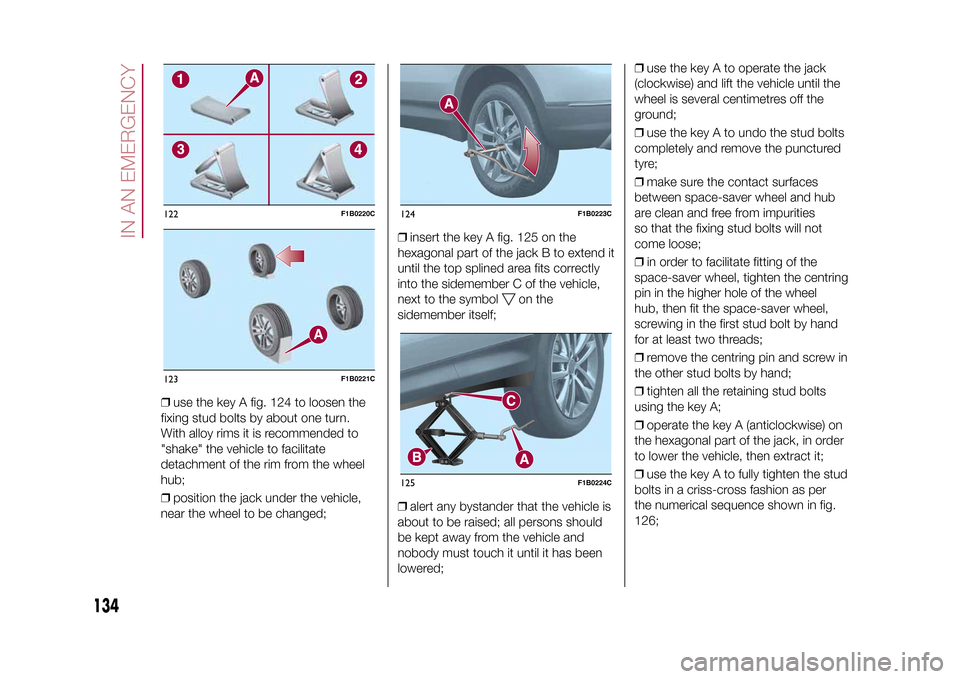
❒use the key A fig. 124 to loosen the
fixing stud bolts by about one turn.
With alloy rims it is recommended to
"shake" the vehicle to facilitate
detachment of the rim from the wheel
hub;
❒position the jack under the vehicle,
near the wheel to be changed;❒insert the key A fig. 125 on the
hexagonal part of the jack B to extend it
until the top splined area fits correctly
into the sidemember C of the vehicle,
next to the symbol
on the
sidemember itself;
❒alert any bystander that the vehicle is
about to be raised; all persons should
be kept away from the vehicle and
nobody must touch it until it has been
lowered;❒use the key A to operate the jack
(clockwise) and lift the vehicle until the
wheel is several centimetres off the
ground;
❒use the key A to undo the stud bolts
completely and remove the punctured
tyre;
❒make sure the contact surfaces
between space-saver wheel and hub
are clean and free from impurities
so that the fixing stud bolts will not
come loose;
❒in order to facilitate fitting of the
space-saver wheel, tighten the centring
pin in the higher hole of the wheel
hub, then fit the space-saver wheel,
screwing in the first stud bolt by hand
for at least two threads;
❒remove the centring pin and screw in
the other stud bolts by hand;
❒tighten all the retaining stud bolts
using the key A;
❒operate the key A (anticlockwise) on
the hexagonal part of the jack, in order
to lower the vehicle, then extract it;
❒use the key A to fully tighten the stud
bolts in a criss-cross fashion as per
the numerical sequence shown in fig.
126;
122
F1B0220C
123
F1B0221C
124
F1B0223C
125
F1B0224C
134
IN AN EMERGENCY
15-12-2014 8:23 Pagina 134
Page 196 of 240

Button Functions Mode
Switching on/off
Brief button press
Volume adjustment
Knob clockwise/anticlockwise turningVolume activation/deactivation (Mute/Pause) Brief button pressExit the selection/return to previous screen Brief button press
BROWSE ENTERScrolling the list or tuning to a radio station or select
previous/next trackKnob clockwise/anticlockwise turning
Confirmation of the option displayed Brief button press
INFODisplay mode selection (Radio, Media Player) Brief button press
AUDIOAccess to the sound setting and adjustment functions Brief button press
MENUAccess to the Settings menu Brief button press
MEDIASource selection: USB/iPod or AUX Brief button press
RADIOAccess to the Radio mode Brief button press
1-2-3-4-5-6Store current radio station Long button press
Stored radio station recall Brief button press
A-B-CSelection of the group of radio presets or selection of
the desired letter in each listBrief button pressSearch for previous radio station or selection of USB/
iPod previous trackBrief button press
Scan of lower frequencies until released/Fast rewind of
USB/iPod trackLong button pressSearch for next radio station or selection of USB/iPod
next trackBrief button press
Scan of higher frequencies until released/Fast forward
of USB/iPod trackLong button press
194
MULTIMEDIA
15-12-2014 8:23 Pagina 194
Page 199 of 240

SWITCHING THE SYSTEM
ON/OFFThe system is switched on/off by
pressing the
button/knob.
Turn the button/knob clockwise to
increase the radio volume or
anticlockwise to decrease it.
RADIO (TUNER) MODEThe system features the following
tuners: AM, FM.Radio mode selectionPress the RADIO button on the front
panel to activate radio mode.Selecting a frequency
bandThe different tuning modes can be
selected by pressing the RADIO button
on the front panel.Indications on displayAfter the desired radio station is
selected on the display, the following
information is shown (INFO mode
activated):
In the upper part: the preset station, the
time and the other active radio settings
are highlighted.
In the central part: the name of the
current station, the frequency and the
radio text information (if any) are
highlighted.
FM station listPress the BROWSE ENTER button/
knob to display the complete list of the
FM stations that can be received.AM/FM radio station
storageThe preset stations are available in all
system modes and are selected by
touching one of the presetting buttons
1-2-3-4-5-6on the front panel.
If you are tuned to a radio station that
you wish to store, hold down the button
on the display which corresponds to
the desired preset until an acoustic
confirmation signal is emitted.AM/FM radio station
selectionTo search for the desired radio station
press the
or
button or use
the wheel of the steering wheel controls
, or turn the "BROWSE ENTER"
knob.
Previous/next radio
station searchPress briefly the
or
button or
use the wheel of the steering wheel
controls
: when the button is
released the previous or next
radio station is displayed.
Previous/next radio
station fast searchHold down the
or
button to
start the fast search: when the button is
released, the first tunable radio is
played.
MEDIA MODEInteraction modes for AUX, USB/iPod
operation.Track change
(next/previous)Briefly press the
button or turn the
BROWSE ENTER button/knob
clockwise to play the next track.
Briefly press thebutton or turn the
BROWSE ENTER button/knob
anticlockwise to return to the beginning
of the selected track or to the beginning
of the previous track (if this has been
played for less than 3 seconds).
Fast forward/rewind
through tracksHold down the
button to fast
forward the selected track.
Hold down thebutton to fast
rewind the track.
197
15-12-2014 8:23 Pagina 197
Page 206 of 240

SWITCHING THE SYSTEM
ON/OFFThe system is switched on/off by
pressing the
(ON/OFF) button/knob.
Turn the button/knob clockwise to
increase the radio volume or
anticlockwise to decrease it.
USB/iPOD SOURCEThe vehicle is equipped with USB port
and AUX socket. Some versions are
equipped with an SD-SDHC reader
able to read/manage cards with SPI
technology.
Some versions are also equipped with
another USB port, located in the front
armrest compartment.RADIO MODEAfter the desired radio station is
selected, the following information is
shown on the display:
At the top: the list of radio stations
stored (preset) is displayed; the station
being listened to is highlighted.
In the middle: the name of the radio
station being listened to and the
buttons to select the previous or the
next radio station are displayed.
At the bottom: display of the following
buttons:
❒"Browse": list of the radio stations
available;❒"AM/FM", "AM/DAB", "FM/DAB":
selection of the desired frequency band
(button reconfigurable according to
the band selected: AM, FM or DAB);
❒"Tune" : manual radio station tuning
(not available for DAB radios);
❒"Info": additional information on the
source being listened to;
❒"Audio": access to the "Audio
settings" screen.
Audio menuThe following adjustments can be
carried out using the "Audio" menu:
❒"Equaliser" (where provided);
❒"Balance/Fader" (left/right and
front/rear sound balance adjustment);
❒"Speed/Volume" (speed-dependent
automatic volume control);
❒"Loudness" (where provided);
❒"Radio Auto-On";
❒"Radio Off Delay".
To exit the "Audio" menu, press the
/Done button.
MEDIA MODE
Audio source selectionPress the "choose source" button to
select the desired audio source among
those available: AUX, USB / iPod, SD
(where provided) orBluetooth®.
Note: Applications used on portable
devices may be not compatible with the
Uconnect™system.Track selection
(Browse)With Media mode active, briefly press
the
/
buttons to play the
previous/next track or keep the
/
buttons pressed to fast rewind/
forward the track.
Note: For languages not supported by
the system which feature special
characters (e.g. Greek), the keyboard is
not available. In these cases this
function will be limited.
Bluetooth® SOURCE
Pairing a Bluetooth®
audio deviceTo pair aBluetooth® audio device,
proceed as follows:
❒activate theBluetooth® function on
the device;
❒Press the MEDIA button on the front
panel;
❒if the "Media" source is active, press
the "Source" button;
204
MULTIMEDIA
15-12-2014 8:23 Pagina 204
Page 211 of 240

my:Carmy:Car allows you to keep the
condition of your vehicle always under
control.
my:Car can detect malfunction in real
time and inform the user about the
expiry of the servicing interval. Press
the "my:Car" button to interact with the
application.
The display will show a screen with the
"care:Index" section, which provides
all the detailed information about the
status of the vehicle. Press the "Active
warnings" button to show (if present)
the details of the vehicle's faults which
caused a warning light to switch on.
The vehicle status can be seen both on
www.DriveUconnect.eu or through
theApp Uconnect™LIVE.SETTINGSPress the
button on the front panel
to display the main "Settings" menu.
Note: The menu items displayed vary
according to the versions.
The menu includes the following items:
❒Display;
❒Units;
❒Voice commands;
❒Clock & Date;
❒Safety/Assistance (where provided);
❒Lights (where provided);
❒Doors & Locks;❒Vehicle Off Options;
❒Audio;
❒Phone/Bluetooth;
❒SiriusXM Setup (where provided);
❒Radio Setup;
❒Restore Settings
Safety/Assistance(where provided)
This function can be used to carry out
the following adjustments:
❒"Rear View camera"(where
provided): this function can be used to
carry out the following adjustments:
- "Active Guidelines" (where provided):
permits the activation of dynamic grids
that indicate the route of the vehicle
on the display.
- "Rear View cam.delay" (where
provided): permits a delay in the
disappearance of images from the
camera when reverse is disengaged.
❒"Frnt Coll. Warning"(where provided):
this function can be used to select the
Full Brake Control system intervention
mode.
The options available are:
- "Off": the system is deactivated;
- "Only warning": the system intervenes
only by providing the driver with an
acoustic warning (where provided);- "Only active braking": the system
intervenes by activating automatic
braking (where provided);
- "Warning + active braking": the
system intervenes by providing the
driver with an acoustic warning and
activating automatic braking.
❒"Fwd Coll. Sensitivity"(where
provided): this function can be used to
select the "readiness" of the system
to intervene, on the basis of distance
from the obstacle.
The options available are "Near",
"Med", "Far".
❒"Park Assist"(where provided): this
function can be used to select the type
of warning provided by the Park Assist
system.
The options available are:
- "Sound Only": the system warns the
driver that an obstacle is present
through acoustic warnings only, via the
speakers in the vehicle.
- "Sound & Display": the system warns
the driver that an obstacle is present
through acoustic (via the speakers
in the vehicle) and visual (on the
instrument panel) warnings.
❒"Front Park Assist vol."(where
provided): this function can be used to
select the volume of the acoustic
warnings provided by the front Park
Assist system.
209
15-12-2014 8:23 Pagina 209
Page 220 of 240

SWITCHING THE SYSTEM
ON/OFFThe system is switched on/off by
pressing the
(ON/OFF) button/knob.
Turn the button/knob clockwise to
increase the radio volume or
anticlockwise to decrease it.
RADIO (TUNER) MODEThe system has the following tuners:
AM, FM and DAB (where provided).Radio mode selectionPress the RADIO button on the front
panel to activate radio mode.
The different tuning modes can be
selected with the corresponding button
on the display.
Up to 12 favourite radio stations can be
stored in each mode.Selecting a frequency
bandPress one of the buttons at the left of
the display to select the frequency
band: AM, FM and DAB (where
provided).Indications on displayAfter the desired radio station is
selected, the following information is
shown on the display:At the top: display of the stored radio
station (preset) list. If the current station
is in the list of presets, it will be
highlighted on the display.
In the middle: the name of the radio
station being listened to and the
buttons to select the previous or the
next radio station are displayed.
At the bottom: display of the following
buttons:
❒"browse": search available radio
stations
❒"tune" : manual radio station tuning
(not available for DAB radios);
❒"audio": access to the "Audio
settings" screen
❒
and
: permit searching for
the desired radio station.
Select previous/next
radio stationThe previous/next radio station can be
selected using the following methods:
turning the BROWSE ENTER
button/knob, briefly pressing the
or
button on the display, pressing of
the buttons behind the steering wheel.
Holding down the
or
buttons
on the display activates rapid scrolling
through the active frequency band.
Previous/next radio
station fast searchTo start the fast search press the
or
button on the display, or use the
corresponding steering wheel controls.
AM/FM radio station
tuningPress the "tune" button, then select the
first digit of the desired radio station.
Press the
button to delete a wrong
number (and enter the correct station
number).
After entering the last digit of the station
the system will tune to the selected
one.
The screen disappears automatically
after 5 seconds or manually by pressing
the OK button.
DAB radio (where
provided)Once DAB radio mode is selected, the
information on the current station is
displayed and the following functions.
The "browse" button is used to display:
❒the list of all DAB stations;
❒the list of all the favourites;
❒the list of stations filtered by
"Ensembles" (broadcast group).
Within each list, the "ABC" button
allows the user to skip to the desired
letter in the list.
218
MULTIMEDIA
15-12-2014 8:23 Pagina 218