Page 299 of 429
This functionality is only available for radios equipped
with a Satellite receiver. In order to receive satellite radio,
the vehicle needs to be outside with a clear view to the
sky.
If the screen shows Acquiring Signal, you might have to
change the vehicle’s position in order to receive a signal.
In most cases, the satellite radio does not receive a signal
in underground parking garages or tunnels.
No Subscription
Radios equipped with a Satellite receiver, require a
subscription to the SiriusXM Service. When the Radio
does not have the necessary subscription, the Radio is
able to receive the Pre-View channel only.
Acquiring SiriusXM Subscription
To activate the SiriusXM Satellite Radio subscription, call
1-800-643-2112 for U.S. residents and 1-877-438-9677 for
Canadian residents. You will need to provide the Siri-
usXM ID (RID) located at the bottom of the Channel 0
screen.
The Satellite Mode is activated by a press of the “SXM”
button on the touchscreen.
When in Satellite mode:
•The SXM button on the touchscreen is highlighted.
•The SiriusXM Presets are displayed at the top of the
screen.
•The Genre is displayed below the Presets Bar.
•The SiriusXM Channel Number is displayed in the
center.
•The Program Information is displayed at the bottom of
the Channel Number.
•The SiriusXM function buttons are displayed below
the Program Information.
298 Uconnect® 8.4AN — If Equipped
Page 303 of 429
You can scroll the Presets list pressing the up and down
arrows located at the right side of the screen. Scrolling
can also be done by operating the TUNE/SCROLL Knob
as well.
Preset Selection
A Preset can be selected by pressing any of the listed
“Presets”, or by pushing the ENTER/BROWSE button on
the TUNE/SCROLL knob to select the currently high-
lighted Preset. When selected, the Radio tunes to the
station stored in the Preset, and returns to the main Radio
screen.
Deleting A Preset
A Preset can be deleted in the Presets Browse screen by
pressing the “Trash Can” Icon for the corresponding
Preset.
Favorites
Press the “Favorites” button located at the left of the
Browse screen.
The Favorites menu provides a means to Edit the Favor-
ites list and to configure the Alert Settings, along with
providing a list of Channels currently airing any of the
items in the Favorites list.
You can scroll the Favorites list by pressing the “Up and
Down” arrows located at the right side of the screen.
Scrolling can also be done by operating the TUNE/
SCROLL knob as well.
Remove Favorites
Press the “Remove Favorites” tab at the top of the screen.
Press the “Delete All” button on the touchscreen to delete
all of the Favorites or press the “Trash Can” icon next to
the Favorite to be deleted.
302 Uconnect® 8.4AN — If Equipped
Page 308 of 429

shows items and it’s sub-functions, which can be scrolled
by pressing the “Up” and “Down” buttons to the right.
The TUNE/SCROLL knob can also be used to scroll.
Media Mode
Press the “Media” button on the touchscreen to select the
desired audio source: Disc.
Repeat
Press the “Repeat” button on the touchscreen to toggle
the repeat functionality. The Repeat button on the touch-
screen is highlighted when active. The Radio will con-
tinue to play the current track, repeatedly, as long as the
repeat is active.
Shuffle
Press the “Shuffle” button on the touchscreen to play the
selections on the compact disc in random order to
provide an interesting change of pace. Press the button
on the touchscreen a second time to turn this feature off.
Info
Press the “Info” button on the touchscreen to display the
current track information. Press the “Info” button on the
touchscreen a second time to cancel this feature.
Tracks
Press the “trks” button on the touchscreen to display a
pop up with the Song List. The currently playing song is
indicated by an arrow and lines above and below the
song title. When in the Tracks List screen you can rotate
the TUNE/SCROLL knob to highlight a track (indicated
by the line above and below the track name) and then
push the ENTER/BROWSE knob to start playing that
track.
Pressing the “trks” button on the touchscreen while the
pop up is displayed will close the pop up.
4
Uconnect® 8.4AN — If Equipped 307
Page 309 of 429

USB/iPod® Mode
Overview
USB/iPod® Mode is entered by either inserting a USB
device or iPod® and cable into the USB Port or press the
“iPod®” button on the left side of the display.
Seek Up/Seek Down
Press and release the Seek Upbutton on the touch-
screen for the next selection on the USB device/iPod®.
Press and release the Seek Downbutton on the
touchscreen to return to the beginning of the current
selection, or to return to the beginning of the previous
selection if the USB device/iPod® is within the first
three seconds of the current selection.
Browse
Press the “Browse” button on the touchscreen to display
the browse window. The left side of the browse window
displays a list of ways you can browse through the
contents of the USB device/iPod®. If supported by the
device, you can browse by Folders, Artists, Playlists,
Albums, Songs, etc. Press the desired button on the left
side of the screen. The center of the browse window
shows items and it’s sub-functions, which can be scrolled
by pressing the “Up” and “Down” buttons to the right.
The TUNE/SCROLL knob can also be used to scroll.
Media Mode
Press the “Media” button on the touchscreen to select the
desired audio source: USB.
Repeat
Press the “Repeat” button on the touchscreen to toggle
the repeat functionality. The Repeat button on the touch-
screen is highlighted when active. The Radio will con-
tinue to play the current track, repeatedly, as long as the
repeat is active.
308 Uconnect® 8.4AN — If Equipped
Page 310 of 429
Shuffle
Press the “Shuffle” button on the touchscreen to play the
selections on the USB/iPod® device in random order to
provide an interesting change of pace. Press the “Shuffle”
button on the touchscreen a second time to turn this
feature off.
Info
Press the “Info” button on the touchscreen to display the
current track information. Press the “Info” button on the
touchscreen a second time to cancel this feature.
Tracks
Press the “trks” button on the touchscreen to display a
pop up with the Song List. The currently playing song is
indicated by an arrow and lines above and below the
song title. When in the trks List screen you can rotate the
TUNE/SCROLL knob to highlight a track (indicated by
the line above and below the track name) and then push
the ENTER/BROWSE knob to start playing that track.
Pressing the “trks” button on the touchscreen while the
pop up is displayed will close the pop up.
Audio
Refer to Radio Mode for adjusting the audio settings.
AUX Mode
Overview
AUX (Auxiliary Mode) is entered by inserting an AUX
device using a cable with a 3.5 mm audio jack into the
AUX port or by pressing the AUX button on the left side
of the display.
Inserting Auxiliary Device
Gently insert the Auxiliary device cable into the AUX
Port. If you insert an Auxiliary device with the ignition
4
Uconnect® 8.4AN — If Equipped 309
Page 312 of 429

Browse
Press the “Browse” button on the touchscreen to display
the browse window. The left side of the browse window
displays a list of ways you can browse through the
contents of the SD Card. If supported by the device, you
can browse by Folders, Artists, Playlists, Albums, Songs,
etc. Press the desired button on the left side of the screen.
The center of the browse window shows items and it’s
sub-functions, which can be scrolled by pressing the
“Up” and “Down” buttons to the right. The TUNE/
SCROLL knob can also be used to scroll.
Media Mode
Press the “Media” button on the touchscreen to select the
desired audio source: SD Card
Repeat
Press the “Repeat” button on the touchscreen to toggle
the repeat functionality. The Repeat button on the touch-
screen is highlighted when active. The Radio will con-
tinue to play the current track, repeatedly, as long as the
repeat is active.
Shuffle
Press the “Shuffle” button on the touchscreen to play the
selections on the SD Card device in random order to
provide an interesting change of pace. Press the “Shuffle”
button on the touchscreen a second time to turn this
feature off.
Info
Press the “Info” button on the touchscreen to display the
current track information. Press the “Info” button on the
touchscreen a second time to cancel this feature.
4
Uconnect® 8.4AN — If Equipped 311
Page 313 of 429
Tracks
Press the “trks” button on the touchscreen to display a
pop up with the Song List. The currently playing song is
indicated by an arrow and lines above and below the
song title. When in the Tracks List screen you can rotate
the TUNE/SCROLL knob to highlight a track (indicated
by the line above and below the track name) and then
push the ENTER/BROWSE knob to start playing that
track.
Pressing the “trks” button on the touchscreen while the
pop up is displayed will close the pop up.
Audio
Refer to Radio Mode for adjusting the audio settings.
Bluetooth® Mode
Overview
Bluetooth® Streaming Audio (BTSA) or Bluetooth®
Mode is entered by pairing a Bluetooth® device, contain-
ing music, to the Uconnect® System.
Before proceeding, the Bluetooth® device must be paired
to the Uconnect® Phone to communicate with the
Uconnect® System.
NOTE:See the pairing procedure in the Uconnect®
Phone section for more details.
312 Uconnect® 8.4AN — If Equipped
Page 379 of 429
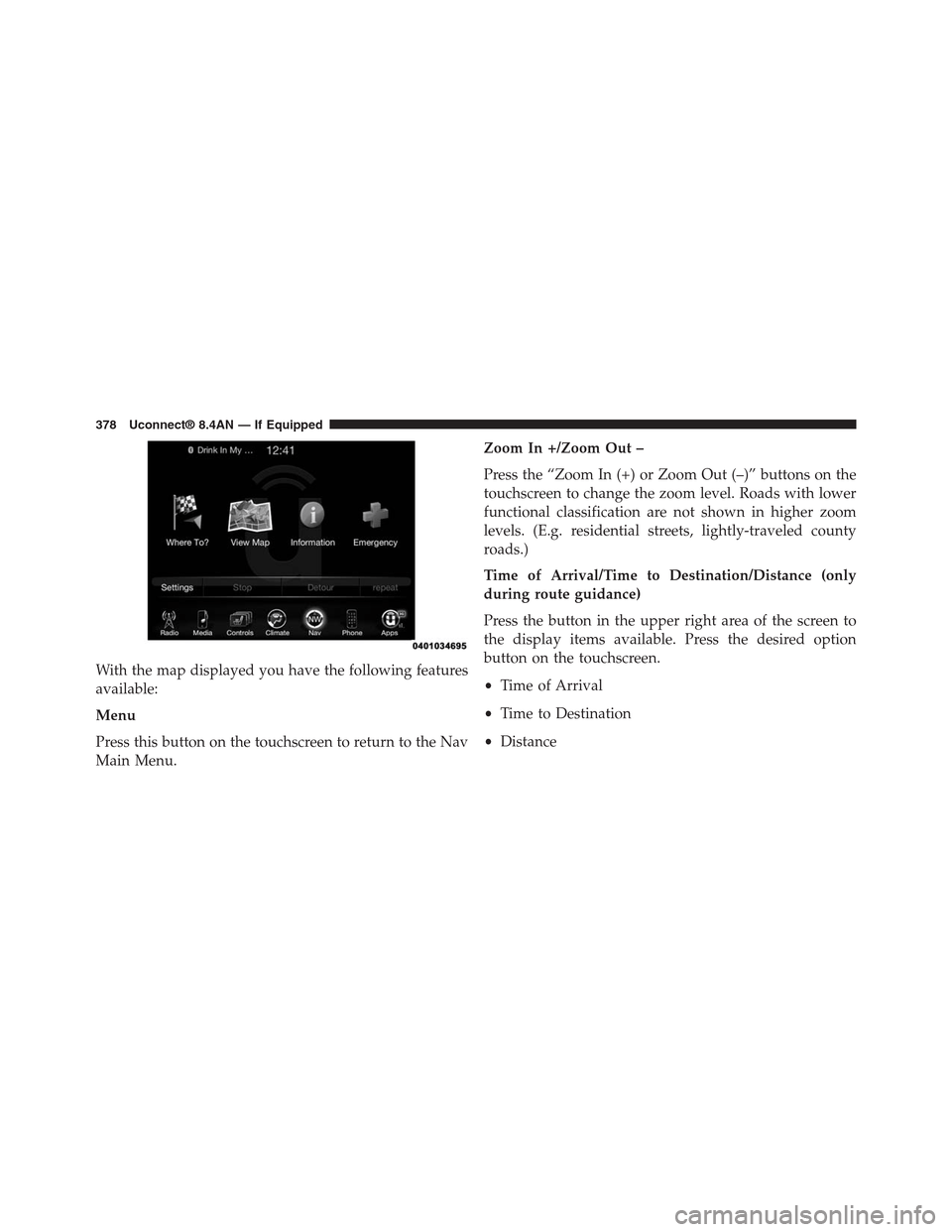
With the map displayed you have the following features
available:
Menu
Press this button on the touchscreen to return to the Nav
Main Menu.
Zoom In +/Zoom Out –
Press the “Zoom In (+) or Zoom Out (–)” buttons on the
touchscreen to change the zoom level. Roads with lower
functional classification are not shown in higher zoom
levels. (E.g. residential streets, lightly-traveled county
roads.)
Time of Arrival/Time to Destination/Distance (only
during route guidance)
Press the button in the upper right area of the screen to
the display items available. Press the desired option
button on the touchscreen.
•Time of Arrival
•Time to Destination
•Distance
378 Uconnect® 8.4AN — If Equipped