Page 117 of 429
Mopar Owner Connect website:
1. Log on to the Mopar Owner Connect website
(moparownerconnect.com) using the username and
password you used when registering your Uconnect®
Access system.
•If you forgot your username or password, links are
provided on the website to help you retrieve them.
2. If you have more than one vehicle registered into the
Mopar Owner Connect website
(moparownerconnect.com), select the vehicle you
want to send the command by clicking on its image
along the top.
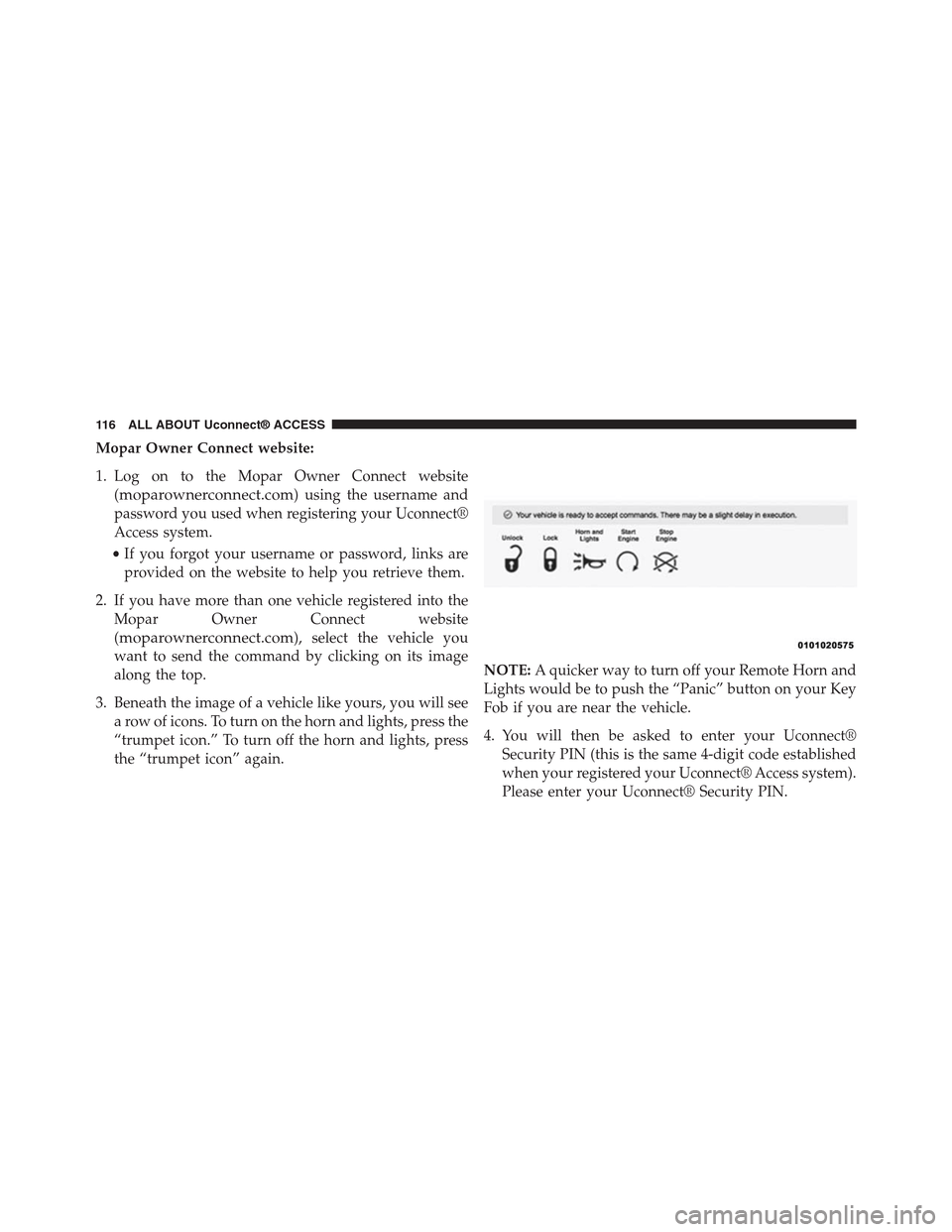
3. Beneath the image of a vehicle like yours, you will see
a row of icons. To turn on the horn and lights, press the
“trumpet icon.” To turn off the horn and lights, press
the “trumpet icon” again.
NOTE:A quicker way to turn off your Remote Horn and
Lights would be to push the “Panic” button on your Key
Fob if you are near the vehicle.
4. You will then be asked to enter your Uconnect®
Security PIN (this is the same 4-digit code established
when your registered your Uconnect® Access system).
Please enter your Uconnect® Security PIN.
11 6 A L L A B O U T U c o n n e c t ® A C C E S S
Page 119 of 429

•Push the button to sound your vehicle’s horn and flash
the lights.
•Your request will typically take about to three minutes
to process. If your vehicle has been parked for a while
it can take up to 30 minutes for the request to reach
your vehicle and perform the task.
Requirements
•Vehicle must be properly equipped with the
Uconnect® Access System.
•Vehicle must be in range of a usable and authorized
cellular signal.
•Vehicle must be registered with Uconnect® Access and
have an active subscription that includes the appli-
cable feature or App.
•If using the Uconnect® Access App to command your
vehicle, your smartphone must be compatible and in
range of a cellular signal.
•An ignition cycle is required for some remote com-
mands such as Remote Vehicle Start and Remote Door
Lock/Unlock if following a Remote Horn and Lights
activation
CAUTION!
The Remote Horn and Lights feature is designed
to be loud and get noticed. Please keep in mind the
surroundings when using this feature.
11 8 A L L A B O U T U c o n n e c t ® A C C E S S
Page 120 of 429

FAQs
1.How long does it take to sound my horn and flash
the lights?Depending on various conditions, it can
take three minutes or more for the request to get
through to your vehicle, although Uconnect® is al-
ways striving to improve performance.
2.Which is faster, my Key Fob or the Uconnect® Access
App?Your Key Fob will sound the horn and flash the
lights quicker; however its range is limited.
3.Will my vehicle be safe if I lose my smartphone?
People sometimes lose their phone, which is why
security measures have been engineered into the
Uconnect® Access App. Asking for your username,
password and Uconnect® Security PIN help to ensure
that nobody can access your vehicle if they happen to
find your smartphone.
4.How do I turn off the horn and lights after I turn
them on?By pressing the “horn icon” a second time
on your Uconnect® Access App, a second command
will be sent to shutoff the horn and lights. Alterna-
tively, if you are close enough to the vehicle you can
use the Key Fob to turn off the horn and lights by
pressing the “Panic” button.
5.Why can’t all phones use the Uconnect® Access
App?The Uconnect® Access App has been designed
to work on most smartphones with the Apple and
Android operating systems. The capabilities of these
smartphone allows us to remotely command your
vehicle. Other operating systems may be supported in
the future.
2
ALL ABOUT Uconnect® ACCESS 119
Page 127 of 429
•Vehicle must be equipped with Uconnect 8.4A/8.4AN.
Not available on Uconnect 5.0.
Tips and Shortcuts
•Pandora® will launch with the last setting and play list
you chose. To change this, select the “Station List”
button on the touchscreen in lower left corner to select
another station.
•Steering wheel controls supported are for “next track”
(until reaching maximum skips – for free account).
FAQs
1.Why can’t I get Pandora® Via Mobile to work?Here
are some things to consider:
•Check to ensure you have linked your Pandora®
account credentials with Uconnect® Access. This is
usually done during registration and setup. Then,
check to ensure you have properly connected your
compatible smartphone to the vehicle touchscreen.
The Uconnect® Access App must be open and you
must be logged in. A blue light indicates that it’s
providing data to the vehicle.
•If you recently changed your password for
Pandora®, it may need to be updated on Mopar
Owner Connect under the “Via Mobile” section.
2.If I changed my password for Pandora®, do I have to
update it with Uconnect® Access?Yes. Visit
moparownerconnect.com, log in, and click on Via
Mobile.
3.How do I set up a Pandora® account?You can create
an account with Pandora® by visitingpandora.com.
To make changes to an existing Pandora® account,
visit the Pandora® website.
4.Can I create a Pandora® account during Uconnect®
Access registration and setup?There is a link from the
Via Mobile profile page where the customer can go to
the Pandora® website to create a new account.
126 ALL ABOUT Uconnect® ACCESS
Page 136 of 429
FAQs
1.Why can’t I get iHeartRadio Via Mobile to work?
Here are some things to consider:
•Check to ensure you have linked your iHeartRadio
account credentials with Uconnect® Access. This is
usually done during registration and setup. Then,
check to ensure you have properly connected your
compatible smartphone to the radio. The Uconnect®
Access App must be open and you must be logged
in. A blue light indicates that it’s providing data to
the vehicle.
•If you recently changed your password for iHeart-
Radio, it may need to be updated on Mopar Owner
Connect under the “Via Mobile” section.
2.How do I personalize the music played on my
custom station?Press the “thumbs up” icon when
music is played that you like, and the “thumbs down”
icon when music is played that you do not like. Future
music played will give you more of the music with
characteristics that meet your preferences. The more
often you use Thumb Up and Thumbs Down, the
better your station becomes.
3.How do I know when iHeartRadio is playing one of
the songs I indicated I “liked”?The Thumbs Up
button on the radio touchscreen will appear in red
when playing a song you previously liked.
4.If I changed my password for iHeartRadio, do I have
to update it with Uconnect® Access?Yes. Visit Mopar
Owner Connectmoparownerconnect.com, log in,
and click on Via Mobile.
2
ALL ABOUT Uconnect® ACCESS 135
Page 144 of 429
FAQs
1.Why can’t I get Slacker Radio Via Mobile to work?
Here are some things to consider:
•Check to ensure you have linked your Slacker Radio
account credentials with Uconnect® Access. This is
usually done during registration and setup. Then,
check to ensure you have properly connected your
compatible smartphone to the vehicle touchscreen.
The Uconnect® Access App must be open and you
must be logged in. A blue light indicates that it’s
providing data to the vehicle.
•If you recently changed your password for Slacker
Radio, it may need to be updated on Mopar Owner
Connect under the “Via Mobile” section.
2.How do I customize the music being played on the
station?As you listen to music, use the button on the
touchscreen to confirm your preference to the music
currently being played. Press the “like” icon to con-
firm what you want to hear more of, and the “dislike”
icon to eliminate what you do not want to hear.
3.How do I know when Slacker Radio is playing one
of the songs I indicated I “liked”?The heart button
on the touchscreen will appear in yellow when play-
ing a song you previously liked. When you see it
appear in yellow, you do not need to “like” it again,
and you know that Slacker Radio is playing your
preferences.
4.Can I ban a particular artist from playing in Slacker
Radio?Yes, Slacker Radio gives you the capability to
ban all songs from a particular artist or song by using
the “dislike” button on the touchscreen.
2
ALL ABOUT Uconnect® ACCESS 143
Page 152 of 429
Requirements
•Vehicle must be properly equipped with the
Uconnect® Access System.
•Your smartphone must be compatible with the
Uconnect® Access App and properly connected to the
vehicle.
•Your connected smartphone must be in range of a
usable cellular signal.
•Vehicle must be registered with Uconnect® Access and
have an active subscription that includes the appli-
cable feature or app.
•Vehicle must be powered in the ON/RUN or ACC
(Accessory) position with a properly functioning elec-
trical system.
•Vehicle must be equipped with Uconnect 8.4A/8.4AN.
Not available on Uconnect 5.0.
Tips and Shortcuts
•Use the “like” and “dislike” option to continue to
refine music played on stations like Slacker.
•Link your Facebook® and Twitter® account on the
Aha™ website to share with others what you are
listening to while you drive.
FAQs
1.Why can’t I get Aha™ Via Mobile to work?Here are
some things to consider:
•Check to ensure you have linked your Aha™ account
credentials with Uconnect® Access. This is usually
done during registration and setup. Then, check to
ensure you have properly connected your compat-
ible smartphone to the vehicle touchscreen. The
Uconnect® Access App must be open and you must
be logged in. A blue light indicates that it’s providing
data to the vehicle.
2
ALL ABOUT Uconnect® ACCESS 151
Page 154 of 429
6.Why can’t I get Aha™ Via Mobile to work?Ensure
you have registered for Uconnect® Access and asso-
ciated your Aha™ account credentials with
Uconnect® Access. This is done during registration
and setup process. Then, ensure you have properly
connected your compatible smartphone to the vehicle
touchscreen. The Uconnect® Access App must be
open. A blue light indicates that it’s providing data to
the vehicle.
7.If I changed my password for Aha™, do I have to
update it with Uconnect® Access?Yes. Visit
moparownerconnect.com, log in, and click on Via
Mobile.
8.How do I set up an Aha™ account?You can create an
account with Aha™ by visitingaharadio.com.To
make changes to an existing Aha™ account, visit the
Aha™ website.
9.Can I create an Aha™ account during Uconnect®
Access registration and setup?There is a link from the
Via Mobile profile page where the customer can go to
the Aha™ website to create a new account.
10.How do I block explicit content?By default Aha™
automatically filters and blocks explicit content for
you. If you would like to enable the ability to listen to
explicit podcasts, as well as comedy or user-
generated shouts, you must visit the “Settings”
screen and switch the “Allow Explicit Content” set-
ting to ON.
11.Should I have the Aha™ app downloaded to my
smartphone to use Aha™ Via Mobile?You do not
need to have the Aha™ app on your smartphone to
use Aha™ Via Mobile. The Uconnect® Access App is
required.
2
ALL ABOUT Uconnect® ACCESS 153