Page 35 of 429
Connection Status
The Via Mobile button provides a status indication of the
smartphone connection for Via Mobile app use. Under
“Settings” in the Uconnect® Access app on your smart-
phone, confirm that Via Mobile data has been turned on.
•Green indicates the data connection is ready
•Blue indicates the data connection is established
•Yellow indicates a Bluetooth connection error
•Red indicates a user account problem or network
connection error
34 ALL ABOUT Uconnect® ACCESS
Page 45 of 429

2.Edit Profile:
To manage the details of your Uconnect® Access
account, such as your contact information, password
and PIN, click on the “Edit Profile” button to access
the details of your account.
3.Shop:
To purchase a WiFi hotspot and renew your subscrip-
tion to a package, click on the “Shop” tab, then go to
the Uconnect® Store to make your purchase.
4.Connected Vehicle:
This statement will indicate which vehicle’s you own
that are equipped with the Uconnect® Access system.
Other vehicles you own may not have Uconnect®
Access and will indicate that it is a non-Uconnect®
Access Vehicle.
5.Remote Services:
For vehicles with an active Uconnect Access subscrip-
tion, press one of these icons and enter your four-digit
Uconnect® Security PIN to command your vehicle to
remotely start, lock/unlock doors or sound the horn
and lights.
6.Subscription Status:
Refer to this section to quickly see if you are currently
subscribed to remote services.
7.Uconnect® Access App:
This is where you can enter the mobile phone number
for your compatible smartphone to download the
Uconnect® Access App. Phone compatibility can be
verified atUconnectPhone.com. For more details, see
the section labeled Download the Uconnect® Access
App.
44 ALL ABOUT Uconnect® ACCESS
Page 47 of 429
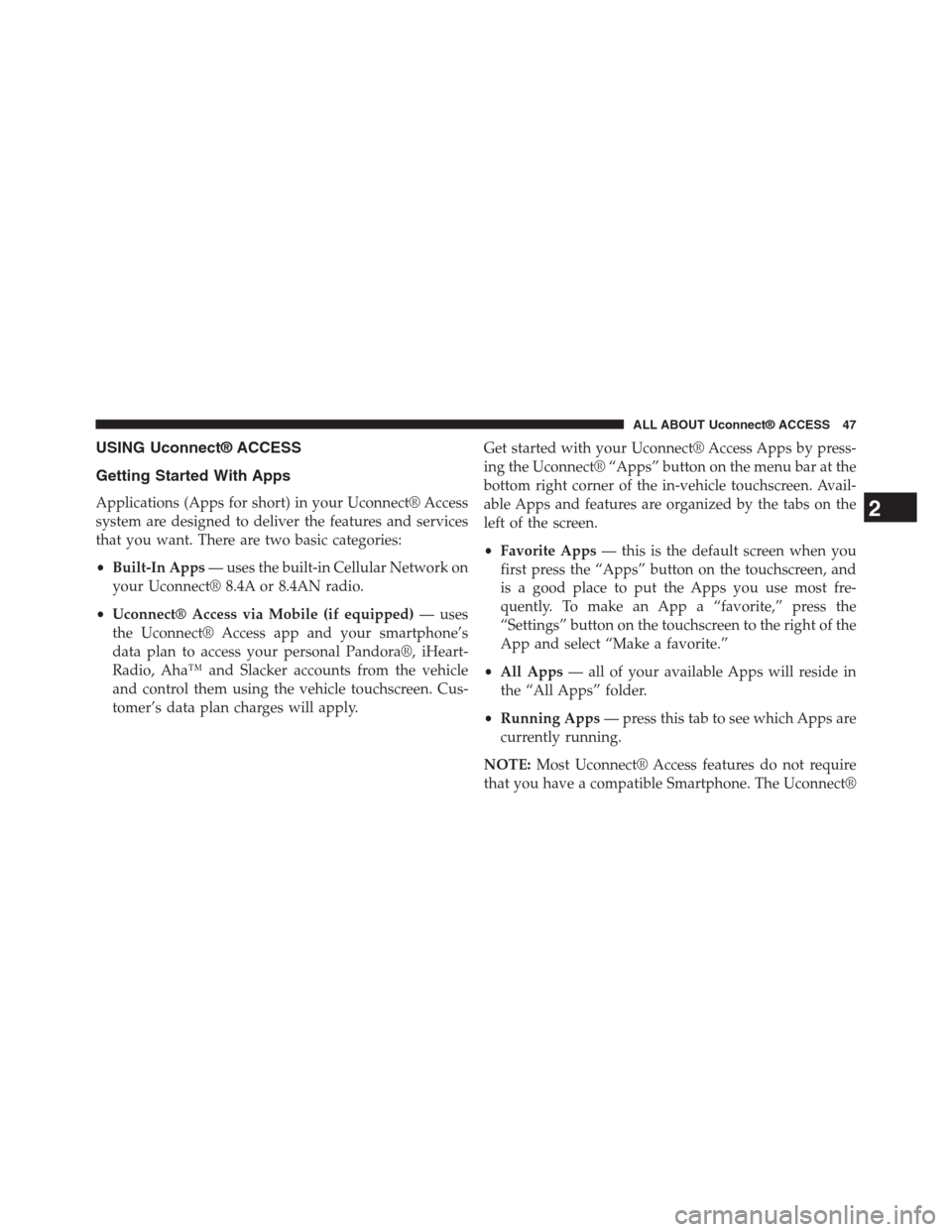
5. You can enter up to five mobile phone and/or email
addresses to your notifications, and you can customize
which ones receive the types of messages.
6. If you add a mobile phone number, you will receive a
confirmation text message asking to confirm and
receive vehicle notifications. If you are OK with this,
reply to the text message saying “yes” (message and
data rates may apply, please see your mobile phone
provider for details). If you have questions, text
“HELP” in your reply.
46 ALL ABOUT Uconnect® ACCESS
Page 48 of 429
USING Uconnect® ACCESS
Getting Started With Apps
Applications (Apps for short) in your Uconnect® Access
system are designed to deliver the features and services
that you want. There are two basic categories:
•Built-In Apps— uses the built-in Cellular Network on
your Uconnect® 8.4A or 8.4AN radio.
•Uconnect® Access via Mobile (if equipped)— uses
the Uconnect® Access app and your smartphone’s
data plan to access your personal Pandora®, iHeart-
Radio, Aha™ and Slacker accounts from the vehicle
and control them using the vehicle touchscreen. Cus-
tomer’s data plan charges will apply.
Get started with your Uconnect® Access Apps by press-
ing the Uconnect® “Apps” button on the menu bar at the
bottom right corner of the in-vehicle touchscreen. Avail-
able Apps and features are organized by the tabs on the
left of the screen.
•Favorite Apps— this is the default screen when you
first press the “Apps” button on the touchscreen, and
is a good place to put the Apps you use most fre-
quently. To make an App a “favorite,” press the
“Settings” button on the touchscreen to the right of the
App and select “Make a favorite.”
•All Apps— all of your available Apps will reside in
the “All Apps” folder.
•Running Apps— press this tab to see which Apps are
currently running.
NOTE:Most Uconnect® Access features do not require
that you have a compatible Smartphone. The Uconnect®
2
ALL ABOUT Uconnect® ACCESS 47
Page 49 of 429

Access features work using the built-in cellular connec-
tion. Only Voice Texting the Uconnect® Access App and
Via Mobile Apps require a compatible smartphone to
work with your Uconnect® Access system.
9-1-1 Call
Access To Emergency Services At The Push Of A Button
Uconnect® Access In-Vehicle Assistance Features
With Uconnect® Access, your vehicle has on-board assis-
tance features located on the rear view mirror designed to
enhance your driving experience if you should ever need
assistance or support.
Description
9-1-1 Call is a feature that, at the push of a button, can
contact emergency services. It’s a convenient way to get
in contact with a 9-1-1 operator in the event of an
emergency. When the connection between the vehicle
and a 9-1-1 operator is made, your vehicle will automati-
cally transmit location information to the 9-1-1 operator.
How It Works
1. Push the “9-1-1” Call button on the Rearview Mirror;
the indicator light will turn green indicating a call has
been placed.
48 ALL ABOUT Uconnect® ACCESS
Page 50 of 429

NOTE:In case the “9-1-1” Call button is accidentally
pushed, there is a 10 second delay before the 9-1-1 call is
placed. The system will verbally alert you that a call is
about to be made. To cancel the 9-1-1 Call connection,
push the “9-1-1” Call button on the Rearview Mirror or
press the “Cancellation” button on the Phone Screen.
2. Once a connection between the vehicle and a 9-1-1
operator is made, the 9-1-1 Call system will transmit
the following important vehicle information to a 9-1-1
operator:
•Indication that the occupant placed a 9-1-1 Call.
•The vehicle brand.
•The last known GPS coordinates of the vehicle.
3. You should be able to speak with the 9-1-1 operator
through the vehicle audio system to determine if
additional help is needed.
If a connection is made between a 9-1-1 operator and
your vehicle, you understand and agree that 9-1-1 opera-
tors may, like any other 9-1-1 call, record conversations
and sounds in and near your vehicle upon connection.
9-1-1 Call System Limitations
Vehicles sold in Canada and MexicoDO NOThave 9-1-1
Call system capabilities. 9-1-1 or other emergency line
operators in Canada and Mexico may not answer or
respond to 9-1-1 system calls. If the 9-1-1 Call system
detects a malfunction, any of the following may occur at
the time the malfunction is detected.
•The Rearview Mirror light will continuously be illu-
minated red.
•The screen will display the following message “Vehicle
phone requires service. Please contact your dealer.”
•An In-Vehicle Audio message will state “Vehicle phone
requires service. Please contact your dealer.”
2
ALL ABOUT Uconnect® ACCESS 49
Page 56 of 429

Requirements
•This feature is available only on vehicles sold in the
US.
•Vehicle must be properly equipped with the
Uconnect® Access System.
•Vehicle must be in range of a usable and authorized
cellular signal.
•Vehicle must be registered with Uconnect® Access and
have an active subscription that includes the appli-
cable feature or App.
•Vehicle must be powered in the ON/RUN or ACC
(Accessory) position with a properly functioning elec-
trical system.
Disclaimers
If Roadside Assistance is provided to your vehicle, you
agree to be responsible for any additional roadside
assistance service costs that you may incur. In order to
provide Uconnect® Services to you, we may record and
monitor your conversations with Roadside Assistance,
Uconnect® Care or Vehicle Care, whether such conver-
sations are initiated through the Uconnect® Services in
your vehicle, or via a landline or mobile telephone, and
may share information obtained through such recording
and monitoring in accordance with regulatory require-
ments. You acknowledge, agree and consent to any
recording, monitoring or sharing of information obtained
through any such call recordings.
2
ALL ABOUT Uconnect® ACCESS 55
Page 57 of 429
FAQs
1.What Is The Phone Number For Roadside Assis-
tance?The phone number is 800-521-2779.
NOTE:Some Apps are suspended while an Assist call is
active
2.If I Am Subscribed To Uconnect® Access, Does It
Cover Towing Or Other Expenses Incurred By Using
Chrysler Roadside Assistance?No, however your
new vehicle may include Roadside Assistance ser-
vices.
Yelp®
Looking for a burrito joint that is open? A boutique to
buy a new pair of jeans? Yelp® is here to help. Use Yelp®
to search for places to eat, shop, relax and play.
Description
Yelp® is a familiar, widely used website and mobile app
that connects people to great local businesses. Now with
Uconnect® Access, Yelp® has been adapted for your
vehicle, and on the go capability. Yelp® gives you the
ability to search for a Point of Interest (POI) or desired
destination using either pre-defined search categories, or
custom searches, using keywords like “tacos.” Searching
can be done by voice recognition or by using the touch-
screen keypad.
Here is what Yelp® can do for you while you are on the
road:
•Deliver a list of up to 20 results, prioritizing by best
match, by distance or rating.
•Provide up-to-date search listings (pulling the latest
information from the cloud).
56 ALL ABOUT Uconnect® ACCESS