Page 190 of 726
To hear the first available Menu, push the Voice Com-
mandbutton and say “Help” or “Main Menu.”
Commands
The Voice Command system understands two types of
commands, Universal commands and Local commands.
Universal commands are available at all times. Local com-
mands are available if the supported radio mode is active.
Changing The Volume
1. Start a dialogue by pushing the Voice Command
button.
2. Say a command (e.g., “Help”).
3. Use the ON/OFF VOLUME rotary knob to adjust the
volume to a comfortable level while the Voice Com-
mand system is speaking. Please note the volume
setting for Voice Command is different than the audio
system.
Main Menu
Start a dialogue by pushing the Voice Command
button. You may say “Main Menu” to switch to
the main menu.
In this mode, you can say the following commands:
•“Radio AM” (to switch to the radio AM mode)
•“Radio FM” (to switch to radio FM mode)
•“Sat” (to switch to Satellite radio mode)
•“Disc” (to switch to the disc mode)
•“USB” (to switch to USB mode)
•“Bluetooth Streaming” (to switch to Bluetooth®
Streaming mode)
•“Memo” (to switch to the memo recorder)
•“System Setup” (to switch to system setup)
188 UNDERSTANDING THE FEATURES OF YOUR VEHICLE
Page 193 of 726
– “Save” (to save the memo)
– “Continue” (to continue recording)
– “Delete” (to delete the recording)
•“Play Memos” (to play previously recorded memos) —
During the playback you may push the Voice Com-
mandbutton to stop playing memos. You pro-
ceed by saying one of the following commands:
– “Repeat” (to repeat a memo)
– “Next” (to play the next memo)
– “Previous” (to play the previous memo)
– “Delete” (to delete a memo)
– “Delete All” (to delete all memos)
Setup
To switch to system setup, you may say one of the
following:
•“Change to setup”
•“Switch to system setup”
•“Main menu setup”
•“Switch to setup”
In this mode, you may say the following commands:
•“Language English”
•“Language French”
•“Language Spanish”
•“Tutorial”
•“Voice Training”
NOTE:Keep in mind that you have to push the Voice
Commandbutton first and wait for the beep
before speaking the “Barge In” commands.
3
UNDERSTANDING THE FEATURES OF YOUR VEHICLE 191
Page 194 of 726
Voice Training
For users experiencing difficulty with the system recog-
nizing their voice commands or numbers the Uconnect®
Voice “Voice Training” feature may be used.
1. Push the Voice Commandbutton, say “System
Setup” and once you are in that menu then say
“Voice Training.” This will train your own voice to
the system and will improve recognition.
2. Repeat the words and phrases when prompted by
Uconnect® Voice. For best results, the “Voice Training”
session should be completed when the vehicle is
parked, engine running, all windows closed, and the
blower fan switched off. This procedure may be re-
peated with a new user. The system will adapt to the
last trained voice only.
SEATS
Seats are a part of the Occupant Restraint System of the
vehicle.
WARNING!
•It is dangerous to ride in a cargo area, inside or
outside of a vehicle. In a collision, people riding in
these areas are more likely to be seriously injured
or killed.
•Do not allow people to ride in any area of your
vehicle that is not equipped with seats and seat
belts. In a collision, people riding in these areas are
more likely to be seriously injured or killed.
•Be sure everyone in your vehicle is in a seat and
using a seat belt properly.
192 UNDERSTANDING THE FEATURES OF YOUR VEHICLE
Page 318 of 726
▫Units..............................350
▫Vehicle Info (Customer Information Features) . .350
▫Messages #..........................351
▫Keyless Enter-N-Go™ Display — If Equipped . .351
▫Compass / Temperature Display..........352
▫Compass Variance.....................354
▫TURN MENU OFF....................354
▫Customer-Programmable Features
(System Setup).......................354
!Uconnect® 730N/430/430N CD/DVD/HDD/NAV
— IF EQUIPPED.......................362
▫Operating Instructions (Voice Command System) —
If Equipped..........................362
▫Operating Instructions (Uconnect® Phone) — If
Equipped...........................362
!Uconnect® 130........................362
▫Operating Instructions — Radio Mode......363
▫Operation Instructions — CD MODE For CD And
MP3 Audio Play......................366
▫Notes On Playing MP3 Files.............368
▫Operation Instructions — Auxiliary Mode . . . .371
!Uconnect® 130 WITH SATELLITE RADIO.....372
▫Operating Instructions — Radio Mode.......372
▫Operation Instructions — CD MODE For CD And
MP3 Audio Play......................378
▫Notes On Playing MP3 Files.............380
▫LIST Button — CD Mode For MP3 Play......383
316 UNDERSTANDING YOUR INSTRUMENT PANEL
Page 340 of 726
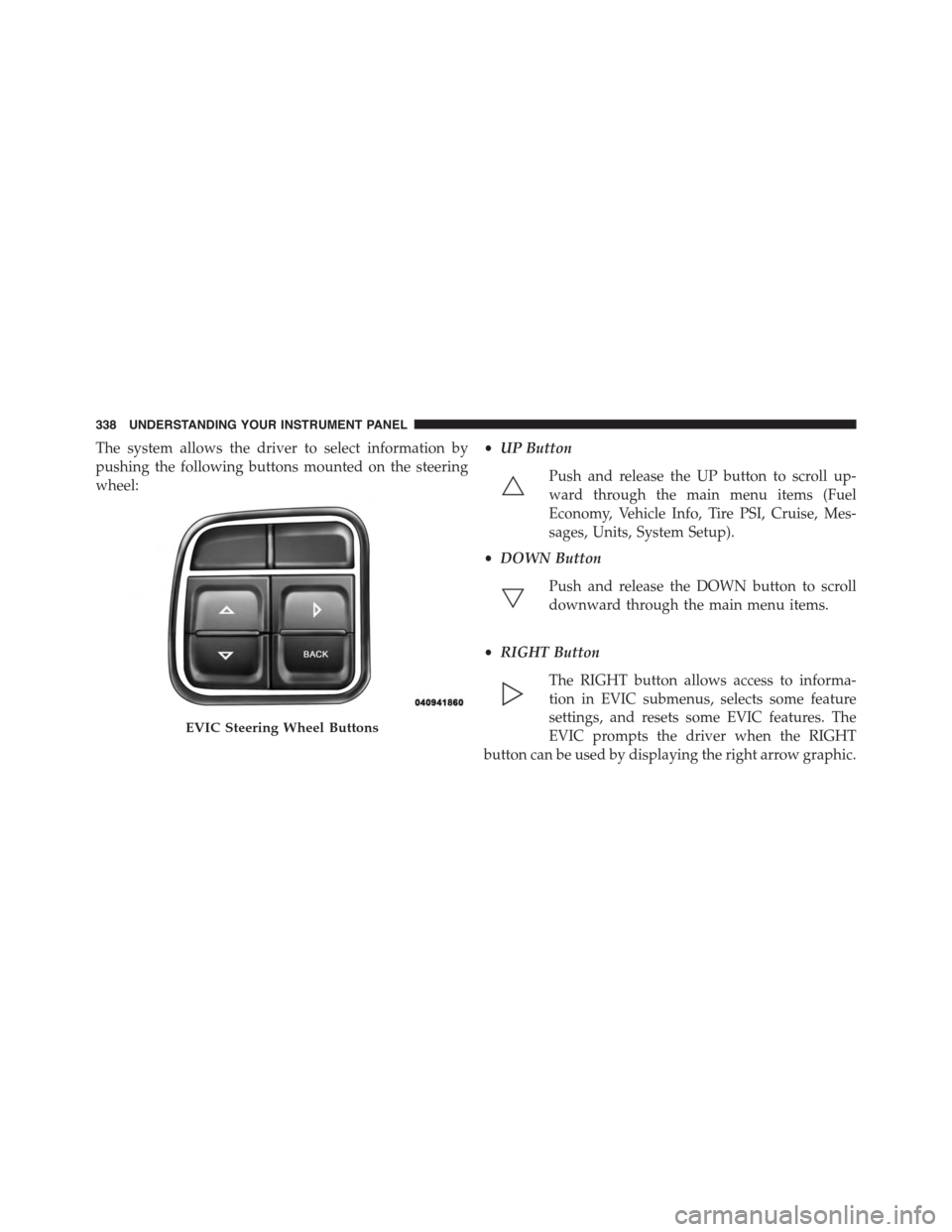
The system allows the driver to select information by
pushing the following buttons mounted on the steering
wheel:
•UP Button
Push and release the UP button to scroll up-
ward through the main menu items (Fuel
Economy, Vehicle Info, Tire PSI, Cruise, Mes-
sages, Units, System Setup).
•DOWN Button
Push and release the DOWN button to scroll
downward through the main menu items.
•RIGHT Button
The RIGHT button allows access to informa-
tion in EVIC submenus, selects some feature
settings, and resets some EVIC features. The
EVIC prompts the driver when the RIGHT
button can be used by displaying the right arrow graphic.
EVIC Steering Wheel Buttons
338 UNDERSTANDING YOUR INSTRUMENT PANEL
Page 354 of 726
Compass / Temperature Display
The compass readings indicate the direction the vehicle is
facing. The EVIC will display one of eight compass
readings and the outside temperature.
NOTE:The system will display the last known outside
temperature when starting the vehicle and may need to
be driven several minutes before the updated tempera-
ture is displayed. Engine temperature can also affect the
displayed temperature; therefore, temperature readings
are not updated when the vehicle is not moving.
Automatic Compass Calibration
This compass is self-calibrating, which eliminates the
need to manually reset the compass. When the vehicle is
new, the compass may appear erratic until it is calibrated.
You may also calibrate the compass by completing one or
more 360–degree turns (in an area free from large metal
or metallic objects). The compass will now function
normally.
NOTE:A good calibration requires a level surface and
an environment free from large metallic objects such as
buildings, bridges, underground cables, railroad tracks,
etc.
Manual Compass Calibration
If the compass appears erratic and the CAL indicator
does not appear in the EVIC display, you must put the
compass into the Calibration Mode manually, as follows:
1. Turn ON the ignition switch.
2. Push and release the UP or DOWN button until the
System Setup (Customer-Programmable Features)
menu is reached, then push and release the SELECT
button.
3. Push and releasethe DOWN button until “Calibrate
Compass” is displayed in the EVIC then push and
release the SELECT button.
352 UNDERSTANDING YOUR INSTRUMENT PANEL
Page 356 of 726
1. Turn the ignition switch ON.
2. Press the UP or DOWN button until the Setup
(Customer-Programmable Features) menu is reached,
then press the SELECT button.
3. Press the DOWN button until the “Compass Variance”
message is displayed in the EVIC, then press the
SELECT button. The last variance zone number dis-
plays in the EVIC.
4. Press and release the SELECT button until the proper
variance zone is selected, according to the map.
5. Press and release the RETURN button to exit.
Compass Variance
Refer to “Compass/Temperature Display” in “Electronic
Vehicle Information (EVIC)” in “Understanding Your
Instrument Panel” for more information.
TURN MENU OFF
Push and release RIGHT arrow button to turn the menu
off.
Customer-Programmable Features (System
Setup)
Personal Settings allows you to set and recall features
when the transmission is in PARK. If the transmission is
out of PARK or the vehicle begins moving, a warning
messageSYSTEM SETUP NOT AVAILABLE VEHICLE
NOT IN PARKdisplays when you try to select “System
Setup” from the main menu.
Push and release the UP or DOWN button until#System
Setup#is highlighted in the main menu of the EVIC. Then
push and release the SELECT button to enter the System
Setup sub-menu. Push and release the UP or DOWN
button to select a feature form the following choices:
354 UNDERSTANDING YOUR INSTRUMENT PANEL
Page 376 of 726
Clock Setting Procedure
1. Push and hold the TIME button until the hours blink.
2. Adjust the hours by turning the right side TUNE/
SCROLL control knob.
3. After adjusting the hours, push the right side TUNE/
SCROLL control knob to set the minutes. The minutes
will begin to blink.
4. Adjust the minutes using the right side TUNE/
SCROLL control knob. Push the TUNE/SCROLL con-
trol knob to save time change.
5. To exit, push any button/knob or wait five seconds.
The clock can also be set by pushing the SETUP button.
For vehicles equipped with satellite radio, push the
SETUP button, use the TUNE/SCROLL control to select
SET CLOCK, and then follow the above procedure,
starting at step 2. For vehicles not equipped with satellite
radio, push the SETUP button and then follow the above
procedure, starting at step 2.
INFO Button
Push the INFO button for an RDS station (one with call
letters displayed). The radio will return a Radio Text
message broadcast from an FM station (FM mode only).
RW/FF
Pushing the RW (Rewind) or FF (Fast Forward) buttons
causes the tuner to search for the next frequency in the
direction of the arrows. This feature operates in either
AM or FM frequencies.
TUNE Control
Turn the rotary TUNE/SCROLL control knob clockwise
to increase or counterclockwise to decrease the frequency.
374 UNDERSTANDING YOUR INSTRUMENT PANEL