2015 BMW I8 navigation
[x] Cancel search: navigationPage 95 of 224

One bar indicates one minute.
The combustion engine's average fuel con‐
sumption is indicated by a line above the bar
display and as a value to the right of the graph.
Displaying the energy flow1."Vehicle info"2."eDRIVE"3. "Energy flow"
Energy flow of the hybrid system
The following are displayed:
▷Active components of the hybrid system.▷Direction of the energy flows:
Orange: energy flow of the combustion en‐
gine.
Blue: energy flow of the hybrid system▷Driving states:▷ePOWER.▷POWER.▷eBOOST.▷CHARGE.▷Coasting.▷Charging.▷System requirements of the hybrid system,
e. g., drive system not yet warmed up to
operating temperature.▷Driving requirement, e. g., transmission se‐
lector lever in the Sport position.Adapting to the course of the road
When the navigation system destination guid‐
ance is active, hybrid operation adapts to spe‐
cific route sections.
Use of the hybrid system is optional.
Symbols in the energy flow display indicate
that a situation has been detected ahead and
hybrid operation is prepared for it.
SymbolsSymbolMeaningDownhill gradients: the system is
ready to charge the high-voltage
battery.Target zone: ePOWER electric driv‐
ing is being prepared.
Check Control
The concept The Check Control system monitors functions
in the vehicle and notifies you of malfunctions
in the monitored systems.
A Check Control message is displayed as a
combination of indicator or warning lights and
text messages in the instrument cluster and in
the Head-up Display.
In addition, an acoustic signal may sound and a text message may appear on the Control Dis‐
play.
Indicator/warning lights
General information
The indicator and warning lights in the instru‐
ment cluster can light up in a variety of combi‐
nations and colors.
Several lights indicate function checks and
light up only temporarily when drive readiness
or operating readiness are activated.
Seite 79DisplaysControls79
Online Edition for Part no. 01 40 2 960 891 - II/15
Page 101 of 224

Gear shift indicatorThe conceptThe system recommends the most fuel effi‐
cient gear for the current driving situation.
Depending on the vehicle's features and coun‐
try version of the vehicle, the gear shift indica‐
tor is active in the manual mode of the Step‐
tronic transmission.
Suggestions to shift gear up or down are dis‐
played in the instrument cluster.
The gear shift indicator is not available when
Max eDRIVE is activated.
On vehicles without a gear shift indicator, the
engaged gear is displayed.
DisplaysExampleDescriptionFuel efficient gear is set.Shift into fuel efficient gear.
Speed limit detection
The concept
Speed limit detection
Speed limit detection uses a symbol in the
shape of a traffic sign to display the currently
detected speed limit. The camera in the area of
the interior rearview mirror detects traffic signs
at the edge of the road as well as variable over‐
head sign posts. Traffic signs with extra sym‐
bols for wet road conditions, etc. are also de‐
tected and compared with the vehicle's
onboard data, such as for the rain sensor, and
will be displayed depending on the situation.
The system takes into account the information
stored in the navigation system and also dis‐
plays speed limits present on routes without
signs.
Hints Personal judgment
The system cannot serve as a substitute
for the driver's personal judgment of the traffic
situation.
The system assists the driver and does not re‐
place the human eye.◀
At a glance
Camera
The camera is found near the interior rearview
mirror.
Keep the windshield in the area behind the in‐
terior rearview mirror clean and clear.
Switching on/offOn the Control Display:
1."Settings"2."Instrument cluster"3."Speed limit information"
If speed limit detection is switched on, it can
be displayed on the info display in the instru‐
ment cluster.
Display
The following is displayed in the instrument
cluster:
Seite 85DisplaysControls85
Online Edition for Part no. 01 40 2 960 891 - II/15
Page 102 of 224
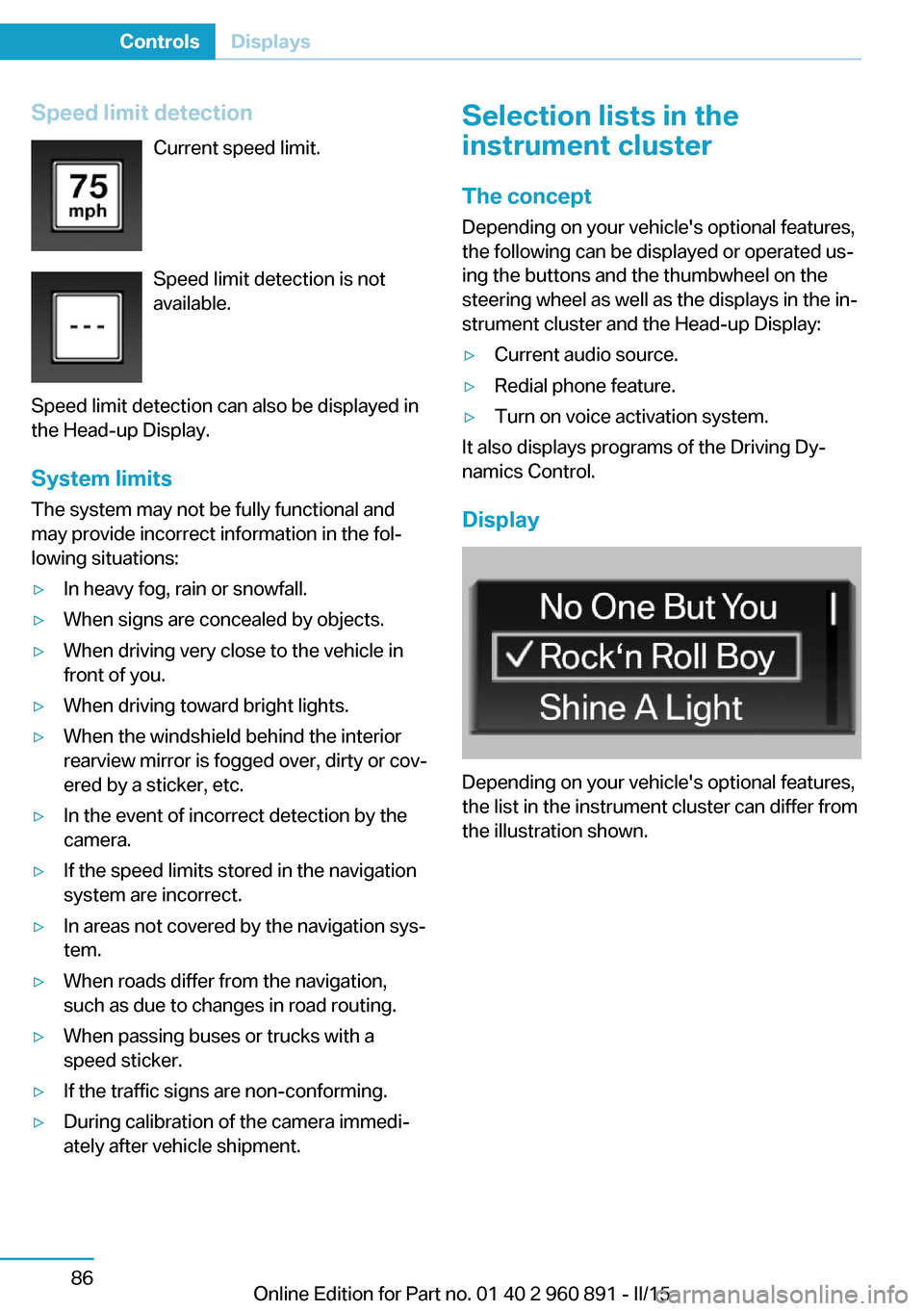
Speed limit detectionCurrent speed limit.
Speed limit detection is not
available.
Speed limit detection can also be displayed in
the Head-up Display.
System limits
The system may not be fully functional and
may provide incorrect information in the fol‐
lowing situations:▷In heavy fog, rain or snowfall.▷When signs are concealed by objects.▷When driving very close to the vehicle in
front of you.▷When driving toward bright lights.▷When the windshield behind the interior
rearview mirror is fogged over, dirty or cov‐
ered by a sticker, etc.▷In the event of incorrect detection by the
camera.▷If the speed limits stored in the navigation
system are incorrect.▷In areas not covered by the navigation sys‐
tem.▷When roads differ from the navigation,
such as due to changes in road routing.▷When passing buses or trucks with a
speed sticker.▷If the traffic signs are non-conforming.▷During calibration of the camera immedi‐
ately after vehicle shipment.Selection lists in the
instrument cluster
The concept Depending on your vehicle's optional features,
the following can be displayed or operated us‐
ing the buttons and the thumbwheel on the
steering wheel as well as the displays in the in‐
strument cluster and the Head-up Display:▷Current audio source.▷Redial phone feature.▷Turn on voice activation system.
It also displays programs of the Driving Dy‐
namics Control.
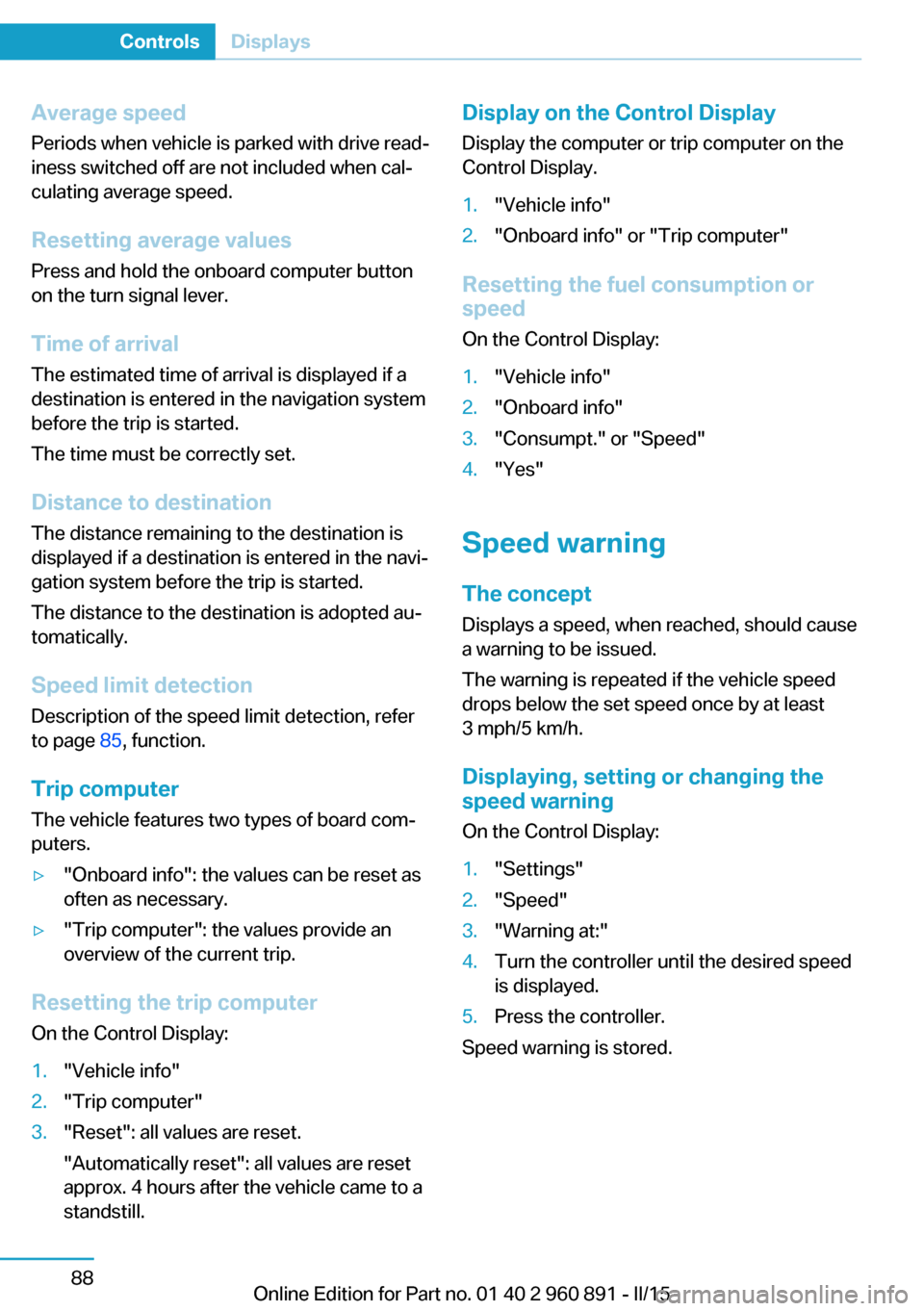
Display
Depending on your vehicle's optional features,
the list in the instrument cluster can differ from
the illustration shown.
Seite 86ControlsDisplays86
Online Edition for Part no. 01 40 2 960 891 - II/15
Page 104 of 224
Average speed
Periods when vehicle is parked with drive read‐
iness switched off are not included when cal‐
culating average speed.
Resetting average values Press and hold the onboard computer button
on the turn signal lever.
Time of arrival
The estimated time of arrival is displayed if a
destination is entered in the navigation system
before the trip is started.
The time must be correctly set.
Distance to destination
The distance remaining to the destination is
displayed if a destination is entered in the navi‐
gation system before the trip is started.
The distance to the destination is adopted au‐
tomatically.
Speed limit detection
Description of the speed limit detection, refer
to page 85, function.
Trip computer The vehicle features two types of board com‐
puters.▷"Onboard info": the values can be reset as
often as necessary.▷"Trip computer": the values provide an
overview of the current trip.
Resetting the trip computer
On the Control Display:
1."Vehicle info"2."Trip computer"3."Reset": all values are reset.
"Automatically reset": all values are reset
approx. 4 hours after the vehicle came to a
standstill.Display on the Control Display
Display the computer or trip computer on the
Control Display.1."Vehicle info"2."Onboard info" or "Trip computer"
Resetting the fuel consumption or
speed
On the Control Display:
1."Vehicle info"2."Onboard info"3."Consumpt." or "Speed"4."Yes"
Speed warning
The concept Displays a speed, when reached, should cause
a warning to be issued.
The warning is repeated if the vehicle speed
drops below the set speed once by at least
3 mph/5 km/h.
Displaying, setting or changing the
speed warning
On the Control Display:
1."Settings"2."Speed"3."Warning at:"4.Turn the controller until the desired speed
is displayed.5.Press the controller.
Speed warning is stored.
Seite 88ControlsDisplays88
Online Edition for Part no. 01 40 2 960 891 - II/15
Page 107 of 224
If the image is distorted, check the basic set‐
tings.
Switching on/off1."Settings"2."Head-Up Display"3."Head-Up Display"
Display
Overview
▷Speed.▷Navigation system.▷Check Control messages.▷Selection list from the instrument cluster.▷Driver assistance systems.
Some of this information is only displayed
briefly as needed.
Selecting displays in the Head-up
Display
On the Control Display:
1."Settings"2."Head-Up Display"3."Displayed information"4.Select the desired displays in the Head-up
Display.
Settings are stored for the profile currently in
use.
Setting the brightness
The brightness is automatically adjusted to the
ambient brightness.
The basic setting can be adjusted manually.
On the Control Display:
1."Settings"2."Head-Up Display"3."Brightness"4.Turn the controller.When the low beams are activated, the bright‐
ness of the Head-up Display can be addition‐
ally influenced using the instrument lighting.
Settings are stored for the profile currently in
use.
Adjusting the height
On the Control Display:1."Settings"2."Head-Up Display"3."Height"4.Turn the controller.
Settings are stored for the profile currently in
use.
Setting the rotation
On the Control Display:
1."Settings"2."Head-Up Display"3."Rotation"4.Turn the controller.
Settings are stored for the profile currently in
use.
Special windshield
The windshield is part of the system.
The shape of the windshield makes it possible
to display a precise image.
A film in the windshield prevents double im‐
ages from being displayed.
Therefore, have the special windshield re‐
placed by a service center only.
Seite 91DisplaysControls91
Online Edition for Part no. 01 40 2 960 891 - II/15
Page 219 of 224

Manual operation, rearviewcamera 118
Manual operation, Top View 121
Marking on approved tires 167
Master key, refer to Remote control 38
Max eDRIVE, electric driv‐ ing 64
Maximum cooling 125
Maximum speed, display 85
Maximum speed, winter tires 168
Measure, units of 90
Medical kit 184
Menu, EfficientDynamics 146
Menu in instrument clus‐ ter 86
Menus, operating, iDrive 18
Menus, refer to iDrive operat‐ ing concept 19
Messages, see Check Con‐ trol 79
Microfilter 127
Minimum tread, tires 166
Mirrors 54
Mobile communication devi‐ ces in the vehicle 140
Mobility System 168
Modifications, technical, refer to Safety 7
Moisture in headlight 180
Monitor, refer to Control Dis‐ play 18
Mounting of child restraint systems 57
Multifunction steering wheel, buttons 14
Multimedia 6
N
Navigation 6
Neck restraints, front, refer to Head restraints 54 Neutral cleaner, see wheel
cleaner 189
New wheels and tires 167
O OBD Onboard Diagnosis 179
OBD, see OBD Onboard Di‐ agnosis 179
Obstacle marking, rearview camera 119
Octane rating, refer to Rec‐ ommended fuel grade 161
Odometer 83
Office 6
Oil 173
Oil, adding 175
Oil additives 175
Oil change 176
Oil change interval, service requirements 84
Oil filler neck 175
Oil types, alternative 176
Oil types, approved 175
Old batteries, disposal 182
On-board computer 87
Onboard monitor, refer to Control Display 18
Opening/closing via door lock 43
Opening and closing 38
Opening and closing, without remote control 43
Opening and closing, with re‐ mote control 41
Operating concept, iDrive 18
Operating readiness 61
Operating readiness off 62
Operating readiness on 61
Optional equipment, standard equipment 6
Outside air, refer to Auto‐ matic recirculated-air con‐
trol 125
Overheating of engine, refer to Coolant temperature 83 P
Paint, vehicle 188
Park Distance Control PDC 115
Parked car ventilation, refer to Stationary climate con‐
trol 127
Parked vehicle, condensa‐ tion 141
Parking aid, refer to PDC 115
Parking brake 66
Parking lights 92
Parts and accessories 7
Passenger side mirror, tilting downward 54
Pathway lines, rearview cam‐ era 119
PDC Park Distance Con‐ trol 115
Pedestrian protection 65
Pedestrian warning with city braking function 105
Performance Control 111
Personal Profile 39
Personal Profile, exporting profiles 40
Pinch protection system, win‐ dows 49
Plastic, care 189
POWER, driving with com‐ bustion engine 65
Power failure 181
Power windows 49
Pressure, tire air pres‐ sure 163
Profile, refer to Personal Pro‐ file 39
Programmable memory but‐ tons, iDrive 23
Protective function, win‐ dows 49
Push-and-turn switch, refer to Controller 18 Seite 203Everything from A to ZReference203
Online Edition for Part no. 01 40 2 960 891 - II/15