Page 17 of 545
16Quick Reference Guide
Features
(P209)
Audio System
(P215)
For navigation system operation
() See the Navigation System Manual
*1:Icons that appear on the screen vary by the source selected.
Audio/Information Screen
Interface Dial/ENTER Button
(Power) Button
CD Slot
(CD Eject) ButtonSETTINGS Button
VOL
(Volume) Knob
BACK Button
MENU Button
AUDIO
Button
INFO
Button
On Demand Multi-Use Display
TM
PHONE
Button
(Tune Down) Icon
*1
(Skip/Seek) Icon
*1
Audio Source
*1
(Skip/Seek) Icon
*1
Presets
*1
(Tune Up) Icon
*1
More
*1
(Day/Night) Button
Shortcuts
*1
Page 29 of 545

28Safe Driving
For Safe DrivingThe following pages explain your vehicle’s safety features and how to use them
properly. The safety precautions below are ones that we consider to be among the
most important.Important Safety Precautions■Always wear your seat belt
A seat belt is your best protection in all types of collisions. Airbags are designed to
supplement seat belts, not replace them. So even though your vehicle is equipped
with airbags, make sure you and your passengers always wear your seat belts, and
wear them properly.■Restrain all children
Children ages 12 and under should ride properly restrained in a back seat, not the
front seat. Infants and small children should be restrained in a child seat. Larger
children should use a booster seat and a lap/shoulder seat belt until they can use the
belt properly without a booster seat.■Be aware of airbag hazards
While airbags can save lives, they can cause serious or fatal injuries to occupants
who sit too close to them, or are not properly restrained. Infants, young children,
and short adults are at the greatest risk. Be sure to follow all instructions and
warnings in this manual.■Don’t drink and drive
Alcohol and driving don’t mix. Even one drink can reduce your ability to respond to
changing conditions, and your reaction time gets worse with every additional drink.
So don’t drink and dri ve, and don’t let your friends drink and drive, either.
1Important Safety Precautions
Some states, provinces and territories prohibit the use
of cell phones other than hands-free devices by the
driver while driving.
Page 30 of 545
29
uuFor Safe Driving uImportant Safety Precautions
Safe Driving
■Pay appropriate attention to the task of driving safely
Engaging in cell phone conversation or other activities that keep you from paying
close attention to the road, other vehicles, and pedestrians could lead to a crash.
Remember, situations can change quickly, and only you can decide when it is safe to
divert some attention away from driving.■Control your speed
Excessive speed is a major factor in crash injuries and deaths. Generally, the higher
the speed, the greater the risk, but serious injuries can also occur at lower speeds.
Never drive faster than is safe for current conditions, regardless of the maximum
speed posted.■Keep your vehicle in safe condition
Having a tire blowout or a mechanical failure can be extremely hazardous.
To reduce the possibility of such problems, check your tire pressures and condition
frequently, and perform all regularly scheduled maintenance.
Page 142 of 545

141
uuLocking and Unlocking the Doors uLow Keyless Access Remote Signal Strength
Controls
Contains a number that you will need if you
purchase a replacement key.
Low Keyless Access Remote Signal StrengthThe vehicle transmits radio waves to locate the keyless access remote when locking/
unlocking the doors, opening the trunk, or to start the engine.
In the following cases, locking/unlocking the doors, opening the trunk, or starting
the engine may be inhibited or operation may be unstable:
• Strong radio waves are being transmitted by nearby equipment.
• You are carrying the keyless access remote together with telecommunications
equipment, laptop computers, cell phones, or wireless devices.
• A metallic object is touching or covering the keyless access remote.■
Key Number Tag
1Key Number Tag
Keep the key number tag separate from the key in a
safe place outside of your vehicle.
If you wish to purchase an additional key, contact a
dealer.
If you lose your key and you cannot start the engine,
contact a dealer.1Low Keyless Access Remote Signal Strength
Communication between the keyless access remote
and the vehicle consumes the keyless access remote’s
battery.
The keyless access remote battery lasts about two
years. This changes by how often you use the remote.
The battery is consumed whenever the keyless access
remote is receiving strong radio waves. Avoid placing
it near electrica l appliances such as televisions and
personal computers.
Page 210 of 545
209
Features
This chapter describes how to operate technology features.
Audio SystemAbout Your Audio System ................ 210
USB Port .......................................... 211
Auxiliary Input Jack .......................... 212
Audio System Theft Protection ......... 213
Audio Remote Controls .................... 214
Audio System Basic Operation ........ 215
On Demand Multi-Use Display
TM....... 216
Audio/Information Screen ................ 222
Adjusting the Sound ........................ 226
Display Setup ................................... 227
Playing AM/FM Radio ....................... 228
Playing SiriusXM ® Radio ................... 232 Playing a CD .................................... 235
Playing an iPod ................................ 238
Playing Internet Radio ...................... 242
Playing a USB Flash Drive ................. 245
Playing
Bluetooth ® Audio................. 248
Audio Error Messages CD Player ......................................... 250
iPod/USB Flash Drive ........................ 251
Pandora ®......................................... 252
Aha
TM Radio ..................................... 254
General Information on the Audio SystemSiriusXM ® Radio Service ................... 255
Recommended CDs ......................... 256
Compatible iPod, iPhone, and USB Flash
Drives ................................................. 258Customized Features ........................ 259
Defaulting All the Settings ............... 276
HomeLink ® Universal Transceiver ... 277
Bluetooth ® HandsFreeLink ®
Using HFL ........................................ 279
HFL Menus ...................................... 281
Compass
*.......................................... 313
* Not available on all models
Page 211 of 545
210Features
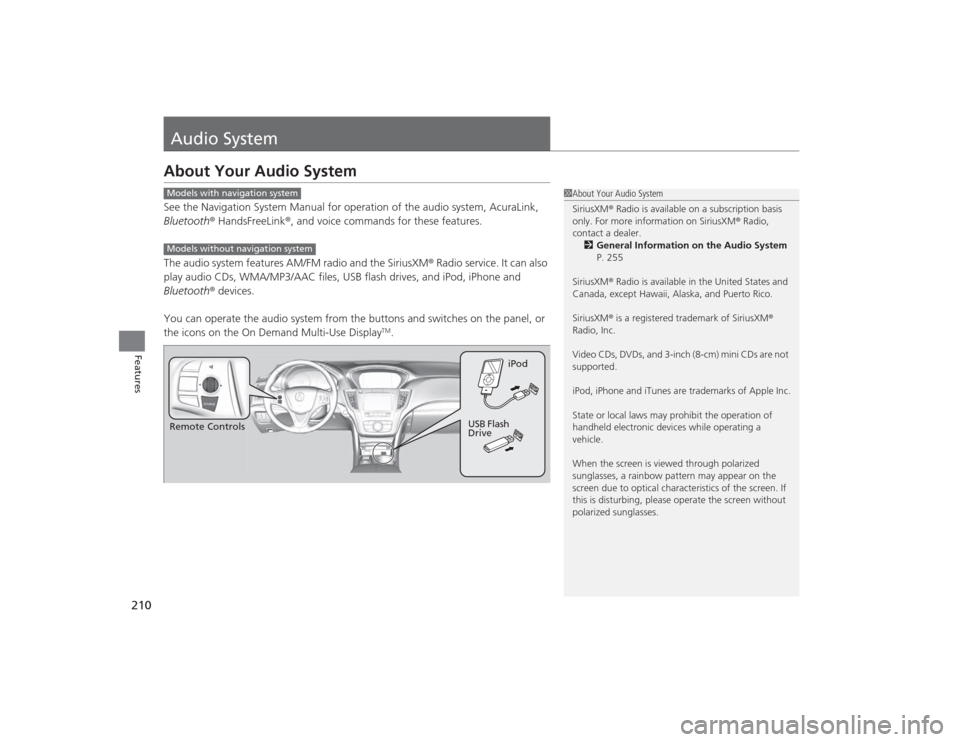
Audio SystemAbout Your Audio SystemSee the Navigation System Manual for operation of the audio system, AcuraLink,
Bluetooth® HandsFreeLink ®, and voice commands for these features.
The audio system features AM/FM radio and the SiriusXM ® Radio service. It can also
play audio CDs, WMA/MP3/AAC files, USB flash drives, and iPod, iPhone and
Bluetooth ® devices.
You can operate the audio system from the buttons and switches on the panel, or
the icons on the On Demand Multi-Use Display
TM.
1 About Your Audio System
SiriusXM ® Radio is available on a subscription basis
only. For more information on SiriusXM ® Radio,
contact a dealer.
2 General Information on the Audio System
P. 255
SiriusXM ® Radio is available in the United States and
Canada, except Hawaii, Alaska, and Puerto Rico.
SiriusXM ® is a registered trademark of SiriusXM ®
Radio, Inc.
Video CDs, DVDs, and 3-inch (8-cm) mini CDs are not
supported.
iPod, iPhone and iTunes are trademarks of Apple Inc.
State or local laws may prohibit the operation of
handheld electronic devices while operating a
vehicle.
When the screen is viewed through polarized
sunglasses, a rainbow pattern may appear on the
screen due to optical character istics of the screen. If
this is disturbing, please operate the screen without
polarized sunglasses.
Models with navigation systemModels without navigation systemRemote Controls iPod
USB Flash
Drive
Page 218 of 545
Continued
217
uuAudio System Basic Operation uOn Demand Multi-Use Display
TM
Features
You can preset the settings of four categories
(Phone , Climate , Audio ) from Shortcuts .
■
Shortcuts
1Shortcuts
The preset memory is cleared when it is disconnected
from the power source, such as when the battery is
disconnected or goes dead.
Shortcuts Icon
Page 219 of 545

uuAudio System Basic Operation uOn Demand Multi-Use Display
TM
218Features
■Phone
You can preset five speed dial entries, and make a call from one of the preset
numbers, or call history when the phone is paired and connected to the vehicle‘s
Bluetooth ® HandsFreeLink ® (HFL) system.
2 Phone Setup P. 286
To preset a speed dial:
1.Select Shortcuts .
2. Select Phone .
3. Select Speed Dial .
4. Select Edit or No Entry .
u If you select No Entry, go to step 6.
5. Select Add.
u Five presets appear. Select a No Entry
preset or an existing preset.
u The screen changes to a list of previously
stored speed dial entries.
6. Select a number you want to store as a
shortcut.
To make a call from a speed dial entry:
1. Select Shortcuts .
2. Select Phone .
3. Select Speed Dial .
4. Select a preset number.
u Dialing starts automatically.
1Phone
Dial icon
You can make a call using the keyboard on the On
Demand Multi-Use Display
TM to input numbers.
2 To make a call using a phone number
P. 302


