Page 259 of 545

258
uuGeneral Information on the Audio System uCompatible iPod, iPhone, and USB Flash Drives
Features
Compatible iPod, iPhone, and USB Flash Drives•Use a recommended USB flash drive of 256 MB or higher.
• Some digital audio players may not be compatible.
• Some USB flash drives (e.g., a device with security lockout) may not work.
• Some software files may not allow for audio play or text data display.
• Some versions of MP3, WMA, or AAC formats may be unsupported.■
iPod and iPhone Model Compatibility
Model
iPod (5th generation)
iPod classic 80GB/160GB (launch in 2007)
iPod classic 120GB (launch in 2008)iPod classic 160GB (launch in 2009)
iPod nano (1st to 6th generation) launch in 2010iPod touch (1st to 4th generation) launch in 2010
iPhone 3G/iPhone 3GS/iPhone 4/iPhone 4s/iPhone 5/iPhone 5c/iPhone 5s
■
USB Flash Drives
1iPod and iPhone Model Compatibility
This system may not work with all software versions
of these devices.1USB Flash Drives
Files on the USB flash drive are played in their stored
order. This order may be different from the order
displayed on your PC or device.
Page 264 of 545
263
uuCustomized Features u
Continued
Features
Add Bluetooth
DeviceDisconnect
Default
Phone
Connect Phone
Edit Bluetooth DeviceAdd Bluetooth Device
Bluetooth Device
List
Edit Speed DialAuto TransferAuto AnswerRing Tone
Automatic Phone SyncUse Contact Photo
Default
Default
Enable Text/EmailSelect Account
New Text/Email Alert
Text/Email
Phone
Settings
Message Auto ReadingInfo Screen Preference
Clock/Wallpaper TypeClock Adjustment
Clock
Default
Other
Info
Settings
Clock Format
Page 265 of 545
264
uuCustomized Features u
Features
■List of customizable options
*1:Default Setting Setup
Group Customizable Features Description Selectable SettingsSystem
Settings
Display
Sync Display Brightness
Selects whether the display brightness
synchronizes with the instrument panel
brightness.
On
*1/
Off
Brightness
Changes the brightness of the audio/information
screen.
—
Contrast
Changes the contrast of the audio/information
screen.
—
Black Level
Changes the black level of the audio/information
screen.
—
Bluetooth
Bluetooth Status
Turns the Bluetooth ® on and off.
On
*1/Off
Bluetooth Device List
Pairs a new phone to HFL, edits and deletes a
paired phone, and creates a security PIN.
2 Phone Setup P. 286
—
Edit pairing code
Changes a pairing code.
2To change the pairing code setting P. 288
Random/Fixed
*1
Page 274 of 545
273
uuCustomized Features u
Continued
Features
*1:Default SettingSetup
Group Customizable Features Description Selectable SettingsPhone
Settings
Phone
Connect Phone
Pairs a new phone to HFL, or connects or
disconnects a paired phone.
2
Phone Setup P. 286
—
Bluetooth Device List
Pairs a new phone to HFL, edits or deletes a
paired phone, or creates a security PIN.
2Phone Setup P. 286
—
Edit Speed Dial
Edits, adds or deletes a speed dial entry.
2Phone Setup P. 286
—
Auto Transfer
Sets calls to automatically transfer from your
phone to HFL when you enter the vehicle.
On
*1/Off
Auto Answer
Sets whether to automatically answer an
incoming call after about four seconds.
On /Off
*1
Ring Tone
Selects the ring tone.
Fixed /Mobile
Phone
*1/ Off
Automatic Phone Sync
Sets a phonebook data to be automatically
imported when a phone is paired to HFL.
On
*1/Off
Use Contact Photo
Displays a caller’s picture on an incoming call
screen.
On
*1/Off
Page 275 of 545
274
uuCustomized Features u
Features
*1:Default SettingSetup
Group Customizable Features Description Selectable SettingsPhone
Settings
Text/
Email
Enable Text/Email
Turns the text/e-mail message function on and
off.
On
*1/
Off
Select Account
Selects a mail or text message account.
—
New Text/Email Alert
Selects whether a pop-up alert comes on the
screen when HFL receives a new text message/E-
mail.
—
Message Auto Reading
Selects whether the system automatically reads
out messages, and, if selected, whether only
when driving.
On /Off /Auto
*1
Default
Cancels/Resets all customized items in the Phone
Settings group as default.
Default/OK
Page 277 of 545
276
uuCustomized Features uDefaulting All the Settings
Features
Defaulting All the SettingsYou can reset all the menu and customized settings as the factory defaults.
1.Press the SETTINGS button.
2. Rotate to select System Settings, then
press .
3. Rotate to select Factory Data Reset ,
then press .
u The pop-up menu appears on the screen.
4. Rotate to select Yes, then press .
u The confirmation message will appear.
5. Rotate to select Yes, then press
again to reset the settings.
u The confirmation message will appear.
Press to select OK.
1Defaulting All the Settings
When you transfer the vehicle to a third party, reset
all settings to default and delete all personal data.
The following settings will be reset:•Audio preset settings•Phonebook entries•Other display and each item settings.
Page 280 of 545
279
Continued
Features
Bluetooth® HandsFreeLink ®See the Navigation System Manual for how to operate Bluetooth® HandsFreeLink ®.
Bluetooth ® HandsFreeLink ® (HFL) allows you to place and receive phone calls using
your vehicle’s audio system, without handling your cell phone.Using HFL
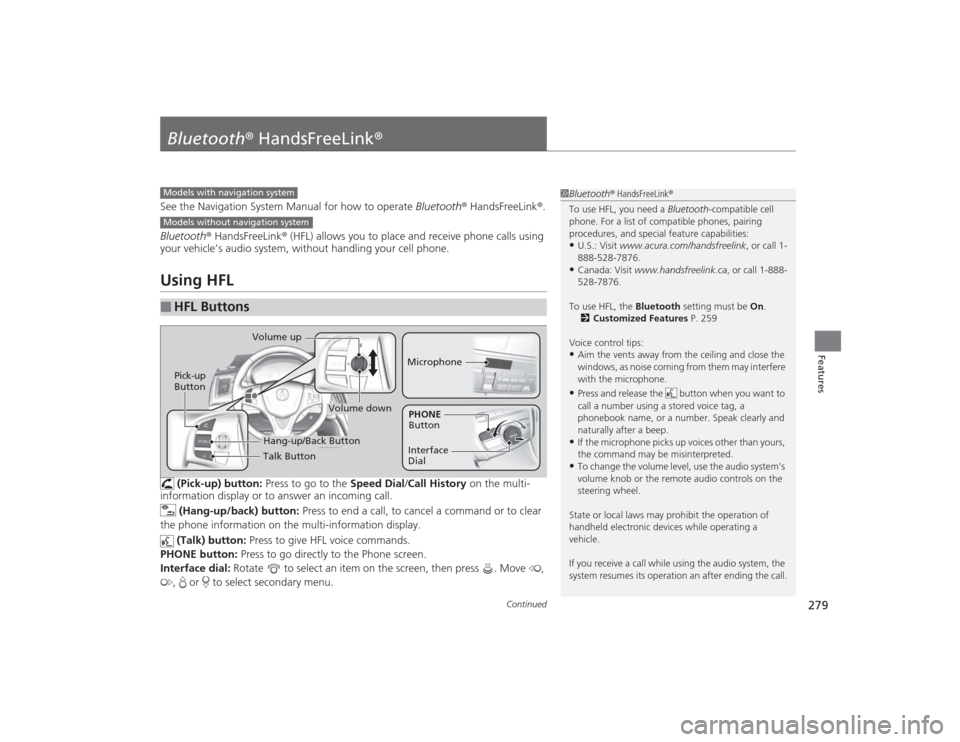
(Pick-up) button: Press to go to the Speed Dial/Call History on the multi-
information display or to answer an incoming call.
(Hang-up/back) button: Press to end a call, to cancel a command or to clear
the phone information on the multi-information display.
(Talk) button: Press to give HFL voice commands.
PHONE button: Press to go directly to the Phone screen.
Interface dial: Rotate to select an item on the screen, then press . Move ,
, or to select secondary menu.
■
HFL Buttons
1 Bluetooth ® HandsFreeLink ®
To use HFL, you need a Bluetooth-compatible cell
phone. For a list of compatible phones, pairing
procedures, and special feature capabilities:•U.S.: Visit www.acura.com/handsfreelink , or call 1-
888-528-7876.•Canada: Visit www.handsfreelink.ca , or call 1-888-
528-7876.
To use HFL, the Bluetooth setting must be On.
2 Customized Features P. 259
Voice control tips:•Aim the vents away from the ceiling and close the
windows, as noise coming from them may interfere
with the microphone.•Press and release the button when you want to
call a number using a stored voice tag, a
phonebook name, or a number. Speak clearly and
naturally after a beep.•If the microphone picks up voices other than yours,
the command may be misinterpreted.•To change the volume level, use the audio system’s
volume knob or the remote audio controls on the
steering wheel.
State or local laws may prohibit the operation of
handheld electronic devices while operating a
vehicle.
If you receive a call while using the audio system, the
system resumes its operation an after ending the call.
Models with navigation systemModels without navigation system
Talk Button
Volume up
MicrophoneHang-up/Back Button
Pick-up
Button
Volume down
Interface
DialPHONE
Button
Page 281 of 545
uuBluetooth ® HandsFreeLink ®u Using HFL
280Features
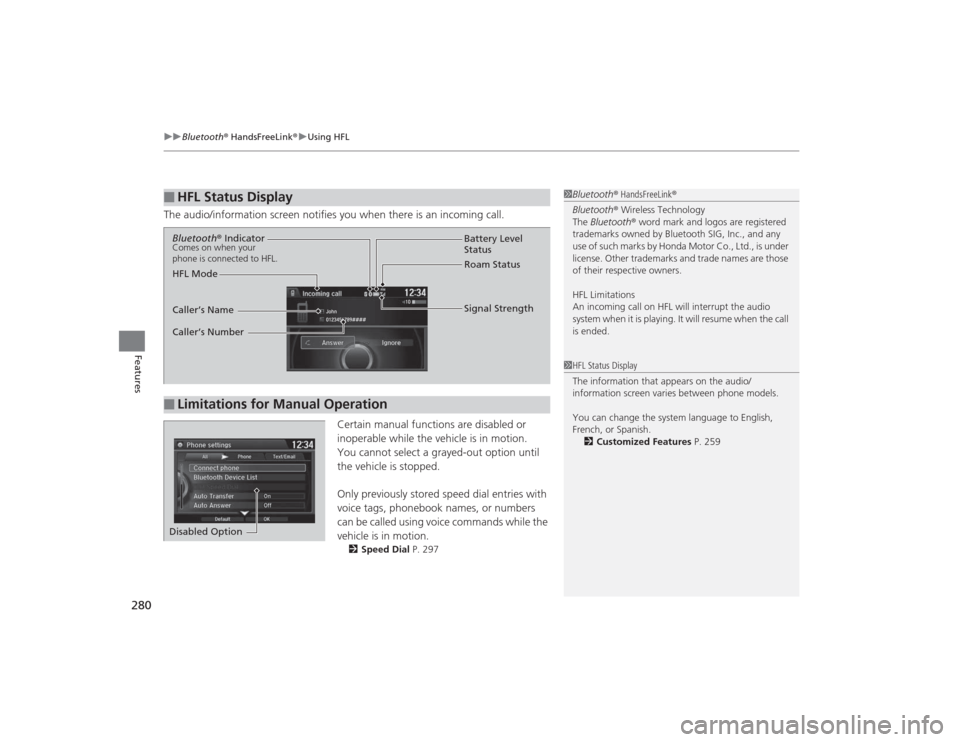
The audio/information screen notifies you when there is an incoming call.
Certain manual functions are disabled or
inoperable while the vehicle is in motion.
You cannot select a grayed-out option until
the vehicle is stopped.
Only previously stored speed dial entries with
voice tags, phonebook names, or numbers
can be called using voice commands while the
vehicle is in motion.
2 Speed Dial P. 297
■
HFL Status Display
1Bluetooth ® HandsFreeLink ®
Bluetooth ® Wireless Technology
The Bluetooth ® word mark and logos are registered
trademarks owned by Bluetooth SIG, Inc., and any
use of such marks by Honda Motor Co., Ltd., is under
license. Other trademarks and trade names are those
of their respective owners.
HFL Limitations
An incoming call on HFL will interrupt the audio
s y s te m wh e n it is p la y i n g . It wi ll re s u m e w h en t h e c a l l
is ended.1 HFL Status Display
The information that appears on the audio/
information screen varies between phone models.
You can change the system language to English,
French, or Spanish.
2 Customized Features P. 259
■
Limitations for Manual OperationBluetooth ® IndicatorComes on when your
phone is connected to HFL.
Signal Strength
HFL Mode Battery Level
Status
Roam Status
Caller’s Name
Caller’s Number
Disabled Option


