Page 239 of 505
238
uuAudio System Basic Operation uPlaying Bluetooth ® Audio
Features
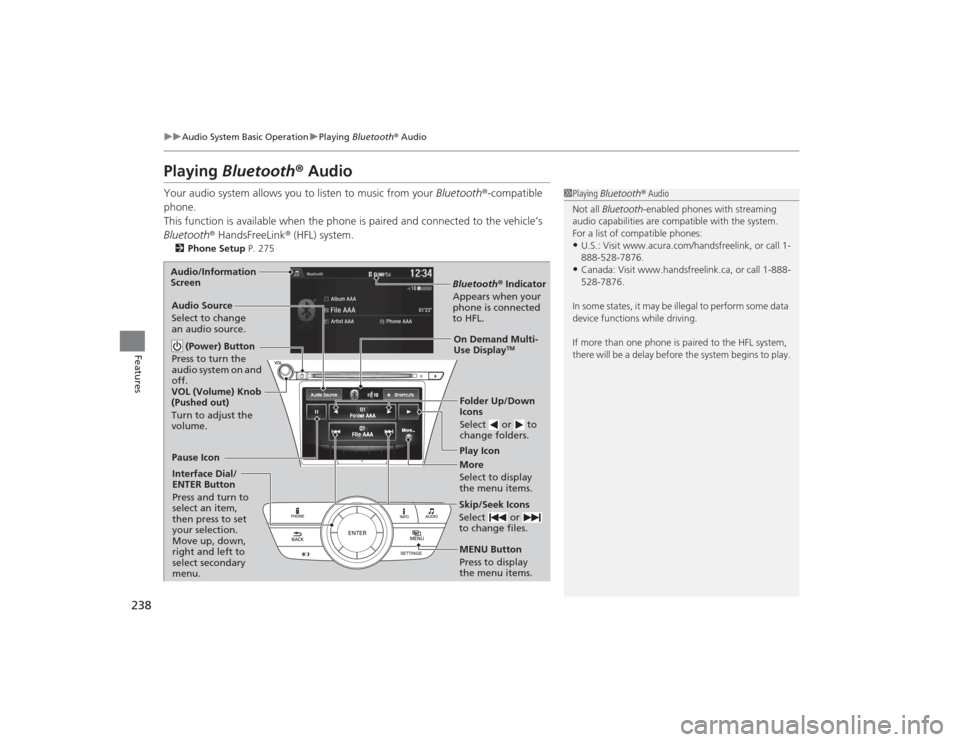
Playing Bluetooth ® AudioYour audio system allows you to listen to music from your Bluetooth®-compatible
phone.
This function is available when the phone is paired and connected to the vehicle’s
Bluetooth ® HandsFreeLink ® (HFL) system.2 Phone Setup P. 275
1Playing Bluetooth ® Audio
Not all Bluetooth -enabled phones with streaming
audio capabilities are compatible with the system.
For a list of compatible phones:•U.S.: Visit www.acura.com/handsfreelink, or call 1-
888-528-7876.•Canada: Visit www.handsfreelink.ca, or call 1-888-
528-7876.
In some states, it may be illegal to perform some data
device functions while driving.
If more than one phone is paired to the HFL system,
there will be a delay before the system begins to play.
Bluetooth ® Indicator
Appears when your
phone is connected
to HFL.Play Icon
Pause Icon
More
Select to display
the menu items.
Audio Source
Select to change
an audio source.
(Power) Button
Press to turn the
audio system on and
off.Interface Dial/
ENTER Button
Press and turn to
select an item,
then press to set
your selection.
Move up, down,
right and left to
select secondary
menu.
Skip/Seek Icons
Select or
to change files.MENU Button
Press to display
the menu items. Folder Up/Down
Icons
Select or to
change folders.On Demand Multi-
Use Display
TM
VOL (Volume) Knob
(Pushed out)
Turn to adjust the
volume.
Audio/Information
Screen
Page 240 of 505
239
uuAudio System Basic Operation uPlaying Bluetooth ® Audio
Features
1. Make sure that your phone is paired and
connected to HFL.
2. Select the Bluetooth® Audio mode.
If the phone is not recognized, another HFL-
compatible phone, which is not compatible
for Bluetooth ® Audio, may already be
connected.
■To pause or resume a file
1. Press the MENU button.
2. Rotate to select Play or Pause , then press .
Select the play icon or pause icon.■
To Play Bluetooth ® Audio Files
1 To Play Bluetooth ® Audio Files
To play the audio files, you may need to operate your
phone. If so, follow the phone maker’s operating
instructions.
The pause function may not be available on some
phones.
Switching to another mode pauses the music playing
from your phone. This function may not be available
on some phones.
Interface DialOn Demand Multi-Use Display
TM
Page 246 of 505

245Features
General Information on the Audio SystemSiriusXM® Radio Service1.You need your radio ID ready before registering for subscription. To see the ID in
the display: Turn the interface dial until 0 appears.
2. Have your radio ID and credit card number ready, and either call or visit the
SiriusXM ® website to subscribe.
Switch to the SiriusXM® mode by using the SOURCE button on the steering wheel,
or through the On Demand Multi-Use Display
TM, and stay in this mode for about 30
minutes until the service is activated. Make sure your vehicle is in an open area with
good reception.
Loading:
SiriusXM ® is loading the audio or program information.
Ch off air:
The channel is not currently broadcasting.
Ch unauthorized:
SiriusXM ® radio is receiving information update from the network.
No signal:
The signal is too weak in the current location.
Ch unavailable:
No such channel exists, the channel is not part of your subscription, or the artist or
title information is unavailable.
Check antenna:
There is a problem with the SiriusXM ® antenna. Contact a dealer.
■
Subscribing to SiriusXM® Radio
■
Receiving SiriusXM ® Radio
■
SiriusXM ® Radio Display Messages
1 Subscribing to SiriusXM ® Radio
Contact Information for SiriusXM ® Radio:•US: SiriusXM ® Radio at www.siriusxm.com or 1-
800-852-9696•Canada: SiriusXM ® Canada at www.xmradio.ca, or
1-877-209-0079
1 Receiving SiriusXM ® Radio
The SiriusXM ® satellites are in orbit over the equator;
therefore, objects south of the vehicle may cause
satellite reception interruptions. Satellite signals are
more likely to be blocked by tall buildings and
mountains the farther north you travel from the
equator.
You may experience reception problems under the
following circumstances:•In a location with an obstruction to the south of
your vehicle.•In tunnels•On the lower level of a multi-tiered road•Large items carried on the roof rack
Page 251 of 505
250
uuCustomized Features u
Features
■Customization flowPress the SETTINGS button.
BrightnessContrastBlack Level
Bluetooth StatusBluetooth Device ListEdit Pairing Code
Default
Display
System
Settings
Bluetooth
Sync Display Brightness
Factory Data Reset
Background ColorHeader Clock Display
Clock
Clock AdjustmentClock Format
Clock
Language
Others
Wallpaper
Clock/Wallpaper
Type
Display Operation Restriction Tips
Voice
Recog
Voice Prompt
Page 256 of 505
255
uuCustomized Features u
Continued
Features
*1:Default SettingSetup
Group Customizable Features Description Selectable SettingsSystem
Settings
Blue-
tooth
Bluetooth Status
Turns the
Bluetooth® on and off.
On
*1/Off
Bluetooth Device List
Pairs a new phone to HFL, edits and deletes a
paired phone, and creates a security PIN.
2 Phone Setup P. 275
—
Edit Pairing Code
Changes a pairing code.
2To change the pairing code setting P. 277
Random/Fixed
*1
Voice
Recog
Voice Prompt
Turns the voice prompt on and off.
Beginner
*1/ Expert
Clock
Clock/
Wallpaper
Type
Clock
Changes the clock display type.
Analog /Digital
*1/
Small Digital /Off
Wallpaper
●Changes the wallpaper type.●Imports an image file for a new wallpaper.●Deletes an imported wallpaper (default
wallpapers can be deleted).2 Wallpaper Setup P. 214
Blank/Galaxy
*1/
Metallic
Clock Adjustment
Adjusts Clock.
2 Clock P. 114
—
Clock Format
Selects the digital clock display from 12H to 24H.
12H
*1/24H
Page 263 of 505
262
uuCustomized Features u
Features
*1:Default SettingSetup
Group Customizable Features Description Selectable Settings
Audio
Settings Sound
Adjusts the settings of the audio speaker’s sound.
2
Adjusting the Sound P. 216
-6 ~ C
*1 ~ +6 (Bass ,
Treble and
Subwoofer ), -9 ~ C
*1 ~
+9 (Fader , Balance ),
Off /Low /Mid
*1/High
( SVC )
Source Select Popup Selects whether the list of selectable audio
sources comes on when the
AUDIO button is
pressed. On
/Off
*1
Cover Art Turns on and off the cover art display.
On
*1/Off
Connect Bluetooth Audio Device Connects, disconnects or pairs a
Bluetooth®
Audio device to HFL. —
Bluetooth Device List Edits or deletes a
Bluetooth® Audio device paired
to HFL. —
Default Cancels/Resets all customized items in the
Audio
Settings group as default. Default
/OK
CD (MP3/WMA/AAC), iPod, USB, Pandora ®
* or
Aha
TM mode
Bluetooth ® Audio, Pandora®
* or Aha
TM mode
Bluetooth ® Audio, Pandora®
* or Aha
TM mode
* Not available on all models
Page 264 of 505
263
uuCustomized Features u
Continued
Features
*1:Default SettingSetup
Group Customizable Features Description Selectable SettingsPhone
Settings
Phone
Connect phone
Pairs a new phone to HFL, or connects or
disconnects a paired phone.
2
Phone Setup P. 275
—
Bluetooth Device List
Pairs a new phone to HFL, edits or deletes a
paired phone, or creates a security PIN.
2Phone Setup P. 275
—
Edit Speed Dial
Edits, adds or deletes a speed dial entry.
2Phone Setup P. 275
—
Page 265 of 505
264
uuCustomized Features u
Features
*1:Default SettingSetup
Group Customizable Features Description Selectable SettingsPhone
Settings
Phone
Auto Transfer
Sets calls to automatically transfer from your
phone to HFL when you enter the vehicle.
On
*1/
Off
Auto Answer
Sets whether to automatically answer an
incoming call after about four seconds.
On /Off
*1
Ring Tone
Selects the ring tone.
Fixed /Mobile
Phone
*1/ Off
Automatic Phone Sync
Sets a phonebook data to be automatically
imported when a phone is paired to HFL.
On /Off
Use Contact Photo
Displays a caller’s picture on an incoming call
screen.
On
*1/Off
Text/
Email
Enable Text/Email
Turns the text message/e-mail function on and
off.
On
*1/Off
Select Account
Selects a mail or text message account.
—
New Text/Email Alert
Selects whether a pop-up alert comes on the
screen when HFL receives a new text message/E-
mail.
On /Off
Default
Cancels/Resets all customized items in the Phone
Settings group as default.
Default/OK


