Page 282 of 612
2825-10. Bluetooth®
COROLLA_TMMMS_TMMC_U (OM12F00U)
CAUTION
■While driving
Do not operate the portable audio player, cellular phone or connect a device
to the Bluetooth
® system.
■Caution regarding interference with electronic devices
●Your audio unit is fitted with Bluetooth
® antennas. People with implanted
pacemakers or cardiac defibrillators should maintain a reasonable dis-
tance between themselves and the Bluetooth
® antennas. The radio waves
may affect the operation of such devices.
●Before using Bluetooth
® devices, users of any electrical medical device
other than implanted pacemakers and implanted cardiac defibrillators
should consult the manufacturer of the device for information about its
operation under the influence of radio waves. Radio waves could have
unexpected effects on the operation of such medical devices.
NOTICE
■When leaving the vehicle
Do not leave your portable audio player or cellular phone in the vehicle. The
inside of the vehicle may become hot, causing damage to the portable
audio player or cellular phone.
Page 283 of 612
283
5
Interior features
COROLLA_TMMMS_TMMC_U (OM12F00U)5-
11.
Basic Operations (Multimedia system)
Multimedia system
: If equipped
Operations such as listening to audio, using the hands-free
phone, confirming vehicle inform ation and changing multimedia
system settings are started by using the following buttons.
Multimedia system operation buttons
“AUDIO” button
Display the “Select Audio Source”
screen or audio top screen.
( P. 296)
button
Press this button to access the Bluetooth
® hands-free system.
( P. 338)
“CAR” button
Press this button to access the vehicle information system.
(P. 318) “SETUP” button
Press this button to customize
the function settings. (
P. 289)
Page 285 of 612
2855-11. Basic Operations (Multimedia system)
5
Interior features
COROLLA_TMMMS_TMMC_U (OM12F00U)
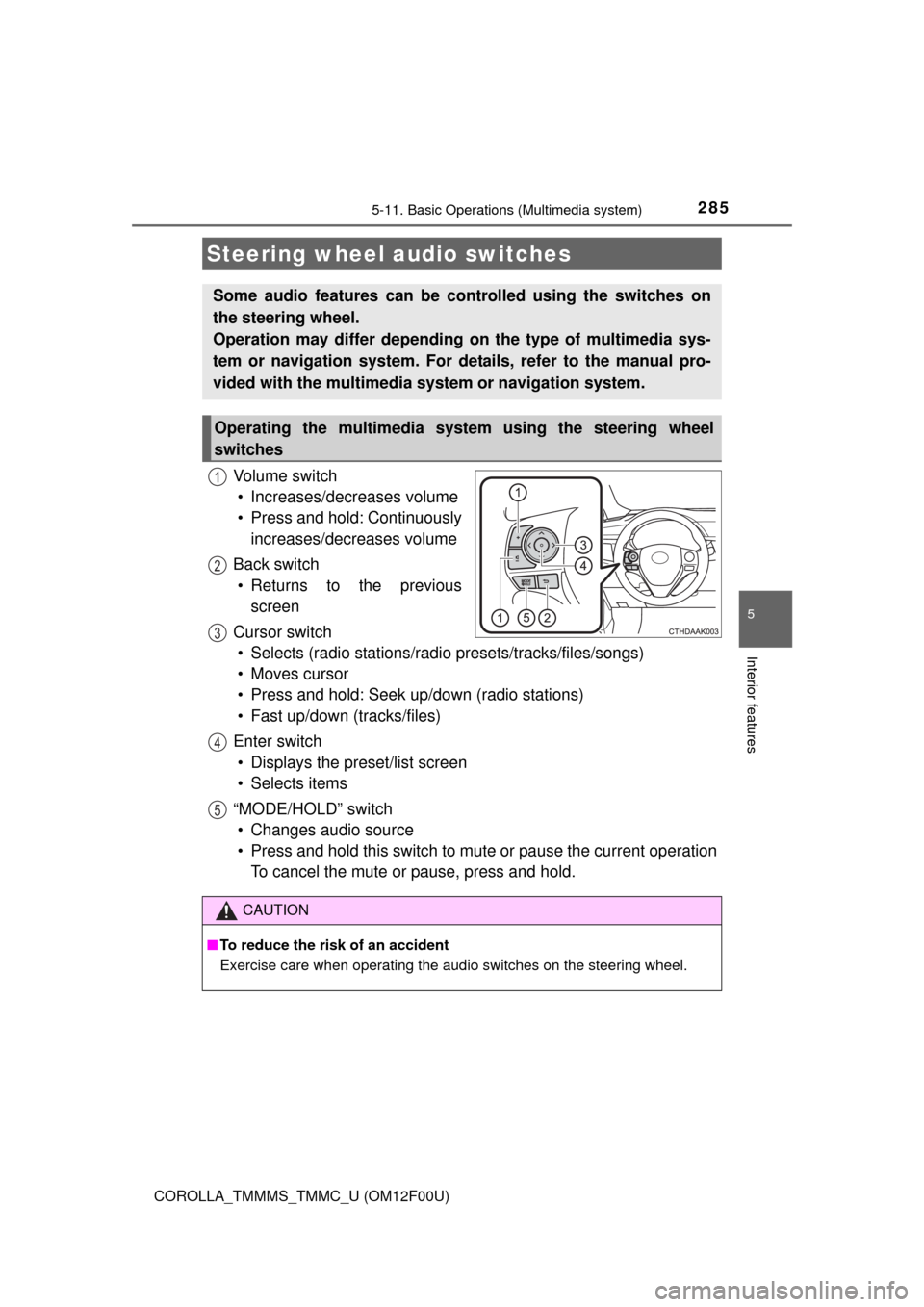
Vo l u m e s w i t c h
• Increases/decreases volume
• Press and hold: Continuously
increases/decreases volume
Back switch
• Returns to the previous
screen
Cursor switch
• Selects (radio stations/radio presets/tracks/files/songs)
• Moves cursor
• Press and hold: Seek up/down (radio stations)
• Fast up/down (tracks/files)
Enter switch
• Displays the preset/list screen
• Selects items
“MODE/HOLD” switch
• Changes audio source
• Press and hold this switch to mute or pause the current operation
To cancel the mute or pause, press and hold.
Steering wheel audio switches
Some audio features can be controlled using the switches on
the steering wheel.
Operation may differ depending on the type of multimedia sys-
tem or navigation system. For details, refer to the manual pro-
vided with the multimedia system or navigation system.
Operating the multimedia system using the steering wheel
switches
1
12
3
4
5
CAUTION
■To reduce the risk of an accident
Exercise care when operating the audio switches on the steering wheel.
Page 286 of 612
2865-11. Basic Operations (Multimedia system)
COROLLA_TMMMS_TMMC_U (OM12F00U)■
iPod
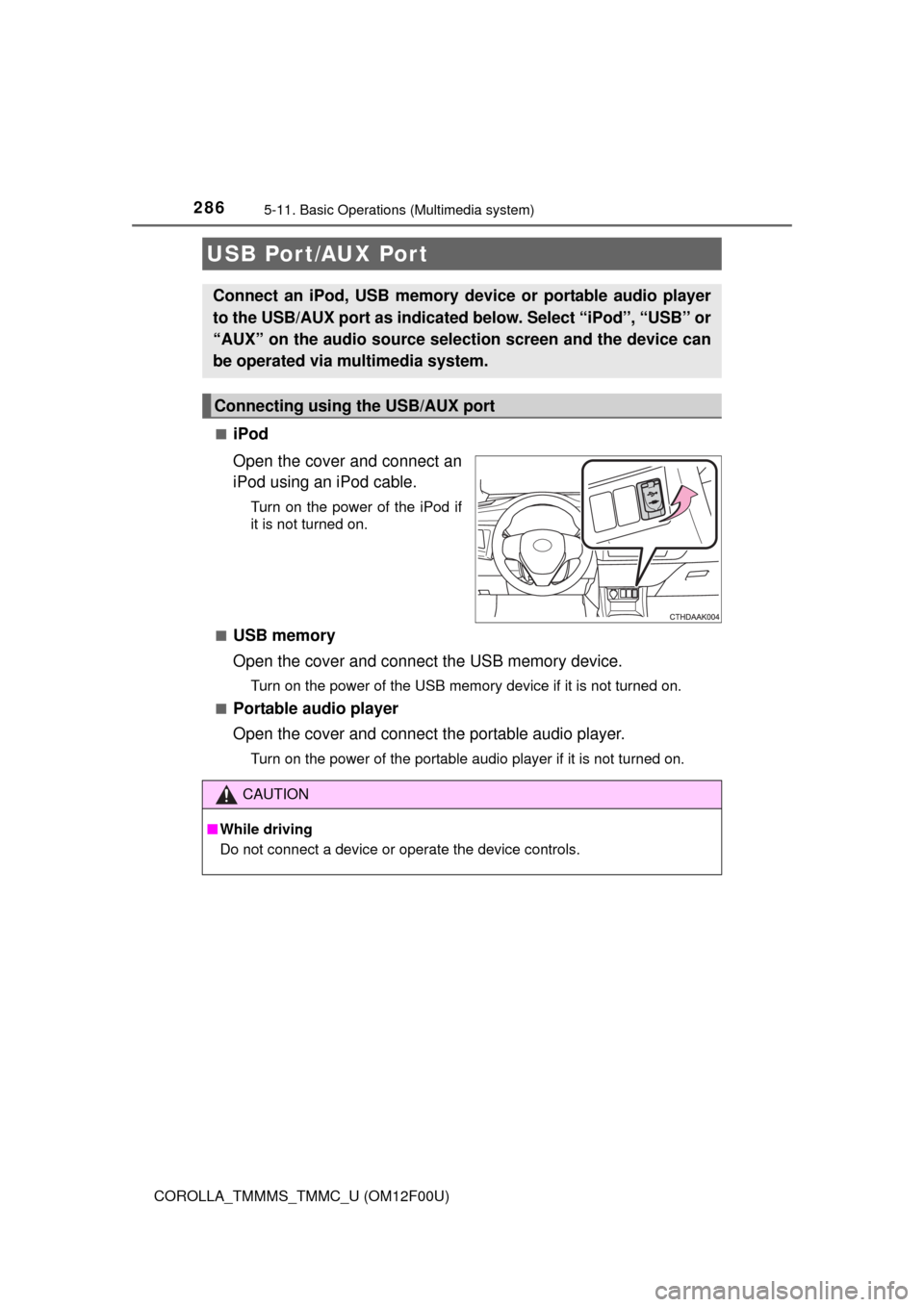
Open the cover and connect an
iPod using an iPod cable.
Turn on the power of the iPod if
it is not turned on.
■
USB memory
Open the cover and connect the USB memory device.
Turn on the power of the USB memory device if it is not turned on.
■
Portable audio player
Open the cover and connect the portable audio player.
Turn on the power of the portable audio player if it is not turned on.
USB Por t/AUX Port
Connect an iPod, USB memory device or portable audio player
to the USB/AUX port as indicated below. Select “iPod”, “USB” or
“AUX” on the audio source selection screen and the device can
be operated via multimedia system.
Connecting using the USB/AUX port
CAUTION
■While driving
Do not connect a device or operate the device controls.
Page 287 of 612
2875-11. Basic Operations (Multimedia system)
5
Interior features
COROLLA_TMMMS_TMMC_U (OM12F00U)
Basic Audio Operations
Basic audio operations and functions common to each mode are
explained in this section.
Operating the multimedia system
Press the “” or “” button to
seek up or down for a radio
station, or to access a
desired track or file. Press this knob to turn the mul-
timedia system on and off, and
turn it to adjust the volume.
Press this button
to eject a disc
Press to pause or resume
playing music. Insert a disc into
the disc slot
:Select to pause music.Turn this knob to select radio
station bands, tracks and files.
Also the knob can be used to
select items in the list display. :Select to resume playing music.
Page 289 of 612
289
5
Interior features
COROLLA_TMMMS_TMMC_U (OM12F00U)5-12.
Setup (Multimedia system)
Press the “SETUP” button to display the “Setup” screen.
Select to adjust the settings for
operation sounds, screen ani-
mation, etc. ( P. 290)
Select to set the voice settings.
( P. 295)
Select to adjust the settings for
contrast and brightness of the
screen. ( P. 294)
Select to adjust the settings for registering, removing, connecting
and disconnecting Bluetooth
® devices. ( P. 334)
Select to adjust the settings for phone sound, contact, etc.
( P. 357)
Select to set audio settings. ( P. 292)
Select to turn the screen off.
Select to set the vehicle custmization ( P. 570).
Setup menu
You can adjust the multimedia system to your desired settings.
Display “Setup” screen
1
2
3
4
5
6
7
8
Page 291 of 612
2915-12. Setup (Multimedia system)
5
Interior features
COROLLA_TMMMS_TMMC_U (OM12F00U)
Select “Delete Personal Data” on the “General Settings” screen.
Select “Delete”.
Check carefully beforehand, as data cannot be retrieved once deleted.
A confirmation screen will be displayed. Select “Yes”.
The following personal data will be deleted or changed to its default
settings.
• General settings
• Audio settings
• Phone settings
Delete personal data
1
2
3
Page 292 of 612
2925-12. Setup (Multimedia system)
COROLLA_TMMMS_TMMC_U (OM12F00U)
Press the “SETUP” button.
Select “Audio” on the “Setup” screen.
Number of Radio Presets
Select the number of radio
preset stations.
Display Cover Art on/off
Automatic Sound Levelizer
(P. 293)
Audio settings
Settings are available for adjusting the radio operation, cover
art, etc.
Screen for audio settings
1
2
1
2
3