Page 238 of 612

2385-4. Playing audio CDs and MP3/WMA discs
COROLLA_TMMMS_TMMC_U (OM12F00U)●Compatible disc formats
The following disc formats can be used.
• Disc formats: CD-ROM Mode 1 and Mode 2
CD-ROM XA Mode 2, Form 1 and Form 2
• File formats: ISO9660 Level 1, Level 2, (Romeo, Joliet)
MP3 and WMA files written in any format other than those listed above
may not play correctly, and their file names and folder names may not be
displayed correctly.
Items related to standards and limitations are as follows.
• Maximum directory hierarchy: 8 levels
• Maximum length of folder names/file names: 32 characters
• Maximum number of folders: 192 (including the root)
• Maximum number of files per disc: 255
●File names
The only files that can be recognized as MP3/WMA and played are those
with the extension .mp3 or .wma.
●Multi-sessions
As the audio system is compatible with multi-sessions, it is possible to play
discs that contain MP3 and WMA files. However, only the first session can
be played.
●ID3 and WMA tags
ID3 tags can be added to MP3 files, making it possible to record the track
title, artist name, etc.
The system is compatible with ID3 Ver. 1.0, 1.1, and Ver. 2.2, 2.3 ID3 tags.
(The number of characters is based on ID3 Ver. 1.0 and 1.1.)
WMA tags can be added to WMA files, making it possible to record the
track title and artist name in the same way as with ID3 tags.
●MP3 and WMA playback
When a disc containing MP3 or WMA files is inserted, all files on the disc
are first checked. Once the file check is finished, the first MP3 or WMA file
is played. To make the file check finish more quickly, we recommend you do
not write in any files other than MP3 or WMA files or create any unneces-
sary folders.
If the discs contain a mixture of music data and MP3 or WMA format data,
only music data can be played.
Page 239 of 612
2395-4. Playing audio CDs and MP3/WMA discs
5
Interior features
COROLLA_TMMMS_TMMC_U (OM12F00U)●Extensions
If the file extensions .mp3 and .wma are used for files other than MP3 and
WMA files, they will be mistakenly recognized and played as MP3 and
WMA files. This may result in large amounts of interference and damage to
the speakers.
●Playback
• To play MP3 files with steady sound quality, we recommend a fixed bit
rate of at least 128 kbps and a sampling frequency of 44.1 kHz.
• CD-R or CD-RW playback may not be possible in some instances,
depending on the characteristics of the disc.
• There is a wide variety of freeware and other encoding software for MP3
and WMA files on the market, and depending on the status of the encod-
ing and the file format, poor sound quality or noise at the start of playback
may result. In some cases, playback may not be possible at all.
• When files other than MP3 or WMA files are recorded on a disc, it may
take more time to recognize the disc and in some cases, playback may
not be possible at all.
• Microsoft, Windows, and Windows Media are the registered trademarks
of Microsoft Corporation in the U.S. and other countries.
CAUTION
■Certification for the CD player
This product is a class I laser product.
Do not open the cover of the player or attempt to repair the unit yourself.
Refer servicing to qualified personnel.
Page 240 of 612
2405-4. Playing audio CDs and MP3/WMA discs
COROLLA_TMMMS_TMMC_U (OM12F00U)
NOTICE
■Discs and adapters that cannot be used
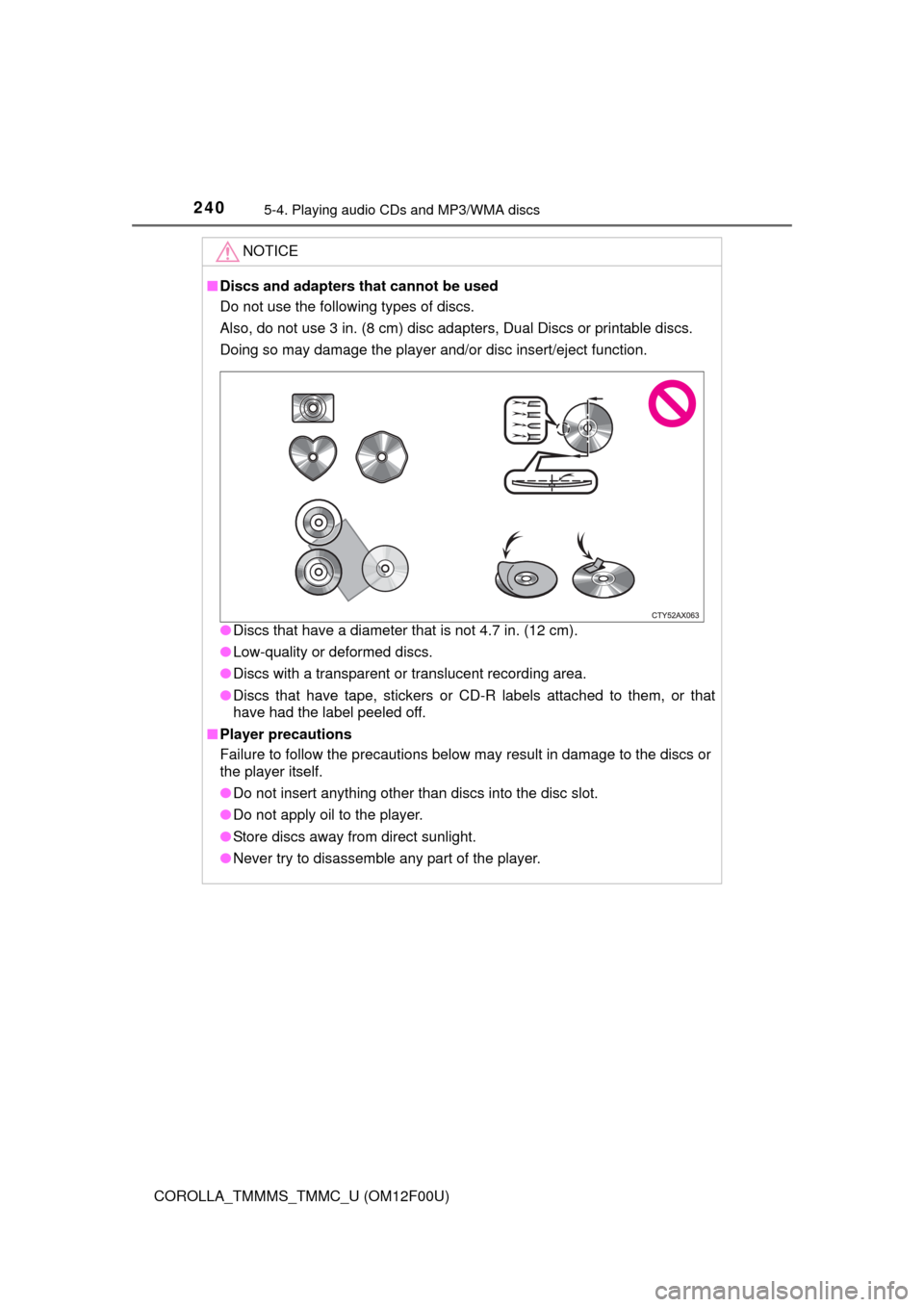
Do not use the following types of discs.
Also, do not use 3 in. (8 cm) disc adapters, Dual Discs or printable discs.
Doing so may damage the player and/or disc insert/eject function.
●Discs that have a diameter that is not 4.7 in. (12 cm).
●Low-quality or deformed discs.
●Discs with a transparent or translucent recording area.
●Discs that have tape, stickers or CD-R labels attached to them, or that
have had the label peeled off.
■Player precautions
Failure to follow the precautions below may result in damage to the discs or
the player itself.
●Do not insert anything other than discs into the disc slot.
●Do not apply oil to the player.
●Store discs away from direct sunlight.
●Never try to disassemble any part of the player.
Page 242 of 612
2425-5. Using an external device
COROLLA_TMMMS_TMMC_U (OM12F00U)
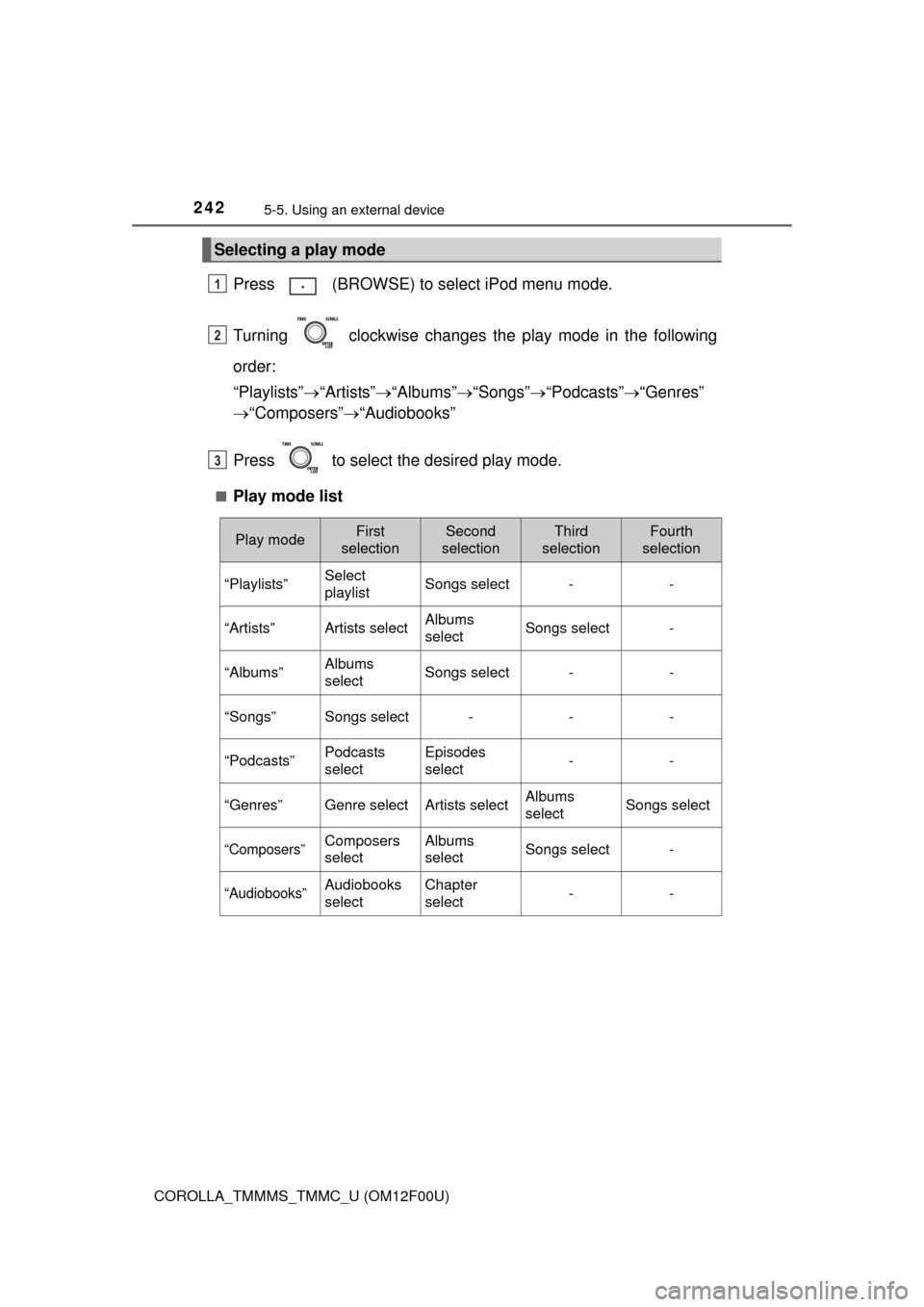
Press (BROWSE) to select iPod menu mode.
Turning clockwise changes the play mode in the following
order:
“Playlists”“Artists”“Albums”“Songs”“Podcasts”“Genres”
“Composers”“Audiobooks”
Press to select the desired play mode.
■Play mode list
Selecting a play mode
1
2
3
Play modeFirst
selectionSecond
selectionThird
selectionFourth
selection
“Playlists”Select
playlistSongs select--
“Artists”Artists selectAlbums
selectSongs select-
“Albums”Albums
selectSongs select--
“Songs”Songs select---
“Podcasts”Podcasts
selectEpisodes
select--
“Genres”Genre selectArtists selectAlbums
selectSongs select
“Composers”Composers
selectAlbums
selectSongs select-
“Audiobooks”Audiobooks
selectChapter
select--
Page 243 of 612
2435-5. Using an external device
5
Interior features
COROLLA_TMMMS_TMMC_U (OM12F00U)■
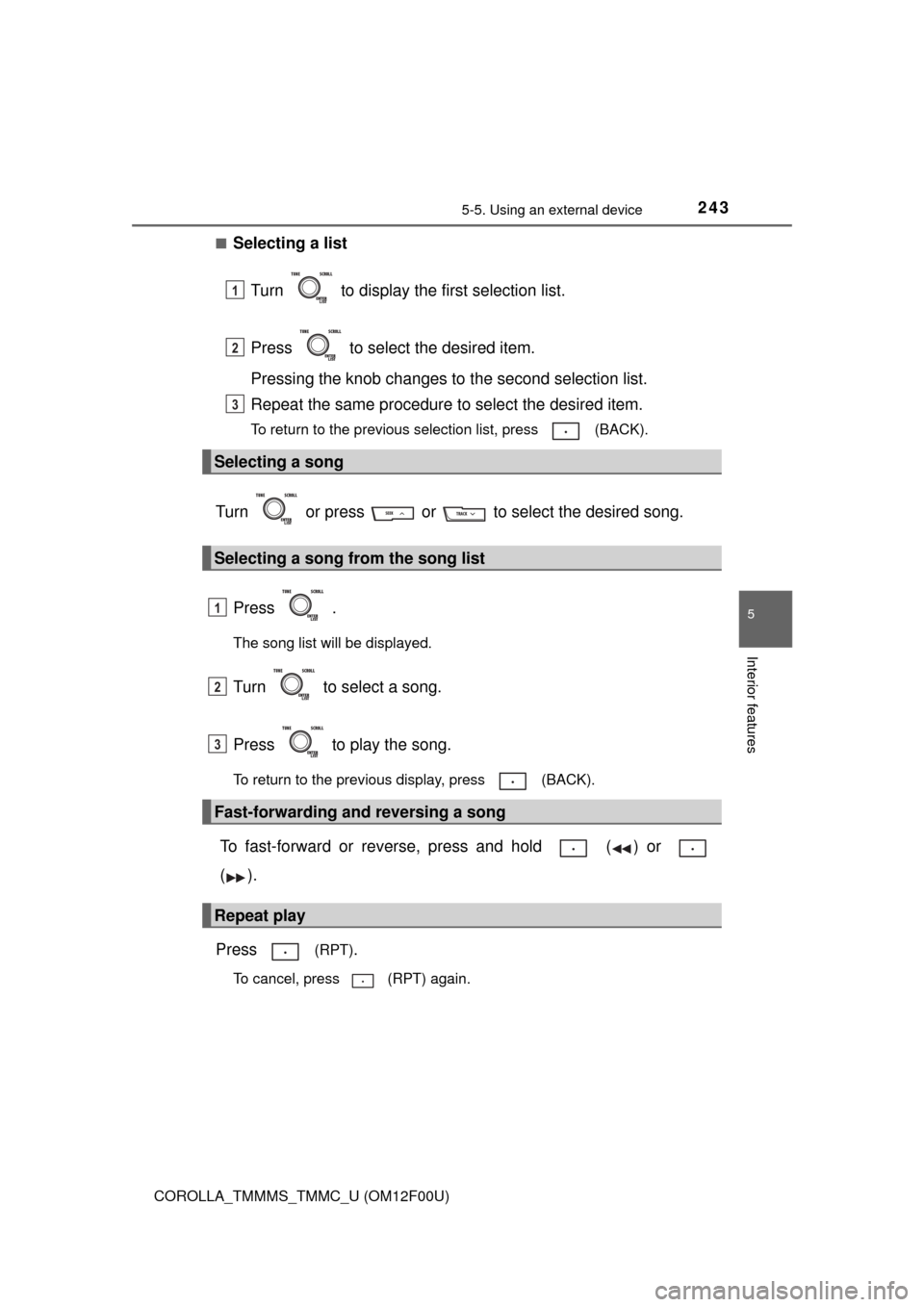
Selecting a list
Turn to display the first selection list.
Press to select the desired item.
Pressing the knob changes to the second selection list.
Repeat the same procedure to select the desired item.
To return to the previous selection list, press (BACK).
Turn or press or to select the desired song.
Press .
The song list will be displayed.
Turn to select a song.
Press to play the song.
To return to the previous display, press (BACK).
To fast-forward or reverse, press and hold ( ) or
().
Press
(RPT).
To cancel, press (RPT) again.
Selecting a song
Selecting a song from the song list
Fast-forwarding and reversing a song
Repeat play
1
2
3
1
2
3
Page 245 of 612
2455-5. Using an external device
5
Interior features
COROLLA_TMMMS_TMMC_U (OM12F00U)■iPod functions
●When an iPod is connected and the audio source is changed to iPod mode,
the iPod will resume play from the same point in which it was last used.
●Depending on the iPod that is connected to the system, certain functions
may not be available. If a function is unavailable due to a malfunction (as
opposed to a system specification), disconnecting the device and recon-
necting it once again may resolve the problem.
●While connected to the system, the iPod cannot be operated with its own
controls. It is necessary to use the controls of the vehicle’s audio system
instead.
●When the battery level of an iPod is very low, the iPod may not operate. If
so, charge the iPod before use.
●Supported models (P. 247)
■iPod problems
To resolve most problems encountered when using your iPod, disconnect
your iPod from the vehicle iPod connection and reset it.
For instructions on how to reset your iPod, refer to your iPod Owner’s Man-
ual.
■Display
P. 236
Page 247 of 612
2475-5. Using an external device
5
Interior features
COROLLA_TMMMS_TMMC_U (OM12F00U)■Compatible models
The following iPod
, iPod nano, iPod classic, iPod touch and iPhone
devices can be used with this system.
●Made for
• iPod touch (4th generation)
• iPod touch (3rd generation)
• iPod touch (2nd generation)
• iPod touch (1st generation)
• iPod classic
• iPod with video
• iPod nano (6th generation)
• iPod nano (5th generation)
• iPod nano (4th generation)
• iPod nano (3rd generation)
• iPod nano (2nd generation)
• iPod nano (1st generation)
• iPhone 4
• iPhone 3GS
• iPhone 3G
• iPhone
Depending on differences between models or software versions etc., some
models might be incompatible with this system.
Items related to standards and limitations are as follows:
●Maximum number of lists in device: 9999
●Maximum number of songs in device: 65535
●Maximum number of songs per list: 65535
CAUTION
■Caution while driving
Do not connect iPod or operate the controls.
NOTICE
■To prevent damage to iPod
●Do not leave the iPod in the vehicle. The temperature inside the vehicle
may become high, resulting in damage to the iPod.
●Do not push down on or apply unnecessary pressure to the iPod while it is
connected.
●Do not insert foreign objects into the port.
Page 249 of 612
2495-5. Using an external device
5
Interior features
COROLLA_TMMMS_TMMC_U (OM12F00U)■
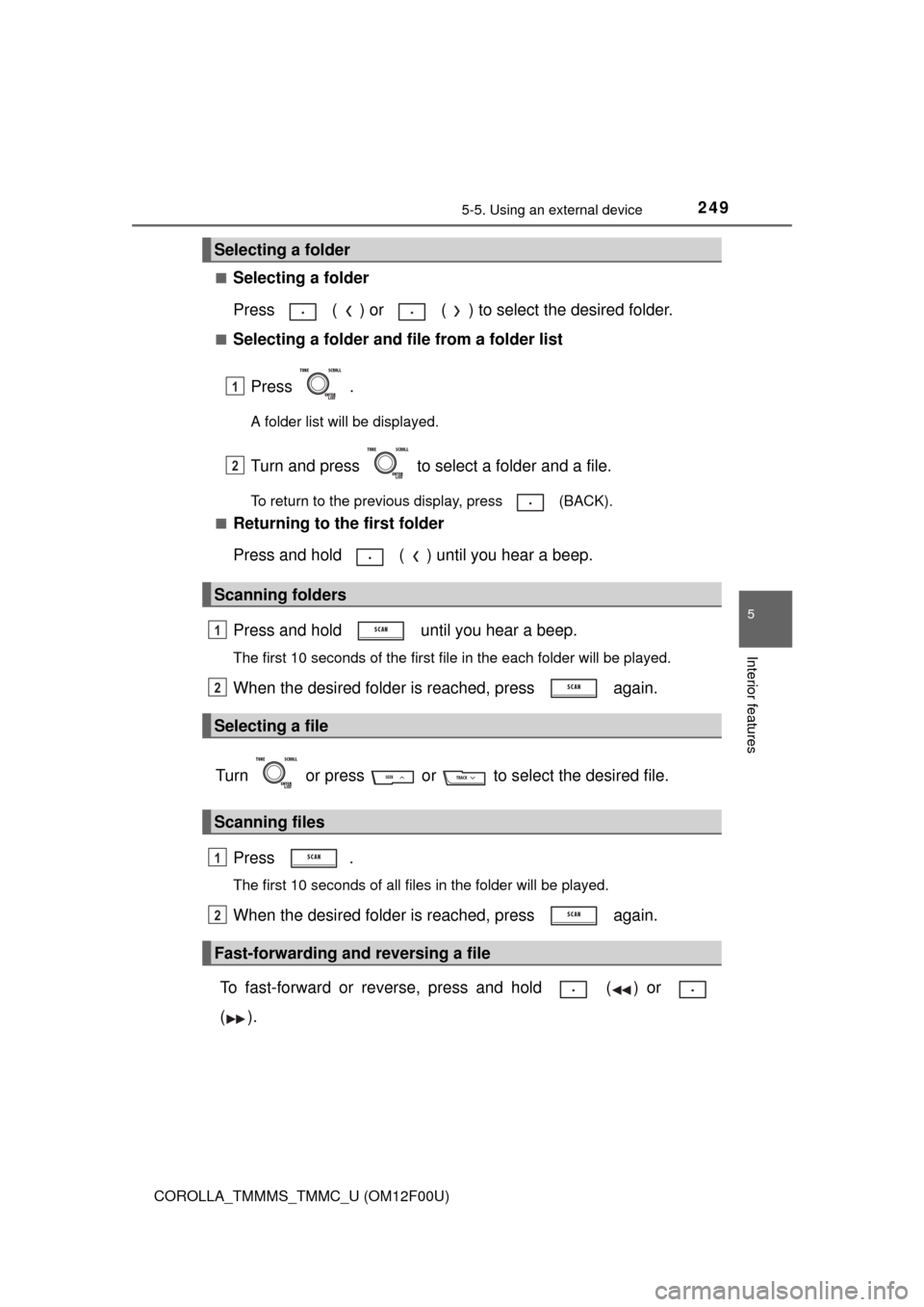
Selecting a folder
Press ( ) or ( ) to select the desired folder.
■Selecting a folder and file from a folder list
Press .
A folder list will be displayed.
Turn and press to select a folder and a file.
To return to the previous display, press (BACK).
■
Returning to the first folder
Press and hold ( ) until you hear a beep.
Press and hold until you hear a beep.
The first 10 seconds of the first file in the each folder will be played.
When the desired folder is reached, press again.
Turn or press or to select the desired file.
Press .
The first 10 seconds of all files in the folder will be played.
When the desired folder is reached, press again.
To fast-forward or reverse, press and hold ( ) or
().
Selecting a folder
Scanning folders
Selecting a file
Scanning files
Fast-forwarding and reversing a file
1
2
1
2
1
2