Page 21 of 298
21
2. QUICK REFERENCE
1
QUICK GUIDE
No.FunctionPage
Select to change the selected language, operation sound, automatic
screen change settings, etc.56
Select to customize the home screen.36
Select to set the voice settings.62
Select to adjust the contrast and brightness of the screens.40
*
Select to set memory points (home, preset destinations, address book
entries, areas to avoid), navigation details or to delete previous desti-
nations.
241, 250
Select to set audio settings.11 9
Select to set the phone sound, contacts, message settings, etc.176
Select to set Bluetooth® phones and Bluetooth® audio devices.48
Select to turn the screen off.
*Select to set App Suite settings.278
*Select to set data services settings.145
Select to link the driver’s cellular phone settings. (audio presets, lan-
guage, etc.)63
*Select to set traffic information.254
*: With navigation function
Page 66 of 298
66
3. OTHER SETTINGS
3Select the items to be edited.■EDITING DEALER OR CONTACT
NAME
1Select “Edit” next to “Dealer” or “Con-
tact”.
2Enter the name and select “OK”.
■EDITING THE LOCATION
1Select “Edit” next to “Location”.
2Scroll the map to the desired point
(P.206) and select “OK”.
■EDITING PHONE NUMBER
1Select “Edit” next to “Phone #”.
2 Enter the phone number and select
“OK”.
No.FunctionPage
Select to enter the name of
a dealer.66
Select to enter the name of
a dealer member.66
Select to set the location.66
Select to enter the phone
number.66
Select to delete the dealer
information displayed on
the screen.
Select to set the displayed
dealer as a destination.226
Page 205 of 298
205
1. BASIC OPERATION
8
NAVIGATION SYSTEM
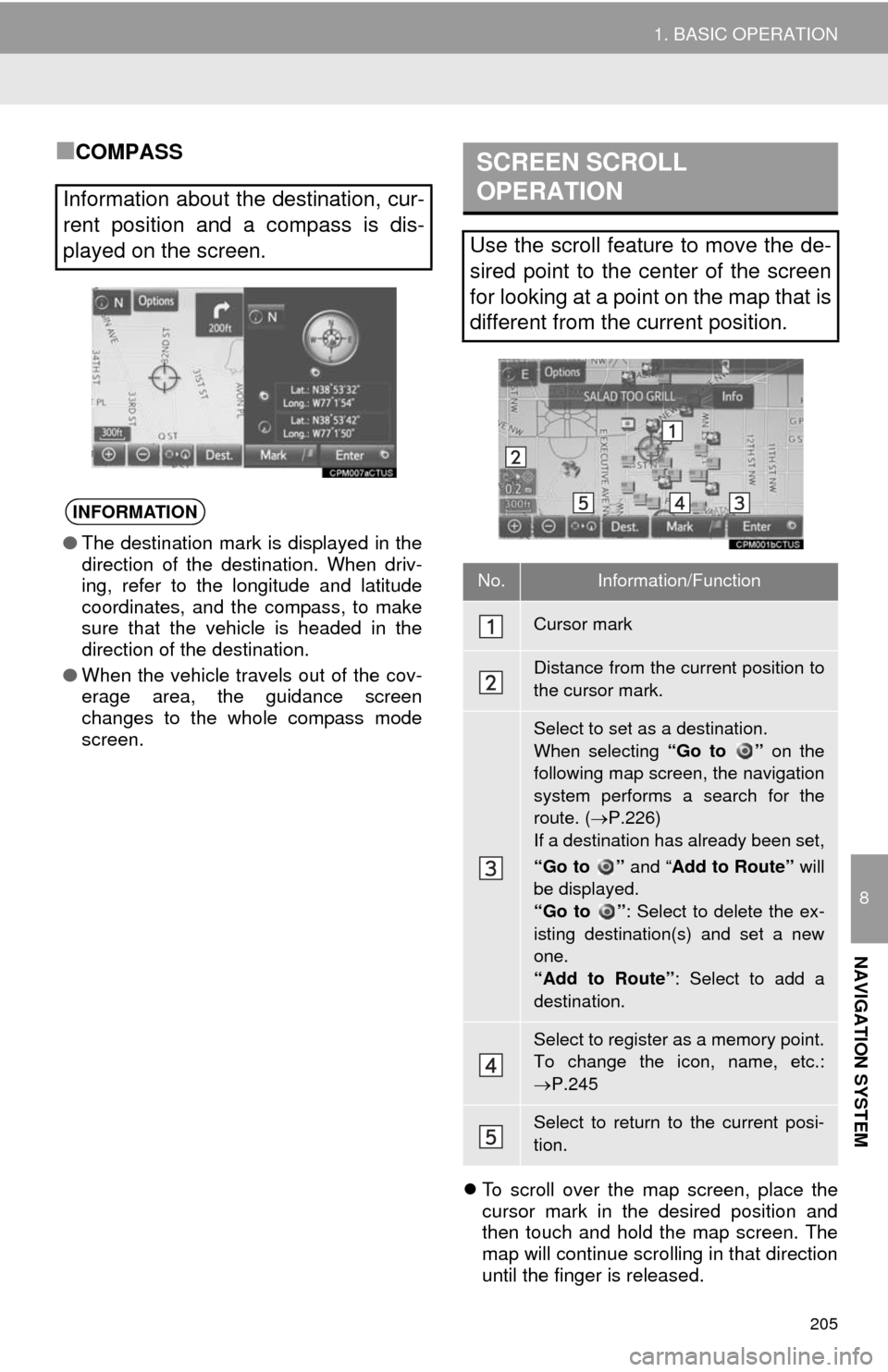
■COMPASS
To scroll over the map screen, place the
cursor mark in the desired position and
then touch and hold the map screen. The
map will continue scrolling in that direction
until the finger is released.
Information about the destination, cur-
rent position and a compass is dis-
played on the screen.
INFORMATION
●The destination mark is displayed in the
direction of the destination. When driv-
ing, refer to the longitude and latitude
coordinates, and the compass, to make
sure that the vehicle is headed in the
direction of the destination.
●When the vehicle travels out of the cov-
erage area, the guidance screen
changes to the whole compass mode
screen.
SCREEN SCROLL
OPERATION
Use the scroll feature to move the de-
sired point to the center of the screen
for looking at a point on the map that is
different from the current position.
No.Information/Function
Cursor mark
Distance from the current position to
the cursor mark.
Select to set as a destination.
When selecting “Go to ” on the
following map screen, the navigation
system performs a search for the
route. (P.226)
If a destination has already been set,
“Go to ” and “Add to Route” will
be displayed.
“Go to ”: Select to delete the ex-
isting destination(s) and set a new
one.
“Add to Route”: Select to add a
destination.
Select to register as a memory point.
To change the icon, name, etc.:
P.245
Select to return to the current posi-
tion.
Page 210 of 298
210
1. BASIC OPERATION
Destination information
No.Function
Select to register as a memory point.
To change the icon, name, etc.:
P.245
Select to set as a destination.
Select to call the registered number.
Select to delete destination or mem-
ory point.
Select to display the edit memory
point screen.
INFORMATION
●Even when traffic information is not cur-
rently being received, traffic information
and “Info” will be displayed for a while
after traffic information has been
received.
STANDARD MAP ICONS
IconName
Island
Park
Industry
Business facility
Airport
Military
University
Hospital
Stadium
Shopping mall
Golf
Page 215 of 298
215
2. DESTINATION SEARCH
8
NAVIGATION SYSTEM
Select to set a destination from preset destinations.217
Select to delete set destinations.237
No.FunctionPage
Page 216 of 298
216
2. DESTINATION SEARCH
2. SEARCH OPERATION
1Press the “APPS” button.
2Select “Navigation”.
3Select “Dest.”.
4Search for a destination.
There are different kinds of methods to
search for a destination. (P.214)
5Select “Go” when the confirm destina-
tion screen is displayed.
No.Function
Select to adjust the position in small-
er increments. (P.206)
Select to register as a memory point.
Select to call the registered number.
Select to search for the route.
(P.226)
If a destination has already been
set, “Go Directly” and “Add to
Route” will be displayed.
“Go Directly”: Select to delete the
existing destination(s) and set a new
one.
“Add to Route”: Select to add a
destination.
Page 222 of 298
222
2. DESTINATION SEARCH
1Display the “Destination” screen.
(P.216)
2Select “Previous Destinations”.
3Select the desired destination.
“Previous Start Point”: Select to display
the start point map of the previous guided
route.
“Delete”: Select to delete the previous
destination. (P.249)1Display the “Destination” screen.
(P.216)
2Select “Address Book”.
3Select the desired address book entry.
SEARCHING FROM
PREVIOUS DESTINATIONS
INFORMATION
●The previous start point and up to 100
previously set destinations are displayed
on the screen.
SEARCHING BY ADDRESS
BOOK
To use this function, it is necessary to
register an address book entry.
(P.245)
“Options”: Select to register or edit
address book entries. (P.245)
Page 225 of 298
225
2. DESTINATION SEARCH
8
NAVIGATION SYSTEM
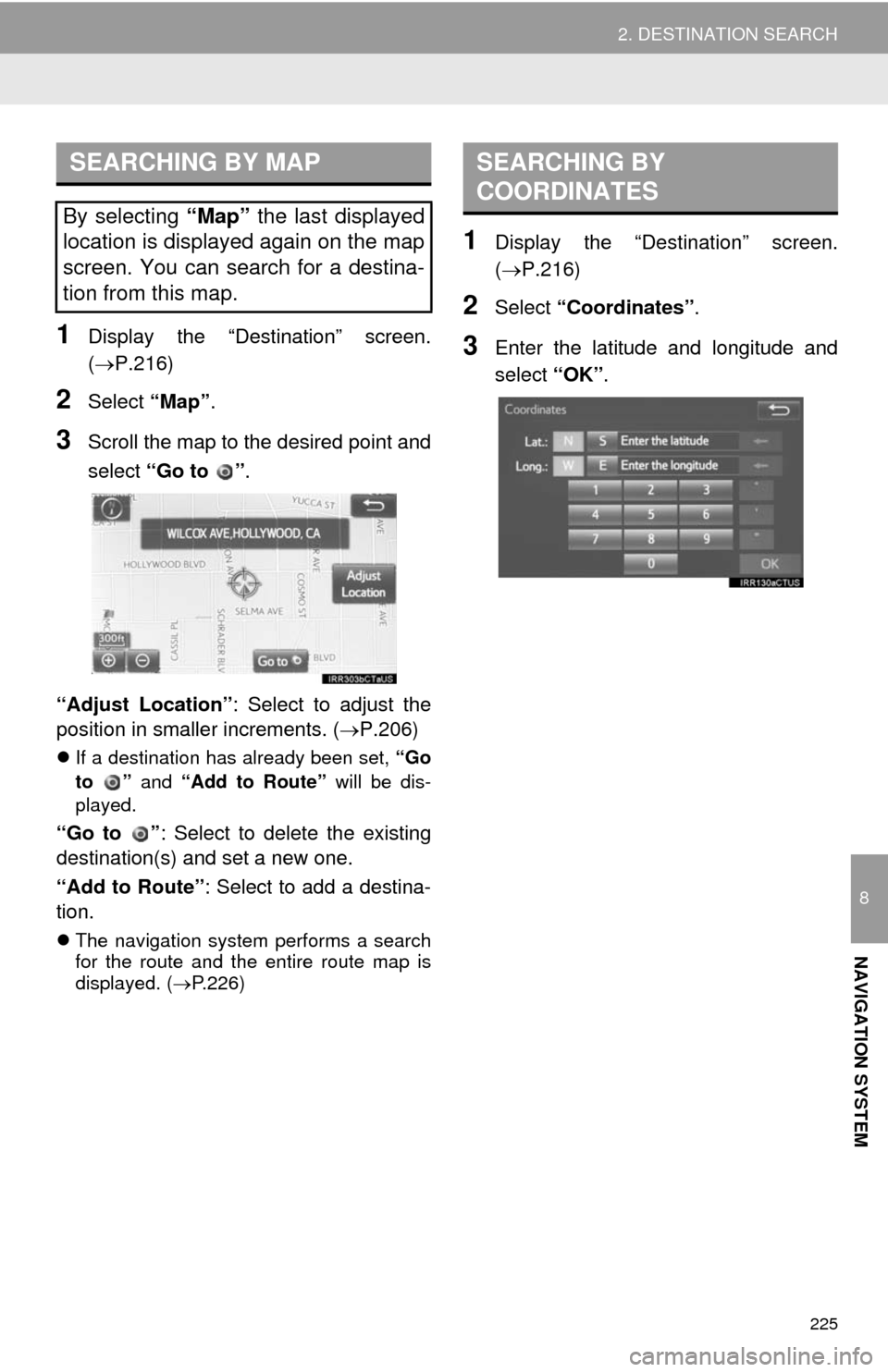
1Display the “Destination” screen.
(P.216)
2Select “Map”.
3Scroll the map to the desired point and
select “Go to ”.
“Adjust Location”: Select to adjust the
position in smaller increments. (P.206)
If a destination has already been set, “Go
to ” and “Add to Route” will be dis-
played.
“Go to ”: Select to delete the existing
destination(s) and set a new one.
“Add to Route”: Select to add a destina-
tion.
The navigation system performs a search
for the route and the entire route map is
displayed. (P.226)
1Display the “Destination” screen.
(P.216)
2Select “Coordinates”.
3Enter the latitude and longitude and
select “OK”.
SEARCHING BY MAP
By selecting “Map” the last displayed
location is displayed again on the map
screen. You can search for a destina-
tion from this map.
SEARCHING BY
COORDINATES