2014 TOYOTA 4RUNNER Point of Interest
[x] Cancel search: Point of InterestPage 2 of 298

2
This manual explains the operation of this system. Please read this manual
carefully to ensure proper use. Keep this manual in your vehicle at all times.
The screen shots in this document and the actual screens of this system differ
depending on whether the functions and/or a contract existed and the map data
available at the time of producing this document.
Please be aware that the content of this manual may be different from this sys-
tem in some cases, such as when the system’s software is updated.
The Navigation System is one of the most technologically advanced vehicle ac-
cessories ever developed. The system receives satellite signals from the Global
Positioning System (GPS) operated by the U.S. Department of Defense. Using
these signals and other vehicle sensors, the system indicates your present po-
sition and assists in locating a desired destination.
The navigation system is designed to select efficient routes from your present
starting location to your destination. The system is also designed to direct you
to a destination that is unfamiliar to you in an efficient manner. The system uses
AISIN AW maps. The calculated routes may not be the shortest nor the least
traffic congested. Your own personal local knowledge or “short cut” may at
times be faster than the calculated routes.
The navigation system’s database includes Point of Interest categories to allow
you to easily select destinations such as restaurants and hotels. If a destination
is not in the database, you can enter the street address or a major intersection
close to it and the system will guide you there.
The system will provide both a visual map and audio instructions. The audio in-
structions will announce the distance remaining and the direction to turn in when
approaching an intersection. These voice instructions will help you keep your
eyes on the road and are timed to provide enough time to allow you to maneu-
ver, change lanes or slow down.
Please be aware that all current vehicle navigation systems have certain limita-
tions that may affect their ability to perform properly. The accuracy of the vehi-
cle’s position depends on satellite conditions, road configuration, vehicle
condition or other circumstances. For more information on the limitations of the
system, refer to page 260.
NAVIGATION SYSTEM OWNER’S MANUAL
NAVIGATION SYSTEM (WITH NAVIGATION FUNCTION)
Introduction
Page 196 of 298
196
1. QUICK REFERENCE ................... 198
MAP SCREEN ..................................... 198
NAVIGATION OPTIONS SCREEN...... 200
2. MAP SCREEN OPERATION ....... 201
CURRENT POSITION DISPLAY ......... 201
MAP SCALE ........................................ 201
ORIENTATION OF THE MAP ............. 202
SWITCHING THE MAP MODE............ 203
SCREEN SCROLL OPERATION ........ 205
ADJUSTING LOCATION IN SMALL INCREMENTS................................... 206
3. MAP SCREEN INFORMATION .......................... 207
DISPLAYING MAP INFORMATION .... 207
DISPLAYING INFORMATION
ABOUT THE ICON WHERE
THE CURSOR IS SET ...................... 209
STANDARD MAP ICONS .................... 210
4. TRAFFIC INFORMATION ............ 211
DISPLAYING TRAFFIC INFORMATION ON THE MAP .......... 213
1. DESTINATION SEARCH SCREEN .................................... 214
2. SEARCH OPERATION.. .............. 216
SELECTING SEARCH AREA .............. 217
SETTING HOME AS
DESTINATION................................... 217
SETTING PRESET DESTINATIONS AS DESTINATION ............................. 217
SEARCHING BY ADDRESS ................ 218
SEARCHING BY POINT OF INTEREST ......................................... 219
SEARCHING FROM PREVIOUS DESTINATIONS ................................ 222
SEARCHING BY ADDRESS BOOK .... 222
SEARCHING BY EMERGENCY .......... 223
SEARCHING BY INTERSECTION AND FREEWAY ................................ 223
SEARCHING BY MAP ......................... 225
SEARCHING BY COORDINATES ....... 225
3. STARTING ROUTE GUIDANCE ....... ......................... 226
STARTING ROUTE GUIDANCE.......... 226
PAUSING GUIDANCE ......................... 229
1BASIC OPERATION2DESTINATION SEARCH
8
NAVIGATION SYSTEM*
Page 214 of 298

214
2. DESTINATION SEARCH
1. DESTINATION SEARCH SCREEN
The “Destination” screen enables to search for a destination. To display the “Des-
tination” screen, press the “APPS” button, and select “Navigation” on the “Apps”
screen. Then select “Dest.” on the map screen.
No.FunctionPage
Select to search for a destination by address. 218
Select to search for a destination by point of interest. 219
Select to search for a destination from previously set destinations.222
Select to search for a destination from a registered entry in “Address
book”.222
Select to search for a destination by online database. 275
Select to search for a destination from emergency service points.223
Select to search for a destination by intersection or freeway entrance/
exit.223
Select to search for a destination by the last displayed map.225
Select to search for a destination by coordinates.225
Select to set a destination by home.217
Page 217 of 298
217
2. DESTINATION SEARCH
8
NAVIGATION SYSTEM
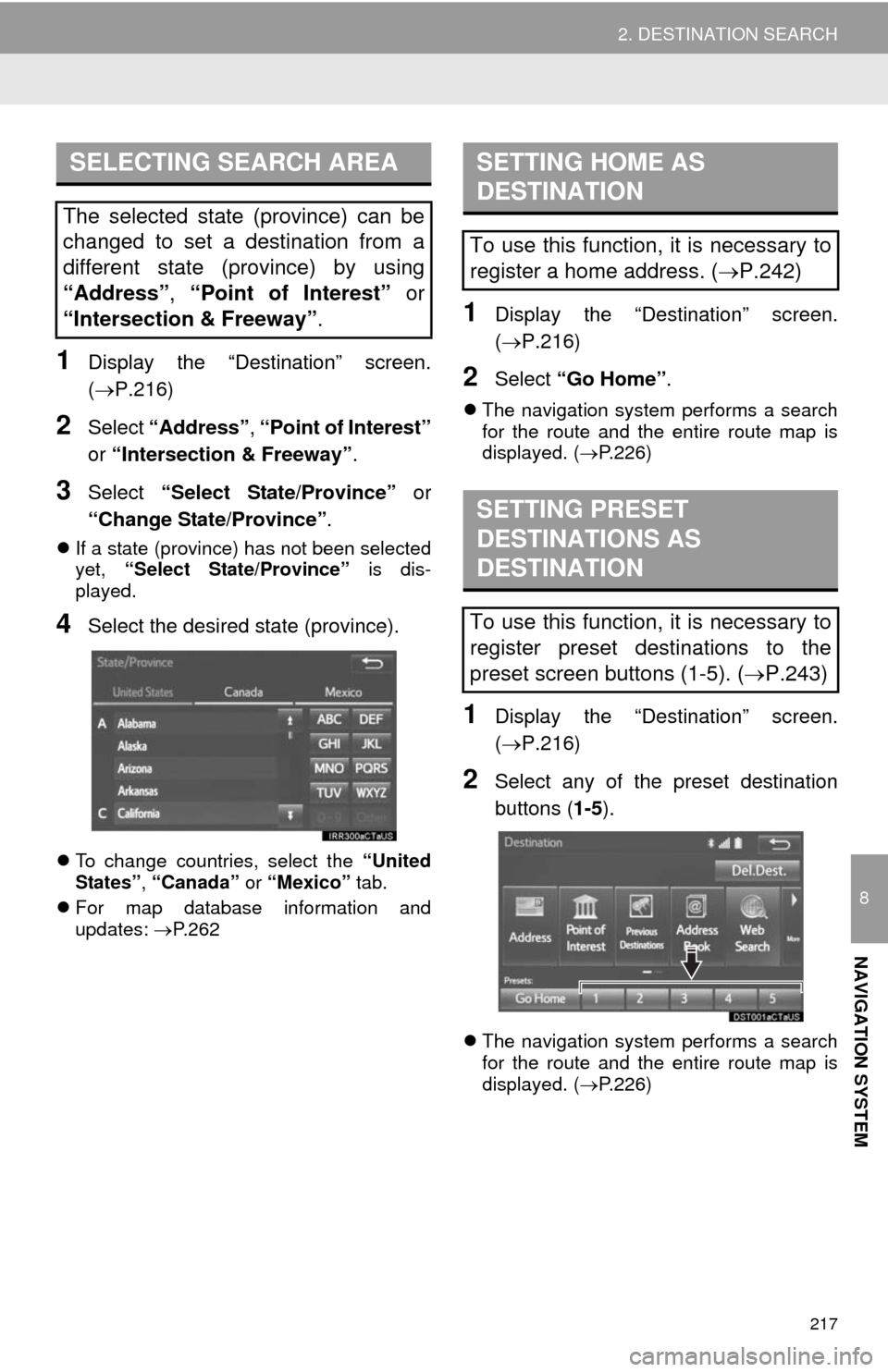
1Display the “Destination” screen.
(P.216)
2Select “Address”, “Point of Interest”
or “Intersection & Freeway”.
3Select “Select State/Province” or
“Change State/Province”.
If a state (province) has not been selected
yet, “Select State/Province” is dis-
played.
4Select the desired state (province).
To change countries, select the “United
States”, “Canada” or “Mexico” tab.
For map database information and
updates: P. 2 6 2
1Display the “Destination” screen.
(P.216)
2Select “Go Home”.
The navigation system performs a search
for the route and the entire route map is
displayed. (P.226)
1Display the “Destination” screen.
(P.216)
2Select any of the preset destination
buttons (1-5).
The navigation system performs a search
for the route and the entire route map is
displayed. (P.226)
SELECTING SEARCH AREA
The selected state (province) can be
changed to set a destination from a
different state (province) by using
“Address”, “Point of Interest” or
“Intersection & Freeway”.
SETTING HOME AS
DESTINATION
To use this function, it is necessary to
register a home address. (P.242)
SETTING PRESET
DESTINATIONS AS
DESTINATION
To use this function, it is necessary to
register preset destinations to the
preset screen buttons (1-5). (P.243)
Page 219 of 298

219
2. DESTINATION SEARCH
8
NAVIGATION SYSTEM
1Display the “Destination” screen.
(P.216)
2Select “Point of Interest”.
3Select the desired search method.
1Select “Name”.
2Enter a POI name and select “OK”.
3Select the desired POI.
When entering the name of a specific POI,
and there are 2 or more sites with the
same name, the list screen will be dis-
played. Select the desired POI.
SEARCHING BY POINT OF
INTEREST
There are 3 methods to search for a
destination by Points of Interest.
No.FunctionPage
Select to search by name.219
Select to search by catego-
ry.220
Select to search by phone
number.221
SEARCHING BY NAME
No.FunctionPage
Select to search for POI in
the desired city.220
Select to search for POI
from the category list.220
INFORMATION
●To search for a facility name using multi-
ple search words, put a space between
each word.
Page 286 of 298

286
ALPHABETICAL INDEX
S
Satellite Radio .......................................... 89
Screen adjustment ................................... 40
Search operation.................................... 216
Searching by address......................... 218
Searching by address book ................ 222
Searching by coordinates ................... 225
Searching by emergency.................... 223
Searching by intersection and
freeway ........................................... 223
Searching by map .............................. 225
Searching by point of interest ............. 219
Searching from previous
destinations..................................... 222
Selecting search area......................... 217
Setting home as destination ............... 217
Setting preset destinations
as destination.................................. 217
Setting Bluetooth
® details ........................ 48
“Bluetooth* Setup” screen .................... 48
Connecting a Bluetooth
® device .......... 51
Deleting a Bluetooth® device ............... 50
Editing the Bluetooth® device
information ........................................ 53
Registering a Bluetooth
® device .......... 49
“System Settings” screen ..................... 54
Setting home as the destination............... 27
“Setup” screen ......................................... 20
Starting route guidance .......................... 226
Steering switches ................................... 116
T
Talking on the Bluetooth® phone ........... 168
Incoming call waiting .......................... 170
Touch screen gestures............................. 34
Touch screen operation ........................... 35
Traffic information .................................. 211
Traffic settings ........................................ 254
Auto avoid traffic ................................. 255
My traffic routes .................................. 256
Screen for traffic settings .................... 254
Troubleshooting ..................................... 188
TUNE/SCROLL button ............................. 12
Typical voice guidance prompts ............. 235
U
USB/AUX port .......................................... 74
USB memory ............................................ 99
Playing a USB audio........................... 102
*: Bluetooth is a registered trademark of Bluetooth SIG, Inc.