Page 157 of 298
7
157
1
2
3
4
5
6
8
7
9
1. QUICK REFERENCE ................... 158
2. SOME BASICS ............................ 159
REGISTERING/CONNECTING
A Bluetooth® PHONE........................ 159
USING THE PHONE SWITCH/
MICROPHONE ................................. 160
VOICE COMMAND SYSTEM .............. 160
ABOUT THE CONTACTS IN
THE CONTACT LIST ........................ 161
WHEN SELLING OR
DISPOSING OF THE VEHICLE........ 161
3. CALLING ON THE
Bluetooth® PHONE................... 162
BY FAVORITES LIST .......................... 163
BY CALL HISTORY ............................. 163
BY CONTACTS LIST .......................... 164
BY DIAL PAD ...................................... 166
BY OFF HOOK SWITCH ..................... 166
BY “Home” SCREEN ........................... 166
4. RECEIVING ON THE
Bluetooth® PHONE................... 167
INCOMING CALLS .............................. 167
5. TALKING ON THE
Bluetooth® PHONE .................. 168
INCOMING CALL WAITING ................ 170
6. Bluetooth® PHONE
MESSAGE FUNCTION ............. 171
RECEIVING A MESSAGE ................... 172
CHECKING MESSAGES ..................... 172
REPLYING TO A MESSAGE
(QUICK REPLY) ................................ 173
CALLING THE MESSAGE SENDER... 174
1. PHONE/MESSAGE
SETTINGS ................................. 176
PHONE/MESSAGE SETTINGS
SCREEN ........................................... 176
“Sound Settings” SCREEN .................. 177
“Contact/Call History Settings”
SCREEN ........................................... 178
“Messaging Settings” SCREEN ........... 186
“Phone Display Settings” SCREEN ..... 187
1. TROUBLESHOOTING ................ 188
1
PHONE OPERATION (HANDS-
FREE SYSTEM FOR
CELLULAR PHONES)
2SETUP
3WHAT TO DO IF...
PHONE
Page 161 of 298

7
PHONE
161
1. PHONE OPERATION (HANDS-FREE SYSTEM FOR CELLULAR PHONES)
The following data is stored for every reg-
istered phone. When another phone is
connected, the following registered data
cannot be read:
• Contact data
• Call history data
• Favorites data
• Image data
• All phone settings
• Message settings
The following data in the system can be
initialized:
• Contact data
• Call history data
• Favorites data
• Image data
• All phone settings
• Message settings
INFORMATION
●The other party’s voice will be heard
from the front speakers. The audio/
visual system will be muted during
phone calls or when hands-free voice
commands are used.
●Talk alternately with the other party on
the phone. If both parties speak at the
same time, the other party may not hear
what has been said. (This is not a mal-
function.)
●Keep call volume down. Otherwise, the
other party’s voice may be audible out-
side the vehicle and voice echo may
increase. When talking on the phone,
speak clearly towards the microphone.
●The other party may not hear you clearly
when:
• Driving on an unpaved road. (Making
excessive traffic noise.)
• Driving at high speeds.
• The roof or windows are open.
• The air conditioning vents are pointed
towards the microphone.
• The sound of the air conditioning fan is
loud.
• There is a negative effect on sound
quality due to the phone and/or net-
work being used.
ABOUT THE CONTACTS IN
THE CONTACT LIST
INFORMATION
●When a phone’s registration is deleted,
the above-mentioned data is also
deleted.
WHEN SELLING OR
DISPOSING OF THE VEHICLE
A lot of personal data is registered
when the hands-free system is used.
When selling or disposing of the vehi-
cle, initialize the data. (P.61)
INFORMATION
●Once initialized, the data and settings
will be erased. Pay much attention when
initializing the data.
Page 162 of 298
162
1. PHONE OPERATION (HANDS-FREE SYSTEM FOR CELLULAR PHONES)
3. CALLING ON THE Bluetooth® PHONE
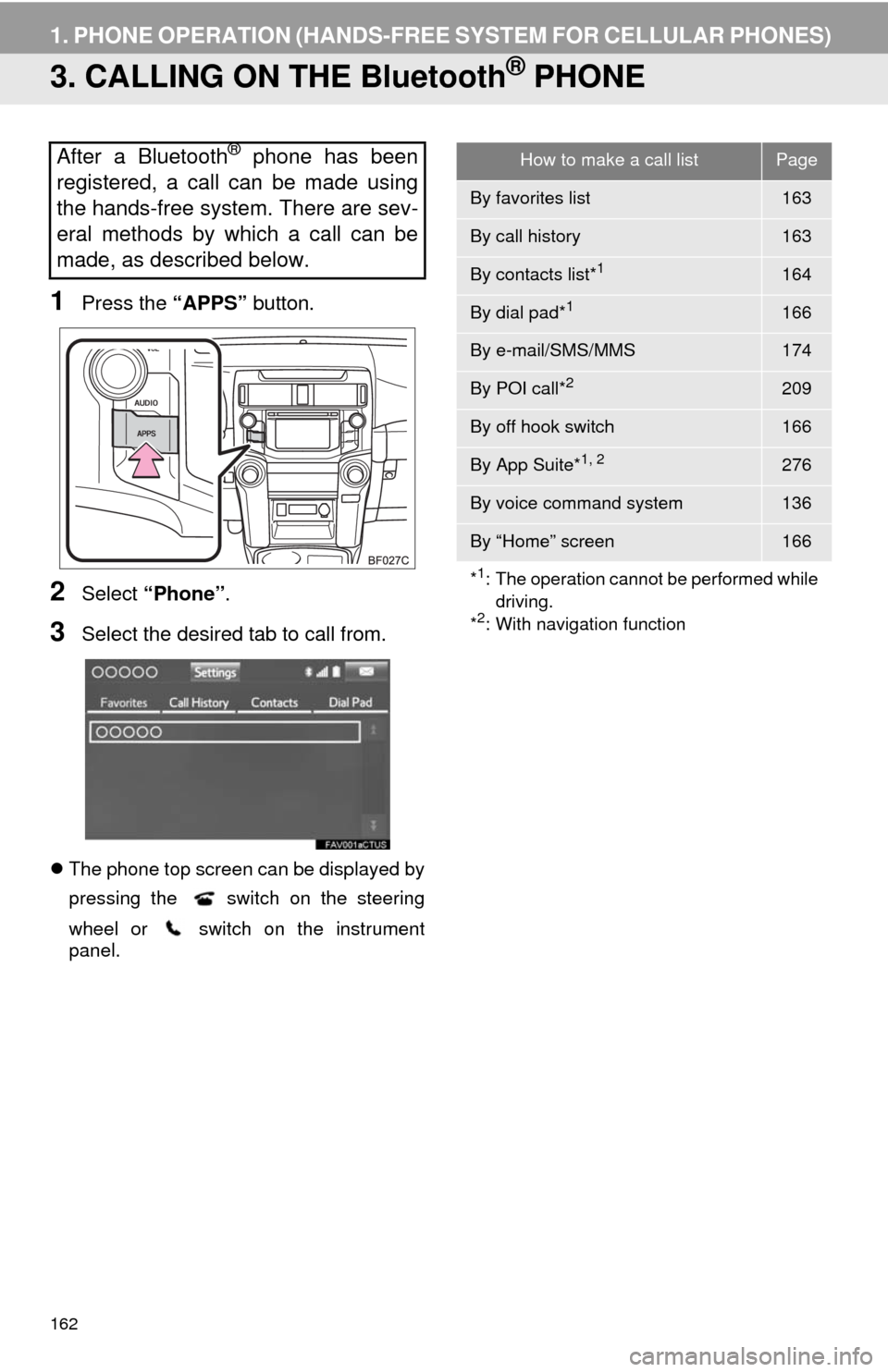
1Press the “APPS” button.
2Select “Phone”.
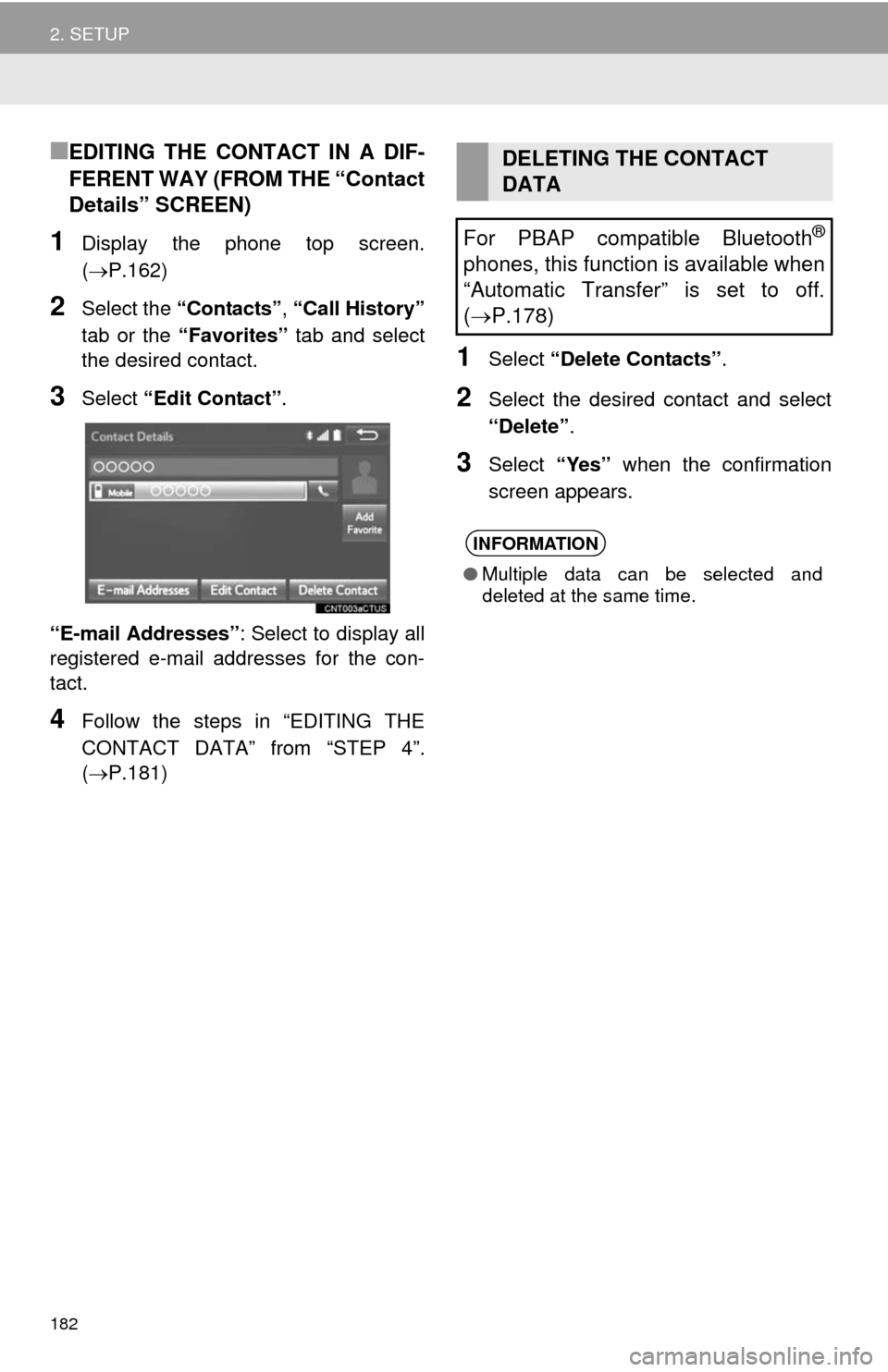
3Select the desired tab to call from.
The phone top screen can be displayed by
pressing the
switch on the steering
wheel or switch on the instrument
panel.
After a Bluetooth® phone has been
registered, a call can be made using
the hands-free system. There are sev-
eral methods by which a call can be
made, as described below.How to make a call listPage
By favorites list163
By call history163
By contacts list*1164
By dial pad*1166
By e-mail/SMS/MMS174
By POI call*2209
By off hook switch166
By App Suite*1, 2276
By voice command system136
By “Home” screen166
*
1: The operation cannot be performed while
driving.
*
2: With navigation function
Page 163 of 298
7
PHONE
163
1. PHONE OPERATION (HANDS-FREE SYSTEM FOR CELLULAR PHONES)
1Display the phone top screen.
(P.162)
2Select the “Favorites” tab and select
the desired contact.
3Select the desired number.
4Check that the “Call” screen is dis-
played.
1Display the phone top screen.
(P.162)
2Select the “Call History” tab and se-
lect or the desired contact.
The icons of call type are displayed.
: Missed call
: Incoming call
: Outgoing call
When is selected
3Check that the “Call” screen is dis-
played.
When the desired contact is selected
3Select the desired number.
4Check that the “Call” screen is dis-
played.
BY FAVORITES LIST
Calls can be made using registered
contacts which can be selected from a
contact list. (P.183)
BY CALL HISTORY
Up to 30 of the latest call history items
(missed, incoming and outgoing) can
be selected from the “Call History” tab.
Page 178 of 298
178
2. SETUP
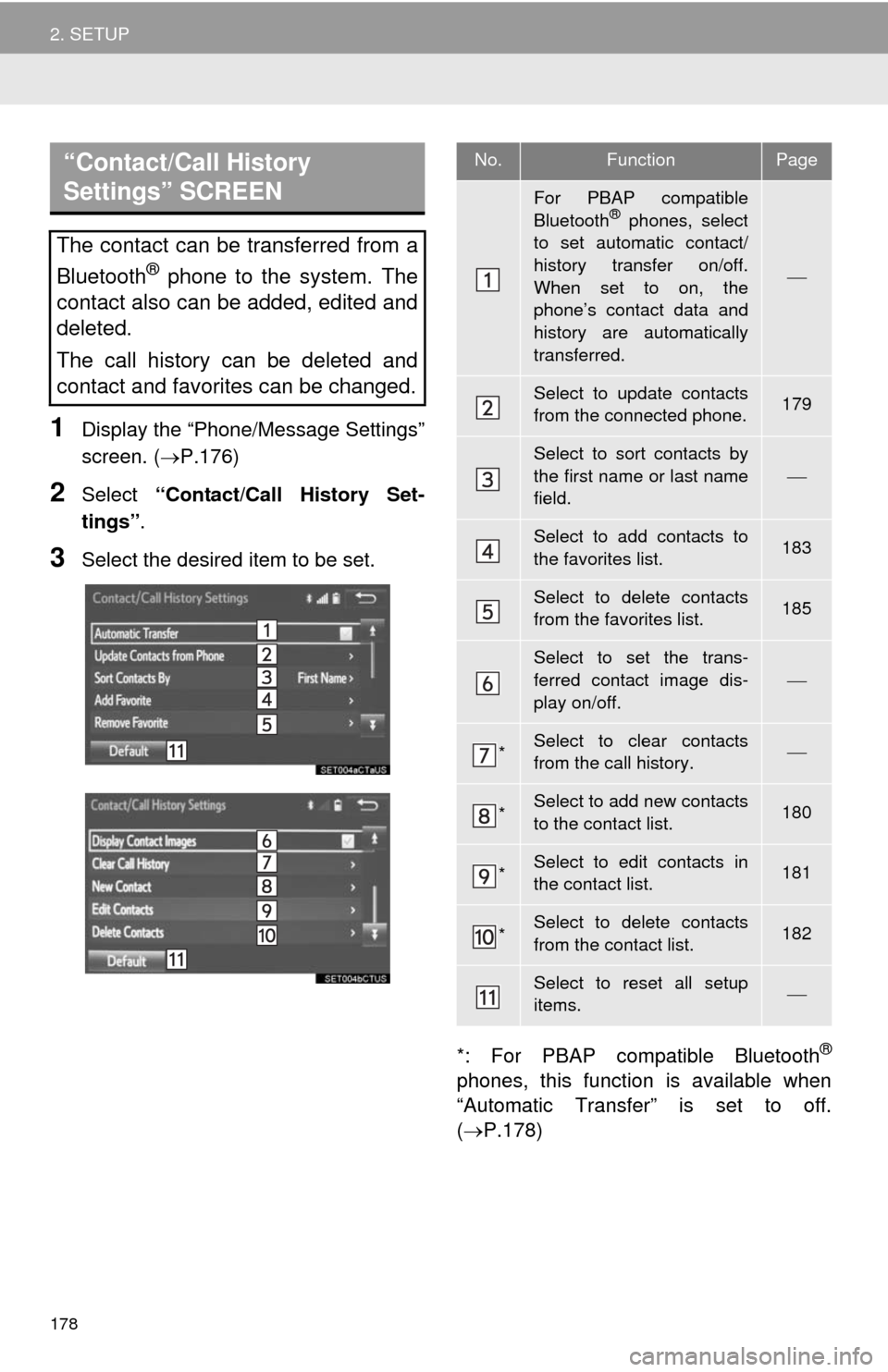
1Display the “Phone/Message Settings”
screen. (P.176)
2Select “Contact/Call History Set-
tings”.
3Select the desired item to be set.
*: For PBAP compatible Bluetooth
®
phones, this function is available when
“Automatic Transfer” is set to off.
(P.178)
“Contact/Call History
Settings” SCREEN
The contact can be transferred from a
Bluetooth
® phone to the system. The
contact also can be added, edited and
deleted.
The call history can be deleted and
contact and favorites can be changed.
No.FunctionPage
For PBAP compatible
Bluetooth® phones, select
to set automatic contact/
history transfer on/off.
When set to on, the
phone’s contact data and
history are automatically
transferred.
Select to update contacts
from the connected phone.179
Select to sort contacts by
the first name or last name
field.
Select to add contacts to
the favorites list. 183
Select to delete contacts
from the favorites list. 185
Select to set the trans-
ferred contact image dis-
play on/off.
*Select to clear contacts
from the call history.
*Select to add new contacts
to the contact list.180
*Select to edit contacts in
the contact list.181
*Select to delete contacts
from the contact list.182
Select to reset all setup
items.
Page 182 of 298
182
2. SETUP
■EDITING THE CONTACT IN A DIF-
FERENT WAY (FROM THE “Contact
Details” SCREEN)
1Display the phone top screen.
(P.162)
2Select the “Contacts”, “Call History”
tab or the “Favorites” tab and select
the desired contact.
3Select “Edit Contact”.
“E-mail Addresses”: Select to display all
registered e-mail addresses for the con-
tact.
4Follow the steps in “EDITING THE
CONTACT DATA” from “STEP 4”.
(P.181)
1Select “Delete Contacts”.
2Select the desired contact and select
“Delete”.
3Select “Yes” when the confirmation
screen appears.
DELETING THE CONTACT
DATA
For PBAP compatible Bluetooth
®
phones, this function is available when
“Automatic Transfer” is set to off.
(P.178)
INFORMATION
●Multiple data can be selected and
deleted at the same time.
Page 183 of 298
183
2. SETUP
7
PHONE
■DELETING THE CONTACT IN A DIF-
FERENT WAY (FROM THE “Contact
Details” SCREEN)
1Display the phone top screen.
(P.162)
2Select the “Contacts”, “Call History”
tab or the “Favorites” tab and select
the desired contact.
3Select “Delete Contact”.
4Select “Yes” when the confirmation
screen appears.
■REGISTERING THE CONTACTS IN
THE FAVORITES LIST
1Select “Add Favorite”.
2Select the desired contact to add to the
favorites list.
Dimmed contacts are already stored as a
favorite.
3Check that a confirmation screen is
displayed when the operation is com-
plete.
INFORMATION
●When a Bluetooth® phone is deleted,
the contact data will be deleted at the
same time.
FAVORITES LIST SETTING
Up to 15 contacts (maximum of 4 num-
bers per contact) can be registered in
the favorites list.
Page 184 of 298

184
2. SETUP
When 15 contacts have already been
registered to the favorites list
1When 15 contacts have already been
registered to the favorites list, a regis-
tered contact needs to be replaced.
Select “Yes” when the confirmation
screen appears to replace a contact.
2Select the contact to be replaced.
3Check that a confirmation screen is
displayed when the operation is com-
plete.Registering contacts in the favorites list
in a different way (from the “Contacts”
screen)
1Display the phone top screen.
(P.162)
2Select the “Contacts” tab.
3Select at the beginning of the de-
sired contact list name to be registered
in the favorites list.
When selected, is changed to , and
the contact is registered in the favorites
list.
Registering contacts in the favorites list
in a different way (from the “Contact De-
tails” screen)
1Display the phone top screen.
(P.162)
2Select the “Contacts” tab or the “Call
History” tab and select the desired
contact.
3Select “Add Favorite”.
4Check that a confirmation screen is
displayed when the operation is com-
plete.